Right-click the Word or Excel icon on the taskbar to see the files you closed most recently, or open the app and select File > Open to see the full Recent list.
This guide covers both routes plus File Explorer, the Start menu and Windows Search on Windows 10 and Windows 11, how to get back a file you closed without saving, and why the recent list sometimes comes up empty.
Find recent Word/Excel files from the taskbar in Windows 10/11
Every taskbar app has a jump list, and Word and Excel use theirs to show recently opened files. This is the fastest route when the app is pinned or already open.
- Right-click the Word or Excel icon on the taskbar.
- Look at the list of recently opened files in the menu that opens.
- Select the file name to open it straight away.
If the menu shows no recent files, the jump list setting is off. The fix is in the troubleshooting section below.
Which place to look for a recent Word or Excel file
Each place records something slightly different. Pick the row that matches what you remember about the file.
| What you know | Look here | Why |
|---|---|---|
| You closed it a few minutes ago | Taskbar jump list | One right-click, no app window needed |
| You opened it on another PC or phone | File > Open > Recent in Word or Excel | The Recent list shows files opened from any of your devices signed in to the same account |
| You remember roughly when, not the name | File Explorer search sorted by date modified | Finds every document changed today or yesterday, opened or not |
| You use Windows 11 and opened it recently | Recommended in the Start menu | Lists recently opened files next to your apps |
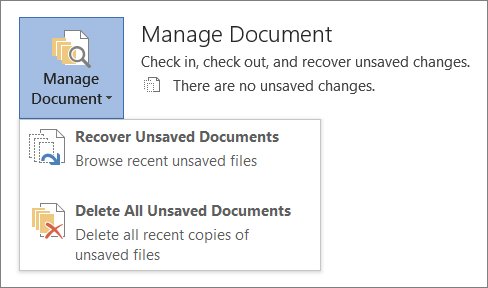
| Word or Excel closed before you saved | File > Info > Manage Document | Recover Unsaved Documents or Recover Unsaved Workbooks holds the AutoRecover copy |
Find recent Word/Excel files using the Word/Excel program in Windows 10/11
The Open page of the File menu holds the longest recent list, and it syncs across devices signed in to your Microsoft account.
- Open Word or Excel.
- Select File > Open, or press Ctrl + O.
- Browse the Recent list, which shows files you opened recently on any of your devices.
- Select a file to open it.
- If the file is not listed, select Browse, type part of the file name or text inside it in the search box at the top right, and press Enter.
If you would rather browse folders, Ctrl + F12 jumps straight to the classic Open dialog box instead.
Use File Explorer to find recent Word/Excel files in Windows 10/11
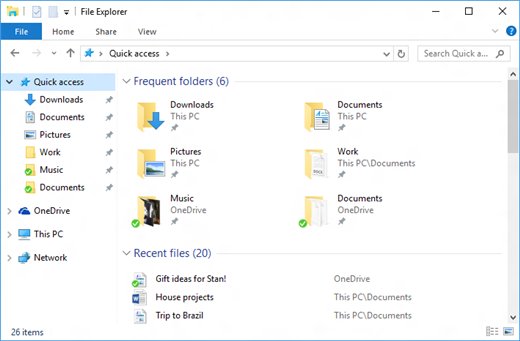
File Explorer keeps its own recent list and can also search by date, which catches files you saved but never reopened.
- Press Windows logo key + E to open File Explorer.
- In Windows 11, stay on Home and check the Recent list. In Windows 10, check the recent files section under Quick access.
- To search by date instead, open Documents or This PC and select the search box.
- Type
ext:.docx datemodified:todayfor Word files orext:.xlsx datemodified:todayfor Excel files, and press Enter. - Replace
todaywithyesterday,this weekorlast weekto widen the range. - Double-click the file to open it in Word or Excel.
Windows also keeps shortcuts to recently opened documents in the Recent Items folder at %APPDATA%\Microsoft\Windows\Recent. Paste that path into the File Explorer address bar to see every recent file, not only Office ones. The same folder and the other Windows routes to recent files in Windows 11 work for any app, not only Office.
View recently closed/created Word/Excel files in the Start menu in Windows 10/11
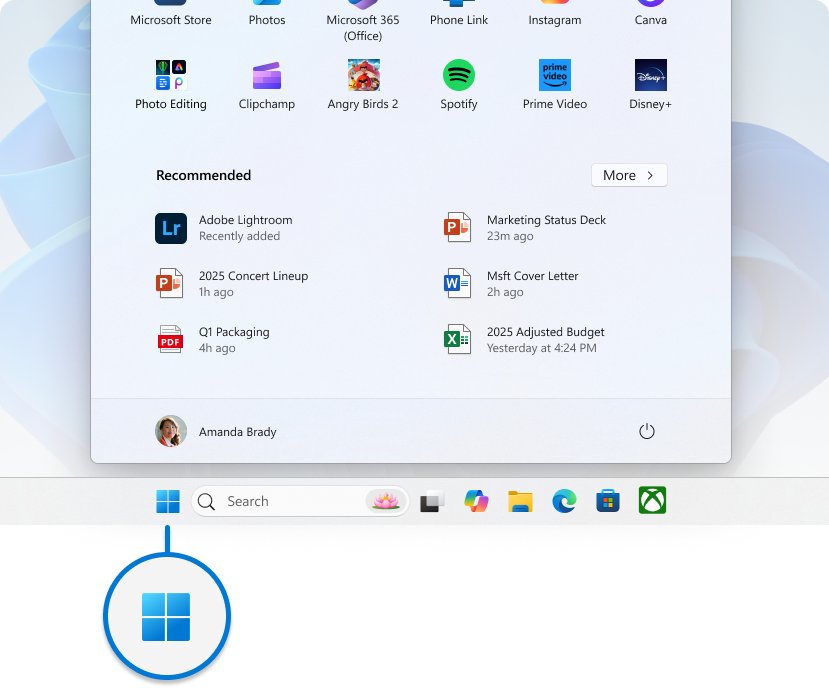
Windows 11 shows recently opened files in the Recommended section of Start. Windows 10 has no Recommended section, but the app's jump list works from Start too.
- Select Start.
- In Windows 11, look in the Recommended section for the Word or Excel file and select it.
- In Windows 10, find Word or Excel in the app list or on a tile and right-click it.
- Choose a file from the recent items in the menu.
- If nothing recent appears in either version, open Settings > Personalization > Start and turn on the recently opened items toggle.
Newly created files appear here only after you save and reopen them, because Start lists files you have opened.
How to find recent Word documents not saved
A file you closed without saving does not appear in any recent list. Word and Excel keep an AutoRecover copy when AutoRecover is on, and the same copy is how you recover an unsaved Word document after a crash.
- Open Word or Excel and start a blank document or workbook.
- Select File > Info.
- Select Manage Document, then Recover Unsaved Documents in Word or Recover Unsaved Workbooks in Excel.
- Select the file and choose Open.
- Select Save As in the bar at the top of the file and save it somewhere you will find it.
If the file was saved once and you closed it without saving later changes, open it, select File > Info, and pick the version labelled (when I closed without saving) under Manage Document in Word or Manage Workbook in Excel. Select Restore to keep it.
If Word or Excel crashed instead, the Document Recovery pane opens the next time you start the app. Choose the copy with the most recent time.
How do I find or restore a previous version of a Word document?
Version History keeps earlier copies of files stored in OneDrive or SharePoint in Microsoft 365. It does not work for files saved only on the PC; for those, use the Manage Document versions described above.
- Open the Word document or Excel workbook.
- Select the file name in the title bar at the top of the window.
- Select Version history.
- Review the dates and times, then select a version to open it in a separate window.
- Select Restore to roll the file back to that version.
A personal Microsoft account keeps the last 25 versions. With a work or school account, the number depends on how the library is configured.
AutoSave adds a new version when you make your first changes, then roughly every 10 minutes for the rest of the editing session.
What is the difference between AutoSave and AutoRecover in Word?
AutoSave keeps the real file up to date as you type. AutoRecover keeps a separate recovery copy that only matters after a crash or when you close without saving.
| AutoSave | AutoRecover | |
|---|---|---|
| What it saves | The file itself, every few seconds | A recovery copy, every set number of minutes |
| Where it works | Files stored on OneDrive, OneDrive for Business or SharePoint Online | Files saved anywhere, including a local drive |
| Who has it | Microsoft 365 subscribers in Word, Excel and PowerPoint for Windows | Word, Excel and PowerPoint users without a subscription too |
| How you get work back | Version history in the title bar | The Document Recovery pane or Recover Unsaved Documents |
| Where you control it | The AutoSave switch in the top-left corner of the title bar | File > Options > Save |
AutoRecover still runs when AutoSave is off, so a crash does not lose everything even on a file kept on your PC.
How do I turn on AutoSave and AutoRecover in Word?
Turn on both in Word, then repeat the same steps in Excel, because each app keeps its own setting.
- Save the file to OneDrive or SharePoint in the modern .docx or .xlsx format. AutoSave stays off for files on a local drive and for older .doc and .xls files.
- Turn on the AutoSave switch in the top-left corner of the title bar.
- To make AutoSave the default for every cloud file, select File > Options > Save and check AutoSave OneDrive and SharePoint Online files by default on Word.
- On the same Save page, select Save AutoRecover information every x minutes and enter a small number such as 5 or 10.
- Select Keep the last autorecovered version if I close without saving.
- Select OK and restart Word.
A shorter AutoRecover interval loses less work after a crash. A recovery file saved every 15 minutes can miss up to the last 14 minutes of changes.
Keep a Word or Excel file in the recent documents list
The Recent list is automatic, so older files scroll off as new ones are added. Favorites and the list length stop that.
- In Word or Excel, select File > Open.
- Right-click the file in Recent and select Add to Favorites so it stays available.
- To show more files, select File > Options > Advanced.
- Under Display, raise Show this number of Recent Documents.
- Select OK.
Setting that number to zero hides the list completely, which is a common reason the list looks empty on a shared PC.
Delete the recently opened documents in Office 365
Clearing the list removes only the shortcuts. The files themselves stay where they were saved.
- In Word or Excel, select File > Open.
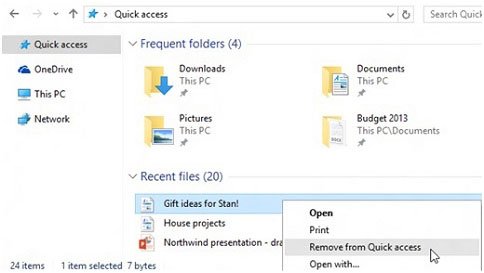
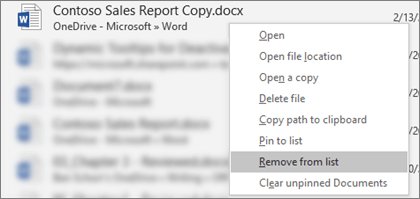
- To remove one file, right-click it in Recent and select Remove from list.
- To remove everything you have not added to Favorites, right-click any entry and select Clear non-favorite items.
- To stop the list filling up again, set Show this number of Recent Documents to zero under File > Options > Advanced > Display.
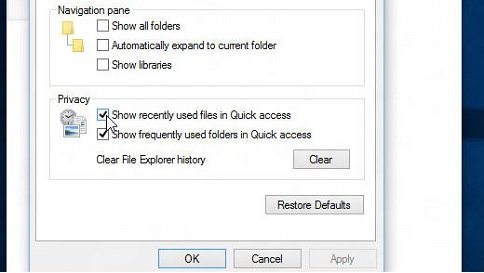
- To clear the Windows side too, open Settings > Personalization > Start and turn off the toggle for showing recently opened items in Start, Jump Lists and File Explorer.
Why is Word not showing recent documents?
Word or Excel shows an empty Recent list
The list length is set to zero, or a policy stops Windows keeping recent document history.
- Select File > Options > Advanced and check Show this number of Recent Documents under Display.
- Set a number above zero and select OK.
- On a work PC, ask your administrator whether Do not keep history of recently opened documents is set, because that policy hides the File menu recent list in apps.
The taskbar or Start jump list shows no recent files
Recently opened items are turned off in Start settings.
- Open Settings > Personalization > Start.
- Turn on the toggle for showing recently opened items in Start, Jump Lists and File Explorer.
- Open and close a Word file, then right-click the taskbar icon again.
What happened to my recent Word document? The link opens nothing
The file was moved, renamed or deleted after you closed it, so the recent link points to the old location.
- Search for the file name in File Explorer from This PC.
- Open it from File > Open at its new location so a fresh link is added to Recent.
- If it was deleted, check the Recycle Bin on the desktop and, for OneDrive files, the OneDrive recycle bin, then select Restore.
Recent files from another device or person appear in the list
The Recent list syncs with your Microsoft account.
- Right-click the unwanted entry in File > Open and select Remove from list.
- Sign out of Office on devices you no longer use.
Recent Word and Excel files FAQ
How to find recent Word documents?
Right-click the Word icon on the taskbar for the files you closed most recently, or open Word and select File > Open to see the full Recent list. The Recent list includes files opened on your other devices signed in to the same account.
How to open recent Word documents?
Open Word, press Ctrl + O, and select the file in the Recent list. From the desktop, right-click Word on the taskbar and select the file under Recent, or pick it from Recommended in the Windows 11 Start menu.
How to find recent Word documents not saved?
Open Word, select File > Info > Manage Document > Recover Unsaved Documents, select the file and choose Open. Then select Save As in the bar at the top. In Excel the option is Recover Unsaved Workbooks. AutoRecover must be on for a copy to exist.
Why is Word not showing recent documents?
The usual cause is Show this number of Recent Documents set to zero under File > Options > Advanced > Display. On a managed PC, the Do not keep history of recently opened documents policy also hides the list.
What happened to my recent Word document?
If the recent link fails, the file was probably moved, renamed or deleted. Search for its name in File Explorer, check the Recycle Bin, and check the OneDrive recycle bin if it was stored in OneDrive.
How do I find Word documents I saved today?
Open File Explorer, go to Documents or This PC, and type ext:.docx datemodified:today in the search box. Use ext:.xlsx for Excel workbooks, and swap today for yesterday or this week to widen the search.
How do I find a Word document on my computer?
Press Windows logo key + E, select This PC, and type the file name or ext:.docx in the search box. Inside Word, select File > Open > Browse and type part of the name or text from the file in the search box at the top right.
How do I view recently created or edited Word documents on a Windows 10/11 PC?
In File Explorer, search Documents or This PC for ext:.docx datemodified:this week. A new document counts as modified when you first save it, so the results show both new and edited files.
How do I search for a specific word inside a document?
In Word, press Ctrl + F or select Home > Find to open the Navigation pane, then type the word in the Search in document box. To swap it for other text, select Home > Editing > Replace.
How do I recover an unsaved Word document?
If Word crashed, use the Document Recovery pane that opens on the next start. If you closed without saving, select File > Info > Manage Document > Recover Unsaved Documents.
Where is the Word recent documents location?
Word keeps the Recent list inside the app under File > Open. Windows separately stores shortcuts to recently opened documents in the Recent Items folder at %APPDATA%\Microsoft\Windows\Recent.
Bottom line: fastest way to reopen a closed Word or Excel file
Right-click the taskbar icon first, use File > Open in the app when the file is older or came from another device, and go to Recover Unsaved Documents only when you never saved it. The jump list is one click, the File > Open list is the longest and syncs across devices, and unsaved work lives only in the AutoRecover copy, not in any recent list.