To make a call on WhatsApp, open the chat with the person and tap the phone icon at the top of the screen; tap the camera icon instead for a video call.
This guide covers voice, video and group calls on Android and iPhone, calling a number you have not saved, calling from a laptop, call links, and what to do when a call will not connect or ring.
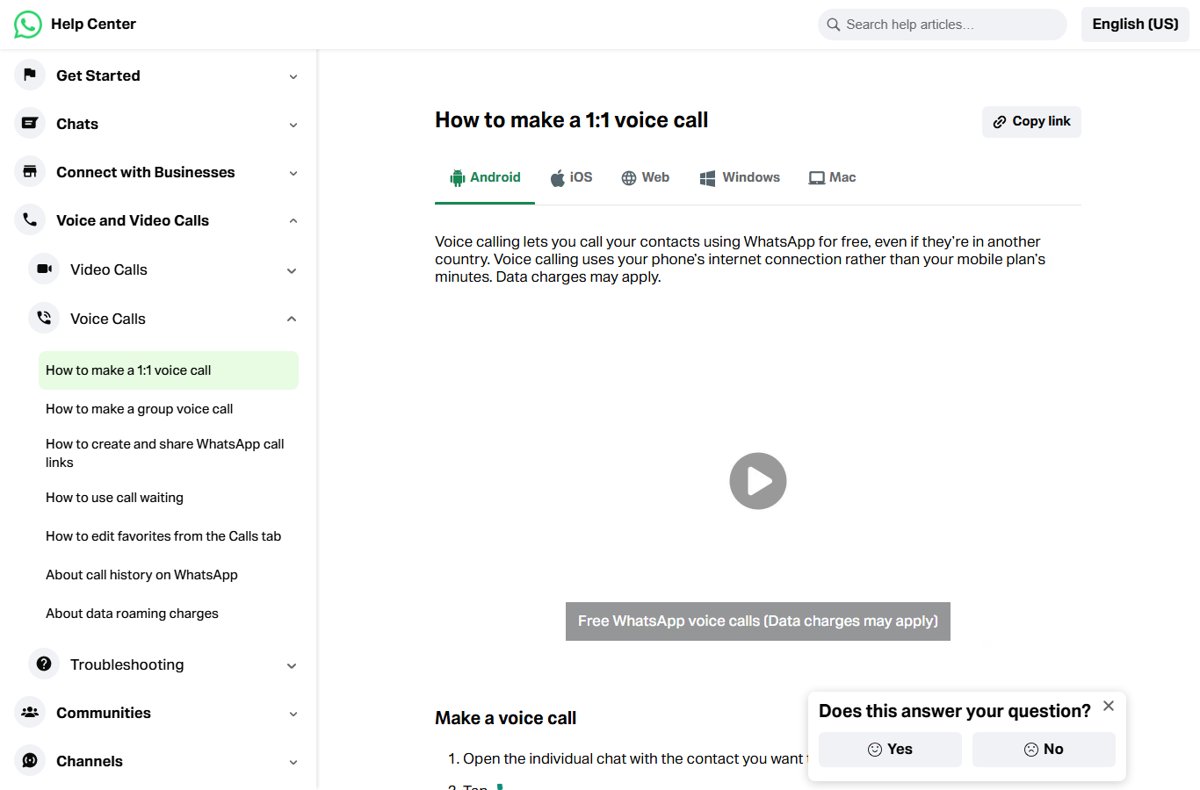
How to make a call on WhatsApp – full guide for Android and iPhone
WhatsApp calls use your internet connection instead of your mobile plan's minutes, so make sure you are on Wi-Fi or mobile data first.
- Open WhatsApp on your phone.
- Open the individual chat with the contact you want to call.
- Tap the voice call (phone) icon at the top of the chat.
- Wait for the other person to answer. If they do not pick up, tap Record voice message to leave a voice note.
- Tap the red end-call button to hang up.
You can also start from the Calls tab: tap the new call icon, find the contact, and tap the phone icon next to their name.
WhatsApp voice call vs video call vs group call vs call link
Each call type starts from a different place in WhatsApp, so pick the one that fits before you tap.
| What you want | Use this | Why |
|---|---|---|
| Talk to one person | Voice call from their chat | Lowest data use and the fewest taps |
| See the person | Video call from their chat | Starts with the front camera; you can switch to the rear camera |
| Talk to several people at once | Group call from a group chat | Up to 32 people with no time limit |
| Invite people who are not in one group | Call link | Anyone with the link can join; you can require approval |
| Call a business or a number you have not saved | Keypad in the Calls tab | No need to add the number to contacts first |
| Call from a computer | WhatsApp for Windows, Mac or WhatsApp Web | Bigger screen; needs a microphone and speakers or a headset |
How to make a WhatsApp video call
- Open the chat with the contact you want to video call.
- Tap the video call (camera) icon at the top of the chat.
- Tap the camera-switch icon during the call to swap between the front and rear cameras.
- Tap the camera icon to turn your video off; the call continues as a voice call.
- If the person does not answer, tap Record video note to leave a short video message.
During a voice call you can tap the camera icon to turn video on. If the other person is not in your contacts and you have not talked before, they must accept before they see your video.
How to make a WhatsApp group call
Group calls hold up to 32 people, and only members of the group can join a call started from a group chat.
- Open the group chat you want to call.
- Tap the call icon, then tap Call group.
- To grow a one-to-one call instead, swipe up from the bottom of the call screen and tap Add People.
- Select a contact and tap Add; tap Add person to add more.
- To join a group call you missed, open the Calls tab, tap the ongoing call and tap Join.
You cannot switch a group voice call to a video call, so pick video at the start if you need it. You also cannot remove someone from a group voice call; they have to hang up themselves.
How to WhatsApp call without saving number
The keypad in the Calls tab lets you call people and businesses that are not in your contacts.
- Open WhatsApp and tap the Calls tab.
- Tap the keypad icon.
- Enter the full phone number, including the country code for an international number.
- Tap the call button.
- If the number is not on WhatsApp, you are offered a regular carrier call and an option to invite the person; carrier charges apply to that call.
Another route: tap the search bar in the Chats or Calls tab, type the phone number, and if it uses WhatsApp, open the chat and call from there. Tap Add to contacts in the chat menu if you want to save it later.
How to WhatsApp call on laptop with the Windows app or WhatsApp Web
WhatsApp for Windows needs 64-bit Windows 10 version 1903 or newer. WhatsApp Web calling works in a browser on Windows, macOS and Linux.
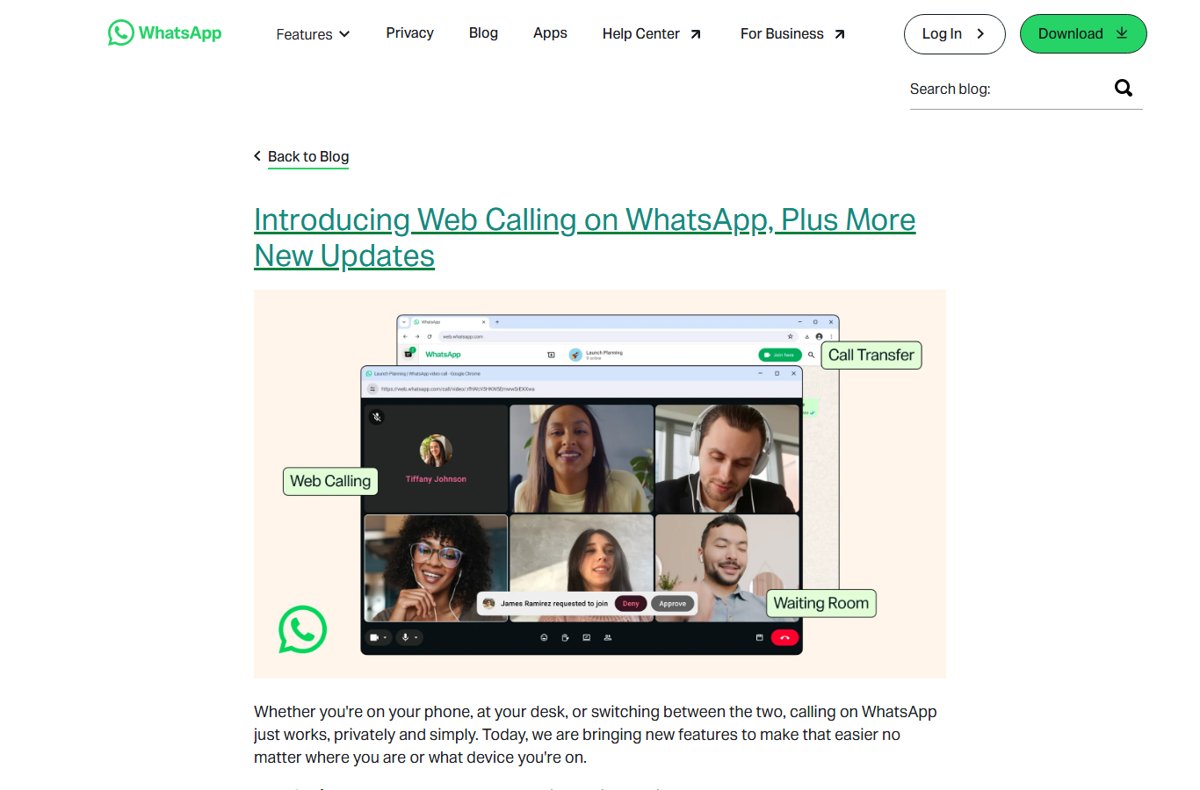
Link the computer to your phone first. If you have not done that yet, set up WhatsApp Web or install the WhatsApp app for PC.
- Connect a microphone and speakers, or better, a headset, to avoid echo.
- Open WhatsApp for Windows, or WhatsApp Web in your browser.
- Allow WhatsApp to use the microphone, and the camera for video calls, when Windows or the browser asks.
- Open the individual chat with the contact.
- In the Windows app, click the Voice call icon; on WhatsApp Web, click Call, then Voice or Video.
- Click the Microphone icon to mute or unmute, and click End call to hang up.
To answer on a computer, click Accept on the incoming call notification. In the Windows app you can also click Start screen sharing during the call.
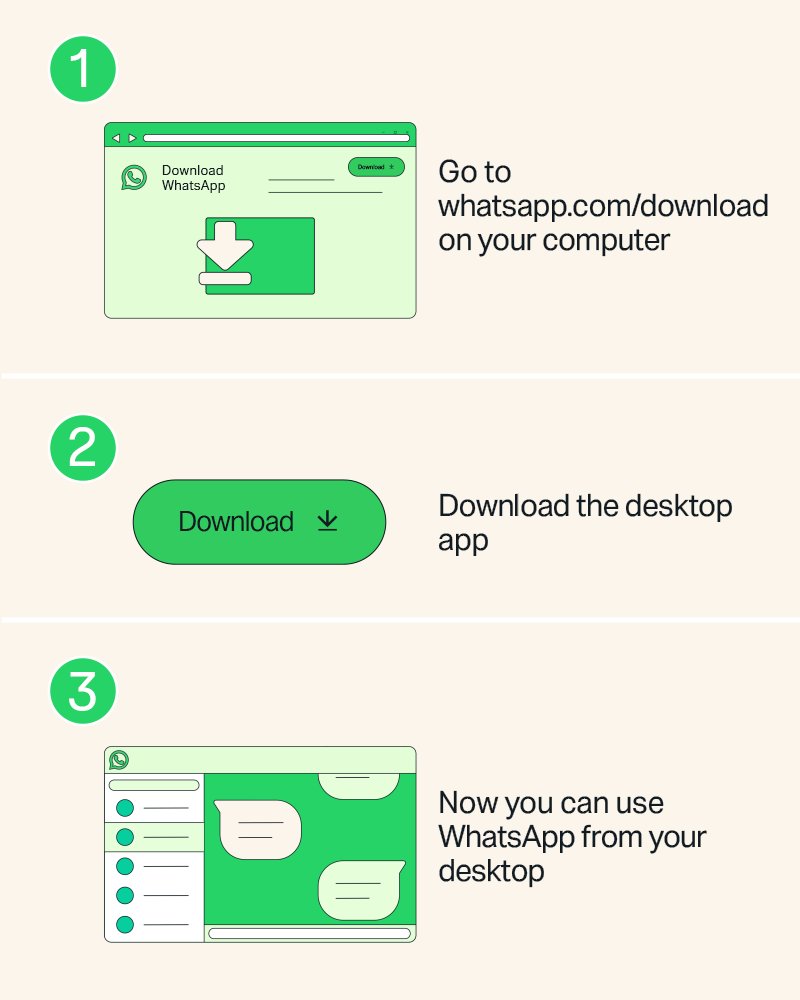
How to make a WhatsApp call on Mac with WhatsApp for Mac
Get WhatsApp for Mac to call from a MacBook or iMac. Desktop calling in the Mac app needs macOS 12.1 or newer, an internet connection on both the Mac and your phone, and permission to use the microphone.
- Connect a headset, or make sure the Mac's microphone and speakers work. A headset gives the best audio; separate external speakers and microphones can cause echo.
- Open WhatsApp for Mac and allow it to use the microphone when macOS asks.
- Open the individual chat with the contact you want to call.
- Click the voice call icon at the top of the chat.
- Click the Microphone icon to mute or unmute, and click End call when you are done.
To answer a call on the Mac, click Accept, or click Decline to reject it. During a voice call you can request a switch to video from the call controls by clicking Switch; the call changes once the other person accepts. If several devices are linked to your account, you can also move a call to another device while it is in progress.
How to create and share a WhatsApp call link
- Open the Calls tab.
- Select New call link.
- Choose the call type: Video or Voice.
- Turn on Require approval to join if you want to admit each person yourself.
- Copy the link, or select Send link via WhatsApp to share it in a chat.
Anyone with the link can join, so share it only with people you trust. Unused links expire after 30 days. People without WhatsApp can join from a desktop web browser as guests, and guests always need approval.
WhatsApp call controls: switch to video, share screen, save data
| Control | How to use it | Notes |
|---|---|---|
| Switch voice to video | Tap the camera icon during a 1:1 call | Not available in group voice calls |
| Noise cancellation | Open the call menu and turn on Noise cancellation | 1:1 calls only; not on every device |
| Share your screen | During a video call, open the video controls and tap Share screen | Not available in voice-only calls |
| Message during a call | Tap the message icon in the upper-right corner | Opens the chat without ending the call |
| Schedule a call | In the Calls tab, open the menu and tap Schedule call | Pick the time, date and call type, then send the invite |
| Use less data | Settings > Storage and data > Use less data for calls | Wi-Fi saves mobile data entirely |
| Silence unknown callers | Settings > Privacy > Calls > Silence unknown callers | Silenced calls still appear in the Calls tab |
Are WhatsApp calls free, encrypted and recorded?
| Question | Answer |
|---|---|
| Cost | Calls between WhatsApp users are free and have no time limit; your provider's data charges may apply |
| Phone bill | Calls use internet data, not your plan's call minutes; a keypad call to a number not on WhatsApp goes through your carrier and is charged by it |
| Encryption | Voice and video calls, including call-link calls, are end-to-end encrypted |
| Recording | WhatsApp's privacy policy says any person on a call can record it with other tools; screen sharing is never recorded by WhatsApp |
| International calls | Work the same way as local calls, as long as both people have an internet connection |
| Emergency numbers | WhatsApp cannot call emergency services such as 911 |
New to the app? Calls use the same account and linked devices as chats, because WhatsApp works over your internet connection rather than your phone plan.
Why WhatsApp call is not working, not ringing or keeps ending
WhatsApp call is not working or won't connect
A weak connection, an outdated app, or the other person running an old WhatsApp or phone OS version.
- Switch from Wi-Fi to mobile data, or the other way round, and call again.
- Update WhatsApp from Google Play or the App Store.
- Restart your phone.
- Ask the other person to update WhatsApp and their phone's operating system, or to try a different network.
WhatsApp call keeps ending or cutting out
One side has an unstable internet connection.
- Move to a stronger Wi-Fi signal, or switch networks.
- Turn off Use less data for calls under Settings > Storage and data if call quality matters more than data.
- Ask the other person to check their connection too.
WhatsApp call not ringing or not showing on screen
Notifications are blocked for WhatsApp, or the caller is silenced as an unknown number.
- Open your phone's Settings > Notifications and make sure WhatsApp notifications are allowed.
- In WhatsApp, check Settings > Privacy > Calls and turn off Silence unknown callers if you want those calls to ring.
- On Android, reset notifications from Settings > Notifications, then the menu > Reset notification settings.
- Look in the Calls tab for missed or silenced calls and call back from there.
Nobody can hear you on a WhatsApp call
WhatsApp lacks microphone permission, or audio is going to a Bluetooth device.
- Allow microphone access for WhatsApp in your phone's settings.
- Turn off Bluetooth if no headset is meant to be in use.
- Remove a case or screen protector that may cover the proximity sensor, then call again.
WhatsApp call on laptop has no sound or echo
No microphone permission on the computer, or separate speakers feeding back into the microphone.
- Allow WhatsApp, or your browser for WhatsApp Web, to use the microphone and camera.
- Use a headset instead of separate speakers and microphone.
- Check the computer and the phone both have an active internet connection.
WhatsApp calling FAQ
Are WhatsApp calls free?
Yes. Voice and video calls between WhatsApp users are free, including international calls, and have no time limit. They use your internet connection, so your mobile provider's data charges may apply when you are not on Wi-Fi.
Do WhatsApp calls show on the phone bill?
WhatsApp calls use internet data rather than your plan's call minutes, so they are billed as data, not as calls. The exception is a keypad call to a number that is not on WhatsApp, which goes through your carrier.
Are WhatsApp calls encrypted?
Yes. WhatsApp voice and video calls are end-to-end encrypted, including group calls and calls joined through a call link. Only the people on the call can hear or see it.
Can WhatsApp calls be recorded?
WhatsApp's privacy policy says any person on a call can record it with other tools and share it. Screen sharing during a call is never recorded by WhatsApp itself. Assume anything said on a call could be captured by the other side.
Can I WhatsApp call on a laptop?
Yes. Use WhatsApp for Windows on 64-bit Windows 10 version 1903 or newer, the Mac app, or WhatsApp Web in a browser. You need a microphone and speakers or a headset, plus a camera for video calls.
How do I WhatsApp call on WhatsApp Web?
Open WhatsApp Web, open the individual chat, then click Call and choose Voice or Video. Your computer and phone both need an active internet connection, and the browser must be allowed to use the microphone.
How do I WhatsApp call without saving the number?
Open the Calls tab, tap the keypad icon, enter the full number with country code and tap the call button. You can also type the number into the search bar in the Chats or Calls tab and open the chat.
Can I use WhatsApp to call a landline?
Not as a WhatsApp call, because the other side needs a WhatsApp account. The keypad offers a regular carrier call for numbers not on WhatsApp, and that call is charged by your carrier.
Why is WhatsApp call not ringing on iPhone?
Check that WhatsApp notifications are allowed in iPhone Settings and that Silence unknown callers is off under WhatsApp Settings > Privacy > Calls. Silenced calls still show in the Calls tab, but the phone does not ring.
How many people can join a WhatsApp group call?
Up to 32 people can join a WhatsApp group voice or video call, with no time limit. Calls started from a group chat are open only to group members, while call links let you invite anyone.
Bottom line: the quickest way to call on WhatsApp
Open the chat and tap the phone or camera icon; use the Calls tab keypad for unsaved numbers and a call link for mixed groups. Every call type starts from the same two places, the chat and the Calls tab. When a call fails, the network, app version and notification settings explain nearly every case.