To password protect an Excel workbook from opening, select File > Info > Protect Workbook > Encrypt with Password, type a password, confirm it and save the file.
This guide covers the Encrypt with Password route, the Save As route with separate open and modify passwords, Excel for Mac, what the Review tab's Protect Workbook really does, and fixes for passwords that will not apply or open.
Enabling Encrypt with Password to protect Excel workbook from opening
This is file-level encryption in Excel for Microsoft 365 and recent Excel versions on Windows. Anyone who opens the file afterwards must type the password before Excel shows any data.
- Open the workbook in the Excel desktop app.
- Select File > Info.
- Select the Protect Workbook box and choose Encrypt with Password.
- Type a password in the Password box and select OK.
- Type the same password in the Reenter Password box and select OK.
- Save the workbook, then close it so the protection applies the next time it opens.
Passwords are case-sensitive, and Excel sets no rule for their length or the characters they contain. Microsoft cannot retrieve a forgotten password, so store it in a password manager before you close the file.
Excel for Mac accepts passwords of up to 15 characters only. If Mac users need to open the file, keep the password at 15 characters or fewer.
Excel file password vs workbook protection vs sheet protection
Excel uses the word protect for three different features, and only one of them stops a file from opening. Match what you want to block to a row before you set a password.
| What you want to stop | Feature to use | Where it lives | Stops the file opening? |
|---|---|---|---|
| Anyone without the password seeing the data | Encrypt with Password (file-level) | File > Info > Protect Workbook | Yes |
| Opening for some people and editing for others | Password to open plus Password to modify | Save As > Tools > General Options (Windows) or File > Passwords (Mac) | Yes, for the open password |
| Sheets being added, deleted, renamed, moved or unhidden | Protect Workbook (structure) | Review > Protect Workbook | No |
| Changes to locked cells, formulas or formatting on one sheet | Protect Sheet | Review > Protect Sheet | No |
| Accidental edits to a finished file | Mark as Final | File > Info > Protect Workbook > Mark as Final | No, and anyone can remove it |
You can combine these. A shared budget file might carry an open password, structure protection to keep the sheet layout fixed, and sheet protection on its formulas.
Why password protect your Excel files? Common use cases
A password to open keeps a workbook private wherever the file travels: an email attachment, a USB drive or a shared folder. The common use cases below show which protection fits each job.
| Use case | Protection to add |
|---|---|
| Payroll, salary or HR records that only a few people may read | Encrypt with Password so the file will not open without the password |
| A budget or report that colleagues may read but only you should change | Password to open for everyone, plus a Password to modify that only you hold |
| A team template where people fill in cells but must not break the formulas | Protect Sheet with only the input cells unlocked |
| A workbook with hidden calculation sheets | Review > Protect Workbook so nobody can unhide or delete them |
| A finished file you want to stop editing by accident | Mark as Final, which is a reminder rather than a lock |
Using Save As dialogue box to password protect Excel workbook from opening
The Save As route sets a password to open and, if you want, a second password to modify. People with only the open password can still read the workbook, but they can only save their changes under a new file name.
- Open the workbook and select File > Save As.
- Choose a location, then select More options or Browse to open the classic Save As window.
- Select the Tools drop-down next to the Save button and choose General Options.
- Type a password in the Password to open box.
- Optionally, type a different password in the Password to modify box.
- Select OK, retype each password when Excel asks you to confirm it, and select OK again.
- Select Save and replace the existing file if Excel asks.
A password to modify on its own does not stop the file opening. Anyone can still open it as read-only and save a copy under a different name, so always set the Password to open when the data itself is private.
How to password protect an Excel file to open on Mac
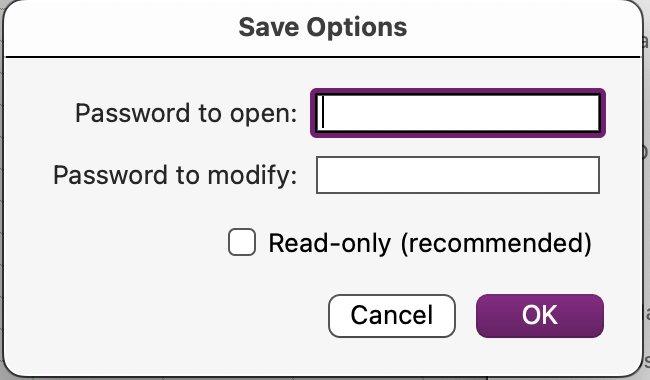
Excel for Mac puts the open and modify passwords in one dialog on the File menu. This works in Excel for Microsoft 365 for Mac, Excel 2024 for Mac and Excel 2021 for Mac.
- Open the workbook in Excel for Mac.
- Open the File menu in the menu bar and select Passwords.
- Type a password of up to 15 characters in the Password to open box.
- Optionally, type a second password in the Password to modify box.
- Select the Read-only recommended check box if you want Excel to suggest read-only opening.
- Select OK, then save the workbook.
Excel for Mac cannot open a workbook protected in Windows Excel with a password longer than 15 characters. Shorten the password on the Windows PC before you share the file with Mac users.
Using Protect Workbook feature to password protect Excel workbook
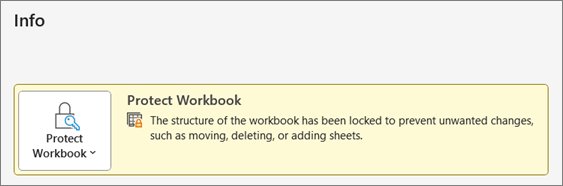
The Protect Workbook button on the Review tab locks the workbook's structure, not the file. The file still opens without a password, but nobody can rearrange its sheets until the protection is removed.
| Question | Review > Protect Workbook (structure) |
|---|---|
| How to turn it on | Review > Protect Workbook, type an optional password, select OK, then confirm the password |
| What it blocks | Viewing hidden sheets, and adding, moving, deleting, hiding or renaming sheets |
| Does the file still open? | Yes, for anyone who has the file |
| Is the password required? | No. Without a password, anyone can select Protect Workbook again to remove it |
| How to tell it is on | The Protect Workbook button on the Review tab is highlighted, and Insert, Delete, Rename, Move, Copy, Hide and Unhide are unavailable on sheet tabs |
| Same steps on Mac? | Yes, with the same 15-character password limit |
Use structure protection together with an open password when a workbook has hidden sheets you do not want readers to unhide.
How to lock an Excel sheet with password: quick steps
Sheet protection stops people changing, moving or deleting data on one worksheet. It does not stop the file opening, so pair it with Encrypt with Password when the data is private.
- Select the worksheet tab you want to protect.
- Select the cells others should still be able to edit, press Ctrl+1 to open Format Cells, go to the Protection tab and clear Locked.
- On the Review tab, select Protect Sheet.
- In the Allow all users of this worksheet to list, tick the actions people may still take, such as Sort or Use AutoFilter.
- Type a password in the Password to unprotect sheet box and select OK.
- Reenter the password in the Confirm Password dialog box and select OK.
To password protect an Excel sheet on Mac, open the sheet, select Review > Protect Sheet, choose what users may change, type a password, retype it under Verify and select OK. Use Command+1 to reach Format Cells for unlocking cells first.
When a sheet is protected, the Protect Sheet button changes to Unprotect Sheet. Without a password, anyone can select Unprotect Sheet and edit everything.
Password protect Excel using VBA or Office Scripts
A VBA macro can set the password to open through the workbook's Password property, which is useful when you protect many files the same way. Turn on the Developer tab first: select File > Options > Customize Ribbon, tick Developer under Main Tabs and select OK. Then select Developer > Visual Basic, add a new module and paste this macro.
Sub SetOpenPassword()
    ActiveWorkbook.Password = InputBox("Enter Password")
    ActiveWorkbook.Save
End Sub
With the workbook you want to protect active, select Developer > Macros, choose SetOpenPassword and select Run. Type the password in the box, and the macro saves the workbook with it.
You should see: Excel asks for the password the next time the workbook opens.
Macro code cannot be saved in a normal .xlsx file, so keep the macro in a macro-enabled workbook. When saving a copy from VBA instead, the Password argument of Workbook.SaveAs sets the open password; it is case-sensitive and takes no more than 15 characters.
Office Scripts cannot set a password to open. They can lock the workbook structure with workbook.getProtection().protect("password") or a sheet with getProtection().protect(options, "password") on a worksheet, which matches Review > Protect Workbook and Protect Sheet.
How to password protect Excel online and in SharePoint
Excel for the web cannot add, change, remove or recover a workbook password. You set the password in the desktop app, and the file stays in OneDrive or SharePoint.
- Open the workbook in Excel for the web.
- Select Open in Excel to open the same file in the Excel desktop app.
- Select File > Info > Protect Workbook > Encrypt with Password.
- Type and confirm the password, then select OK.
- Save the workbook so the protected version replaces the cloud copy.
- Use the desktop app for future edits to the protected file.
Password-protected files limit what SharePoint can do with them. SharePoint and OneDrive cannot read or apply sensitivity labels on a password-protected document, and a second person who opens a protected file while you are working in it gets read-only access.
In a work or school organization that uses Microsoft Purview, a sensitivity label that applies encryption is the managed alternative. It protects the file without a shared password and still allows co-authoring once your admin enables it.
How to check the Excel workbook asks for a password
- Close the workbook completely after you save it.
- Open it again from File Explorer, Finder, OneDrive or the Recent list in Excel.
- Confirm that a password prompt appears before any cells are shown.
- Type a wrong password once and confirm Excel refuses to open the file.
- Type the correct password, matching its upper and lower case, and confirm the workbook opens.
If the file opens with no prompt, the password was not saved. Repeat the steps, and make sure you save the workbook before you close it.
How to remove a password from an Excel file
Removing the open password requires the current password. Anyone who knows it can change or remove it.
- Open the workbook and type its password.
- Select File > Info > Protect Workbook > Encrypt with Password.
- Delete the dots in the Password box so it is empty.
- Select OK.
- Save the workbook.
To remove structure protection instead, select Review > Protect Workbook, type the password and select OK. Sheet passwords come off the same way, and there are more ways to unprotect a workbook in Excel when you have several to clear.
Excel password protect not working: fixes
These solutions cover the common issues when an Excel password will not apply, will not open the file, or does not stop the file opening.
Password protected Excel file not opening
Excel passwords are case-sensitive, and a long Windows password cannot be entered in Excel for Mac.
- Check that Caps Lock is off and retype the password with its exact upper and lower case.
- On a Mac, ask the file's author for a version protected with a password of 15 characters or fewer.
- Open the file in the Excel desktop app if a web viewer or another app refuses it.
- Accept that a forgotten open password cannot be recovered by Microsoft, and restore an unprotected backup if you have one.
Can't password protect Excel online
Excel for the web cannot add, change or remove passwords.
- Select Open in Excel to switch to the desktop app.
- Add the password through File > Info > Protect Workbook > Encrypt with Password.
- Save the file back to OneDrive or SharePoint.
Password protect greyed out in Excel
The workbook is open read-only, often because it was marked as final, so editing commands are turned off.
- Look for the Mark as Final icon in the status bar.
- Select File > Info > Protect Workbook > Mark as Final to turn final status off.
- Apply Encrypt with Password again.
Excel sheet password protect works, but the file still opens
Protect Sheet and Review > Protect Workbook never stop a file from opening.
- Leave the sheet protection in place if you still want it.
- Add a file password with File > Info > Protect Workbook > Encrypt with Password.
- Save, close and reopen the workbook to confirm the open prompt.
Is an Excel password protected file secure?
Use Encrypt with Password for everyday privacy, but do not treat a password-protected workbook as safe storage for credit card or Social Security numbers. Microsoft states that distributing password-protected files with sensitive data is not always secure, that a shared password can reach unintended people, and that worksheet protection is not a security feature at all.
For an extra layer when you email a workbook, you can also password protect a zip file that contains it. Send the password through a different channel from the file.
Additional tips for Excel password protection: things to remember
Two warnings matter most: a lost open password locks you out for good, and sheet or structure protection is not a security feature. Keep these points in mind before you protect a workbook.
| Tip | Why it matters |
|---|---|
| Use 8 or more characters that mix upper and lower case letters, numbers and symbols; a passphrase of 14 or more characters is better | Short passwords made of one character type are weak |
| Keep the password at 15 characters or fewer if anyone opens the file in Excel for Mac | Excel for Mac cannot open a file protected with a longer Windows password |
| Store the password in a password manager before you close the file | Microsoft cannot retrieve a forgotten password |
| Keep an unprotected backup in a safe place for critical files | It is the only way back if the password is lost |
| Set the open password in the desktop app, not Excel for the web | Excel for the web cannot add, change or remove passwords |
| Do not rely on Protect Sheet or Mark as Final to keep data private | Neither stops the file opening, and Mark as Final can be removed by anyone |
Password protect Excel file: frequently asked questions
Can I password protect an Excel file from opening?
Yes. Select File > Info > Protect Workbook > Encrypt with Password, enter and confirm a password, and save. Excel then asks for that password every time the file opens, in Excel for Windows and Mac.
How do I password protect a whole Excel workbook?
Use Encrypt with Password under File > Info > Protect Workbook. It encrypts the entire file, every sheet included. Review > Protect Workbook only locks the sheet structure and does not stop anyone opening the file.
How do I password protect an Excel sheet to open?
Excel cannot require a password to open a single sheet. A password to open applies to the whole file. To keep one sheet private, move it into its own workbook and encrypt that file, or hide it and protect the workbook structure.
What are the three different ways to protect an Excel workbook?
Excel offers file-level protection, which stops the file opening or being changed; workbook-level protection, which locks the sheet structure; and worksheet-level protection, which locks cells and formulas on one sheet. Only file-level protection keeps people out of the file.
How do I password protect an Excel file but allow read only?
Use File > Save As > Tools > General Options and fill in only the Password to modify box. Anyone can then open the workbook read-only, but only people with the password can save changes to the original file.
Can I password protect Excel online?
No. Excel for the web cannot add, change, remove or recover passwords. Select Open in Excel to open the file in the desktop app, add the password there with Encrypt with Password, and save it back to OneDrive or SharePoint.
Why can't I password protect an Excel file?
The most common reasons are working in Excel for the web, which cannot set passwords, or having the file open read-only, for example after Mark as Final. Open the file for editing in the desktop app and use Encrypt with Password.
Why is my Excel password protect not working?
If the file still opens without a prompt, you probably used Protect Sheet or Review > Protect Workbook, which do not block opening, or closed without saving. Apply Encrypt with Password, save the workbook, then close and reopen it to check.
Can Microsoft recover a forgotten Excel password?
No. Microsoft cannot retrieve forgotten Excel passwords, and Excel for the web cannot recover them either. Keep the password in a password manager, and keep an unprotected backup in a safe place if losing access would be serious.
Is there a length limit for Excel passwords?
Excel for Windows sets no limit on password length or characters, but passwords are case-sensitive. Excel for Mac allows up to 15 characters, so keep the password that short if anyone will open the file on a Mac.
Concluding words: which Excel password protection to use
Use File > Info > Protect Workbook > Encrypt with Password whenever the goal is to stop a workbook from opening, and add a Password to modify only when some readers should see but not change it. Encryption is the only Excel feature that keeps the data hidden until the password is typed. Review tab protection controls editing, and Mark as Final is only a reminder that anyone can remove.

![Network adapter driver for Windows 11 [Download/Update]](https://techdows.com/wp-content/uploads/2026/10/Network-adapter-driver-for-Windows-11-DownloadUpdate-600x338.jpg)