To empty the Recycle Bin in Windows 11 or Windows 10, right-click the Recycle Bin icon on the desktop and select Empty Recycle Bin, then confirm.
This guide covers three everyday methods, the PowerShell and Disk Cleanup routes, automatic emptying with Storage Sense, how to get files back after emptying, and fixes when the bin refuses to empty or empties on its own.
How to empty the Recycle Bin in Windows 11 and Windows 10
The desktop icon is the quickest route, and it works the same way on both versions.

- Go to the desktop. Press Windows + D if apps are covering it.
- Right-click the Recycle Bin icon.
- Select Empty Recycle Bin.
- Select Yes when Windows asks you to confirm the permanent deletion.
If the icon is missing, open Settings > Personalization > Themes > Desktop icon settings, tick Recycle Bin and select OK.
3 methods to empty the Recycle Bin on Windows
All three end with the same result. Pick the one that matches how often you want to do it.
| Your situation | Use this method | Why |
|---|---|---|
| You want it gone now and the desktop is visible | Right-click the desktop icon | Two clicks, no window to open |
| You want to check the contents first or delete only some items | Empty it from inside the Recycle Bin folder | You see every file, its original location and date deleted |
| You never want to think about it again | Storage Sense auto-empty | Windows deletes items once they pass the age you choose |
For scripts and remote sessions, the PowerShell command further down does the same job without the desktop. Disk Cleanup also clears the bin on each drive you point it at.
Method 2: Empty the Recycle Bin from inside the folder
Opening the folder first lets you rescue anything you deleted by mistake before it is gone for good.
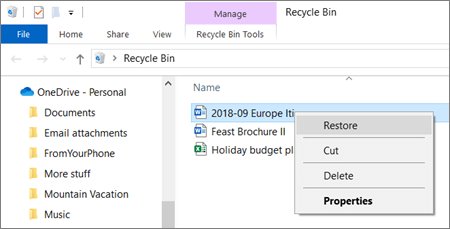
- Double-click Recycle Bin on the desktop, or press Windows + S, type Recycle Bin and open it.
- Right-click any file you want to keep and select Restore to send it back to its original folder.
- To delete only some items, select them and press Delete, then confirm.
- To clear everything, select Empty Recycle Bin at the top of the window and confirm with Yes.
- If Recycle Bin is listed in the File Explorer navigation pane, right-click it there and select Empty Recycle Bin without opening the folder.
To display Recycle Bin in File Explorer, right-click its desktop icon and select Pin to Quick access. It then shows in Quick access and the left navigation pane.
Method 3: Use Windows Storage Sense or Settings to auto-empty
Storage Sense can remove items from the Recycle Bin automatically once they have been there longer than a period you set. It is off by default, and Windows may switch it on when the PC runs low on space.
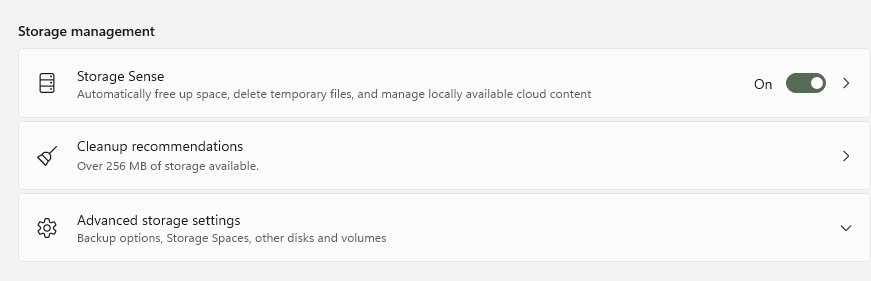
Storage Sense only runs while you are signed in and online, and it only manages the system drive (C:).
- Open Start > Settings > System > Storage.
- Select Storage Sense and set it to On.
- Under Run Storage Sense, choose how often it should run.
- Under Delete files in my recycle bin if they have been there for over:, choose the age limit you want.
- Close Settings. The next scheduled run removes anything older than your limit.
Storage Sense also clears temporary files on the same schedule, so the first run may free more space than the bin alone held.
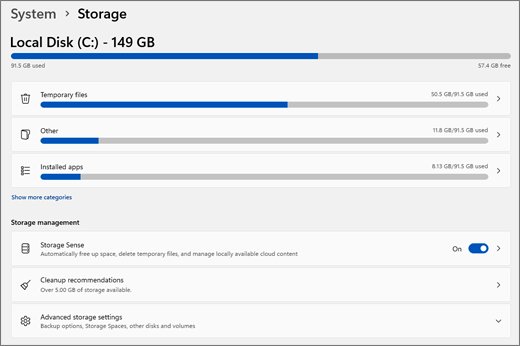
Empty the Recycle Bin from Cleanup recommendations in Settings
Cleanup recommendations in Settings suggest temporary files you can remove and show how much space each removal saves, so you can clear the Recycle Bin and other leftovers in one pass.
- Select Start > Settings > System > Storage.
- Select Cleanup recommendations.
- Open the Temporary files category and tick Recycle Bin if it is listed. Untick anything else you want to keep.
- Check the amount of space Windows says you will save.
- Select Clean up for that category and confirm.
Use Disk Cleanup, further down, when you want to clear the bin on one specific drive.
Empty the Recycle Bin with a command in PowerShell
Clear-RecycleBin deletes the contents of the current user's recycle bin, the same action as Empty Recycle Bin. It is available in Windows PowerShell 5.1 and in PowerShell 7 on Windows, so it also works on Windows Server 2016.
Add -DriveLetter C to clear only the bin on one drive, or drop -Force if you want a confirmation prompt.
Clear-RecycleBin -ForceClears the current user's recycle bins on all drives. -Force skips the "Are you sure you want to perform this action?" prompt; -DriveLetter limits it to the drives you name.
You should see: The command returns no output. Open the Recycle Bin and it shows no items.
Empty the Recycle Bin for specific or all drives in Command Prompt
Command Prompt has no Recycle Bin command of its own, but it can call PowerShell's Clear-RecycleBin in one line. This is useful in batch files and scheduled tasks.
powershell.exe -Command "Clear-RecycleBin -Force"Starts Windows PowerShell, runs Clear-RecycleBin for the current user on all drives, then returns to Command Prompt. To clear one drive only, use powershell.exe -Command "Clear-RecycleBin -DriveLetter D -Force".
You should see: Command Prompt returns to the prompt with no message, and the Recycle Bin shows no items.
Clear-RecycleBin only empties the bin of the account that runs it. Other user accounts on the PC keep their own deleted files until they empty their own bins.
Empty the Recycle Bin on every drive with Disk Cleanup
Each drive keeps its own Recycle Bin, so Disk Cleanup is handy when a second drive is full of deleted files. On drives other than the Windows drive, the Recycle Bin is one of only two options Disk Cleanup offers.
- Press Windows + R, type
cleanmgrand press Enter. - Pick the drive you want to clean and select OK.
- Tick Recycle Bin in the list. Select View Files first if you want to check what is inside.
- Select OK and confirm the deletion.
- Repeat for each drive that has deleted files on it.
Check the Recycle Bin is empty and the space is back
- Open Recycle Bin from the desktop. The folder should show no items.
- Open Settings > System > Storage and look at the used-space bar for the drive. It should be lower than before you emptied the bin.
If the folder is empty but Storage still reports space in the bin, sign out and back in, then check again; another user account on the PC may also have its own deleted files.
What does emptying the Recycle Bin do?
Deleting a file in File Explorer only moves it to the Recycle Bin, so it still takes up space. Emptying the bin removes those files permanently and frees the space for new data.
| Action | Where the file goes | Can you get it back? |
|---|---|---|
| Delete or Ctrl + D in File Explorer | Recycle Bin | Yes, restore it from the bin |
| Shift + Delete | Skips the Recycle Bin and is deleted permanently | Only with recovery software or a backup |
| Delete from a network location | Destroyed, not sent to the Recycle Bin | Only from a backup on the server |
| Empty Recycle Bin | Removed from the bin; the disk space is marked as free | Possibly with Windows File Recovery, until new data overwrites it |
| Storage Sense auto-delete | Items older than your limit are removed | Same as emptying the bin |
Some uninstallers, such as Revo, move leftover files to the Recycle Bin instead of deleting them, so the bin can grow after you remove apps.
Change Recycle Bin size, delete confirmation and auto-empty settings
Right-click the Recycle Bin and select Properties to set how much space the bin may use on each drive. On Windows 11, the same right-click menu uses the modern Recycle Bin context menu, with Empty Recycle Bin near the top.
On Pro, Enterprise and Education editions, three Group Policy settings under User Configuration > Administrative Templates > Windows Components > File Explorer control the bin for every user.
| Setting | Where | What it does |
|---|---|---|
| Maximum allowed Recycle Bin size | Group Policy, File Explorer | Limits the percentage of each volume that deleted files may use; when on, users cannot change the size |
| Do not move deleted files to the Recycle Bin | Group Policy, File Explorer | Files deleted in File Explorer skip the bin and are deleted permanently |
| Display confirmation dialog when deleting files | Group Policy, File Explorer | Shows a confirmation every time a file is deleted or moved to the bin |
| Delete files in my recycle bin if they have been there for over: | Settings > System > Storage > Storage Sense | Empties old items on a schedule |
How to remove Recycle Bin from desktop in Windows 11
Hiding the icon does not turn off the Recycle Bin. Deleted files still go there, and you can open it from Start search.
- Open Settings > Personalization > Themes.
- Select Desktop icon settings.
- Untick Recycle Bin and select OK. The icon disappears from the desktop.
- To open the bin later, press Windows + S, type Recycle Bin and open it.
- To display the icon again, tick Recycle Bin in the same window and select OK.
How to recover files deleted from the Recycle Bin in Windows 11
Once the bin is emptied, there is no Undo. If File History was backing up the folder, restore the file from an earlier version. Stop saving new files to that drive until you are done, because new data can overwrite what you are trying to recover.
- Open File Explorer and go to the folder that held the deleted file.
- Right-click the folder and select Restore previous versions. For a folder at the top of a drive, right-click the drive instead.
- On the Previous Versions tab, pick a version from before you deleted the file.
- Expand Open and select Open in File History to preview it.
- Select the file and choose Restore, or expand Restore and pick Restore to to save it somewhere else without overwriting anything.
No previous versions listed means File History was not on for that folder. Move to Windows File Recovery below.
Recover deleted files in Windows 11 with software and without
Match your situation to a row. The free routes without extra software come first.
| Your situation | What to use | Software needed? |
|---|---|---|
| File is still in the Recycle Bin | Right-click it and select Restore | No |
| Bin emptied, File History was on | Restore previous versions on the folder | No |
| File was in OneDrive | The OneDrive recycle bin on the web | No |
| Bin emptied, no backup, NTFS drive | Windows File Recovery in Regular mode | Yes, free from Microsoft Store |
| Older deletion, formatted or corrupted drive, SD card or flash drive | Windows File Recovery in Extensive mode | Yes, free from Microsoft Store |
For most people, the best data recovery software to try first on Windows 11 and Windows 10 is Microsoft's own Windows File Recovery: it is free, it reads internal, external and USB drives, and it does not install anything in the background. It cannot recover files from cloud storage or network shares.
Windows File Recovery: how to use winfr after emptying the Recycle Bin
Install Windows File Recovery from the Microsoft Store, then open it from Start search and select Yes at the permission prompt. It is a command-line tool, so you type a winfr command in the window it opens.
The source and destination must be different drives. Recovered files land in a Recovery_<date and time> folder on the destination drive, and items from the bin may show up as $files inside a $RECYCLE.BIN folder.
winfr C: E: /regular /n \Users\<username>\Documents\Scans drive C: in Regular mode (best for recently deleted files on NTFS) and copies anything found under your Documents folder to drive E:. Replace <username> with your account folder name. Use /n *.docx to filter by file type, and add /u to include undeleted files such as items still in the Recycle Bin.
You should see: A Recovery_ folder appears on E: containing the recovered files. Review and open each one to test that it is intact before you save it elsewhere. If Regular mode finds nothing, run the same command with /extensive.
Results are less likely on an SSD, because free space there can be overwritten quickly. Use the computer as little as possible until recovery is finished.
How to recover deleted files from a pen drive, USB drive or SD card
SD cards and small flash drives usually use FAT or exFAT, which Windows File Recovery only supports in Extensive mode. Larger USB drives formatted as NTFS can use Regular mode first.
- Plug in the pen drive, USB drive or SD card and note its drive letter in File Explorer, for example E:.
- Stop copying anything to that drive.
- Open Windows File Recovery from Start and select Yes at the prompt.
- Type
winfr E: C: /extensive /n *invoice*, replacingE:with the card's letter and*invoice*with part of the file name or a type such as*.jpg. - Press Enter and confirm when the tool asks to continue.
- Open the
Recovery_folder that appears on C: to find the recovered files.
Never save recovered files back to the card you are scanning. The destination must be a different drive.
Recycle Bin not emptying or emptying automatically in Windows 11
Recycle Bin not emptying in Windows 11 or Windows 10
The desktop command did not finish, or the leftover files sit in another drive's bin.
- Open Windows PowerShell and run
Clear-RecycleBin -Forceto clear the bins on all drives. - If space is still used, run
cleanmgr, pick each drive in turn, tick Recycle Bin and select OK. - Restart the PC and check the used space in Settings > System > Storage again.
Recycle Bin empties automatically
Storage Sense is deleting items older than its age limit, or it was switched on when the PC ran low on space.
- Open Settings > System > Storage > Storage Sense.
- Under Delete files in my recycle bin if they have been there for over:, choose a longer period.
- Turn Storage Sense off completely if you prefer to empty the bin yourself.
Recycle Bin is empty even though you just deleted files
The files bypassed the bin: Shift + Delete was used, they came from a network location, or a policy sends deletions straight to permanent delete.
- Check whether the file came from a network share; those deletions never reach your bin.
- On a work PC, ask IT whether Do not move deleted files to the Recycle Bin is enabled.
- Restore the file from File History, OneDrive or Windows File Recovery as shown above.
No Recycle Bin icon on the desktop
Desktop icons are hidden, or the Recycle Bin icon is switched off.
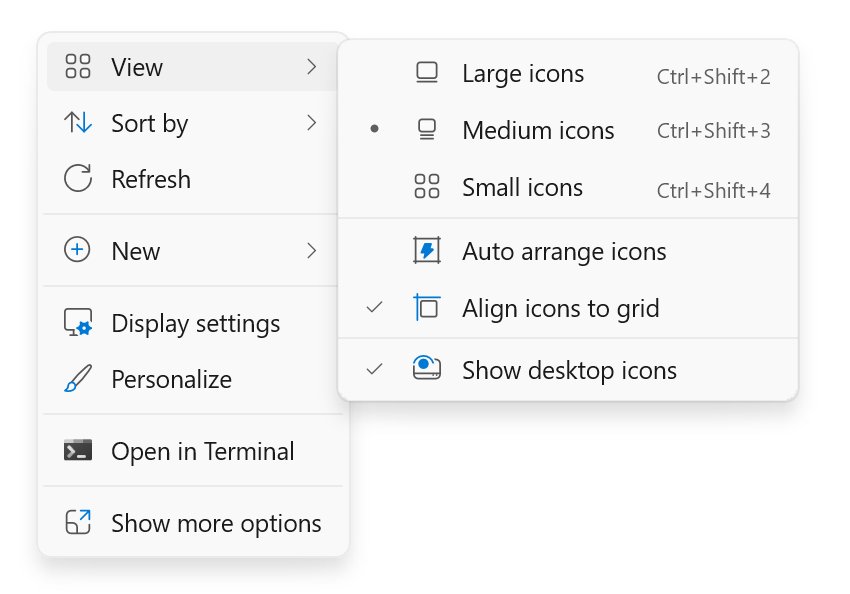
- Right-click the desktop, select View and make sure Show desktop icons is ticked.
- Open Settings > Personalization > Themes > Desktop icon settings.
- Tick Recycle Bin and select OK.
Emptying the Recycle Bin in Windows FAQ
How do I empty the Recycle Bin in Windows 11?
Right-click the Recycle Bin icon on the desktop, select Empty Recycle Bin and confirm with Yes. You can also open the bin and select Empty Recycle Bin at the top of the window, or run Clear-RecycleBin -Force in PowerShell.
How do I empty the Recycle Bin in Windows 10?
The steps match Windows 11: right-click the Recycle Bin on the desktop and select Empty Recycle Bin. Inside the open bin, the same command sits at the top of the window. Storage Sense in Settings > System > Storage can also empty it on a schedule.
Does the Windows Recycle Bin automatically empty?
Only if Storage Sense is on. It removes items that have been in the bin longer than the period set under Delete files in my recycle bin if they have been there for over. Storage Sense is off by default, but Windows may enable it when space runs low.
Why is my Recycle Bin emptying automatically?
Storage Sense is almost always the reason. Open Settings > System > Storage > Storage Sense and set a longer Recycle Bin age limit, or turn Storage Sense off. Windows can switch it on by itself when the system drive gets low on space.
Why is the Recycle Bin empty in Windows 11?
Either it was emptied, Storage Sense cleared it, or your files never went there. Shift + Delete, deletions from network locations and the Do not move deleted files to the Recycle Bin policy all skip the bin and delete files permanently.
What does emptying the Recycle Bin do?
It permanently removes the files stored in the bin and frees their disk space. The data is not overwritten immediately, so Windows File Recovery may still find it, but every new file saved to the drive lowers the chance of getting it back.
Should you empty the Recycle Bin in Windows 10?
Yes, when you need the space or want deleted files gone. Check the bin first for anything deleted by mistake. If space is not an issue, there is no performance gain from emptying it, and keeping items gives you a safety net.
Can you undo emptying the Recycle Bin in Windows?
There is no undo button. Restore the file from File History with Restore previous versions, from OneDrive's recycle bin, or try Windows File Recovery from the Microsoft Store. Stop writing to the drive first to improve the odds.
Is there a command for emptying the Recycle Bin in Windows?
Yes. In PowerShell, Clear-RecycleBin empties the current user's recycle bin on all drives. Add -Force to skip the confirmation prompt or -DriveLetter C to clear one drive only. It works in Windows PowerShell 5.1 and PowerShell 7.
How do I empty the Recycle Bin on Windows Server 2016?
Right-click the Recycle Bin on the desktop and select Empty Recycle Bin, or run Clear-RecycleBin -Force in Windows PowerShell 5.1, which ships with Windows Server 2016. Disk Cleanup also clears the Recycle Bin on each drive you select.
Why is the Recycle Bin not emptying in Windows 11?
Leftover items usually sit in another drive's bin or belong to a stuck delete. Run Clear-RecycleBin -Force in PowerShell, then use Disk Cleanup on each drive with Recycle Bin ticked, and restart the PC before checking Storage settings again.
Should you empty the Recycle Bin in Windows?
Empty the Recycle Bin by hand when you need the space, and let Storage Sense remove items older than a month or two for everything else. A bin that empties too quickly removes your only easy undo, while one that never empties keeps eating disk space. An age limit keeps recent mistakes recoverable and clears the rest without effort.

![How to open graphics settings Windows 11 [2026]](https://techdows.com/wp-content/uploads/2026/10/How-to-open-graphics-settings-Windows-11-2026-600x338.jpg)