Windows Fax and Scan is not preinstalled on Windows 11 after version 22H2, so add it from Settings > System > Optional features > View features, then open it from Start search.
This guide covers both install routes plus DISM, scanning and faxing with it, how it compares with the Windows Scan app, and fixes when it is missing or will not scan. If you would rather manage the scanner from Settings than from this app, start with Windows scanner and printer settings.
Install & use Windows Fax and Scan in Windows 11
The PC must be online, because Windows downloads optional features from Windows Update.
- Right-click Start and select Settings.
- Select System, then Optional features.
- Select View features next to Add an optional feature.
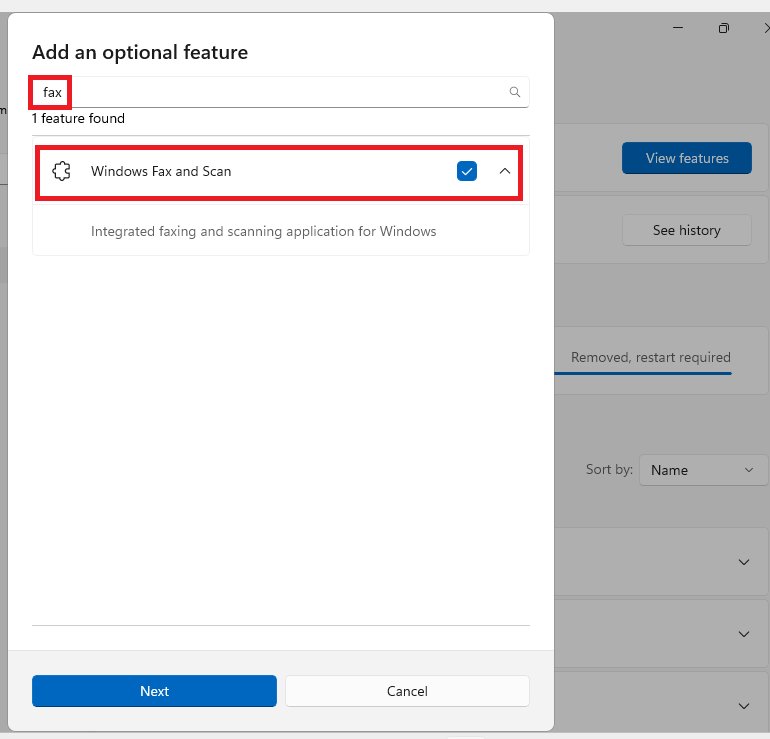
- Search for Windows Fax and Scan, tick the box next to it and select Next.
- Select Add and wait for the install to finish.
- Select Start, type Windows Fax and Scan and open it.
On Windows 11 builds without the latest update, Optional features sits under Settings > Apps instead. You can also open the page directly by pressing Windows + R, typing ms-settings:optionalfeatures and selecting OK.
Understanding Windows Fax and Scan in Windows 11
Windows Fax and Scan is a free desktop program from Microsoft that scans from a connected scanner and sends or receives faxes through a fax modem or fax server.
| Question | Answer |
|---|---|
| What it is | A Feature on Demand that adds faxing and scanning capabilities to Windows |
| Capability name | Print.Fax.Scan~~~~0.0.1.0 |
| Install size | About 18.76 MB |
| Availability | Windows 10 version 2004 and later, including Windows 11 |
| Preinstalled? | Not after Windows 11 version 22H2; add it from Optional features |
| Price | Free; it comes from Windows Update, not a separate download |
| Fax format | The Windows fax service stores sent and received faxes as TIFF files |
| What faxing needs | A fax modem on a phone line, a fax server, or a network multifunction printer that supports fax |
What Windows Fax and Scan needs before you install it
| Requirement | Why it matters |
|---|---|
| Internet connection | Optional features and DISM download the package from Windows Update |
| Administrator account | Adding Windows features and running DISM need admin rights |
| Windows 10 version 2004 or Windows 11 | The Print.Fax.Scan package exists only on these versions |
| An installed scanner | Windows Fax and Scan uses scanners Windows has already added under Printers & scanners |
| A fax device, for faxing only | Scanning works without one; sending a fax needs a fax modem, fax server or fax-capable network printer |
| Settings not hidden by your organization | A Group Policy setting can hide the page used to add optional features |
Install Windows Fax and Scan with DISM
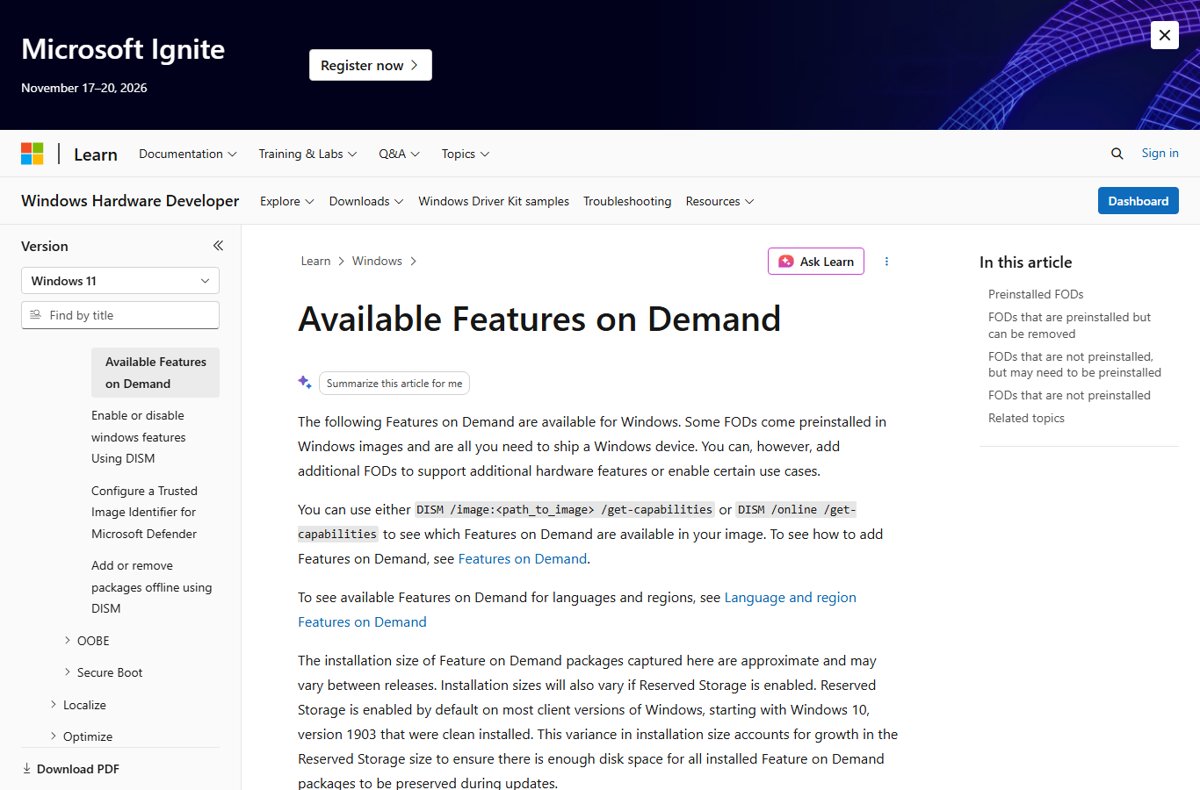
DISM installs the same package from an elevated terminal, which is useful on several PCs or when the Settings page will not load. Right-click Start, select Terminal (Admin) and run the command below.
DISM /Online /Add-Capability /CapabilityName:Print.Fax.Scan~~~~0.0.1.0/Online targets the running copy of Windows, and /Add-Capability downloads the Windows Fax and Scan Feature on Demand from Windows Update and installs it.
You should see: DISM reports that the operation completed successfully. Restart if it asks, then open Windows Fax and Scan from Start.
Turn on Windows Fax and Scan in Windows Features
Older builds list Windows Fax and Scan in the classic Windows Features dialog too. If it is not in that list, use Optional features or DISM instead.
- Open Control Panel, select Programs, then Programs and Features.
- Select Turn Windows features on or off.
- Expand Print and Document Services.
- Tick Windows Fax and Scan.
- Select OK and restart if Windows asks.
Install your scanner for Windows Fax and Scan
Windows Fax and Scan can only use a scanner Windows has already installed. Most USB and network scanners install themselves when connected.
- Connect the scanner by USB, or join it to the same Wi-Fi network as the PC, and turn it on.
- Open Settings > Bluetooth & devices > Printers & scanners.
- Select Add device next to Add printer or scanner.
- Select Add device next to your scanner when it appears.
- If it is not found, select Add a new device manually next to The printer that I want isn't listed.
- For an all-in-one printer, select it and confirm Scanner settings is listed, which shows Windows also detects the scanner.
Scan a document with Windows Fax and Scan
- Turn on the scanner and place the page face down on the flatbed, or in the document feeder.
- Select Start, type Windows Fax and Scan and open it.
- Switch to the scan view, then select New Scan on the toolbar.
- Pick your scanner if Windows asks, then choose the source, color format, file type and resolution.
- Preview the page if you want to adjust the area, then start the scan.
- Save or forward the finished scan from the scan list.
To file scans neatly, rename each one as you save it and keep them in one folder per project. For a quick image scan without this program, the Windows Scan app saves JPEG, PNG, TIFF or Bitmap files to Pictures > Scans.
Send a fax with Windows Fax and Scan
Faxing needs a fax device. Connect a fax modem to a phone line, or have the address of a fax server or fax-capable network printer ready.
- Open Windows Fax and Scan and switch to the fax view.
- Start a new fax; the first time, Windows asks you to connect to a fax modem or a fax server.
- Finish the setup for your device, then return to the new fax window.
- Enter the recipient's fax number, add a cover page if you want one, and attach or insert the document.
- Send the fax and check its progress in the Outbox.
Office apps can also send files as faxes, but only when the Windows fax feature is installed.
Windows Fax and Scan vs the Windows Scan app
| Your situation | Use this | Why |
|---|---|---|
| You need to send or receive faxes | Windows Fax and Scan | The Scan app has no fax features |
| You only want a quick scan to an image file | Windows Scan app | Fewer steps; saves to Pictures > Scans by default |
| You want the scan forwarded as a fax or email from one window | Windows Fax and Scan | Scanning and sending live in the same program |
| Optional features are hidden or unavailable on your PC | Windows Scan app | It installs from the Microsoft Store |
| You use the scanner maker's software | The maker's app | It exposes every hardware feature of that model |
How to check Windows Fax and Scan is installed
- Open Settings > System > Optional features.
- Type Fax in Search installed features; Windows Fax and Scan should appear under Installed features.
- Or run
DISM /Online /Get-CapabilityInfo /CapabilityName:Print.Fax.Scan~~~~0.0.1.0in an admin terminal and check that the state reads Installed. - Select Start, type Windows Fax and Scan and confirm the app opens.
Windows Fax and Scan is missing
Windows Fax and Scan is not in the Start menu on a new PC
It is not preinstalled after Windows 11 version 22H2.
- Open Settings > System > Optional features.
- Select View features, search for Windows Fax and Scan and add it.
The Add an optional feature page is missing or blank
Your organization has enabled the Hide "Windows Features" Group Policy setting, or the device is offline.
- Connect to the internet and reopen Optional features.
- On a work or school PC, ask the IT administrator to install the feature for you.
- On your own Pro PC, check User Configuration > Administrative Templates > Control Panel > Programs > Hide "Windows Features" in Group Policy Editor and set it to Not configured.
Windows Fax and Scan is not listed in Windows Features
Newer builds deliver it as an optional feature rather than a Windows Features checkbox.
- Use Optional features > View features instead.
- Or run the DISM Add-Capability command in an admin terminal.
The install fails or never finishes
Windows Update cannot download the package, or the Windows image is damaged.
- Check that Windows Update works and install pending updates.
- Restart and add the feature again.
- If it still fails, repair the Windows image with DISM and retry.
Windows Fax and Scan not working or not saving as PDF
Windows Fax and Scan won't scan or cannot find the scanner
The scanner is not installed in Windows, is off, or is on a different network.
- Open Settings > Bluetooth & devices > Printers & scanners and confirm the scanner is listed.
- For an all-in-one printer, select it and check that Scanner settings appears.
- Put the PC and a wireless scanner on the same Wi-Fi network (SSID), then select New Scan again.
"An error occurred while setting scanner properties"
Another program is using the scanner, or a network scanner is slow to respond.
- Close other scanning apps and wait for any running scan to finish.
- Turn the scanner off and on, then select New Scan again.
- Install the latest scanner driver from the scanner maker's website.
Windows Fax and Scan does not save as PDF
Scans are saved as image files, so PDF is not offered as a scan file type.
- Save the scan as an image file.
- Open it in an app that can print, and choose a PDF printer such as Microsoft Print to PDF as the printer.
- Name the file and save it.
A fax stays in the Outbox
The fax modem has no dial tone, or the fax server cannot be reached.
- Check the phone cable on the modem, or the network link to the fax server.
- Rerun the fax device setup in Windows Fax and Scan and send the fax again.
How to remove Windows Fax and Scan
- Open Settings > System > Optional features.
- Under Installed features, search for Windows Fax and Scan.
- Select it to expand it, then select Remove.
- Restart if Windows asks.
Windows Fax and Scan FAQs
Is Windows Fax and Scan on Windows 11?
Yes, as an optional feature. It is not preinstalled after Windows 11 version 22H2, so add it from Settings > System > Optional features > View features, or with the DISM Print.Fax.Scan capability.
Where is Windows Fax and Scan in Windows 11?
Once installed, it appears in the Start menu: select Start and type Windows Fax and Scan. If search finds nothing, the feature is not installed yet; add it from Optional features first.
Where can I download Windows Fax and Scan?
There is no separate download. Windows installs it from Windows Update when you add it in Optional features or run DISM with the Print.Fax.Scan~~~~0.0.1.0 capability. Avoid third-party sites offering an installer.
What happened to Windows Fax and Scan?
Microsoft moved it from a preinstalled program to an optional feature. Windows 11 installs after version 22H2 no longer include it, but it is still available to add from Settings > System > Optional features or with DISM.
Is Windows Fax and Scan free?
Yes. It is a Microsoft feature included with Windows 10 version 2004 and later and Windows 11, installed at no cost from Windows Update. Faxing may still need a phone line or a fax service you pay for.
How do I enable Windows Fax and Scan?
On Windows 11, open Settings > System > Optional features, select View features, tick Windows Fax and Scan, then select Next and Add. On older builds, tick it under Print and Document Services in Turn Windows features on or off.
Why can't I find Windows Fax and Scan?
New Windows 11 installs after version 22H2 do not include it. Add it from Optional features. If that page is hidden, your organization has blocked adding Windows features through Group Policy.
Why won't Windows Fax and Scan work?
Usually the scanner is not installed in Windows, is turned off, or another program is using it. Confirm the scanner appears in Settings > Bluetooth & devices > Printers & scanners, close other scan apps and select New Scan again.
Why doesn't Windows Fax and Scan save as PDF?
It saves scans as image files and does not offer PDF output. Save the scan as an image, then print it to a PDF printer such as Microsoft Print to PDF to get a PDF file.
Does Windows Fax and Scan need a phone line?
Scanning does not. Faxing needs a fax device: a fax modem connected to a phone line, a fax server on your network, or a network multifunction printer with fax support.
Is Windows Fax and Scan safe?
Yes, when installed from Windows Update through Optional features or DISM, because it is Microsoft's own feature. Installers offered on download sites are not from Microsoft and should be avoided.
Can I use Windows Fax and Scan without a printer?
Yes. It needs a scanner for scanning and a fax device for faxing, not a printer. A standalone scanner or a fax modem works on its own.
Bottom line: should you install Windows Fax and Scan on Windows 11?
Install Windows Fax and Scan from Optional features if you fax from your PC or want scanning and sending in one program; use the Windows Scan app if you only scan to image files. The feature is free and installs in a few minutes, but it is no longer preinstalled, and the Scan app covers simple scanning with fewer steps.