No, McAfee is not a virus: it is legitimate antivirus software, but the "McAfee" virus warnings that pop up in your browser are usually scams that borrow its name.
This guide shows how to tell a real McAfee alert from a fake one, how to stop scam pop-ups in Chrome and Edge, and how to remove McAfee and rely on Windows Security if the software itself is the problem.
Is McAfee a virus or legitimate security software?
McAfee is legitimate security software from an established antivirus company, not malware. The browser pop-ups that claim "McAfee found viruses" and push you to renew, click or call are scareware run by websites, not by McAfee installed on your PC. The "McAfee is a virus" idea comes from two real experiences: an installed suite that feels heavy or hard to remove, and scam sites that use the McAfee name to frighten people. Neither makes the software itself a virus.
If McAfee is installed and you do not want it, uninstall it normally; Microsoft Defender Antivirus turns back on by itself once the other antivirus is gone.
Common complaints: why McAfee feels like malware to users
| Complaint | What is really happening | What to do |
|---|---|---|
| "McAfee says I have a virus" in the browser | A website's scareware page or notification, often full-screen, with loud sounds or fake system messages | Close the tab and block that site's notifications |
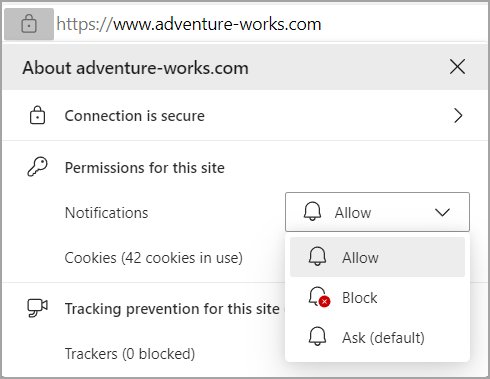
| Pop-ups keep coming back after closing them | You allowed a scam site to send browser notifications at some point | Remove the site under the browser's notification settings |
| PC feels slow with McAfee installed | Real-time scanning uses resources, and running two real-time antivirus products together hurts performance | Keep one real-time antivirus, not two |
| Windows Update fails with error 0x80070643 | Microsoft lists this error as a possible result of running more than one real-time security product | Uninstall one of the security products |
| Hard to uninstall | Security suites protect their own files, so removal goes through the normal uninstaller, not by deleting folders | Uninstall from the installed apps list, then restart |
| McAfee appeared without you installing it | It was installed at some point on this PC; real McAfee shows in the installed apps list | Keep it or uninstall it; either is safe |
Real McAfee alert or fake McAfee virus pop-up?
Match what you see to a row. A scam page wants you to panic and act fast; a real security app does not ask you to call a phone number.
What is the McAfee virus pop-up scam? It is a tech support scam web page that claims McAfee found viruses on your PC. People often land on these pages through malicious ads on dubious download sites. The page goes full screen, plays audio and keeps opening pop-ups so the warning seems to come from Windows, all to push you into calling a number or paying.
| What you see | Likely real or fake | What to do |
|---|---|---|
| Alert inside a browser tab or a browser notification, McAfee not installed | Fake | Close the tab; block the site's notifications |
| Full-screen page with sirens, a countdown or a locked keyboard and mouse | Fake (scareware) | Close the browser tab or window; never call the number |
| Message telling you to phone "support" or allow remote access | Fake | Close it; tech support scammers use this to take money or data |
| Notification from the McAfee app you installed, opening McAfee's own window | Real | Open McAfee from the Start menu, not from a link, to review it |
| Detection listed inside the installed McAfee app's history | Real | Let McAfee clean or quarantine the file |
Remove fake McAfee virus pop-ups in Chrome
Most recurring "McAfee" alerts in Chrome are notifications from a site you once allowed. Chrome already blocks sites it knows are intrusive or misleading, but older permissions can remain.
- Open Chrome and select More (three dots) at the top right, then Settings.
- Select Privacy and security > Site Settings > Notifications.
- Under the allowed list, find any site you do not recognise or that shows the McAfee warnings, and remove or block it.
- To block one by address, select Add next to Not allowed to send notifications, enter the site and select Add.
- Close and reopen Chrome, then check that the pop-ups have stopped.
Stop McAfee virus pop-up scams in Microsoft Edge
- Select Settings and more (three dots) > Settings.
- Go to Privacy, search, and services > Site permissions > All sites.
- Select the site sending the alerts, find Notifications and choose Block.
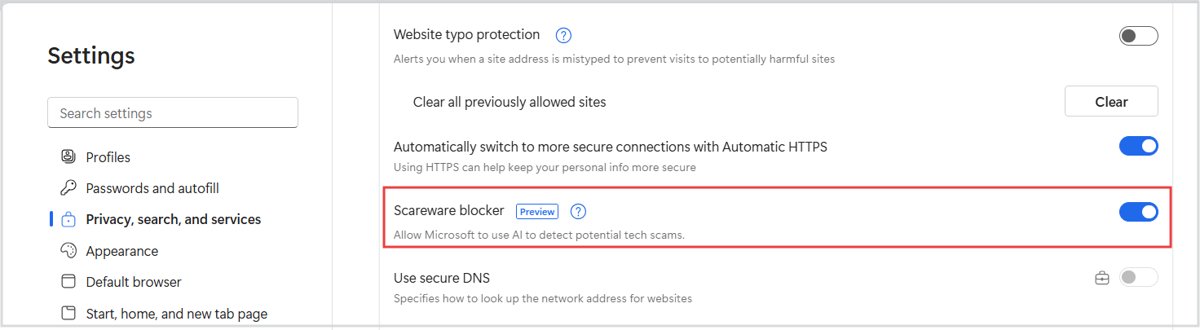
- Go back to Privacy, search, and services > Security and turn on Scareware blocker if it is off.
- Reload a normal page to confirm the notifications have stopped.
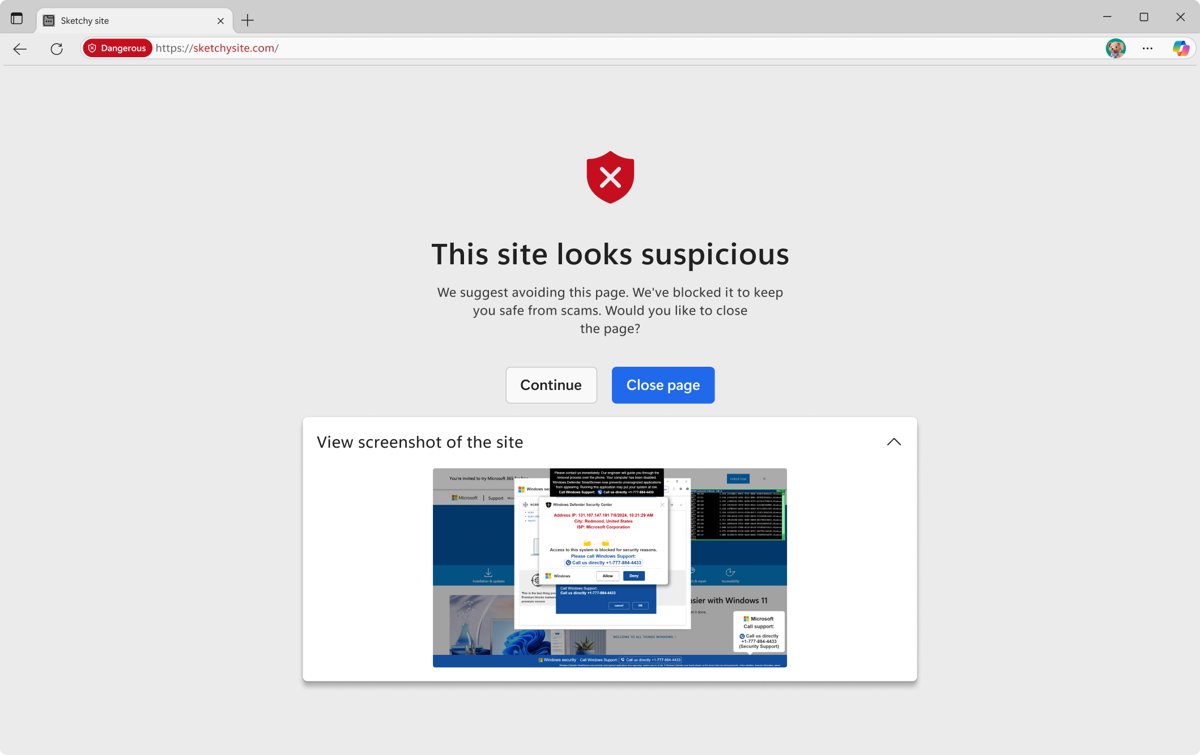
Edge turns scareware blocker on by default on devices with more than 2 GB of RAM and at least 5 processor cores. When it catches a scam page, Edge exits full screen, stops the audio and shows a warning with Continue or Close page.
How to prevent fake McAfee pop-ups in the future
- Use Microsoft Edge with Scareware blocker on. Edge blocks known support scam sites through Microsoft Defender SmartScreen and can stop the pop-up loops these pages use.
- In Chrome, open Settings > Privacy and security > Site Settings > Notifications and choose a stricter default, or select Use quieter messaging so a site can only show a bell icon next to its address instead of a prompt.
- Never allow notifications on a site just to close a prompt, play a video or prove you are not a robot.
- Download software only from the publisher's official site or the Microsoft Store, not from third-party download sites.
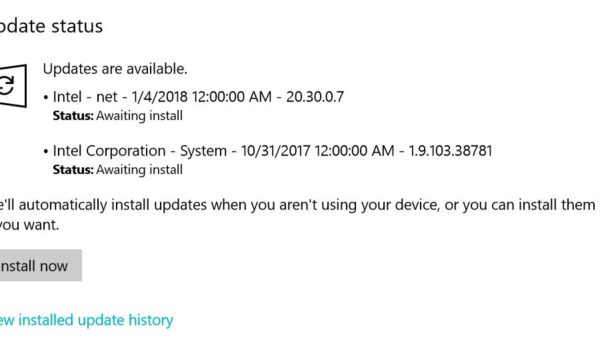
- Install Windows updates as soon as they arrive: select Start > Settings > Windows Update > Check for updates.
- Never call a phone number shown in a pop-up. Real error and warning messages in Windows never ask you to call a support number.
If you already called the number or let someone connect to your PC, uninstall any app they asked you to install, run a full scan in Windows Security, change your passwords and call your card provider to contest any charge. Report the scam at microsoft.com/reportascam.
What to do if you're struggling with McAfee on your PC
If the real McAfee app is the problem, because it is slow, noisy or a trial you never wanted, decide whether to keep it before removing anything.
- Open the installed apps list in Settings and confirm McAfee is actually installed.
- If it is not listed, the alerts are browser scams; block them using the Chrome or Edge steps above.
- If it is listed and you pay for it, keep it and make sure no second real-time antivirus is running alongside it.
- If you do not want it, uninstall McAfee on Windows and restart the PC.
- Also remove McAfee WebAdvisor if its browser extension is still installed.
Evaluating modern antivirus solutions: features beyond basic protection
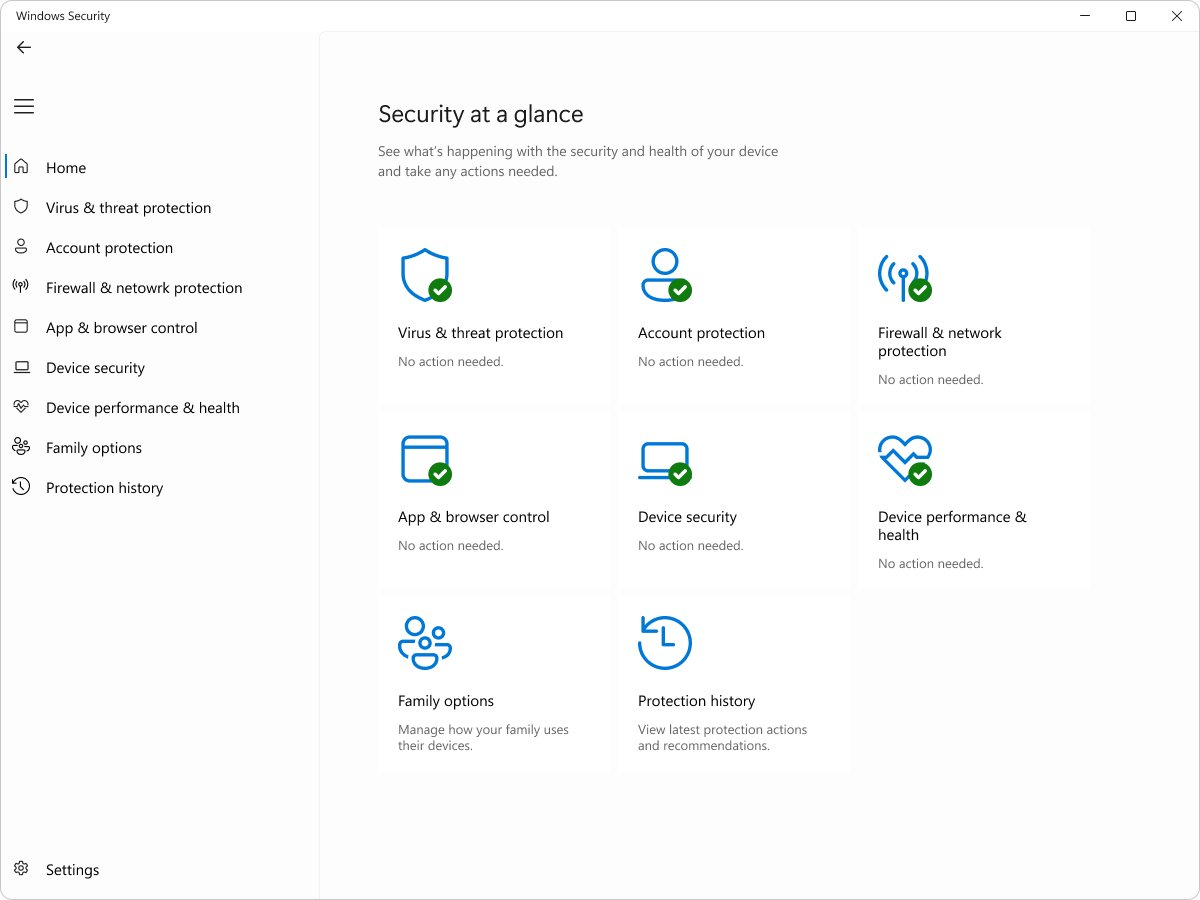
Modern protection is more than a virus scanner. Use the protection areas in Windows Security as a checklist when you compare any product.
| Feature | What it protects | Where it lives in Windows Security |
|---|---|---|
| Real-time antivirus | Scans files as they open and run; quick, full and offline scans | Virus & threat protection |
| Firewall | Controls network traffic for each network type | Firewall & network protection |
| Reputation and phishing protection | SmartScreen checks risky apps, files, sites and downloads | App & browser control |
| Exploit and unwanted app protection | Blocks exploit techniques and potentially unwanted apps | App & browser control |
| Hardware-based security | Core isolation, TPM and Secure Boot | Device security |
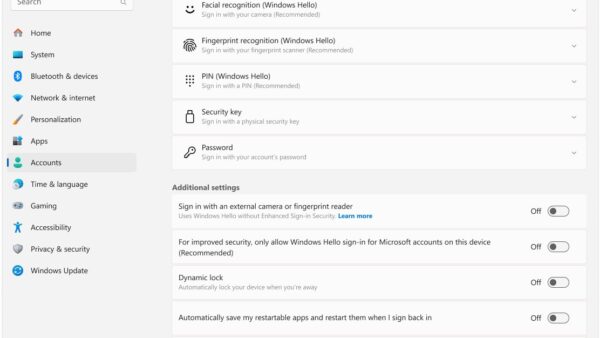
| Sign-in protection | Windows Hello and dynamic lock | Account protection |
| History and transparency | Shows what was removed or quarantined and which services are off | Protection history |
Top recommended alternatives for reliable and lightweight protection
| Option | Cost | Who it suits |
|---|---|---|
| Windows Security (Microsoft Defender Antivirus) | Built into Windows 11 and Windows 10 | Most home users; turns on by itself when no other antivirus is active, updates through Windows Update |
| Keep McAfee | Paid subscription | People who already pay for it and want its extra suite features; run it as the only real-time antivirus |
| Another paid suite from a known security vendor | Paid subscription | People who want extras such as identity monitoring; uninstall McAfee first so only one real-time product runs |
| On-demand scanners such as Microsoft Safety Scanner or Microsoft Defender Offline | Free from Microsoft | A second opinion; they run only when you start them, so they can sit alongside any real-time antivirus |
Making the switch: your action plan for better PC security and performance
Microsoft advises against running two real-time antivirus products at once. Switch in this order so the PC is never left unprotected for long.
- Note the end date of any paid McAfee subscription and cancel auto-renewal if you are leaving it.
- Uninstall McAfee from the installed apps list and restart the PC.
- Open Windows Security > Virus & threat protection and confirm Microsoft Defender Antivirus is on.
- Under Virus & threat protection settings, select Manage settings and turn on Real-time protection, Cloud-delivered protection and Automatic sample submission.
- Run Windows Update to fetch the latest security intelligence.
- Run a full scan to clear anything that slipped through during the change.
If you only want McAfee quiet for a short task, you can turn off McAfee antivirus temporarily instead, but turn it back on afterwards.
Check that Microsoft Defender Antivirus is protecting your PC
- Open Windows Security from the Start menu.
- Select Virus & threat protection and confirm no action is recommended.
- Select Manage settings and confirm Real-time protection is On.
- Start a quick scan and wait for it to report no current threats.
- Open Protection history to review anything Defender removed or quarantined.
McAfee virus pop-ups and warnings troubleshooting
Why do I keep getting McAfee virus pop-ups?
A website still has permission to send browser notifications.
- Open the browser's Notifications settings and remove every site you do not trust.
- In Edge, make sure Scareware blocker is on.
- Run a full scan in Windows Security to rule out unwanted software.
Why is McAfee telling me I have a virus?
Either the installed McAfee app found something real, or a scam page is imitating it.
- Open McAfee from the Start menu, not from the alert, and check its detection history.
- If McAfee is not installed, close the tab; the alert is fake.
- If you remain unsure, run a Microsoft Defender offline scan, which restarts the PC to scan before Windows loads.
Full scan freezes or the PC hangs
A full scan checks every file and uses more resources.
- Close non-essential apps before scanning.
- Install all app and Windows updates.
- Run the scan again and leave the PC alone until it finishes.
Updates fail with error 0x80070643 while McAfee and Defender are both active
Two real-time security products are running at once.
- Choose one real-time antivirus to keep.
- Uninstall the other and restart the PC.
- Run Windows Update again.
Is McAfee a virus FAQ
Is McAfee a virus?
No. McAfee is legitimate antivirus software sold by an established security company. What people often call the McAfee virus is a scam web page or browser notification that uses the McAfee name to scare you into paying, clicking or calling a fake support line.
Is McAfee safe?
Yes, the real McAfee app installed from McAfee is safe. Problems come from running it next to another real-time antivirus, which slows the PC, and from fake McAfee pop-ups in the browser, which are scams unrelated to the software.
Is the McAfee virus pop-up real?
A McAfee warning inside a browser tab or browser notification is almost always fake, especially if McAfee is not installed. Real McAfee alerts come from the app itself. Close the tab, block the site's notifications and never call a number shown in the pop-up.
Is McAfee a good virus protection?
McAfee is a full commercial security suite, and it protects as intended when it is the only real-time antivirus on the PC. Windows Security is built into Windows 11 and 10, so many home users do not need a paid suite.
Why am I getting McAfee virus warnings?
If McAfee is not installed, a website you allowed to send notifications is showing fake warnings. If McAfee is installed, open it from the Start menu and check its detection history to see whether a warning is genuine.
Why does McAfee act like a virus?
Scam sites copy McAfee's branding, and the real suite can feel intrusive when it runs alongside another antivirus or keeps showing prompts. That behaviour is annoying, but it is not malicious; uninstalling McAfee removes it cleanly.
Why has McAfee not located viruses?
Usually because the PC is clean. A browser pop-up claiming infection is not a scan result, so McAfee finding nothing is the expected outcome. For a second opinion, run a Microsoft Defender offline scan from Windows Security.
What is McAfee virus scan?
McAfee's virus scan is the scanning engine inside its antivirus app, which checks files for malware. A real scan runs inside the installed McAfee window, never on a website that claims to scan your PC from the browser.
Is McAfee antivirus a virus if I didn't install it?
No. Real McAfee appears in the Windows installed apps list and opens its own app window. If you do not want it, uninstall it normally and restart; Microsoft Defender Antivirus then turns back on automatically.
How do I remove McAfee virus pop-ups?
In Chrome, go to Settings > Privacy and security > Site Settings > Notifications and remove suspicious sites. In Edge, go to Settings > Privacy, search, and services > Site permissions > All sites, select the site and set Notifications to Block.
Final verdict: choosing software that protects without becoming a problem
Treat browser pop-ups that say McAfee found viruses as scams and block them; keep McAfee only if you pay for it and it is your sole real-time antivirus, otherwise uninstall it and use Windows Security. McAfee is not malware, but one real-time antivirus is enough, and Microsoft Defender Antivirus is built into Windows and switches on automatically once McAfee is removed.