To speed up a Windows 11 or Windows 10 computer or laptop, restart it, install pending updates, disable startup apps you do not need and free up disk space, in that order.
This guide covers every built-in fix Microsoft recommends, with Windows 11 and Windows 10 paths, plus hardware upgrades, maintenance habits and how to recover files if a cleanup removes something you wanted.
The fastest way to speed up a slow Windows PC
Start here. These four steps fix the most common causes of a slow PC in about ten minutes. Do them first, then move to the detailed fixes below if the computer still drags.
- Close apps and browser tabs you are not using, then restart the PC properly: select Start > Power > Restart.
- Open Start > Settings > Windows Update and select Check for updates, then Download & install anything listed.
- Press Ctrl + Shift + Esc to open Task Manager, select Startup apps, right-click each app you do not need at sign-in and select Disable.
- Open Start > Settings > System > Storage, select Temporary files, tick what you want to delete and select Remove files.
Older PCs with outdated hardware may not see a big difference from software fixes. For those, the hardware section below shows which upgrade gives the most speed.
Why your computer is slow and which fix to use
Microsoft lists limited storage, too many startup apps, outdated software and ageing hardware as the main reasons a Windows device slows down. Match your symptom to the fix.
| What you notice | Likely cause | Fix to try first |
|---|---|---|
| Long wait after sign-in before the PC responds | Too many startup apps | Disable startup apps in Task Manager |
| Storage bar nearly full, apps slow to open | Low disk space | Storage Sense, Temporary files and Disk Cleanup |
| Slow from the moment one app or tab opens | A heavy process using CPU, memory or disk | Task Manager Processes and Performance tabs |
| Laptop slower on battery than plugged in | Power mode set for battery life | Set Power mode to Best performance |
| Fans loud and the laptop hot | Heat from a demanding app | Close demanding apps and move the laptop to a cooler spot |
| Sudden slowdown with pop-ups or unknown processes | Malware | Run a quick scan in Windows Security |
| Slow on every task despite all of the above | Hardware below current needs | Add RAM or move to an SSD |
Install Windows updates and optional driver updates
Windows updates often include fixes and performance improvements, and an optional driver update can fix a device that slows the whole PC.
- Select Start > Settings > Windows Update > Check for updates.
- If updates are listed, select Download & install.
- If the status is You're up to date, select Advanced options > Optional updates.
- Select any available driver updates, then select Download & install.
- Restart when Windows asks, to complete the installation.
Keep the other software you use every day up to date as well, since app updates carry their own fixes.
On Windows 10, open Settings > Update & Security > Windows Update, then select View optional updates for drivers. Windows 10 support ended on October 14, 2025, so a Windows 10 PC no longer gets regular fixes.
How to speed up computer startup by disabling startup apps
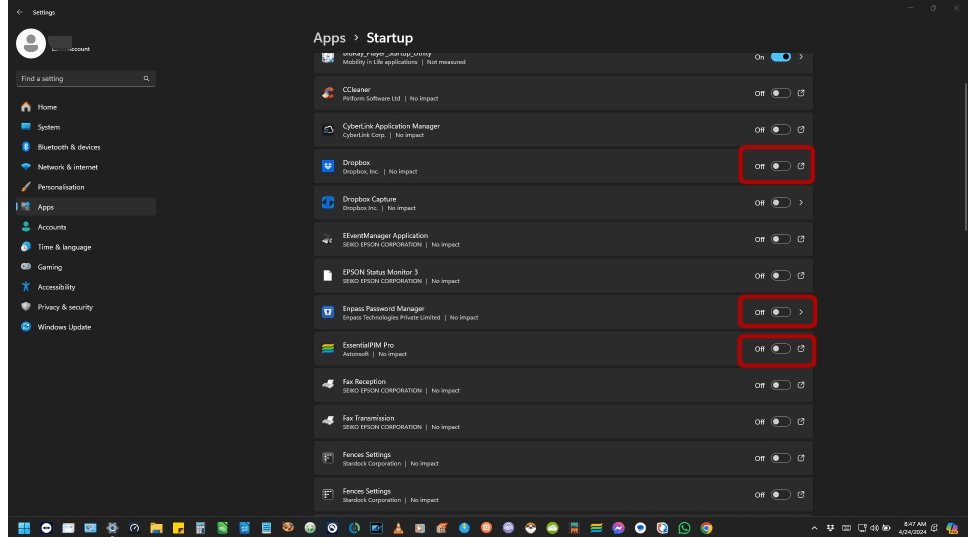
Apps that start with Windows slow boot time and keep using resources in the background. Limit startup to what you need and turn off unnecessary programs that launch at sign-in. The steps are the same on Windows 11 and Windows 10.
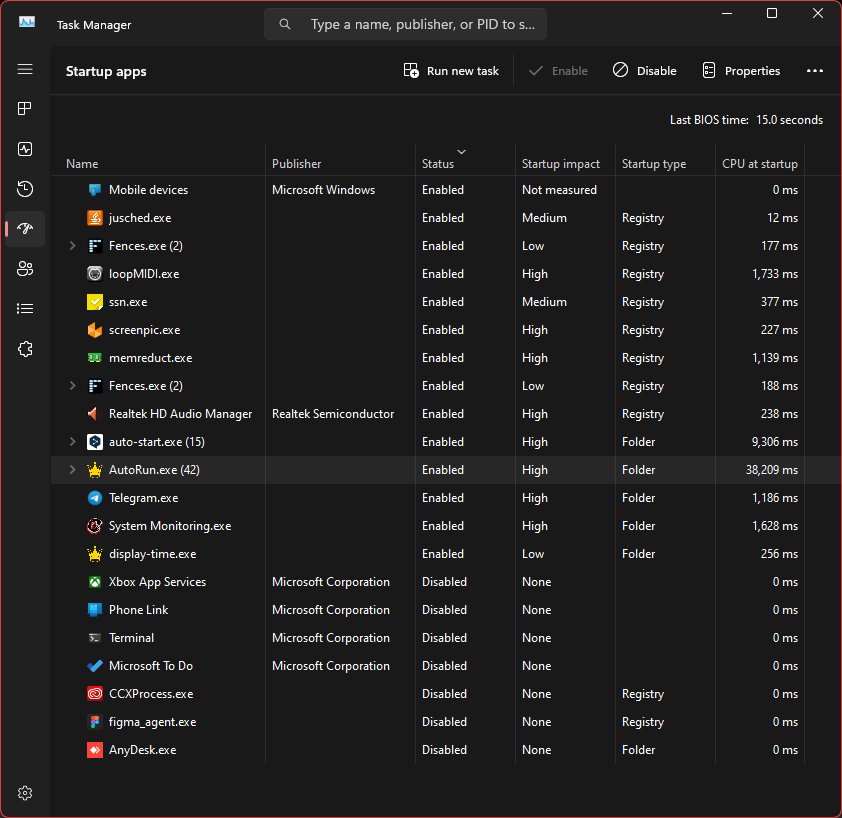
- Press Ctrl + Shift + Esc to open Task Manager.
- Select Startup apps from the left-hand menu.
- Right-click an app you do not need at sign-in and select Disable.
- Restart the PC to feel the difference.
Disabling a startup app does not uninstall it. You can still open it from the Start menu whenever you need it.
Free up disk space with Storage Sense, Disk Cleanup and duplicate files
Low disk space reduces system performance. Windows has three built-in ways to clear space, and deleting duplicate files you no longer need adds more.
- Select Start > Settings > System > Storage.
- Select Storage Sense, then Run Storage Sense now to delete temporary files automatically.
- Back on Storage, select Temporary files, tick the file types to delete and select Remove files.
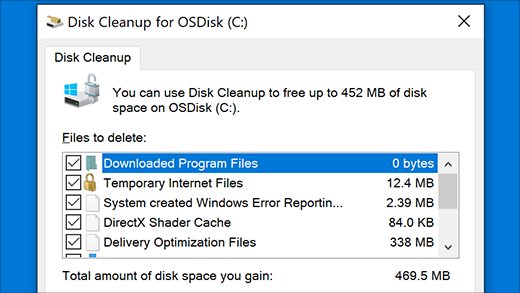
- For older system files, select Start, type Disk Cleanup, open it and choose the drive to clean.
- Review your Downloads, Pictures and Videos folders for duplicate copies of large files and delete the extra ones.
- Empty the Recycle Bin only after you are sure nothing in it is needed.
Real results depend on how full the drive was: a nearly full drive gains the most. Disk Cleanup can also clean up system files such as old Windows Update leftovers.
On Windows 10, the same Storage page has Configure Storage Sense or run it now, then Clean now under Free up space now.
Uninstall unused apps and turn off background apps
Removing programs you never use, including preinstalled bloatware, frees storage and stops their background activity. For apps you keep, you can stop them running in the background.
- Select Start > Settings > Apps > Installed apps.
- Find an app you no longer use, select More options (…) and select Uninstall.
- For an app you keep, select More options (…) > Advanced options.
- Under Background app permissions, set Let this app run in the background to Never.
- Repeat for other apps that do not need to work while closed.
- If OneDrive sync is busy with a large folder, right-click the OneDrive cloud icon on the taskbar and pause syncing for 2, 8 or 24 hours.
On Windows 10, uninstall from Settings > Apps > Apps & features, and turn off background apps under Settings > Privacy > Background apps.
Run a malware scan with Windows Security
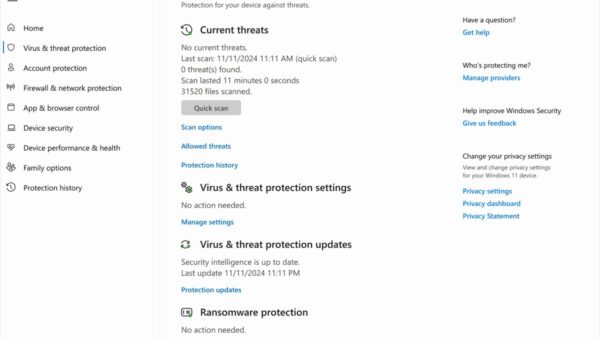
Malware can eat CPU and disk resources and make the whole PC slow. Windows Security is built in, checks for viruses, spyware and adware, and needs no extra software.
- Select Start > Settings > Privacy & security > Windows Security.
- Select Virus & threat protection.
- Select Quick scan and wait for it to finish.
- Follow any action Windows Security shows for threats it finds, and restart if asked.
On Windows 10, the path is Settings > Update & security > Windows Security > Virus & threat protection, then Quick scan under Current threats.
Adjust visual effects for best performance
Animations, shadows and transparency use system resources. Turning them off to reduce animations makes an older PC feel more responsive on both Windows 11 and Windows 10. Performance Options is a classic Control Panel dialog, so it looks the same on both versions.
- Select Start and type Adjust the appearance and performance of Windows.
- Open the result to show Performance Options.
- On the Visual Effects tab, select Adjust for best performance.
Set power mode to best performance on a laptop
Best performance lets the processor run faster when needed. On a laptop it drains the battery faster and can make the device run warmer, so use it when you need the speed.
- Select Start > Settings > System > Power & battery.
- Open the Power mode drop-down.
- Select Best performance, or Better performance for a balance with battery life.
- Plug the laptop in for heavy work, since power settings can differ on battery.
On Windows 10, open Settings > System > Power & sleep > Additional power settings, select Show additional plans if needed, and choose High performance.
Optimize drives with Defragment and Optimize Drives
Windows optimizes drives on a schedule, but a manual run helps a hard drive that has gone a long time without it. The tool picks the right action for a hard drive or SSD.
- Select Start, type Defragment and Optimize Drives and open it.
- Select the drive you want to optimize, usually C:.
- Select Optimize and wait for the status to finish.
How to speed up computer performance by finding heavy processes
Task Manager shows the resource usage of every app, so you can find resource-hungry programs using the CPU, memory or disk. Close the culprit and the rest of the PC speeds up straight away.
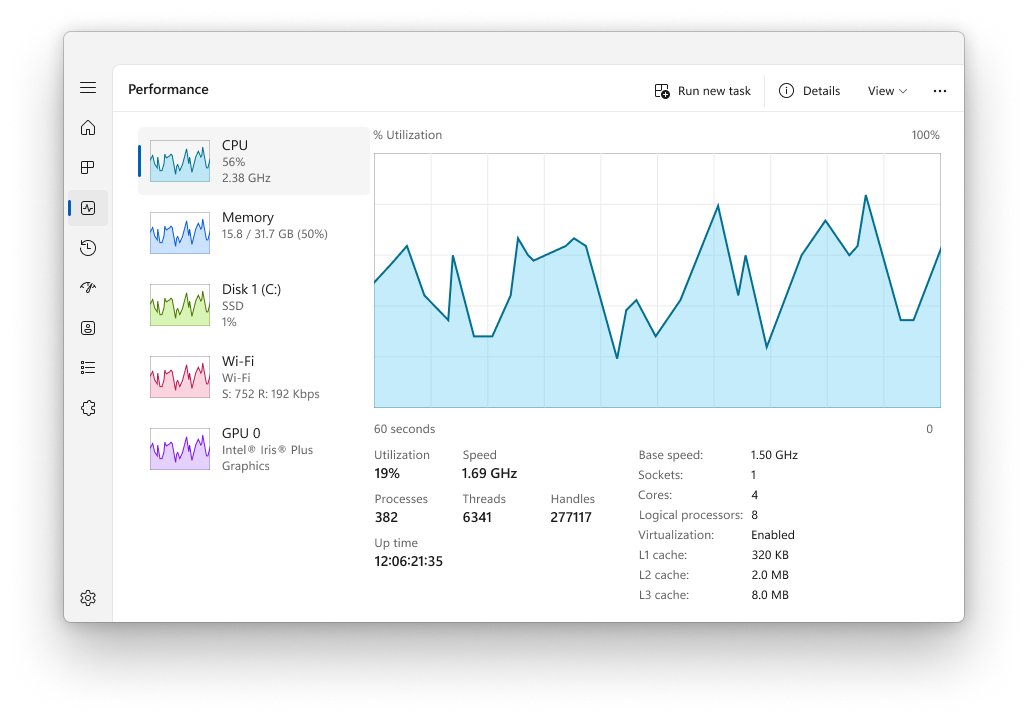
- Press Ctrl + Shift + Esc to open Task Manager.
- On the Processes tab, select the CPU, Memory or Disk column header to sort by use.
- Right-click an app you are not using and close it.
- Open the Performance tab to see whether memory or disk stays near full.
- Turn off app alerts you do not need under Settings > System > Notifications to cut small background interruptions.
- Check the notification area at the right end of the taskbar for system tray programs you do not need, right-click each icon and choose its exit or quit option.
If disk use sits high with no app to blame, you can optimize or disable SysMain, the Windows service that preloads apps.
Lighten your web browser: tabs, extensions and sleeping tabs
Every open tab and extension uses memory and CPU, so a heavy web browser slows the whole PC. These steps use Microsoft Edge, and Chrome and Firefox have similar settings.
- Close tabs you no longer need, or save them as favorites for later.
- In Microsoft Edge, select Extensions to the right of the address bar, then select Manage extensions.
- Select the toggle next to each extension you rarely use to turn it off.
- To remove an extension completely, select Extensions, select More actions next to it, then select Remove from Microsoft Edge > Remove.
- Select Settings and more > Settings > System and performance and check that sleeping tabs is turned on.
Sleeping tabs pauses background tabs after two hours of inactivity by default, which frees resources for the tab you are using. You can shorten that interval on the same System and performance page.
Edge's energy saver also cuts browser resource use, but browsing can feel visibly slower while it is on.
Limit search indexing in Windows (only if you don't use search)
Windows Search keeps an index of your files so searches return results quickly, and it updates that index in the background as files change. Enhanced mode indexes the entire PC and may use more system resources, while Classic indexes only Documents, Pictures, Music and the desktop.
- Select Start > Settings > Privacy & security, then select Search (shown as Searching Windows on some versions).
- Under Find my files, select Classic instead of Enhanced.
- To index even less, select Customize search locations, select Modify, and clear folders you never search.
- For file types you never search inside, select Advanced, open the File Types tab, select the type and choose to index properties only.
- Select OK, then Close.
Indexing less makes file searches slower in the locations you remove. A first full index can take a couple of hours, so judge the speed after it has finished.
Hardware upgrades to increase computer speed
When software fixes are done and the PC is still slow, hardware is the limit, and an upgrade is the long-term solution. Windows 11 needs at least 4 GB of RAM, 64 GB of storage and a 1 GHz dual-core 64-bit processor, and a PC near that floor will feel slow.
| Upgrade | When it helps | What to check first |
|---|---|---|
| Hard drive to SSD | Slow boot and app launches on a PC with a spinning hard drive | Whether the PC has a 2.5-inch bay or an M.2 slot |
| More RAM | Task Manager's Performance tab shows memory near full during normal use | Free RAM slots and the maximum RAM the PC supports |
| Larger drive | The system drive stays nearly full even after cleanup | Drive interface and size the PC accepts |
| Better cooling | The PC slows down when it gets hot | Blocked vents and where the laptop sits |
| New PC | The processor is below Windows 11 requirements | Whether upgrade costs approach the price of a new device |
Maintenance tips to keep your computer fast
| Habit | How often | Why |
|---|---|---|
| Restart the PC | Every few days | Clears apps and processes left running in memory |
| Install Windows Update and optional driver updates | Monthly, or when prompted | Brings fixes and performance improvements |
| Keep Storage Sense turned on | Automatic | Deletes temporary files before the drive fills up |
| Review startup apps | After installing new software | New apps often add themselves to startup |
| Remove apps you stopped using | Every few months | Frees space and background resources |
| Keep the laptop on a hard, cool surface | Always | A hot device runs slower |
How to check your computer is faster
- Restart the PC and note how long it takes from sign-in until apps respond.
- Press Ctrl + Shift + Esc and open the Performance tab.
- With your usual apps open, check that CPU, Memory and Disk are not sitting near 100%.
- Open Settings > System > Storage and confirm the system drive has more free space than before.
- Open the apps you use most and compare how quickly they load.
How much speed you gain depends on what was slowing the PC. A nearly full drive or a long list of startup apps gives a clear difference, while a PC held back by old hardware may change little until you upgrade it.
Fix a Windows computer that is still slow
Computer startup is still slow
Startup apps were re-enabled by updates, or pending updates are installing at boot.
- Open Task Manager > Startup apps and disable anything new.
- Open Settings > Windows Update and finish any pending restart.
- Restart twice and time the second boot.
Computer fans speed up and the laptop slows down
A demanding app is heating the device, and a hot device runs slower.
- Open Task Manager and sort Processes by CPU to find the app working hardest.
- Close demanding apps such as games or streaming video for a few minutes.
- Move the laptop to a cooler spot on a hard surface and wait five minutes.
- Plug the laptop in if it is on battery.
Disk stays full after cleanup
Large personal files or apps, not temporary files, are using the space.
- Open Settings > System > Storage to see which categories use the most space.
- Move large videos and photos to an external drive.
- Uninstall large apps and games you no longer play.
Windows 10 computer gets slower every month
Windows 10 support ended on October 14, 2025, so fixes no longer arrive.
- Check whether the PC meets the Windows 11 requirements.
- Back up your files before any upgrade.
- Upgrade to Windows 11, or plan a replacement if the hardware does not qualify.
Online gaming and downloads lag but offline apps run fine
The network connection, not the PC, is the bottleneck, or a background sync is using the bandwidth.
- Pause OneDrive syncing from its taskbar icon and stop other downloads while you play.
- Restart the modem and router: unplug both, plug the modem back in, then the router, and wait a few minutes for the status lights to settle.
- If the router broadcasts separate 2.4 GHz and 5 GHz networks, connect to the other band and test again.
Reset your PC or reinstall Windows as a last resort
If the PC is still slow after every fix above, resetting reinstalls Windows and clears out the apps and settings that built up over time. Back up important files first, and have your BitLocker recovery key ready if the device is encrypted.
- Open Settings > System > Recovery.
- Under Recovery options, select Reset PC.
- Select Keep my files to reinstall Windows and keep documents and photos, or Remove everything for a completely fresh start.
- Select Cloud download for a fresh copy of Windows with the latest updates, or Local reinstall if your internet connection is slow.
- Follow the on-screen instructions, and do not restart the PC yourself even if the screen stays black for 15 minutes or more.
Keep my files still removes your apps and settings, so note the apps you will need to install again.
On Windows 11, version 22H2 or later, Microsoft lists reinstalling the current version of Windows, which keeps files, apps and settings, as a less disruptive option to try before a reset. Running a troubleshooter from Settings > System > Troubleshoot > Other troubleshooters is the least disruptive step of all.
Speed up my computer FAQs
How can I speed up my computer for free?
Every fix in Windows is free: restart, install updates, disable startup apps in Task Manager, run Storage Sense, uninstall unused apps and set Power mode to Best performance. Microsoft's own PC Manager app also bundles cleanup and startup tools at no cost.
How do I speed up my computer on Windows 11?
Disable startup apps under Task Manager > Startup apps, free space in Settings > System > Storage, install updates, and set Power mode to Best performance under Settings > System > Power & battery. Then check Task Manager for heavy processes.
How do I speed up my computer on Windows 10?
Use Task Manager to disable startup apps, Storage Sense to clear space, Settings > Privacy > Background apps to stop background apps, and the High performance plan under Power & sleep > Additional power settings. Windows 10 support ended on October 14, 2025.
How can I speed up my computer quickly?
Close unused apps and browser tabs, then restart the PC. After that, disable startup apps in Task Manager and delete temporary files in Settings > System > Storage. Those steps take about ten minutes.
Can an online tool speed up my computer?
No website can speed up a PC from your browser. The fixes that work run on the PC itself, using Windows tools such as Task Manager, Storage Sense and Windows Update, or Microsoft's PC Manager app.
Why do my computer fans randomly speed up?
Fans speed up when the processor or graphics chip gets hotter, usually because an app or background task started heavy work. Open Task Manager and sort by CPU to see which process is busy.
Why does cooling my computer speed it up?
A device that is too hot runs slower to protect itself. Moving a laptop to a cooler spot, closing demanding apps and clearing blocked vents lets it run at full speed again.
Why does RAM not always speed a computer up?
Extra RAM only helps when the PC is running out of memory. If Task Manager shows memory well below full, the slowdown comes from the disk, processor, heat or software, and more RAM changes nothing.
Why does cache speed up a computer?
A cache keeps recently used data in faster storage, so the processor or an app does not have to fetch it again from slower memory or the drive. Reading from the cache takes less time, so tasks finish sooner.
Can I speed up my computer without upgrading hardware?
Yes, in most cases. Startup apps, a full drive, missing updates and heavy background apps are the usual causes, and all are fixed in Windows. Older PCs with outdated hardware may not improve much and may need an upgrade.
Bottom line: the best way to speed up a Windows 11 or 10 PC
In summary, start with a restart, updates, startup apps and disk space, then check Task Manager, and upgrade to an SSD or more RAM only if the PC is still slow. The built-in fixes cost nothing and solve the most common causes Microsoft lists. Hardware upgrades help only when Task Manager shows memory or disk at their limit during normal use.