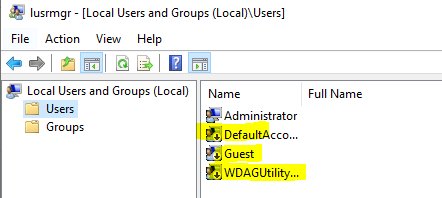
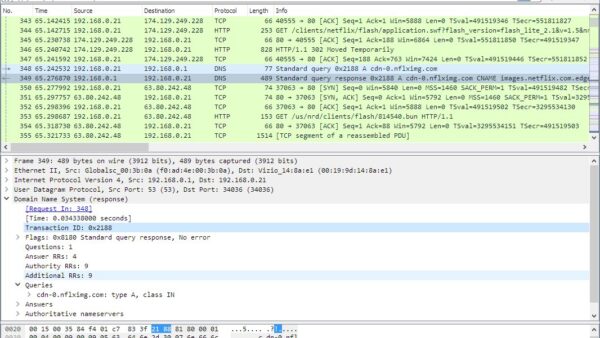
To remove a virus from a Windows computer, update Microsoft Defender, run a Full scan in Windows Security, and finish with a Microsoft Defender Antivirus (offline scan) if anything survives.
This guide covers the built-in tools on Windows 11, Windows 10 and macOS, a free second-opinion scanner, how to confirm the infection is gone, and what to do when the virus keeps coming back.
Removing a virus: fast facts
Windows 11 and Windows 10 already include Microsoft Defender Antivirus, so you do not need to buy or install anything to start. These steps clear most infections on their own.
- Save your work and close every app you do not need.
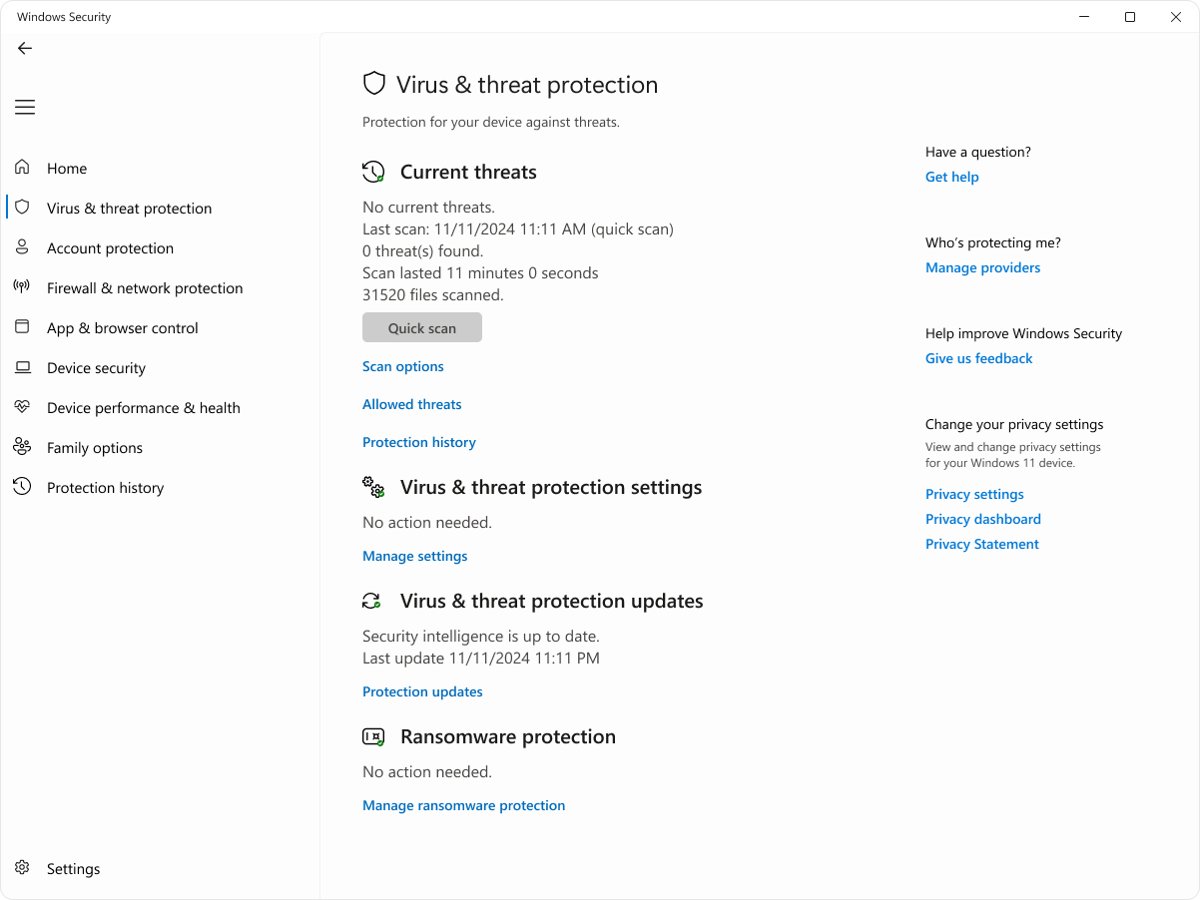
- Open Start, type Windows Security and open it.
- Select Virus & threat protection, then Protection updates, then Check for updates.
- Go back to Virus & threat protection and select Scan options under Current threats.
- Select Full scan, then Scan now, and leave the PC alone until it finishes.
- If the scan finds threats or your PC still misbehaves, return to Scan options, select Microsoft Defender Antivirus (offline scan) and select Scan now.
The offline scan restarts your PC, so save open files first. Results from both scans appear under Protection history in Windows Security.
What is a computer virus?
A computer virus is one kind of malware, the umbrella term for malicious apps and code that damage a device or disrupt normal use. People say "virus" for most of these threats, and the removal steps in this guide work on all of them.
| Type of malware | What it does to a PC |
|---|---|
| Virus or worm | Copies itself to other files, drives or computers; many worms spread through USB drives |
| Trojan | Poses as a useful program or file so you install it yourself |
| Ransomware | Locks you out of your files or PC and demands payment |
| Unwanted software and adware | Arrives bundled with other downloads, changes browser settings and shows extra ads |
| Rootkit | Hides itself from scans while Windows runs, which is why the offline scan exists |
| Coin miner | Uses your PC's processor to mine cryptocurrency for someone else |
Criminals use malware to steal passwords and banking details, collect information to sell, use your PC's resources or extort payment.
How to tell if your PC has a virus
These symptoms can point to malware, but the same problems can also come from a hardware or software fault. A scan settles the question either way.
| Sign of a virus | What to do |
|---|---|
| The PC is unusually slow, crashes or stops responding often | Run a Full scan in Windows Security |
| Your antivirus, Task Manager or other system tools won't start | Start in Safe Mode with Networking and scan from there |
| Security websites such as Windows Update won't open | Run the Microsoft Defender Antivirus (offline scan) |
| The browser home page changed and won't change back | Uninstall unknown programs, reset the browser, then scan |
| Constant, unexpected pop-up windows | Close the browser tab, don't call any number shown, and scan |
Which virus removal tool should you use?
Each free tool below comes from Microsoft or Apple. Match your situation to a row and start there.
| Your situation | Use this | Why |
|---|---|---|
| Quick health check, no obvious symptoms | Defender Quick scan | Checks the places malware most often hides, in a few minutes |
| You suspect an infection | Defender Full scan | Checks every file and program on the device |
| The full scan finds something it cannot remove, or the virus returns | Microsoft Defender Antivirus (offline scan) | Runs from the Windows Recovery Environment, before Windows loads, using the latest definitions |
| You want a second opinion from a separate scanner | Microsoft Safety Scanner | A portable on-demand scanner that runs alongside your antivirus without conflict |
| Pop-ups, a hijacked browser home page or unknown apps | Uninstall the app, then reset the browser | Unwanted software often lives in an installed program or extension |
| Malware has damaged Windows beyond repair | Reset this PC | Reinstalls Windows and removes apps where the infection hides |
| You use a Mac | XProtect plus a macOS update | macOS removes known malware automatically and updates its signatures daily |
| You want free antivirus that also guards against scams, malware and phishing sites | Microsoft Defender Antivirus plus SmartScreen in Microsoft Edge | Defender gives real-time protection built into Windows; SmartScreen warns when a site or download has been reported as phishing or malware |
Microsoft Defender is the free virus scanner and virus cleaner already on every Windows 11 and Windows 10 PC, so you can start a free virus scan right away without downloading anything. Reasons to use it first: it updates through Windows Update, it can scan before Windows loads, and it turns itself off if you install another company's anti-malware app, so two real-time products never fight each other.
Steps to remove a virus on Windows 11 and Windows 10
A full scan with fresh definitions is the main removal step. A full scan of a large drive takes longer than a quick scan, so plug a laptop into power before you begin.
- Free some space on the system drive (C:) if it is nearly full, because a scan can fail without room to work.
- Open Windows Security and select Virus & threat protection.
- Select Protection updates, then Check for updates, and wait for the latest security intelligence to install.
- Select Scan options under Current threats.
- Choose Full scan and select Scan now.
- When the scan reports threats, select the threat and choose Remove to delete the file or Quarantine to isolate it so it cannot run.
- Restart the PC and run a Microsoft Defender full scan once more to confirm nothing reappears.
Never pick Allow for a detection you do not recognise. Allow lets the file run and stops future alerts for it.
To check a USB stick or external drive, right-click the drive in File Explorer and select Scan.
Run a Microsoft Defender Offline scan for stubborn viruses
Some malware, including rootkits, hides from scans while Windows is running. The Microsoft Defender offline scan starts your PC in the Windows Recovery Environment and scans before Windows loads, so the malware cannot defend itself.
- Save and close all open files.
- Open Windows Security > Virus & threat protection.
- Select Scan options under Current threats.
- Select Microsoft Defender Antivirus (offline scan), then Scan now.
- Confirm the prompt. The PC restarts and runs the scan in the Windows Recovery Environment.
- Wait for the PC to restart into Windows by itself, then open Windows Security > Protection history to read the results.
Microsoft Safety Scanner: free virus removal tool for a second opinion
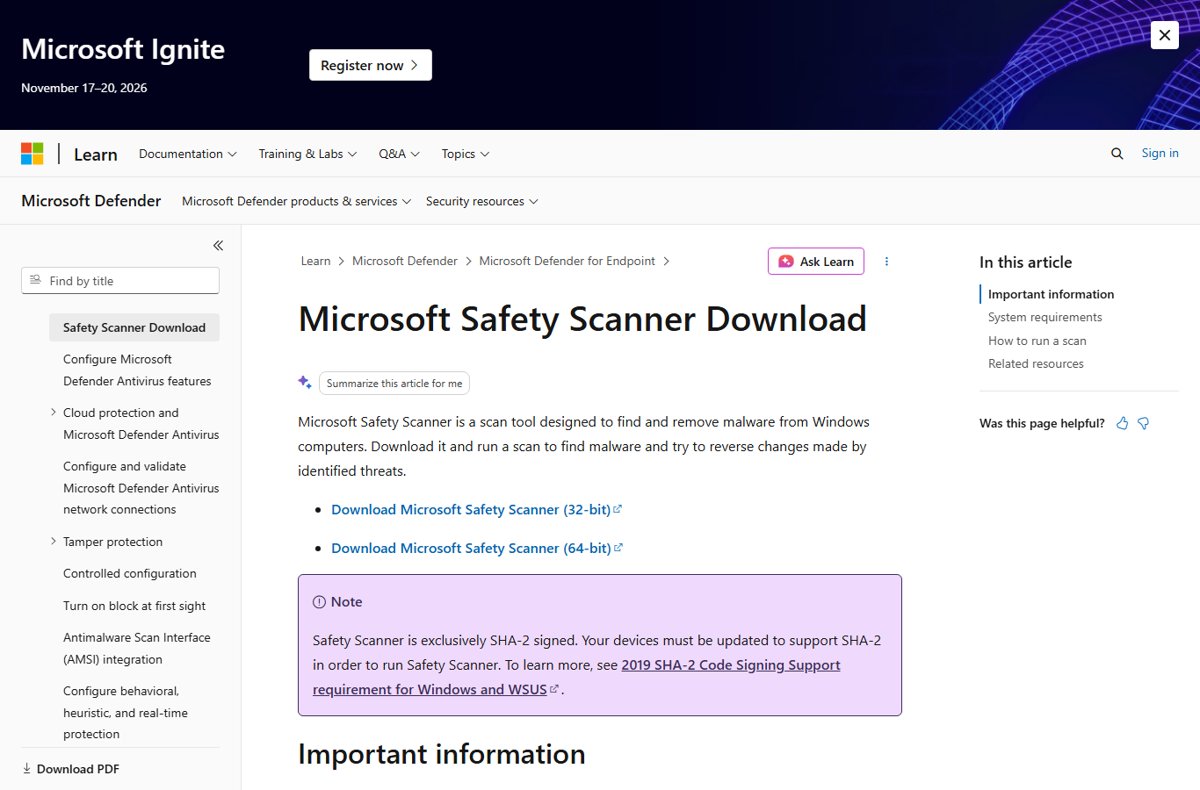
Microsoft Safety Scanner is a free, portable scanner from Microsoft for PCs you think are infected. It only scans when you run it, and it does not replace real-time antivirus.
Microsoft states that Safety Scanner expires 10 days after you download it. Download a fresh copy from Microsoft Learn before each scan so it has current definitions.
- Download Microsoft Safety Scanner (32-bit or 64-bit) from its page on learn.microsoft.com, and note the folder you saved it to.
- Open the downloaded file,
msert.exeby default, and accept the prompts. - Select the type of scan you want, a full scan when you suspect an infection, and start it.
- Review the results on screen when the scan ends.
- Open
%SYSTEMROOT%\debug\msert.login Notepad for the detailed detection list. - Delete
msert.exewhen you finish. It has no uninstaller and no Start menu entry.
Safety Scanner needs a Windows version that supports SHA-2 code signing. Windows 11 and an updated Windows 10 both qualify.
System requirements for the free virus scanner and remover: Microsoft lists Windows 11, Windows 10, Windows 8.1, Windows 8 and Windows 7, plus Windows Server 2008 R2 through 2019. Download the free virus scan and cleaner tool only from Microsoft's own page.
Remove a virus in Safe Mode with Networking
If malware stops Windows Security or other apps from opening, start Windows in Safe Mode with Networking. Safe Mode with Networking starts Windows with fewer startup items and keeps internet access, so you can download Safety Scanner.
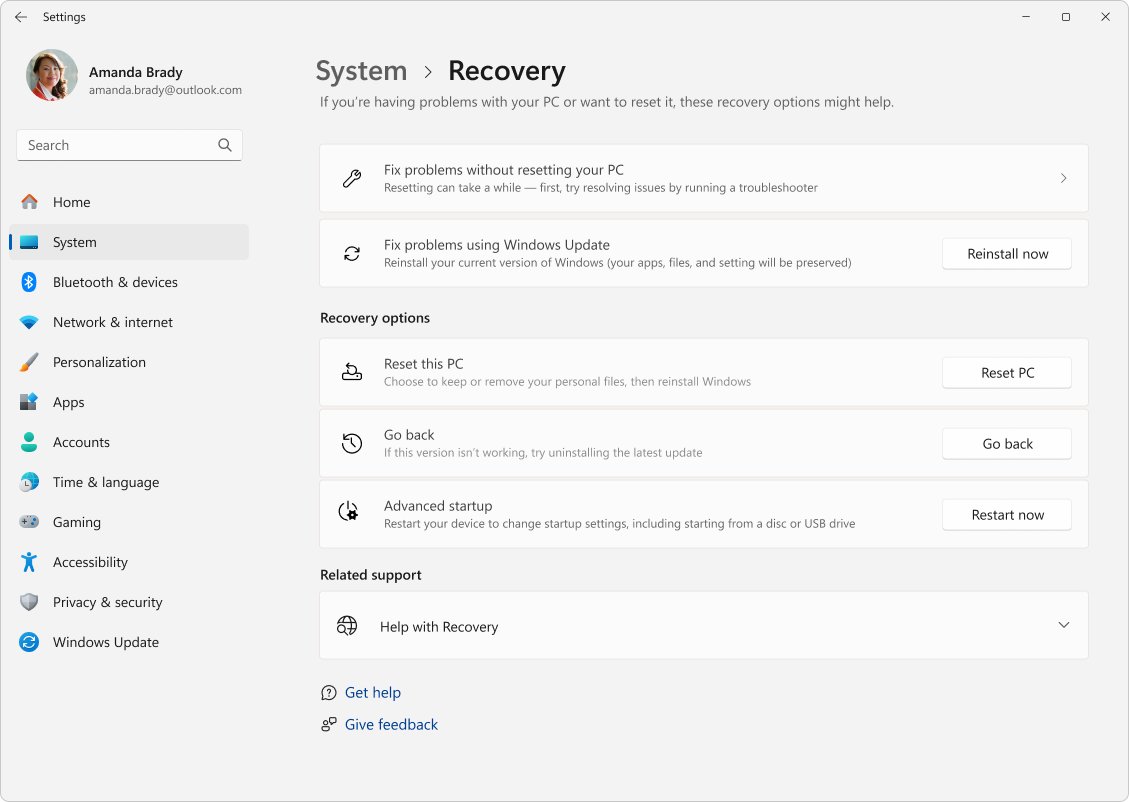
- On Windows 11, open Settings > System > Recovery. On Windows 10, open Settings > Update & Security > Recovery.
- Next to Advanced startup, select Restart now. If Settings will not open, hold Shift and select Power > Restart.
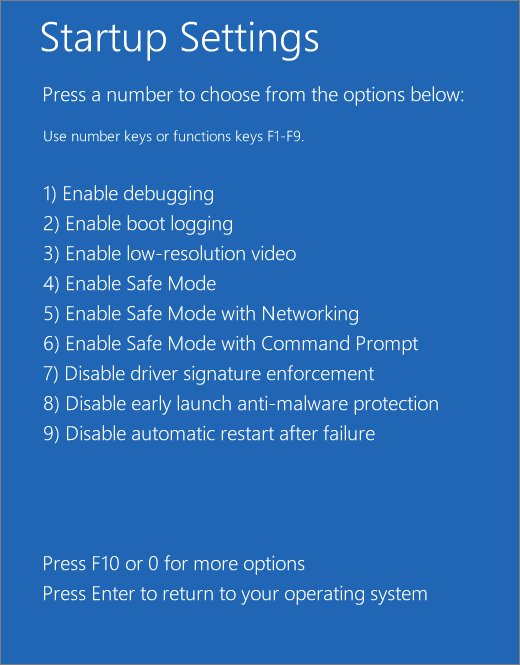
- Select Troubleshoot > Advanced options > Startup Settings > Restart.
- When the list appears, press 5 or F5 for Safe Mode with Networking.
- Sign in, then download and run Microsoft Safety Scanner or open Windows Security and run a Full scan.
- Restart the PC normally when the scan is done.
Uninstall unwanted programs and reset your browser
Pop-ups, a changed home page and a new search engine usually come from a program or browser extension you installed. Antivirus may class these as potentially unwanted apps rather than viruses, so remove them by hand as well.
- Open Start > Settings > Apps > Installed apps.
- Look through the list for programs you do not recognise or that arrived around the time the problem started.
- Select the More button next to the program and choose Uninstall. If it will not leave, open Control Panel > Programs > Programs and Features, right-click it and select Uninstall.
- In Google Chrome, select More (three dots) > Settings > Reset settings > Restore settings to their original defaults > Reset settings.
- Run another Full scan in Windows Security.
Chrome's reset turns off extensions and restores the search engine, home page, startup tabs and site permissions. It keeps your bookmarks and saved passwords.
If the browser settings change back by themselves after a reset, a program on the PC is still changing them. Repeat the uninstall step and the offline scan.
How to remove a virus on a Mac
macOS has its own built-in antivirus, XProtect. It checks apps when they first open and when they change, blocks known malware, moves it to the Trash and alerts you in the Finder.
XProtect updates its signatures automatically, separate from macOS updates, and checks for new ones daily by default. Most Mac cleanup is therefore an update plus removing the app that caused the trouble.
- Choose Apple menu > System Settings > General > Software Update and install any update offered.
- Open Finder and select Applications in the sidebar.
- Find any app you do not recognise or that arrived with the problem.
- If the app has its own folder with an uninstaller, open it and follow the prompts. Otherwise drag the app to the Trash in the Dock.
- Empty the Trash to delete the app permanently.
- Open System Settings > Privacy & Security and set Allow applications from to App Store or App Store and Known Developers.
If the Mac says an app is in use and will not let you move it, quit the app, restart the Mac or start it in safe mode, and try again.
Reset this PC when the virus will not go away
When scans keep failing or malware has made irreversible changes, reinstalling Windows is the cleanest fix. Back up your personal files to an external drive or OneDrive first, and only restore backups made before the infection.
- On Windows 11, open Settings > System > Recovery and select Reset PC. On Windows 10, open Settings > Update & Security > Recovery and select Get started under Reset this PC.
- Choose Remove everything for an infected PC. Keep my files keeps personal files but removes apps and settings.
- Choose Cloud download to get a fresh copy of Windows with the latest updates, or Local reinstall on a slow connection.
- Follow the prompts and let the PC restart several times.
- Install all Windows updates, then run a Full scan before you copy your backed-up files back.
Have your BitLocker recovery key ready if the drive is encrypted. Reinstall apps from their official sources rather than from old installer files that might be infected.
How to check the virus is gone
- Open Windows Security > Protection history and confirm every detected item shows as removed or quarantined.
- Run a fresh Full scan after a restart and confirm it reports no current threats.
- If you used Safety Scanner, check
%SYSTEMROOT%\debug\msert.logfor any item it could not remove. - Confirm the original symptoms have stopped: no pop-ups, your normal browser home page, and Task Manager and security websites opening normally.
- Change the passwords for your email, bank and other important accounts from a device you know is clean.
Quarantined files pose no risk and can stay in quarantine indefinitely. You can remove or restore them from Protection history.
Fix virus removal problems on Windows
The scan will not finish or the PC freezes during a full scan
Low disk space, busy apps or very large archives slow or stop the scan.
- Free up space on the C: drive.
- Restart the PC and start the scan before opening any other app.
- Install the latest definitions under Protection updates and run the scan again.
The threat was only partially removed
Some malware files were cleaned but others are in use or protected.
- Restart the PC and install all pending Windows updates.
- Run the Microsoft Defender Antivirus (offline scan).
- Run Microsoft Safety Scanner as a second opinion.
The virus keeps coming back after removal
A program, browser extension or a reinfection source is still present.
- Uninstall unknown programs from Settings > Apps > Installed apps.
- Run the offline scan, which catches malware that hides while Windows runs.
- Stop downloading from illegal download sites and opening unexpected email attachments.
- If it still returns, back up your files and use Reset this PC with Remove everything.
Antivirus cannot update or will not open
Malware can disable security software or block internet access, and a broken Windows Update can stop definitions.
- Start in Safe Mode with Networking and try Check for updates again.
- Run Windows Update to install the latest fixes.
- Install the latest Microsoft Defender security intelligence manually from Microsoft's definitions page.
Windows Security finds nothing but the PC still acts infected
The malware may be new, or cloud protection is turned off.
- Open Virus & threat protection > Manage settings.
- Turn on Cloud-delivered protection and Automatic sample submission.
- Check for updates, then run the offline scan.
- Submit the suspicious file to Microsoft through its file submission page for analysis.
How viruses get on PCs
Knowing the route in tells you what to stop doing once the PC is clean. These are the most common ways malware reaches a Windows computer.
| Infection route | How it works | How to avoid it |
|---|---|---|
| Spam email attachments | A fake receipt, refund or invoice asks you to open the attached file | Don't open attachments you weren't expecting, even from someone you know |
| Malicious Office macros | A document asks you to select Enable Content, which runs a hidden script | Leave macros off unless you know exactly what the file does |
| Infected USB drives | Worms copy themselves to removable drives and install when the drive is connected | Don't plug in drives you don't own; scan any unknown drive straight away |
| Bundled downloads, pirated software and keygens | Malware or unwanted software installs alongside the program you wanted | Download software only from the official vendor's website or store and read each install screen |
| Hacked or malicious websites | The site uses holes in an outdated browser, or tricks you with pop-ups and misleading buttons | Keep the browser updated and remove extensions you don't use |
| Existing malware | Some malware downloads more threats once it is on the PC | Remove every detection, then run the offline scan |
Can your PC get viruses through emails?
Yes. Email is one of the most common ways malware gets onto a PC. Many viruses arrive as attachments and run as soon as you open the file, and a link in a message can start a download without you noticing.
Reading an email is not the danger; opening its attachment, enabling macros in it or following its links is. Phishing emails also try to steal passwords and bank details directly.
| Warning sign in an email | What to do |
|---|---|
| The message is unexpected or from someone you rarely deal with | Don't open the attachment; contact the sender through a channel you already know |
| The displayed link doesn't match where it actually goes | Type the company's address into the browser yourself instead of selecting the link |
| The sender address has added numbers or swapped letters | Treat it as fake and delete it |
| It asks for personal or financial information | Never reply with it; legitimate companies don't ask by email |
| The attachment asks you to enable macros, change security settings or install an app | Close the file without enabling anything |
If you already opened a suspicious attachment, run a Full scan now and change the passwords for your important accounts from a clean device. In Outlook.com, select the message, select the arrow next to Junk and choose Phishing to report it.
How to protect your PC from viruses
Once the PC is clean, these settings keep the next infection out. Most are already on by default, so this is mainly a check.
- Keep Windows Update on and restart when it asks, so security fixes install completely.
- Keep one real-time anti-malware app running and up to date; Microsoft Defender Antivirus does this by default.
- In Windows Security, confirm Tamper Protection is turned on so malware can't change your security settings.
- Type uac in the taskbar search box, select Change User Account Control settings and make sure UAC is not set to never notify.
- Use Microsoft Edge with SmartScreen and its pop-up blocker turned on, and pay attention to SmartScreen warnings about unrecognised apps.
- Use a standard, non-administrator account for everyday browsing and email, and sign in as an administrator only to install apps.
- Back up files with the 3-2-1 rule: three copies, in two places, with one copy offline. OneDrive can also recover files locked by ransomware.
Protect your Mac too: keep macOS updated and leave Allow applications from set to App Store or App Store and Known Developers, as described in the Mac section above. Use strong passwords with multi-factor authentication on every device, including your phone.
Virus removal warnings for beginners
Cleanup can go wrong when a fake alert or a second antivirus gets involved. Keep these points in mind before you act.
| Warning | What to do instead |
|---|---|
| Pop-ups claiming your PC is infected and asking you to call a number or pay | Close the browser tab and run a scan in Windows Security; real Windows Security alerts never ask for payment |
| Running two real-time antivirus products together | Keep one real-time product; extra scanners such as Safety Scanner are on-demand and safe to use alongside it |
| Selecting Allow on a detection to make the alert go away | Remove or quarantine anything you do not trust; allow only files from a publisher you trust |
| Deleting system files by hand because their name looks suspicious | Let the scanner remove the file; Windows needs many files with unfamiliar names |
| Restoring backups made after the infection started | Restore files from a backup made before the infection, stored off the PC |
| Keeping an old Safety Scanner download for later | Download a new copy before each scan, because it expires after 10 days |
Virus removal Q&A for beginners
How do you remove a virus from a computer?
Update Microsoft Defender, run a Full scan from Windows Security, and remove or quarantine what it finds. If the virus survives, run the Microsoft Defender Antivirus offline scan, which scans before Windows loads. On a Mac, update macOS and delete the app that caused the problem.
Can you delete a virus yourself?
Yes, most viruses can be removed with free built-in tools and no technician. Windows Security on Windows 11 and 10 removes or quarantines detected files, and XProtect on macOS moves known malware to the Trash. Only a badly damaged system needs a full reset.
Can I remove virus files myself by deleting them?
Deleting a file by hand rarely removes an infection, because malware often runs from several places and can restore itself. Let Microsoft Defender remove or quarantine the file. Deleting the wrong file by name can also break Windows.
How do you completely remove a virus?
Run a Full scan, then the Microsoft Defender offline scan, then Microsoft Safety Scanner as a second opinion. Confirm Protection history shows every item removed. If the infection keeps returning, back up your files and use Reset this PC with Remove everything.
Can an antivirus remove a virus?
Yes. Microsoft Defender Antivirus detects and removes most malware, and usually cleans a detected threat without any action from you. Stubborn infections such as rootkits may need the offline scan, which runs before Windows starts.
Is Microsoft Defender enough to remove a virus?
For most home users, yes. Microsoft Defender Antivirus is built into Windows 11 and Windows 10, updates through Windows Update, and includes full, custom and offline scans. Microsoft Safety Scanner is a free on-demand second opinion if you want one.
What is the difference between Remove and Quarantine?
Remove deletes the infected file from your computer. Quarantine isolates the file so it cannot run, and you can later remove or restore it from Protection history. Quarantined files pose no risk while they stay there.
Is there a free virus removal tool from Microsoft?
Yes. Microsoft Defender Antivirus is free and built into Windows, and Microsoft Safety Scanner is a free portable scanner you download from Microsoft Learn. Safety Scanner expires 10 days after download, so get a fresh copy for each scan.
Does a Mac need antivirus to remove a virus?
macOS includes XProtect, which detects and removes known malware automatically and updates its signatures daily by default. Keeping macOS updated and installing apps only from the App Store or known developers covers most risks.
When should you get an expert for virus removal near you?
Ask an expert when the PC will not start, when you cannot back up important files yourself, or when the device belongs to work or school. For a work device, contact your IT administrator. For a home PC, Microsoft Support can help after the free scans fail.
Will resetting my PC remove a virus?
Reset this PC with Remove everything reinstalls Windows and deletes apps, settings and personal files, which removes nearly all malware. Back up files first and restore only backups made before the infection.
Recap: removing a virus for beginners
Update Microsoft Defender, run a Full scan, and follow it with the offline scan if anything survives; use Safety Scanner as a second opinion and Reset this PC only when the infection keeps returning. The built-in tools are free, already installed and remove most infections without a technician. After cleanup, Windows Update, Tamper Protection, SmartScreen and care with email attachments stop the same virus from getting back in.