To select all on a Mac, press Command + A. The shortcut selects everything in the active window or area, including files in Finder, text in a document, photos in a folder, emails in a mailbox, and items inside many Mac apps.
The important part is making sure the correct window or section is active before pressing the shortcut. For example, Command + A in Finder selects all files in the current folder, while the same shortcut inside a text editor selects all editable text.
You can also select everything from the menu bar without using the keyboard, and macOS provides separate shortcuts for selecting groups of adjacent or non-adjacent items when you do not want the entire window.
How to Select All on Mac with a Keyboard Shortcut
The fastest way to select everything on a Mac is:
Command + A
Press and hold the Command key, then press A. Apple lists Command + A as the standard macOS shortcut for Select All.
The shortcut works in most Mac apps, including Finder, Safari, Pages, Notes, Mail, Preview, Photos, and many third-party applications.
| Where you use Command + A | What gets selected |
|---|---|
| Finder | All files and folders in the active Finder window |
| Document or text box | All text in the active editing area |
| All visible messages in the active message list | |
| Photos | All visible photos in the current view |
| Safari or another browser | Usually all text and page content that the browser allows you to select |
| Desktop | All selectable icons currently shown on the desktop |
How to Select All Files on Mac
To select every file and folder in a Finder location:
- Open Finder.
- Open the folder containing the files.
- Click an empty area inside the Finder window so it becomes active.
- Press Command + A.
Every visible item in that Finder location becomes selected. You can then copy, move, delete, rename, compress, tag, or drag the selected files together.
Command + A selects only the items inside the current Finder view. It does not automatically select files inside subfolders.
Select all files from the Finder menu
If you prefer using the mouse:
- Open the folder in Finder.
- Click Edit in the Mac menu bar.
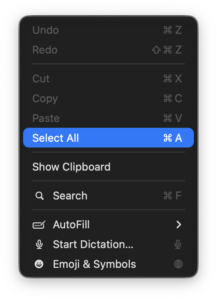
- Select Select All.
This performs the same action as Command + A.
How to Select Multiple Files on Mac
You do not need to select every file when you only want a specific group. macOS supports separate methods for adjacent and non-adjacent selections.
Select multiple files that are next to each other
To select a continuous range:
- Click the first file.
- Hold the Shift key.
- Click the last file in the range.
macOS selects the first item, the last item, and everything between them. This works particularly well in Finder List view.
Select multiple files that are not next to each other
Hold Command and click each file you want to select. The files do not need to be beside one another.
For example, you can Command-click the first, fifth, and tenth files in a folder while leaving everything else unselected.
Deselect one file without clearing the whole selection
If you accidentally selected one file too many, continue holding Command and click that file again. macOS removes only that item from the selection.
How to Select All Text on Mac
Click inside the text area and press Command + A to select all text in the active document, note, message, form field, or supported webpage.
You can then use common shortcuts such as:
- Command + C to copy the selected text.
- Command + X to cut it where editing is allowed.
- Delete to remove it.
- Command + B to apply bold formatting in compatible apps.
The selection applies to the active text area. If a webpage contains a search box and your cursor is inside that box, Command + A normally selects the text inside the search box rather than the entire webpage.
Select a word or paragraph without selecting everything
macOS also supports faster mouse and trackpad selection:
- Double-click a word to select the word.
- Triple-click inside a paragraph to select the paragraph in supported apps.
- Click and drag across text to select a specific section.
Apple documents double-clicking for words and triple-clicking for paragraphs as standard Mac text-selection methods.
How to Select All Photos on Mac
In the Photos app, click inside the photo grid and press Command + A. All photos in the active view become selected.
This is useful when exporting, moving, deleting, or adding an entire group of photos to an album.
Pay attention to the view you are currently using. If you open a specific album before pressing Command + A, you select the photos shown in that album rather than every photo in the entire library.
Select a range of photos
Click the first photo, hold Shift, and click the last photo to select a continuous range.
For individual photos scattered throughout the library, hold Command while clicking each one.
How to Select All Emails on Mac
In Apple Mail, click inside the message list and press Command + A. Mail selects all messages currently shown in that mailbox or search result.
You can then mark the selected emails as read, move them to another mailbox, flag them, archive them, or delete them.
Make sure the message list has focus before using the shortcut. If your cursor is active inside an email draft, Command + A selects the draft text instead.
How to Select All in Safari, Chrome, and Firefox on Mac
The same Command + A shortcut works in most web browsers on macOS.
Select all webpage text
- Click an empty area of the webpage.
- Press Command + A.
The browser selects the page content that can be selected. You can then press Command + C to copy it.
Select everything in the address bar
Click the address bar and press Command + A to select the complete web address or search text.
You can also use Command + L in Safari, Chrome, and Firefox to jump directly to the address bar and highlight its current contents.
Why Command + A sometimes selects only a text box
Keyboard shortcuts act on whichever element currently has focus. If you last clicked inside a search field, form, or text editor, Command + A selects that field instead of the webpage.
Click outside the field and press Command + A again.
How to Select All on a Mac Without a Keyboard
Many Mac applications include a Select All command in the menu bar.
- Click the window containing the items you want to select.
- Click Edit in the menu bar.
- Choose Select All.
This is useful when a keyboard key is not working, you are using a touch-based accessibility device, or you simply prefer menus.
The exact menu can vary between applications, but Edit > Select All is the standard location in most Mac software.
How to Select All on a MacBook
The shortcut is identical on every current MacBook:
Command + A
This works on MacBook Air and MacBook Pro models regardless of whether you use the built-in keyboard, an Apple Magic Keyboard, or most Mac-compatible external keyboards.
Look for the ⌘ symbol if you are new to Mac keyboards. It represents the Command key and normally appears immediately beside the space bar.
How to Select All with a Windows Keyboard Connected to a Mac
If you connect a Windows keyboard to a Mac, the Windows key normally acts as the Mac Command key.
In that setup, try:
Windows key + A
Keyboard remapping software or customized modifier-key settings can change this behavior. If the shortcut does not work, open System Settings > Keyboard and review the modifier-key configuration for the connected keyboard.
Why Command + A Is Not Working on Mac
When Command + A does nothing or selects the wrong content, the problem usually involves window focus, app-specific shortcuts, or a keyboard setting.
Click the correct window first
Click inside the Finder window, document, browser page, or app where you want to select everything. Then press Command + A again.
macOS sends the shortcut to the active window, so another app can receive the command if it currently has focus.
Check the Edit menu
Open the app’s Edit menu and look for Select All. The menu usually displays the keyboard shortcut beside the command.
Apple notes that shortcuts can vary with the app, language, and keyboard layout, so checking the menu is useful when the standard combination behaves differently.
Test the Command key
Try another Command shortcut such as Command + C or Command + S. If those shortcuts also fail, the Command key itself or the keyboard configuration needs attention.
Check whether the app supports Select All
Some windows contain controls that cannot all be selected together. Command + A only works when the application provides a selectable group of items or editable content.
Useful Mac Selection Shortcuts
| Shortcut | Action |
|---|---|
| Command + A | Select all items |
| Command + click | Select or deselect individual non-adjacent items |
| Shift + click | Select a continuous range of items |
| Command + C | Copy selected items |
| Command + X | Cut selected text or supported items |
| Command + V | Paste copied content |
| Command + Z | Undo the previous action |
Frequently Asked Questions
What is the Select All shortcut on Mac?
Press Command + A. It is the standard macOS shortcut for selecting all available items or text in the active area.
What is the Mac equivalent of Ctrl + A?
The Mac equivalent of Ctrl + A on Windows is Command + A.
How do I select all files in a folder on Mac?
Open the folder in Finder, click inside the Finder window, and press Command + A.
How do I select multiple files without selecting all of them?
Hold Command and click individual files for a non-adjacent selection. Click the first file, hold Shift, and click the last file to select a continuous range.
How do I deselect one item on Mac?
Hold Command and click the selected item. The item is removed from the selection while the other selected items remain highlighted.
How do I select all text on a MacBook?
Click inside the text area and press Command + A. You can then copy it with Command + C or replace it by typing new text.
How do I select all photos on Mac?
Open the Photos app, click the photo grid, and press Command + A. The shortcut selects all photos in the current view.
Can I select all without using Command + A?
Yes. In most Mac apps, open Edit from the menu bar and choose Select All.
Why does Command + A select only the text in a search box?
The search box currently has keyboard focus. Click outside the box and press Command + A again to select the content in the surrounding window where supported.
Does Command + A work in Finder?
Yes. Apple specifically supports Command + A for selecting all items in the active Finder window.
Does Select All include files inside subfolders?
No. Command + A selects the items displayed in the current Finder location. It does not recursively select the contents stored inside every subfolder.

![Adjusting volume balance settings in Windows 11 and 10 [Easy steps]](https://techdows.com/wp-content/uploads/2026/10/Adjusting-Volume-Balance-Settings-in-Windows-11-and-10-500x338.jpg)