You can skip the Wi-Fi step in iPad setup only by giving it another connection: tap Continue Without Wi-Fi on a Wi-Fi + Cellular iPad, or activate the iPad through a computer with a cable.
This guide covers each option for cellular and Wi-Fi-only models, which later setup screens you can postpone, how to join Wi-Fi afterwards, and what to do when the connection fails.
Skip Wi-Fi in iPad setup with Continue Without Wi-Fi
Apple requires a Wi-Fi or cellular connection to activate an iPad and continue setup. On a Wi-Fi + Cellular model, the cellular network can stand in for Wi-Fi.
The Continue Without Wi-Fi button appears only when a cellular connection is available, so the SIM or eSIM has to work first.
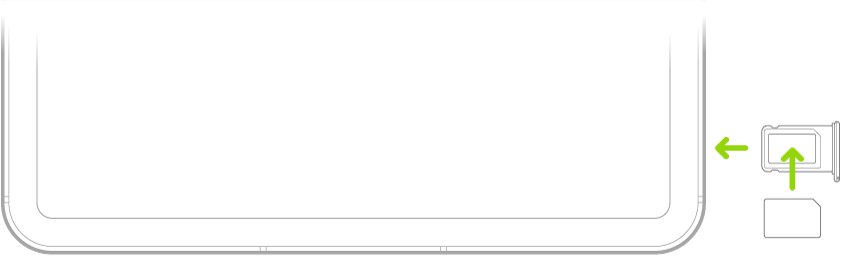
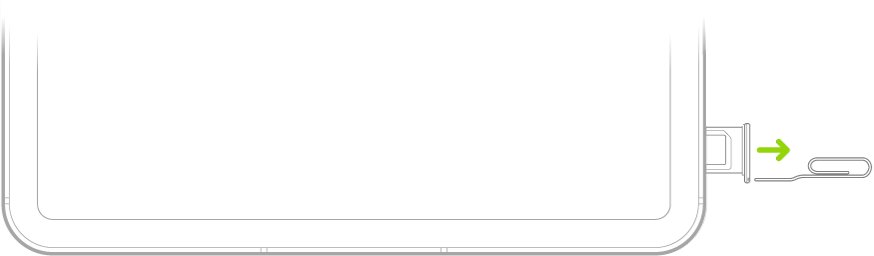
- Insert the carrier's nano-SIM in the SIM tray, if your iPad uses a physical SIM.
- Press and hold the top button until the Apple logo appears.
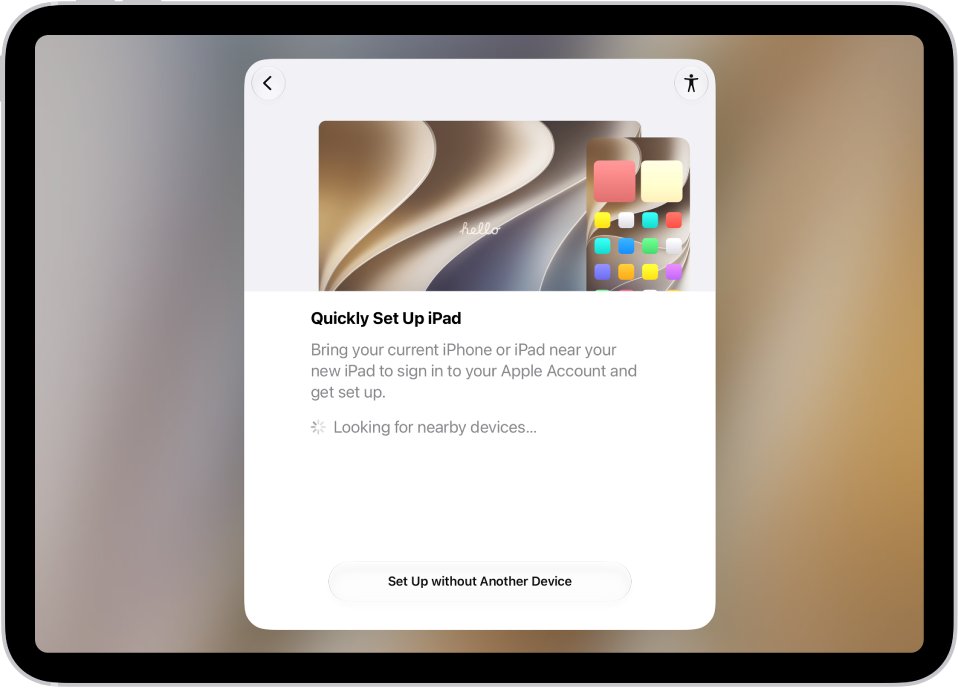
- Choose your language and region on the first setup screens, then tap Set Up Without Another Device.
- On the Wi-Fi screen, tap Continue Without Wi-Fi to use the cellular network.
- Activate your eSIM if the iPad asks you to.
- Continue through the remaining screens until the Home Screen appears.
Cellular data used during setup counts against your plan. Restoring a large iCloud backup is better left until the iPad is on Wi-Fi.
iPad setup without Wi-Fi: which option fits your model
| Your situation | Use this | Why |
|---|---|---|
| Wi-Fi + Cellular iPad with an active SIM or eSIM | Continue Without Wi-Fi | Setup uses the carrier's cellular data instead |
| Wi-Fi-only iPad and a Mac or PC with internet | Activate through the computer with a cable | The computer supplies the activation connection |
| Wi-Fi-only iPad and an iPhone with cellular data | Join the iPhone's Personal Hotspot | The hotspot appears in the iPad's Wi-Fi list |
| Wi-Fi-only iPad with no computer and no hotspot | Wait until a Wi-Fi network is available | Activation cannot finish without a connection |
| Activation fails over cellular | Switch to Wi-Fi or a computer | Apple recommends a reliable Wi-Fi network for activation |
What iPad initial setup needs instead of Wi-Fi
| Item | Needed for | Notes |
|---|---|---|
| Cellular data plan with a SIM or eSIM | Continue Without Wi-Fi | Wi-Fi + Cellular models only; not every carrier or region supports eSIM |
| Mac with the latest macOS, or a PC with the latest iTunes | Computer activation | The computer itself must be online |
| The iPad's USB cable | Computer activation | Apple suggests the cable that came with the iPad |
| iPhone or cellular iPad sharing a Personal Hotspot | Hotspot setup | You need the hotspot password shown on the sharing device |
| Apple Account and password | Signing in during setup | Optional at this stage; you can create one or set it up later |
| SIM PIN, if the SIM is locked | Using cellular data | Never guess the PIN; wrong attempts can permanently lock the SIM |
Set up an iPad without Wi-Fi using a computer
A Wi-Fi-only iPad has no cellular option, so the computer route is the main way past the Wi-Fi screen. The computer handles activation over its own internet connection.
- Update the Mac to the latest macOS, or install the latest iTunes on a Windows PC.
- Confirm the computer is connected to the internet.
- Turn on the iPad and go through the first setup screens.
- Connect the iPad to the computer with its USB cable.
- Find the iPad in Finder on the Mac, or in iTunes on the PC.
- Wait while the computer detects and activates the iPad.
- When the computer shows Set up as New or Restore from Backup, the iPad is activated; choose one and finish setup on the iPad.
If the computer says the activation information was invalid or could not be obtained, Apple's fix is to restore the iPad in recovery mode.
Use an iPhone Personal Hotspot for iPad initial setup
A Personal Hotspot turns an iPhone's cellular data into a Wi-Fi network. The iPad still sees Wi-Fi, but you avoid needing a home network or router.
- On the iPhone, open Settings, tap Cellular Data, then tap Personal Hotspot.
- Turn the hotspot on and note the Wi-Fi password shown on that screen.
- Keep the iPhone close to the iPad.
- On the iPad's Wi-Fi setup screen, tap the iPhone's name in the network list.
- Enter the hotspot password and continue setup.
Skip Apple Account sign-in and other iPad setup screens
Once the iPad is activated, most later screens can be postponed. That keeps data use low when you are on cellular or a hotspot.
| Setup screen | How to skip it | Where to finish it later |
|---|---|---|
| Transfer Your Apps & Data | Tap Don't Transfer Anything | Restore later only by erasing the iPad and setting it up again |
| Apple Account sign-in | Tap Forgot password or don't have an Apple Account? and choose to set it up later | Settings > Sign in to your iPad |
| Passcode | Tap Passcode Options for a four-digit, custom or no passcode | Settings > Face ID or Touch ID & Passcode |
| Screen Time, Siri and other features | Follow the onscreen choice to set them up later | The matching page in Settings |
Skipping the passcode also blocks Face ID, Touch ID and Apple Pay until you add one.
Connect iPad to Wi-Fi after skipping it in setup
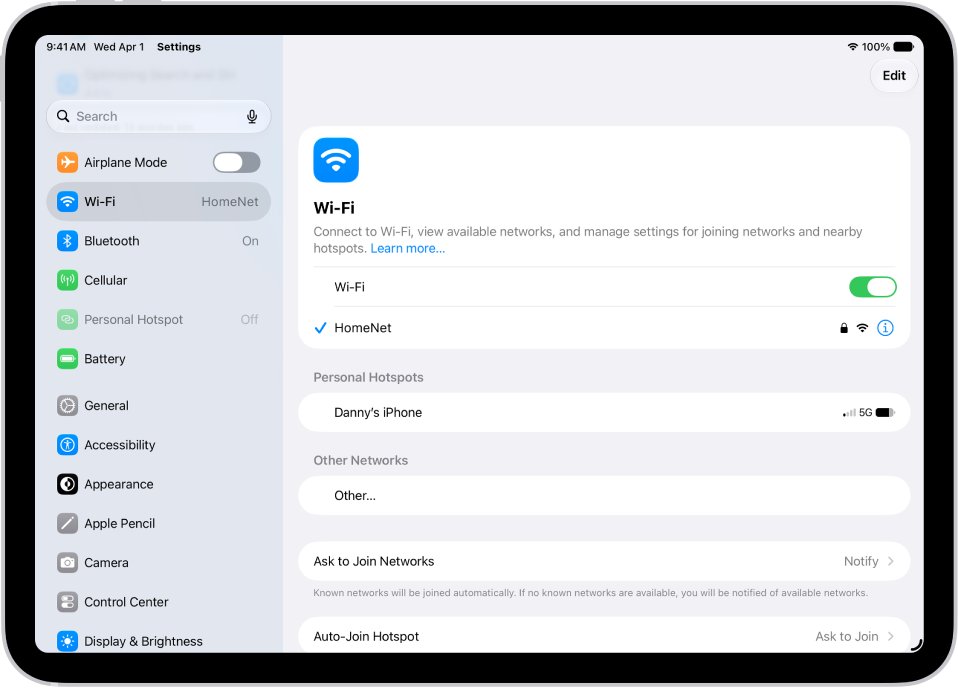
- Open the Settings app on the iPad.
- Tap Wi-Fi and turn on Wi-Fi.
- Tap the name of your network, or tap Other for a hidden network.
- Enter the password if asked, or share the Wi-Fi password from an iPhone held near the iPad.
- On a 5G iPad that keeps using cellular, tap the Info button next to the network name and tap Use Wi-Fi for Internet.
The iPad joins networks in this order: the most recently used Wi-Fi network, a network you choose, then cellular data on Wi-Fi + Cellular models.
Check iPad setup finished and the iPad is online
- Confirm the iPad reaches the Home Screen without returning to the setup assistant.
- Open Settings > Wi-Fi and look for a blue checkmark next to the network name.
- Check for the Wi-Fi icon at the top of the screen, or cellular bars on a cellular model.
- Open Settings > Cellular Data to see how much data setup used, if you skipped Wi-Fi with cellular.
iPad not connecting to WiFi during setup: fixes
No option to continue without Wi-Fi
The iPad is a Wi-Fi-only model, or its SIM or eSIM is not active yet.
- Check whether the iPad has a SIM tray or eSIM support; Wi-Fi-only models never show the cellular option.
- On a cellular model, reseat the SIM or contact the carrier to activate the plan.
- Use the computer method or a Personal Hotspot instead.
Wi-Fi says connection failed or the network does not appear
The router is out of range, hidden, or not working, or the network does not meet Apple's recommendations.
- Check that other devices can join the same network.
- Move the iPad closer to the router.
- Join the router's other band, such as 5 GHz instead of 2.4 GHz.
- Restart the router and modem by unplugging them and plugging them back in.
- Update the router firmware through its manufacturer.
Wi-Fi connected without internet
The network has a router or ISP problem, so activation cannot reach Apple's servers.
- Test the same network on another device.
- Restart the router and modem.
- Contact your ISP if no device can get online, or switch to a hotspot or computer for setup.
Activation server unavailable or cannot be reached
Apple's activation service is busy or the connection is unreliable.
- Check Apple's System Status page and wait if iOS Device Activation is not green.
- Restart the iPad.
- Switch from cellular to a reliable Wi-Fi network, then try again after a few minutes.
- Activate through a computer if the iPad still fails.
To start setup from scratch, factory reset the iPad and setup starts again from the first screen. A frozen setup screen usually clears after you turn the iPad off and back on.
Skip WiFi in iPad initial setup FAQ
Can you set up an iPad without Wi-Fi?
Yes, but not without any connection. A Wi-Fi + Cellular iPad can use cellular data through Continue Without Wi-Fi, and a Wi-Fi-only iPad can be activated by connecting it to an online Mac or PC with a cable.
Why is there no option to connect without Wi-Fi?
Continue Without Wi-Fi appears only on Wi-Fi + Cellular models with an active SIM or eSIM. A Wi-Fi-only iPad needs a Wi-Fi network, a Personal Hotspot or a computer to activate.
Can I skip the Apple Account during iPad setup?
Yes. Tap Forgot password or don't have an Apple Account? on the sign-in screen and choose to set it up later. You can sign in afterwards from the top of the Settings app.
Why can't my iPad connect to Wi-Fi during setup?
The router is usually out of range, offline or using a band the iPad struggles with. Check other devices on the network, move closer, restart the router and modem, or try the other frequency band.
Why does a particular Wi-Fi network not connect?
Some networks hide themselves or block unknown devices, and some do not meet Apple's recommendations. Tap Other to join a hidden network by name, or ask the network's owner or ISP to check its settings.
How do I fix Wi-Fi connected without internet on iPad?
Test the same network on another device, then restart the router and modem. If nothing can get online, contact your ISP; after setup, Settings > General > Transfer or Reset iPad > Reset > Reset Network Settings clears saved network settings.
Does skipping Wi-Fi in setup use cellular data?
Yes. Continue Without Wi-Fi activates and sets up the iPad over your carrier's network, so downloads during setup count against your plan. Skip backup restores until the iPad is on Wi-Fi.
How do I skip connecting to Wi-Fi in Windows 11 setup?
Windows 11 setup is a separate process from iPad setup. To finish it offline, install Windows 11 with a local account instead of a Microsoft account.