To zip files on Windows 11 or Windows 10, select them in File Explorer, right-click, and send them to a Compressed (zipped) folder, which appears next to the originals.
This guide covers the File Explorer routes on every current build, the 7z and TAR options in Windows 11 version 24H2, PowerShell and tar commands, the limits of the built-in tools, and how to unzip the result.
Create zip files on Windows 11 from File Explorer
This route works on Windows 11 and Windows 10 and needs no extra software. The new zip file takes the name of the item you right-clicked and lands in the same folder.
- Open File Explorer with Windows + E and go to the files or folder you want to zip.
- Select the items. Hold Ctrl and click to pick several files, or press Ctrl + A to select everything in the folder.
- Right-click one of the selected items.
- On Windows 11, select Show more options. On Windows 10, the full menu opens straight away.
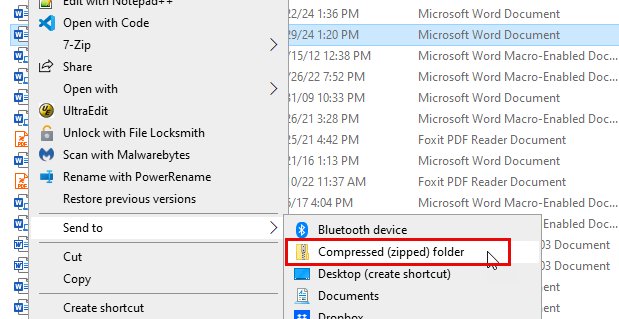
- Select Send to > Compressed (zipped) folder.
- Type a new name for the zip file if you want one, then press Enter.
To rename the zip later, right-click it, select Rename, and type the new name.
Which way to zip files on Windows should you use?
| Your situation | Use this | Why |
|---|---|---|
| A few files or one folder, any Windows 11 or 10 PC | Right-click > Send to > Compressed (zipped) folder | Built in on both versions, two clicks |
| Windows 11 version 24H2 and you need 7z or TAR | Right-click > Compress to | Creates ZIP, 7z and TAR archives without extra apps |
| The zip already exists and you forgot a file | Drag the file onto the zip | Adds it without rebuilding the archive |
| Repeating the same backup or script job | PowerShell Compress-Archive | Scriptable, with compression level and update options |
| You work in Command Prompt or need .tar.gz | tar -caf | Picks the format from the file extension |
| You need a password-protected archive | A third-party archiver such as 7-Zip or WinRAR | Windows cannot create or open encrypted archives |
Compress files to ZIP, 7z or TAR on Windows 11 24H2
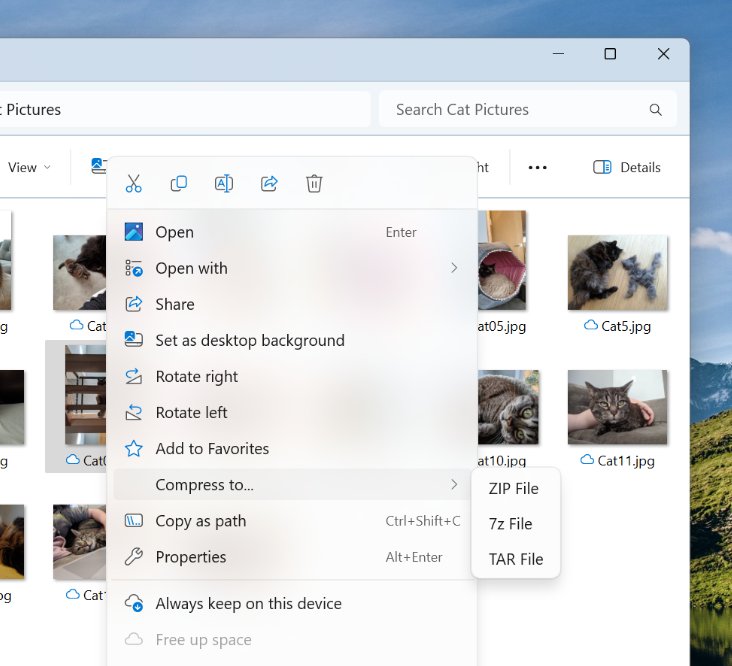
Windows 11 version 24H2 adds a Compress to entry to the File Explorer right-click menu. It creates ZIP, 7z and TAR archives, and a compression wizard sets more formats, such as gzip or bzip2, and the compression level.
- Open File Explorer and select the files or folder you want to compress.
- Right-click the selection.
- Hover over Compress to.
- Pick the ZIP, 7z or TAR format from the submenu.
- To set the compression level or another format, open the compression wizard from the same submenu and choose your options.
- Type a name for the new archive and press Enter.
If Compress to is missing, the PC runs Windows 10 or an older Windows 11 release. Use Send to > Compressed (zipped) folder instead.
Add files to an existing zip folder on Windows
A zip folder behaves like a normal folder in File Explorer, so you can drop more items into it at any time.
- Open File Explorer in the folder that holds the zip file.
- Open a second File Explorer window with Windows + E and go to the files you want to add.
- Select the files or folders.
- Drag them onto the zip file icon, or into the open zip folder window.
- Release the mouse button and wait for the copy to finish.
Create zip files on Windows 11 from PowerShell
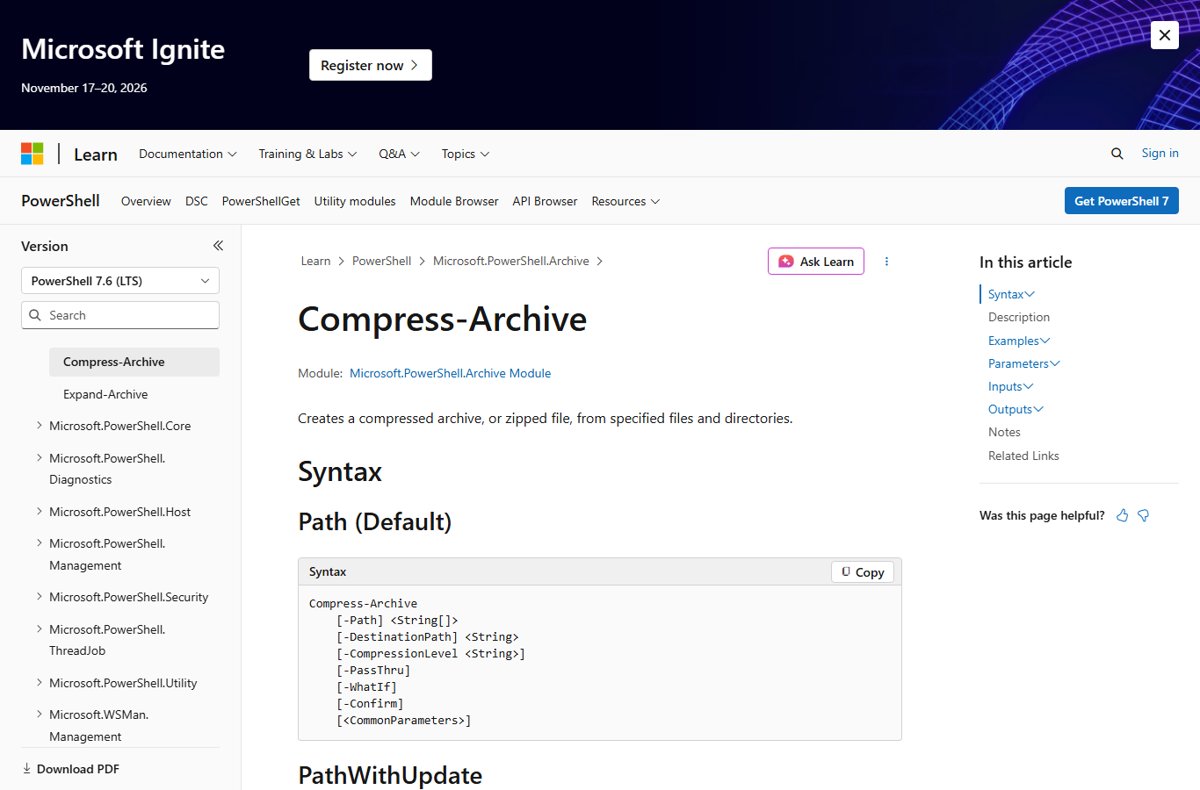
The Compress-Archive cmdlet zips files and folders from PowerShell on Windows 11 and Windows 10. Open Windows Terminal or PowerShell from the Start menu and change the paths below to your own.
To keep the root folder inside the zip, pass the folder itself. To zip only its contents, add \* to the path, and to zip only the files at the top level, add \*.*.
Compress-Archive -Path C:\Reference -DestinationPath C:\Archives\Draft.zip-Path is the file or folder to zip and accepts several comma-separated paths and wildcards. -DestinationPath is the zip to create; the .zip extension is added if you leave it out. Add -CompressionLevel Fastest, Optimal (the default) or NoCompression to trade speed for size. Add -Update to add new or newer files to an existing zip, or -Force to overwrite it.
You should see: The command prints nothing on success. Draft.zip appears in C:\Archives and contains the Reference folder with its files and subfolders.
Zip a folder with the tar command in Command Prompt
Windows includes tar, a command-line archiver based on bsdtar. It creates .zip, .tar, .tar.gz and .7z archives and works in Command Prompt, PowerShell and Windows Terminal.
tar -caf archive.zip .\my-folder-c creates an archive, -a picks the format from the file extension (.zip here), and -f names the output file. Change the extension to .tar.gz to get a gzip tarball instead, or run tar -czf archive.tar.gz .\my-folder.
You should see: archive.zip appears in the current folder. Run tar -tf archive.zip to list what it contains.
Check the zip file was created correctly
- Look for a file with a zipper icon and the same name as your item in the source folder, or at the path you gave PowerShell or tar.
- Double-click the zip to open it in File Explorer and confirm every file and subfolder is there.
- Right-click the zip and select Properties to compare its Size with the original folder's size.
- In a terminal, run
tar -tf archive.zipto print the full list of items inside without extracting them.
A zip of photos or videos is often about the same size as the originals. That is expected, not a failed compression.
Archive formats Windows 11 and 10 can zip and unzip
| Format | Windows 11 24H2 | Windows 10 and older Windows 11 | Notes |
|---|---|---|---|
| ZIP | Create and open | Create and open | Send to > Compressed (zipped) folder on every version |
| 7z | Create and open | Not in File Explorer | tar can create and extract .7z from the command line |
| TAR, .tar.gz | Create and open | Not in File Explorer | tar handles both from the command line |
| RAR | Open only | Not supported | Creating RAR needs WinRAR |
| Password-protected (encrypted) archives | Not supported | Not supported | Use 7-Zip or WinRAR |
For encrypted or split archives, the 7-Zip archive manager covers what the built-in tools cannot.
Limits of the built-in zip tools on Windows
| Limit | What happens | What to do |
|---|---|---|
| Files over 2 GB in Compress-Archive | The cmdlet uses an API that caps each file at 2 GB | Use File Explorer, tar or a third-party archiver for larger files |
| Hidden files in Compress-Archive | Hidden files and folders are skipped | Make them visible first, or use tar or File Explorer |
| Encrypted (EFS) files | They are unencrypted when someone unzips them | Avoid zipping encrypted files that hold sensitive data |
| JPEG, MP4 and other compressed files | The zip is about the same size as the originals | Zip them to bundle files, not to save space |
| Non-UTF-8 file names | Names can change when extracted with Expand-Archive | Extract with the same tool that created the zip |
If File Explorer hides the files you need, show hidden files and folders before you select them.
Unzip (extract) files on Windows 11 and 10
- Open File Explorer and find the zip file.
- To extract one item, double-click the zip and drag that file or folder out to another location.
- To extract everything, right-click the zip and select Extract All….
- Pick a destination folder or keep the suggested one, then select Extract.
- In PowerShell, run
Expand-Archive -Path Draft.zip -DestinationPath C:\Referenceto do the same. Add-Forceto overwrite files that already exist.
Zip files on Windows 11 and 10 FAQ
How do I zip a folder in Windows 11?
Right-click the folder, select Show more options, then Send to > Compressed (zipped) folder. On Windows 11 version 24H2 you can also use Compress to. The zip appears in the same location with the same name as the folder.
How do I zip multiple files into one zip file?
Select all the files first by holding Ctrl and clicking each one, then right-click any selected file and choose Send to > Compressed (zipped) folder. Windows names the zip after the file you right-clicked, so rename it if needed.
Does Windows 11 have a built-in zip tool?
Yes. File Explorer creates and opens zip files on Windows 11 and Windows 10 without extra software. Windows 11 version 24H2 also creates 7z and TAR archives and opens RAR files.
Can I password protect a zip file in Windows 11?
No. Windows cannot create or open encrypted archives. Microsoft points to third-party apps such as 7-Zip or WinRAR for password-protected archives.
Why is my zip file not much smaller than the original files?
Some file types are already compressed. JPEG photos, for example, barely shrink, so a zip of pictures ends up about the same size as the original set of images.
How do I zip files with PowerShell?
Run Compress-Archive -Path followed by the file or folder, then -DestinationPath followed by the zip name, for example Compress-Archive -Path C:\Reference -DestinationPath C:\Archives\Draft.zip. Add -Update to add files to an existing archive.
How do I add files to a zip folder I already made?
Drag the files or folders onto the zip file in File Explorer. In PowerShell, run Compress-Archive with the -Update switch, which adds new files and replaces older versions of existing ones.
Can Windows 10 create 7z files?
Not from File Explorer, which only offers the Compressed (zipped) folder option on Windows 10. Creating 7z and TAR archives from the right-click menu arrived in Windows 11 version 24H2.
Bottom line: the best way to zip files on Windows
Use Send to > Compressed (zipped) folder for everyday zips, Compress to on Windows 11 24H2 for 7z or TAR, and Compress-Archive when you repeat the job. The right-click route works on every Windows 11 and 10 PC with no setup, while PowerShell adds scripting, compression levels and updates; only encrypted archives need a third-party tool.