If you can't sign into Gmail on a new iPhone, the usual cause is Google's 2-Step Verification: it sends the confirmation to your old phone, so approve it there or tap Try another way to use a backup code or another phone number.
This guide covers the Gmail app, the built-in Mail app and Gmail in Safari, plus what to do when Google cannot confirm the account is yours.
Fastest fix when Gmail won't sign in on a new iPhone
Keep your old phone nearby and switched on before you start. Google treats a new iPhone as an unfamiliar device and asks a phone it already trusts to confirm the sign-in.
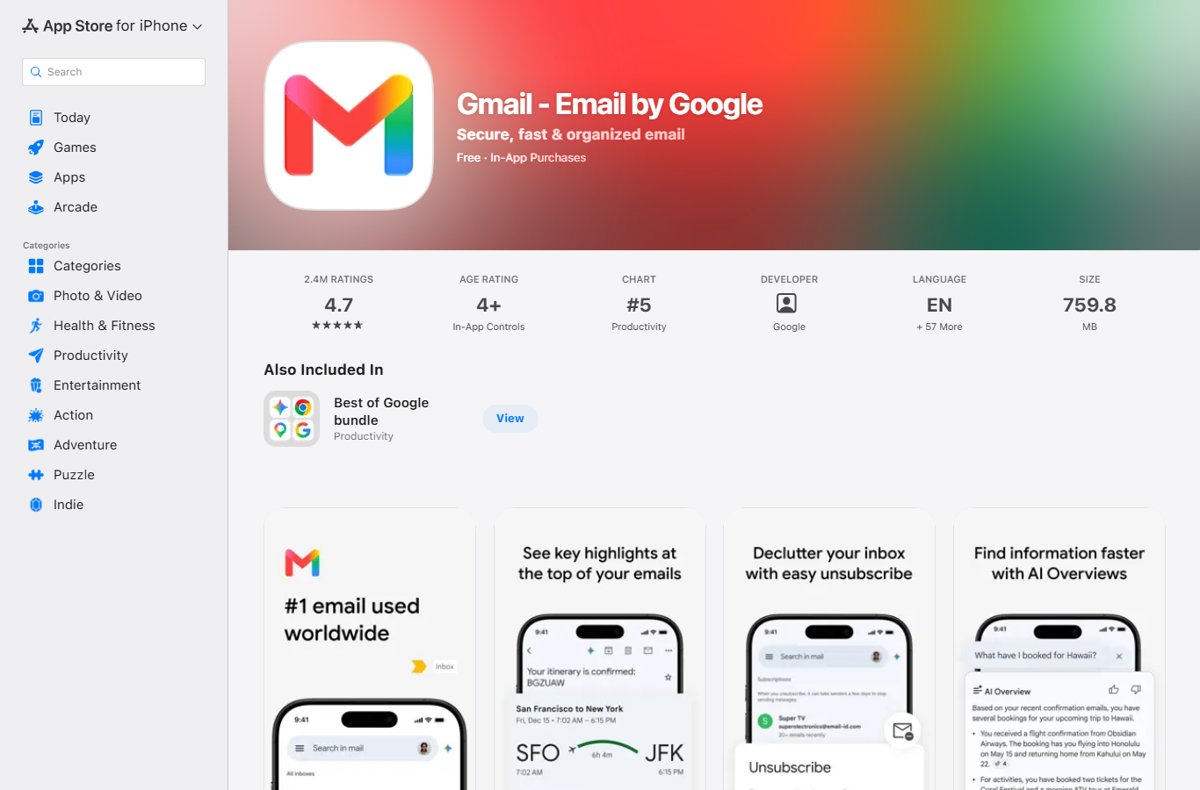
- Install the Gmail app from the App Store on the new iPhone, then open it.
- Choose Google when asked for an account type, and enter your Gmail address and password exactly, watching uppercase and lowercase letters.
- When Google asks you to confirm it is you, pick up the old phone and tap Yes on the Trying to sign in? prompt.
- If no prompt arrives, tap Resend it on the new iPhone and wait a few seconds.
- If the old phone is gone, tap Try another way and choose a backup code, a text to another phone number you added, or a security key.
- Finish the on-screen prompts and confirm your inbox loads.
If the password itself is rejected, go straight to the account recovery section below rather than retrying many times.
Why Gmail sign-in fails on a new iPhone: match your symptom
| What you see | Likely cause | What to do |
|---|---|---|
| Asked to confirm on another device, nothing arrives | Google prompt goes to the old phone, which is off, offline or on Do Not Disturb | Turn on the old phone, connect it to Wi-Fi or mobile data, tap Resend it |
| Old phone sold, wiped or lost | Your second step lived on that phone | Tap Try another way and use a backup code, another phone number or a security key, or recover your account without the old phone |
| Codes from Google Authenticator no longer work | Authenticator codes did not move to the new iPhone | Transfer codes from the old phone or sign in to Authenticator with your Google Account |
| Mail app keeps asking for your password | Account added with a plain password instead of Google sign-in | Delete the account in Mail and add it again with Google |
| Safari sign-in loops back to the Google page | Block All Cookies is on in Safari | Turn off Block All Cookies, then sign in again |
| "Google couldn't verify this account belongs to you" | Recovery could not confirm ownership from this device | Retry recovery from a device and place you usually sign in from |
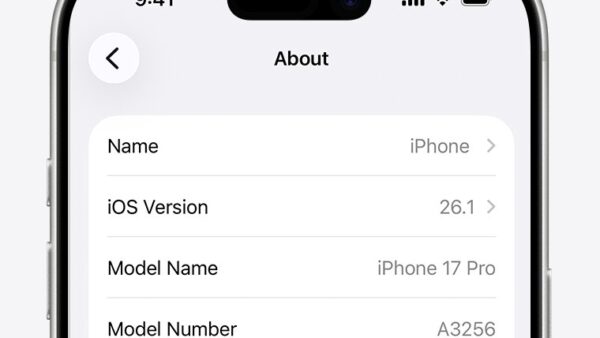
| Gmail app will not install | iOS is older than the app needs | Update the iPhone to iOS 18 or later |
What you need to sign into Gmail on a new iPhone
| Requirement | Detail |
|---|---|
| iOS version | The Gmail app from the App Store requires iOS 18.0 or later on iPhone |
| Your Gmail address and current password | Enter the most recent password; a password changed on another device replaces the old one everywhere |
| A second step, if 2-Step Verification is on | Your old phone for a Google prompt, a backup code, another phone number on the account, a security key or a passkey on another device |
| Internet connection on both phones | Wi-Fi or mobile data must be on for a Google prompt to arrive |
| Notifications allowed | The Google app that receives prompts needs Allow Notifications turned on |
| Free connection slots | Gmail allows up to 15 email clients connected to one account at the same time |
Sign into the Gmail app on iPhone
The Gmail app is the route Google supports directly, and it can also act as the device that receives future Google prompts.
- Open the Gmail app.
- If another account is already signed in, tap your profile picture at the top right of the search bar.
- Tap Add another account, then choose Google.
- Enter your email address and password.
- Complete the 2-Step Verification step Google shows, such as approving the prompt on your other device.
- Wait for the inbox to load, then pull down to refresh it.
Add a Gmail account to the iPhone Mail app
Picking Google from the provider list opens Google's own sign-in page, which handles 2-Step Verification. Typing the details into a generic mail account does not, because Gmail no longer supports apps that sign in with only a username and password.
- Open the Settings app on your iPhone.
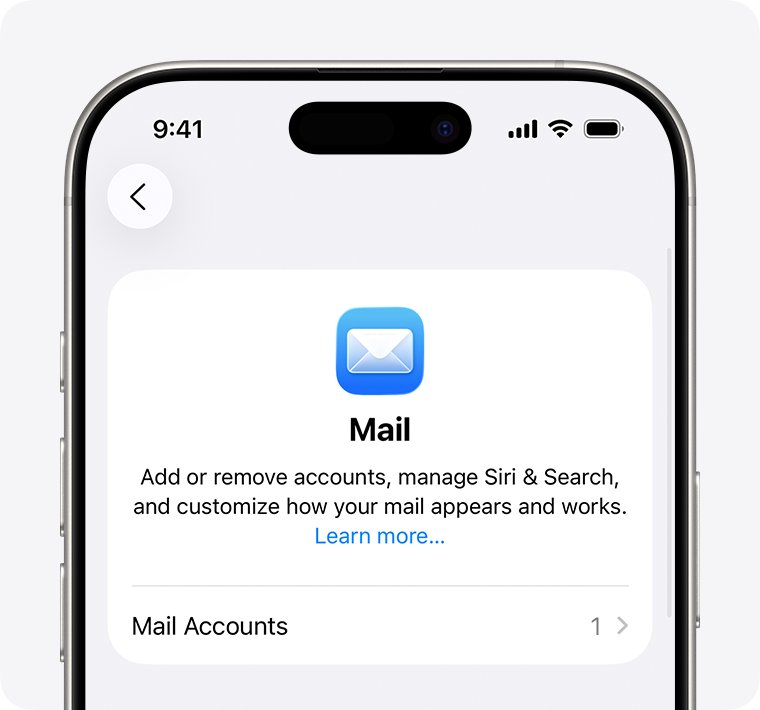
- Tap Apps, then tap Mail.
- Tap Mail Accounts, then tap Add Account.
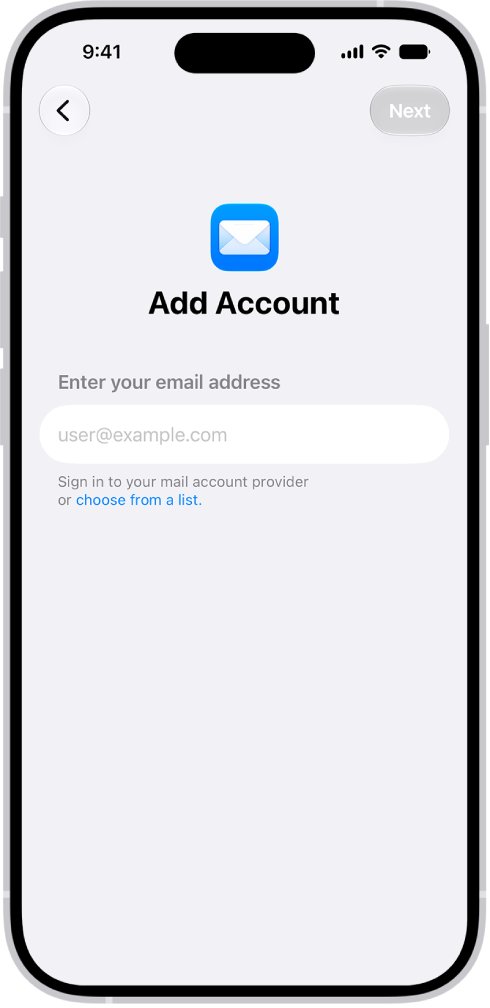
- Tap choose from a list under the email address field and select Google.
- Sign in on the Google page that opens and approve the verification step.
- Keep Mail turned on for the account, then open the Mail app to check your inbox.
Remove and re-add Gmail when Mail keeps asking for the password
Google's own fix for "Username and password not accepted", "Invalid credentials" or a password box that keeps returning is to remove the account and add it again with Google sign-in. Removing it from the iPhone does not delete the Gmail account.
- Open Settings and tap Apps, then Mail.
- Tap Mail Accounts and tap the Gmail account.
- Tap Delete Account or Sign Out, then confirm.
- Tap Add Account and choose Google from the list.
- Sign in and complete the verification step.
- Open Mail and confirm new messages arrive.
The same clean-slate approach works in the Gmail app: sign out of Gmail on the iPhone, then add the account again.
Fix Gmail sign-in in Safari on iPhone
Google sign-in relies on cookies. Apple notes that blocking cookies can stop some sites from working, including signing in.
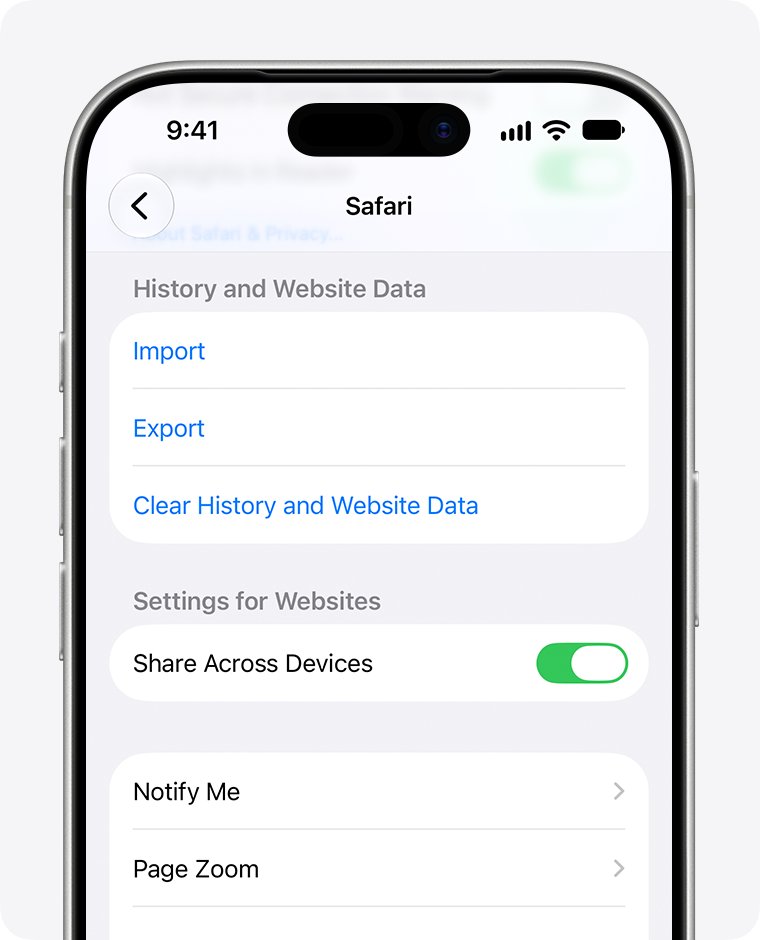
- Open Settings, tap Apps, then tap Safari.
- Tap Advanced and make sure Block All Cookies is turned off.
- Go back one screen, tap Clear History and Website Data, choose a timeframe and tap Clear History.
- Open Safari and go to accounts.google.com, the only address where Google asks for your password.
- Sign in and complete the verification step.
- Open Gmail in the same tab.
To keep your browsing history, use Settings > Apps > Safari > Advanced > Website Data > Remove All Website Data instead of clearing history. The Gmail login page works the same way in any supported browser.
Move Google Authenticator codes to a new iPhone
If your second step is a code from Google Authenticator, those codes stay on the old phone unless they are synced to your Google Account or transferred when you set up Google Authenticator on the new iPhone.
- Install Google Authenticator on the new iPhone, tap Get Started and sign in to your Google Account; synced codes appear automatically.
- If codes are missing, open Authenticator on the old phone, open the menu and tap Transfer accounts, then Export accounts.
- Unlock the old phone, select the accounts to move and tap Next to show a QR code.
- On the new iPhone, open the menu, tap Transfer accounts, then Import accounts.
- Tap Scan QR code and scan each code shown on the old phone.
- Use a fresh Authenticator code to finish the Gmail sign-in.
How to check Gmail is signed in on your iPhone
- Open the Gmail app or Mail and pull down on the inbox; new messages should appear without a password prompt.
- Send a test email from another account and confirm it arrives within a minute or two.
- In the Gmail app, tap your profile picture and confirm the correct address is listed.
- In Settings > Apps > Mail > Mail Accounts, confirm the Gmail account shows Mail turned on.
- If you use Google prompts, keep the Gmail app signed in so the new iPhone can approve future sign-ins.
Gmail sign-in problems on iPhone and how to fix them
No Google prompt arrives on the old phone
The phone is offline, has Do Not Disturb on, or the receiving app cannot show notifications.
- Turn on Wi-Fi or mobile data on the old phone and turn off Do Not Disturb.
- On an iPhone, open Settings > Notifications, pick the Gmail or Google app and turn on Allow Notifications.
- Open that app and confirm it is signed in to the same Google Account.
- On the new iPhone, tap Resend it.
- If nothing arrives, tap Try another way or I can't do this and pick another option.
Old phone lost, sold or wiped
The trusted device that approved sign-ins is no longer available.
- On the sign-in screen, tap Try another way.
- Choose I don't have my phone if it is offered and follow the steps.
- Use a backup code, another phone number on the account, a security key or a passkey on another device.
- After you are in, sign the lost phone out of your Google Account and change your password.
- Open your 2-Step Verification settings, tap Show codes, then Get new codes to revoke any old backup codes.
Verification text messages never arrive
An unusual sign-in location can block 2-Step Verification text codes, or the number has not moved to the new SIM yet.
- Check whether Google sent a prompt to a signed-in device instead of a code.
- Ask your carrier to transfer your number to the new iPhone or SIM.
- Use only the newest code if you requested several.
- Switch to a backup code or another phone while the number transfer completes.
"Google couldn't verify this account belongs to you"
Account recovery did not get enough matching answers from this device and location.
- Start the Google account recovery page again; Google allows another attempt.
- Run it from a computer, phone or tablet you often sign in on, in your usual browser, from home or work.
- Answer every question; if unsure, give your best guess rather than skipping.
- Enter the most recent password you remember, or an older one if you cannot recall it.
- Check your spam folder for an email titled Your Google support inquiry.
"This browser or app may not be secure" in Safari
Google blocks sign-in from unsupported, outdated or heavily restricted browsers.
- Use Safari or another supported browser such as Chrome, Firefox or Edge.
- Update the iPhone to the latest iOS version.
- Turn off Safari extensions until you finish signing in.
- If a content blocker or strict privacy setting is active, allow www.google.com.
"Too many simultaneous connections"
More than 15 email clients are connected to the account.
- Sign out of Gmail on old phones, tablets and computers you no longer use.
- Remove the account from mail apps you have stopped using.
- Add the account on the new iPhone again.
Gmail sign-in on new iPhone FAQ
Why can't I sign into Gmail on my new iPhone 17?
The iPhone 17 is a new device to Google, so it asks a trusted device to confirm the sign-in. Approve the prompt on your old phone, or tap Try another way and use a backup code, another phone number or a security key. The Gmail app needs iOS 18 or later.
Why can't I sign into Gmail on my iPhone?
The most common causes are a missed 2-Step Verification prompt, a mistyped or changed password, Safari blocking cookies, or a Gmail account added to Mail without Google sign-in. Match the message you see to the fix table above and work from the top.
Why can't I sign into Gmail on a new phone?
Google sends its confirmation to a phone it already trusts, which is usually your old phone. Keep the old phone on and online, approve the prompt, or choose Try another way if you no longer have it.
Why can't I sign into my Gmail account at all?
If the password is rejected on every device, use Google's account recovery page. Run it from a device and location you usually sign in from, answer every question, and give your most recent password. A wrong guess does not end the process.
What does "Gmail couldn't sign you in" mean on iPhone?
Google blocked the attempt because the browser or app did not meet its security checks. Sign in through the Gmail app or with Google from the Mail provider list, keep iOS updated, and allow cookies in Safari.
Why won't Gmail sign in on my phone after I changed my password?
Devices still holding the old password lose access after a change. Enter the new password in the Gmail app, or delete the account from Mail and add it again with Google so the iPhone stores the new sign-in.
Can I sign into Gmail on iPhone without my old phone?
Yes, if you set up another second step. On the verification screen tap Try another way, then use a backup code, a text to another phone number on the account, a security key or a passkey on another device.
Do I need an app password for Gmail on iPhone Mail?
Usually no. Google recommends adding the account with Sign in with Google, and calls app passwords a last resort for 2-Step Verification users whose app cannot use Google sign-in. Apple Mail supports Google sign-in when you choose Google from the list.
Best way to get Gmail working on a new iPhone
Sign in through the Gmail app or the Google option in Mail with your old phone switched on and nearby, and set up backup codes before you wipe it. Almost every new-iPhone sign-in failure traces back to a verification step that lived on the old phone, and backup codes or a second phone number remove that single point of failure.