To create another profile in Microsoft Edge, select the Profile icon in the upper-right corner, choose Set up a new profile, pick Personal or Work or school, and sign in or start without your data.
This guide covers signing in, switching, removing and syncing profiles, guest browsing, where Edge stores profile data, and why Edge sometimes opens links in a different profile.
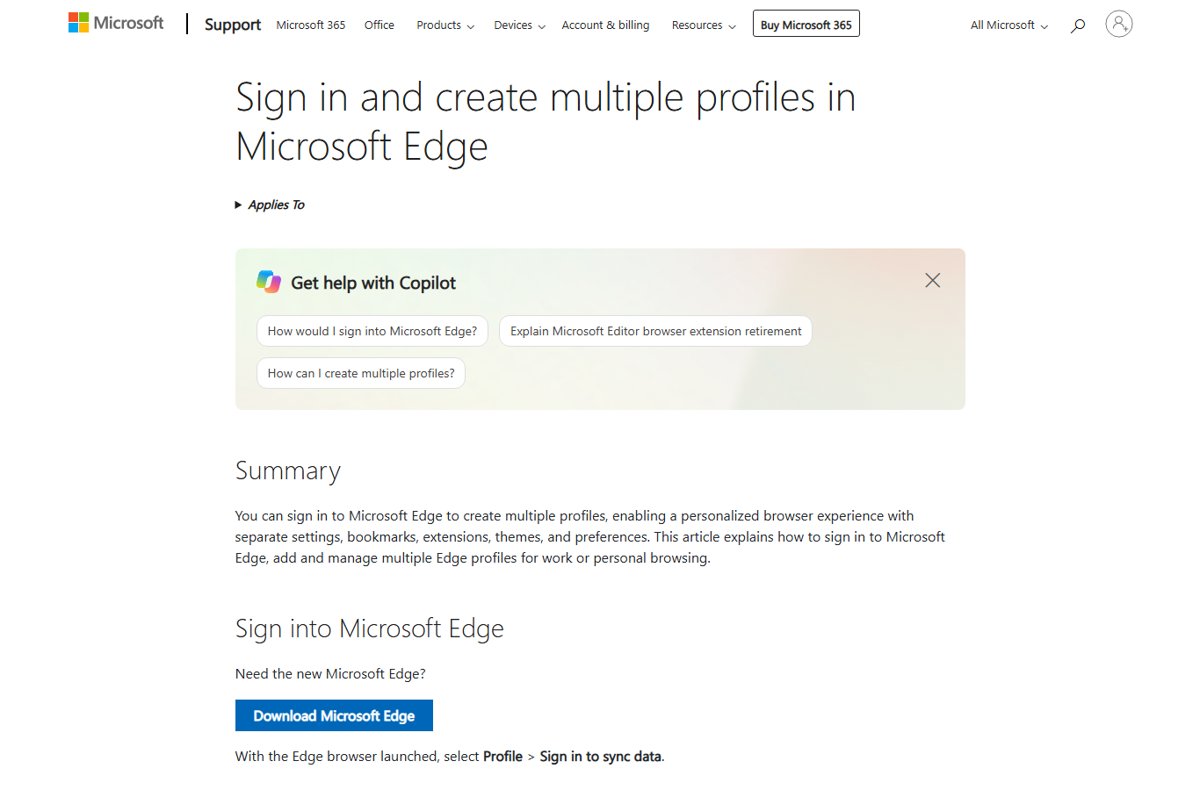
Create a new profile in Microsoft Edge
Each Edge profile keeps its own favorites, history, passwords, extensions, theme and settings, so work and personal browsing stay apart on one PC.
- Select the Profile icon in the upper-right corner of Edge.
- Select Set up a new profile.
- Select Personal for a Microsoft account or Work or school for an organisation account.
- Choose Sign in to sync data (recommended) or Start without your data.
- Select Confirm and start browsing.
- Use the new profile in the separate Edge window that opens.
A profile created with Start without your data keeps everything on this PC only. You can sign it in later to turn on sync.
Sign into Microsoft Edge
Signing a profile in to a Microsoft account, or a work or school account, lets Edge sync that profile's data to your other devices.
- Select the profile icon in the top-right corner of the browser window.
- Choose the account you want from the list, or select Add new account if it is not listed.
- Select Sign in to sync data and complete the Microsoft sign-in.
- If you see Manage profile settings instead, the profile is already signed in.
- From the settings page you can also go to Profiles > Sign in, pick the account and select Continue.
Once signed in, Edge syncs favorites, passwords, history, extensions, settings, open tabs, autofill entries and payment info across devices that use the same account. Collections and reading lists sync with favorites.
What is a Microsoft Edge profile?
A profile is a separate browser identity inside one Edge installation. Edge has profiles just like Chrome, plus a guest profile for temporary use.
| Profile type | Signed in with | Best for | What it keeps |
|---|---|---|---|
| Personal | A Microsoft account, or no account | Home browsing, family members on a shared PC | Its own favorites, passwords, history, extensions and settings, synced if signed in |
| Work or school | A Microsoft Entra work or school account | Company sites, Microsoft 365 and managed policies | Separate data, synced to the organisation account and subject to its policies |
| Local profile | Nothing (Start without your data) | Testing, a second identity on one PC | Data on this PC only, no sync |
| Guest | Nothing | Letting someone browse briefly | No history or data after all guest windows close |
Switch between profiles in Edge
- Select the Profile icon in the upper-right corner.
- Select the profile you want to use from the list.
- Work in the new window that Edge opens for that profile; the old profile's window stays open.
Edge also lets you move tabs to another profile window when you open a page in the wrong one.
Change the default profile in Edge
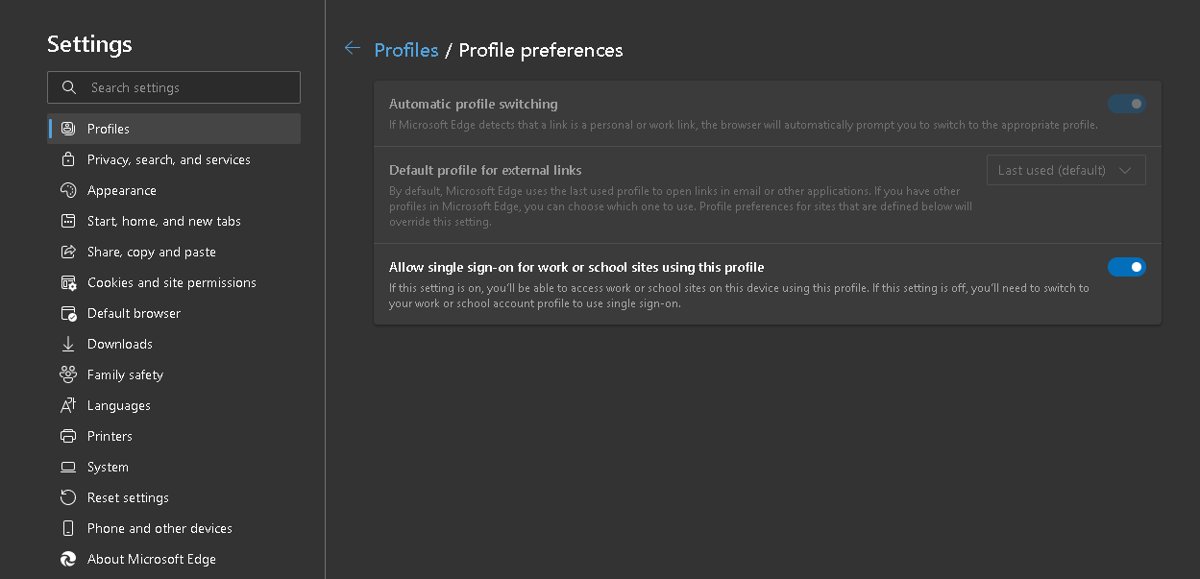
Edge decides which profile opens links from other apps through two settings under Profile preferences. Change them when links keep landing in the wrong profile.
- Select Settings and more (…) > Settings, or press Alt + F and choose Settings.
- Select Profiles, then open Profile preferences.
- Set Default profile for external links to the profile that should open links from other apps.
- Turn automatic profile switching on or off, depending on whether Edge should move work sites to your work profile.
- Under Profile preferences for sites, add a site and pick the profile that should always open it.
If Default profile for external links is greyed out, your organisation sets it with the EdgeDefaultProfileEnabled policy. You can also add sites for automatic profile switching so each one always opens in the right profile.
Remove a profile from Microsoft Edge
Removing a profile deletes its favorites, history, passwords and settings from this PC. Export anything you need first if the profile was never signed in to sync.
- Select the Profile icon, then select Profile settings.
- Go to More profiles.
- Select the delete button next to the profile you want to remove.
- Select Remove profile and confirm.
- Close any window that still belonged to the removed profile.
Use a guest profile in Edge
A guest profile is the way to use Edge without your profile. It does not import data from your other profiles and deletes its browsing data when every guest window is closed.
- Select the Profile icon.
- Select Browse as guest.
- Hand over the guest window that opens; it starts with no favorites, history or saved passwords.
- Close every guest window when the person is finished so Edge deletes the session data.
If Browse as guest is missing, an administrator has disabled guest browsing with the BrowserGuestModeEnabled policy.
Choose what each Edge profile syncs
Sync is set per profile, so a work profile can sync passwords while a personal profile syncs only favorites.
- Select Settings and more (…) > Settings.
- Under Profiles, select the profile you want to change.
- Select Sync.
- Turn the toggle for each data type on or off.
- When signing in a new profile, select Customize at the sync prompt to choose before anything syncs.
Customize Microsoft Edge for each profile
Themes and settings belong to the profile, so giving each profile a different look makes it obvious which window you are in.
- Switch to the profile you want to change.
- Select Settings and more (…) > Settings.
- Select Appearance and choose a theme, fonts, zoom level and toolbar options.
- Go to Start, home, and new tabs and choose what opens when this profile starts.
- Open a new tab, select Page settings (gear icon), and pick a layout, background and content.
Where are Edge profiles stored?
Edge keeps every profile on Windows in its user data folder. The exact folder for the profile you are using is listed on Edge's version page.
| What you need | Where to find it |
|---|---|
| The Edge user data folder on Windows | %LOCALAPPDATA%\Microsoft\Edge\User Data |
| The first profile created on the PC | The Default folder inside User Data |
| The exact folder of the profile you are using | Type edge://version in that profile and read Profile path |
| A custom location set by your organisation | The UserDataDir policy, shown on edge://policy |
Close Edge before copying or renaming anything in these folders, because open profiles keep their files locked.
Move favorites and passwords into another Edge profile
Edge has no button that merges two profiles. Sign both profiles in to the same account to share synced data, or move favorites and passwords with files.
- In the source profile, export your favorites to an HTML file and your passwords to a CSV file.
- Switch to the destination profile and select Settings and more > Settings.
- In Profiles, select Import browser data.
- Under Other import locations, select Import next to Import browser data now, choose Favorites or bookmarks HTML file, then Choose file.
- Select Import next to Import passwords now, choose Passwords CSV file, then Choose file.
- Select Done when the notification confirms each import, then delete the CSV file, which holds passwords in plain text.
Imported favorites appear in a folder on the Edge favorites bar, which may be named Imported.
To import your browser data from Chrome or another browser instead, open the profile that should receive it, select Settings and more (…) > Settings > Profiles > Import browser data, choose the browser, then select Import.
Check which Edge profile you are using
- Select the Profile icon and read the name and account shown at the top of the menu.
- Type
edge://versionin the address bar and confirm the Profile path points to the folder you expect. - Open Settings > Profiles and confirm the profile shows as signed in and syncing, if you signed it in.
- Open a link from another app and confirm it opens in the profile set as Default profile for external links.
Edge keeps creating new profiles or switching profiles: fixes
Edge opens some links in a different profile
Automatic profile switching sends work sites to your most recent work profile and personal sites to your Microsoft account profile.

- Go to Settings > Profiles > Profile preferences.
- Set Default profile for external links to the profile you want.
- Turn off automatic profile switching, or add the site under Profile preferences for sites with the right profile.
Edge keeps asking to switch profiles
Guided switch is on by default and prompts when a link looks like a work or personal link that does not match the current profile.
- Choose the profile Edge suggests if the link belongs there.
- Otherwise, add the site under Profile preferences for sites with No preference or the profile you want.
- On a work PC, ask IT about the GuidedSwitchEnabled policy if the prompt cannot be turned off.
Why do I have two Edge profiles?
A second profile appears when a work or school account is added beside a personal account, or when someone selected Set up a new profile.
- Select the Profile icon and check the account shown for each profile.
- Keep both if one is for work; they keep data apart on purpose.
- Remove the unwanted one from Profile settings > More profiles > delete > Remove profile.
Add profile or Set up a new profile is missing
The organisation disabled profile creation with the BrowserAddProfileEnabled policy.
- Type
edge://policyand search for BrowserAddProfileEnabled. - If it is set to disabled, ask your IT administrator; it cannot be changed from Edge settings.
Edge will not start or crashes because a profile is damaged
A corrupted profile can make Microsoft Edge keep crashing or stop it before its window appears.
- Close all Edge windows.
- Go to
%LOCALAPPDATA%\Microsoft\Edge\User Datain File Explorer. - Rename the
Defaultfolder toDefault.old. - Start Edge to create a fresh Default profile, then copy files you need, such as Bookmarks, from
Default.old.
Microsoft Edge profiles FAQ
What is an Edge profile?
An Edge profile is a separate browser identity with its own favorites, history, passwords, extensions, theme and settings. Several profiles can share one PC, each in its own window, and each can sync to a different Microsoft or work account.
How do Edge profiles work?
Each profile stores its data in its own folder and opens in its own window. When a profile is signed in, Edge syncs that profile's data to the same account on other devices. Profiles never share favorites or passwords unless you import them.
Does Edge have profiles like Chrome?
Yes. Edge supports multiple personal and work or school profiles, a guest profile, and switching from the Profile icon in the upper-right corner. It adds automatic profile switching, which opens work sites in your work profile.
How do I delete a profile in Edge?
Select the Profile icon, then Profile settings, go to More profiles, select the delete button next to the profile, and select Remove profile. This removes the profile and its browsing data from the PC.
How can I change my default profile in Edge?
Go to Settings > Profiles > Profile preferences and set Default profile for external links. Links from other apps then open in that profile. If the setting is greyed out, an administrator sets it by policy.
Where are Edge profiles stored locally?
On Windows, Edge stores profiles under %LOCALAPPDATA%\Microsoft\Edge\User Data, with the first profile in the Default folder. Type edge://version in any profile to see its exact Profile path.
Why does Edge open some links in new profiles?
Automatic profile switching and the Default profile for external links setting decide where links open. Turn off Automatic profile switching or change the default profile under Settings > Profiles > Profile preferences to keep links in one profile.
Can I merge or export Edge profiles?
Edge has no merge button. Sign both profiles in to the same account to share synced data, or export favorites and passwords from one profile and import them into the other with Import browser data in Profiles settings.
Can I use Edge without a profile?
Yes. Select the Profile icon and choose Browse as guest. The guest window starts empty, does not import your data and deletes its browsing data when every guest window closes.
Bottom line: how many Edge profiles should you use?
Use one signed-in profile per account you browse with, such as one personal and one work profile, and use guest mode for anyone borrowing the PC. Separate profiles keep passwords, cookies and extensions apart, sync each account independently, and let Profile preferences send links to the right window.

How to add another OneDrive account [use multiple accounts] - Techdows
[…] shows one account per browser session. Separate Microsoft Edge profiles keep each account signed in at once, including two personal […]