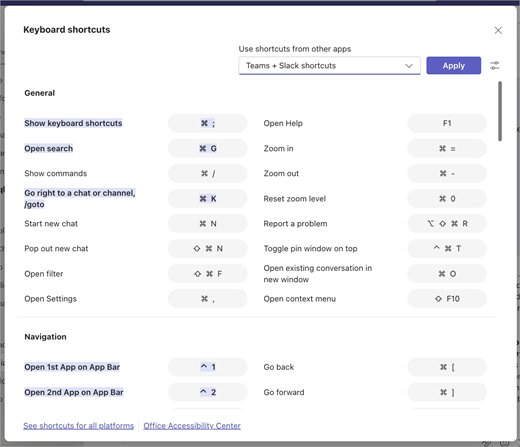
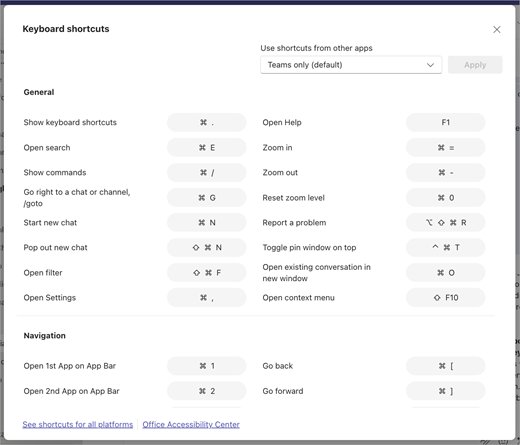
Press Ctrl + Period (.) in Microsoft Teams on Windows, or Command + Period (.) on a Mac, to open the built-in list of every keyboard shortcut.
The tables below list the Teams shortcuts for the Windows desktop app, the web app and macOS, grouped by general use, navigation, messaging, meetings and calls, plus slash commands, emoji codes and how to remap keys.
Quick answers and next steps
Teams keeps its own shortcut reference inside the app, so you never need to memorise the whole list. The same dialog also lets you edit a shortcut. Outside the Teams window, the system-wide Windows shortcuts apply instead.
- Click anywhere inside the Teams window so the app has focus.
- Press Ctrl + Period (.) on Windows, or Command + Period (.) on a Mac. Alt + / also works on Windows.
- Scroll the Keyboard shortcuts window to find the action you want.
- Alternatively, select Settings and more (the three dots in the upper-right corner) and choose Keyboard shortcuts.
- Press Esc to close the window.
The five shortcuts most people use daily are Ctrl + E (search), Ctrl + N (new chat), Ctrl + Shift + M (mute), Ctrl + Shift + O (camera) and Ctrl + Shift + K (raise hand).
General
These general Teams hotkeys for Windows work anywhere in the app, and the last two rows are the debug shortcuts for reporting a problem and downloading diagnostic logs. The web app often adds Alt or Shift because the browser already uses the plain combination.
| Action | Windows desktop app | Web app |
|---|---|---|
| Show keyboard shortcuts | Ctrl + . or Alt + / | Ctrl + . or Alt + / |
| Go to Search | Ctrl + E | Ctrl + Alt + E |
| Open filter | Ctrl + Shift + F | Ctrl + Shift + F |
| Start a new chat | Ctrl + N | Left Alt + N |
| Start a chat in a new window | Ctrl + Shift + N | No shortcut |
| Open Settings | Ctrl + Comma (,) | Ctrl + Shift + Comma (,) |
| Open Help | F1 | Ctrl + F1 |
| Close | Esc | Esc |
| Zoom in / zoom out | Ctrl + = / Ctrl + – | No shortcut |
| Reset zoom level | Ctrl + 0 | No shortcut |
| Go to a specific chat or channel | Ctrl + G | Ctrl + G |
| Pin a window on top | Ctrl + Shift + T | Shift + Command + T |
| Open an existing conversation in a new window | Ctrl + O | No shortcut |
| Report a problem | Ctrl + Alt + Shift + R | Ctrl + Alt + Shift + R |
| Download diagnostic logs | Ctrl + Alt + Shift + 1 | Ctrl + Alt + Shift + 1 |
Navigation
The number shortcuts follow the order of icons on your app bar, including any apps and integrations you pinned there. If you moved Calendar to the top, Ctrl + 1 opens Calendar instead of the default first app.
| Action | Windows desktop app | Web app |
|---|---|---|
| Open the 1st to 9th app on the app bar | Ctrl + 1 to Ctrl + 9 | Ctrl + Shift + 1 to Ctrl + Shift + 9 |
| Move focus to the chat or channel list | Ctrl + L | Alt + Shift + L |
| Move focus to the message pane | Ctrl + M | Alt + Shift + M |
| Go to the compose box | Ctrl + R | Alt + Shift + R |
| Open the history menu | Ctrl + H | No shortcut |
| Go to the next / previous section | Ctrl + F6 / Ctrl + Shift + F6 | Ctrl + F6 / Ctrl + Shift + F6 |
| Move the selected chat or channel up or down | Ctrl + Alt + Shift + Up or Down arrow | Ctrl + Alt + Shift + Up or Down arrow |
| Go back / go forward | Alt + Left arrow / Alt + Right arrow | No shortcut |
| Move focus to a toast notification | Ctrl + Alt + T | No shortcut |
| Move focus to a notification | Windows logo key + Shift + Y | No shortcut |
For channel management from the keyboard, press Ctrl + G to jump to any channel by name and Ctrl + Alt + Shift + Up or Down arrow to move the selected channel in your list.
Messaging
Messaging shortcuts cover reading, searching and filtering conversations as well as the compose box, where you format text, attach files and send. Most of them are identical in the desktop and web apps.
| Action | Windows desktop app | Web app |
|---|---|---|
| Mark all as read | Shift + Esc | Shift + Esc |
| Jump to the last read or newest message | Ctrl + J | Alt + J |
| Find in the current chat or channel | Ctrl + F | Ctrl + F |
| Open the 1st to 9th tab in the chat header | Alt + 1 to Alt + 9 | Alt + 1 to Alt + 9 |
| Toggle the details pane | Alt + P | Alt + P |
| Reply to the last message | Alt + Shift + R | Alt + R |
| React to the last message | Ctrl + Alt + R | Ctrl + Alt + R |
| See all unread chats | Ctrl + Alt + U | Ctrl + Alt + U |
| See all chat conversations | Ctrl + Alt + C | Ctrl + Alt + C |
| See all channel conversations | Ctrl + Alt + A | Ctrl + Alt + A |
| See all meeting chats | Ctrl + Alt + B | Ctrl + Alt + B |
| Clear all filters | Ctrl + Alt + Z | Ctrl + Alt + Z |
| Expand the compose box | Ctrl + Shift + X | Ctrl + Shift + X |
| Send from the expanded compose box | Ctrl + Enter | Ctrl + Enter |
| Start a new line | Shift + Enter | Shift + Enter |
| Attach a file | Alt + Shift + O | Alt + Shift + O |
| Mark a message as important | Ctrl + Shift + I | Ctrl + Shift + I |
| Bold / italic / underline | Ctrl + B / Ctrl + I / Ctrl + U | Ctrl + B / Ctrl + I / Ctrl + U |
| Strikethrough | Ctrl + Alt + X | Ctrl + Alt + X |
| Insert a link | Ctrl + K | Ctrl + K |
| Insert a code block | Ctrl + Shift + B | Ctrl + Alt + Shift + B |
| Rewrite with Copilot | Alt + A | Alt + A |
To share files without the mouse, press Alt + Shift + O in the compose box to attach a file, then press Enter to send it.
Replies, pinned messages and the other Teams chat features sit in the same chat window as the compose box.
Meetings
Meeting shortcuts handle scheduling, sharing and the lobby. The temporary unmute key only works after you switch on Keyboard shortcut to unmute under Settings > Privacy.
| Action | Windows desktop app | Web app |
|---|---|---|
| Schedule a meeting | Alt + N | Alt + N |
| Save or send a meeting request | Ctrl + S | Ctrl + S |
| Join from meeting details | Alt + Shift + J | Alt + Shift + J |
| Join from the meeting started toast | Ctrl + Shift + J | No shortcut |
| Open meeting chat from a meeting notification | Ctrl + Shift + R | No shortcut |
| Raise or lower your hand | Ctrl + Shift + K | Ctrl + Shift + K |
| Announce raised hands (screen reader) | Ctrl + Shift + L | Ctrl + Shift + L |
| Toggle the share content tray | Ctrl + Shift + E | Ctrl + Shift + E |
| Go to the sharing toolbar | Ctrl + Shift + Spacebar | Ctrl + Shift + Spacebar |
| Accept / decline screen share | Ctrl + Shift + A / Ctrl + Shift + D | No shortcut |
| Admit people from the lobby notification | Ctrl + Shift + Y | No shortcut |
| Toggle full screen | F11 | F11 |
| Zoom in / out of shared content | Alt + Shift + Plus / Alt + Shift + Minus | Alt + Shift + Plus / Alt + Shift + Minus |
| Reset zoom for shared content | Alt + Shift + 0 | Alt + Shift + 0 |
| Open the Calendar (default app bar) | Ctrl + 3 | Ctrl + Shift + 3 |
| Day / Work week / Week / Month view | Alt + Shift + 1 / 2 / 3 / 4 | Alt + Shift + 1 / 2 / 3 / 4 |
Inside the Calendar, press ? (Shift + /) to open a dialog with the extra calendar shortcuts. If you run sessions with groups, breakout rooms in Teams are managed from the same meeting toolbar.
For accessibility and view options during a meeting, F11 toggles full screen, the Alt + Shift zoom keys enlarge shared content, and Ctrl + Shift + L lets a screen reader announce raised hands.
Calls
Call shortcuts answer, place and control audio and video calls. The end-call key is the same for audio and video.
| Action | Windows desktop app | Web app |
|---|---|---|
| Accept a video call | Ctrl + Shift + A | Alt + Shift + A |
| Accept an audio call | Ctrl + Shift + S | Alt + Shift + S |
| Decline a call | Ctrl + Shift + D | Ctrl + Shift + D |
| Start an audio call | Alt + Shift + A | Alt + Shift + A |
| Start a video call | Alt + Shift + V | Alt + Shift + V |
| End an audio or video call | Ctrl + Shift + H | Ctrl + Shift + H |
| Toggle mute | Ctrl + Shift + M | Ctrl + Shift + M |
| Temporarily unmute (hold) | Ctrl + Spacebar | Ctrl + Spacebar |
| Toggle video | Ctrl + Shift + O | No shortcut |
| Toggle speaker | Ctrl + Shift + U | Ctrl + Shift + U |
Activity feed
Activity feed shortcuts filter the notifications list so you can clear it or find mentions and missed calls quickly. They are the same in the desktop and web apps.
| Action | Windows desktop app | Web app |
|---|---|---|
| Mark all activity as read | Ctrl + Alt + K | Ctrl + Alt + K |
| See all unread activity | Ctrl + Alt + U | Ctrl + Alt + U |
| Filter activity to missed calls | Ctrl + Alt + C | Ctrl + Alt + C |
| Filter activity to @ mentions | Ctrl + Alt + M | Ctrl + Alt + M |
| Open the filter view in Activity | Ctrl + Shift + F | Ctrl + Shift + F |
Teams shortcuts on Mac
The macOS app swaps Ctrl for Command in most hotkeys, but several call shortcuts use different letters. Check this table rather than translating the Windows keys.
| Action | Mac shortcut |
|---|---|
| Show keyboard shortcuts | Command + Period (.) |
| Go to Search | Command + E |
| Start a new chat | Command + N |
| Open Settings | Command + Comma (,) |
| Go to a specific chat or channel | Command + G |
| Open the 1st to 9th app on the app bar | Command + 1 to Command + 9 |
| Expand the compose box | Shift + Command + X |
| Attach a file | Option + Command + O |
| Mark a message as important | Shift + Command + I |
| Accept a video call | Command + Shift + V |
| Accept an audio call | Command + Shift + A |
| Decline a call | Command + Shift + D |
| End a call | Command + Shift + H |
| Toggle mute | Command + Shift + M |
| Temporarily unmute | Option + Spacebar |
| Toggle video | Command + Shift + O |
| Raise or lower your hand | Command + Shift + K |
| Toggle the share content tray | Command + Shift + E |
| Schedule a meeting | Control + Command + N |
How to search for command shortcuts in Teams
Slash commands are typed shortcuts for actions that have no key combination, such as setting your status. Built-in slash commands work only in the Teams desktop app, and your organisation can block some of them.
- Click the compose box in any chat or channel, or the search bar at the top.
- Type / to open the list of available commands.
- Keep typing to filter the list, for example /av for /available.
- Press Enter to run the highlighted command.
Useful commands include /available, /away, /busy, /brb and /dnd to set your status, /goto to jump to a chat or channel, /meetnow to start a quick meeting, /mute to mute the current chat, /schedulemessage to schedule a message and /shortcuts to open the keyboard shortcuts list.
How to use Teams emoji shortcuts
Teams inserts emoji from a colon code typed in the compose box. Windows also has its own emoji keyboard panel that works in Teams and every other app.
- Click the compose box in a chat or channel.
- Type : followed by the emoji name, for example :smile, to filter the suggestions.
- Press Enter to insert the top match, or click a different emoji in the list.
- For the Windows emoji panel, press Windows logo key + Period (.) while the cursor is in the compose box.
- Select Send or press Enter to post the message.
For reactions, press Ctrl + Alt + R to react to the last message in a chat without opening the message menu.
How to learn Microsoft Teams keyboard shortcuts
Shortcuts matter because they keep your hands on the keyboard, and Microsoft notes they are an essential alternative to a mouse for people with mobility or vision disabilities. Learning a few at a time works better than reading the whole list once, so start with the actions you repeat every day.
- Press Ctrl + Period (.) to open the Keyboard shortcuts window whenever you reach for the mouse.
- Pick three shortcuts for things you do daily, such as Ctrl + E, Ctrl + Shift + M and Ctrl + G.
- Type /shortcuts in the compose box if you forget the key that opens the list.
- Use the app bar number keys (Ctrl + 1 to Ctrl + 9) once your app bar order is settled.
- Add three more shortcuts each week until switching panes no longer needs the mouse.
Customize Teams keyboard shortcuts or use Slack and Zoom layouts
The Teams desktop app lets you change any shortcut or switch the whole set to a layout that matches Slack or Zoom. Reserved Windows combinations such as Ctrl + C and Ctrl + V cannot be reassigned.
- Press Ctrl + Period (.) in the Teams desktop app to open Keyboard shortcuts.
- Move to the shortcut you want to change and select Edit shortcut.
- Press the new combination, using Ctrl, Alt or Shift with a letter or character.
- Select Save.
- To switch the whole set instead, open the Use shortcuts from other apps dropdown and choose Teams, Slack, Zoom or Combined.
- Review the highlighted shortcuts that will change, then select Apply.
How to create a desktop shortcut for Microsoft Teams
Many searches for a Teams shortcut mean a desktop icon or taskbar pin rather than a key combination. Both take under a minute on Windows 11 and Windows 10.
- Press the Windows key to open Start. On Windows 11, select All to see the app list.
- Find Microsoft Teams in the list.
- Drag Microsoft Teams from the list onto your desktop to create a desktop shortcut.
- To pin it to the taskbar instead, type Teams in the taskbar search box.
- Right-click Microsoft Teams in the results and select Pin to taskbar.
If Teams is not in the Start list yet, download Microsoft Teams for Windows first, then repeat the steps.
Microsoft Teams tips & tricks
These tips combine shortcuts and settings that save the most clicks in a working day.
| Tip | How to do it |
|---|---|
| Jump to any chat or channel without scrolling | Press Ctrl + G and type the name |
| Talk briefly while muted | Turn on Keyboard shortcut to unmute in Settings > Privacy, then hold Ctrl + Spacebar |
| Keep a chat visible over other windows | Open it in a new window and press Ctrl + Shift + T to pin it on top |
| Write a long formatted message | Press Ctrl + Shift + X to expand the compose box, then Ctrl + Enter to send |
| Flag an urgent message | Press Ctrl + Shift + I to mark it as important |
| Change your status without menus | Type /busy, /away or /dnd in the compose box |
| Clear unread badges at once | Press Shift + Esc to mark all as read |
| Reach profile and account settings fast | Teams has no dedicated profile shortcut, so press Ctrl + Comma (,) to open Settings instead |
| Send a log file to IT | Press Ctrl + Alt + Shift + 1 to download diagnostic logs |
Older desktop builds may lack newer shortcuts such as customization, so update Microsoft Teams if a listed key does nothing.
Frequently asked questions about Microsoft Teams shortcuts
How do I search for command shortcuts in Teams?
Type a forward slash (/) in the compose box or the search bar to list every slash command, then keep typing to filter it. Built-in slash commands work only in the Teams desktop app, and an organisation's policies can hide some of them.
How do I use Teams emoji shortcuts?
Type a colon followed by the emoji name, such as :smile, in the compose box. Teams filters matching emoji as you type, and pressing Enter inserts the top match. On Windows you can also press Windows logo key + Period to open the system emoji panel.
How do I open the Teams shortcut list?
Press Ctrl + Period (.) on Windows or Command + Period (.) on a Mac. You can also select Settings and more, the three dots at the top right, and choose Keyboard shortcuts, or type /shortcuts in the compose box of the desktop app.
How do I make custom shortcuts in Teams?
Open Keyboard shortcuts with Ctrl + Period in the Teams desktop app, select Edit shortcut next to an action, press the new key combination and select Save. Combinations that Windows reserves, such as Ctrl + C and Ctrl + V, cannot be used.
How do I create a desktop shortcut for Microsoft Teams?
Open Start, select All on Windows 11, find Microsoft Teams and drag it onto the desktop. Windows creates a shortcut icon there. To pin Teams to the taskbar, search for it, right-click the result and select Pin to taskbar.
What is the Teams shortcut to mute?
Press Ctrl + Shift + M on Windows or Command + Shift + M on a Mac to toggle mute during a meeting or call. Hold Ctrl + Spacebar to unmute briefly after turning on Keyboard shortcut to unmute in Settings > Privacy.
Can I use Slack or Zoom shortcuts in Teams?
Yes. In the Keyboard shortcuts window, open the Use shortcuts from other apps dropdown and choose Slack, Zoom or Combined. Teams highlights the shortcuts that will change, and selecting Apply switches to the new layout.
Why does Ctrl + 1 open the wrong app in Teams?
The Ctrl + 1 to Ctrl + 9 shortcuts follow the order of icons on your app bar, not fixed apps. If you reordered or added apps, the number now matches the icon in that position, so Ctrl + 1 opens whatever sits at the top.