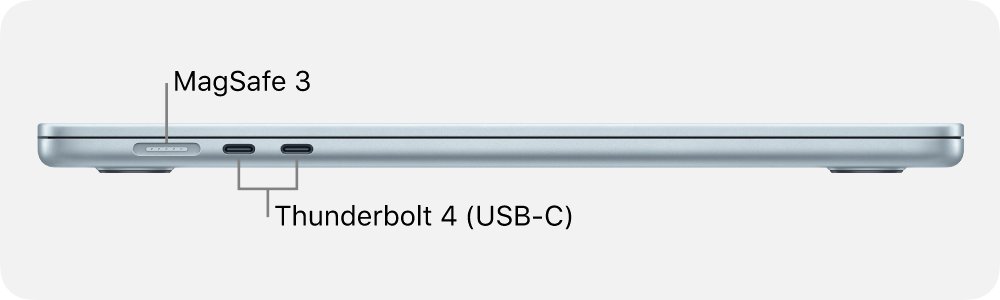
The current MacBook Air has three ports: a MagSafe 3 charging port and two Thunderbolt 4 (USB-C) ports on the left side, and a 3.5 mm headphone jack on the right.
This guide covers how the ports changed since 2017, what happened to the SD card slot and USB-A, how to connect displays and older devices, and how to fix a port that stops responding.
What ports does the MacBook Air have?
The 13-inch and 15-inch models share one layout. Only the Thunderbolt version changes with the chip.
| MacBook Air model | Ports | Data speed |
|---|---|---|
| M5 or M4 (2025 and later) | MagSafe 3, two Thunderbolt 4 (USB-C), 3.5 mm headphone jack | Up to 40Gb/s (Thunderbolt 4 and USB 4) |
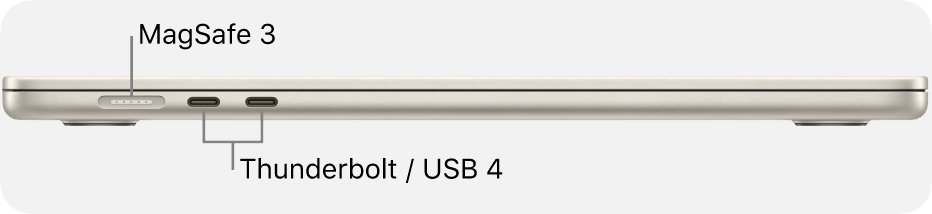
| M2 or M3 (2022 to 2024) | MagSafe 3, two Thunderbolt / USB 4, 3.5 mm headphone jack | Up to 40Gb/s |
| M1 (2020) | Two Thunderbolt / USB 4, 3.5 mm headphone jack | Up to 40Gb/s |
There is no USB-A port, HDMI port, Ethernet port or SD card slot on any Apple silicon MacBook Air. Each connects through a USB-C adapter.
Evolution of MacBook Air ports
| Model | Charging | Data and video ports | Other |
|---|---|---|---|
| 13-inch, 2013 to 2017 | MagSafe 2 (2017 model) | Two USB 3 (5Gb/s), Thunderbolt 2 (20Gb/s) on the 2017 model | SDXC card slot, 3.5 mm jack |
| Retina, 2018 to 2020 (Intel) | USB-C | Two Thunderbolt 3 (USB-C), 40Gb/s Thunderbolt, 10Gb/s USB | 3.5 mm jack |
| M1, 2020 | USB-C | Two Thunderbolt / USB 4 | 3.5 mm jack |
| M2 (2022) and M3 (2024) | MagSafe 3 or USB-C | Two Thunderbolt / USB 4 | 3.5 mm jack with high-impedance support |
| M4 (2025) and M5 | MagSafe 3 or USB-C | Two Thunderbolt 4 (USB-C) | 3.5 mm jack with high-impedance support |
The 2018 redesign removed USB-A, Thunderbolt 2, MagSafe and the SD slot in one step. MagSafe returned with the M2 model in 2022, which freed both USB-C ports while charging.
MacBook Air headphone jack
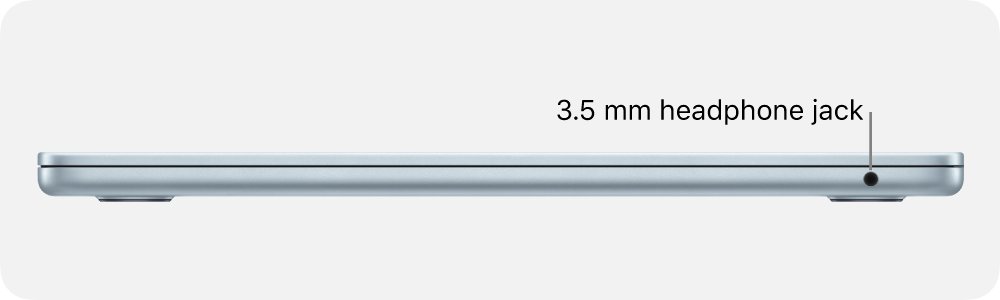
Every MacBook Air still has a 3.5 mm headphone jack. On current models it sits alone on the right side.
| Model | Jack | Audio quality notes |
|---|---|---|
| 2013 to 2020 | 3.5 mm headphone jack | Headphones, headsets and powered speakers |
| M2, M3, M4 and M5 | 3.5 mm headphone jack | Advanced support for high-impedance headphones |
The jack works as a combined headphone and line-out port, so a headset with a built-in microphone or a pair of self-powered speakers plugs straight in.
MacBook Air SD card slot
Only the 13-inch MacBook Air models from 2013 through 2017 have an SDXC card slot. Every Air since 2018 needs a reader.
| Question | Answer |
|---|---|
| Which models have the slot | 13-inch MacBook Air, 2013 to 2017 |
| Supported SD card formats | SD, SDHC, SDXC, MMC and UHS-II cards |
| What to use on newer models | Apple USB-C to SD Card Reader in either Thunderbolt port |
| First-time prompt | macOS asks you to allow a new SD card before data transfers |
What is the difference between Thunderbolt 3 and USB-C?
USB-C is the oval connector shape. Thunderbolt 3, Thunderbolt / USB 4 and Thunderbolt 4 are faster standards that use that same connector.
| Feature | Thunderbolt 3 port | Plain USB-C port |
|---|---|---|
| Connector | USB-C | USB-C |
| Top data speed | 40Gb/s with Thunderbolt devices; 10Gb/s with USB 3.1 Gen 2 devices on the 2018 MacBook Air | Set by the USB version the port supports |
| Thunderbolt drives, docks and displays | Supported | Not supported; the single-port MacBook has no Thunderbolt |
| USB-C cables and devices | Supported | Supported |
| Charging the laptop | Supported | Supported |
Every MacBook Air port from 2018 onward is Thunderbolt, so any USB-C device also works in it. A Thunderbolt-only device does not work in a plain USB-C port.
Can I use my old USB-A devices with the MacBook Air?
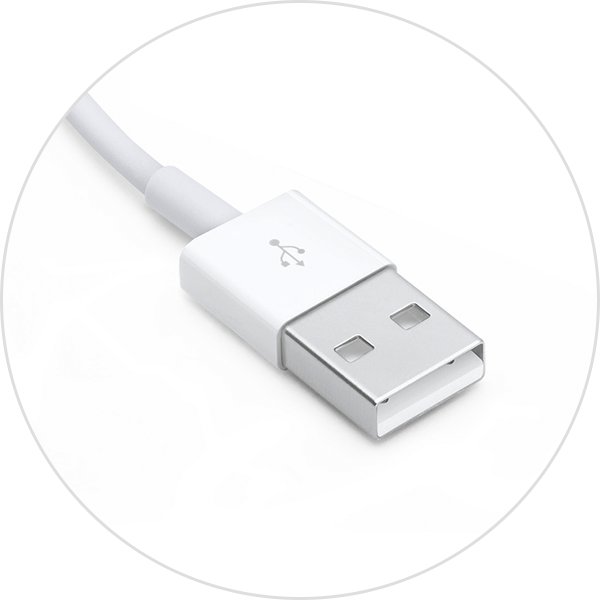
Yes. A USB-A flash drive, mouse or printer works through a USB-C to USB-A adapter.
- Get a USB-C to USB-A adapter, such as the Apple USB-C to USB Adapter or the USB-C Digital AV Multiport Adapter.
- Plug the adapter into either Thunderbolt port on the left side.
- Connect the USB-A cable or flash drive to the adapter.
- Click Allow when macOS asks whether to let the accessory connect.
- To charge an iPhone or iPad without an adapter, use a USB-C to Lightning Cable instead.
How do I connect my MacBook Air to an external display?
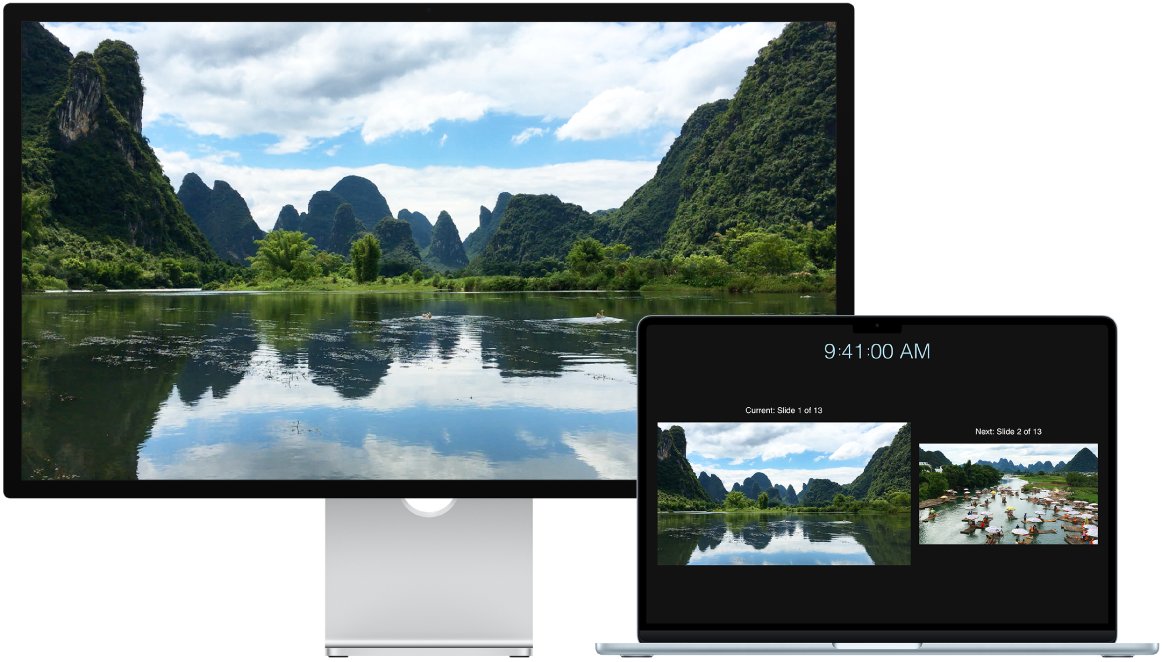
Both Thunderbolt ports carry video. There is no HDMI port, so an HDMI monitor needs an adapter or a USB-C to HDMI cable.
- Connect the display to power and turn it on.
- Plug a USB-C or Thunderbolt cable from the display into either Thunderbolt port, or use a USB-C to HDMI, DisplayPort or VGA adapter.
- When you connect two displays, connect the one with the highest resolution first.
- Open System Settings and click Displays in the sidebar.
- Choose whether to extend or mirror your desktop, then set the resolution and refresh rate.
The display adapter must support DisplayPort Alt Mode, Thunderbolt 3 or Thunderbolt 4. After the display is connected, you can close the lid and keep working with external accessories.
How many displays and devices can I connect to the MacBook Air at the same time?
Two cables plug in directly, one per Thunderbolt port, while MagSafe 3 handles power on M2 and later. A hub or dock adds more ports, and display limits depend on the chip.
| Model | External displays | Resolution |
|---|---|---|
| M5 | Up to two, both from one Thunderbolt port if you want | Two at 6K 60Hz or 4K 144Hz, or one at 8K 60Hz, 5K 120Hz or 4K 240Hz |
| M4 | Up to two | Up to 6K at 60Hz each |
| M3 | One, or two with the lid closed | 6K at 60Hz, plus a second up to 5K at 60Hz with the lid closed |
| M2 and M1 | One | Up to 6K at 60Hz |
| Retina 2018 (Intel) | One 5K, or up to two 4K | 5120 by 2880 at 60Hz, or two at 4096 by 2304 |
Bus-powered drives and keyboards draw power from the port. If a hub runs out of power, macOS shows USB Devices Disabled, so use a hub with its own power adapter for several devices.
Can I charge my MacBook Air and use it at the same time?
Yes. The battery charges whenever the MacBook Air is connected to power, and you can keep working while it does.
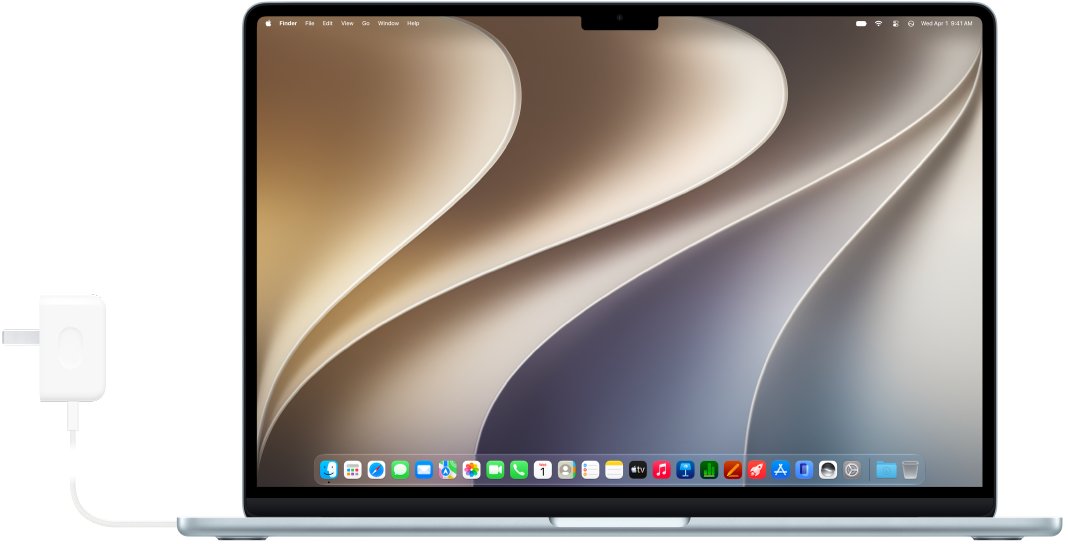
- Connect the USB-C to MagSafe 3 Cable to your power adapter.
- Plug the adapter into an outlet with the prongs fully extended.
- Attach the cable to the MagSafe 3 port on the left side.
- Check the connector light: amber while charging, green when full.
- On an M1 or Intel model, or without the MagSafe cable, connect a USB-C Charge Cable to either Thunderbolt port.
With the 70W USB-C Power Adapter, a current MacBook Air fast charges to about 50 percent in around 30 minutes. Charging through MagSafe 3 leaves both Thunderbolt ports free for accessories.
Are the ports on the MacBook Air compatible with all devices?
Most devices work directly or through one adapter. Check the connector on the end of the cable that plugs into the Mac.
| Device or cable | Works on MacBook Air? |
|---|---|
| Thunderbolt 5, 4 or 3 cable, USB-C cable | Yes, plugs straight in |
| USB-A device | Yes, with a USB-C to USB-A adapter |
| Ethernet | Yes, with a USB-C to Ethernet adapter |
| HDMI, DisplayPort, VGA or DVI display | Yes, with the matching USB-C adapter or cable |
| Thunderbolt or Thunderbolt 2 device | Yes, with the Thunderbolt 3 (USB-C) to Thunderbolt 2 Adapter |
| FireWire device | Only through adapters, and only on macOS Sequoia 15 or earlier |
| MagSafe 2 or original MagSafe charger | No, they are not compatible with MagSafe 3 |
Implications of the latest MacBook Air port configuration
Two USB-C ports suit a light setup. Count what you plug in at your desk before choosing between going adapter-free, a single adapter or a dock.
| Your setup | What you need | Why |
|---|---|---|
| USB-C phone, USB-C drive, wireless mouse | Nothing extra | Both Thunderbolt ports stay free while MagSafe charges |
| One HDMI monitor and a USB-A keyboard | USB-C Digital AV Multiport Adapter | One port gives HDMI, USB-A and pass-through charging |
| Two monitors, wired network, several USB devices | A powered Thunderbolt dock | Two ports cannot cover every cable, and bus power runs out |
| Camera cards every day | USB-C to SD Card Reader | No Air since 2018 has an SD slot |
| Built-in HDMI and SD slot | A 14-inch or 16-inch MacBook Pro | The Air has neither port |
Confirm a USB-C accessory works on your MacBook Air
- Plug the accessory into a Thunderbolt port.
- Click Allow in the prompt. Don't Allow still charges the accessory but sends no data.
- Check that a drive or card appears in the Finder sidebar.
- For a monitor, open System Settings > Displays and confirm it is listed.
- To change the prompt, open System Settings > Privacy & Security > Accessories and choose an option next to Allow accessories to connect.
MacBook Air USB-C port not working: fixes
"USB Devices Disabled" or a device needs more power
The device or an unpowered hub asks for more power than the port supplies.
- Disconnect the device and reconnect it.
- Move it to the other Thunderbolt port.
- Connect it directly instead of through a hub.
- Plug a self-powered hub into its AC adapter.
A device charges but does not show up
It was blocked at the accessory prompt.
- Open System Settings > Privacy & Security > Accessories.
- Set Allow accessories to connect to Ask for new accessories.
- Reconnect the device and click Allow.
The external display is dark
No power to the display, an adapter without video support, or a display count above the chip's limit.
- Turn the display on and confirm it has power.
- Use an adapter that supports DisplayPort Alt Mode or Thunderbolt.
- Check the display table above for your model's limit.
- On an M3 model, close the lid to use a second display.
MacBook Air ports FAQ
What ports does a MacBook Air have?
A current MacBook Air has a MagSafe 3 charging port, two Thunderbolt 4 (USB-C) ports and a 3.5 mm headphone jack. The M2 and M3 models have the same layout with Thunderbolt / USB 4 ports, and the M1 model has no MagSafe port.
What ports does the MacBook Air M4 have?
The MacBook Air with M4 has a MagSafe 3 charging port, two Thunderbolt 4 (USB-C) ports and a 3.5 mm headphone jack. It drives up to two external displays at 6K 60Hz. The ports are the same on every MacBook Air M4 color.
Does the MacBook Air have USB ports?
Yes, two USB-C ports that also run Thunderbolt and USB 4. It has no USB-A port, so older USB-A devices need the Apple USB-C to USB Adapter or a multiport adapter. The 2017 and older models had two USB 3 (USB-A) ports.
How many ports does a MacBook Air have?
An M2 or later MacBook Air has three ports: MagSafe 3, two Thunderbolt (USB-C) ports and a 3.5 mm headphone jack. The M1 and Intel Retina models have two Thunderbolt ports and a headphone jack, with charging over USB-C.
What ports does the MacBook Air M2 have?
The MacBook Air with M2 has a MagSafe 3 charging port, two Thunderbolt / USB 4 ports rated up to 40Gb/s and a 3.5 mm headphone jack with high-impedance support. It supports one external display at up to 6K resolution and 60Hz.
Does the MacBook Air have an HDMI port?
No MacBook Air has an HDMI port. Connect an HDMI monitor or TV through the USB-C Digital AV Multiport Adapter or a USB-C to HDMI cable in either Thunderbolt port. The 14-inch and 16-inch MacBook Pro have a built-in HDMI port.
What is the difference between MacBook Pro and MacBook Air ports?
Among the MacBook Air and MacBook Pro differences, the current 14-inch MacBook Pro adds a third Thunderbolt port, an HDMI port and an SDXC card slot. Both have MagSafe 3 and a 3.5 mm headphone jack, and the MacBook Air has two Thunderbolt ports.
Can I charge a MacBook Air through USB-C?
Yes. Connect a USB-C Charge Cable from a compatible power adapter to either Thunderbolt port. Current models fast charge to about 50 percent in around 30 minutes with a 70W or higher USB-C power adapter.
Bottom line: are two USB-C ports enough on a MacBook Air?
Two Thunderbolt ports plus MagSafe 3 are enough for a laptop that mostly runs on its own or with one monitor. Charging through MagSafe keeps both ports free, and one multiport adapter covers HDMI and USB-A; a desk with several displays and wired devices needs a powered dock or a MacBook Pro.