To customize Windows 11 battery settings, open Start > Settings > System > Power & battery, where you can change the power mode, energy saver, screen and sleep timeouts, and see which apps use the most battery.
This guide covers each of those settings, low battery notifications, background app control, display tweaks, lid and power button actions, driver updates, a battery health report, and fixes for fast battery drain.
How to open battery settings in Windows 11
Every battery option in Windows 11 starts from the same page. Your current battery level and a graph of how it changed through the day appear at the top.
- Select Start > Settings.
- Select System > Power & battery.
- Under Power, open Screen, sleep, & hibernate timeouts and set shorter times for battery.
- Set Power mode to Best power efficiency for battery.
- Under Battery, expand Energy saver and choose the battery level at which it turns on.
- Expand Battery usage to see which apps drain the battery.
You can also select the Battery icon in the notification area of the taskbar to open quick settings, where the Energy saver tile turns it on until you next plug in.
Customize Windows 11 battery settings
Match what you want to change to the setting that controls it. All paths start from Start > Settings.
| What you want | Setting to change | Where it is |
|---|---|---|
| Longest battery life with one click | Energy recommendations > Apply all | System > Power & battery > Energy recommendations |
| Balance speed against battery | Power mode | System > Power & battery |
| Automatic saving when the battery runs low | Energy saver threshold | System > Power & battery > Energy saver |
| Screen off and sleep sooner on battery | Screen, sleep, & hibernate timeouts | System > Power & battery |
| Find the app draining the battery | Battery usage per app | System > Power & battery > Battery usage |
| Stop an app running in the background | Manage background activity | System > Power & battery > Battery usage > More options |
| Dimmer, lower-refresh display | Brightness and Choose a refresh rate | System > Display |
| Videos that use less power | Optimize for battery life | Apps > Video playback |
| Lid and power button actions | Choose what closing the lid does | Control Panel > Power options |
Check battery usage per app in Windows 11
Start here when the battery drains faster than expected. The list shows which apps used the most battery, including in the background.
- Select Start > Settings > System > Power & battery.
- Expand Battery usage.
- Under Battery levels, choose Last 24 hours or a longer period.
- Under Battery usage per app, sort the list to see the apps that used the most battery.
- Note any app with high background use; the next sections show how to limit it.
Change power mode in Windows 11
Power mode sets the trade-off between performance and battery life. You can choose different modes for battery and for when the PC is plugged in.
Of all the power modes and settings on the page, this is the main control: it changes how hard the processor works, which affects speed, heat and battery drain at once.
- Select Start > Settings > System > Power & battery.
- Find Power mode.
- Choose a mode for On battery and for Plugged in.
- Pick Best power efficiency for the longest battery life, Balanced for everyday use, or Best performance for demanding apps.
Power mode is not available on every PC; it depends on the hardware and manufacturer. If it will not change, a custom power plan is active. Open Control Panel > System and Security > Power Options and select Balanced.
Change screen and sleep settings on battery in Windows 11
The screen is one of the largest power draws, so shorter timeouts on battery make a noticeable difference.
- Select Start > Settings > System > Power & battery.
- Open Screen, sleep, & hibernate timeouts.
- Set Turn my screen off after to a short time for battery, such as 3 minutes.
- Set Make my device sleep after to a short time for battery.
- Leave the plugged-in values longer if you prefer.
Recent Windows 11 defaults are already short: on many modern standby PCs the screen turns off after 3 minutes on battery and the device sleeps after 3 minutes. Adjust these default screen and sleep settings if the screen turns off while you are still reading.
To change when the screen should turn off, or when the computer should enter sleep mode, from Command Prompt, use powercfg /change monitor-timeout-dc 5 and powercfg /change standby-timeout-dc 10. The numbers are minutes, -dc applies on battery and -ac applies when plugged in.
Modern Standby vs traditional sleep in Windows 11
Windows PCs use one of two sleep models, and which one your laptop has changes how much battery it loses overnight. Run powercfg /a in Command Prompt to see the sleep states your PC supports.
| Modern Standby | Traditional sleep (S3) | |
|---|---|---|
| What happens in sleep | The PC stays in a low-power on state; components power down step by step when not in use | The PC is either fully active or in S3 sleep |
| Resume speed | Instant on; resume is at least twice as fast as from S3 | Slower, because firmware takes part in waking |
| Network while asleep | Can stay connected and receive email, calls and updates, or disconnect, depending on the PC | Disconnected |
| Advanced power settings shown | Only desktop background slideshow, battery levels and actions, and sleep, display and hibernate timeouts | The full list |
| Hibernate | Often missing from the power menu on these PCs | Usually available |
If a Modern Standby laptop loses a lot of charge in a bag, set the lid to Hibernate on battery, or use the sleep study report below to find the component that keeps it awake.
Turn on energy saver (battery saver) in Windows 11
Energy saver replaced battery saver in Windows 11 version 24H2. It manages background processes and power use, and can lower screen brightness.
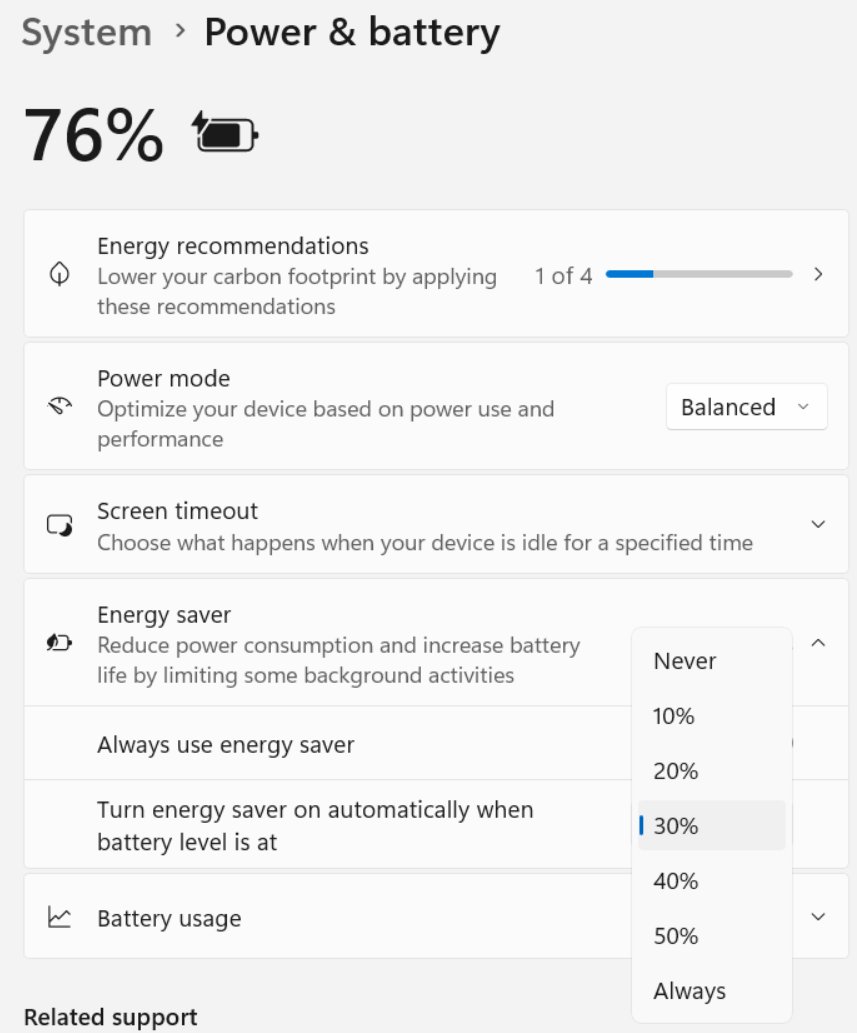
- Select Start > Settings > System > Power & battery.
- Select Energy saver to expand its options.
- Next to Turn energy saver on when battery level is at, choose the battery percentage you want.
- Turn Lower screen brightness when using energy saver on or off.
- To keep it on now until you next plug in, set Always use energy saver to On.
You can also add the Energy saver tile to quick settings so it is one click from the taskbar.

Manage background app activity to save battery in Windows 11
Some apps let Windows limit what they do in the background. Use this for apps that showed high background use in Battery usage.
- Select Start > Settings > System > Power & battery > Battery usage.
- Under Battery usage per app, find the app.
- Select More options (the three dots) > Manage background activity.
- On the app's settings page, change Let this app run in the background to a more limited option.
- Repeat for other apps with heavy background use.
If Manage background activity does not appear, the app does not support this control. Close it when you are on battery instead.
Network adapter power and background connectivity in Windows 11
Wi-Fi, Bluetooth and background sync keep radios awake. When you do not need a connection, switching them off is one of the quickest battery wins.
- To cut all wireless radios, select Start > Settings > Network & internet and turn on Airplane mode.
- To let Windows power down the Wi-Fi adapter, right-click Start, select Device Manager, expand Network adapters, and double-click your wireless adapter.
- Open the Power Management tab and select Allow the computer to turn off this device to save power.
- Select OK.
- For Wi-Fi power policy in the power plan, open Change advanced power settings (see the Control Panel section below) and look for the wireless adapter settings.
On Modern Standby laptops the Power Management tab is missing for the wireless adapter by design, because Windows manages the adapter's power state itself to stay connected in standby. Clearing that checkbox on other PCs can also stop some adapters waking the PC from sleep, so leave it selected.
Lower brightness and refresh rate to save battery in Windows 11
- Select Start > Settings > System > Display > Brightness, and move the slider lower.
- Clear Change brightness automatically when lighting changes or Help improve battery by optimizing the content shown and brightness if you want full manual control.
- Select System > Display > Advanced display, and for Choose a refresh rate, select a lower rate.
- Select System > Display > Graphics, select a heavy app under Custom options for apps, select Options, and choose Power saving.
- Select Apps > Video playback, and under Battery options choose Optimize for battery life.
- Select Personalization > Colors, and under Choose your mode pick Dark.
The screen is one of the largest power draws, so screen brightness is the single battery factor to lower first, before anything else on this list.
Additional power efficiency tips: turn on Airplane mode when you do not need the internet or Bluetooth, let Windows stop USB devices when the screen is off (one of the energy recommendations below), and restart the PC now and then. Each one helps improve battery life a little more.
Apply energy recommendations in Windows 11
Energy recommendations gathers the key settings to help save power into one list, ranked by their effect on power use. Items vary by device; some need a presence sensor.
- Select Start > Settings > System > Power & battery > Energy recommendations.
- Review items such as Set the power mode for best energy efficiency, Turn off my screen after 3 (or 10) minutes and Stop USB devices when my screen is off to help save battery.
- Select Apply next to the ones you want.
- Or select Apply all to accept every recommendation.
Windows 11 power settings for specific use cases
The right mix depends on what you are doing. Use these combinations as starting points, all from Settings > System > Power & battery unless noted.
| Use case | Power mode | Other settings |
|---|---|---|
| Long flight or day away from a charger | Best power efficiency | Always use energy saver on, low brightness, Airplane mode if you work offline, Smart charging paused the night before |
| Office work plugged in at a desk | Balanced | Keep Smart charging or an 80% charge limit on to slow battery wear |
| Gaming or video editing | Best performance when plugged in | Plug in, and check the app's graphics preference in System > Display > Graphics is not set to Power saving |
| Watching videos on battery | Best power efficiency | Apps > Video playback > Optimize for battery life |
| Presentations and meetings | Balanced | Longer Turn my screen off after value so the screen stays on while you talk |
| Laptop stored for days in a bag | Any | Lid set to Hibernate on battery, or shut down |
Change what closing the lid does on a Windows 11 laptop
Making the laptop sleep when the lid closes stops the battery draining in a bag.
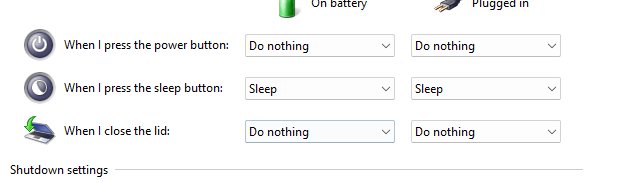
- Select Search on the taskbar, type control panel, and open it.
- Select Power options.
- Select Choose what closing the lid does.
- Set the On battery action to Sleep or Hibernate.
- Select Save changes.
The same window has Choose what the power buttons do, where you can also change the power button action.
Advanced power settings: Control Panel access in Windows 11
Settings shows the common options; the older Power Options window in Control Panel holds the full list of power plan values, including battery levels and actions and Wi-Fi power management.
- Select Search on the taskbar, type control panel, and open it.
- Select System and Security > Power Options.
- Next to the active plan, select Change plan settings.
- Select Change advanced power settings.
- Expand a category, such as Battery, and change the On battery and Plugged in values.
- Select Apply > OK.
On Modern Standby laptops this window shows only a few groups: desktop background slideshow, battery levels and actions, and sleep, display and hibernate timeouts. The other policies exist only on PCs that use traditional S3 sleep.
Custom power plans in Windows 11
A custom power plan is a copy of a built-in plan with your own values, useful when you want one plan for travel and another for the desk. Open Command Prompt as administrator.
powercfg /duplicatescheme 381b4222-f694-41f0-9685-ff5bb260df2eThis copies the Balanced plan, whose GUID is shown, and prints the GUID of the new plan. Run powercfg /list to see every plan and its GUID. Rename the copy with powercfg /changename <new_GUID> "Travel", change its values with powercfg /setdcvalueindex, and switch to it with powercfg /setactive <new_GUID>.
You should see: powercfg /list shows the new plan, and powercfg /getactivescheme names it once you make it active.
Remember that the Power mode setting in Settings works only while Balanced is the active plan. If you rely on Power mode, switch back to Balanced with powercfg /setactive 381b4222-f694-41f0-9685-ff5bb260df2e when you finish with a custom plan. Remove an unwanted plan with powercfg /delete <GUID>.
Thermal management and power limits in Windows 11
Heat and battery drain come from the same place: the power the processor and graphics chip draw. Windows thermal management uses active cooling, where fans turn on to move air, and passive cooling, where devices reduce performance to lower power use and heat.
| To run cooler and use less power | Where |
|---|---|
| Choose Best power efficiency so the processor draws less power | Settings > System > Power & battery > Power mode |
| Set heavy apps to Power saving graphics | Settings > System > Display > Graphics |
| Lower brightness and refresh rate | Settings > System > Display |
| Turn on energy saver, which limits background activity | Settings > System > Power & battery > Energy saver |
| Keep the laptop away from heat; high temperatures wear the battery | Desk, bag and car |
When a laptop gets too hot under a heavy load, Windows throttles performance on its own until the temperature settles. Sudden slowdowns during long games or exports are often that throttling, not a fault. On Surface devices, Smart charging also turns on when the device is used at high temperatures.
Update drivers and Windows for better battery life
Power management depends on chipset, graphics and firmware drivers. Out-of-date versions are a common cause of poor battery life after a Windows upgrade.
- Select Start > Settings > Windows Update.
- Select Check for updates and install everything offered.
- Restart the PC when asked.
- Visit your laptop maker's support site and install its latest chipset, graphics and BIOS or firmware updates for your model.
- Check Power & battery again after a day of normal use.
Microsoft's own list of tips also suggests a simple restart, which can fix problems that shorten battery life. For more control over updates, adjust your Windows Update settings.
Configure low battery notifications in Windows 11
Windows warns you when the battery crosses the low battery level set in the active power plan. Control Panel's Power Options holds these values, and powercfg can change them directly. Open Command Prompt as administrator.
powercfg /setdcvalueindex <scheme_GUID> SUB_BATTERY BATLEVELLOW 15Run powercfg /getactivescheme first and use the GUID it shows in place of <scheme_GUID>. This sets the low battery level to 15% on battery power. BATFLAGSLOW set to 1 turns the low battery warning on, and BATACTIONCRIT sets the critical battery action: 0 do nothing, 1 sleep, 2 hibernate, 3 shut down. Run powercfg /setactive <scheme_GUID> afterwards to apply the change.
You should see: Run powercfg /query <scheme_GUID> SUB_BATTERY and check that the low battery level shows the new value; the warning appears at that percentage next time.
For an automatic response instead of a warning, set the energy saver threshold in Power & battery so energy saver turns on at the level you choose.
Key details and limitations: each power plan keeps its own low battery level.
Create a custom low battery alert with PowerShell and Task Scheduler
A PowerShell script run by Task Scheduler gives a repeating reminder. It shows a message box, not a toast notification.
- Save these lines in Notepad as C:\Scripts\BatteryAlert.ps1:
$b = Get-CimInstance -ClassName Win32_Batteryandif ($b.BatteryStatus -eq 1 -and $b.EstimatedChargeRemaining -le 20) { Add-Type -AssemblyName PresentationFramework; [System.Windows.MessageBox]::Show("Battery at $($b.EstimatedChargeRemaining)%", "Low battery") }(BatteryStatus1 means discharging; change20to your level). - Schedule recurring alerts with Task Scheduler: run
schtasks /create /tn "BatteryAlert" /sc minute /mo 5 /it /tr "powershell.exe -NoProfile -ExecutionPolicy RemoteSigned -WindowStyle Hidden -File C:\Scripts\BatteryAlert.ps1"in Command Prompt. - To disable the alert, run
schtasks /change /tn "BatteryAlert" /disable. To delete it, runschtasks /delete /tn "BatteryAlert" /f.
Disabling the task keeps it; deleting it removes it.
Analyzing the pros and cons: notable strengths are repeat reminders with no third-party app; possible drawbacks and risks are that it runs only while you are signed in. Security and reliability considerations: the execution policy is not a security boundary, so run only a script you wrote.
Check battery health with a Windows 11 battery report
The battery report shows the design capacity, the current full charge capacity and recent usage, so you can see whether changes help or the battery itself has worn.
- Select Start, type Command prompt, right-click it, choose Run as administrator, and select Yes.
- Type
powercfg /batteryreportand press Enter. - Note the file location the command shows.
- Open that folder in File Explorer and double-click the HTML report.
- Check Installed battery, Recent usage and Battery usage in the report.
Run powercfg /energy with no programs open to get a separate report on common energy-efficiency and battery-life problems.
Powercfg diagnostics for finding battery drain in Windows 11
When the battery drops while the laptop sleeps or sits idle, three powercfg reports show what is using power. Run them in Command Prompt as administrator.
- Run
powercfg /sleepstudy. It creates sleepstudy-report.html in the current folder, covering the last three days. - Open the report and look for long standby sessions marked red, which means a drain of 1% per hour or more. The report lists the components and apps active in each session.
- To cover a longer period, run
powercfg /sleepstudy /duration 7(up to 28 days). - Run
powercfg /requeststo list apps and drivers currently keeping the display or PC awake. - Run
powercfg /energywith nothing else open to get a report on common energy-efficiency and battery-life problems.
Sleep study covers Modern Standby sessions. On PCs with traditional sleep, powercfg /systemsleepdiagnostics produces a report on sleep transitions instead.
How to limit battery charge to 80% in Windows 11
Keeping a battery at 100% all the time wears it faster, so many laptops can stop charging at around 80%. Windows 11 has no single built-in charge limit switch; the limit comes from Smart charging or your laptop maker's app.
| Device | How to limit charging to 80% | How to charge to 100% again |
|---|---|---|
| Any PC with Smart charging | Smart charging is turned on by the maker; a heart on the Battery icon shows it is active | Turn it off with the method on the maker's website |
| Microsoft Surface | Surface app > Battery & charging > Charging mode > Limit to 80% (supported models only) | Surface app > Battery & charging > Smart charging > Charge to 100%, or set Charging mode to Adaptive |
| ASUS | MyASUS > Device Settings > Battery Care Mode > Balanced Mode (stops at 80%, resumes below 78%) | Choose Full Capacity Mode |
| Other brands | Look for a battery charge threshold or charging mode in the maker's own app | Switch the same setting back to full or standard charging |
Disable the 80% battery limit and let it charge to 100% before travel, long meetings or any day away from an outlet. Surface also lifts its own limit automatically when you often run the battery below 20%. For battery health and charging limits in daily use, the 20% to 80% range is the one Microsoft recommends when you can manage it.
Troubleshoot battery drain in Windows 11
Windows 11 consumes more battery than expected
Background apps, a bright high-refresh display or a performance power mode use extra power.
- Open Power & battery > Battery usage and limit background activity for the top apps.
- Set Power mode to Best power efficiency on battery.
- Lower brightness and the refresh rate in System > Display.
- Select Apply all in Energy recommendations.
Battery problems you cannot pin down
A power setting has been changed to a value that drains the battery.
- Select Start > Settings > System > Troubleshoot > Other troubleshooters.
- Select Run next to Power.
- Apply the fixes it suggests and restart.
Power mode cannot be changed or is greyed out
A custom power plan is selected instead of Balanced.
- Open Control Panel > System and Security > Power Options.
- Select Balanced.
- Return to Power & battery and choose the power mode.
Battery stops charging before 100%
Smart charging is on; it holds the charge at a lower level to protect the battery.
- Hover over the Battery icon; Fully Smart charged with a heart icon confirms Smart charging.
- Leave it on if you mostly work plugged in.
- Before travel, turn it off using the method on your device maker's website.
Battery life is short even after changing settings
The battery has lost capacity with age.
- Run
powercfg /batteryreportand compare full charge capacity with design capacity. - Avoid frequent deep discharges and heat, and keep the charge roughly between 20% and 80% when you can.
- Stop using the device and contact the maker if the battery looks swollen.
Windows 11 battery settings FAQ
How do I change battery settings in Windows 11?
Open Start > Settings > System > Power & battery. From there you can change Power mode, the Energy saver threshold, screen and sleep timeouts, and view Battery usage per app. Energy recommendations on the same page applies the most effective settings at once.
Why does Windows 11 consume more battery?
Background apps, high screen brightness, a high refresh rate and the Best performance power mode are the usual causes. Check Battery usage per app in Power & battery, limit background activity, and switch to Best power efficiency while on battery.
How do I troubleshoot battery in Windows 11?
Run the Power troubleshooter from Settings > System > Troubleshoot > Other troubleshooters, then check Battery usage per app. Generate a battery report with powercfg /batteryreport to see whether the battery itself has lost capacity.
What is the best battery setting for Windows 11?
Best power efficiency power mode, energy saver set to turn on at a sensible threshold such as 30%, short screen and sleep timeouts on battery, and Apply all in Energy recommendations give the longest battery life on most laptops.
Where is battery saver in Windows 11?
In Windows 11 version 24H2 and later, battery saver is called Energy saver. Find it in Settings > System > Power & battery > Energy saver, or select the Battery icon on the taskbar and use the Energy saver quick setting.
How do I check battery health in Windows 11?
Open Command Prompt as administrator and run powercfg /batteryreport. Open the HTML file it creates and compare design capacity with full charge capacity in the Installed battery section. A large gap means the battery has worn.
Why is my laptop not charging to 100% in Windows 11?
Smart charging is probably on. Some manufacturers enable it to hold the battery below 100% while plugged in, which slows wear. A heart on the Battery icon and the Fully Smart charged message confirm it; your device maker's site explains how to turn it off.
Can I set a low battery warning level in Windows 11?
Yes. The low battery level and warning are part of the active power plan. Change them with powercfg using the SUB_BATTERY subgroup and the BATLEVELLOW and BATFLAGSLOW settings, or have energy saver turn on automatically at a chosen percentage.
What is the purpose of customizing power settings in Windows 11?
It trades performance for battery life to suit the task, such as a long day away from a charger.
What are the benefits of customizing the battery threshold in Windows 11?
A higher threshold starts energy saver earlier and warns you sooner.
Are there any limitations with customizing the battery threshold in Windows 11?
Yes. Levels are stored per power plan, and the 80% charge limit is a separate maker setting.
The bottom line on Windows 11 battery settings
Apply Energy recommendations, use Best power efficiency on battery, and check Battery usage per app first. Those cover the biggest drains; powercfg reports and charge limits come later.