To view the protection history of Microsoft Defender Antivirus in Windows 10, open Windows Security from the Start menu, select Virus & threat protection, and select Protection history.
This guide covers what each protection history card means, how to restore or remove quarantined items, how to see detections older than the two-week window, how to clear the list, and what to do when it is empty or keeps closing.
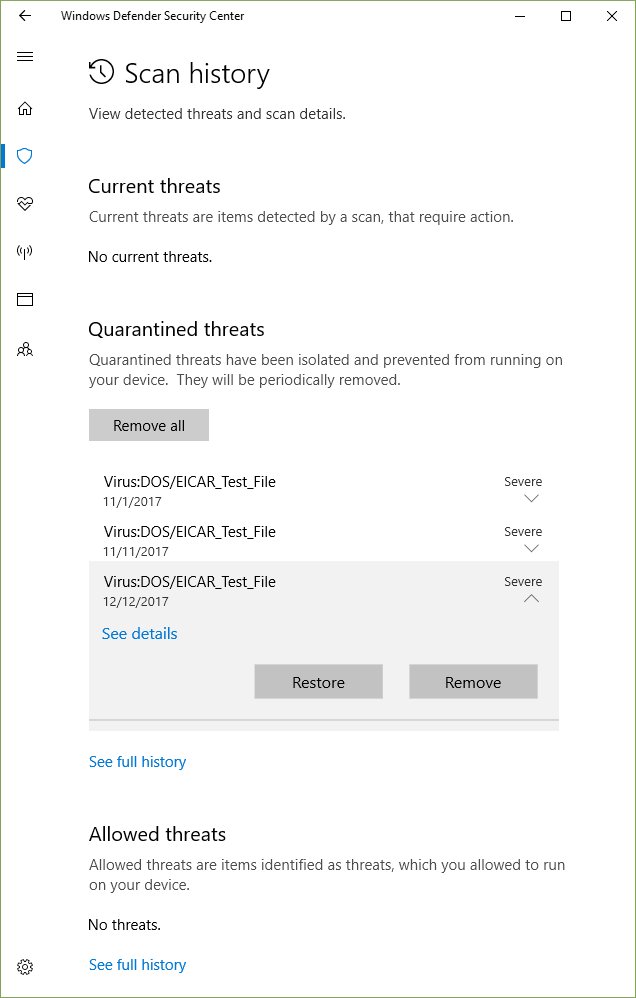
How to view protection history in Windows 10
The same steps work in Windows 11. You need an administrator account to open the details of a threat.
- Select Start, type Windows Security, and open the app.
- Select Virus & threat protection (the shield icon on the left).
- Under Current threats, select Protection history.
- Select a card to expand it and see the threat name, the affected file and the action Defender took.
- Select Yes on the User Account Control prompt if Windows asks to show the details.
Where is protection history in Windows 10 and Windows 11?
| Starting point | Route to protection history | Works on |
|---|---|---|
| Start menu | Search Windows Security > Virus & threat protection > Protection history | Windows 10 and 11 |
| Settings app on Windows 10 | Settings > Update & Security > Windows Security > Virus & threat protection > Protection history | Windows 10 |
| Run box or browser address bar | Press Win + R, enter windowsdefender://threat/, then select Protection history |
Windows 10 and 11 |
| Windows Security home page | Select Protection history in the left menu | Windows 10 and 11 |
| PowerShell | Run Get-MpThreatDetection in an admin window |
Windows 10 and 11 |
Microsoft Defender protection history alerts explained
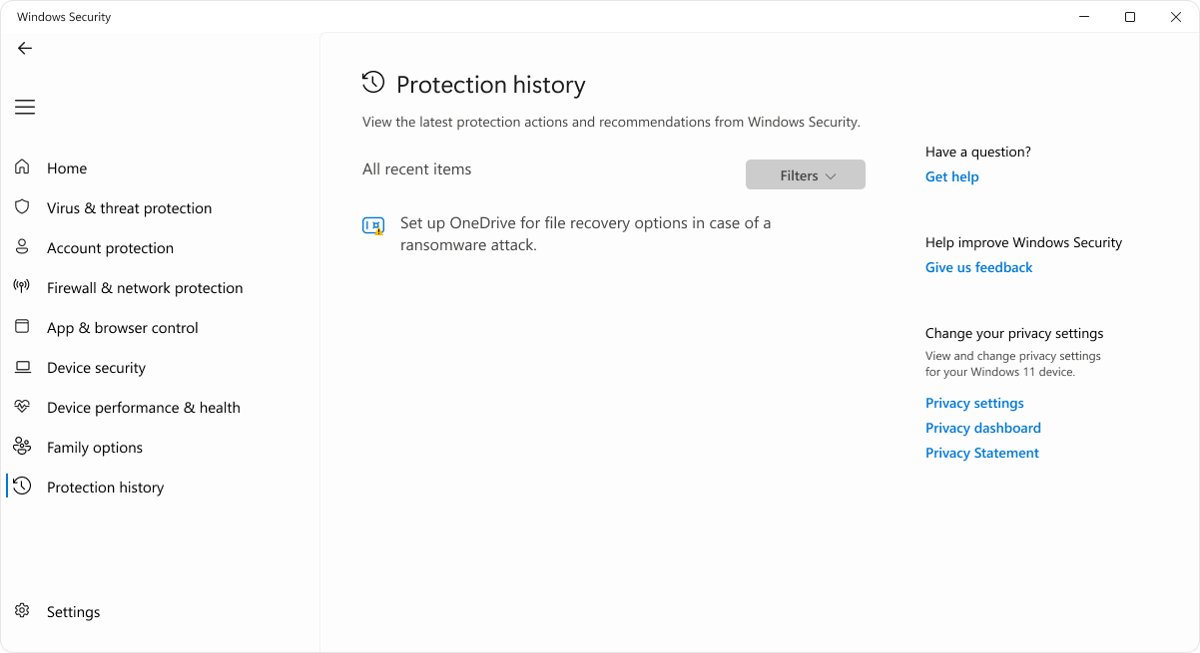
Protection history lists actions Microsoft Defender Antivirus took for you, including malware alerts, potentially unwanted apps it removed, and key services that are turned off. Cards that need attention are color-coded: red for serious items that need action now, yellow for items to check when you can.
| Card in protection history | What it means | What you can do |
|---|---|---|
| Threat found – action needed | Defender detected a possible threat and needs your decision | Open Actions and choose Quarantine, or Allow on device only if you are sure it is a false positive |
| Threat quarantined | The threat is blocked and isolated but not yet deleted | Choose Remove to delete it, or Restore to put the file back |
| Threat blocked | Defender blocked and removed the threat | No action needed; Allow applies only the next time the file is seen |
| Remediation incomplete | Defender started cleaning a threat but could not finish | Expand the card for the extra steps Defender lists |
| This app has been blocked | Microsoft Defender SmartScreen blocked a potentially unwanted app before it installed | Choose Actions > Allow if the block was a mistake, then download the file again |
| An important service is off | A protection feature, such as SmartScreen for Microsoft Edge, is turned off | Use Actions on the card to turn the feature back on |
Protection history keeps events for two weeks only. After that they disappear from the list, even if the threat was never removed.
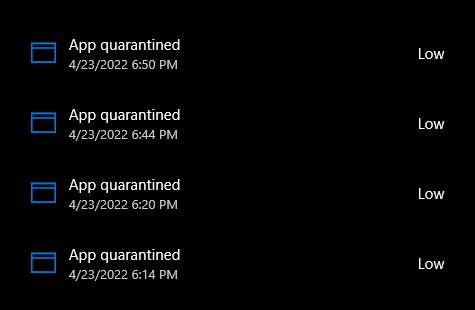
Quarantine, remove or allow a threat from protection history
If you are not sure an item is safe, choose Quarantine. Allow on device lets the file run, and if it really was malicious your data is at risk.
- Open Windows Security > Virus & threat protection > Protection history.
- Select the card you want to act on to expand it.
- Select Actions.
- For a Threat found – action needed card, choose Quarantine or Allow on device.
- For a Threat quarantined card, choose Remove to delete it permanently.
- Confirm the User Account Control prompt.
Restore a quarantined file from protection history
Restore only a file you are certain is safe. A restored file is detected again, which creates a new Threat found – action needed card where you then choose Allow on device.
- Open Windows Security and select Virus & threat protection.
- Under Current threats, select Protection history.
- Use the filter to show only Quarantined items if the list has many entries.
- Select the item you want to keep and choose Restore.
- On the new Threat found – action needed card, select Actions > Allow on device.
Difference between quarantine and removal in Microsoft Defender
Quarantine and removal both stop a threat, but only one of them can be undone. Choose quarantine whenever you are unsure about a file.
| Action | What happens to the file | Can you get it back? |
|---|---|---|
| Quarantine | Defender blocks and isolates the file so it cannot run or harm your data, but does not delete it | Yes, with Restore in protection history or MpCmdRun -Restore |
| Remove | Defender deletes the threat from your device | No; the file is gone from quarantine |
| Threat blocked (automatic) | Defender has already blocked and removed the file | Only by choosing Allow and downloading the file again |
| Allow on device | The file is left in place and allowed to run | Undo it under Allowed threats > Don't allow |
Check the file location and verify a quarantined file before restoring
A false positive is rare, so confirm what the file is before you put it back on the PC.
- In Protection history, select the Threat quarantined card to expand it.
- Read the affected item's file path and check that it is a folder you expect, such as the install folder of a program you trust.
- Treat a file in a temporary or downloads folder that you do not recognize as a real threat and choose Remove.
- If you are still unsure, submit the file to Microsoft through the Submit a file for malware analysis page at
microsoft.com/wdsi/filesubmission, choosing Home customer. - Restore the file only after you are confident it is safe.
Microsoft security researchers analyze submitted files to decide whether they are threats, unwanted applications or normal files, and the portal accepts files you believe were classified as malware by mistake.
Remove an item from allowed threats in Windows Security
If you allowed a file by mistake, take it off the allowed list so Defender detects it again.
- Open Windows Security > Virus & threat protection.
- Under Current threats, select Allowed threats.
- Select the item you allowed.
- Select Don't allow.
- Run a Quick scan so Defender picks the file up again.
View Microsoft Defender detection history with PowerShell
PowerShell shows every past detection Defender recorded, which helps when the Windows Security list is empty or closes. Right-click Start, open Windows PowerShell (Admin) or Terminal (Admin), and run the command.
Get-MpThreatDetectionReturns active and past malware detections on the PC, with one entry for each time Defender detected a threat. Add -ThreatID <number> to show every detection of one threat.
You should see: A list of detection records appears, each with a ThreatID, the affected resources and the detection time. No output means Defender has no detections to report.
List quarantined files with MpCmdRun
MpCmdRun is the command-line tool built into Microsoft Defender Antivirus. Open Command Prompt with Run as administrator.
"%ProgramFiles%\Windows Defender\MpCmdRun.exe" -Restore -ListAllLists every file Defender holds in quarantine. To restore one, run the same tool with -Restore -Name <filename>, using the name shown in the list. Newer platform versions also install MpCmdRun under %ProgramData%\Microsoft\Windows Defender\Platform\<version>.
You should see: The quarantined items are listed by threat name and file path.
Check Windows Defender protection history in Event Viewer
Event Viewer keeps Defender's own log, separate from the Windows Security list. Use it to look back past the two-week window, as far as the log has room.
- Press Win + R, type
eventvwr.msc, and select OK. - In the left pane, go to Applications and Services Logs > Microsoft > Windows > Windows Defender > Operational.
- In the Actions pane, select Filter Current Log.
- Type
1116,1117in the event ID box and select OK. - Select an event and read the threat name, severity, path and action on the General tab.
Event ID 1116 means Defender detected malware or other potentially unwanted software. Event ID 1117 means Defender took an action to protect the PC from it.
How to clear protection history in Windows 10 and Windows 11
Windows Security has no Clear history button. Entries clear themselves after two weeks, and Microsoft documents a setting that controls how long Defender keeps its scan history.
| Goal | What to do | Result |
|---|---|---|
| Let the list clear on its own | Do nothing | Protection history drops events after two weeks |
| Delete quarantined threats | Open each Threat quarantined card and choose Remove | The threat files are deleted from quarantine |
| Remove all active threats at once | Run Remove-MpThreat in an admin PowerShell window |
Defender removes every active threat it has detected |
| Keep scan history for fewer days | Run Set-MpPreference -ScanPurgeItemsAfterDelay 1 in an admin PowerShell window |
Defender removes items from its scan history folder after one day instead of the default 15 |
| Check the current retention | Run Get-MpPreference and read ScanPurgeItemsAfterDelay |
Shows the number of days; 0 means items are never removed |
| Empty the quarantine automatically | Run Set-MpPreference -QuarantinePurgeItemsAfterDelay 30 |
Quarantined items are deleted after 30 days; 0 or no value keeps them indefinitely |
Do not delete files inside Defender's program folders by hand. Use the settings above so Defender stays healthy.
Protection history not showing or keeps closing in Windows Security
Protection history is empty
Events older than two weeks drop off, or another antivirus is installed and Microsoft Defender Antivirus is turned off.
- Check whether the detection happened more than two weeks ago; if so, look in Event Viewer or run
Get-MpThreatDetection. - Open Virus & threat protection and check whether another antivirus is listed as the active provider.
- If another product is active, check that product's own history instead.
Protection history shows cards but no threat details
You need administrator rights on the PC to review threat details.
- Sign in with an administrator account, or enter admin credentials at the User Account Control prompt.
- Select the card again to expand it.
Restore option missing in protection history
The card is a Threat blocked item that Defender already removed, the threat was removed from quarantine, or you are not signed in as an administrator.
- Check the card type: Restore appears only on Threat quarantined cards.
- For a Threat blocked card, select Actions > Allow, then download the file again from its original source.
- If you chose Remove earlier, the file cannot be restored; reinstall or download it again.
- Sign in as an administrator or approve the User Account Control prompt so the actions appear.
Protection history keeps closing or will not load
Windows Security or the Defender platform is out of date or damaged.
- Open Settings > Update & Security > Windows Update on Windows 10 (Settings > Windows Update on Windows 11) and install all updates.
- In Virus & threat protection, select Virus & threat protection updates > Check for updates.
- Restart the PC and open protection history again.
- Use
Get-MpThreatDetectionor Event Viewer to read the history while the app is unavailable.
Protection history options are greyed out or missing
Your work or school manages the device with policy.
- Look for a message in Windows Security saying your organization manages some settings.
- Ask your IT administrator for the detection details, which they can see in their management console.
If Defender itself is behind on updates, you can update Microsoft Defender Antivirus manually and then check protection history again.
Microsoft Defender protection history FAQ
Where is protection history in Windows 10?
Protection history is in the Windows Security app. Open Windows Security from the Start menu, select Virus & threat protection, and select Protection history under Current threats. On Windows 10 you can also reach it from Settings > Update & Security > Windows Security.
How do I check protection history?
Open Windows Security, go to Virus & threat protection, and select Protection history. Select any card to expand it and see the threat name, affected file and action taken. For a full list of past detections, run Get-MpThreatDetection in an admin PowerShell window.
How do I clear protection history in Windows 11?
There is no clear button in Windows 11 or Windows 10. Protection history removes events automatically after two weeks. You can remove quarantined threats with the Remove action, and set Set-MpPreference -ScanPurgeItemsAfterDelay to keep Defender's scan history for fewer days.
How do I delete protection history?
You cannot delete individual protection history entries from Windows Security. Remove the underlying threats instead: choose Remove on each Threat quarantined card, or run Remove-MpThreat as administrator to remove all active threats. Remaining entries drop off after two weeks.
How long does protection history keep events?
Microsoft states that protection history retains events for two weeks, after which they disappear from the list. Defender's scan history folder keeps items for 15 days by default, controlled by the ScanPurgeItemsAfterDelay setting.
Why is my protection history not showing?
The usual reasons are that the events are older than two weeks, another antivirus has turned Microsoft Defender Antivirus off, or you are not signed in as an administrator. Check Event Viewer or run Get-MpThreatDetection to see older detections.
Why does my protection history keep closing?
An outdated or damaged Windows Security app or Defender platform is the most likely cause. Install all Windows updates, select Check for updates under Virus & threat protection updates, and restart. Use PowerShell or Event Viewer to read the history meanwhile.
How do I see protection history older than two weeks?
Open Event Viewer and go to Applications and Services Logs > Microsoft > Windows > Windows Defender > Operational. Filter for event IDs 1116 and 1117, which record detections and the actions Defender took.
Bottom line on Microsoft Defender protection history
Use Windows Security > Virus & threat protection > Protection history for recent events, and switch to Get-MpThreatDetection or Event Viewer when you need anything older than two weeks. The Windows Security list is the only place to act on a threat, but it drops events after two weeks, while the PowerShell and event log records keep the detection details available for longer.