Press Ctrl + Shift + Esc to open Task Manager, then select Performance > GPU to see your GPU usage as a live percentage and graph in Windows 11 and Windows 10.
This guide covers the Task Manager views for total, per-app and per-engine usage, video memory, the command line for NVIDIA cards, in-game overlays, and what to do when the GPU is missing.
How to check GPU usage from Task Manager
Task Manager reads GPU data straight from the Windows graphics kernel, so it works with every graphics API, including DirectX, OpenGL, Vulkan and CUDA.
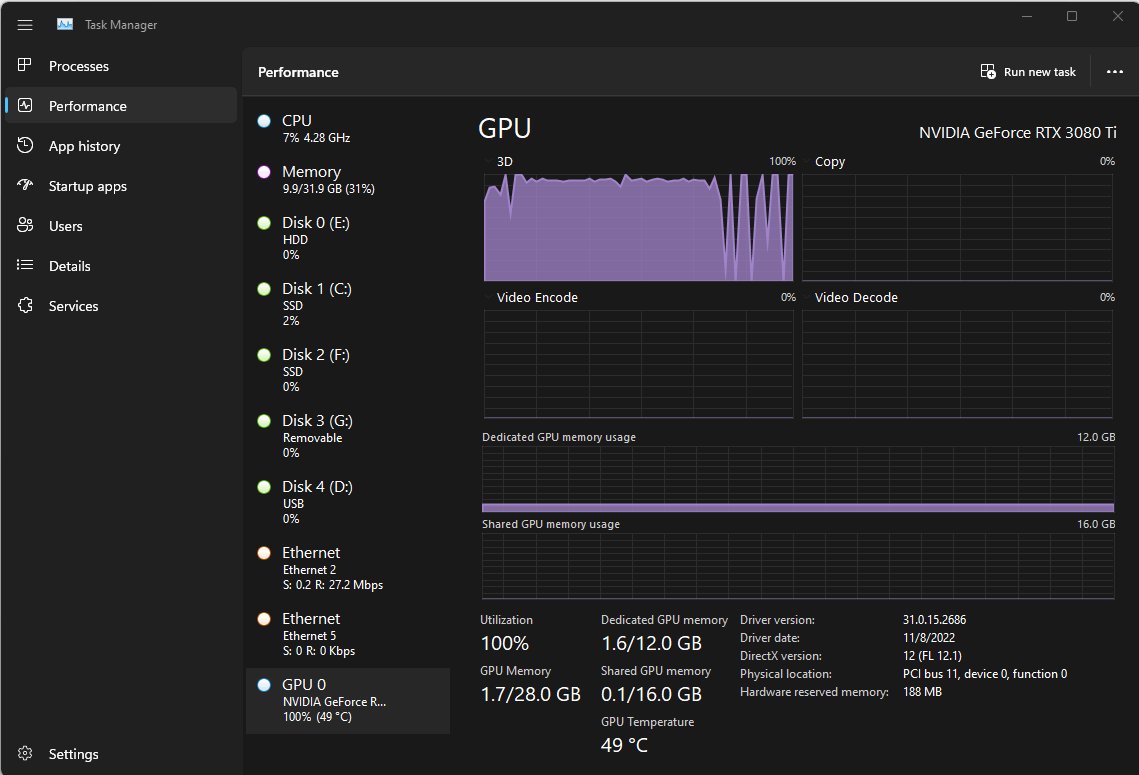
- Press Ctrl + Shift + Esc to open Task Manager.
- Select More details if it opens in the compact view.
- Select the Performance tab.
- Select GPU 0 (or GPU 1 on a PC with two GPUs) in the left panel.
- Read the overall utilization percentage under the GPU name, or at the bottom of the right pane.
When multiple GPUs are present, Task Manager numbers them by physical location on the PCI bus, so GPU 0 is often the integrated chip and GPU 1 the graphics card. The GPU name appears at the top right of the pane.
If the number is higher than expected, check the Processes tab next to see which app is responsible.
Which tool to use to check GPU usage
| You want to | Use this | Why |
|---|---|---|
| See total GPU load right now | Task Manager > Performance > GPU | Built in, accurate, no install |
| Find which app is using the GPU | Task Manager > Processes tab, GPU column | Shows per-app usage and which engine it uses |
| See per-app video memory | Task Manager > Details tab, added GPU memory columns | Hidden by default, for power users |
| Watch usage while a game runs | NVIDIA overlay or Game Bar Performance widget | Shows stats on top of the game |
| Log usage from a script or terminal | nvidia-smi (NVIDIA cards) |
Prints utilization and can repeat every second |
Check GPU usage per app in the Processes tab
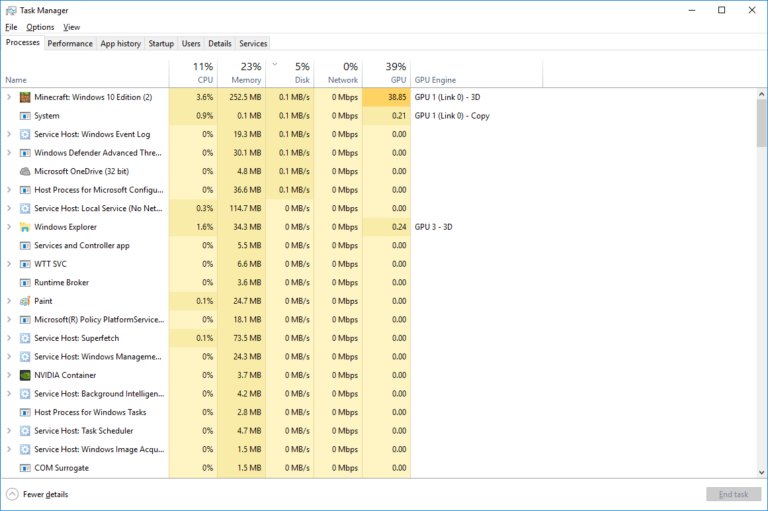
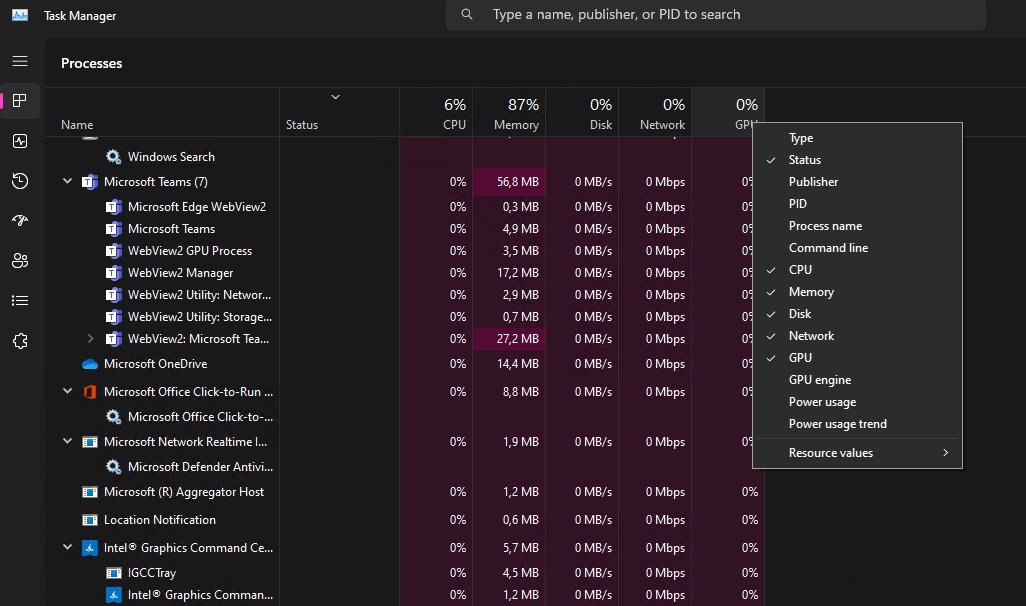
The GPU column shows each process's busiest engine across all GPUs. A second column names the GPU and engine behind that number, so a game on the 3D engine and a video on the decode engine are told apart.
- Open Task Manager with Ctrl + Shift + Esc.
- Select the Processes tab.
- If no GPU column is visible, right-click any column header and select GPU and GPU engine.
- Select the GPU column header to sort apps by GPU usage.
- Read the GPU engine entry to see which GPU (for example GPU 1) and engine the app is using.
The total at the top of the GPU column is the highest utilization across all GPUs, matching the figure on the Performance tab.
Check GPU memory and engine usage on the Performance tab
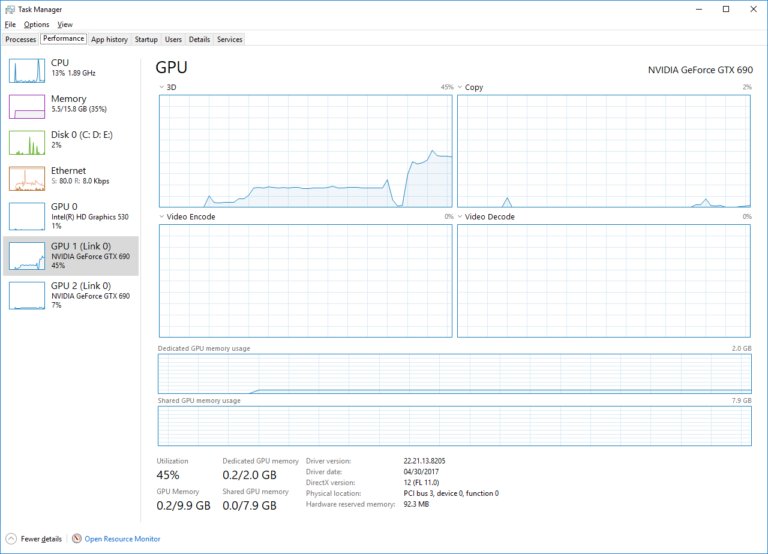
| Item on the GPU pane | What it shows |
|---|---|
| Engine graphs (four by default) | Load on separate GPU units such as 3D, Copy and Video Decode; select an engine's name to swap in another |
| Overall utilization % | The figure for the GPU as a whole, based on its busiest engine rather than an average |
| Dedicated GPU memory | VRAM on a graphics card, or memory reserved for graphics on an integrated GPU, in use across all apps |
| Shared GPU memory | Normal system RAM the GPU borrows; Windows caps it at half of physical memory at any instant |
| GPU name and Link number | Which physical GPU you are viewing, and whether it is linked with another (SLI or CrossFire) |
Low overall usage with one engine pinned near 100% is normal. For example, a video player may max out the video decode engine while the 3D engine sits idle. The VRAM on your graphics card is the dedicated memory figure here.
Add GPU columns to the Details tab
The Details tab shows no GPU data by default. Its memory counters include memory shared between processes, so adding them up overstates the total; use the Performance tab for the real total.
- Open Task Manager and select the Details tab.
- Right-click any column header and choose Select columns.
- Check the GPU utilization and video memory counters you want.
- Select OK, then sort by the new column.
System processes such as dwm.exe and csrss.exe look larger than they are here, because they share window memory with every app.
How to check GPU usage with manufacturer / third-party software
Task Manager is more accurate than most outside tools, because it reads the actual scheduling and memory decisions Windows makes. Use vendor tools when you need an in-game overlay or a log.
| Tool | GPUs | How to see usage |
|---|---|---|
| NVIDIA overlay (NVIDIA app) | NVIDIA GeForce | Turn on the performance statistics in the overlay and choose metrics such as GPU and CPU utilization and FPS |
nvidia-smi |
NVIDIA (full data on Tesla, Quadro and Titan; limited on other GeForce cards) | Run it in Command Prompt or PowerShell; see the command below |
| Game Bar Performance widget | Any GPU | Press Windows key + G and open the Performance widget to monitor the PC while you play |
| AMD Software: Adrenalin Edition | AMD Radeon | AMD's driver suite for Radeon cards; check AMD's documentation for its metrics overlay |
| MSI Afterburner | See MSI's product page for supported cards | MSI's graphics card utility; download it only from msi.com |
Check NVIDIA GPU usage from the command line with nvidia-smi
nvidia-smi is NVIDIA's monitoring tool and supports 64-bit Windows as well as Linux. Run plain nvidia-smi for a one-time summary table.
nvidia-smi -q -d UTILIZATION -l 1-q queries the GPU, -d UTILIZATION limits the output to utilization data (with min, max and average samples), and -l 1 repeats it every second until you press Ctrl + C.
You should see: A Utilization block per GPU showing GPU and Memory percentages. GPU is the share of time one or more kernels ran on the card; Memory is the share of time device memory was being read or written.
How to test if a GPU works and is being used
- Open Task Manager > Performance and leave GPU selected.
- Start a game, a 3D app or a video.
- Watch the 3D or Video Decode graph rise while the app runs.
- Switch to the Processes tab and check that the app's GPU engine entry names the GPU you expect, such as GPU 1 for a graphics card.
- Close the app and confirm usage drops back toward zero.
To confirm the model before testing, find which graphics card you have from Settings or Device Manager.
GPU not showing in Task Manager and other GPU usage problems
No GPU entry on the Performance tab
Task Manager's GPU data needs a driver that supports WDDM 2.0 or later.
- Open Start, type
dxdiagand press Enter. - Select the Display tab.
- In the Drivers section, read Driver Model.
- If it shows a WDDM version below 2.0, install a current driver for your GPU from its maker or from Windows Update.
How to check what GPU I use: the game runs on the integrated GPU
Windows assigned the app to the power-saving GPU.
- Open the Processes tab while the game runs.
- Read the GPU engine column; GPU 0 on many laptops is the integrated chip.
- Select the matching GPU entry on the Performance tab to see its name.
- Laptops with both GPUs switch between them by workload, so assign the game to the dedicated GPU in its graphics preference setting or the GPU maker's control panel, then restart the game.
GPU usage percentage looks low while a game stutters
The bottleneck is elsewhere, usually the CPU or memory.
- Check the CPU and Memory graphs on the Performance tab at the same moment.
- If CPU sits near 100%, close background apps that load it.
- Use the GPU engine graphs to confirm which engine the game uses before changing graphics settings.
When the CPU is the limit, reduce CPU usage in Windows 11 before you lower graphics settings.
GPU usage in Windows FAQ
How do I check GPU usage on Windows 11?
Press Ctrl + Shift + Esc to open Task Manager, select Performance, then select GPU 0 or GPU 1. The overall utilization percentage appears under the GPU name, with per-engine graphs and video memory use on the right.
Where do I check GPU usage on a PC?
Task Manager is the built-in place on Windows 10 and Windows 11. The Performance tab shows total GPU load, and the Processes tab shows how much of the GPU each app is using.
How do I check CPU and GPU usage at the same time?
Open Task Manager > Performance. CPU and GPU are listed together in the left panel with live mini graphs. In games, the NVIDIA overlay can show GPU and CPU utilization on screen at once.
How do I check GPU usage percentage for one app?
Open Task Manager, select the Processes tab and look at the GPU column. Add it by right-clicking a column header if it is hidden. The GPU engine column shows which GPU and engine that app uses.
How do I check NVIDIA GPU usage from the command line?
Run nvidia-smi in Command Prompt or PowerShell for a summary. Use nvidia-smi -q -d UTILIZATION -l 1 to print GPU and memory utilization every second until you press Ctrl + C.
How do I check GPU usage in Linux or Ubuntu?
On an NVIDIA GPU, run nvidia-smi in a terminal. NVIDIA supports it on all standard Linux distributions its driver supports, with the same options as on Windows, including -l to refresh on an interval.
How do I show GPU usage while gaming?
Turn on performance statistics in the NVIDIA overlay on a GeForce card and choose GPU utilization as a metric. On any PC, press Windows key + G and open the Game Bar Performance widget to monitor the system in real time.
Why does Task Manager show low GPU usage when one engine is at 100%?
It does not average the engines. The overall figure follows the busiest engine, so check the engine graphs: video playback can max out Video Decode while 3D stays near zero.
Bottom line: the best way to check GPU usage in Windows
Use Task Manager first: Ctrl + Shift + Esc, Performance, GPU for the total and the Processes tab for each app. Add nvidia-smi or the NVIDIA overlay only when you need logging or in-game stats. Task Manager is built in, works with every GPU that has a WDDM 2.0 driver, and reads the same data Windows uses to schedule the GPU, which makes it more accurate than most outside tools.