To connect a PC or laptop to a TV, plug an HDMI cable into both, switch the TV to that HDMI input, and press Windows key + P to choose how the picture appears.
This guide covers every wired option (HDMI, USB-C or Thunderbolt, VGA and DVI), the wireless options (Miracast and Chromecast), getting sound on the TV, and fixes when the TV shows no signal.
Method 1: Connect using an HDMI cable
HDMI carries both video and digital audio on one cable, so it is the simplest route for most desktops and laptops.
- Plug one end of the HDMI cable into an HDMI port on the TV.
- Plug the other end into the HDMI port on your PC or laptop.
- Turn on the TV and set its input source to the HDMI port you used, using the Input or Source button on the remote.
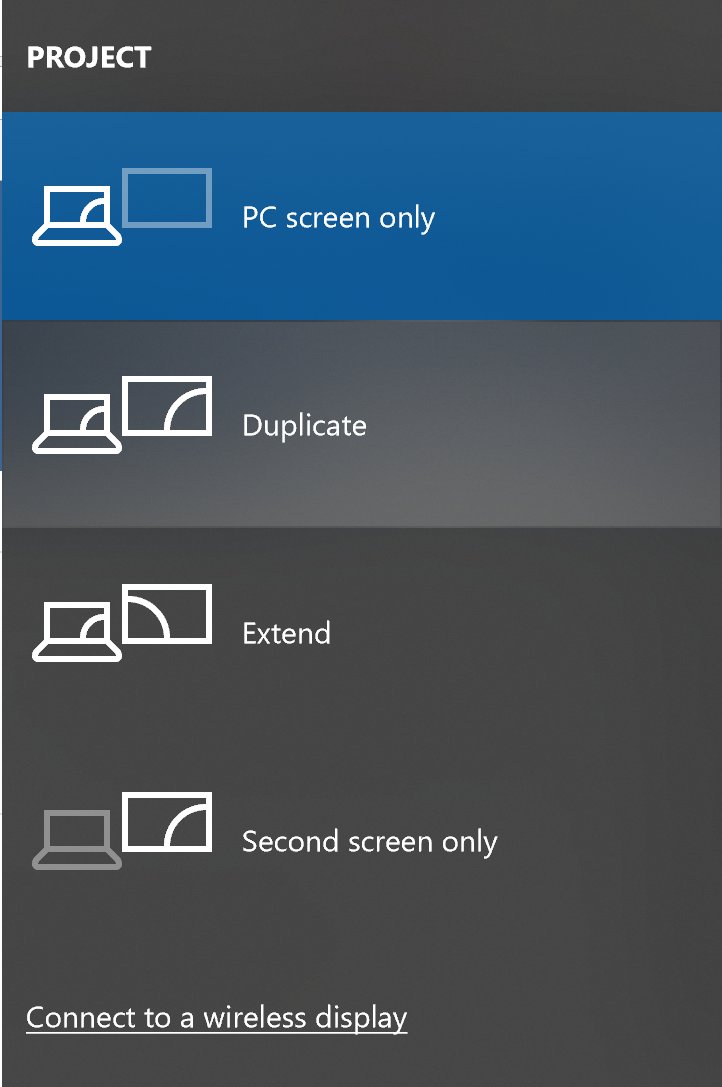
- On the PC, press Windows key + P.
- Select Duplicate to show the same picture on both screens, or Extend to use the TV as a second monitor.
Use the shortest cable that reaches. Microsoft notes that overly long cables can cause a loss of picture or sound.
How to hook up or connect a computer to a TV?
Match the ports on your PC and TV to a row. When both have the same port, use a straight cable; Microsoft recommends the same connection type on both ends whenever possible.
| Your situation | Use this | Why |
|---|---|---|
| PC and TV both have HDMI | Method 1: HDMI cable | Video and audio on one cable, no setup |
| Thin laptop with only USB-C or Thunderbolt ports | Method 2: USB-C to HDMI cable or adapter | Many USB-C ports output video through an adapter |
| Older PC with only VGA or DVI | Method 3: VGA or DVI to the TV's matching input, or an adapter to HDMI | Works on legacy hardware; VGA carries no audio |
| No cable run possible, TV supports Miracast | Method 4: Windows key + K | Built into Windows 11 and Windows 10 |
| TV has a Chromecast or Google TV device | Method 5: Cast from Chrome | Works over your home Wi-Fi from the Chrome browser |
| You want gaming or video without lag | A cable (HDMI first) | A wired link does not depend on Wi-Fi strength |
Requirements before connecting your PC to your TV
Learn which ports your PC and TV have before you buy a cable or adapter. The label or icon next to each port tells you its type, and the PC maker's spec page tells you more about which ports output video.
| Connection | What you need | Notes |
|---|---|---|
| HDMI | An HDMI cable and a free HDMI input on the TV | Carries uncompressed video and digital audio |
| USB-C or Thunderbolt | A USB-C to HDMI cable or adapter, or a TV with USB-C video input | The PC's USB-C port must support video output; check the PC maker's specs |
| DisplayPort | A DisplayPort to HDMI cable or adapter (most TVs have no DisplayPort input) | DisplayPort itself carries audio and video |
| DVI | A DVI cable or DVI to HDMI adapter | DVI-D is digital only, DVI-A analog only, DVI-I both |
| VGA | A VGA cable and a TV with a VGA (PC) input | Legacy analog video only, so sound needs a separate connection |
| Miracast | A PC and TV that support Miracast, or a Miracast adapter plugged into the TV's HDMI port | Wi-Fi must be turned on on the PC |
| Chromecast / Google Cast | A Chromecast, Google TV Streamer or TV with Google Cast, plus an updated Chrome | PC and cast device must be on the same Wi-Fi network |
Method 2: Connect using USB-C or Thunderbolt
- Check that your laptop's USB-C or Thunderbolt port supports video output on the PC maker's spec page.
- Plug a USB-C to HDMI cable, or a USB-C to HDMI adapter plus an HDMI cable, into the laptop.
- Connect the HDMI end to the TV.
- Switch the TV's input to that HDMI port.
- Press Windows key + P and pick a display mode.
If a laptop has only one video output, a docking station or USB-C adapter can add more outputs. When converting between connector types, Microsoft recommends an active adapter for a reliable signal.
Method 3: Connect using VGA or DVI
- Find the VGA or DVI port on the PC and the matching input on the TV.
- Connect the cable, or use a DVI-to-HDMI or VGA-to-HDMI adapter if the TV has only HDMI inputs.
- Set the TV's input source to that port.
- Press Windows key + P and choose Duplicate or Extend.
- For VGA, connect the PC's audio output to the TV or to external speakers, because VGA carries video only.
Method 4: Connect wirelessly using Miracast
Miracast is the wireless display standard built into Windows 11 and Windows 10. If the TV lacks it, a Miracast adapter (dongle) plugged into an HDMI port adds it.
- Turn on the TV, and plug in the Miracast adapter if you use one.
- Make sure Wi-Fi is turned on on the PC.
- Press Windows key + K to open Cast.
- Select the TV or adapter in the list of available devices.
- Follow any prompt on the TV, such as accepting the connection.
- Press Windows key + P to switch between Duplicate and Extend.
Without a keyboard shortcut, search for Cast in Windows Search and select Connect to a wireless display, or go to Settings > System > Display > Multiple displays > Connect to a wireless display > Connect. The Windows 11 wireless display feature also lets one PC project to another.
The receiving PC needs the Wireless Display optional feature, added from Settings > System > Projecting to this PC > Optional features > View features.
Method 5: Use screen casting or streaming devices
A Chromecast, Chromecast with Google TV, Google TV Streamer or a TV with Google Cast built in can show a Chrome tab or your whole screen.
- Connect the PC to the same Wi-Fi network as the cast device.
- Open Google Chrome on the PC.
- At the top right, select More > Cast, save, and share > Cast….
- To show the whole desktop instead of one tab, select Sources > Cast screen.
- Select your TV or streaming device.
- To finish, select Cast to the right of the address bar, then Stop casting.
When you cast a tab, its sound plays only on the TV. When you cast the whole screen, audio might stay on the computer, so cast the tab for video with sound.
Choose how the picture appears on your TV
| Press Windows key + P and choose | What the TV shows |
|---|---|
| PC screen only | Nothing; the picture stays on the PC or laptop screen |
| Duplicate | The same picture as the PC screen |
| Extend | A second desktop; drag windows between the screens |
| Second screen only | Everything, with the laptop screen blank |
To sharpen a blurry picture, open Settings > System > Display, select the TV, and set Display resolution to the option marked (Recommended). Use Scale under Scale & layout to make text larger from the sofa.
The same menu is how you project your screen in Windows 11 to a projector or meeting-room display.
How to get sound on the TV and check the connection worked
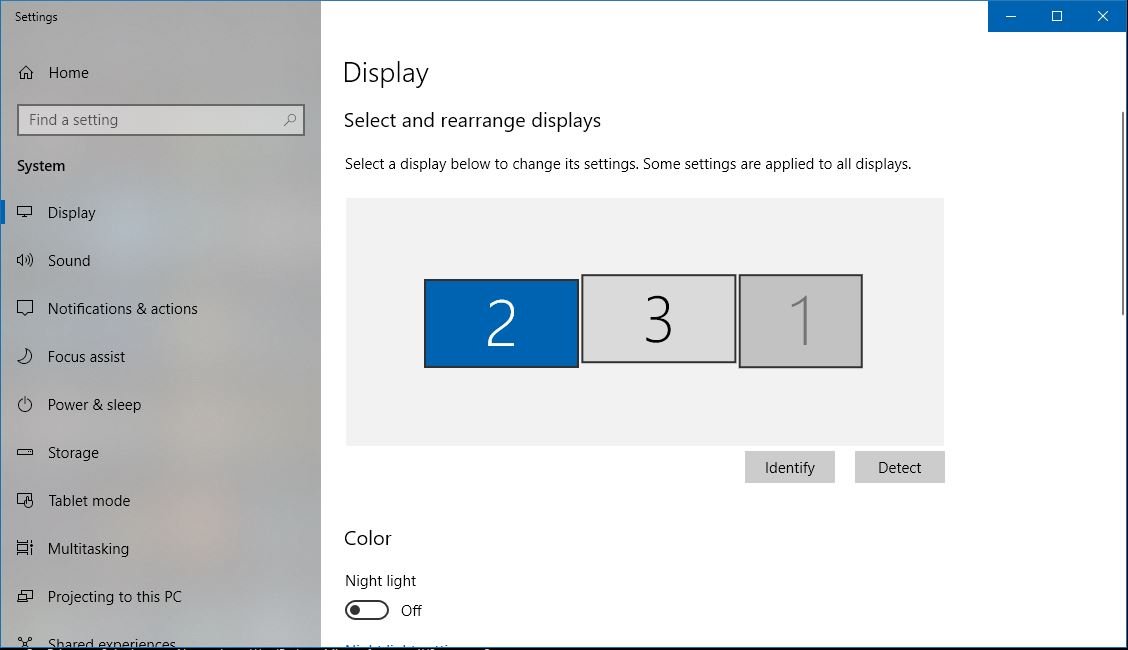
- Open Settings > System > Display and confirm the TV appears as a numbered display; select Identify to see which number is the TV.
- Select the Speakers icon on the taskbar, then the arrow next to the volume slider (Select a sound output).
- Choose the TV in the list of audio devices.
- To make it the default, go to Settings > System > Sound and select the TV under Output.
- Play a video and confirm both picture and sound come from the TV.
Why won't my PC connect to my TV? Fixes by symptom
Why can't I connect my PC to my TV with HDMI (no signal)
Wrong TV input, a loose or faulty cable, or the PC is set to PC screen only.
- Check that the TV's input source matches the HDMI port you used.
- Reseat both ends of the cable, then try a different cable.
- Press Windows key + P and select Extend or Duplicate.
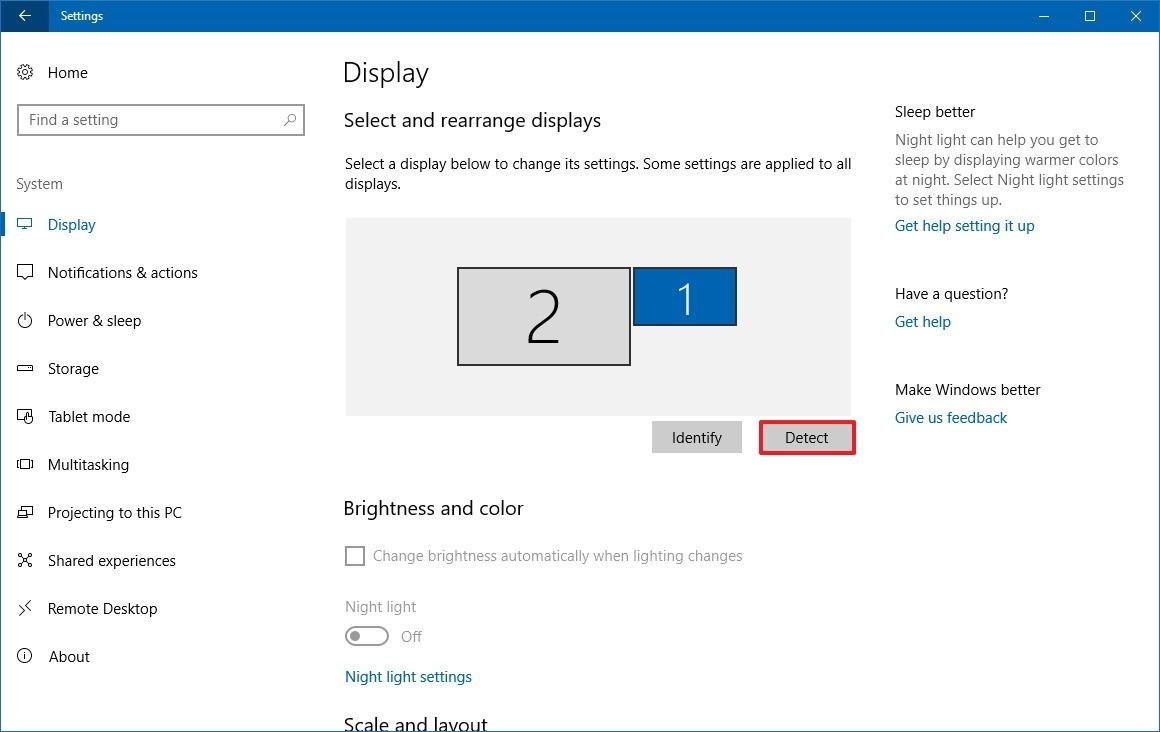
- Open Settings > System > Display > Multiple displays and select Detect.
- Try another HDMI port on the TV or another video port on the PC, and disconnect any docks or adapters you do not need.
TV connection worked before and suddenly stopped
The graphics driver has stalled or an update changed it.
- Press Windows key + Ctrl + Shift + B to reset the graphics driver.
- Restart the PC from Start > Power > Restart.
- If the problem began after an update, open Device Manager, expand Display adapters, right-click your adapter, select Properties > Driver > Roll Back Driver.
- If there is no roll-back option, reinstall the display driver from Device Manager.
Why won't my PC connect to my TV wirelessly
The PC or TV lacks Miracast, Wi-Fi is off, or an old pairing is stuck.
- Press Windows key + K; a message asking you to connect a display with a cable means the PC does not support Miracast.
- Turn Wi-Fi on from the network icon on the taskbar.
- Confirm the TV supports Miracast and is on; if not, add a Miracast adapter to its HDMI port.
- Update the PC's drivers and the TV or adapter's firmware.
- Open Settings > Bluetooth & devices > Devices, select the TV under Wireless displays & docks, select Remove device, then reconnect.
- Restart the PC and the TV.
Picture on the TV but no sound
Windows is still sending audio to the laptop speakers, or the cable carries no audio.
- Select the TV under Settings > System > Sound > Output.
- If you used VGA, add a separate audio connection, since VGA is video only.
- When casting from Chrome, cast the tab rather than the whole screen.
Connecting a PC to a TV FAQs
How do I connect my PC to my TV wirelessly on Windows 11?
Press Windows key + K, then select your TV from the list. The TV must support Miracast, or have a Miracast adapter plugged into an HDMI port, and Wi-Fi must be turned on on the PC.
How do I connect my PC to my TV wirelessly on Windows 10?
Turn on the TV, press Windows key + K, and select the TV in the list of available devices. Follow any prompt on the TV. The TV or an attached adapter must support Miracast.
How do I connect my PC to my TV with an HDMI cable?
Plug the HDMI cable into the TV and the PC, switch the TV's input to that HDMI port, then press Windows key + P and choose Duplicate or Extend. HDMI carries both picture and sound.
Can I connect my PC to my TV without HDMI?
Yes. Use USB-C with an HDMI adapter, DisplayPort or DVI with an adapter, VGA on TVs with a PC input, or go wireless with Miracast or a Chromecast device.
Can I connect my PC to my TV via Bluetooth?
Not for the picture. Microsoft documents wireless TV connections in Windows through Miracast over Wi-Fi, opened with Windows key + K, so use that or a Chromecast instead.
Can I use my TV as a second monitor?
Yes. Connect the TV, press Windows key + P and select Extend. The TV then acts as a second desktop, and you can drag windows between the PC screen and the TV.
How do I connect my PC to an LG TV?
Use HDMI as with any TV: plug in the cable, select that HDMI input on the LG remote, and press Windows key + P. For wireless, press Windows key + K if your LG model supports Miracast, as listed in its manual.
Do I need the internet to connect my PC to a TV?
Not for a cable connection. For Miracast, Wi-Fi must be turned on on the PC. For Chromecast, the PC and the cast device need to be on the same Wi-Fi network.
Does a wireless connection affect quality?
It can. Wireless casting depends on your Wi-Fi, and Google says its streaming devices need a strong Wi-Fi connection. For games and fast video, an HDMI cable gives the most consistent picture.
Why is my TV not detecting my computer?
Usually the TV is on the wrong input or the PC is set to PC screen only. Switch the TV input, press Windows key + P and choose Extend, then select Detect under Settings > System > Display > Multiple displays.

![Network adapter driver for Windows 11 [Download/Update]](https://techdows.com/wp-content/uploads/2026/10/Network-adapter-driver-for-Windows-11-DownloadUpdate-600x338.jpg)