To update a printer driver on Windows 11 or Windows 10, run Windows Update and install any printer driver listed under Optional updates; if nothing appears, download the current driver from the printer maker's support site.
This guide covers every official route, including Device Manager and the Add Printer Driver Wizard, plus what changes for ARM PCs and third-party drivers in 2026, and what to do when a driver won't install.
The Windows Update route
Microsoft names Windows Update as the recommended way to download, install and update printer drivers. Recommended drivers install on their own, but optional driver updates wait for you to pick them.
- Select Start, then Settings > Windows Update > Advanced options.
- Turn Receive updates for other Microsoft products to On.
- Under Additional options, select Optional updates.
- Tick the printer driver if one is listed, then select Download and install.
- Restart the PC when the installs finish, even if Windows does not ask for it.
On Windows 10, the same driver updates sit under Settings > Update & Security > Windows Update. If Windows Update offers nothing for your printer, move on to the maker's site below.
3 quick methods to update printer drivers on Windows
Three routes cover almost every home and office printer. The rest of this guide adds fallbacks for printers those three do not fix.
| Your situation | Use this method | Why |
|---|---|---|
| Any printer, first attempt | Windows Update (optional updates) | Microsoft's recommended route; drivers are signed and matched to your PC |
| Printer shows an error or a yellow warning in Device Manager | Device Manager > Update driver | Targets one device and can install a driver folder you already downloaded |
| Windows Update finds nothing, or you want the maker's full software | Manufacturer's support website | Makers release newer drivers and printer software there first |
| Printer still misbehaves after an update | Remove and re-add the printer | Forces Windows to fetch the recommended driver again |
| No internet connection, but you have the disc that came with the printer | Install software that came with the printer | Works offline, but the disc may hold an older driver, so check the maker's site later |
| Older printer that Windows no longer recognizes | Add Printer Driver Wizard | Pulls a fresh driver list from Windows Update; a last resort for legacy models |
| Copilot+ PC or other ARM-based laptop | Settings > Printers & scanners > Add device | Uses the built-in IPP class driver when an x64 installer fails |
The same logic applies to the rest of your hardware; the Windows 11 driver update methods work for network, audio and chipset drivers too.
Why keeping printer drivers updated matters
A printer driver is the software that lets Windows talk to the printer. Microsoft says the latest driver can fix printing issues, improve performance and add new features.
| Reason to update | What it fixes in practice |
|---|---|
| Compatibility after a Windows upgrade | Drivers built for an older Windows version can fail after a feature update; Microsoft lists this as a common cause of printing problems |
| Bug fixes | Makers frequently release updated drivers and software for improved performance and compatibility |
| New features | Newer packages can add printer options and settings the old driver lacked |
| Security | Microsoft keeps issuing security fixes for the legacy printer driver platform while your Windows version is in support |
| Outdated disc drivers | Software shipped on a printer's disc might be outdated, so a download from the maker is preferred |
Precautions to take before updating printer drivers
| Check | How | Why it matters |
|---|---|---|
| Exact printer model | Read the label on the printer or your purchase information | Driver pages are listed per model |
| Windows version and system type | Settings > System > About, under Device specifications | The download must match Windows 11 or 10 and 32-bit, 64-bit or ARM |
| Administrator account | Sign in with an admin account | Rolling back a driver in Device Manager needs administrator permissions |
| Official source only | Use Windows Update or the maker's own site | Microsoft advises against downloading drivers from any site other than the manufacturer's |
| Print queue empty | Let pending jobs finish or cancel them | A reinstall removes the printer and its queue |
Update the printer driver from Printers & scanners in Windows 11
Microsoft's compatibility guide lists this route for a printer that stopped working after a Windows update or upgrade.
- Select Start > Settings > Bluetooth & devices > Printers & scanners.
- Select your printer, then select Manage.
- Select Update driver and follow the on-screen instructions.
- Print a test page to confirm the printer responds.
Update printer drivers through Device Manager
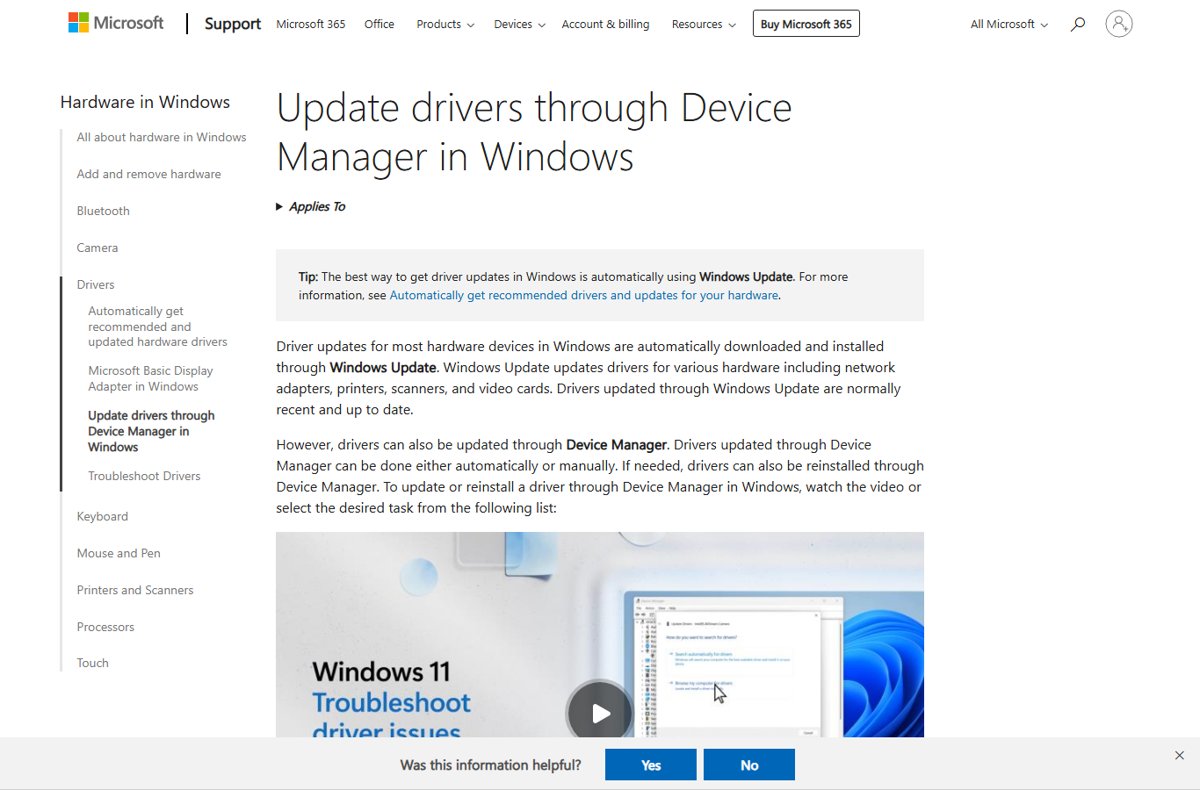
Device Manager can search Windows for a newer driver automatically, or install a driver folder you downloaded and extracted yourself. Printers appear under Printers or Print queues.
- Right-click Start and select Device Manager.
- Expand Print queues (or Printers), right-click your printer and select Update driver.
- Choose the option to search automatically, and let Windows install any newer driver it finds.
- To use a downloaded driver instead, select Browse my computer for drivers, then Browse…, pick the extracted driver folder and select OK.
- Select Next. The message The best drivers for your device are already installed means you already have the current version.
- Select Close and restart the PC if prompted.
The same Device Manager flow handles display adapters, although NVIDIA, AMD and Intel also offer their own driver tools.
Manual installation via manufacturer's website
The best source for a newer driver or the full printer software package is the maker's own support site. The exact clicks vary by brand, but the flow is the same.
- Note the printer model number from the printer or your purchase information.
- Open the manufacturer's official support site and go to its Support or Drivers section.
- Search for your model and open its product page.
- Select your Windows version if the site asks, and confirm 32-bit or 64-bit.
- Download the latest printer software and drivers; most browsers save them to the Downloads folder.
- Right-click the downloaded file, select Open and follow the installer, including the license agreement and connection prompts.
- Restart Windows if the installer asks you to.
HP's page at support.hp.com/us-en/drivers walks through Identify, Download and Install after you select Printer. Epson's support site at epson.com/Support has Search By Product Name and a Windows 11 support link. Brother's download page at support.brother.com offers Search by Model Name, and Canon U.S.A. hosts drivers at usa.canon.com.
If you own a Brother or KYOCERA model, you can download the Brother printer driver or install the KYOCERA driver package the same way.
How to update your HP printer software and drivers
HP printer software comes in two types: the printer driver, which lets the PC talk to the printer, and printer management software. For HP models built in 2010 or later, the driver package also installs HP Printer Assistant for print, scan and fax tasks, settings and ink or toner levels. The HP app covers printing and scanning from Android and iOS phones.
- Restart the PC, then open Check for updates in Windows and install any HP driver offered.
- If nothing appears, open HP's Software and Driver Downloads page at support.hp.com.
- Type the printer name shown on the printer's case into the search box and press Enter.
- Review the driver options; HP lists the most important ones at the top. Download the full software package for a home printer.
- In an office with many HP printers, pick the HP Universal Print Driver instead; one driver prints to a wide range of supported HP models and some non-HP printers.
- Open the downloaded file and follow the installer, then restart if asked.
Always download HP printer software from HP's own site. It is free, so leave any site that asks you to pay for a driver. HP's support resources also cover printer firmware updates and Windows 11 driver lookups for your model.
To protect drivers and printer software, keep security software and a firewall active. If malware or a crash corrupts a driver, uninstall the printer in Device Manager and reinstall the package from HP.
Reinstall the printer to get the latest driver
Removing and adding the printer again refreshes its driver files and settings, and can force Windows Update to download the current driver.
- Select Start > Settings > Bluetooth & devices > Printers & scanners.
- Select your printer, then select Remove.
- Restart your PC.
- Return to Printers & scanners and select Add device (labelled Add a printer or scanner on some builds).
- Let Windows install the recommended driver, then run Windows Update for any newer optional driver.
Use the Add Printer Driver Wizard for older printers
Microsoft calls this legacy wizard a last resort that can work better for older printers. It adds a driver only; the printer must already be installed.
- Open Settings > Bluetooth & devices > Printers & scanners.
- Under Related settings, select Print server properties and open the Drivers tab.
- Select Add…, then Next on the welcome page.
- On Processor Selection, tick the architecture of your PC.
- On Printer Driver Selection, select Windows Update and wait a few minutes for the printer list to refresh.
- Pick the maker under Manufacturer, the model under Printers, then select Next and Finish.
What's new for ARM-based devices?
Microsoft acknowledges that some ARM PCs, Copilot+ PCs included, cannot add a printer with the maker's installer, whether it came in the box or from the website. To check, open Settings > System > About; ARM devices show ARM based processor next to System type.
| On an ARM PC | What to do |
|---|---|
| Maker's installer fails or refuses to run | Go to Settings > Bluetooth & devices > Printers & scanners and select Add device instead of adding the printer manually |
| Maker publishes Windows on ARM guidance | Follow that guidance first; Microsoft defers to it |
| Mopria-certified printer | Works regardless of PC architecture through the built-in Microsoft IPP Class Driver |
| Need the maker's extra settings | Look for the brand's Print Support App, which installs from the Microsoft Store |
| Native ARM64 driver available | Microsoft still signs native ARM64 printer drivers, so a maker can ship one |
Printer driver changes in 2026: end of servicing for third-party drivers
Since Windows 10 21H2, Windows includes the Microsoft IPP Class Driver for Mopria-compliant printers over network and USB. Microsoft is now phasing out servicing for legacy v3 and v4 third-party drivers on Windows 11 and Windows Server 2025.
| Date | What changes |
|---|---|
| January 15, 2026 | No new printer drivers are published to Windows Update for Windows 11+; existing ones are updated only case by case |
| July 1, 2026 | Driver ranking always prefers the Windows IPP inbox class driver |
| July 1, 2027 | Third-party printer driver updates stop, except security fixes |
| Still allowed after the cutoff | Installing existing drivers from Windows Update, and the maker's own installation packages |
In practice, Windows Update will offer fewer new printer drivers through 2026, and the maker's website becomes the main place to get a newer one. Windows protected print mode, which Microsoft plans to turn on by default at a future date, removes printers that need third-party drivers.
Mac printer drivers: how to update them
Most current printers support AirPrint, which prints from a Mac without downloading or installing any driver. Apple keeps a searchable list of AirPrint-enabled printers on its support site.
- Check Apple's AirPrint printer list for your brand and model.
- If it is listed, connect the printer to your Wi-Fi network and put the Mac on the same network.
- Print from any app and choose the printer in the print dialog; no driver install is needed.
- If the printer is not listed, or you need features AirPrint lacks, open the maker's support site and search for your model. Epson, for example, places macOS drivers on each product's Downloads tab.
- Download the macOS package and run its installer.
Some printers listed as USB-only support driverless printing from a Mac only over a USB cable. For Windows printer drivers, the same Epson product pages list 32-bit and 64-bit packages for Windows 11, 10, 8 and 7.
How to check which printer driver is installed
- Open Settings > Bluetooth & devices > Printers & scanners.
- Under Related settings, select Print server properties, then the Drivers tab.
- Find your printer under Installed printer drivers and compare its name with the model you installed.
- For the version, open Device Manager, expand Print queues, right-click the printer, select Properties and open the Driver tab.
- Print a test page from the printer's Manage page to confirm the new driver works end to end.
What if the driver doesn't install?
Windows Update finds no printer driver
No optional driver is offered, which is more common since new driver publishing on Windows Update slowed in 2026.
- Confirm Receive updates for other Microsoft products is On under Advanced options.
- Download the driver from the manufacturer's support site for your exact model.
- Install it, then restart the PC.
The maker's installer fails on a Copilot+ or other ARM PC
Many printer installers are built for x64 PCs only.
- Open Settings > Bluetooth & devices > Printers & scanners.
- Select Add device and let Windows find the printer.
- Check the maker's site for Windows on ARM guidance or a native ARM64 driver.
Printing stopped after a driver update
The new driver does not suit your printer or Windows build.
- Open Device Manager and expand Print queues or Printers.
- Right-click the printer and select Properties.
- On the Driver tab, select Roll Back Driver, choose a reason and select Yes.
- Restart the PC.
Driver installs but the printer is not recognized after a Windows upgrade
The driver targets an older or different Windows version or system type.
- Check your edition and system type in Settings > System > About.
- Download a driver that matches both; avoid drivers marked for older Windows versions unless nothing newer exists.
- Remove the printer in Printers & scanners, restart, and add it again.
- Turn the printer off for 10 seconds, restart the PC, then turn the printer on.
Device Manager says the best drivers are already installed
Windows only searches its own driver catalogue, which may lag the maker's site.
- Download the newer package from the manufacturer.
- Return to Update driver and select Browse my computer for drivers.
- Point it at the extracted driver folder and select Next.
Removing a printer during these fixes deletes only its driver files and print queue; your documents and other data stay where they are.
Printer driver FAQs
How do I update printer drivers on Windows 11?
Open Settings > Windows Update > Advanced options > Optional updates and install any listed printer driver. You can also select the printer in Printers & scanners, choose Manage, then Update driver. If neither finds anything, download the driver from the printer maker's site.
Does Windows Update update printer drivers?
Yes. Windows Update installs recommended printer drivers automatically and lists others under Optional updates, which you install manually. From January 15, 2026, Microsoft publishes no new printer drivers to Windows Update for Windows 11, so newer drivers increasingly come from the maker's site.
How do I update printer drivers on Windows 10?
Open Settings > Update & Security > Windows Update and install any printer driver offered there. Device Manager works the same way as on Windows 11: right-click the printer under Print queues and select Update driver. The maker's support site is the fallback.
How do I update HP printer drivers?
Run Windows Update first, then go to HP's Software and Drivers page at support.hp.com, select Printer and follow its Identify, Download and Install steps for your model. Install the package HP lists for your Windows version and restart the PC if asked.
How do I update printer drivers in HP Smart?
HP Smart is HP's printer setup and printing app, and the driver itself comes from Windows Update or HP's Software and Drivers page. Install the driver there, then reopen HP Smart so it picks up the printer with the updated driver.
How do I update Epson printer drivers?
Open Epson's support site at epson.com/Support, enter your model under Search By Product Name and download the driver listed for your Windows version. Epson also links a Windows 11 support page. Run the download, follow the installer and restart if prompted.
How do I update Canon printer drivers?
Check Windows Update first, then search for your model on Canon U.S.A.'s support site at usa.canon.com. Select your Windows version on the model's driver page, download the package and run it. Restart the PC if the installer asks.
How do I update Brother printer drivers?
Go to support.brother.com, use Search by Model Name to open your printer's download page and pick your Windows version. Brother also explains how to identify your model name if the label is unclear. Run the installer and restart the PC if prompted.
How do I update printer drivers on my laptop?
A laptop uses the same routes as a desktop: Windows Update optional updates, Device Manager, or the maker's site. On an ARM laptop such as a Copilot+ PC, add the printer with Add device in Printers & scanners if the maker's installer fails.
How do I update the driver in the printer itself?
The driver lives on the PC, not in the printer, so you update it in Windows. The printer's own software is firmware, which makers distribute separately; HP's driver page, for example, explains printer firmware updates as a separate download.
Are free printer driver updates safe?
Drivers from Windows Update and the printer maker's own site are free and safe to install. Microsoft advises against downloading drivers from any other website, and third-party driver updater tools are not needed for printers.
Best way to update printer drivers in 2026
Run Windows Update first, then take the driver from the printer maker's support site if nothing is offered; on an ARM PC, use Add device in Printers & scanners. Windows Update is Microsoft's recommended route, but with no new printer drivers published there for Windows 11 since January 15, 2026, the maker's site is now the main source of newer drivers and software.