To update the network adapter driver in Windows 11, open Device Manager, expand Network adapters, right-click your Wi-Fi or Ethernet adapter and select Update driver.
This guide covers the three ways to get a newer network driver, how to install one on a PC with no Internet connection, how to reinstall or roll back the driver, and fixes for the network driver problems people search for most.
How can I update my PC’s network driver in Windows 11?
Device Manager is the quickest route because it checks for a newer driver and installs it in one pass. It works for Wi-Fi and Ethernet adapters alike.
- Right-click Start and select Device Manager.
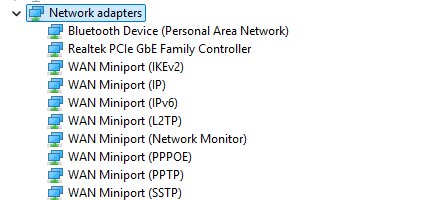
- Expand Network adapters.
- Right-click your adapter, for example the one with Wi-Fi, Wireless or Ethernet in its name, and select Update driver.
- Select Search automatically for updated driver software.
- If Windows reports that the best driver is already installed, select Search for updated drivers on Windows update to check there too.
- Select Close and restart the PC if Windows asks you to.
If neither search finds anything newer, the driver on your PC is the latest one Microsoft distributes. A newer build may still exist on the PC maker's or chip maker's support site, covered below.
![Network adapter driver for Windows 11 [Download/Update]](https://techdows.com/wp-content/uploads/2026/10/Network-adapter-driver-for-Windows-11-DownloadUpdate.jpg)
Which network driver update method should you use?
| Your situation | Use this | Why |
|---|---|---|
| Network works and you want the latest driver Microsoft offers | Device Manager > Update driver | One pass, no download to manage |
| Windows Update lists a driver under optional updates | Settings > Windows Update > Advanced options > Optional updates | Optional drivers are never installed automatically |
| You need a driver newer than Windows Update offers | The PC maker's or chip maker's support site | Vendors often post builds before Windows Update carries them |
| The PC has no network connection at all | Download on another PC, copy by USB, then Browse my computer for drivers | The only route that needs no Internet on the target PC |
| The network broke right after a driver update | Roll Back Driver on the Driver tab | Restores the previous driver in one click |
| The adapter is listed but behaves erratically | Uninstall device, then restart | Windows reinstalls a clean copy of the driver |
Do I really need to update my PC’s network driver?
Not routinely. Windows Update already installs recommended drivers for Windows 11 automatically, so most PCs get network driver updates without any action. A manual update is worth doing in the cases below.
| Situation | Update the driver? | Reason |
|---|---|---|
| Wi-Fi or Ethernet works normally | No action needed | Windows Update keeps recommended drivers current |
| Connection drops, slows or vanishes after sleep | Yes | Newer drivers carry fixes for known adapter bugs |
| You bought a new router, for example a Wi-Fi 6 or 6E model | Yes | Older drivers may not support the newer band or mode |
| The adapter shows a yellow warning in Device Manager | Yes, or reinstall it | The driver did not load correctly |
| The PC maker lists a security fix for your adapter | Yes | Drivers receive security updates like any software |
| Problems started right after a driver update | No, roll back instead | The new driver is the likely cause |
A driver is the software that lets Windows talk to a piece of hardware. Without a working network driver, the adapter cannot connect to anything, which is why a broken one takes the whole PC offline even when every Windows network setting is correct.
Update network drivers through Windows Update optional updates
Windows Update installs recommended drivers on its own, but it holds optional drivers back until you choose them. Network adapter drivers often arrive this way.
- Select Start > Settings > Windows Update > Advanced options.
- Make sure Receive updates for other Microsoft products is turned On.
- Under Additional options, select Optional updates.
- Expand the driver list and tick any entry for your network, Wi-Fi, wireless or Ethernet adapter.
- Select Download and install.
- Restart the PC once installation finishes, even if Windows does not ask for it.
Windows Update now shows the publisher's name and the driver version for each entry. A driver date that looks old is normal: the provider sets that date, and Windows chooses drivers by their targeting information, not by date.
Understanding network driver updates from Windows Update
Network adapter drivers that arrive through Windows Update follow the same rules as every other driver update. These answers explain what you see in the update list.
| Question | Answer |
|---|---|
| What is a driver update? | A newer version of the software that translates between Windows and the adapter, carrying fixes and security updates |
| Where do driver updates come from? | Mostly from the hardware or software provider, who certifies the driver with Microsoft; Microsoft also builds drivers for Surface and other Microsoft-branded devices |
| How does my Windows device get a driver update? | Partners in the Windows Hardware program publish certified drivers on Windows Update, and Windows checks it regularly and installs a newer driver automatically |
| Where can I get info about the new driver? | From the driver provider, such as the PC or chip maker; release notes are not published through Windows Update or Microsoft.com |
| How are driver update titles created? | Windows Update shows the publisher's name and the provider's version number; older drivers use the form publisher name, device class, version number |
| Why did Windows install an old driver? | The driver date is set by the provider and can be any date; Windows picks the best driver from targeting information inside the driver files |
| Why do I see multiple updates that look the same? | Many devices split their functions across several related drivers, which install at the same time even when the version numbers look duplicated |
Download the network adapter driver from your PC maker
When Windows Update has nothing newer, go to the support site of the company that made your PC or motherboard. You need the exact model name or number, which is printed on a label on most laptops and desktops.
Downloading the driver yourself is how you update a device driver manually: the installer or Device Manager's Browse my computer for drivers option puts the new files in place.
- Open the PC maker's support site and enter your model name, model number or serial number.
- Choose Windows 11 and the matching architecture, usually 64-bit.
- Open the Networking, Network, Wireless or LAN driver category and download the newest driver for your adapter.
- Run the installer if the download is an .exe file, then follow its prompts.
- If the download is a folder or archive of driver files, extract it and note where it is saved.
- Restart the PC when the installer finishes.
Dell, HP and Lenovo all publish model-specific driver pages, and Dell owners can keep Dell drivers updated with its own tool. PCs with an Intel Wi-Fi or Ethernet chip can also get the driver straight from Intel using Intel Driver & Support Assistant.
What network driver do I need for Windows 11?
You need the driver for the exact adapter inside your PC, built for Windows 11. Device Manager shows its name, and the name tells you where to look.
- Right-click Start and select Device Manager.
- Expand Network adapters to see every network driver on the PC.
- Note the full name of your Wi-Fi adapter and your Ethernet adapter; ignore entries named WAN Miniport or Bluetooth Device, which are built into Windows.
- Right-click the adapter, select Properties and open the Details tab.
- Choose Hardware Ids in the Property list and note the first value; it identifies the chip if the name is generic.
- Search the PC maker's or chip maker's support site for that adapter name and Windows 11.
If Network adapters is missing entirely, or the adapter appears under Other devices as an unknown device, Windows has no driver for it yet. Install one by USB using the offline method below.
How to install network adapter driver Windows 11 without Internet?
A PC with no working network driver cannot download its own fix. Get the driver on a second computer, then carry it across on a USB flash drive.
- On a working computer, open your PC maker's support site and download the Windows 11 network driver for your exact model.
- Copy the downloaded file or the extracted driver folder to a USB flash drive.
- Plug the drive into the offline PC and copy the files to a folder such as your Downloads folder.
- Run the installer if it is an .exe file; otherwise open Device Manager, right-click the adapter or the unknown device and select Update driver.
- Select Browse my computer for drivers, then Browse…, pick the driver folder and select OK.
- Select Next, wait for the installation to finish, then select Close and restart the PC.
Install a network driver with pnputil from Command Prompt
PnPUtil is built into Windows and installs a driver package from its .inf file. It is handy when the vendor ships a folder of driver files with no installer.
pnputil /add-driver D:\NetDriver\*.inf /subdirs /installOpen Command Prompt as administrator and replace D:\NetDriver with the folder holding the extracted driver. /add-driver adds every .inf package to the driver store, /subdirs searches subfolders too, and /install installs the driver on any matching device. Add /reboot if you want Windows to restart automatically when needed.
You should see: The output lists each package added, ends with a count of driver packages added and installed, and the adapter appears under Network adapters without a warning icon.
PnPUtil will not force a driver onto the adapter if Windows ranks another installed driver higher. Run pnputil /enum-drivers to list the third-party driver packages already on the PC.
How to reinstall network drivers in Windows 11
Reinstalling replaces a damaged driver with a fresh copy. Download a backup driver from your PC maker first, in case Windows does not find one by itself.
- Save your work and close open apps.
- Right-click Start and select Device Manager.
- Expand Network adapters, right-click your adapter and select Uninstall device.
- Tick Attempt to remove the driver for this device and select Uninstall.
- Select Start > Power > Restart.
- After the restart, check that the adapter is back under Network adapters; if it is not, install the backup driver with Browse my computer for drivers.
Roll back the network adapter driver after a bad update
If Wi-Fi or Ethernet stopped working right after a driver update, return to the previous driver. This needs an administrator account.
- Open Device Manager and expand Network adapters.
- Right-click your adapter and select Properties.
- Open the Driver tab and select Roll Back Driver.
- Choose a reason when Windows asks, then select Yes.
- Restart the PC if prompted.
A greyed-out Roll Back Driver button means Windows kept no earlier driver for this adapter. Download the previous version from the PC maker's site and install it with Browse my computer for drivers instead.
How to check the network driver version in Device Manager
- Open Device Manager and expand Network adapters.
- Confirm the adapter has no yellow warning triangle next to it.
- Right-click the adapter, select Properties and open the Driver tab.
- Read Driver Version and Driver Date, and compare them with the newest version listed on the PC maker's site.
- Open Settings > Network & internet and confirm your Wi-Fi or Ethernet connection shows Connected.
The General tab should also say This device is working properly. For adapter options beyond the driver, such as IP and DNS settings, open network adapter settings in Settings.
To understand the Wi-Fi icons on the taskbar: the Wi-Fi connected icon means the adapter and Internet both work, a moving signal bar means Windows is still connecting, and the no Internet icon means the adapter is on but has no Internet connection.
How to enable or disable automatic driver updates in Windows 11
Windows Update installs drivers automatically by default, and Microsoft recommends leaving that on. Turn it off only if Windows Update keeps replacing a network driver that works with one that does not. The policy below is available on Windows 11 Pro, Enterprise and Education.
- Press Windows key + R, type
gpedit.mscand press Enter. - Go to Computer Configuration > Administrative Templates > Windows Components > Windows Update.
- Open Do not include drivers with Windows Updates; expand the subfolders under Windows Update if it is not listed directly.
- Select Enabled to stop driver updates, or Not Configured to turn them back on.
- Select OK and restart the PC.
With the policy enabled, keep network drivers current yourself through Device Manager or the PC maker's site, because security fixes for the adapter will no longer arrive automatically. The same applies when you update drivers on Windows 11 for graphics, audio and other devices.
Run the Network troubleshooter in Windows 11
Before you replace a driver, rule out the connection itself. The automated Network and Internet troubleshooter in the Get Help app runs diagnostics and fixes most connection problems on its own.
- Open the Get Help app and run the Network and Internet troubleshooter, then apply any fix it offers.
- On your home router, check that the Ethernet cable sits in a numbered Ethernet port, not the Internet port that links the modem and router.
- Unplug the router and the modem from power, wait at least 30 seconds, plug the modem back in and wait for its lights to stop blinking, then plug the router back in.
- On your PC, open Settings > Network & internet and check that the connection shows Connected under its name; select Wi-Fi or Ethernet if it says Action needed.
- Make sure Airplane mode is turned off in Settings > Network & internet.
- On another PC or a phone, connect to the same network. If it connects, the problem is on the first PC, and the driver steps above apply; if it does not, the router or the Internet provider is the likely cause.
Network driver not working in Windows 11: fixes
These are the most common Wi-Fi and Ethernet problems tied to the network driver. Work through the general troubleshooting steps under the symptom that matches yours.
Network adapter missing from Device Manager
The adapter is disabled, switched off, or has no driver installed.
- Check for a physical Wi-Fi switch or key on the laptop and turn it on.
- In Device Manager, select View > Show hidden devices and look under Network adapters and Other devices.
- If the adapter shows a down-arrow icon, right-click it and select Enable device.
- If it appears as an unknown device, install the driver from USB with Browse my computer for drivers.
- Restart the PC and check Network adapters again.
Network not working after a driver update
The new driver is incompatible with the adapter or with other network software.
- Open the adapter's Properties > Driver tab and select Roll Back Driver.
- If rollback is unavailable, select Uninstall device, tick Attempt to remove the driver for this device, and restart.
- Open Command Prompt as administrator and run
netsh winsock reset,netsh int ip reset,ipconfig /release,ipconfig /renewandipconfig /flushdnsin that order. - As a last step, open Settings > Network & internet > Advanced network settings > Network reset and select Reset now.
Wi-Fi keeps disconnecting even with the latest driver
Windows power saving turns the wireless adapter off to save battery.
- In Device Manager, right-click the Wi-Fi adapter and select Properties.
- Open the Power Management tab and clear Allow the computer to turn off this device to save power.
- Open Control Panel > Hardware and Sound > Power Options and select Change plan settings for your plan.
- Select Change advanced power settings, expand Wireless Adapter Settings and set Power Saving Mode to Maximum Performance.
- Select OK and reconnect to the network.
Why do I keep getting network driver issues?
Windows Update or vendor software keeps installing a driver that conflicts with your adapter, or the adapter driver is filtering your router's band.
- Compare Driver Version on the Driver tab with the newest version on the PC maker's site and install the maker's build.
- On the adapter's Advanced tab, check that Wireless Mode or Band allows the frequency your router uses.
- If Windows Update keeps replacing a good driver, enable Do not include drivers with Windows Updates as shown above.
- If the problem continues on every driver version, test the PC on another network to rule out the router.
Network reset removes and reinstalls every network adapter and returns its settings to defaults. Afterwards you may need to reinstall VPN software, and Windows may set known networks to the public profile.
Windows 11 network driver FAQ
How do I update network drivers in Windows 11?
Open Device Manager, expand Network adapters, right-click your adapter and select Update driver, then choose Search automatically for updated driver software. You can also install optional drivers from Settings > Windows Update > Advanced options > Optional updates, or download the driver from your PC maker.
How do I install network drivers on Windows 11?
Run the installer downloaded from your PC maker's support site, or open Device Manager, right-click the adapter, select Update driver > Browse my computer for drivers and point it to the extracted driver folder. Restart the PC once the installation completes.
How do I reinstall network drivers?
In Device Manager, right-click the adapter under Network adapters, select Uninstall device, tick Attempt to remove the driver for this device and select Uninstall. Restart the PC, and Windows reinstalls the network adapter driver automatically. Keep a backup driver from the PC maker on hand in case it does not.
Where is the network driver in Device Manager?
Network drivers are listed under the Network adapters category in Device Manager. Right-click Start, select Device Manager and expand Network adapters to see your Wi-Fi and Ethernet adapters, plus built-in virtual entries such as WAN Miniport that need no updates.
How do I check my network drivers?
Open Device Manager, expand Network adapters, right-click your adapter and select Properties. The General tab shows whether the device is working properly, and the Driver tab shows the Driver Provider, Driver Date and Driver Version to compare with your PC maker's site.
What network driver do I need for Windows 11?
You need the Windows 11 driver for the exact Wi-Fi or Ethernet adapter in your PC. Find the adapter's name under Network adapters in Device Manager, or its Hardware Ids on the Details tab, then get the matching driver from your PC maker or the chip maker.
How do I download network drivers for a PC without Internet?
Download the Windows 11 network driver for your model on another computer, copy it to a USB flash drive, then run it on the offline PC. If it is a folder of driver files, use Device Manager > Update driver > Browse my computer for drivers to install it.
Why update the wireless network driver?
Updating the wireless network driver fixes dropped connections, adds support for newer router bands and modes, and closes security holes in the adapter software. If Wi-Fi works normally, Windows Update already installs recommended drivers, so a manual update is only needed when something is wrong.
Does Windows 11 install network drivers automatically?
Yes. Windows 11 installs recommended drivers, including most network adapter drivers, through Windows Update without asking. Optional drivers are the exception: they wait under Settings > Windows Update > Advanced options > Optional updates until you select them and choose Download and install.
How do I update network drivers in Windows 10?
The steps are the same as in Windows 11. Open Device Manager, expand Network adapters, right-click your adapter and select Update driver. Windows 10 also lists optional driver updates in Windows Update, and PC makers publish separate Windows 10 drivers on their support sites.
Why does my network drive keep disconnecting?
A mapped network drive is a shared folder on another computer, not a network driver, so updating the adapter driver rarely changes it. Check that the other computer or NAS is switched on, then tick Reconnect at sign-in when you map the network drive again.
Bottom line: the best way to update a network adapter driver in Windows 11
Use Device Manager's Update driver option first, check Optional updates in Windows Update second, and go to your PC maker's support site only when both find nothing newer. Windows Update already carries certified network drivers for most adapters, while the PC maker's site is the safest source when you need a newer build or must install one offline by USB.