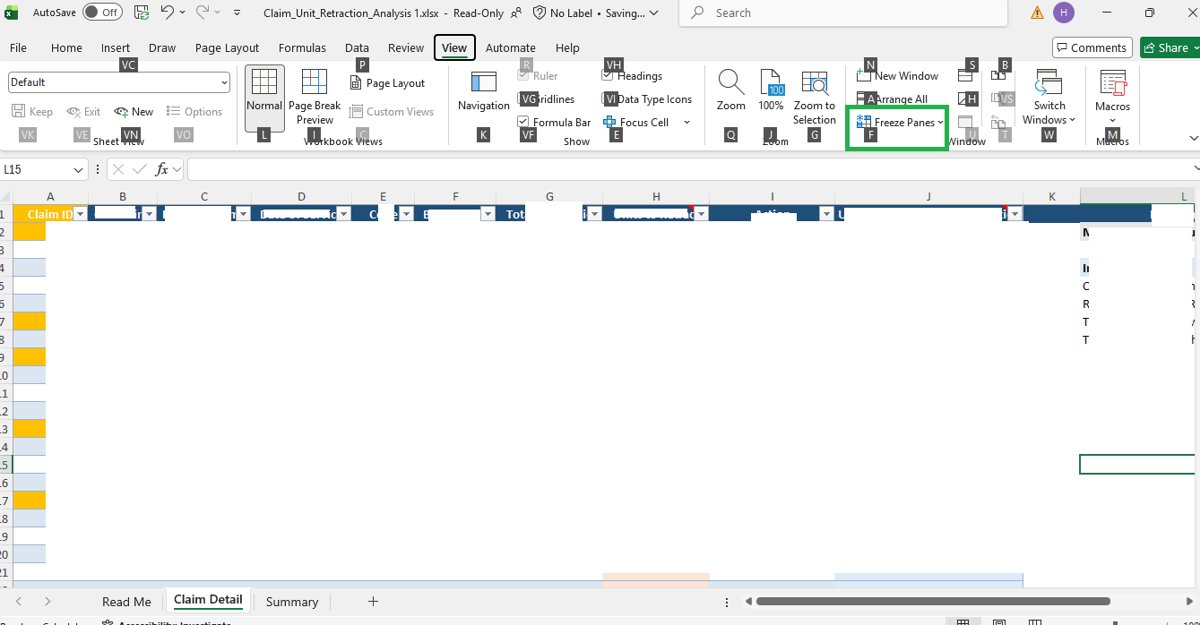
The Excel shortcuts you will use most are Ctrl+C, Ctrl+V, Ctrl+Z, Ctrl+S and Ctrl+B, and pressing Alt shows a letter for every ribbon command.
This list covers more than 100 Excel for Windows shortcut keys grouped by task, from Ctrl+letter keys A to Z to PivotTables, plus the main Mac keys and fixes for shortcuts that stop working.
List of all Excel shortcut keys you use every day
These are the most frequently used Excel shortcuts. In this list, a plus sign (+) means press the keys together, and a comma means press them one after another. Key names assume the US keyboard layout.
| To do this | Press |
|---|---|
| Copy the selection | Ctrl+C |
| Paste | Ctrl+V |
| Cut | Ctrl+X |
| Undo the last action | Ctrl+Z |
| Repeat the last action | Ctrl+Y |
| Save the workbook | Ctrl+S |
| Open a workbook | Ctrl+O |
| Close the workbook | Ctrl+W |
| Apply or remove bold | Ctrl+B |
| Open the Format Cells dialog | Ctrl+1 |
| Insert the SUM formula | Alt+= |
| Edit the active cell | F2 |
| Open the context menu | Shift+F10 |
| Remove cell contents | Delete |
Basic shortcuts in Excel: Ctrl + letter keys from A to Z
Most basic Excel shortcuts are Ctrl plus a letter. Letters missing from this table have no Ctrl+letter action listed in Microsoft's Excel for Windows reference.
| Shortcut | What it does in Excel for Windows |
|---|---|
| Ctrl+A | Select the current region, then the whole sheet on a second press; in a formula, open Function Arguments |
| Ctrl+B | Bold on or off |
| Ctrl+C | Copy |
| Ctrl+D | Fill Down from the top cell of the selection |
| Ctrl+E | Flash Fill the current column from the pattern next to it |
| Ctrl+I | Italic on or off |
| Ctrl+K | Insert a hyperlink |
| Ctrl+L | Create Table dialog |
| Ctrl+O | Open a workbook |
| Ctrl+Q | Quick Analysis options for the selected data |
| Ctrl+S | Save |
| Ctrl+T | Create Table dialog |
| Ctrl+U | Underline on or off |
| Ctrl+V | Paste |
| Ctrl+W | Close the workbook |
| Ctrl+X | Cut |
| Ctrl+Y | Repeat the last command |
| Ctrl+Z | Undo |
Excel worksheet shortcut keys
| To do this | Press |
|---|---|
| Insert a new worksheet | Shift+F11 or Alt+Shift+F1 |
| Move to the next sheet | Ctrl+Page down |
| Move to the previous sheet | Ctrl+Page up |
| Select the current and next sheet | Ctrl+Shift+Page down |
| Select the current and previous sheet | Ctrl+Shift+Page up |
| Switch to Page Layout view | Alt, W, P |
| Switch to Normal view | Alt, W, L |
| Switch to Page Break Preview | Alt, W, I |
| Show formulas instead of values | Ctrl+` (grave accent) |
| Check spelling on the sheet | F7 |
| Show or hide outline symbols | Ctrl+8 |
| Hide objects, show objects, or show placeholders | Ctrl+6 |
| Calculate the active worksheet | Shift+F9 |
You can also cycle through Excel tabs with the keyboard when you want to move between sheets one at a time with more options.
Excel workbook shortcut keys
| To do this | Press |
|---|---|
| Display the Save As dialog | F12 |
| Close the selected workbook window | Ctrl+F4 |
| Close Excel | Alt+F4 |
| Switch between two Excel windows | Ctrl+F6 or Ctrl+Tab |
| Switch between all Excel windows | Ctrl+Shift+F6 or Ctrl+Shift+Tab |
| Minimize a workbook window | Ctrl+F9 |
| Maximize or restore the workbook window | Ctrl+F10 |
| Open the Workbook Statistics dialog | Ctrl+Shift+G |
| Calculate all worksheets in all open workbooks | F9 |
| Force a full calculation of all open workbooks | Ctrl+Alt+F9 |
| Refresh data in the current worksheet | Ctrl+F5 |
| Refresh all external data in the workbook | Ctrl+Alt+F5 |
| Toggle full screen mode | Ctrl+Shift+F1 |
Shortcut keys for the ribbon in Excel
Press Alt to show Key Tips, the small letters next to each tab and command, then press the letters in order. Alt+H, for example, opens the Home tab.
| To do this | Press |
|---|---|
| Show Key Tips on the ribbon | Alt or F10 |
| Search the ribbon (Search or Tell Me box) | Alt+Q |
| Open the File menu | Alt+F |
| Open the Home tab | Alt+H |
| Open the Insert tab | Alt+N |
| Open the Page Layout tab | Alt+P |
| Open the Formulas tab | Alt+M |
| Open the Data tab | Alt+A |
| Open the Review tab | Alt+R |
| Open the View tab | Alt+W |
| Expand or collapse the ribbon | Ctrl+F1 |
| Show the tooltip for the focused ribbon item | Ctrl+Shift+F10 |
| Open the menu for a selected button | Alt+Down arrow |
| Move between groups of controls | Ctrl+Left or Right arrow |
| Activate the selected button | Spacebar or Enter |
Drag and drop shortcuts in Excel
Excel's drag-and-drop shortcuts combine a key with the mouse. Select the cells first, then point at the selection border before you drag.
| To do this | Hold this while you drag or scroll |
|---|---|
| Move a selected row, column or range and insert it at the drop point | Shift, then drag the selection border |
| Scroll the sheet horizontally | Ctrl+Shift, then scroll the mouse wheel |
| Expand grouped rows or columns | Shift, then scroll down while hovering over the collapsed group |
| Collapse grouped rows or columns | Shift, then scroll up while hovering over the expanded group |
On a Mac, dragging without Shift cuts the cells from the old location and pastes them over the new one instead of inserting them.
Shortcut keys for navigation in Excel
Use these keys to navigate the worksheet, move and scroll between screens, and jump between sheets in a workbook.
| To do this | Press |
|---|---|
| Move one cell up, down, left or right | Arrow keys |
| Move to the edge of the current data region | Ctrl+Arrow key |
| Move to the next non-blank cell in End mode | End, then Arrow key |
| Move to the beginning of the row | Home |
| Move to the beginning of the worksheet (A1) | Ctrl+Home |
| Move to the last used cell on the sheet | Ctrl+End |
| Move one screen down or up | Page down or Page up |
| Move one screen right or left | Alt+Page down or Alt+Page up |
| Move one cell right, or between unlocked cells on a protected sheet | Tab |
| Move one cell left | Shift+Tab |
| Open the Go To dialog | F5 |
| Switch between sheet, ribbon, task pane and Zoom controls | F6 |
| Cycle through floating shapes such as text boxes | Ctrl+Alt+5, then Tab |
| Zoom in | Ctrl+Alt+= |
| Zoom out | Ctrl+Alt+- |
If the arrow keys scroll the sheet instead of moving the cell, Scroll Lock is on; turn off Scroll Lock in Excel to get normal movement back.
Excel shortcut keys for the active cell
| To do this | Press |
|---|---|
| Edit the active cell with the cursor at the end | F2 |
| Edit the active cell in the formula bar | Ctrl+F2 |
| Insert or edit a cell note | Shift+F2 |
| Insert or reply to a threaded comment | Ctrl+Shift+F2 |
| Open the data validation list on the cell | Alt+Down arrow |
| Clear the cell contents but keep formatting | Delete |
| Clear the content of the active cell | Backspace |
| Open the Format Cells dialog for the cell | Ctrl+1 |
Excel shortcut keys for selection
| To do this | Press |
|---|---|
| Select the current region, then the whole sheet | Ctrl+A or Ctrl+Shift+Spacebar |
| Extend the selection by one cell | Shift+Arrow key |
| Extend the selection to the last non-blank cell | Ctrl+Shift+Arrow key |
| Select the entire column | Ctrl+Spacebar |
| Select the entire row | Shift+Spacebar |
| Extend the selection to the start of the sheet | Ctrl+Shift+Home |
| Extend the selection to the last used cell | Ctrl+Shift+End |
| Select the current region around the active cell | Ctrl+Shift+* (asterisk) |
| Turn extend mode on or off | F8 |
| Add a non-adjacent range to the selection | Shift+F8 |
| Select all objects when one object is selected | Ctrl+Shift+Spacebar |
Shortcut keys for cell edit mode in Excel
These keys work while you edit a cell or type in the formula bar. Press F2 to enter edit mode first.
| To do this | Press |
|---|---|
| Cancel the entry | Esc |
| Complete the entry and move down | Enter |
| Start a new line in the same cell | Alt+Enter |
| Move to the end of the text in the formula bar | Ctrl+End |
| Select from the cursor to the end of the formula bar text | Ctrl+Shift+End |
| Cycle a reference through absolute and relative forms | F4 |
| Expand or collapse the formula bar | Ctrl+Shift+U |
| Turn formula tooltips on or off | Ctrl+Alt+P |
| Open Function Arguments for the function name before the cursor | Ctrl+A |
| Insert argument names and parentheses | Ctrl+Shift+A |
| Open the Insert Function dialog | Shift+F3 |
| Paste a defined name | F3 |
Excel shortcut keys to enter data
| To do this | Press |
|---|---|
| Enter today's date | Ctrl+; (semicolon) |
| Enter the current time | Ctrl+Shift+: (colon) |
| Fill the selected range with the current entry | Ctrl+Enter |
| Complete the entry and move up | Shift+Enter |
| Copy the formula from the cell above | Ctrl+' (apostrophe) |
| Copy the value from the cell above | Ctrl+Shift+" (quotation mark) |
| Open Paste Special | Ctrl+Alt+V |
| In Paste Special, paste values only | V |
| In Paste Special, paste formulas only | F |
| In Paste Special, paste formatting only | T |
| In Paste Special, paste column widths only | W |
Cell formatting shortcut keys
| To do this | Press |
|---|---|
| Bold, italic, underline | Ctrl+B, Ctrl+I, Ctrl+U (or Ctrl+2, Ctrl+3, Ctrl+4) |
| Strikethrough | Ctrl+5 |
| Open the Font tab of Format Cells | Ctrl+Shift+F |
| General number format | Ctrl+Shift+~ |
| Currency format, two decimals | Ctrl+Shift+$ |
| Percentage format, no decimals | Ctrl+Shift+% |
| Scientific format | Ctrl+Shift+^ |
| Date format (day, month, year) | Ctrl+Shift+# |
| Time format (hour, minute, AM/PM) | Ctrl+Shift+@ |
| Number format with thousands separator | Ctrl+Shift+! |
| Choose a fill color | Alt+H, H |
| Center the cell contents | Alt+H, A, C |
Row and column formatting shortcut keys
| To do this | Press |
|---|---|
| Hide the selected rows | Ctrl+9 |
| Hide the selected columns | Ctrl+0 |
| Delete the column | Alt+H, D, C |
| Open the Insert dialog to add cells, rows or columns | Ctrl+Shift++ (plus sign) |
| Open the Delete dialog for cells, rows or columns | Ctrl+- (minus sign) |
| Unhide rows (Excel for the web) | Ctrl+Shift+9 |
| Unhide columns (Excel for the web) | Ctrl+Shift+0 |
In the Insert dialog, choose Entire row or Entire column and press Enter. You can also add multiple rows in Excel at once.
Shortcut keys for insert & layout in Excel
| To do this | Press |
|---|---|
| Insert a chart of the selected data on the same sheet | Alt+F1 |
| Insert a chart on a separate chart sheet | F11 |
| Insert a table | Ctrl+T or Ctrl+L |
| Insert a hyperlink | Ctrl+K |
| Insert a function | Shift+F3 |
| Define a name | Alt+M, M, D |
| Open the Page Layout tab for themes, page setup and scale | Alt+P |
| Open the Macro dialog | Alt+F8 |
| Open the Visual Basic for Applications editor | Alt+F11 |
| Open the Power Query Editor | Alt+F12 |
Apply borders in Excel using shortcut keys
Excel has direct shortcuts for the outline border, and the Home tab's Borders menu for every other border style.
- Select the cells you want to border.
- Press Ctrl+Shift+& to apply an outline border around the selection.
- For a different style, press Alt+H, B to open the Borders menu, use the arrow keys to pick a border and press Enter.
- For full control of line style and color, press Ctrl+1 and open the Border tab of Format Cells.
- Press Ctrl+Shift+_ (underscore) to remove the outline border.
Excel shortcut keys for pivot tables
PivotTable work in Excel for Windows runs through ribbon key sequences and the context menu. Click inside the source data or the PivotTable first.
| To do this | Press |
|---|---|
| Open the Create PivotTable dialog | Alt+N, V, T |
| Open the Create PivotChart dialog | Alt+N, S, Z, C |
| Insert a PivotChart from an existing PivotTable | Alt+J, T, C |
| Move focus to the PivotTable Fields pane | F6 |
| Add the selected field to the PivotTable | Spacebar |
| Refresh the PivotTable | Shift+F10, then R |
| Group the selected items | Shift+F10, then G |
| Ungroup | Shift+F10, then U |
| Rename the selected group | Alt+J, T, M |
| Refresh all data connections in the workbook | Ctrl+Alt+F5 |
| Open the Data tab to sort, filter and analyze the source data | Alt+A |
Power Pivot keyboard shortcuts
These keys work inside the Power Pivot window in Microsoft 365 and Office, where several Ctrl+letter keys act on whole tables rather than cells.
| To do this in Power Pivot | Press |
|---|---|
| Open the context menu for the selected cell, column or row | Shift+F10 |
| Select the entire table | Ctrl+A |
| Delete the table | Ctrl+D |
| Move the table | Ctrl+M |
| Rename the table | Ctrl+R |
| Move to the previous or next table | Ctrl+Page up or Ctrl+Page down |
| Select to the last or first cell of the column | Shift+Page down or Shift+Page up |
| Select to the last or first cell of the row | Shift+End or Shift+Home |
| Move to the first or last cell of the selected row | Ctrl+Left or Right arrow |
| Move to the first or last cell of the selected column | Ctrl+Up or Down arrow |
| Open the AutoFilter menu | Alt+Down arrow |
| Cancel a process, such as a paste | Ctrl+Esc |
| Recalculate all formulas in the Power Pivot window | F9 |
Copilot in Excel keyboard shortcuts
Copilot in Excel for Windows has its own task pane shortcuts for sending prompts and accepting changes without the mouse.
| To do this | Press |
|---|---|
| Open the Copilot in Excel task pane | Alt+C |
| Send your prompt | Enter |
| Stop or cancel the Copilot request | Esc |
| Accept changes made by Copilot | Ctrl+Enter |
| Switch between edit, chat and plan mode | Ctrl+Shift+M |
| Confirm use of the selected files | Ctrl+J |
| Start dictation for Copilot | Alt+Shift+H |
| Move focus between the grid and the Copilot pane | F6 |
Excel function keys F1 to F12 and their shortcuts
Each function key does one thing alone and something else with Ctrl, Shift or Alt, and they hold most of the advanced shortcuts, such as full recalculation and the VBA editor. On many laptops you also need to hold Fn.
| Key | Alone | With Ctrl, Shift or Alt |
|---|---|---|
| F1 | Excel Help pane | Ctrl+F1 ribbon on or off; Alt+F1 embedded chart; Alt+Shift+F1 new sheet; Ctrl+Shift+F1 full screen |
| F2 | Edit the active cell | Shift+F2 cell note; Ctrl+F2 edit in the formula bar |
| F3 | Paste Name dialog | Shift+F3 Insert Function dialog |
| F4 | Repeat the last action, or cycle absolute and relative references | Ctrl+F4 close the workbook window; Alt+F4 close Excel |
| F5 | Go To dialog | Ctrl+F5 restore the workbook window size |
| F6 | Switch between sheet, ribbon, task pane and Zoom | Shift+F6 reverse order; Ctrl+F6 next Excel window |
| F7 | Spelling dialog | Ctrl+F7 move a window that is not maximized |
| F8 | Extend mode on or off | Shift+F8 add to selection; Ctrl+F8 resize the window; Alt+F8 Macro dialog |
| F9 | Calculate all open workbooks | Shift+F9 active sheet; Ctrl+Alt+F9 full calculation; Ctrl+Alt+Shift+F9 recheck dependents; Ctrl+F9 minimize |
| F10 | Key Tips on or off | Shift+F10 context menu; Alt+Shift+F10 Error Checking menu; Ctrl+F10 maximize or restore |
| F11 | Chart on a new chart sheet | Shift+F11 new worksheet; Alt+F11 VBA editor |
| F12 | Save As dialog | – |
Other useful shortcut keys for windows, dialog boxes and objects
These keys help in dialog boxes, menus and the Excel window itself, and with shapes, pictures and drawings placed on a sheet.
| To do this | Press |
|---|---|
| Move to the next or previous option in a dialog box | Tab or Shift+Tab |
| Switch to the next or previous tab in a dialog box | Ctrl+Tab or Ctrl+Shift+Tab |
| Run the default button, often OK | Enter |
| Select or clear a checkbox, or press the selected button | Spacebar |
| Open a selected drop-down list | Down arrow or Alt+Down arrow |
| Close a menu, dialog box or message | Esc |
| Show the Control menu for the Excel window | Alt+Spacebar |
| Show the Error Checking menu for a cell | Alt+Shift+F10 |
| Cycle through floating shapes, text boxes and images | Ctrl+Alt+5, then Tab |
| Leave shape navigation | Esc |
| Select all objects, including shapes and drawings, when one is selected | Ctrl+Shift+Spacebar |
| Hide objects, show them, or show placeholders | Ctrl+6 |
| Stop an external data refresh | Esc |
Most old menu keys from earlier Excel versions still work after Alt, such as Alt, E, S for Paste Special. If you do not know the full sequence, press Esc and use Key Tips instead.
Excel keyboard shortcuts for print
Select what you want to print first. The Print screen opens with focus on the Print button.
| To do this | Press |
|---|---|
| Open the Print screen | Ctrl+P or Ctrl+F2 |
| Print one copy with default settings | Enter or Alt+P, P |
| Set the number of copies | Alt+P, N |
| Choose another printer | Alt+P, I |
| Print active sheets, the whole workbook or the selection | Alt+P, A |
| Set the first or last page of the range | Alt+P, H or Alt+P, J |
| Two-sided printing | Alt+P, D |
| Collate copies | Alt+P, C |
| Portrait or landscape orientation | Alt+P, O |
| Paper size | Alt+P, L |
Control keyboard shortcuts in Excel for the web by overriding browser shortcuts
Some Excel keys are also browser shortcuts, so the browser can act on them before Excel for the web does. The Keyboard Shortcuts setting lets Excel take them over so they match the desktop app.
- Open the workbook in Excel for the web.
- Select Help > Keyboard Shortcuts.
- Change the setting so Excel overrides browser shortcuts, then close the pane.
- Test a shortcut such as Ctrl+Z to undo or Ctrl+Y to redo. Excel for the web saves your work automatically, so there is no need to press a save key.
- To unhide rows or columns in Excel for the web, press Ctrl+Shift+9 or Ctrl+Shift+0.
If a shortcut still opens a browser feature, open the file in the Excel desktop app, where the full Windows list above applies.
Excel shortcuts for Mac
Excel for Mac accepts Command (Cmd) in place of Ctrl for most shortcuts, and many of the Ctrl versions still work. These differ most from Windows.
| To do this | Press on a Mac |
|---|---|
| Redo | Cmd+Y or Cmd+Shift+Z |
| Fill right | Cmd+R |
| Insert cells | Ctrl+Shift+= |
| Calculate all open workbooks | Cmd+= or F9 |
| Find and replace | Ctrl+H or Cmd+Shift+H |
| Paste Special | Cmd+Ctrl+V |
| New workbook from a template | Cmd+Shift+P |
| Add or remove a filter | Cmd+Shift+F or Ctrl+Shift+L |
| Minimize or maximize the ribbon | Cmd+Option+R |
| Unhide a column | Cmd+Shift+) |
| Unhide a row | Cmd+Shift+( |
| Open the Visual Basic editor | Option+F11 |
| Quit Excel | Cmd+Q |
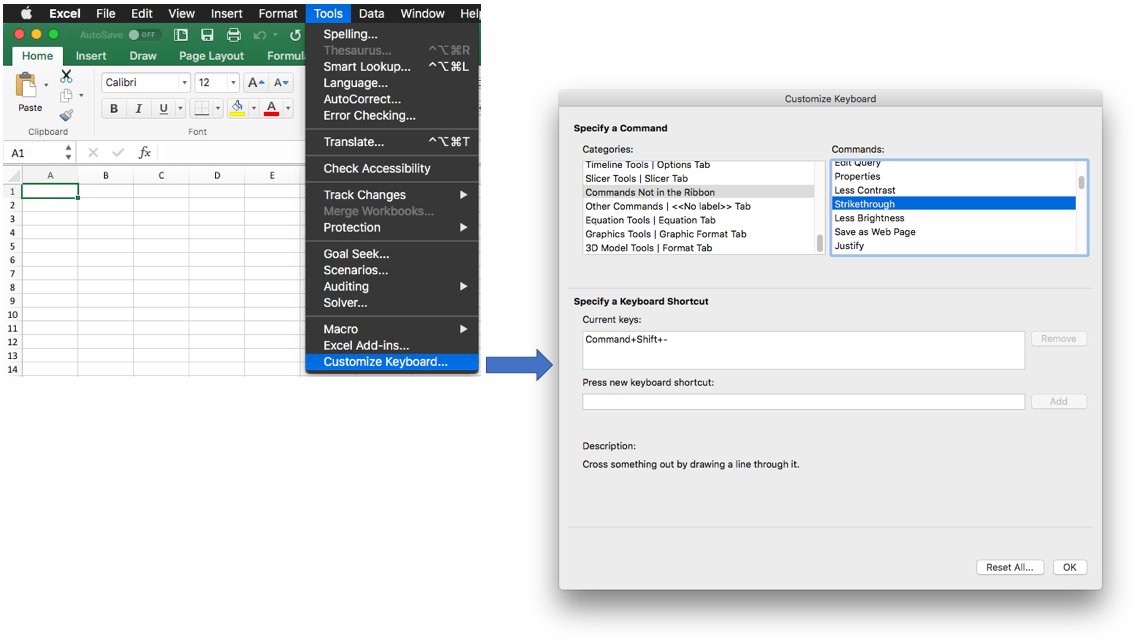
How to add shortcuts to the Excel ribbon or make your own
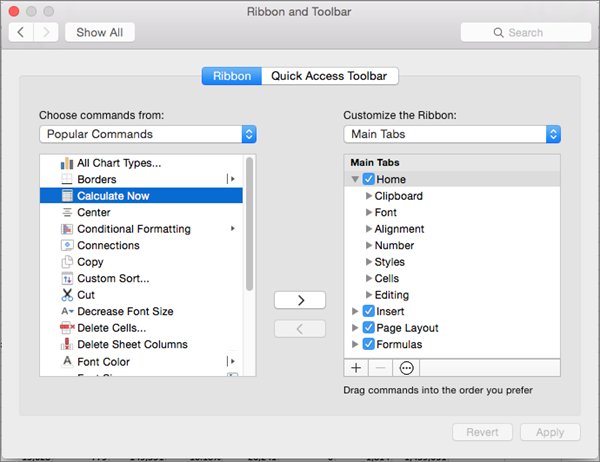
You can put any command on the Quick Access Toolbar or a custom ribbon group for faster access, or record a macro with its own Ctrl shortcut for an action that has none.
- To pin a command, right-click it on the ribbon and select Add to Quick Access Toolbar.
- To build a custom ribbon group, right-click an empty area of the ribbon, select Customize the Ribbon, choose a tab and select New Group.
- Select the new group, pick a command under Choose commands from, select Add, then OK.
- To make your own shortcut, show the Developer tab: File > Options > Customize Ribbon, then check Developer under Main Tabs.
- On the Developer tab, select Record Macro, type a name and a letter in the Shortcut key box, and select OK.
- Perform the actions you want to automate, then select Stop Recording.
A macro shortcut overrides any built-in Excel shortcut with the same key while its workbook is open. Avoid letters such as Z, C and V that you already rely on.
To undo ribbon changes, open Customize the Ribbon, select Reset and choose Reset all customizations.
Why Excel shortcuts are not working
Function key shortcuts change volume or brightness instead
The top row of the keyboard is set to media controls rather than F1 to F12.
- Hold Fn together with the function key, for example Fn+F2.
- On a Mac, open System Settings > Keyboard and turn on the option to use F1, F2 and the other keys as standard function keys.
- If your keyboard labels differ, check what each F1 to F12 function key does in Windows.
A Ctrl shortcut does something unexpected in one workbook
A macro in that workbook uses the same shortcut key and overrides the built-in one.
- Press Alt+F8 to open the Macro dialog and check which macros the workbook contains.
- Close the macro workbook, or re-record the macro with a different shortcut key.
Symbol shortcuts such as Ctrl+Shift+$ do nothing on a non-US keyboard
Microsoft's shortcut list follows the US layout, and other layouts put symbols on different keys.
- Check which key produces the symbol on your layout and press Ctrl+Shift with that key.
- Or use the ribbon route instead, such as Ctrl+1 for number formats.
A Windows shortcut clashes with macOS in Excel for Mac
macOS reserves some key combinations, such as Show Desktop, before Excel sees them.
- Open System Settings > Keyboard > Keyboard Shortcuts.
- Clear the checkbox for the macOS shortcut that conflicts with the Excel one.
Arrow keys scroll the sheet instead of moving between cells
Scroll Lock is on, or another app is intercepting the keys.
- Turn off Scroll Lock and test again.
- Work through the remaining fixes for arrow keys not working in Excel if it persists.
Key Tips do not appear when you press Alt on a Mac
Key Tips are off by default in Excel for Mac and need version 16.89 or later.
- Update Excel for Mac.
- Turn on Key Tips in Excel's preferences, then press the shortcut again.
Excel shortcut keys FAQ
How do you use keyboard shortcuts in Excel?
Hold the first key, such as Ctrl, and press the second key, such as C, together. When a shortcut is written with commas, such as Alt, H, H, press the keys one after another. Press Alt alone to see Key Tip letters for every ribbon command.
What does Alt do in Excel?
Pressing Alt shows Key Tips, letters next to each ribbon tab. Alt+H opens Home, Alt+N Insert, Alt+P Page Layout, Alt+M Formulas, Alt+A Data, Alt+R Review and Alt+W View. Alt+= inserts a SUM formula, and Alt+Enter starts a new line in a cell.
What Excel shortcut is Alt+F1?
Alt+F1 creates an embedded chart of the data in the current range on the same worksheet. Press F11 instead to put the chart on its own chart sheet.
How do I add shortcuts to the Excel ribbon?
Right-click an empty area of the ribbon, select Customize the Ribbon, create a New Group on a tab and add commands to it. For one-click access, right-click any command and select Add to Quick Access Toolbar.
Can I make my own Excel shortcuts?
Yes, by recording a macro. On the Developer tab, select Record Macro and type a letter in the Shortcut key box. The macro shortcut overrides any built-in shortcut with the same key while that workbook is open.
Why are my Excel shortcuts not working?
The most common causes are function keys set to media controls (hold Fn), a non-US keyboard layout that moves symbol keys, a macro overriding a shortcut, Scroll Lock, or a macOS shortcut taking the same keys in Excel for Mac.
What is the shortcut to insert a row in Excel?
Press Ctrl+Shift+Plus sign to open the Insert dialog, choose Entire row and press Enter. Alt+H, D, C deletes a column, and Ctrl+Minus sign opens the matching Delete dialog.
What is the shortcut for Paste Special in Excel?
Press Ctrl+Alt+V on Windows to open Paste Special, then press a letter: V for values, F for formulas, T for formats or W for column widths. On a Mac, press Cmd+Ctrl+V.
How do I show formulas instead of results in Excel?
Press Ctrl+` (the grave accent key, left of 1 on a US keyboard) to switch the worksheet between showing formulas and showing their results. Press it again to switch back.
What is the shortcut for today's date in Excel?
Press Ctrl+; (semicolon) to enter today's date as a fixed value, and Ctrl+Shift+: (colon) to enter the current time. Both are entered as typed values in the cell.