To switch from Outlook (new) to Outlook (classic), select the New Outlook toggle at the top right of the new app and choose Switch back to classic Outlook.
This guide covers the toggle, the Help tab route, how to stop Outlook switching you back automatically, and what to do when the toggle is missing or classic Outlook is not installed.
How to switch from Outlook (new) to Outlook (classic) app on Windows 11
The toggle sits in the top-right corner of the new Outlook window. It works on Windows 11 and Windows 10 as long as classic Outlook is installed on the PC.
- Open new Outlook from the Start menu or the taskbar.
- Select the New Outlook toggle in the top-right corner of the window.
- Choose Switch back to classic Outlook from the two options that appear.
- Answer or skip the short feedback form Outlook shows next.
- Wait for classic Outlook to open. From now on, launching Outlook opens the classic app.
New Outlook is minimized to the taskbar after the switch, and its notifications and reminders are suppressed for that session, so you do not get every alert twice.
Switch back to classic Outlook or use classic Outlook this time?
The toggle offers two choices, and they behave differently on the next launch. Pick the row that matches what you want.
| Your situation | Choose this | What happens next |
|---|---|---|
| You want classic Outlook as your everyday mail app | Switch back to classic Outlook | Classic Outlook opens every time you launch Outlook |
| You need one classic-only feature right now, such as a COM add-in | Use classic Outlook this time (also shown as Open classic Outlook) | Classic Outlook opens once; the next launch still goes to new Outlook |
| The toggle is missing from new Outlook | Help tab > Go to classic Outlook | Same result as switching back with the toggle |
| Classic Outlook is not on the PC at all | Install classic Outlook first | The toggle and the Help tab option can then hand you over |
| You want both apps open side by side | Launch Outlook (classic) from the Start menu | Both apps can run at once with the same accounts |
Go to classic Outlook from the Help tab in new Outlook
The ribbon in new Outlook has its own route back, which helps when the toggle is hidden or you cannot spot it.
- Open new Outlook.
- Select the Help tab on the ribbon.
- Select Go to classic Outlook.
- Complete or skip the feedback prompt.
- Wait for classic Outlook to open with your accounts.

Open Outlook (classic) from the Windows Start menu
New Outlook and classic Outlook are separate apps with separate Start menu entries. Opening classic Outlook directly is also the first fix Microsoft gives when the toggle does not appear.
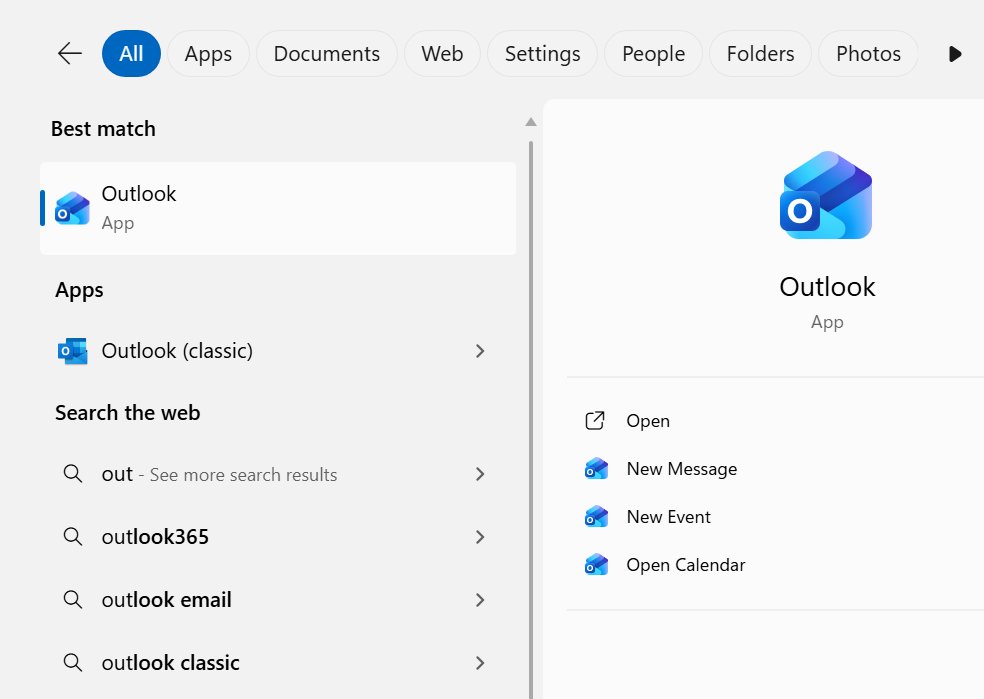
- Select Start and then All to open the full app list.
- Scroll to the letter O.
- Select Outlook (classic), the icon without a New tag.
- Right-click the running Outlook icon on the taskbar and select Pin to taskbar so you open the right app next time.
If the toggle in new Outlook is still switched on, launching classic Outlook may redirect you to new Outlook. Use the toggle or the Help tab first, then pin classic Outlook.
Install classic Outlook when it is not on your Windows 11 PC
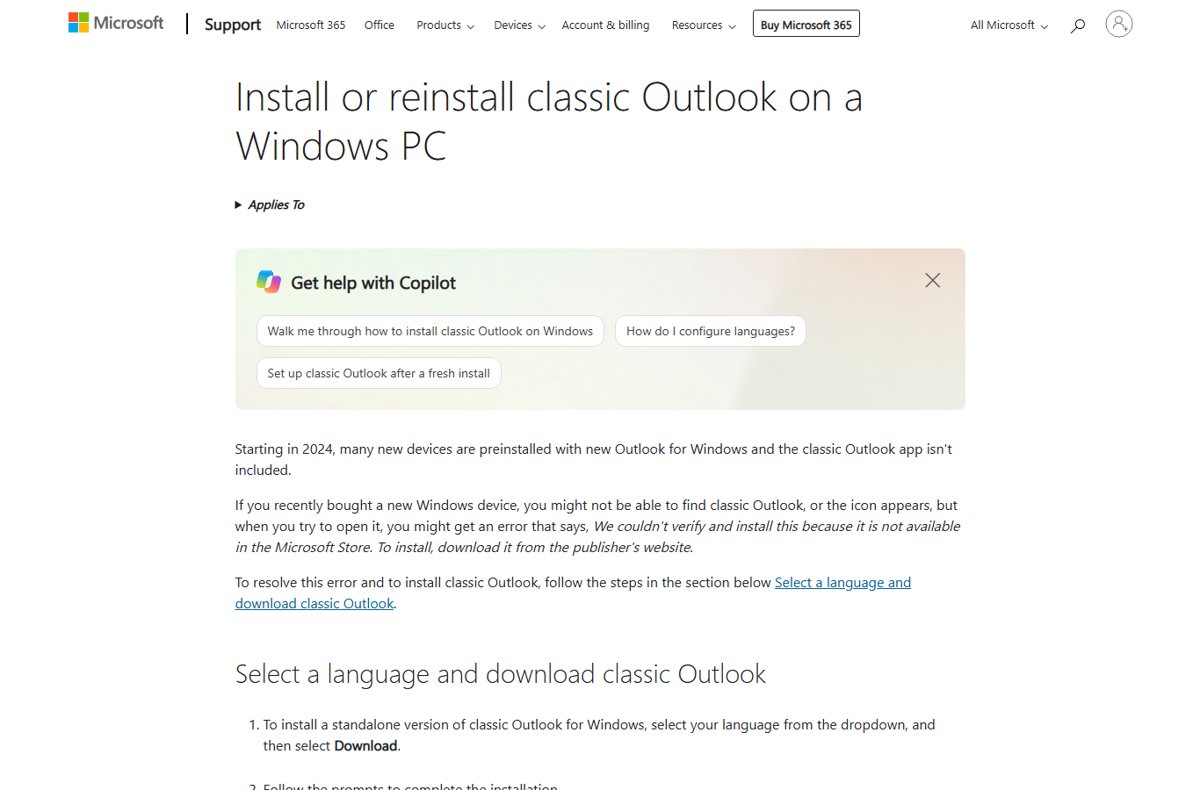
Many new Windows devices sold from 2024 onwards ship with new Outlook only. Without the classic Outlook desktop app installed, the toggle cannot hand you back, and it may not appear at all.
- Open the Microsoft support article Install or reinstall classic Outlook on a Windows PC in your browser.
- Select your language from the drop-down list.
- Select Download on the row for your language.
- Follow the prompts to finish the installation.
- Open Outlook (classic) from the Start menu and sign in with the account tied to your Microsoft 365 subscription.
The same article links to the classic Outlook listing in the Microsoft Store as an alternative. If the Store says it couldn't verify and install the app because it is not available, use the download from the support article instead. Work or school users who still cannot install it need their IT admin.
Stop Outlook from switching to new Outlook automatically
Microsoft moves some classic Outlook users to new Outlook automatically after a series of in-app prompts. Personal Microsoft 365 Family or Personal users with only Microsoft-provided accounts (Outlook.com, Hotmail, MSN, Live) have been eligible since October 2024, and Business plan users on Current Channel since January 2025.
Turning off the automatic switch is the fix when Outlook keeps switching to new Outlook on its own.
- Open classic Outlook.
- Select File > Options.
- Select General in the left pane.
- Find the New Outlook options section.
- Clear the Automatically switch me to new Outlook check box.
- Select OK.
If the New Outlook options section is missing, your account is not eligible for the automatic switch, so there is nothing to turn off. In organisations, admins can block the migration with the Manage user setting for new Outlook automatic migration policy.
Check whether you are in new Outlook or classic Outlook
The two apps look similar at a glance. These signs confirm you are in classic Outlook.
- Look at the top-right corner: classic Outlook shows a Try the new Outlook toggle (when your account supports it), while new Outlook shows a New Outlook toggle.
- Check the ribbon: classic Outlook has a File tab that opens the Backstage view with Office Account and Options.
- Close Outlook and open it again from the taskbar to confirm it opens in classic Outlook rather than redirecting.
- Open File > Office Account to see the classic Outlook version and the account it is licensed to.
Classic Outlook keeps folders new Outlook handles differently, such as the Outbox folder in Outlook, so a familiar folder list is another quick tell.
What is the difference between Outlook (classic) and Outlook (new)?
The two apps are built differently, which is why some features exist in only one of them.
| Area | Outlook (classic) | Outlook (new) |
|---|---|---|
| Built on | The Win32 Office desktop app | The Outlook on the web experience inside a WebView2 shell |
| How it installs | With Microsoft 365 apps, the support download or the Microsoft Store | MSIX package from the Microsoft Store; preinstalled on recent Windows 11 builds |
| Add-ins | COM add-ins and web add-ins | Web add-ins only; COM add-ins are not supported |
| Updates | Office update channels | Service-delivered; fixes can arrive within hours |
| Who can use it | Microsoft 365 subscribers, one-time Office purchases and standalone Outlook licences | Microsoft personal accounts and supported work or school accounts |
| Windows Mail and Calendar | Not related | Replaces Windows Mail and Calendar, whose support ended on December 31, 2024 |
If a business add-in or macro is the reason you are going back, classic Outlook is the only client that runs COM add-ins.
How to switch from Outlook (classic) to Outlook (new)
Going back the other way uses the toggle in classic Outlook. Your accounts and settings can be imported when new Outlook opens.
- Open classic Outlook.
- Select the Try the new Outlook toggle in the upper-right corner.
- Wait while new Outlook downloads; this can take several minutes.
- Let classic Outlook close when new Outlook opens.
- Sign in and choose whether to import your accounts and settings.
Turning this toggle on migrates accounts and settings from classic Outlook, and from then on classic Outlook and Windows Mail launches redirect to new Outlook until you switch back.
Why can't I switch back to classic Outlook?
The New Outlook toggle is missing from new Outlook
Classic Outlook is usually not installed, or an admin has hidden the toggle.
- Open the Help tab and select Go to classic Outlook if it is there.
- Search the Start menu for Outlook (classic) and launch it directly.
- If it is not listed, install classic Outlook from the Microsoft support download page.
- On a work or school PC, ask your IT admin whether the toggle is hidden by policy.
Classic Outlook keeps redirecting to new Outlook
The UseNewOutlook preference is still set, so every launch of classic Outlook hands off to the new app.
- Close both Outlook apps.
- Open Registry Editor from the Start menu.
- Go to
HKEY_CURRENT_USER\Software\Microsoft\Office\16.0\Outlook\Preferences. - Double-click UseNewOutlook near the bottom of the list.
- Set Value data to
0and select OK. - Launch Outlook (classic) from the Start menu again.
Go back to classic Outlook closes the app and nothing installs
A known issue in older new Outlook builds closed the app instead of opening the classic Outlook download article. Microsoft lists it as fixed.
- Close new Outlook and reopen it so it picks up the latest update.
- If it still fails, install classic Outlook from its Microsoft Store listing.
- Make sure the Store listing language matches your region; change your Microsoft Store country or region if it does not.
Why can't I switch to classic Outlook with my work account?
Your organisation controls which Outlook apps are installed and which toggles appear.
- Check the Start menu for Outlook (classic).
- Contact your IT admin if classic Outlook is missing or blocked.
Remove new Outlook after switching back to classic Outlook
Removing new Outlook is optional. Microsoft documents this command for user installations, such as when someone selected the toggle. Run it in Windows PowerShell opened as administrator.
Remove-AppxPackage -AllUsers -Package (Get-AppxPackage Microsoft.OutlookForWindows).PackageFullNameGet-AppxPackage finds the installed new Outlook package, Microsoft.OutlookForWindows, and Remove-AppxPackage uninstalls it for every user on the PC.
You should see: The command returns to the prompt with no error, and Outlook (new) no longer appears in the Start menu app list.
A pinned new Outlook icon can remain in Start as a placeholder that reinstalls the app when selected, so unpin it as well.
Outlook (new) to Outlook (classic) FAQ
How do I switch from Outlook new to old?
Select the New Outlook toggle at the top right of new Outlook and choose Switch back to classic Outlook. You can also use Help > Go to classic Outlook on the ribbon. Classic Outlook then opens every time you launch Outlook.
How do I switch from Outlook 365 to classic?
Microsoft 365 subscribers use the same toggle in new Outlook and choose Switch back to classic Outlook. If classic Outlook is not installed, install it from the Microsoft support download page or the Microsoft Store first, then sign in with your Microsoft 365 account.
How do I switch from Outlook classic to new?
Select Try the new Outlook in the upper-right corner of classic Outlook. New Outlook downloads, classic Outlook closes, and you sign in and choose whether to import accounts and settings. The toggle appears only when your version and account support new Outlook.
Why can't I switch to classic Outlook?
Classic Outlook is usually missing from the PC, or your admin has hidden the toggle. Launch Outlook (classic) from the Start menu, install it if it is not listed, and set the UseNewOutlook registry value to 0 if classic Outlook keeps redirecting to the new app.
Why can't I switch to new Outlook?
The Try the new Outlook toggle is hidden for one-time Office purchases, standalone Outlook licences, unsupported work or school accounts, or when an admin hides it. Those versions of classic Outlook cannot switch until the account or licence supports new Outlook.
Why does Outlook keep switching to new Outlook?
Microsoft switches eligible accounts automatically after a series of in-app notifications. Open classic Outlook, go to File > Options > General > New Outlook options, and clear Automatically switch me to new Outlook to stop it.
Should I switch to new Outlook?
Switch if you use Microsoft or supported work accounts and rely only on web add-ins. Stay on classic Outlook if you depend on COM add-ins or a feature new Outlook does not yet have. Both apps can run side by side while you decide.
How do I switch from Outlook web to desktop?
Install a desktop Outlook app and sign in with the same account. New Outlook comes with recent Windows 11 builds and the Microsoft Store, and classic Outlook comes with Microsoft 365 apps or the classic Outlook download. Your mail syncs from the server either way.
Does switching back to classic Outlook delete my email?
No. Both apps read the same mailbox on the server, so Microsoft and Exchange accounts show the same mail in either app. Switching only changes which app opens when you launch Outlook, and new Outlook stays installed unless you remove it.
Bottom line: should you go back to Outlook (classic)?
Use the toggle's Switch back to classic Outlook option and then clear Automatically switch me to new Outlook so the change sticks. The toggle changes which app launches, while the opt-out setting stops Microsoft's automatic migration from undoing it; together they keep classic Outlook as your default until you choose otherwise.