The command to check CPU utilization in Windows 11 and Windows 10 is typeperf "\Processor(_Total)\% Processor Time" in Command Prompt, or Get-Counter -Counter "\Processor(_Total)\% Processor Time" in PowerShell.
Both read the same performance counter Task Manager uses, and this guide covers per-process checks, logging over time, remote PCs, scheduled monitoring and what replaced WMIC.
Fastest command to check CPU usage in Command Prompt
Open Command Prompt and run the command below. It prints the total CPU load once a second until you stop it.
typeperf "\Processor(_Total)\% Processor Time" -sc 5Reads the total processor time counter across all cores. -sc 5 stops after five one-second samples; leave it out to keep sampling until you press Ctrl + C.
You should see: Five timestamped lines with a percentage in quotes, for example a value between 0 and 100 for each second, followed by The command completed successfully.
On a PC set to another display language, counter names are localized, so the English path may not be found.
Which CPU usage command should you use?
| What you want to know | Command | Shell |
|---|---|---|
| Total CPU load right now | typeperf "\Processor(_Total)\% Processor Time" |
Command Prompt |
| Total CPU load as a PowerShell object | Get-Counter -Counter "\Processor(_Total)\% Processor Time" |
PowerShell |
| Which process is using the CPU now | Get-Counter "\Process(*)\% Processor Time" sorted by value |
PowerShell |
| Which process has used the most CPU time since it started | tasklist /v or Get-Process |
Either |
| Load per processor socket, one quick number | Get-CimInstance -ClassName Win32_Processor |
PowerShell |
| CPU model, cores and speed, not load | systeminfo |
Command Prompt |
| A graph or a full report | perfmon /sys or perfmon /report |
Either |
| Load over hours or days | logman create counter or a Get-Counter script |
Either |
Why you should monitor CPU utilization
CPU utilization is the share of time the processor spends running work instead of sitting idle. A reading taken from the command line is easy to repeat, log and compare.
| Reason | What the numbers tell you |
|---|---|
| Slow or laggy PC | Sustained load near 100% points to a busy process rather than a disk or memory problem |
| Fans or heat | High load at idle means something is running in the background |
| A suspect process | Per-process counters show exactly which program is responsible |
| Upgrade decisions | A log over a working week shows whether the CPU is regularly maxed out |
| Servers and remote PCs | Commands can read the counter from another computer without opening a desktop session |
1. Using Tasklist command in Command Prompt
Tasklist does not show a live percentage. It shows how much CPU time each process has consumed, which is useful for spotting a program that has been busy for a long time.
tasklist /v /fi "CPUTIME gt 00:10:00"/v adds verbose details for each process, and the CPUtime filter keeps only processes that have used more than ten minutes of processor time. The time format is HH:MM:SS.
You should see: A table of image names with their PID, memory use and accumulated CPU time. Add /fo csv to get comma-separated output you can open in Excel.
2. Using WMIC command (Windows Management Instrumentation Command-Line)
WMIC has been deprecated since Windows 10, version 21H1. Starting in August 2026, Windows 11 versions 24H2 and 25H2 no longer include it, and it cannot be added back as a Feature on Demand.
WMI itself is still supported, so the old wmic cpu get loadpercentage query has a direct PowerShell replacement.
Get-CimInstance -ClassName Win32_Processor | Select-Object Name, LoadPercentageReads the LoadPercentage property of the Win32_Processor class, the load of each processor averaged over the last second. A desktop usually returns one row per CPU socket.
You should see: The processor name and a whole-number percentage, the same value WMIC used to print.
On older Windows 10 builds where WMIC still exists, wmic cpu get loadpercentage returns the same property, but scripts should move to PowerShell.
3. Using PowerShell to check CPU utilization
Get-Counter reads performance counters directly. Without extra parameters it takes one sample.
| Goal | PowerShell command |
|---|---|
| One reading of total CPU | Get-Counter -Counter "\Processor(_Total)\% Processor Time" |
| Three readings, two seconds apart | Get-Counter -Counter "\Processor(_Total)\% Processor Time" -SampleInterval 2 -MaxSamples 3 |
| Live reading every second until Ctrl + C | Get-Counter -Counter "\Processor(_Total)\% Processor Time" -Continuous |
| Each logical processor separately | Get-Counter -Counter "\Processor(*)\% Processor Time" |
| Processes with the most total CPU time | Get-Process | Sort-Object CPU -Descending | Select-Object -First 10 |
In Get-Process output, the CPU(s) column is processor time used on all processors, in seconds, not a percentage.
4. Using Typeperf command
Typeperf works in any Command Prompt window and writes to the screen or to a file. The default sample interval is one second.
typeperf "\Processor(_Total)\% Processor Time" -si 5 -sc 60 -o C:\PerfLogs\cpu.csv-si 5 samples every five seconds, -sc 60 stops after 60 samples (five minutes), and -o writes the results to a CSV file instead of the window. Use -f TSV for tab-separated output.
You should see: The command ends with The command completed successfully. and cpu.csv opens in Excel with a timestamp column and a CPU column.
Run typeperf -qx Processor to list every processor counter and instance available on the PC.
5. Using Systeminfo command
Systeminfo reports configuration and hardware details, including the installed processor. It does not report a live CPU percentage, so use it to identify the chip before you read the load.
systeminfo /fo listPrints operating system, hardware and security details as a list. The Processor(s) entry names the installed CPU.
You should see: A long list that includes the OS version, the processor entry and total physical memory.
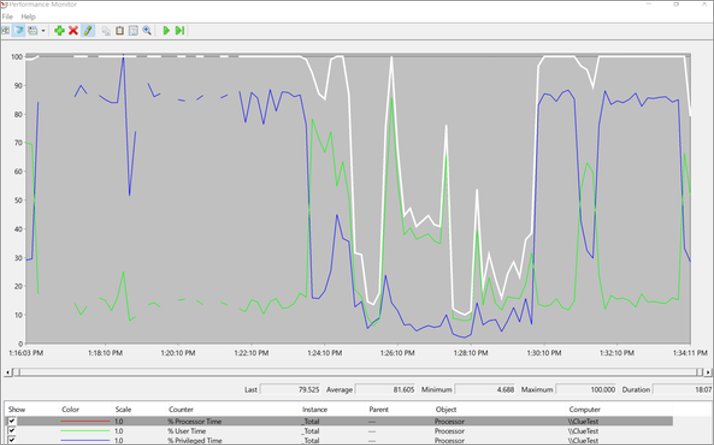
6. Using Performance Monitor (PerfMon) command
| Command | What opens |
|---|---|
perfmon /sys |
Performance Monitor, which graphs % Processor Time by default |
perfmon /res |
Resource View (Resource Monitor), with per-process CPU on the CPU tab |
perfmon /report |
Runs the System Diagnostics data collector and shows a report of the results |
perfmon /rel |
Reliability Monitor, for crashes and errors that coincide with CPU spikes |
Run perfmon /report from an elevated prompt; the system diagnostics collector needs administrator rights.
7. Using Windows built-in tools along with commands
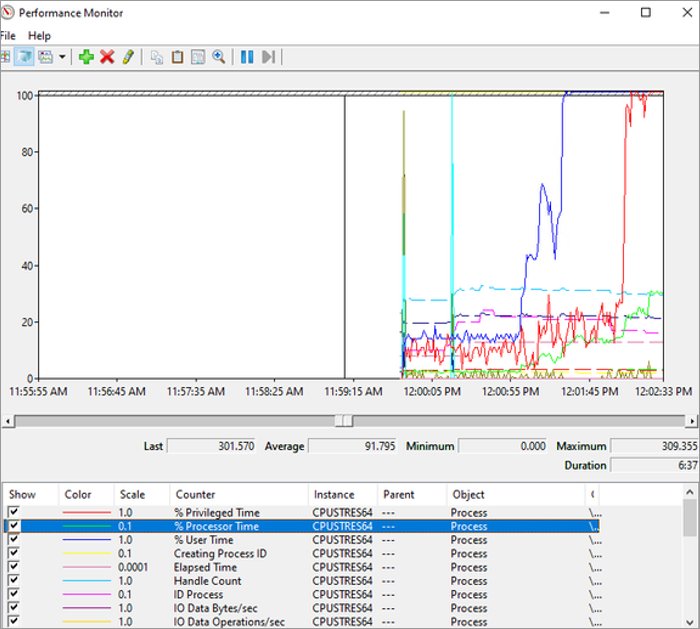
A command gives you a number; a graphical tool shows the context around it. Use them together when the number alone does not explain the slowdown.
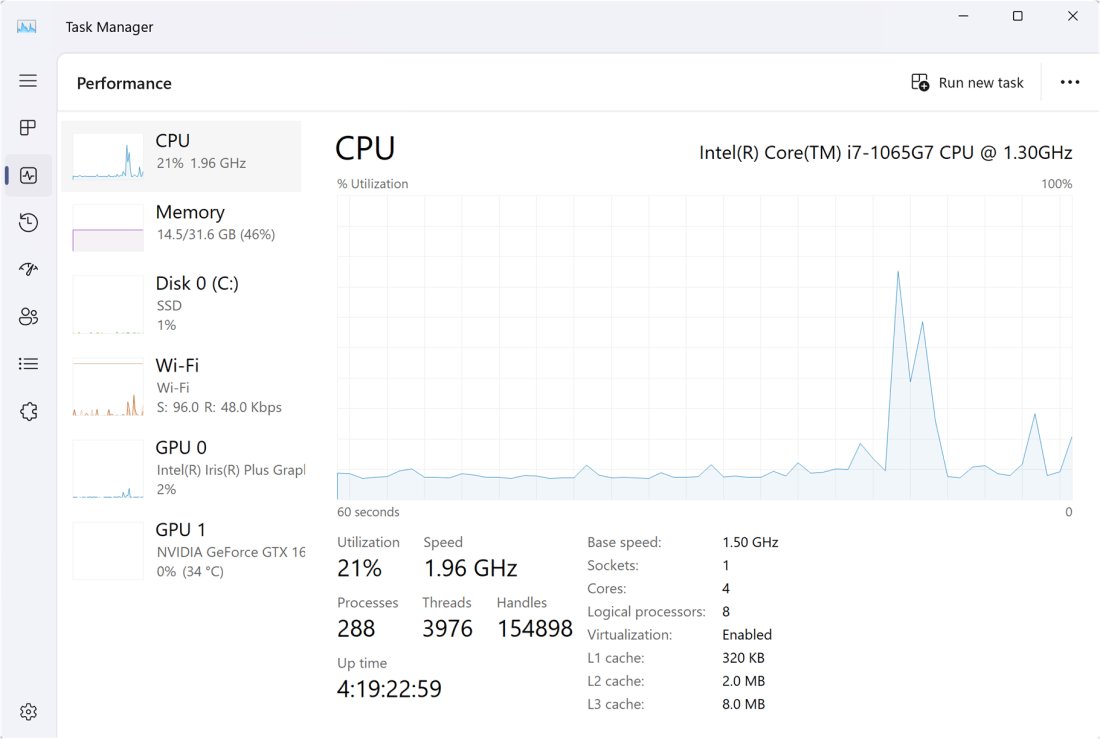
- Press Ctrl + Shift + Esc to open Task Manager, or right-click Start and select Task Manager.
- Select Performance to see the live CPU graph and the current utilization.
- Select Processes and click the CPU column header to sort programs by load.
- Run
perfmon /resand open the CPU tab when you need per-service detail. - Confirm the culprit with
Get-Counter "\Process(*)\% Processor Time"so you have a value you can log.
8. Using PowerShell script to log CPU usage over time
This script records the total CPU load every five seconds for one hour and saves it as a CSV file in your user folder.
Get-Counter -Counter "\Processor(_Total)\% Processor Time" -SampleInterval 5 -MaxSamples 720 | ForEach-Object { $_.CounterSamples | Select-Object Timestamp, @{n='CPU';e={[math]::Round($_.CookedValue,1)}} } | Export-Csv -Path "$env:USERPROFILE\cpu-log.csv" -NoTypeInformationGet-Counter takes 720 samples five seconds apart, the loop keeps the timestamp and the rounded CookedValue (the percentage), and Export-Csv writes them to cpu-log.csv.
You should see: After an hour the prompt returns and cpu-log.csv in your user folder holds 720 rows of time and CPU percentage.
Change -SampleInterval and -MaxSamples to cover a longer window, such as 60 and 1440 for a full day.
9. Checking CPU utilization remotely
Get-Counter does not rely on PowerShell remoting, so it can read another PC on the network even when remote commands are not set up. Run it from an account that has permission to read performance data on that computer.
| Tool | Remote command |
|---|---|
| PowerShell Get-Counter | Get-Counter -Counter "\Processor(_Total)\% Processor Time" -ComputerName PC02 |
| PowerShell CIM | Get-CimInstance -ClassName Win32_Processor -ComputerName PC02 | Select-Object LoadPercentage |
| Typeperf | typeperf "\Processor(_Total)\% Processor Time" -s PC02 -sc 5 |
| Tasklist | tasklist /s PC02 /v |
| Systeminfo | systeminfo /s PC02 |
Replace PC02 with the computer name or IP address, without backslashes for tasklist and systeminfo.
Check CPU utilization with PowerShell and format output
Raw counter output is long. These one-liners return a clean number or a short table.
| Output you want | Command |
|---|---|
| A single rounded percentage | [math]::Round((Get-Counter "\Processor(_Total)\% Processor Time").CounterSamples.CookedValue, 1) |
| Top 10 processes by current CPU | (Get-Counter "\Process(*)\% Processor Time").CounterSamples | Sort-Object CookedValue -Descending | Select-Object -First 10 InstanceName, CookedValue |
| Per-process value as a share of the whole CPU | Divide each CookedValue by $env:NUMBER_OF_PROCESSORS |
| Only cores under 20% load | (Get-Counter "\Processor(*)\% Processor Time").CounterSamples | Where-Object { $_.CookedValue -lt 20 } |
Process counters add up across cores, so a busy process on an eight-thread CPU can read well above 100. The _total and idle rows in the process list are sums, not programs.
Automating CPU monitoring with Task Scheduler
Save a one-sample script and let Task Scheduler run it every 15 minutes. Each run appends one row to a CSV file.
- Create the folder
C:\Scripts. - Save this line as
C:\Scripts\cpu-log.ps1:Get-Counter "\Processor(_Total)\% Processor Time" | ForEach-Object { $_.CounterSamples | Select-Object Timestamp, CookedValue } | Export-Csv C:\Scripts\cpu-log.csv -Append -NoTypeInformation - Open Command Prompt as administrator.
- Run
schtasks /create /sc minute /mo 15 /tn "CPU snapshot" /tr "powershell.exe -NoProfile -ExecutionPolicy Bypass -File C:\Scripts\cpu-log.ps1" /ru system. - Wait 15 minutes, then open
C:\Scripts\cpu-log.csvto see the first row. - Remove the task later with
schtasks /delete /tn "CPU snapshot".
Advanced monitoring using performance logs
Logman creates a data collector that keeps running in the background, even after you close the window. Run these commands in an elevated Command Prompt.
- Create the collector:
logman create counter cpu_log -c "\Processor(_Total)\% Processor Time" -si 00:00:15 -f csv -o C:\PerfLogs\cpu_log. - Start it:
logman start cpu_log. - Use the PC normally for as long as you want to measure.
- Stop it:
logman stop cpu_log. - Open the CSV file in
C:\PerfLogsin Excel, or open a binary log in Performance Monitor withperfmon /sys.
Leave out -f csv to record a binary .blg log, which Performance Monitor graphs directly.
How to confirm a CPU usage command reads correctly
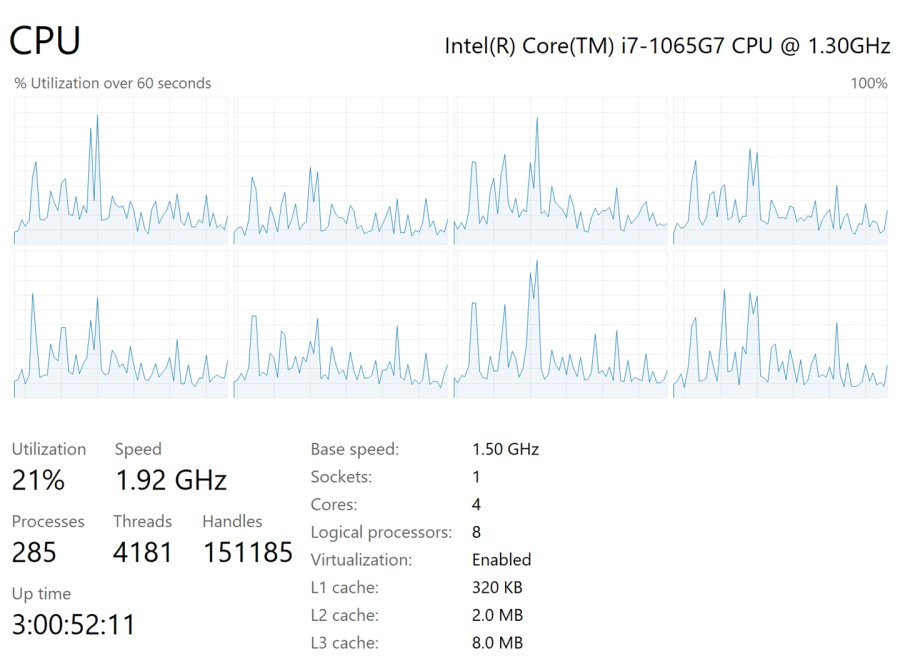
- Open Task Manager with Ctrl + Shift + Esc and select Performance.
- Run
typeperf "\Processor(_Total)\% Processor Time" -sc 10in Command Prompt beside it. - Compare the numbers over the same ten seconds; they should track each other closely.
- Open a demanding app and confirm both readings rise together.
Common reasons for high CPU usage
| Cause | How to confirm it from the command line |
|---|---|
| Too many apps and browser tabs open | Top entries in the \Process(*)\% Processor Time list are browser or app processes |
| Startup apps running in the background | High load straight after sign-in that settles once startup apps finish |
| Malware | An unfamiliar process name that keeps a high counter value; run a scan to check it |
| Windows Update or a security scan | Update or Defender processes near the top for a limited period; a stuck Antimalware Service Executable stays high for longer |
| Outdated drivers | Persistent load from system processes after a hardware or Windows change |
| Power mode set to save energy | CPU near 100% under modest work because clock speed is limited |
Tips to reduce high CPU utilization
These steps come from Windows' own performance guidance and reduce CPU usage in Windows 11 without extra software.
- Close apps and browser tabs you are not using, then restart from Start > Power > Restart.
- Install updates from Settings > Windows Update > Check for updates, and check Advanced options > Optional updates for driver updates.
- Run Quick scan in Settings > Privacy & security > Windows Security > Virus & threat protection.
- In Task Manager, open Startup apps and disable programs you do not need at boot.
- Set Let this app run in the background to Never for apps that do not need it.
- Rerun the Get-Counter process command to confirm the load has dropped.
If memory is also tight, check how much RAM you have before blaming the processor.
Fix CPU usage commands that return errors
'wmic' is not recognized as an internal or external command
WMIC is removed from current Windows 11 builds and cannot be added back.
- Open PowerShell.
- Run
Get-CimInstance -ClassName Win32_Processor | Select-Object LoadPercentageinstead.
Get-Counter or typeperf says the counter path is not valid
Counter names are localized on PCs that use a language other than English.
- Run
Get-Counter -ListSet Processor*to see the counter names in your language. - Copy the localized path from the Paths list into your command.
Some counter sets are missing or access is denied
Many counter sets are protected by access control lists.
- Right-click Windows PowerShell or Terminal and select Run as administrator.
- Run the Get-Counter command again.
A process shows more than 100% CPU
Process counters add up across every logical processor.
- Divide the value by
$env:NUMBER_OF_PROCESSORSto get a share of the whole CPU. - Ignore the
_totalandidlerows, which are totals rather than programs.
Third-party alternatives (optional)
Built-in commands cover most needs. If you want a richer process view, Microsoft's own Sysinternals suite is the safest step up.
| Tool | Publisher | What it adds |
|---|---|---|
| Process Explorer | Microsoft Sysinternals | A tree of active processes with owning accounts, plus the handles and DLLs each one has loaded |
| Performance Monitor | Built into Windows | Graphs and data collector sets for any counter |
| Resource Monitor | Built into Windows | Per-process and per-service CPU, disk and network detail |
CPU utilization command FAQs
What is the command to check CPU usage in CMD?
Run typeperf "\Processor(_Total)\% Processor Time" in Command Prompt. It prints the total CPU percentage every second until you press Ctrl + C, or for a set number of samples when you add -sc followed by a number.
How do I check CPU usage in PowerShell?
Run Get-Counter -Counter "\Processor(_Total)\% Processor Time". Add -Continuous for a live reading every second, or -SampleInterval and -MaxSamples to take a fixed number of readings at the interval you choose.
Does wmic cpu get loadpercentage still work?
Not on current Windows 11 builds. WMIC was deprecated in Windows 10 21H1 and removed from Windows 11 24H2 and 25H2. Use Get-CimInstance -ClassName Win32_Processor in PowerShell to read the same LoadPercentage value.
How do I find which process is using the most CPU from the command line?
In PowerShell, run Get-Counter "\Process(*)\% Processor Time" and sort the CounterSamples by CookedValue in descending order. The top rows after _total and idle are the busiest programs at that moment.
Does tasklist show CPU usage?
Tasklist shows accumulated CPU time, not a live percentage. Use tasklist /v to see it, and filter with /fi "CPUTIME gt 00:10:00" to list only processes that have used more than ten minutes of processor time.
Can systeminfo show CPU utilization?
No. Systeminfo lists configuration and hardware details, including the installed processor, but it does not measure load. Pair it with typeperf or Get-Counter when you need the current utilization.
How do I check CPU usage on a remote computer?
Run Get-Counter -Counter "\Processor(_Total)\% Processor Time" -ComputerName followed by the PC name. Get-Counter does not need PowerShell remoting. Typeperf with -s and tasklist with /s also read remote computers.
How do I log CPU usage to a file?
Use typeperf with -o and a file name, such as typeperf "\Processor(_Total)\% Processor Time" -si 5 -sc 60 -o cpu.csv. For long periods, create a logman counter collector that runs in the background.
Best command for checking CPU utilization
Use typeperf for a quick reading in Command Prompt and Get-Counter for anything you want to filter, log or run against another PC. Both read the same processor counter Task Manager displays, both work on Windows 11 and 10 without extra software, and neither depends on the removed WMIC tool.