To create a system restore point in Windows 10 or 11, search Start for Create a restore point, select Create… on the System Protection tab, name it, and select Create.
This guide covers turning on System Protection, making restore points by hand and with PowerShell, rolling back from Windows or the recovery environment, and what a restore changes.
Create and use system restore points in Windows 10/11
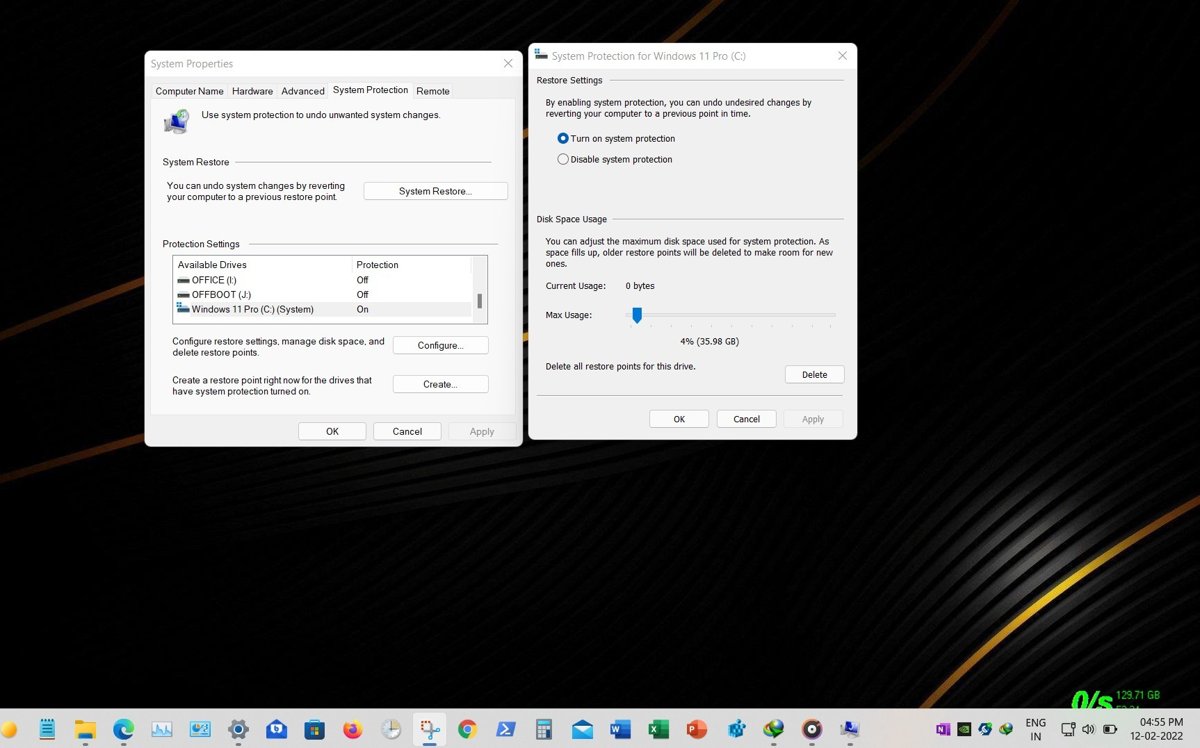
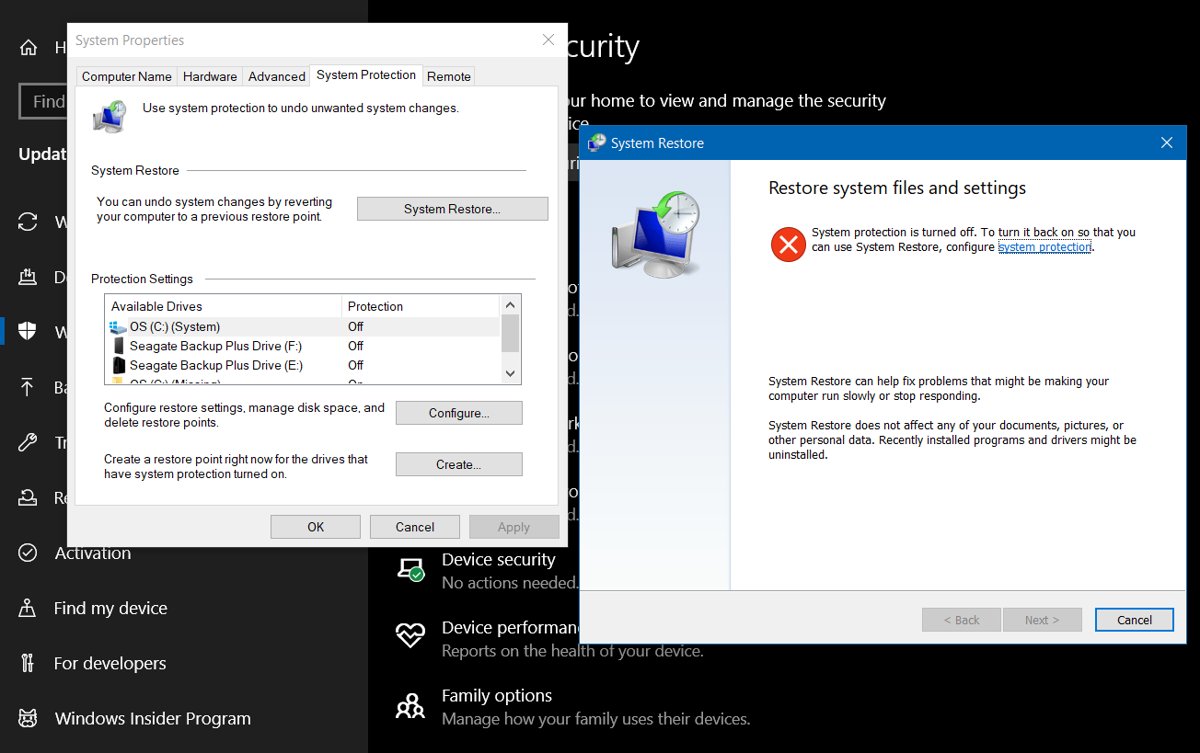
System Protection is not turned on by default, so check it first. The same dialog works on Windows 11 and Windows 10.
- Select Start, type Create a restore point, and open the result. You can also press Windows + R, type
systempropertiesprotection.exeand press Enter. - On the System Protection tab of System Properties, check whether your system drive shows protection as on.
- If it is off, select the system drive, select Configure…, choose Turn on system protection, set the disk space slider, and select Apply.
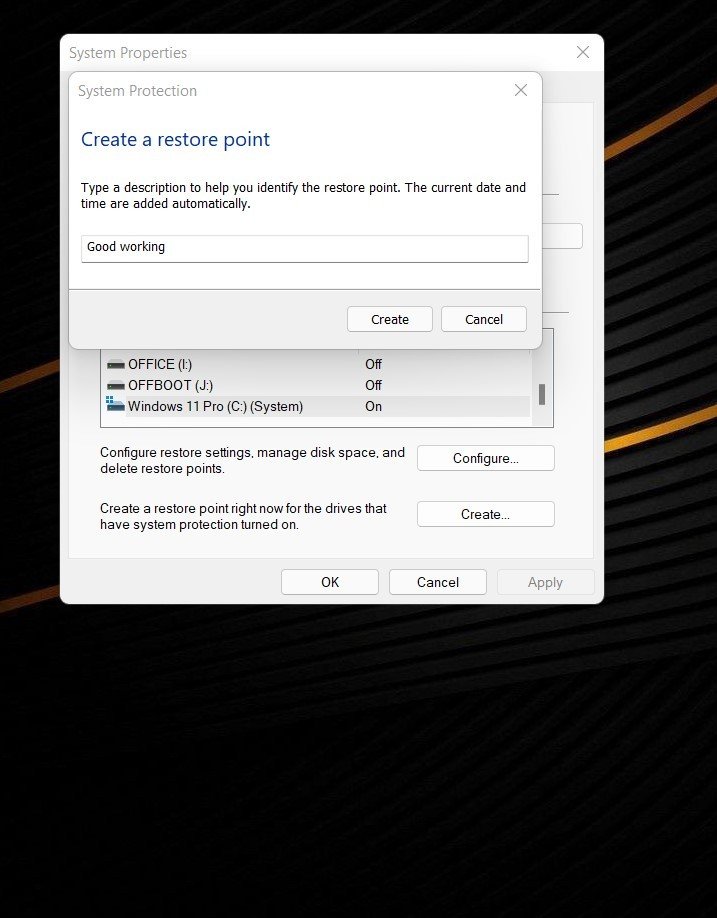
- Back on the System Protection tab, select Create….
- Type a description you will recognise later, such as the app or driver you are about to install.
- Select Create and wait for the message that the restore point was created.
Windows also creates restore points on its own when needed, such as before some installs and updates, once protection is on.
System Restore vs point-in-time restore vs reset: which to use
| Your situation | Use this | Why |
|---|---|---|
| A recent app, driver or setting broke Windows and you can still sign in | System Restore from Windows | Reverts system files, registry and programs; personal files stay |
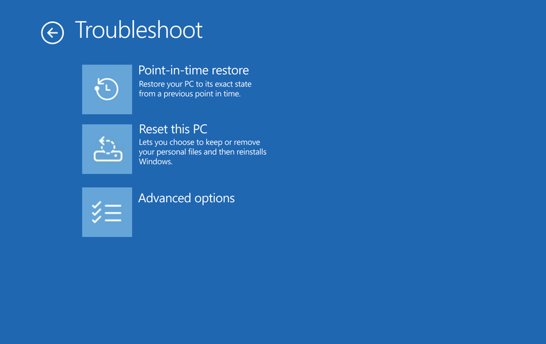
| Windows will not start or you cannot sign in | System Restore from Windows RE | Same restore, run from Troubleshoot > Advanced options |
| Windows 11 with point-in-time restore on, and the problem started in the last 72 hours | Point-in-time restore from Windows RE | Restores the whole system drive, including files |
| You need to go back further than 72 hours | System Restore | Its restore points are kept until disk space runs out |
| No restore point exists from before the problem | Reset this PC | Reinstalls Windows when there is nothing to roll back to |
Prerequisites for System Restore on Windows 10/11
| Requirement | Why it matters | How to check |
|---|---|---|
| Windows 10 or Windows 11 (client editions) | Restore points are supported only on client versions of Windows, not Windows Server | Run winver |
| System Protection turned on for the system drive | It is off by default, and no restore points exist until it is on | System Properties > System Protection tab |
| Disk space allotted with the slider | Restore points are stored in that space on the drive | Configure… on the System Protection tab |
| An administrator account | Turning on protection and running the restore cmdlets need elevation | Settings > Accounts > Your info |
| Your BitLocker recovery key, if the device is encrypted | Windows RE asks for it before a restore | Have the key ready before you restart into Windows RE |
Detailed step-by-step instructions to restore Windows 10/11 from a restore point
Use this route while you can still sign in to Windows. The PC restarts once to apply the restore.
- Press Windows + R, type
rstrui.exeand press Enter. You can also open Control Panel, select Recovery, then Open System Restore. - In Restore system files and settings, select Next.
- Select a restore point from the list. Tick Show more restore points if the one you want is missing.
- Select Scan for affected programs to see which apps the restore will change.
- Select Next, check the details, then select Finish.
- Let Windows restart and apply the restore point. Do not turn off the PC during the restore.
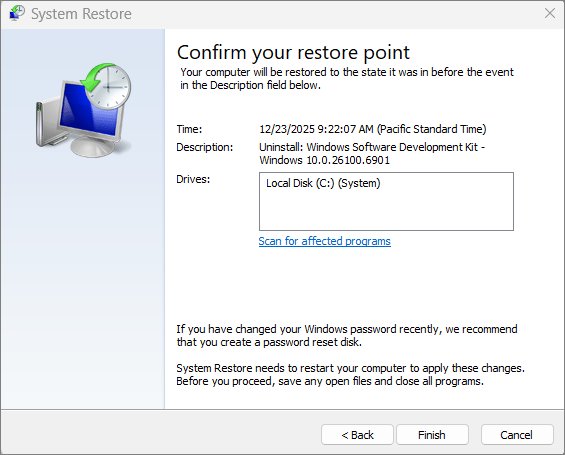
Run System Restore from Windows RE when Windows will not start
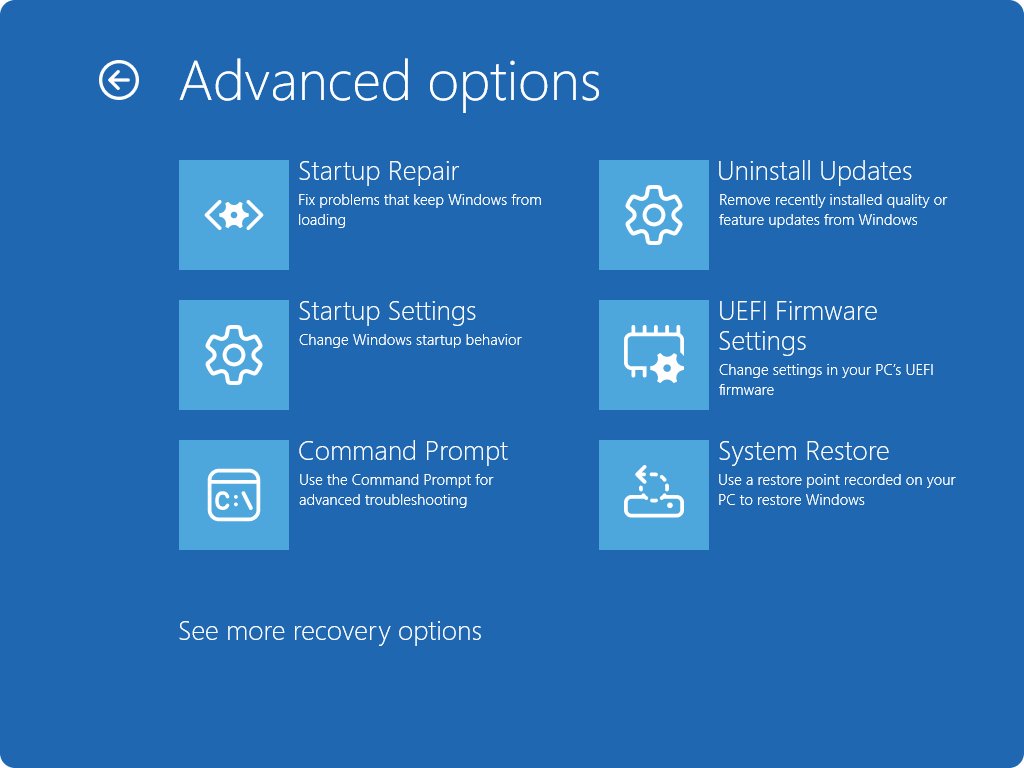
Windows RE (the recovery environment) runs System Restore without signing in. If Windows fails to start several times in a row, it opens Windows RE on its own.
- Open Windows RE. On Windows 11, go to Settings > System > Recovery and select Restart now next to Advanced startup. On Windows 10, go to Settings > Update & Security > Recovery. You can also hold Shift while you select Power > Restart.
- If Windows will not boot, interrupt the startup twice; Windows RE opens on the third start.
- Select Troubleshoot > Advanced options > System Restore.
- Enter your BitLocker recovery key if asked.
- Pick a restore point, ticking Show more restore points if needed, and optionally select Scan for affected programs.
- Select Next, then Finish, and select Restart when the restore is done.
On Windows 10 you can also boot from a USB recovery drive or a Windows 10 system repair disc, which opens Windows RE directly.
Create a system restore point with PowerShell
Open Windows PowerShell as administrator. Run Enable-ComputerRestore -Drive "C:\" first if System Protection is off on the system drive.
Checkpoint-Computer -Description "Before driver update" -RestorePointType MODIFY_SETTINGS-Description names the restore point and is required. -RestorePointType is optional: APPLICATION_INSTALL (the default), APPLICATION_UNINSTALL, DEVICE_DRIVER_INSTALL or MODIFY_SETTINGS.
You should see: The command prints nothing when it works. Run Get-ComputerRestorePoint and the new description appears in the list.
Advanced notes for Windows 10/11 users
| Topic | What to know |
|---|---|
| Restore from PowerShell | Run Get-ComputerRestorePoint to read the SequenceNumber, then Restore-Computer -RestorePoint <number> as administrator. The PC restarts to finish. |
| Check the last restore | Get-ComputerRestorePoint -LastStatus reports whether the most recent restore succeeded or failed. |
| 24-hour limit in PowerShell | Checkpoint-Computer cannot create more than one restore point in 24 hours. |
| Other drives | Protection must be on for the system drive before you can turn it on for another drive. External and network drives are not eligible. |
| Point-in-time restore (Windows 11) | Saves a whole-system snapshot about every 24 hours, keeps it 72 hours, and uses up to 2% of the disk by default. Configure it in Settings > System > Recovery. |
| Storage | System Restore points are kept indefinitely, limited only by the disk space set on the System Protection slider. |
Check that a restore point exists or a restore worked
- Press Windows + R, type
rstrui.exeand press Enter, then select Next. - Confirm your restore point appears with the date and description you gave it, then select Cancel.
- Or open Windows PowerShell and run
Get-ComputerRestorePointto list every point with its CreationTime and Description. - After a restore, run
Get-ComputerRestorePoint -LastStatusto see whether the last attempt succeeded.
Tips and troubleshooting notes for System Restore
No restore points are listed
System Protection is off by default, so Windows never saved one.
- Open Create a restore point from Start.
- Select the system drive and select Configure….
- Choose Turn on system protection, set the slider, and select Apply.
- Select Create… to make your first restore point now.
"A new system restore point cannot be created because one has already been created within the past 24 hours"
Checkpoint-Computer allows one restore point per 24 hours.
- Run
Get-ComputerRestorePointto confirm a recent point already exists. - Use that point, or create one from the System Protection tab with Create… instead.
Windows will not start, so System Restore cannot be opened
The restore wizard inside Windows needs a working desktop.
- Interrupt startup twice so Windows RE opens on the third start.
- Select Troubleshoot > Advanced options > System Restore.
- Enter your BitLocker recovery key if asked, then pick a restore point.
System Restore reports it is not working on this PC
Protection settings or the service behind restore points may be damaged.
- Check the System Protection tab and turn protection back on for the system drive.
- Work through the System Restore not functioning fixes if the error persists.
- Use Reset this PC as a last resort when no restore point can be used.
Warnings before you run System Restore
| Warning | What happens |
|---|---|
| Apps and drivers installed after the restore point | They are removed or rolled back; run Scan for affected programs first |
| Personal files | System Restore leaves them alone, so it is not a backup of your documents |
| Point-in-time restore | Reverts files, apps, settings and passwords on the system drive; anything newer is lost |
| Security updates | A point-in-time restore can roll back recent updates; check Windows Update afterwards |
| Power loss during a restore | Can leave the PC unusable; plug the device in before you start |
| BitLocker | Without the recovery key you cannot run a restore from Windows RE |
Keep a separate copy of your documents with Backup and Restore in Windows 11, since restore points do not protect personal files.
System restore points in Windows 10/11 FAQ
Does System Restore delete my personal files?
No. System Restore reverts system files, registry settings and installed programs, and leaves personal files such as documents and photos unchanged. Point-in-time restore is different: it reverts files on the system drive too.
Is System Restore turned on by default in Windows 11?
No. System Protection is not enabled by default. Turn it on from the System Protection tab with Configure… and Turn on system protection before Windows can save restore points.
How do I open System Restore in Windows 10 or 11?
Press Windows + R, type rstrui.exe and press Enter. You can also open Control Panel, select Recovery, then Open System Restore. If Windows will not start, use Troubleshoot > Advanced options > System Restore in Windows RE.
How long does Windows keep restore points?
System Restore keeps restore points until the disk space set on the System Protection slider fills up. Point-in-time restore snapshots on Windows 11 are kept for up to 72 hours.
Can I create a restore point from the command line?
Yes. Run Checkpoint-Computer -Description "Name" in Windows PowerShell as administrator. It cannot create more than one restore point within 24 hours.
Does System Restore remove programs installed after the restore point?
Yes. Installed programs return to their state when the restore point was made. Select Scan for affected programs in the wizard to see which apps will change before you finish.
Do I need my BitLocker key to use System Restore?
You need the BitLocker recovery key when you run System Restore or point-in-time restore from Windows RE on an encrypted device. Find the key before you restart into recovery.
What is the difference between System Restore and point-in-time restore?
System Restore rolls back system files and settings only, from event-triggered or manual points. Point-in-time restore on Windows 11 restores the whole system drive, including files, from automatic snapshots kept up to 72 hours.
Conclusion: when to create a system restore point
Turn on System Protection now and create a restore point before every driver, app or settings change you are unsure about. A restore point takes seconds to make and lets you undo a bad change from Windows or Windows RE, but only if it exists before the problem starts.