Yes, you can send text messages directly from a Windows PC: pair your Android phone or iPhone with the Phone Link app, open the Messages tab and select New message.
This guide covers Phone Link setup for both phones, Google Messages for web in a browser, what each route can and cannot send, and fixes when texts do not appear on the PC.
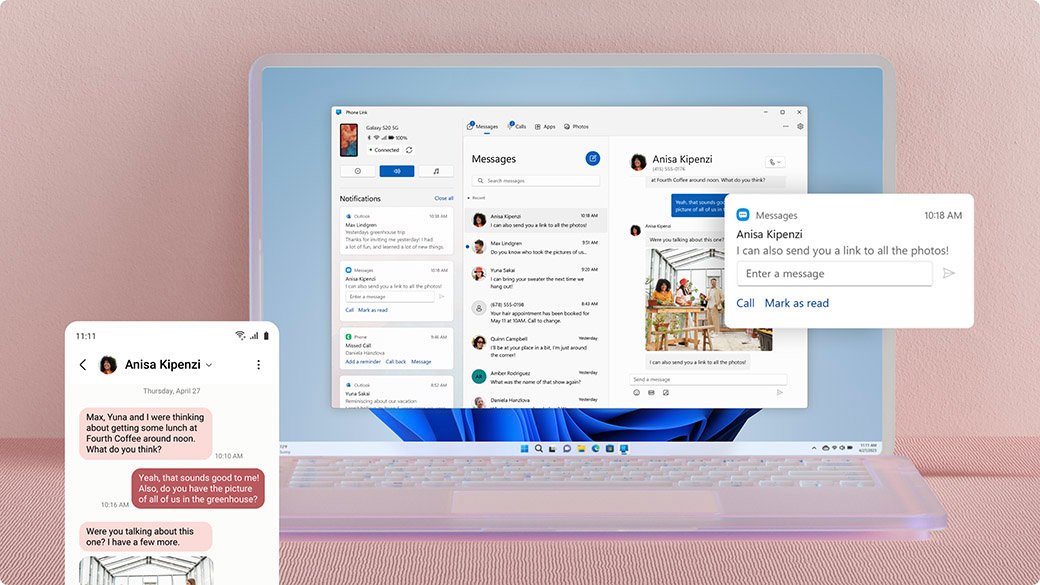
Send a text message from your PC with Phone Link
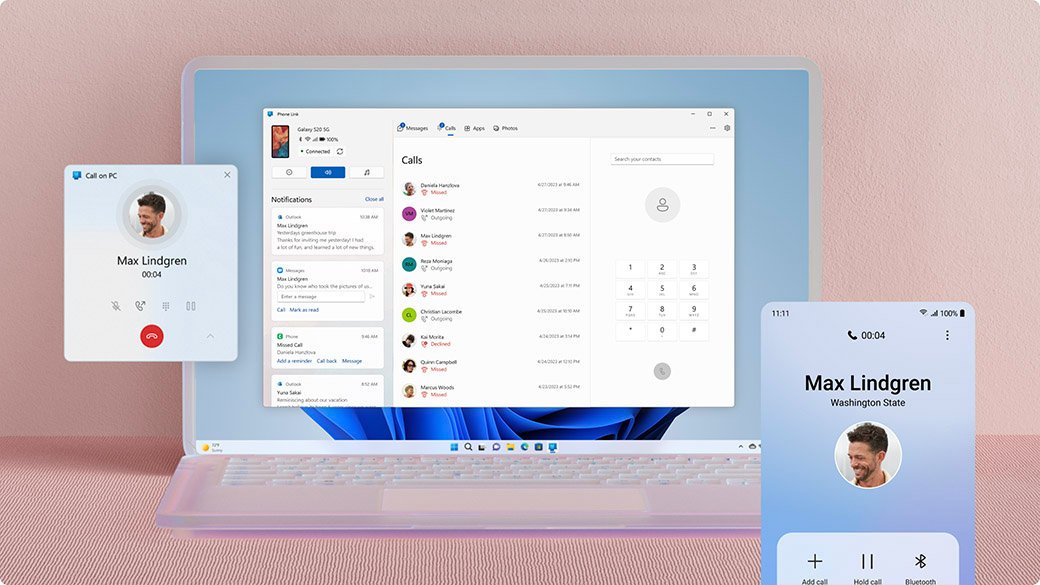
Phone Link is built into Windows 11 and Windows 10. Your phone still sends the text over its own carrier connection, so the recipient sees your normal number.
- Search the taskbar for Phone Link and open it.
- Pair your phone if you have not already (setup steps for Android and iPhone are below).
- Select the Messages tab.
- Select New message.
- Enter the contact's name or phone number, then select the contact.
- Type your text in the message box and send it.
Phone Link vs Google Messages for web: which texting route to use
| Your phone and PC | Use this | Why |
|---|---|---|
| Android phone, Windows PC | Phone Link with Link to Windows | Built into Windows; adds calls, photos and notifications |
| Android phone with Google Messages, any computer or browser | Google Messages for web | Works in Chrome, Edge, Firefox or Safari on Windows, Mac or ChromeOS |
| iPhone, Windows PC with Bluetooth | Phone Link for iPhone | The only Microsoft route for iPhone texts on Windows |
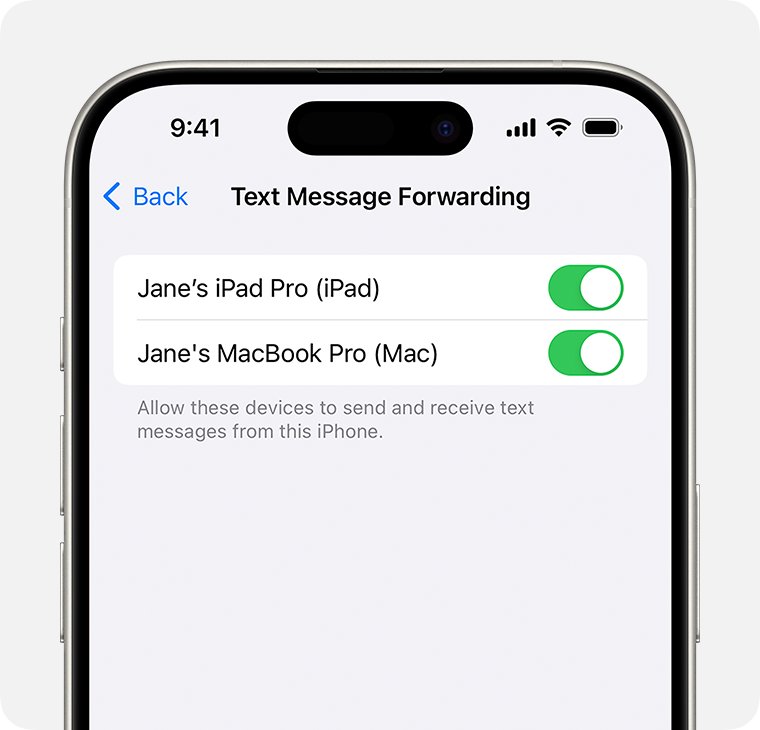
| iPhone and a Mac | Text Message Forwarding or Messages in iCloud | Apple forwards SMS to Mac, iPad and Apple Vision Pro, not to Windows |
| Need to send photos from the PC with an iPhone | Send from the iPhone itself | Phone Link for iOS does not send images, GIFs or Memoji |
Requirements to send texts from a PC
| Route | PC needs | Phone needs |
|---|---|---|
| Phone Link (Android) | Windows 10 October 2022 update or later, or Windows 11; same Wi-Fi network as the phone | Android 10 or later and the Link to Windows app, signed in with the same Microsoft account |
| Phone Link (iPhone) | Windows 10 May 2019 Update or later, or Windows 11, with Bluetooth Low Energy | iOS 16 or later; Link to Windows app 1.23031.2 or later is optional |
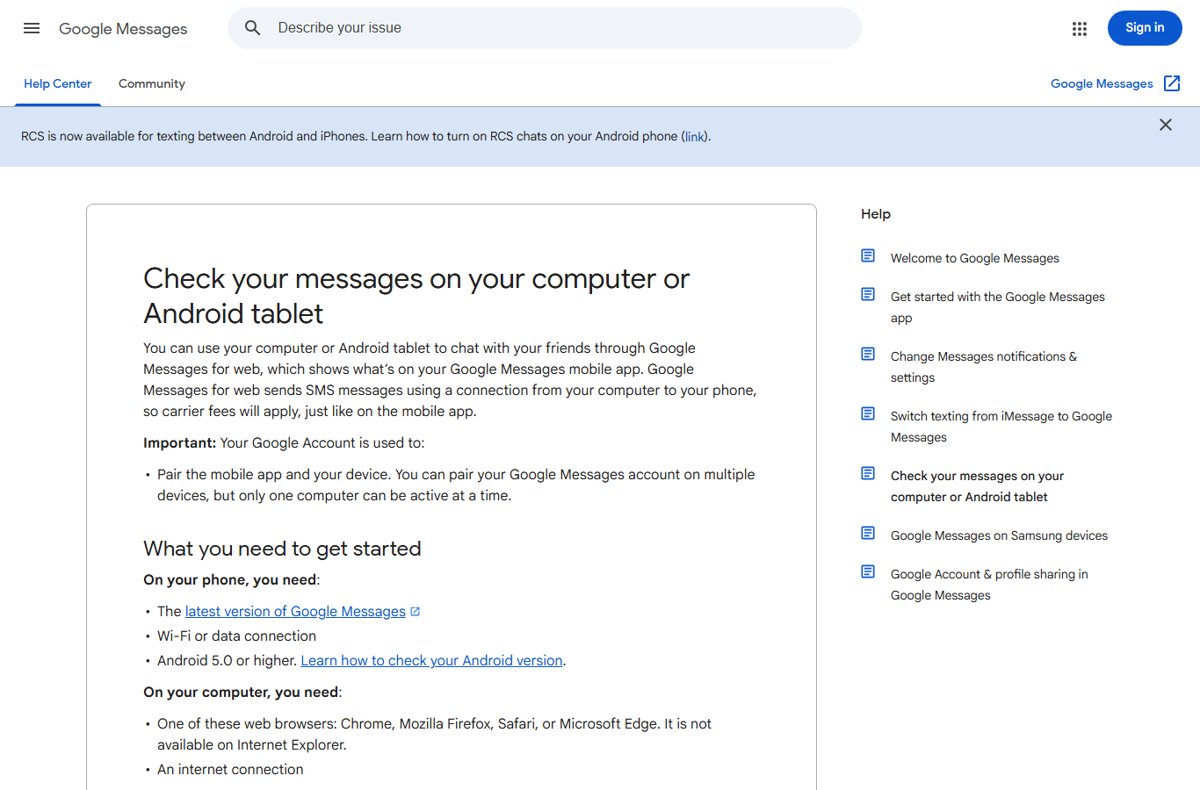
| Google Messages for web | Chrome, Firefox, Safari or Microsoft Edge and an internet connection (not Internet Explorer) | Android 5.0 or higher, the latest Google Messages app and Wi-Fi or data |
Work or school accounts are not supported in Phone Link, and on Android neither are multiple profiles.
Set up Phone Link to text from a PC with an Android phone
- Open Phone Link on the PC and sign in with your Microsoft account if asked.
- On the phone, install or open Link to Windows; the PC shows www.aka.ms/yourpc to get it.
- Sign in to Link to Windows with the same Microsoft account.
- On the PC, check I have the Link to Windows app ready and select Pair with QR code.
- In the phone app, tap Link your phone and PC, then Continue.
- Allow camera access and scan the QR code on the PC screen.
- Accept the Android permissions requested, including Messages, then tap Done.
On the Android side, Phone Link sends SMS and MMS, so photos and GIFs can go out from the PC. Select the Image button below the message box to attach a recent phone photo or browse the PC.
Set up Phone Link to text from a PC with an iPhone
- Turn on Bluetooth on the PC and the iPhone, and keep them close together.
- Open Phone Link from the Start menu.
- Under Pick your phone, select iPhone.
- Scan the QR code on the PC with the iPhone's Camera app to start Bluetooth pairing.
- On the iPhone, turn on Share System Notifications, Show Notification and Sync Contacts for the PC connection when prompted.
- Return to Phone Link and open the Messages tab.
iPhone texting through Phone Link is limited: no images, GIFs or Memoji, no new group messages, and message history disappears when the Bluetooth connection ends. If you also own a Mac, you can turn on Text Message Forwarding on the iPhone and send SMS, MMS and RCS messages from the Mac.
Send texts from a computer browser with Google Messages for web
Google Messages for web mirrors the Google Messages app on an Android phone. Texts still go out through the phone, so normal carrier fees apply.
- On the Android phone, open Google Messages.
- Tap your account menu at the top right, then tap Device Pairing.
- On the computer, open messages.google.com/web in Chrome, Edge, Firefox or Safari.
- Sign in with the same Google Account you chose on the phone.
- On the phone, tap the emoji that matches the one shown on the computer.
- Wait for the phone to vibrate, then start a conversation from the browser.
Only one computer can be active at a time, and Google unpairs an account that goes unused for a few weeks.
What Phone Link can send from a PC on Android vs iPhone
| Feature | Android | iPhone |
|---|---|---|
| SMS text messages | Yes | Yes |
| Photos and GIFs (MMS) | Yes | No |
| Emoji | Yes | Yes |
| New group messages | Not stated by Microsoft | No; reply to group texts on the iPhone |
| Message history on the PC | Last 30 days | Only while connected over Bluetooth |
| Delete messages from the PC | No | No |
| RCS chats | Select Samsung phones with Samsung Messages as default | No |
| Typing indicators and read receipts | No | No |
How to check texts are sending from your PC
- Send a short test message from the PC to your own number or a friend.
- Confirm the conversation thread shows the sent message in Phone Link or Google Messages for web.
- On an Android phone, open the messaging app and check the same text appears in the thread.
- Ask the recipient to reply and confirm the reply shows on the PC.
On an iPhone, texts sent from the phone itself do not appear in Phone Link. Only messages sent and received through Phone Link show on the PC.
Fix text messages not showing or sending on your PC
Text messages missing in Phone Link on Android
A third-party messaging app is the default, Phone Link is outdated or the network is slow.
- Check that your phone's regular SMS app handles your texts; messages in third-party apps may not appear.
- Open the Microsoft Store, check for updates and update Phone Link.
- Move the phone and PC to a faster Wi-Fi network and try again.
Texts sent from the iPhone do not appear on the PC
Phone Link shows only messages sent and received through it while the iPhone is connected.
- Close the Messages app on the iPhone while you use Phone Link.
- Keep the iPhone and PC paired and within Bluetooth range.
- Send new texts from the PC so they appear in the Phone Link thread.
Group text reply on iPhone goes to only one person
Phone Link cannot always tell that a message came from a group chat.
- In Phone Link, open Settings and select Features.
- Under Messages, turn off Show messages to group chats in individual conversations.
- Reply to group messages from the iPhone.
RCS messages not working in Phone Link
RCS in Phone Link works only on select Samsung phones and carrier networks.
- Set Samsung Messages as the default messaging app on the phone.
- Check with your mobile carrier that RCS is available in your area.
- Keep RCS images under 2MB, the Phone Link download limit.
iPhone option greyed out in Phone Link
Bluetooth is off or unavailable on the PC.
- Turn on Bluetooth on the PC.
- Confirm the PC supports Bluetooth Low Energy.
- Reopen Phone Link and select iPhone under Pick your phone.
Texting from a PC FAQ
Can I text message from my PC?
Yes. Pair your phone with Phone Link on Windows 10 or Windows 11, open the Messages tab and select New message. Android users can also use Google Messages for web in a browser. The text is sent through your phone and your number.
Can you receive text messages on a PC?
Yes. Once Phone Link is paired, incoming texts appear in its Messages tab. Android shows the last 30 days of messages, while an iPhone shows them only while it stays connected to the PC over Bluetooth.
Can text messages be sent from a laptop?
Yes. Any Windows 10 or Windows 11 laptop can run Phone Link, and an iPhone also needs the laptop to support Bluetooth Low Energy. On any laptop, including a Mac or Chromebook, Google Messages for web works with an Android phone.
Can I send a text from a computer with an iPhone?
On Windows, use Phone Link for iPhone with iOS 16 or later over Bluetooth. It sends plain texts and emoji but not photos or new group messages. On a Mac, Apple's Text Message Forwarding sends SMS through your iPhone instead.
How do I send text messages from a computer with Android?
Use Phone Link with the Link to Windows app on a Windows PC, or open messages.google.com/web in a browser and pair it with Google Messages on the phone. Both routes send SMS and MMS through the phone.
Can I send pictures in a text from my PC?
With an Android phone, yes: Phone Link and Google Messages for web both send photos as MMS. With an iPhone, Phone Link does not support sending images, GIFs or Memoji, so send pictures from the phone.
Does texting from a PC cost extra?
No separate charge applies, but your normal carrier rates do. Google states that Google Messages for web sends SMS through your phone, so carrier fees apply just as on the mobile app, and a phone on data may use mobile data.
How do I get text messages on my computer from an iPhone without Phone Link?
On a Mac, iPad or Apple Vision Pro, turn on Text Message Forwarding or Messages in iCloud with the same Apple Account. Apple does not offer Text Message Forwarding to Windows PCs, so Phone Link is the Windows option.