To remove Apple Pay from another phone, open Settings > [your name] on your iPhone or go to account.apple.com, select the other phone in your device list, and choose Remove from Account, which removes and erases its Apple Pay cards.
This guide also covers lost and stolen iPhones, Apple Watch and iPad, removing a single card, and what to do when the other phone is not in your device list.
Remove Apple Pay from another phone at account.apple.com
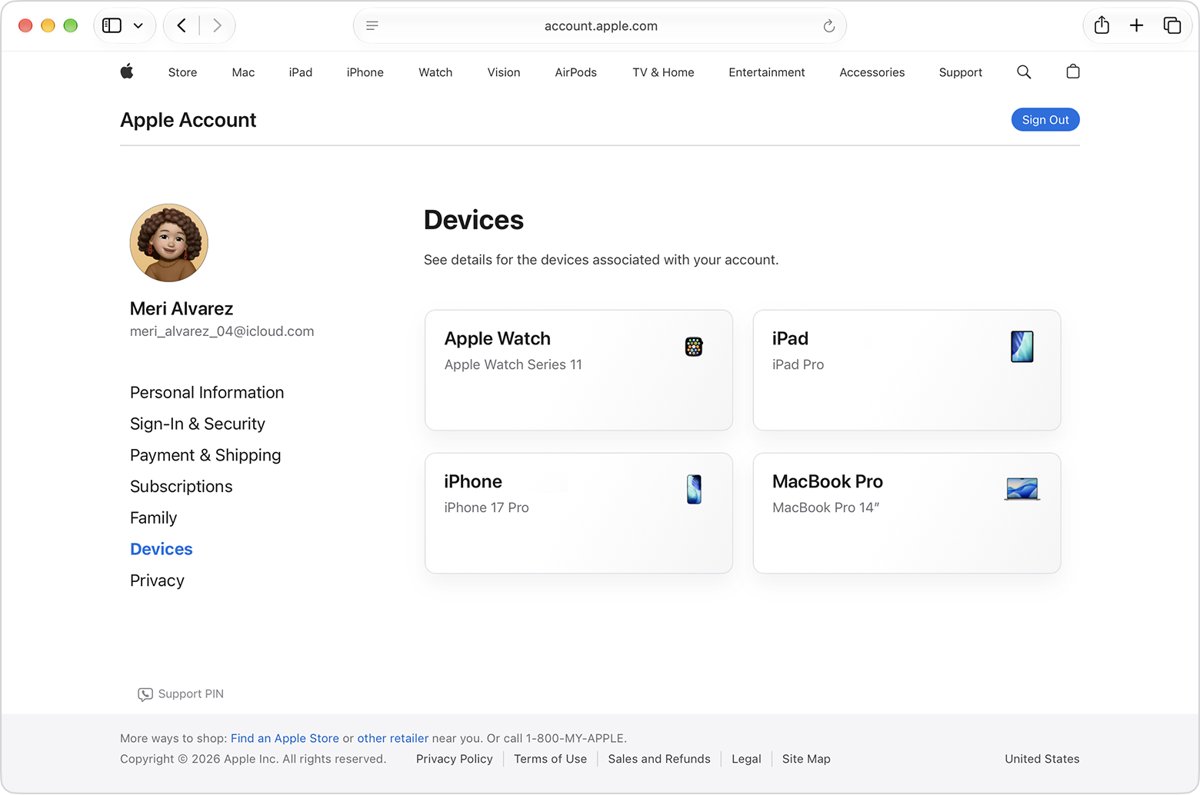
The web route works from any browser, including a Windows PC or an Android phone. Removing the device signs it out of your Apple Account, and Apple lists that as a way to remove and erase its Apple Pay cards.
- Go to account.apple.com and sign in to your Apple Account.
- Select Devices. If the devices do not appear, select View Details to authenticate.
- Select the other phone's name.
- Select Remove from Account.
- Review the message and confirm the removal.
The removed phone loses access to iCloud, Find My and other Apple services, and it stays off the list unless someone signs in on it with your Apple Account again.
Which way to remove Apple Pay from another device
| Your situation | Do this | Why |
|---|---|---|
| Old phone you sold, gave away or no longer use | Remove it from your Apple Account device list | Signs it out remotely and removes its Apple Pay cards |
| Phone is lost and might turn up | Mark it as lost in Find My | Lost Mode suspends Apple Pay cards and passes, and you can undo it |
| Phone is stolen or gone for good | Mark it as lost, then erase it in Find My | Erasing marks every card on the phone as terminated |
| Phone is in your hand | Remove the card in the Wallet app | Removes one card and leaves the rest |
| Your card is on a phone signed in to someone else's Apple Account | Contact your card issuer | Your Apple Account cannot reach that phone, but the issuer can stop the card |
| Apple Watch or iPad | Remove the card on that device, or use Lost Mode | Each device keeps its own Apple Pay cards |
Remove Apple Pay from another device on your iPhone
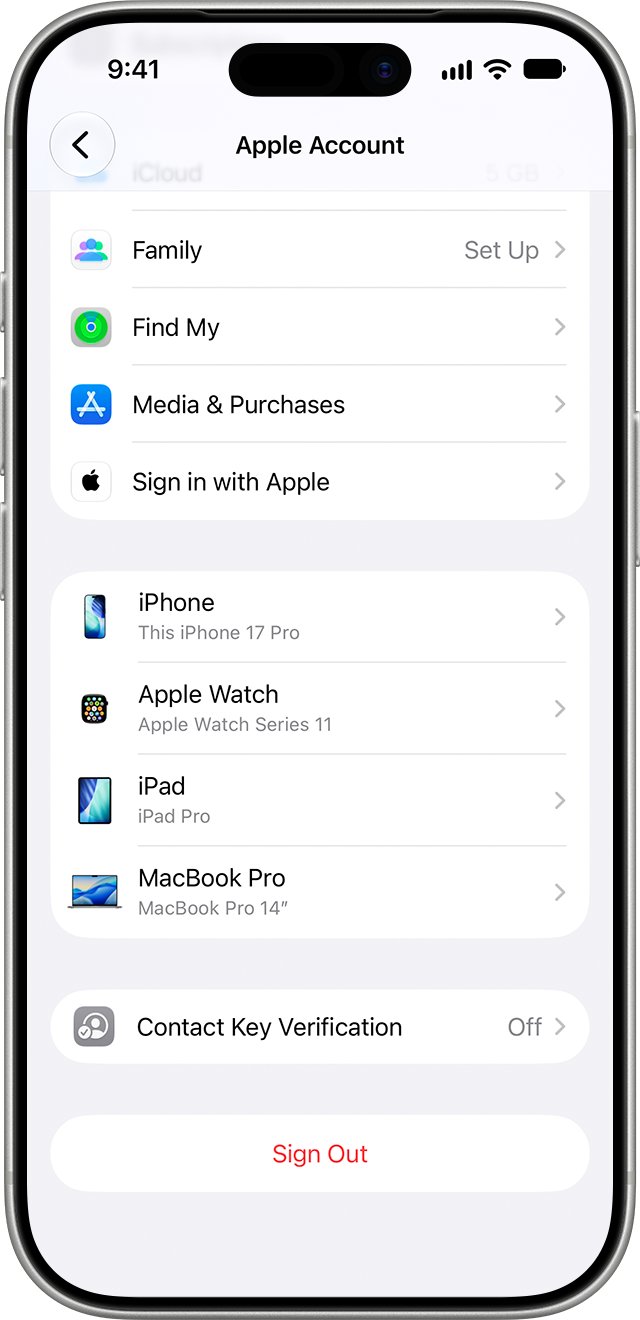
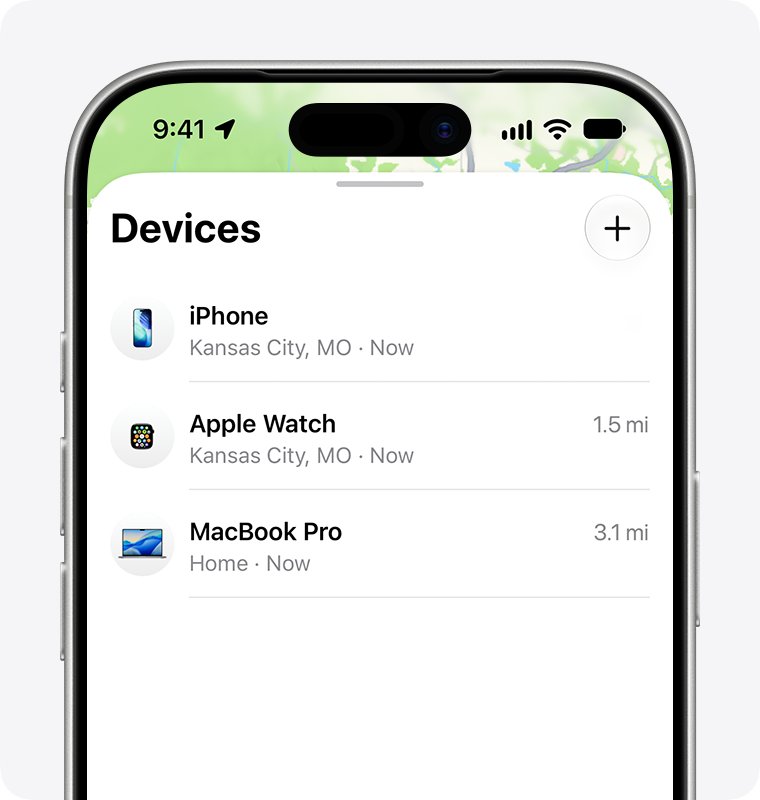
Use this when you have your current iPhone and want to remove an older phone, iPad or Mac from the same Apple Account.
- Open Settings.
- Tap your name, then scroll down to the list of devices.
- Tap the other phone's name to see its details.
- Tap Remove from Account.
- Review the message, then confirm.
On a Mac, the same list is in Apple menu > System Settings > [your name], with the same Remove from Account button.
Remove Apple Pay from a lost iPhone with Lost Mode
Lost Mode locks the phone with your passcode and suspends the payment cards and passes it uses with Apple Pay. Signing in to icloud.com/find does not need a verification code, so it works even when the lost phone is your trusted device.
- Go to icloud.com/find and sign in. If asked for a code, select Find Devices instead.
- Under All Devices, select the lost iPhone.
- Select the option to mark it as lost.
- Enter a phone number and message to show on the screen if you want to.
- Confirm to turn on Lost Mode.
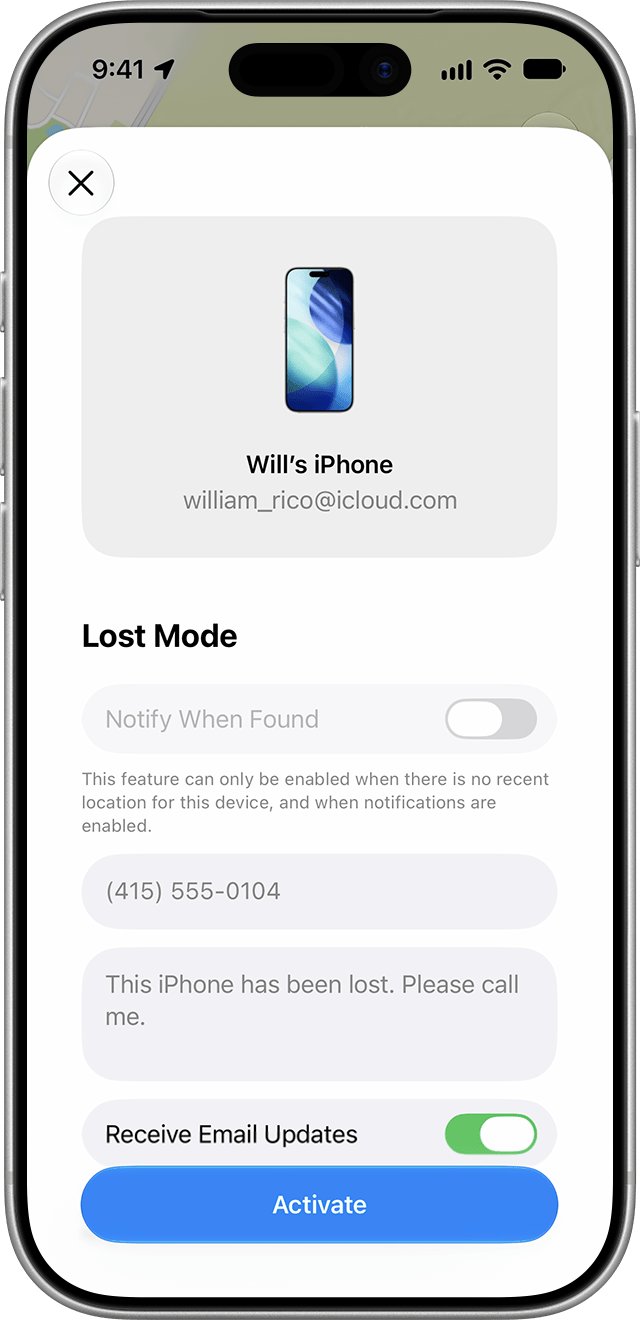
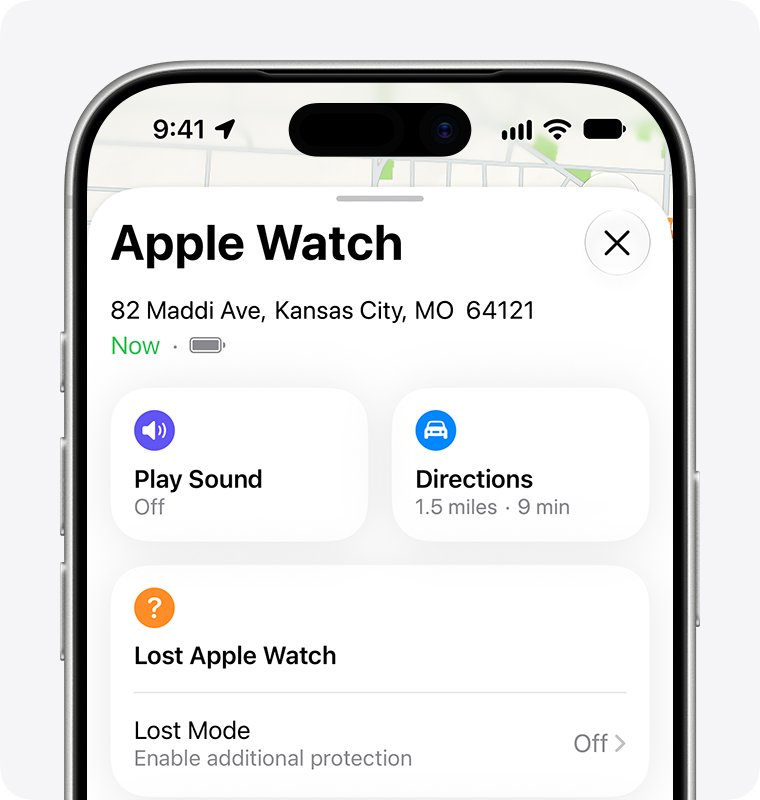
From another Apple device, open Find My, go to Devices, select the iPhone, tap the More button, turn on Lost Mode under Lost [Device], and tap Activate. Lost Mode applies once the phone is on and connected to Wi-Fi or cellular.
Remove Apple Pay from a stolen iPhone by erasing it
Erasing a phone through Find My tells its Secure Element to mark every card as terminated, so the cards stop working right away. When the phone next goes online, it contacts the Apple Pay servers to finish erasing them.
- Put the phone in Lost Mode first, using the steps above.
- Report the theft to local police and to your wireless carrier.
- At icloud.com/find or in the Find My app, select the stolen iPhone.
- Choose to erase the device and confirm.
- Remove the phone from your Apple Account only after the erase and any insurance claim are complete.
Erasing cannot be undone, so try to locate the phone first. If you have AppleCare+ with Theft and Loss, do not remove the iPhone from Find My or your Apple Account until your claim is fully approved. If the stolen phone held your only trusted number, iCloud account recovery gets you back in with a new number, and you can then change your Apple Account password.
Remove a card from Apple Pay on iPhone
When the phone is in your hand, remove only the card you no longer want there. This is the right route before you hand a phone to someone else, together with erasing it.
- Open the Wallet app and tap the card you want to remove.
- Tap the More button, then tap Card Details.
- Scroll down and tap Remove Card.
- Repeat for any other cards.
On iOS 15 and earlier, there is no Card Details step; the remove option appears directly. If Wallet refuses to remove a card, contact Apple Pay support or your card issuer.
Remove Apple Pay from Apple Watch, iPad or Mac
| Device | How to remove a card | If the device is lost |
|---|---|---|
| Apple Watch | Open Wallet on the watch, tap the card, scroll down and tap Remove | In Find My, select the watch and turn on Lost Mode under Lost Apple Watch |
| iPad | Open Settings > Wallet & Apple Pay, tap the card, tap Remove Card | Mark it as lost at icloud.com/find |
| Mac with Touch ID | Open System Settings > Wallet & Apple Pay, click the card, click Remove | Mark it as lost at icloud.com/find |
| Apple Vision Pro | Open Settings > Wallet & Apple Pay, tap the card, tap Remove Card | Remove it from your Apple Account device list |
Unpairing an Apple Watch from its iPhone also makes the watch's cards unusable.
What each action does to Apple Pay on the other device
| Action | Effect on Apple Pay | Reversible? |
|---|---|---|
| Lost Mode in Find My | Suspends Apple Pay cards and passes | Yes, turn off Lost Mode when the phone is found |
| Remove from Account | Removes and erases the cards from that device | You must add the cards again after signing back in |
| Erase in Find My | Marks every card as terminated at once | No, erasing cannot be undone |
| Signing out of iCloud on the device | Makes its cards unusable | Cards must be added again |
| Remove Card in Wallet | Removes one card from that device only | Add the card again in Wallet |
How to check Apple Pay is removed from the other phone
- Open Settings > [your name] on your iPhone and confirm the other phone is gone from the device list.
- At account.apple.com, select Devices and confirm the same.
- For a lost phone, check your email for the Find My confirmation of Lost Mode or the erase.
- Check your card issuer's app or statement for any new Apple Pay transactions from that device.
Can't remove Apple Pay from another phone? Fixes
The lost phone does not appear in Find My
Find My was not turned on before the phone went missing, so it cannot be marked as lost or erased remotely.
- Remove the phone from your Apple Account device list at account.apple.com.
- Call your card issuer and ask them to suspend Apple Pay on that device or replace the card.
- Report the phone to your wireless carrier.
The phone is not in your Apple Account device list
It is signed in to a different Apple Account, so your account has no control over it.
- Ask the owner to remove your card in their Wallet app.
- If that is not possible, contact your card issuer to stop the card on that device.
Lost Mode is on but nothing changed on the phone
The phone is off or offline, and the change waits until it connects.
- Leave Lost Mode on; it applies as soon as the phone connects to Wi-Fi or cellular.
- Ask your card issuer to suspend the card in the meantime.
Charges keep appearing after removal
Apple Pay cards are issued by your bank, and recurring charges are not tied to the device.
- Contact your card issuer to dispute the charges and replace the card.
- Review merchants and apps that store your card, such as ride or delivery apps, and remove it there.
Remove Apple Pay from another device FAQ
How do I remove Apple Pay from my iPhone?
Open the Wallet app, tap the card, tap the More button, then Card Details, and tap Remove Card. Repeat for each card. On iOS 15 and earlier, the remove option appears without the Card Details step.
How do I remove Apple Pay from a stolen iPhone?
Sign in to icloud.com/find, select the iPhone and mark it as lost, which suspends its Apple Pay cards. Then erase it to terminate the cards permanently. With AppleCare+ Theft and Loss, keep it in Find My until the claim is approved.
How do I remove Apple Pay from my Apple Watch?
On the watch, open Wallet, tap the card, scroll down and tap Remove. If the watch is lost, open Find My on your iPhone, select the watch and turn on Lost Mode, which locks it remotely.
How do I remove Apple Pay from my iPad?
Open Settings on the iPad, tap Wallet & Apple Pay, tap the card and tap Remove Card. If you no longer have the iPad, remove it from your Apple Account device list at account.apple.com instead.
How do I remove money from Apple Pay?
Money in Apple Pay sits in Apple Cash. Open Wallet, tap the Apple Cash card, tap the More button, then Transfer to Bank. A bank transfer is free and takes 1 to 3 business days; Instant Transfer to a debit card charges 1.7%.
How do I remove Apple Pay from Uber, TikTok Shop or Instacart?
Open the app's own payment or wallet settings and delete Apple Pay as a payment method there. Removing a card from Apple Wallet does not change what an app has saved, so edit both places if you want the card gone everywhere.
How do I delete my Apple Pay account?
Apple Pay has no separate account to delete. It uses your Apple Account and the cards in Wallet, so removing every card from Wallet on each device turns Apple Pay off for that device.
How do I stop an Apple Pay payment?
Contact the card issuer for the card you used, because Apple Pay cards are offered by your bank, not by Apple. The issuer can dispute or block a charge and replace the card if a device was stolen.
Bottom line: best way to remove Apple Pay from another phone
Use Remove from Account for a phone you no longer use, and Lost Mode followed by Erase for a phone that is lost or stolen. Both act remotely through your Apple Account, and Apple lists them as ways to suspend or erase the Apple Pay cards on a device you cannot reach.