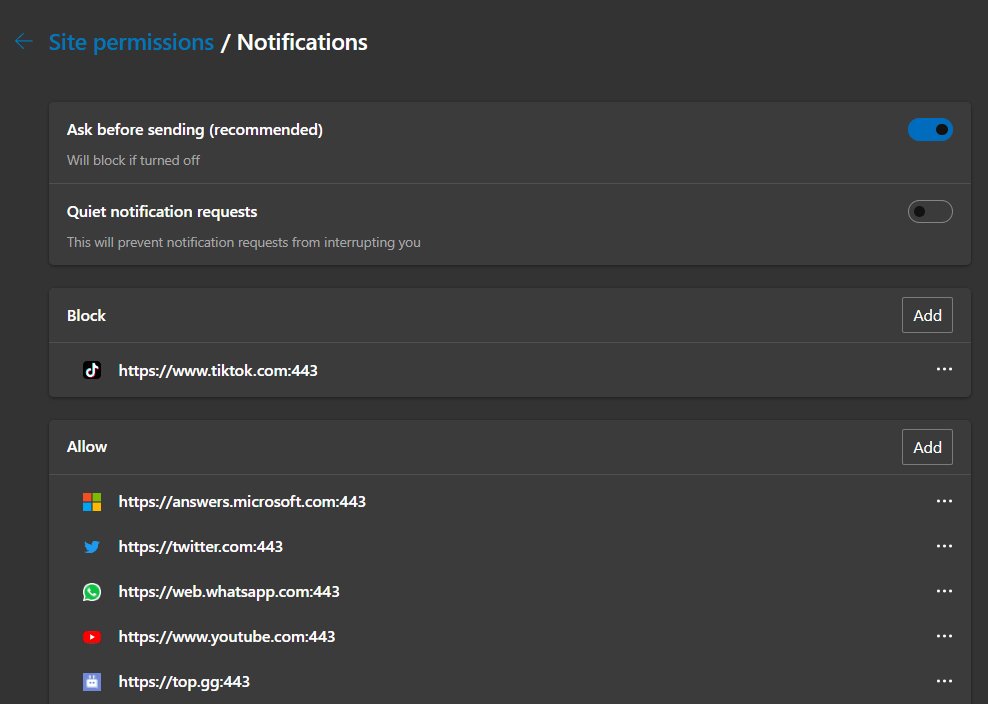
To open Microsoft Edge notification settings, type edge://settings/content/notifications in the Edge address bar and press Enter.
This guide also covers the Settings menu route, per-site controls from the address bar, Windows 11 and Mac system settings, phones, and work or school policies that lock the setting.
Open Edge notifications directly
The internal address jumps straight to the website notifications page in Edge on Windows and macOS, without clicking through menus.
- Open Microsoft Edge.
- Click the address bar at the top of the window.
- Type
edge://settings/content/notificationsand press Enter. - Review the default behavior and the sites you have allowed or blocked on the page that opens.
- To turn off push notifications for all sites, switch off Ask before sending (recommended). Switch it back on to let sites ask again.
- To block or allow specific sites in advance, select Add next to the Block or Allow list, type the site address, and select Add.
Spelling matters. Common typos such as edge://setings or notfications open nothing useful, so paste the address if it fails.
Which Edge notification setting do you need?
Edge has two layers of notification control: what websites may send inside Edge, and whether Windows or macOS shows Edge's alerts at all.
| Your goal | Where to go | Section |
|---|---|---|
| Change the default for all websites | edge://settings/content/notifications |
Open Edge notifications directly |
| Block or allow the site you are on now | View site information icon in the address bar | Change one site from the address bar |
| Fix a site you visited earlier | Site permissions > All sites | Use site permissions in Edge settings |
| Silence every Edge alert on the PC | Windows Settings > System > Notifications | Control Edge notifications in Windows 11 |
| Stop a banner you are looking at | The notification's more button | Turn off Edge from a Windows notification |
| The setting is greyed out | edge://policy |
Check work or school controls |
Use Edge settings menus
Use the menus when you prefer clicking to typing an address.
- Select Settings and more (the three dots) in the upper-right corner of Edge.
- Select Settings.
- Select Privacy, search, and services.
- Select Site permissions.
- Select Notifications to manage the default for all websites, or All sites to manage one site.
Change one site from the address bar
This is the quickest fix for one noisy site, and it works while you have that site open.
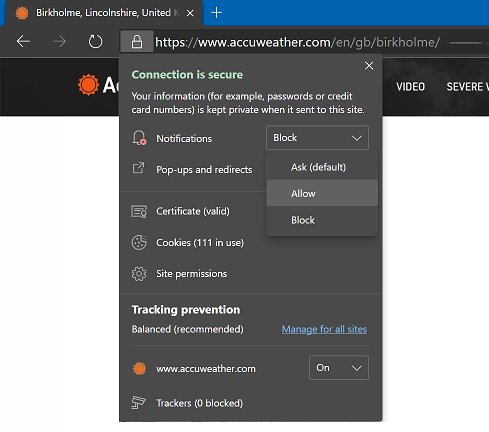
- Open the website that sends the notifications.
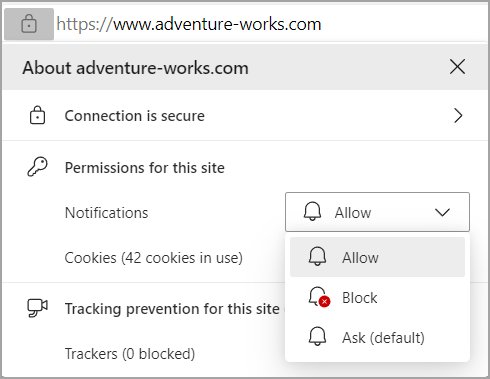
- Select the View site information icon to the left of the address bar.
- Under Permissions for this site, find Notifications.
- Choose Block from the drop-down to stop that site's notifications.
- To subscribe again later, return to the same menu and choose Allow.
Use site permissions in Edge settings
Use this route when you no longer have the site open, or want to review every site's permissions in one list.
- Select Settings and more > Settings.
- Go to Privacy, search, and services > Site permissions > All sites.
- Select the website in the list.
- Find the Notifications setting.
- Choose Block from the drop-down, or Allow to let the site notify you again.
Website notifications are not the same as pop-ups. Pop-up windows have their own separate setting in Edge.
Notifications vs. pop-ups in Microsoft Edge
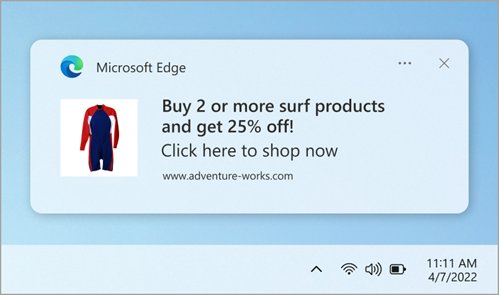
Website notifications appear in the Windows notification center after you allow a site to send them. Pop-ups are new windows, tabs or partial windows a site opens on top of the page you are reading.
Edge blocks pop-ups by default, and the pop-up setting lives in a different place from notifications.
| Task | Where to go in Edge |
|---|---|
| Block pop-ups in Microsoft Edge | Settings and more > Settings > Privacy, search, and services > Site permissions > All permissions > Pop-ups and redirects, then turn on Blocked (recommended) |
| Allow pop-ups for a specific URL | Same page, under Allowed to send pop-ups and use redirects: select Add site, type the full URL starting with https://, and select Add |
| Still see pop-ups after blocking them | Update Edge under Settings > About Microsoft Edge, scan for malware, turn extensions off one at a time, turn on Block third-party cookies, and clear the browser cache |
| What the pop-up blocker cannot block | Website advertisements made to look like pop-ups, and pop-ups that open because you selected a button or link on the page |
Control Edge notifications in Windows 11
Windows decides whether Edge's notifications appear as banners, in the notification center, or not at all. These steps apply to Windows 11 and Windows 10.
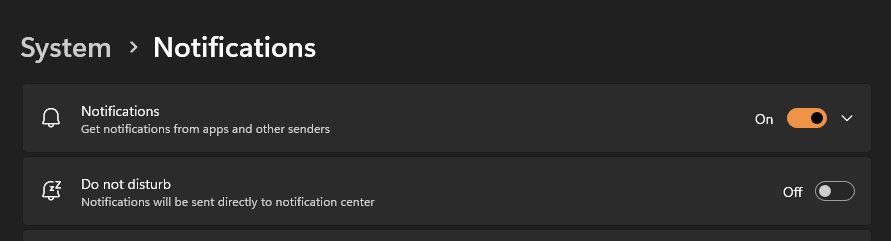
- Select Start > Settings > System > Notifications.
- Under Notifications from apps and other senders, select Microsoft Edge.
- Turn notifications off for Edge completely, or keep them on and adjust the options below.
- Turn Show notification banners on or off.
- Choose whether notifications show in the notification center, hide on the lock screen, or play a sound.
- Set the priority to Top, High or Normal.
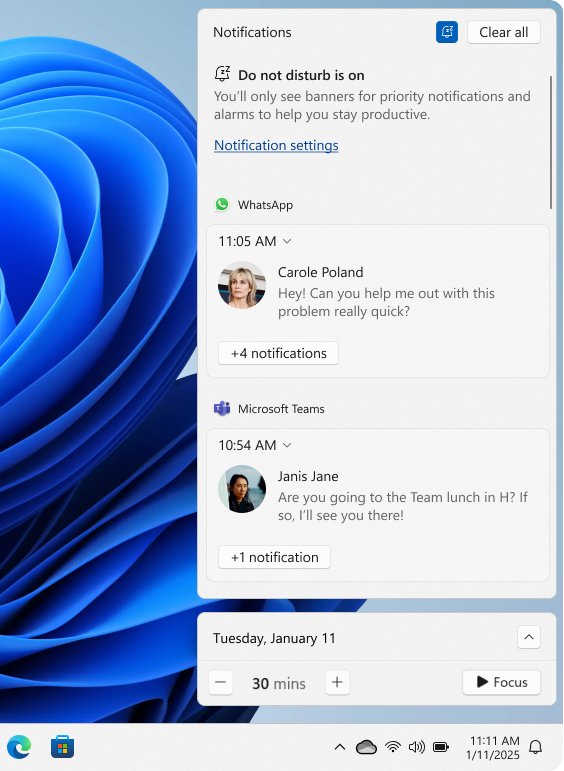
To silence everything for a while instead, open the notification center and select the bell icon with zZ on it to turn on do not disturb.
Turn off Edge from a Windows notification
- Press Windows key + N, or select the clock or notification bell on the taskbar, to open the notification center.
- Find a notification from Microsoft Edge.
- Select the more button (three dots) on that notification.
- Select Turn off all notifications.
- To turn them back on later, go to Settings > System > Notifications and switch Microsoft Edge on again.
Adjust Edge notifications on Mac, iPhone and Android
On these platforms the operating system controls whether the Edge app can show notifications at all.
| Device | Path | Switch |
|---|---|---|
| Mac | Apple menu > System Settings > Notifications > Microsoft Edge | Allow notifications |
| Mac, one website | In Edge: edge://settings/content/notifications or the View site information icon |
Block or Allow per site |
| iPhone | Settings > Notifications > Edge | Allow Notifications |
| Android | Phone Settings > Notifications, then Edge in the app list | Edge notifications on or off (labels vary by device) |
Android menu names differ between phone makers, as Google notes in its own help. Start from the gear icon if you are unsure how to open phone settings.
Check work or school controls
On a work or school PC, your IT administrator can set Edge's notification behavior by policy, and you cannot change it in Settings.
Type edge://policy in the address bar to see every policy applied to Edge. Look for the names below.
| Policy | What it controls | Effect for you |
|---|---|---|
| DefaultNotificationsSetting | Default for all sites: allow (1), block (2) or ask (3) | The default switch on the notifications page is locked |
| NotificationsBlockedForUrls | Sites that may never show notifications | Those sites stay blocked whatever you choose |
| NotificationsAllowedForUrls | Sites that may always show notifications | Those sites stay allowed |
If DefaultNotificationsSetting is not configured, Edge allows notifications by default and you can change the setting yourself.
Force ask, allow or block Edge notifications for all users with the registry
On a home PC without Group Policy, the same DefaultNotificationsSetting policy can be set in the registry under HKEY_LOCAL_MACHINE\SOFTWARE\Policies\Microsoft\Edge, which applies it to every user on the PC.
Open Command Prompt as administrator and run the command below. Use /d 1 to allow, /d 2 to block, or /d 3 to ask every time.
reg add "HKLM\SOFTWARE\Policies\Microsoft\Edge" /v DefaultNotificationsSetting /t REG_DWORD /d 2 /fCreates the DefaultNotificationsSetting DWORD value with 2, so no site can show desktop notifications in Edge and users cannot change the default.
You should see: The operation completed successfully. Open edge://policy in Edge and DefaultNotificationsSetting appears with the value 2.
To hand the choice back to each user, run reg delete "HKLM\SOFTWARE\Policies\Microsoft\Edge" /v DefaultNotificationsSetting /f and restart Edge.
Check that Edge notification settings took effect
- Revisit the site you changed and select the View site information icon.
- Confirm Notifications shows Block or Allow as you set it.
- Open
edge://settings/content/notificationsand confirm the site appears in the expected list. - Open Settings > System > Notifications in Windows and confirm the Microsoft Edge switch matches what you want.
Fix Edge notification settings that do not work
Edge notifications are blocked but you want them
The site is set to Block in Edge, or Windows has Edge notifications turned off.
- Open the site, select the View site information icon, and set Notifications to Allow.
- Open Windows Settings > System > Notifications and turn Microsoft Edge on.
- Check that do not disturb is off in the notification center.
Notifications or pop-ups keep appearing after you blocked them
Pop-ups are a separate setting, or the alerts come from a different site.
- Note the site name shown on the notification banner.
- Block that exact site under Site permissions > All sites.
- If the windows are pop-ups rather than notifications, change the pop-ups setting in Site permissions instead.
- Turn off Edge in Windows notification settings if you want no Edge alerts at all.
You cannot change or remove a notification setting
A work or school policy manages Edge.
- Type
edge://policyin the address bar. - Look for DefaultNotificationsSetting, NotificationsBlockedForUrls or NotificationsAllowedForUrls.
- Ask your IT administrator to change the policy if you need a different setting.
If Edge itself will not start, fix Microsoft Edge not opening before changing notification settings.
Quick recovery and best-practice tips for Edge notifications
Most unwanted Edge alerts start with one Allow click on a site's permission prompt. These habits keep the notification lists clean and get you back to normal quickly.
| Tip | How to do it |
|---|---|
| Recover quickly from a noisy site | Select the View site information icon on that site and set Notifications to Block |
| Pre-block sites you never want alerts from | On edge://settings/content/notifications, select Add next to Block and type the site address |
| Stop every site from asking | Turn off Ask before sending (recommended) on the same page |
| Mute alerts without changing site settings | Turn on do not disturb from the bell icon in the Windows notification center |
| Rule out a bad extension or old build | Turn extensions off one at a time, then update Edge under Settings > About Microsoft Edge |
Microsoft Edge notification settings FAQ
What is edge://settings/content/notifications?
It is the internal Edge address for the website notifications page. Type it in the address bar and press Enter to set the default for all sites and review which sites you have allowed or blocked.
How do I stop one website from sending notifications in Edge?
Open the site, select the View site information icon left of the address bar, find Notifications under Permissions for this site, and choose Block. The site stops sending notifications straight away.
How do I remove a site from Edge notifications?
Go to Settings > Privacy, search, and services > Site permissions > All sites, select the site, and change Notifications to Block. Choose Allow later if you want that site's notifications back.
Are Edge notifications the same as pop-ups?
No. Website notifications are messages a site sends after you allow them, while pop-ups are new browser windows. Edge controls pop-ups with a separate setting under Site permissions.
How do I turn off all Microsoft Edge notifications in Windows 11?
Open Start > Settings > System > Notifications, select Microsoft Edge under Notifications from apps and other senders, and turn it off. Edge then cannot show banners or notification center alerts on that PC.
Why can't I change Edge notification settings?
Your organization probably manages Edge with a policy such as DefaultNotificationsSetting. Type edge://policy in the address bar to see applied policies, and ask your IT administrator to change them.
Are Edge notifications on by default?
If no policy sets DefaultNotificationsSetting, Microsoft documents that notifications are allowed by default and that you can change the setting yourself on the notifications page.
How do I turn Edge notifications on for a site I blocked?
Open the site, select the View site information icon, and set Notifications to Allow. If alerts still do not show, make sure Microsoft Edge is switched on in Windows notification settings.
Edge can also show quieter notification requests so permission prompts interrupt you less.