To create an advanced firewall rule, press Start, type wf.msc, open Windows Defender Firewall with Advanced Security, select Inbound Rules or Outbound Rules, and run the New Rule wizard.
This guide covers every wizard page, two worked examples, network profiles, the PowerShell and netsh equivalents, and how to prove a rule is doing its job on Windows 11 and Windows 10.
How to create an advanced firewall rule in Windows 11 and 10
You need an administrator account. The rule takes effect as soon as you select Finish; no restart is required.
- Select Start, type
wf.mscand press Enter. - In the left pane, select Inbound Rules to filter incoming traffic or Outbound Rules to filter outgoing traffic.
- Select Action > New Rule.
- On the Rule Type page, choose Custom and select Next to see every option.
- Set the program, protocol and ports, and scope on the following pages.
- On the Action page, choose Allow the connection or Block the connection.
- On the Profile page, tick the network types the rule applies to.
- On the Name page, type a clear name and description, then select Finish.
What is Windows Defender Firewall with Advanced Security?
Windows Defender Firewall with Advanced Security is the Microsoft Management Console snap-in (wf.msc) that controls the host-based firewall built into Windows 11 and Windows 10. The firewall is on by default and filters traffic entering and leaving the PC.
Windows Firewall rules are the conditions that decide which traffic is allowed or blocked. Each rule matches traffic on details such as these:
| Rule condition | What you can match | Example |
|---|---|---|
| Program or service | A full .exe path, or a Windows service by name | Allow only a game server's .exe |
| Protocol and port | TCP or UDP with local or remote ports, ICMP types, or an IP protocol number from 0 to 255 | Open TCP 3389, allow ICMPv4 echo |
| IP addresses | Local and remote addresses, ranges, subnets, or keywords such as local subnet, default gateway, DNS or DHCP servers | Accept connections only from 192.168.1.0/24 |
| Network profile | Domain, Private, Public or any combination | Open a port at home but not on public Wi-Fi |
| Interface type | The kind of network connection the traffic uses | Limit a rule to one type of adapter |
What can you do with it beyond rules? The console also sets per-profile defaults and logging, and builds connection security rules that use IPsec to authenticate or encrypt traffic. To monitor what the firewall is doing, log dropped packets to pfirewall.log, and for IPsec, run Show-NetIPsecRule -PolicyStore ActiveStore or Get-NetIPsecMainModeSA to see active rules and connected peers.
Accessing the Windows Firewall with Advanced Security interface
Several Windows tools reach the same firewall service, but only the Advanced Security console and the command line can build full custom rules.
| Tool | How to open it | What it can do |
|---|---|---|
| Windows Defender Firewall with Advanced Security | Select Start, type wf.msc, press Enter |
Full inbound, outbound and connection security rules, profile properties, logging |
| Windows Security app | Windows Security > Firewall & network protection | Firewall status per network and links to the advanced tools |
| Control Panel applet | Select Start, type firewall.cpl, press Enter |
Basic on/off switches and allowed apps |
| Group Policy (domain PCs) | Computer Configuration > Policies > Windows Settings > Security Settings > Windows Firewall with Advanced Security | The same console, stored in a GPO for many PCs |
| PowerShell and netsh | Elevated PowerShell or Command Prompt | Scripted rules with New-NetFirewallRule or netsh advfirewall firewall add rule |
Inbound rules vs outbound rules in Windows Firewall
Windows Firewall blocks incoming traffic unless it was requested by the PC or matches an allow rule. It allows outgoing traffic unless a rule blocks it.
| Inbound rules | Outbound rules | |
|---|---|---|
| Default behaviour | Block unsolicited traffic | Allow all traffic |
| Typical rule you create | Allow: let a server app or port accept connections | Block: stop a program or port from reaching the network |
| Port field you usually set | Local port | Remote port |
| Created automatically by | Apps and the first-run firewall prompt | Rarely; usually created by hand or policy |
| Common use | Game servers, file sharing, remote access, web servers | Stopping an app from phoning home or updating |
When rules conflict, an explicit block rule beats any allow rule, and an allow rule beats the default block. Among allow rules, the more specific one wins, such as a single IP address over an address range. You cannot set a manual rule order.
What are connection security rules in Windows Firewall?
Connection security rules use Internet Protocol security (IPsec) to control how two devices authenticate and protect traffic between them. Firewall rules decide whether traffic passes; connection security rules decide whether it must be authenticated or encrypted first.
| Firewall rules | Connection security rules | |
|---|---|---|
| Purpose | Allow or block traffic | Require authentication, integrity checks or encryption |
| What it can check | Program, port, protocol, address, profile | The identity of the remote device, and whether data is protected in transit |
| Typical use | Open a port or block an app | Isolate domain PCs so only authenticated devices can connect |
| PowerShell cmdlet | New-NetFirewallRule |
New-NetIPsecRule |
Most home users never need connection security rules. They matter on business networks, where IPsec can stop devices that cannot prove their identity from talking to a server.
Which Windows Firewall rule type should you choose?
Decide which rules you want before opening the wizard: most people need one inbound allow rule for an app or port, or one outbound block rule.
| What you want | Rule type on the first page | Why |
|---|---|---|
| Let one app accept connections on any port | Program | The rule follows the app's .exe path |
| Open a TCP or UDP port for any app | Port | Fast for a known port number |
| Turn on a Windows feature such as file sharing | Predefined | Uses Microsoft's ready-made rule group |
| Combine app, port, IP range and profile | Custom | Shows every wizard page, including Scope |
| Allow ping (ICMP) | Custom | Only Custom exposes the ICMP type settings |
Microsoft recommends Custom even for simple rules, because the Program and Port types hide some wizard pages.
Configuring network profiles in Windows Defender Firewall
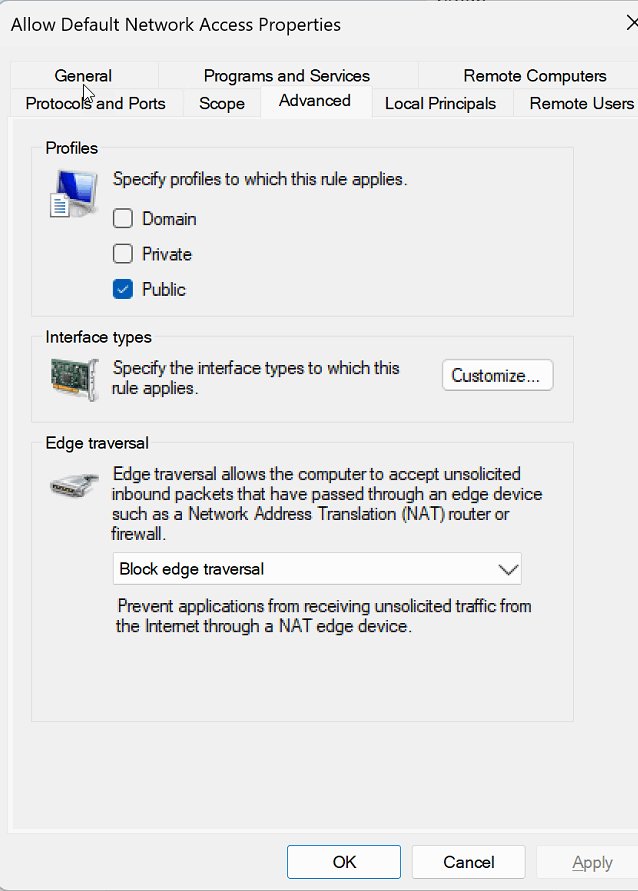
Every rule belongs to one or more of three profiles. Domain applies automatically when a domain-joined PC can reach a domain controller. Private is for home or trusted networks. Public is for hotspots and is the default for unidentified networks.
- Open
wf.mscand select the top node of the left pane. - In the Overview section, select Windows Defender Firewall Properties.
- Select the tab for the profile you want to change: Domain, Private or Public.
- Set the firewall state and the default action for inbound and outbound connections for that profile.
- Under Logging, select Customize, set Log dropped packets to Yes, and select OK.
- Select OK to apply the profile settings.
- To check which profile your connection uses, run
Get-NetConnectionProfilein PowerShell and read NetworkCategory.
To set the recommended defaults on all profiles from an elevated Command Prompt, run netsh advfirewall set allprofiles firewallpolicy blockinbound,allowoutbound.
Switch a network between Private and Public with Set-NetConnectionProfile in PowerShell.
Before you open an inbound port in Windows Firewall
Prerequisites take a minute to check and prevent the two commonest mistakes: opening a port wider than needed, and opening it on the wrong profile.
| Check | How | Why it matters |
|---|---|---|
| Administrator rights | Sign in with an admin account | Changing firewall configuration needs administrative rights |
| The exact port and protocol | The app's own documentation or website | A TCP rule does nothing for an app that listens on UDP |
| The program path | The full path to the app's .exe | Tying the port to one program stops other apps using it |
| The current network profile | Run Get-NetConnectionProfile and read NetworkCategory |
A rule enabled only for Private will not apply on a network marked Public |
| Who needs to connect | Their IP address or subnet | Lets you fill in the Scope page instead of allowing any address |
Creating a rule in Windows Firewall with Advanced Security
This walkthrough opens an inbound TCP port, which is the most common advanced rule. The step-by-step instructions follow each wizard page in order.
- In
wf.msc, select Inbound Rules, then Action > New Rule. - On Rule Type, select Custom > Next.
- On Program, select All programs, or This program path and enter the full .exe path to tie the port to one app; select Next.
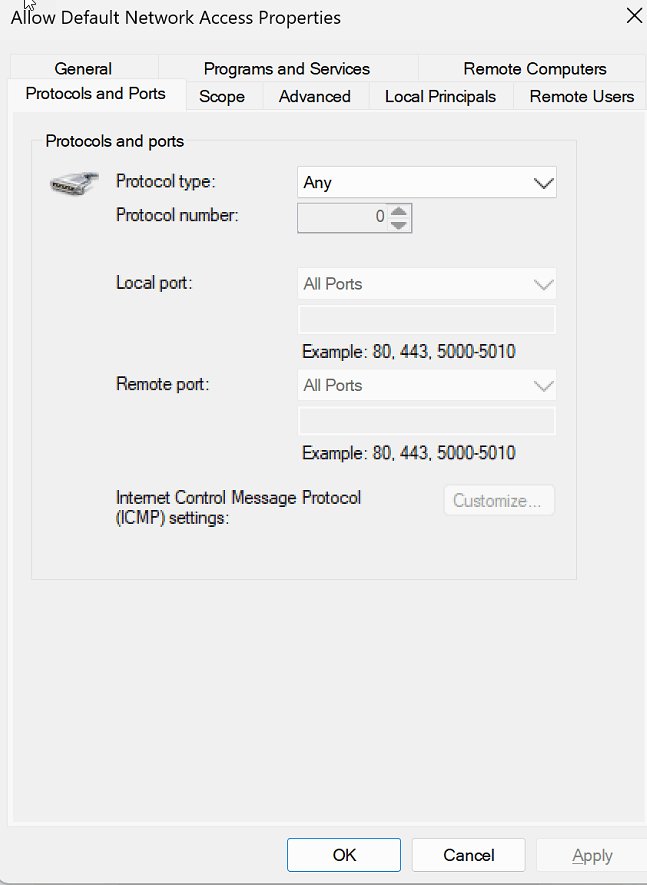
- On Protocol and Ports, set Protocol type to TCP or UDP, enter the Local port number, and select Next.
- On Scope, leave both address lists open, or enter the remote IP addresses allowed to connect; select Next.
- On Action, choose Allow the connection > Next.
- On Profile, tick only the profiles where the port should be open, usually Private; select Next.
- On Name, enter a descriptive name and a description with the app and date, then select Finish.
Program paths must be full paths. Wildcards such as C:\*\app.exe are not supported, but environment variables such as %ProgramFiles% are.
To limit a rule to one Windows service, select Customize on the Program page and choose Apply to this service.
How to allow a program through Windows Firewall
An inbound program or service rule lets one app or Windows service listen for connections. Without ports set, it allows the app on any port; adding ports limits it to just those.
- In
wf.msc, select Inbound Rules, then Action > New Rule. - On Rule Type, select Custom > Next.
- On Program, select This program path and type the full path to the app. Use variables such as
%ProgramFiles%so the rule works wherever the app is installed. - For a service, select Customize, then Apply to this service and pick it, or Apply to services only to cover every service in that .exe; select OK > Next.
- On Protocol and Ports, enter only the ports the app needs, or leave them open to allow any port; select Next.
- On Scope, add remote addresses if only certain devices should connect; select Next.
- On Action, select Allow the connection, choose the profiles, name the rule and select Finish.
Microsoft calls restricting a program rule to the ports it needs a best practice: if the app tries to listen on another port, the firewall blocks it.
Example rule: blocking a program from the internet
An outbound block rule stops an app from sending traffic on any port. It overrides any allow rule for the same app.
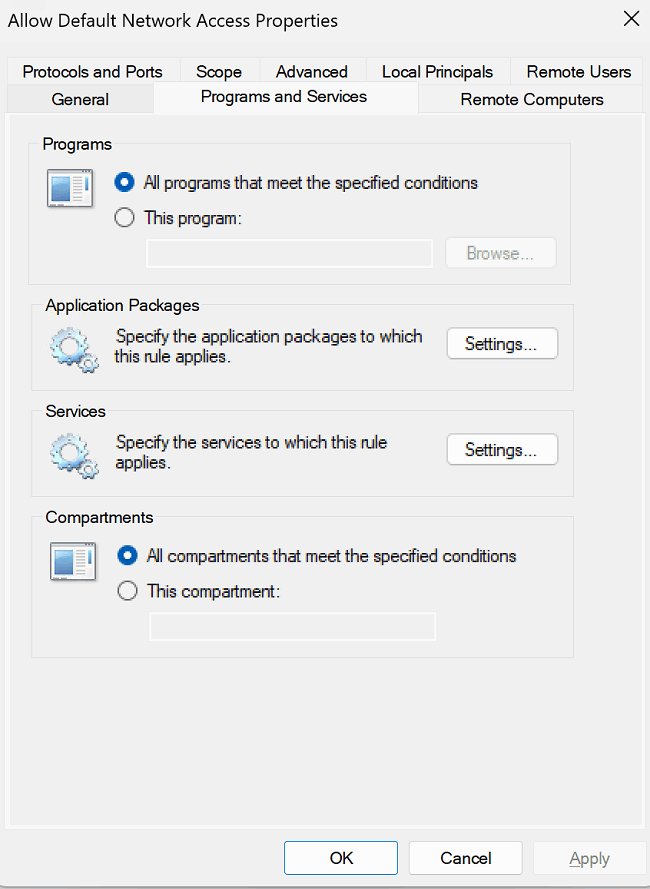
- In
wf.msc, select Outbound Rules, then Action > New Rule. - On Rule Type, select Custom > Next.
- On Program, select This program path, enter the full path to the app's .exe file, and select Next.
- On Protocol and Ports, leave the protocol and ports unrestricted so every port is blocked; select Next.
- On Scope, leave the defaults and select Next.
- On Action, select Block the connection > Next.
- On Profile, keep Domain, Private and Public ticked; select Next.
- Name the rule, for example Block AppName outbound, and select Finish.
To stop the same app from accepting incoming connections too, repeat the steps under Inbound Rules with Block the connection.
PowerShell equivalent: New-NetFirewallRule -DisplayName "Block AppName outbound" -Direction Outbound -Program "C:\Program Files\AppName\app.exe" -Action Block.
How to block a port with an outbound port rule
Windows allows all outbound traffic unless a rule blocks it, so an outbound port rule is how you stop every app from reaching a given TCP or UDP port.
- In
wf.msc, select Outbound Rules, then Action > New Rule. - On Rule Type, select Custom > Next.
- On Program, select All programs > Next.
- On Protocol and Ports, select TCP or UDP and enter the Remote port, because outbound rules usually match the port on the far end; select Next.
- On Scope, leave the defaults or limit the block to certain remote addresses; select Next.
- On Action, select Block the connection > Next.
- Tick the profiles, name the rule, for example Block outbound TCP 25, and select Finish.
To block a port for incoming traffic instead, create the same rule under Inbound Rules with the Local port. A block rule overrides any allow rule for the same traffic.
Example rule: restricting access to a port by IP address
This rule opens a port only to devices on your own subnet, so a server app is reachable at home but not from other networks.
- In
wf.msc, select Inbound Rules > Action > New Rule > Custom > Next. - On Program, enter the server app's path under This program path; select Next.
- On Protocol and Ports, choose TCP and enter the app's Local port; select Next.
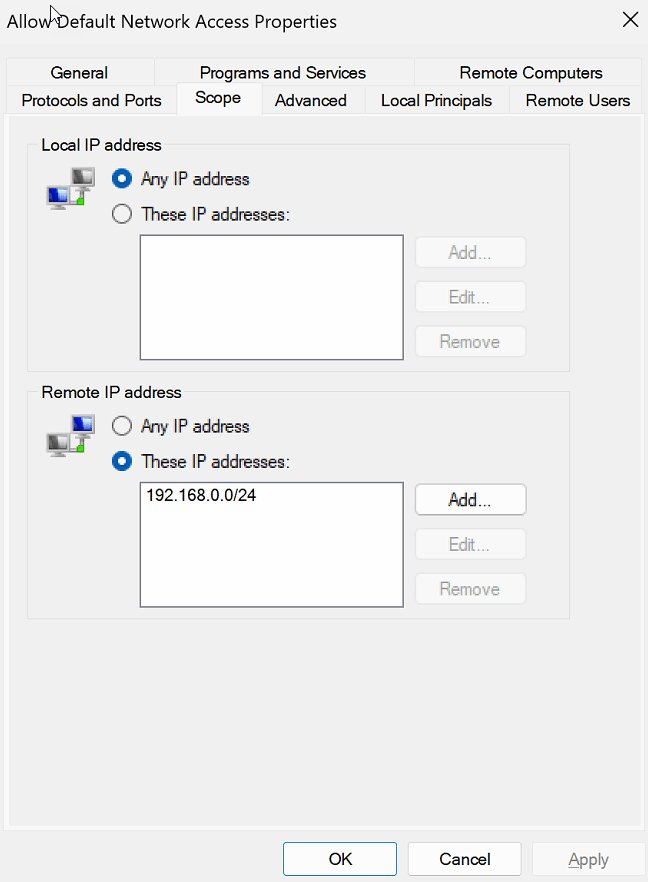
- On Scope, under the remote IP address list, add the subnet allowed to connect, for example
192.168.1.0/24, or choose the Local subnet keyword; select Next. - On Action, select Allow the connection > Next.
- On Profile, tick Private only; select Next.
- Name the rule and select Finish.
Use ranges or subnets rather than many single addresses. Each extra address adds filters under the hood and slows rule processing.
To change the allowed address later from PowerShell, run Set-NetFirewallRule -DisplayName "Your rule name" -RemoteAddress 192.168.1.0/24.
Create an inbound ICMP rule to allow ping
Ping uses ICMP, not TCP or UDP, so it needs a Custom rule. IPv4 and IPv6 need a separate rule each.
- In
wf.msc, select Inbound Rules, then Action > New Rule > Custom > Next. - On Program, select All programs > Next.
- On Protocol and Ports, set Protocol type to ICMPv4 (or ICMPv6), then select Customize.
- Select Specific ICMP types and tick only the types you want, such as echo request for ping, or select All ICMP types; select OK > Next.
- On Scope, limit the rule to the addresses allowed to ping the PC; select Next.
- Select Allow the connection, choose the profiles, name the rule and select Finish.
For an ICMP type missing from the list, choose Specific ICMP types, pick the Type and Code numbers, select Add, and tick the new entry.
Create Windows Firewall rules with PowerShell or netsh
Rules created from the command line land in the same store as wf.msc rules and take effect immediately. Run these in an elevated PowerShell window.
- Allow a program inbound from the local subnet:
New-NetFirewallRule -DisplayName "Allow Inbound App" -Direction Inbound -Program "%ProgramFiles%\App\app.exe" -RemoteAddress LocalSubnet -Action Allow. - Block an outbound TCP port:
New-NetFirewallRule -DisplayName "Block Outbound 23" -Direction Outbound -Protocol TCP -LocalPort 23 -Action Block. - Group related rules at creation time by adding
-Group "Group name", then change them together withSet-NetFirewallRule -DisplayGroup. - The netsh version of an allow rule is
netsh advfirewall firewall add rule name="Allow Inbound App" dir=in program="%ProgramFiles%\App\app.exe" remoteip=localsubnet action=allow. - Change a netsh rule's remote address with
netsh advfirewall firewall set rule name="Allow Inbound App" new remoteip=192.168.0.2.
Edit, disable or delete a Windows Firewall rule
- Open
wf.mscand select Inbound Rules or Outbound Rules. - Double-click the rule to edit any page of it in the Properties tabs, then select OK.
- Right-click the rule to disable it without losing it, or to delete it permanently.
- From PowerShell, use
Disable-NetFirewallRule -DisplayName "Rule name"to pause a rule orRemove-NetFirewallRule -DisplayName "Rule name"to delete it. - From Command Prompt, run
netsh advfirewall firewall delete rule name="Rule name".
Before deleting with a wildcard, add -WhatIf to Remove-NetFirewallRule to list the rules it would remove.
How to check a Windows Firewall rule is working
- In PowerShell, run
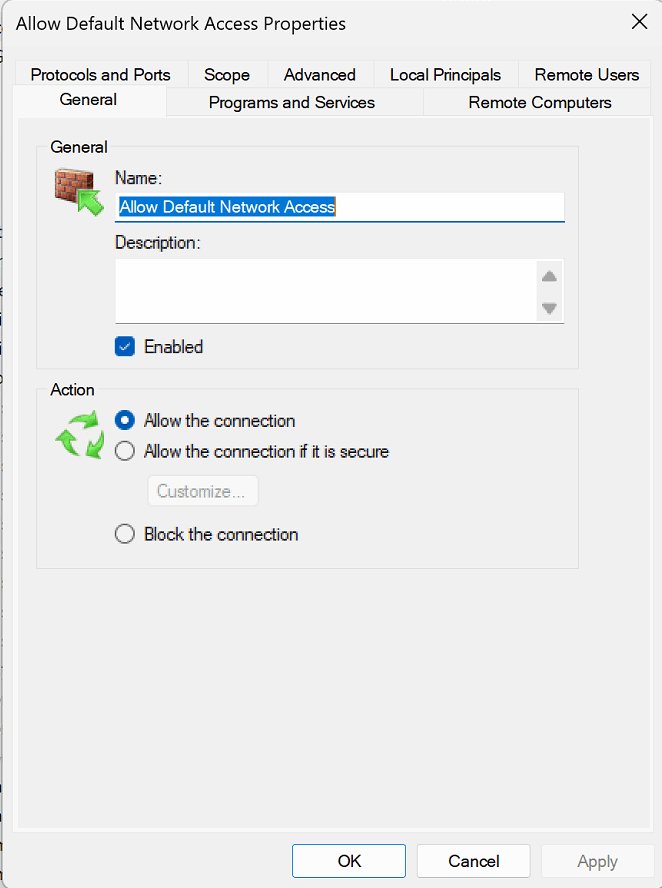
Get-NetFirewallRule -DisplayName "Rule name"and confirm Enabled is True and Action matches. - Run
Get-NetFirewallRule -DisplayName "Rule name" | Get-NetFirewallPortFilterto confirm the protocol and port. - Turn on Log dropped packets for the active profile, as described in the profile section.
- Test the connection with ping or the app itself, then open
%windir%\system32\logfiles\firewall\pfirewall.logand look for entries showing the port you blocked.
The log file holds 4,096 KB by default; Microsoft recommends at least 20,480 KB so entries do not roll off too quickly.
Application rules and local policy merge in Windows Firewall
Many rules are not written by hand. When a network app first listens for connections, its installer usually adds an inbound rule, or Windows shows a prompt asking whether to allow it. On managed PCs, a policy setting decides whether those local rules count at all.
| Situation | What Windows does | Result |
|---|---|---|
| An admin cancels the prompt or answers no | Creates block rules, usually one for TCP and one for UDP | The app stays blocked until those rules are deleted |
| A standard user sees the prompt | Creates block rules whatever is selected | An admin must add an allow rule |
| Notifications are turned off | Creates no rules | The default inbound block applies |
| Local policy merge is off (Group Policy or MDM) | Ignores rules created locally by apps and admins | Only centrally deployed rules, plus Local Group Policy rules, apply |
Local policy merge is set per profile, under Computer Configuration > Windows Settings > Security Settings > Windows Defender Firewall with Advanced Security in Group Policy, or the AllowLocalPolicyMerge setting of the Firewall CSP.
Windows Firewall rule not working: fixes
An allow rule exists but traffic is still blocked
An explicit block rule for the same app or port takes precedence over every allow rule.
- In
wf.msc, sort Inbound Rules by Action and look for Block rules naming the same program or port. - Disable the conflicting block rule.
- Confirm the allow rule's profile matches the network's current profile.
- Test the connection again.
An app is blocked after someone dismissed the firewall prompt
Cancelling the prompt, or seeing it as a standard user, creates block rules for TCP and UDP.
- Open Inbound Rules and find the block rules carrying the app's name.
- Delete both rules.
- Create an allow rule for the app's .exe, or launch it again as an administrator to get the prompt back.
The remote test still fails
The rule does not match the traffic the other device actually sends: wrong protocol, wrong port field, or a Scope that excludes its address.
- Run
Get-NetFirewallRule -DisplayName "Rule name" | Get-NetFirewallPortFilterand confirm the protocol and LocalPort for an inbound rule. - Run
Get-NetFirewallRule -DisplayName "Rule name" | Get-NetFirewallAddressFilterand check the remote device's IP address falls inside RemoteAddress. - Confirm the app is running, because a program rule only admits traffic while that program listens.
- Test again from the remote device and check
pfirewall.logfor dropped packets.
The rule works at home but not on another network
The rule is enabled only for the Private profile, and the other network is Public, which is the default for unidentified networks.
- Run
Get-NetConnectionProfileand read NetworkCategory for the current network. - If it is a trusted network, switch it with
Set-NetConnectionProfile -InterfaceAlias "Wi-Fi" -NetworkCategory Private, using the InterfaceAlias that the previous command showed. - Otherwise, add the Public profile to the rule only if the app genuinely needs it there, and narrow its Scope.
The rule is visible but appears ignored
The rule is disabled, or local policy merge is turned off by Group Policy or MDM, so locally created rules are not applied.
- Check the rule's Enabled value with
Get-NetFirewallRule -DisplayName "Rule name". - On a work PC, ask the administrator whether local policy merge is disabled; if so, the rule must be deployed centrally.
- Run
gpupdate /forceafter a policy change, rather than waiting for the background refresh.
A broader rule is still exposing the port
Another allow rule, such as one for all programs or any address, also matches the port, and allow rules add up.
- Run
Get-NetFirewallPortFilter | ?{$_.LocalPort -eq 3389} | Get-NetFirewallRule, replacing 3389 with your port, to list every rule using it. - Disable or narrow the broader allow rules you do not need.
- To shut the port completely, add a block rule; a block beats every allow rule.
Rules have no effect at all
The firewall is turned off for the active profile.
- Open an elevated Command Prompt.
- Run
netsh advfirewall set allprofiles state on. - Retest; rules are only enforced while the profile is on.
A service rule will not apply
The service has no security identifier type, so firewall rules cannot target it.
- Run
sc qsidtype ServiceNamein an elevated Command Prompt. - If it returns NONE, run
sc sidtype ServiceName unrestricted. - Restart the service and recreate the rule with Apply to this service.
Windows Firewall rules best practices
| Practice | Reason |
|---|---|
| Never change the inbound default to allow | It exposes every listening service on the PC |
| Scope home-only apps to Local subnet | The app stays reachable on your LAN but not from other networks |
| Enable rules only on the profiles that need them | A Private-only rule stays closed on public Wi-Fi |
| Write the app, port and date in the description | Rules stay reviewable months later |
| Turn off profiles instead of stopping the firewall service | Stopping MpsSvc is unsupported and can break the Start menu and app installs |
Windows Firewall inbound and outbound rules FAQ
What are inbound rules in Windows Firewall?
Inbound rules decide which incoming connections Windows Firewall lets through. Because unsolicited inbound traffic is blocked by default, an inbound rule usually allows a specific app, port or address range to accept connections.
What is the difference between inbound and outbound rules?
Inbound rules filter traffic arriving at the PC, while outbound rules filter traffic the PC sends. Windows blocks unsolicited inbound traffic and allows outbound traffic by default, so outbound rules are mostly used to block.
How do I open inbound rules?
Press Start, type wf.msc and press Enter, then select Inbound Rules in the left pane. The list shows every inbound rule, its profile, whether it is enabled and whether it allows or blocks.
How do I add an inbound rule in Windows Firewall?
Open wf.msc, select Inbound Rules, then Action > New Rule. Choose Custom, set the program, port and scope, pick Allow the connection, tick the profiles, and name the rule before selecting Finish.
How do I enable an inbound rule that is turned off?
Right-click the rule in wf.msc and enable it from the menu. From PowerShell, run Enable-NetFirewallRule with the rule's display name, or use Set-NetFirewallRule -DisplayGroup to enable a whole group.
Are inbound rules the same in Windows 11 and Windows 10?
Yes. Windows 11 and Windows 10 use the same Windows Defender Firewall with Advanced Security console, rule wizard, PowerShell cmdlets and netsh commands, so every step in this guide works on both.
Do I need to restart after creating a firewall rule?
No. A rule created in wf.msc, PowerShell or netsh on the local PC takes effect immediately. Rules delivered by Group Policy apply at the next policy refresh or after running gpupdate /force.
Can an outbound rule block an app completely?
An outbound block rule set to Any protocol stops the app from sending traffic on every port and overrides allow rules. Add a matching inbound block rule to stop it accepting connections as well.
Key takeaways: how to set inbound and outbound rules with Windows Firewall
Build custom rules in wf.msc with the New Rule wizard, keep the inbound default on block, and scope every allow rule to one program or port, the right profiles and, where possible, specific IP addresses. Narrow rules leave the rest of the PC closed, block rules override allow rules, and a rule enabled only on Private stays shut on public Wi-Fi.