To create a guest account on Windows 11, open Settings > Accounts > Other users, select Add account, and add a local user without a Microsoft account, such as one named Visitor.
Windows 11 keeps its built-in Guest account disabled, so this guide shows how to build a guest-style account in Settings, Command Prompt or PowerShell, limit it, sign in to it, and remove it.

Create a "Guest" account through Settings
A local standard account gives a visitor their own desktop without access to your files, browser or Microsoft account. You need to be signed in as an administrator.
- Press Win + I to open Settings, then select Accounts > Other users. You can also press Win + R and run
ms-settings:otherusers. - Under Add other user, select Add account.
- Select I don't have this person's sign-in information.
- Select Add a user without a Microsoft account.
- Type a user name such as Visitor, Guest1 or Family. The name Guest is already used by the built-in, disabled Guest account, so pick something else.
- Enter a password and the security questions if Windows asks, then select Next.
- Check that the new account appears under Other users as a local account.
New accounts created this way are standard users. Do not change the guest account to an administrator, since Microsoft advises keeping the number of administrators on a PC low.
What is a "Guest account" in Windows 11?
Windows 11 still contains a built-in account named Guest, but it is switched off by default. Most people who search for a guest account actually want a separate, limited account for visitors.
| Account | What it is | Recommended? |
|---|---|---|
| Built-in Guest account | A hidden local account with limited rights, disabled by default and with a blank password | No. Microsoft calls it a security risk and advises leaving it disabled |
| Local standard user (Visitor) | A normal account in the Users group, with its own desktop and no admin rights | Yes. This is the practical guest account |
| Member of the Guests group | An account with access similar to Users, whose profile Microsoft says is deleted at sign-out | Optional, on top of a standard account |
| Kiosk account | A local account that signs in automatically and runs one app, such as Microsoft Edge | Yes, for a shared PC that should only browse or run one app |
The built-in Guest account can open network shares that allow Guests or Everyone without a password. That is why the Accounts: Guest account status policy is set to Disabled on Windows client PCs by default.
Which Windows 11 guest account method should you use?
| Your situation | Use this | Why |
|---|---|---|
| Occasional visitor on a home PC | Settings method | No commands; works on Windows 11 Home and Pro |
| You manage several PCs or prefer typing | Command line with net user |
One command creates the account |
| You want an account with no password | PowerShell New-LocalUser -NoPassword |
Creates a passwordless account in one step |
| You want the visitor's files wiped at sign-out | Add the account to the Guests group | Microsoft documents profile deletion for Guests members |
| The PC should only show a browser or one app | Kiosk in Settings | Signs in automatically and locks the session to one app |
Create guest account through command line
The built-in net user command adds, enables, disables and deletes local accounts. Run it in an elevated Command Prompt.
- Select Start, type cmd, right-click Command Prompt and select Run as administrator.
- Run
net user Visitor * /addto create the account. The asterisk makes Windows ask for the password, which it does not show as you type. - Run
net user Visitor /active:yesto make sure the account is enabled. - Run
net user Visitorto check the account details, including Local Group Memberships. - Sign out, or open Start and switch user, to see the new account on the sign-in screen.
Account names can be up to 20 characters. Replace Visitor with any name you like, except Guest, which already exists.
Create a passwordless guest account with PowerShell
PowerShell can create a local account with no password, which suits a visitor account that should open with one click. Use 64-bit PowerShell running as administrator, because the LocalAccounts module is not available in 32-bit PowerShell on a 64-bit PC.
- Right-click Start and select Terminal (Admin).
- Run
New-LocalUser -Name 'Visitor' -Description 'Guest account' -NoPasswordto create the account with no password and no expiry date. - Run
Add-LocalGroupMember -Group 'Users' -Member 'Visitor'so the account has the standard right to sign in locally. - Run
net user Visitorand confirm Users is listed under Local Group Memberships. - Sign out and select Visitor on the sign-in screen to test it.
A passwordless account opens for anyone who can reach the keyboard. Use it only on a PC that stays in your home or office.
Add the guest account to the Guests group in Windows 11
Microsoft states that when a member of the Guests group signs out, Windows deletes the entire profile, including the desktop, files and settings. Adding your Visitor account to Guests gives it that clean-slate behaviour.
- Right-click Start and select Terminal (Admin).
- Run
Add-LocalGroupMember -Group 'Guests' -Member 'Visitor'. - Keep the account in Users as well. On workstations, Microsoft lists Users, not Guests, among the groups allowed to sign in locally by default.
- Sign in to Visitor, save a test file to the desktop and sign out.
- Sign in again and confirm the test file is gone. If it is still there, the profile is being kept and the account behaves like a normal standard user.
- To undo the change, run
Remove-LocalGroupMember -Group 'Guests' -Member 'Visitor'.
Tell visitors that anything they save is wiped when they sign out. Files they need should go to a USB drive or cloud storage before they leave.
Set up a kiosk account in Windows 11 for visitors
A kiosk is the most locked-down option: a local account signs in on its own and runs a single app. It suits a lobby PC or a family computer used only for browsing.
- Open Settings > Accounts > Other users.
- Under Set up a kiosk, select Get started.
- In the Create an account dialog, enter an account name and select Next. If a local standard account already exists, you can select Choose an existing account instead.
- Choose the app to run when the kiosk account signs in.
- If you pick Microsoft Edge, choose full-screen digital sign or public browser, enter the start URL and set the restart time after inactivity.
- Select Close, then restart the PC. The kiosk account signs in automatically.
Limit when the guest account can sign in
The net user command can restrict a visitor account to set hours or make it expire on a date. Run these in an elevated Command Prompt.
| Goal | Command | Effect |
|---|---|---|
| Allow weekday daytime use only | net user Visitor /times:M-F,8AM-5PM |
Sign-in is refused outside those hours |
| Allow sign-in at any time again | net user Visitor /times:all |
Removes the time limit |
| Expire the account on a date | net user Visitor /expires:12/31/2026 |
The account stops working after that date; date format follows your region |
| Remove the expiry date | net user Visitor /expires:never |
The account no longer expires |
| Switch the account off for now | net user Visitor /active:no |
The account cannot be used until set back to yes |
How to use and access a guest account on Windows 11
You do not need to sign out of your own account to hand the PC over. Switching keeps your apps open in the background.
- Open Start and select your user picture or the Accounts icon.
- Select the more icon and choose Visitor, or select Switch user and then Other user if your PC shows that option.
- Enter the Visitor password if the account has one, then wait for Windows to set up the first-time desktop.
- Check that the Visitor desktop does not show your files, browser profile or OneDrive.
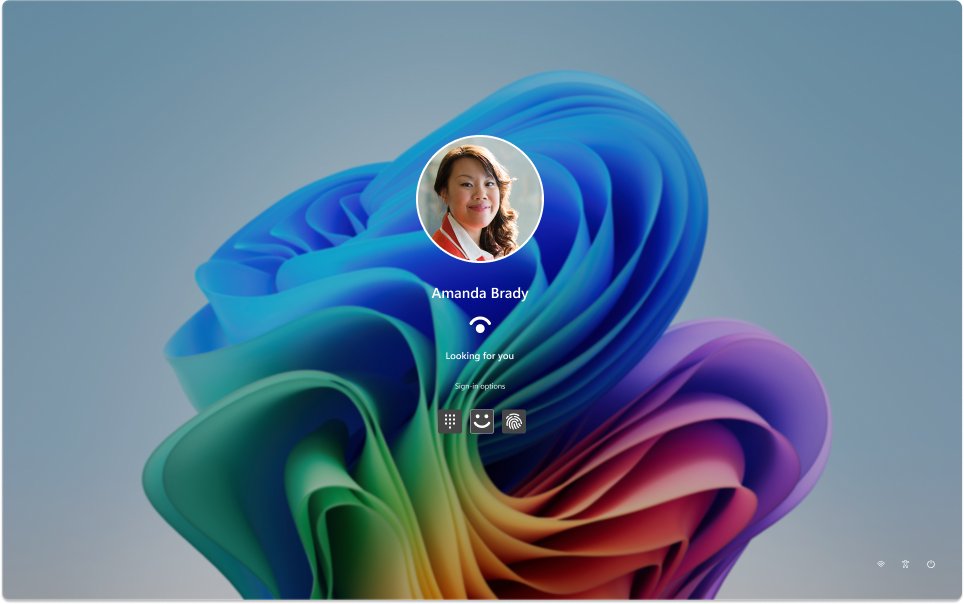
- When the visitor is done, open Start > the user picture > Sign out to return to the sign-in screen.
Disable or remove a guest account in Windows 11
Removing the account deletes its data from the PC. Disabling keeps it for the next visitor.
- Sign in with your administrator account and make sure the visitor is signed out.
- Open Settings > Accounts > Other users.
- Select the flyout for the Visitor account.
- Next to Account and data, select Remove, then confirm the deletion.
- To disable instead, run
net user Visitor /active:noin an elevated Command Prompt. - To delete from the command line, run
net user Visitor /delete.
Windows 11 guest account FAQ
How do I add a guest account in Windows 11?
Open Settings > Accounts > Other users, select Add account, then I don't have this person's sign-in information and Add a user without a Microsoft account. Name it Visitor or similar. The result is a standard local account that works as a guest account.
How do I enable the guest account in Windows 11?
The built-in Guest account is disabled by default, and Microsoft recommends keeping it that way because it allows unauthenticated access. Create a separate local standard account for visitors instead, and add it to the Guests group if you want its profile wiped at sign-out.
How do I make a guest account on Windows 11 Home?
Use the Settings method. Settings > Accounts > Other users > Add account works on Windows 11 Home and Pro. The net user command and PowerShell's New-LocalUser also run on Home from an administrator prompt.
Can I create a guest account without a password?
Yes. In an administrator PowerShell window, run New-LocalUser -Name 'Visitor' -NoPassword, then add it to the Users group with Add-LocalGroupMember. Anyone at the PC can then open that account, so use it only where the PC is physically secure.
Why can't I name the account Guest?
Windows already has a built-in account whose name is Guest, even though it is disabled. Account names on a PC must be unique, so choose another name such as Visitor, Friend or Family for the new account.
How do I open or access the guest account in Windows 11?
Open Start, select your user picture, and pick the guest account from the list, or sign out and select it on the sign-in screen. Enter its password if it has one. Your own session stays open in the background while you switch.
Does a guest account have access to my files?
A standard account has no administrator rights, so it cannot change settings that affect other users or install programs for everyone without an administrator password. It gets its own desktop, browser profile and user folders, separate from yours.
How do I remove a guest account in Windows 11?
Open Settings > Accounts > Other users, expand the account, and select Remove next to Account and data. This deletes the account and its files. From an elevated Command Prompt, net user Visitor /delete removes it as well.
Bottom line: best guest account setup for Windows 11
Create a local standard account named Visitor from Settings and leave the built-in Guest account disabled. A standard account keeps visitors away from your files and admin settings without the network exposure of the built-in Guest account. Add it to the Guests group if you want a clean desktop every time, or use a kiosk if the PC should only run a browser.