Open Microsoft Store, select your Profile icon next to the search box, choose App settings, and switch Purchase sign-in on to buy without a password or off to require one.
This guide covers both directions on Windows 11 and Windows 10, what the setting does and does not protect, how to block unwanted purchases, and what to check when a purchase fails.
How to change purchase sign-in settings
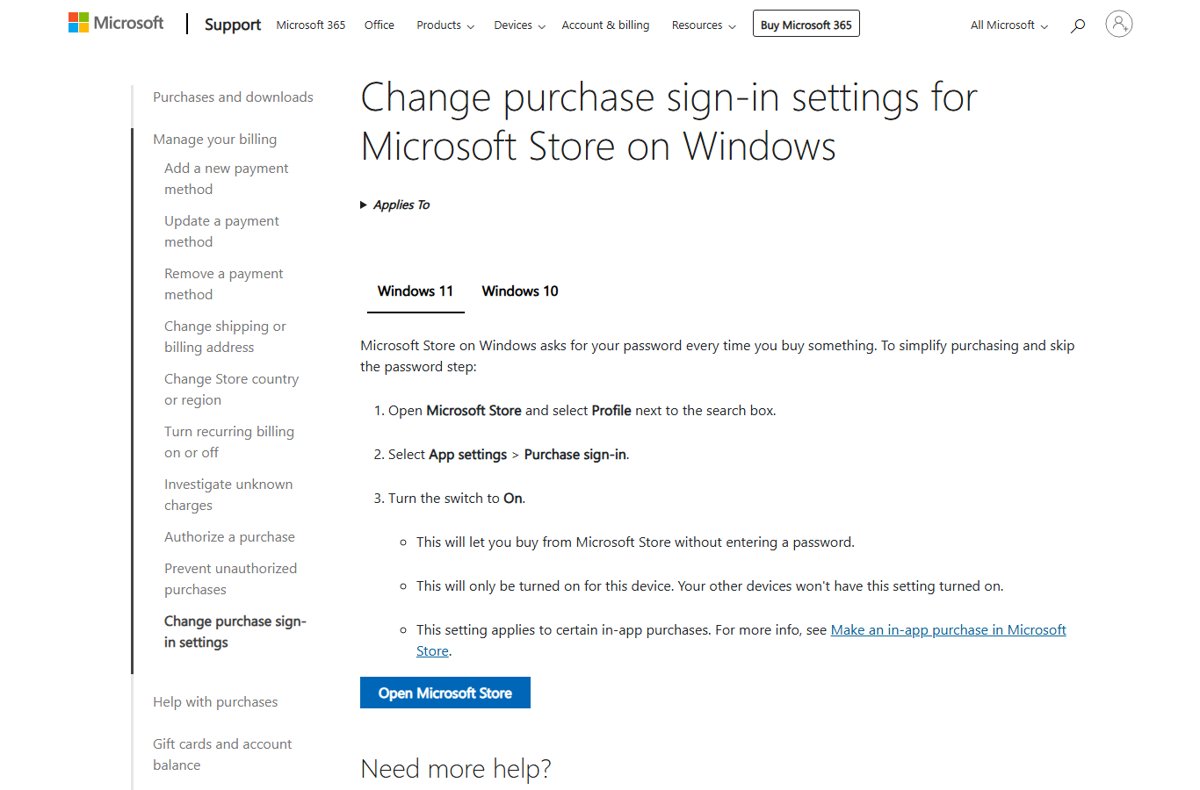
By default, Microsoft Store asks for your Microsoft account password every time you buy something. The Purchase sign-in switch changes that on the current PC.
- Open Microsoft Store from Start or the taskbar.
- Select your Profile icon next to the search box at the top of the window.
- Choose App settings.
- Find Purchase sign-in.
- Turn the switch On to buy without entering a password, or Off to require your password for every purchase.
The change applies immediately. There is no save button, and you can flip the switch back at any time.
Why purchase sign-in matters
The switch decides whether a password stands between a click and a charge on your payment method. These are the limits of what it controls.
| Question | Answer |
|---|---|
| What does turning it on do? | Lets you buy from Microsoft Store without entering your password |
| Which devices does it affect? | Only the PC where you change it; your other devices keep their own setting |
| Does it cover in-app purchases? | It applies to certain in-app purchases; some apps run their own checkout outside the Store and ask for payment details again |
| Which payment method is charged? | Most purchases go to the payment method selected for your Microsoft account |
| Which Windows versions have it? | Microsoft Store on Windows 11 and Windows 10 |
Security comparison: password requirements for Store purchases
Turning purchase sign-in on trades a step of protection for speed. Match your situation to a row.
| Your situation | Purchase sign-in | Why |
|---|---|---|
| Personal PC that only you use, with a Windows sign-in password or PIN | On is reasonable | Anyone who can buy must already be signed in to your Windows account |
| Shared family PC or a PC others use while you are signed in | Off | Microsoft says a password requirement helps stop you or anyone sharing the device from buying something by accident |
| Children use the PC with their own accounts | Off, plus Family Safety approval | The password stops adult-account purchases; Family Safety controls what the child account can buy |
| Work or public device | Off | A purchase charges your personal payment method, so keep the password step |
| You buy often and find the prompt slow | On, on that PC only | The setting does not spread to your other devices |
Preventing unauthorized purchases in Microsoft Store
To make the Store ask for a password before any purchase, turn the switch off on every device you share.
- Open Microsoft Store and select your Profile icon in the upper-right corner.
- Choose App settings.
- Turn off Purchase sign-in.
- Repeat these steps on each Windows device you share with other people.
- For a child's account, sign in to Family Safety at account.microsoft.com/family, select the child, select Manage spending, and turn on Require approval for every purchase.
A child always needs approval for purchases above their age limit or when their account has no money left. You get each purchase request as a notification and in the Family Safety feed.
If a charge already went through by mistake, the Microsoft Store refund process explains which purchases qualify.
Managing your Microsoft account and security for Store purchases
Purchase sign-in uses your Microsoft account, so the account's own security settings matter as much as the Store switch.
| Task | Where to do it | Why it helps |
|---|---|---|
| Check that your card is current | Payment options page of your Microsoft account | An expired card is a common reason a purchase fails |
| Check for overdue subscription payments | Services page of your Microsoft account | An overdue subscription can block new purchases |
| Review who can prove they are you | Security > Advanced security options in your Microsoft account | Remove sign-in methods tied to a lost or replaced phone |
| Go passwordless | Additional security options > Passwordless account > Turn on | Sign in with Microsoft Authenticator, Windows Hello or a security key instead of a password that can be stolen or guessed |
| Investigate an unknown charge | Manage your payments on your Microsoft account dashboard | Shows whether a family member made an in-app purchase |
A passwordless account needs the Microsoft Authenticator app or Outlook for Android set up first. You can add a password back later from the same Passwordless account setting.
What happens when done: check the purchase sign-in setting
- Reopen Microsoft Store, select your Profile icon and choose App settings.
- Confirm Purchase sign-in shows the state you chose.
- With it On, the next purchase on this PC completes without a password prompt.
- With it Off, the Store asks for your Microsoft account password before it charges you.
- On your other PCs, check App settings separately, because each device keeps its own value.
Troubleshooting purchase failures in Microsoft Store
"Unable to complete this transaction. Please update to the latest version of Microsoft Store"
The Store app or device is out of date.
- Select the Update to the latest version link in the message to open your Store Library.
- Select Get updates and let the Store update itself.
- Try the purchase again, or buy the item from the web store at microsoft.com/store instead.
The purchase is declined or the payment does not go through
The card on file has expired, or a subscription payment is overdue.
- Open the Payment options page of your Microsoft account and update or replace the card.
- Open the Services page and settle any overdue subscription payment.
- Return to Microsoft Store and retry the purchase.
The Store refuses all purchases on your account
The Microsoft account or the linked Xbox account is temporarily suspended.
- Sign in to your Microsoft account in a browser and check for a suspension notice.
- Check whether your Xbox account is suspended if you buy games.
- Contact Microsoft Support from the Store help page if the account is blocked.
The Store still asks for a password after you turned purchase sign-in on
The switch is per device, or the item uses its own checkout outside the Store.
- Confirm you changed Purchase sign-in on this PC, not another device.
- Check whether the app handles in-app purchases outside Microsoft Store, which can ask for payment details again.
- If the Store itself misbehaves, repair or reset the Microsoft Store app and check the switch again.
Microsoft Store purchase sign-in FAQ
Where is purchase sign-in in Microsoft Store?
Open Microsoft Store, select your Profile icon next to the search box, and choose App settings. The Purchase sign-in switch is on that page in both Windows 11 and Windows 10.
How do I stop Microsoft Store asking for my password?
Turn Purchase sign-in on under Profile > App settings in Microsoft Store. The Store then lets you buy without a password on that PC only, and your other devices keep asking.
How do I make Microsoft Store require a password for purchases?
Turn Purchase sign-in off under Profile > App settings. Repeat this on every device you share, because the setting is stored separately on each one.
Does purchase sign-in apply to in-app purchases?
It applies to certain in-app purchases made through the Microsoft Store checkout. Some apps handle in-app purchases outside the Store and may ask for payment information again whatever the switch says.
Is it safe to turn purchase sign-in on?
It is reasonable on a personal PC that only you use. On a shared or family PC, leave it off so anyone using your signed-in session cannot buy something without your password.
Does the setting sync to my other Windows PCs?
No. Microsoft states the setting is turned on only for the device where you change it, so each PC keeps its own purchase sign-in value.
How do I stop my child buying things in Microsoft Store?
Give the child their own account in Microsoft Family Safety, then open Manage spending for that child and turn on Require approval for every purchase. Purchase requests then come to you for approval.
Bottom line: should you turn Microsoft Store purchase sign-in on?
Turn purchase sign-in on only on a personal PC that nobody else uses, and keep it off on every shared device. The switch is per device and removes the only password check between a click and a charge, so the convenience is worth it only where your Windows sign-in already keeps other people out.