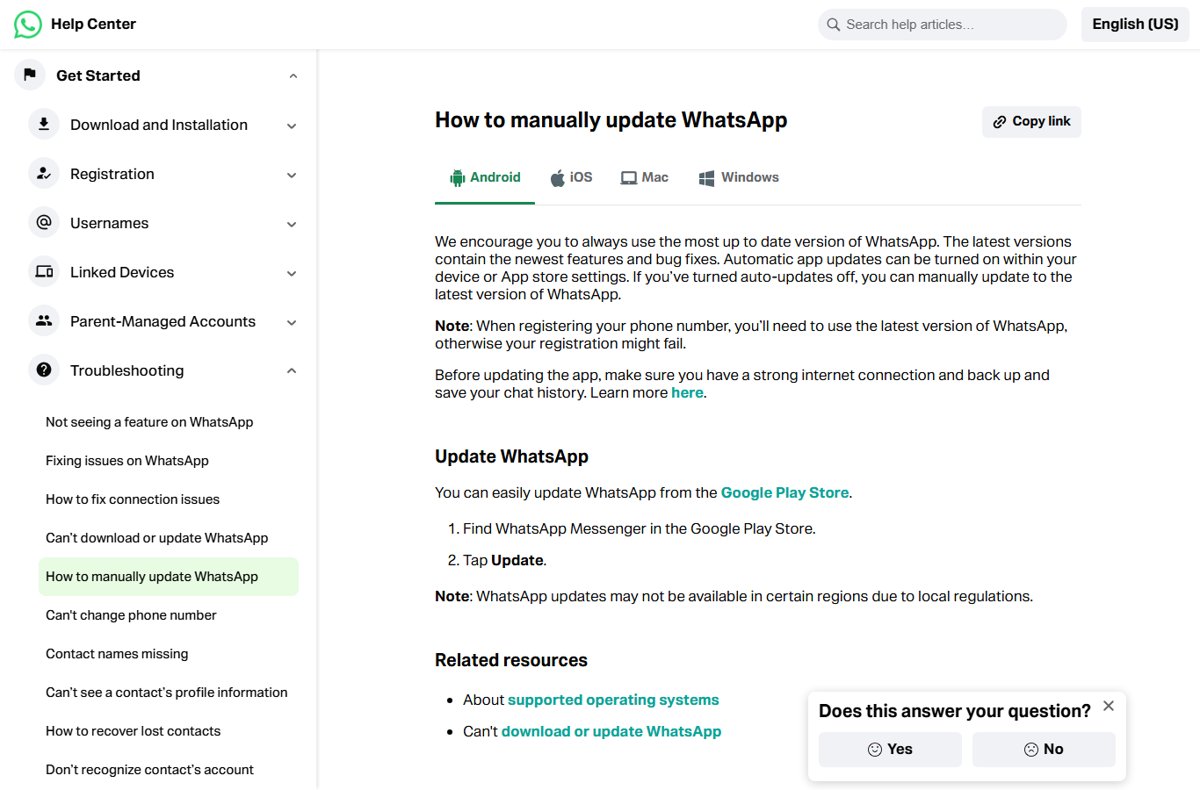
To update WhatsApp manually, open the app store your device uses (Microsoft Store, Mac App Store, Apple App Store or Google Play), find WhatsApp Messenger and select Update.
This guide covers the exact steps on a Windows laptop, Mac, iPhone and Android, the direct APK route, WhatsApp Web, the WhatsApp Business app, how to tell whether you are on the latest version, and fixes when the update will not install.
How to update WhatsApp in a laptop running Windows 11 or Windows 10
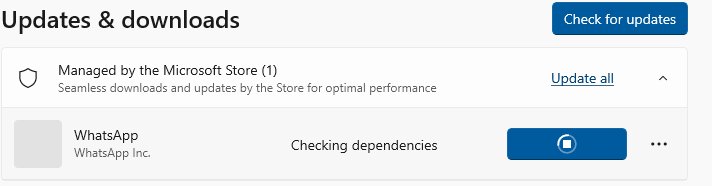
WhatsApp for Windows is distributed through the Microsoft Store, so the Store is where its updates come from, the same way you update other Microsoft Store apps. The app requires Windows 10 or newer.
- Select Start and open Microsoft Store.
- Select Library in the left pane.
- Select Get updates (labelled Check for updates on some Store versions).
- If WhatsApp appears in the list, select Update next to it, or let the Store install it automatically.
- Close WhatsApp and open it again once the download finishes.
You can also search for WhatsApp in the Store and select Update on its page. If the button reads Open, you already have the latest version.
Where to update WhatsApp on each device
| Your device | Update WhatsApp from | Minimum system version |
|---|---|---|
| Windows laptop or desktop PC | Microsoft Store > Library > Get updates | Windows 10 or newer |
| MacBook, iMac or Mac mini | Mac App Store > Updates | macOS 12.1 or newer |
| iPhone | App Store > your photo > App Updates | iOS 15.1 or newer |
| iPad | App Store > your photo > App Updates | iPadOS 15.1 or newer |
| Android phone or tablet | Google Play > profile icon > Manage apps & device | Android 6.0 or above |
| Android phone without Google Play | Direct APK from whatsapp.com | Android 6.0 or above |
| Any browser (WhatsApp Web) | Nothing to install; keep the browser current | Latest Chrome, Edge, Firefox, Opera or Safari |
WhatsApp asks you to back up your chat history and use a strong internet connection before you update. A failed registration is also a sign of an old build, because registering a phone number requires the latest version.
How to update WhatsApp on iPhone
- Open the App Store.
- Tap the My Account button or your photo at the top of the screen.
- Tap App Updates.
- Find WhatsApp Messenger and tap Update next to it, or tap Update All.
- Wait for the icon to finish loading, then open WhatsApp.
To stop doing this by hand, open Settings, tap Apps, tap App Store and turn on App Updates. iPhone apps update automatically by default, so the manual route is mainly for when an update has stalled or the setting was turned off.
How to update WhatsApp on Android
- Open the Google Play Store app.
- Tap the profile icon at the top right.
- Tap Manage apps & device.
- Under Updates available, tap See details.
- Tap Update next to WhatsApp Messenger, or tap Update all.
A faster route is to search for WhatsApp Messenger in Google Play and tap Update on its page. The button only appears there when a newer version exists.
Turn on automatic updates for WhatsApp on Android
Android offers two switches: one in Google Play for this app only, and one inside WhatsApp itself. WhatsApp's own auto-update uses Wi-Fi to avoid mobile data charges.
- In Google Play, tap your profile picture, then Manage apps & device > Manage.
- Tap WhatsApp Messenger to open its Details page.
- Tap More (the three dots) and turn on Enable auto update.
- Inside WhatsApp, open Settings > App updates.
- Turn on Auto-update WhatsApp, or leave it off and turn on WhatsApp update available under Notifications to get a prompt instead.
To change it for every app at once, open Google Play, tap your profile picture and go to Settings > Network Preferences > Auto-update apps.
How to update WhatsApp via APK file
WhatsApp publishes its Android app as a direct download on its own site for phones without Google Play. Use only whatsapp.com for this; an APK from any other site can be a modified copy.
The download page lists the current release number (version 2.26.32.84 at the time of writing) and the Android 6.0 minimum.
- Back up your WhatsApp chats first.
- On the phone, open your browser and go to whatsapp.com/download/android.
- Tap Download WhatsApp directly.
- Open the downloaded file from the browser's downloads list.
- Android asks whether your browser may install apps. Allow it for this install only, then confirm the update.
- Open WhatsApp once the install finishes, then turn the install permission for the browser back off in Android settings.
How to update WhatsApp on MacBook
WhatsApp for Mac updates through the Mac App Store and needs macOS 12.1 or newer. If your Mac is older, update macOS first.
If WhatsApp is not on your Mac yet, get WhatsApp for Mac from the Mac App Store or from the download page at whatsapp.com/download, then sign in and use the steps below for later updates.
- Open the App Store on your Mac.
- Click Updates in the sidebar.
- Click Update next to WhatsApp Messenger, or click Update All.
- Quit WhatsApp and open it again.
For automatic updates, open the App Store, choose App Store > Settings (or Preferences) from the menu bar and select Automatic Updates.
How to update WhatsApp on Windows PC
If the Library route above does not list WhatsApp, update it straight from its Store page. This works the same on a desktop PC and a laptop.
- Open Microsoft Store.
- Type WhatsApp in the search box at the top and press Enter.
- Select WhatsApp in the results.
- Click Update. If the button reads Open, no update is waiting.
- Restart WhatsApp after the update completes.
Microsoft is moving Store apps to automatic updates, with an option to pause them. If WhatsApp is missing from the Store entirely, reinstall WhatsApp for Windows and link it to your phone again.
How to update WhatsApp Web
WhatsApp Web runs in your browser, so there is no app to update. What needs updating is the browser: WhatsApp Web supports only the latest versions of Chrome, Firefox, Microsoft Edge, Opera and Safari.
- Update your browser to its latest version from its own settings or help menu.
- Go back to the WhatsApp Web tab and refresh the page.
- If messages still do not load, log out of WhatsApp Web and log in to WhatsApp Web again from your phone.
- Keep the WhatsApp app on your phone updated too, since Web is a linked device of that account.
How to update the WhatsApp Business app
WhatsApp Business is a separate app with its own store listing, so updating WhatsApp Messenger does not update it. It updates from your device's app store in the same way.
| Device | Where to find it | What to tap |
|---|---|---|
| Android | Google Play: search WhatsApp Business | Update on the app's page |
| Android (all apps) | Google Play > profile icon > Manage apps & device > See details | Update next to WhatsApp Business |
| iPhone | App Store: search WhatsApp Business | Update on the app's page |
| iPhone (all apps) | App Store > your photo > App Updates | Update next to WhatsApp Business |
How to find which version of WhatsApp you are using
The quickest proof is the store listing itself: every store shows Update only when your installed copy is older than the current release.
- Open WhatsApp's page in your device's store (Microsoft Store, Mac App Store, App Store or Google Play).
- Check the button. Open means you are on the latest version; Update means you are not.
- On Android, compare with the release number shown under Minimum Requirements on whatsapp.com/download/android.
- On iPhone, open App Updates under your account in the App Store. If WhatsApp is not listed there, it is current.
- On Windows, open Library in Microsoft Store and select Get updates. If WhatsApp does not appear, it is current.
Can’t update WhatsApp? Here’s how to fix!
WhatsApp is not updating in laptop (Microsoft Store)
An outdated Store, an outdated Windows build or a signed-out Microsoft account stops Store updates.
- Sign in to Microsoft Store with your Microsoft account.
- Select Start > Settings > Windows Update > Check for updates and install anything offered.
- In Microsoft Store, select Library > Get updates so the Store updates itself first.
- Repair or reset WhatsApp from the installed apps list in Windows Settings.
- If it still fails, uninstall WhatsApp, then reinstall it from Library in Microsoft Store.
Update stuck on pending or downloading in Google Play
Weak connection, low storage or a wrong clock on the phone.
- Switch to a strong Wi-Fi network if you can.
- Open Settings > Storage and free space if less than 1 GB is available.
- Check Settings > System > Software update for an Android update.
- Close Google Play from the recent apps view, then reopen it.
- Turn on Set time automatically under Settings > System > Date & time.
- Restart the phone and try the update again.
No Update button, but WhatsApp says it is out of date
Your device's OS is below WhatsApp's minimum, or the update is not offered in your region.
- Check your Android device's version: open Settings and tap About phone (or About tablet) > Android version.
- Check your Windows 11 or Windows 10 version: right-click Start, choose Settings, select System > About and read Windows specifications.
- Compare your OS with the minimums: Android 6.0, iOS 15.1, macOS 12.1, Windows 10.
- Install the latest system update your device offers: Settings > System > Software updates on Android, or Settings > Windows Update on Windows 11 and Windows 10. Older phones can't always run newer Android versions.
- Check the store again for the WhatsApp update.
- If the OS cannot go higher, the device is no longer supported; WhatsApp notes some updates are also unavailable in certain regions because of local regulations.
WhatsApp update problem on iPhone
Automatic updates are paused or the App Store has not refreshed its update list.
- Open the App Store, tap your photo and open App Updates.
- Tap Update next to WhatsApp Messenger.
- If the download stalls, restart the iPhone and try again on Wi-Fi.
- If WhatsApp shows a prompt to update iOS, install the latest iOS version first.
WhatsApp Web says computer not connected after an update
The computer's connection dropped, or a managed network blocks WhatsApp Web.
- Check that the computer's internet connection works in another site.
- Refresh the WhatsApp Web page, or quit and restart WhatsApp Desktop.
- Log out of WhatsApp Web or Desktop and log back in.
- On an office or campus network, ask the administrator to allow web.whatsapp.com and whatsapp.net.
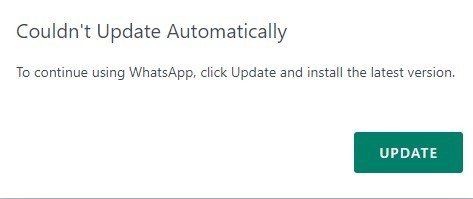
WhatsApp update on laptop FAQ
How do I update WhatsApp in my laptop?
Open Microsoft Store, select Library, then select Get updates and install the WhatsApp update. On a MacBook, open the App Store and click Update next to WhatsApp Messenger in the Updates section. Restart WhatsApp after it installs.
How do I update WhatsApp in a laptop with Windows 11?
Open Microsoft Store from Start, select Library and select Get updates. WhatsApp updates from the Store like any other Store app, and Windows 11 now installs Store app updates automatically unless you have paused them.
How do I update WhatsApp in a laptop with Windows 10?
Use the same Microsoft Store route: Library, then Get updates. WhatsApp for Windows requires Windows 10 or newer, so keep Windows 10 itself updated through Settings > Windows Update to avoid Store update failures.
How do I update WhatsApp Web in my laptop?
WhatsApp Web has nothing to install, so you update the browser instead. WhatsApp Web supports only the latest versions of Chrome, Firefox, Edge, Opera and Safari. Update the browser, then refresh the WhatsApp Web tab.
How can I update WhatsApp on a computer without the app store?
On Windows and Mac, WhatsApp's help center directs updates to the Microsoft Store and the Mac App Store, so the store is the update route. Only Android has an official direct download, the APK on whatsapp.com.
Does WhatsApp update automatically?
Usually, yes. iPhone apps update automatically by default, Windows is moving Store apps to automatic updates, and on Android WhatsApp turns on its own auto-update when you accept its terms. A manual update is needed only when that is off or stalled.
Should I back up WhatsApp before updating?
Yes. WhatsApp recommends backing up and saving your chat history and using a strong internet connection before you update the app, so a failed install does not cost you messages.
Why does WhatsApp registration fail on an old version?
WhatsApp requires the latest version when you register your phone number, and registration may fail on an older build. Update the app from your device's store, then start registration again.
Why is there no WhatsApp update for my phone?
Either the phone's OS is below the minimum (Android 6.0 or iOS 15.1) or the update is not offered in your region. WhatsApp states that updates may be unavailable in some regions because of local regulations.
Bottom line: the safest way to update WhatsApp
Update WhatsApp from your device's official store and turn on automatic updates so you rarely need the manual route. Every official WhatsApp build reaches you through the Microsoft Store, Mac App Store, App Store or Google Play, and the only sanctioned alternative is the APK on whatsapp.com for Android.