Wireshark is the best free network monitoring tool for watching live traffic, and Cisco ThousandEyes, FortiMonitor and NETGEAR Insight lead the paid options for business networks.
This list covers 22 network monitoring tools across Windows, on-premises networks and the public cloud, with what each one watches, what it costs and who it suits.
1. Wireshark: free live traffic monitoring
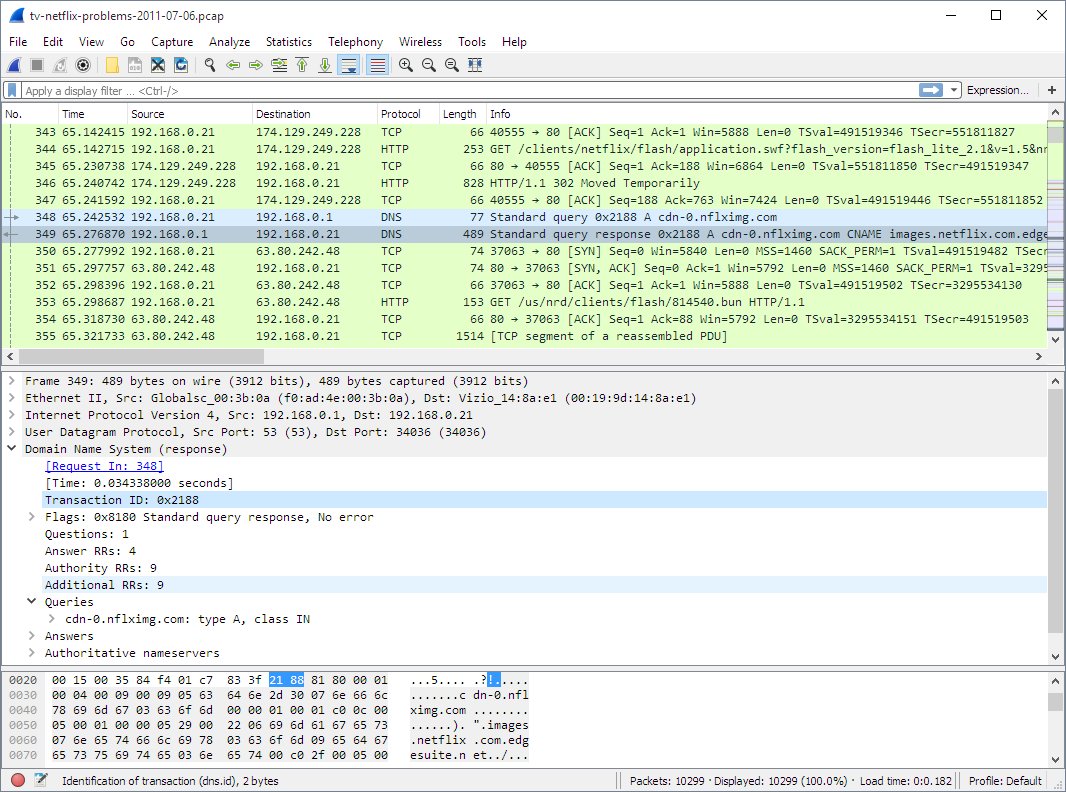
Wireshark is a free, open source network protocol analyzer under the GNU General Public License version 2. It captures live traffic and decodes hundreds of protocols on Windows, macOS and Linux.
There is no paid or demo edition. You can download Wireshark for Windows 11 and Mac from its official installer.
- Install Wireshark from the Windows x64 or Arm64 installer, or the macOS Universal Disk Image.
- Open Wireshark and double-click your active network interface on the welcome screen.
- Watch packets appear in the packet list as traffic crosses the interface.
- Type a display filter such as
dnsin the filter bar and press Enter to narrow the view. - Choose Capture > Stop when you are done, then save the capture with File > Save.
The best network monitoring tools
Pick by where your network lives and what you need to watch. Free tools cover one PC or a small office well.
| Your situation | Start with | Why |
|---|---|---|
| You want to watch traffic on one PC | Wireshark or TCPView | Free, and both show live activity within seconds |
| You cannot install software on a Windows machine | Packet Monitor (pktmon) | Built into Windows 10, Windows 11 and Windows Server |
| You need to know every device on the network | Nmap | Free host discovery and port scanning |
| Your firewall runs pfSense | ntopng or darkstat | Installs as a pfSense package on the firewall itself |
| Your routers can export NetFlow or sFlow | Cloudflare Network Flow | A free version covers home, lab and business networks |
| You run Cisco campus or branch networks | Cisco Catalyst Center or ThousandEyes | Central management, assurance and internet path visibility |
| You use FortiGate firewalls | FortiMonitor and FortiAnalyzer | Integrated with the Fortinet Security Fabric |
| You manage NETGEAR business switches and access points | NETGEAR Insight | One cloud dashboard for every NETGEAR device |
| Your workloads run in Azure, AWS or Google Cloud | The provider's own network monitoring | Native flow logs, probes and topology for that cloud |
2. Microsoft Packet Monitor (pktmon) for Windows
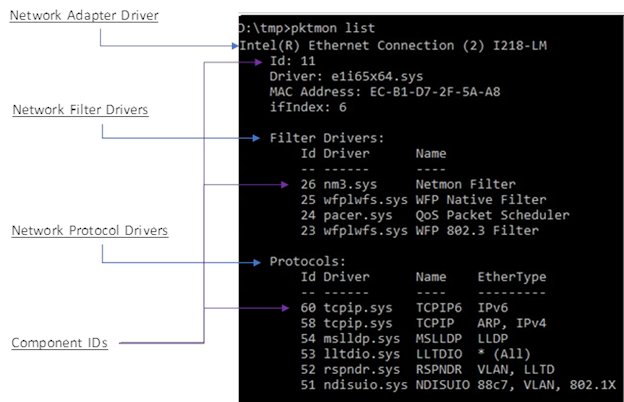
Packet Monitor is built into Windows 10, Windows 11 and Windows Server 2019 and later. It captures packets, counts traffic at each layer of the network stack and reports drops with a reason.
It is the quickest free way to monitor network traffic in Windows without installing anything.
- Open Command Prompt or Windows Terminal.
- Add a filter for the traffic you want, for example
pktmon filter add -p 443for HTTPS on port 443. - Start monitoring with
pktmon start -c. - Run
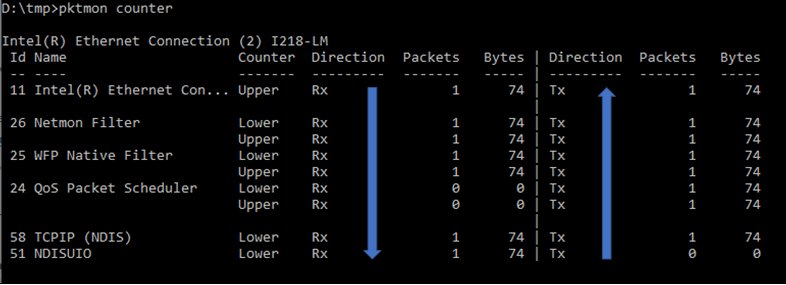
pktmon counterswhile the traffic flows to see sent and received packet counts per component. - Stop with
pktmon stop, then convert the log withpktmon etl2txt pktmon.etl.
Packet Monitor can also convert logs to pcapng for Wireshark. Windows Admin Center offers a graphical Packet Monitoring extension for servers.
3. Nmap and Zenmap for network discovery
Nmap is a free utility for network discovery and security auditing, and many admins use it for network inventory and host or service uptime checks. Zenmap is its official graphical interface.
You can download Nmap for Windows 11 and Mac, with official packages for Windows, macOS and Linux.
| Monitoring task | Nmap fit | Note |
|---|---|---|
| Find every live device on a subnet | Good fit | Host discovery is Nmap's core job |
| See which services and versions a host exposes | Good fit | Service detection reports application names and versions |
| Spot changes between scans | Good fit in Zenmap | Zenmap compares saved scan results |
| Watch bandwidth or traffic over time | Poor fit | Use Wireshark, ntopng or a flow-based tool instead |
4–5. Sysinternals TCPView and PsPing
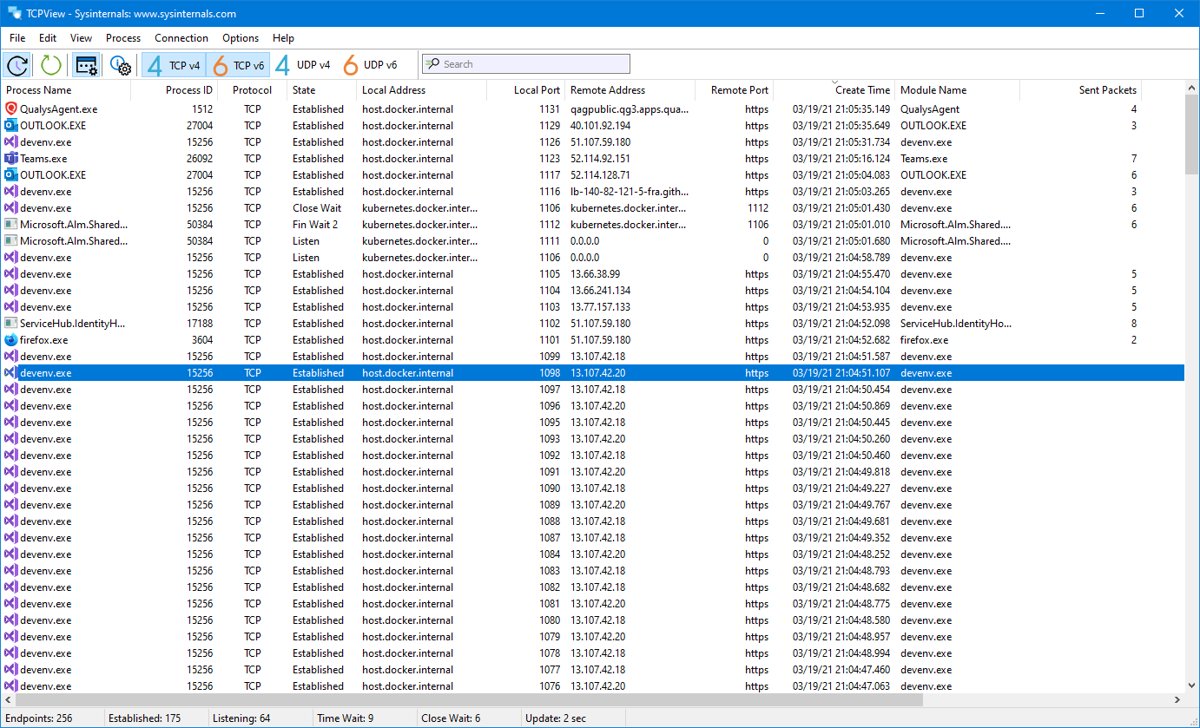
TCPView and PsPing are free Microsoft Sysinternals tools. TCPView shows live connections on one PC, and PsPing measures reachability, latency and bandwidth between two machines.
| Tool | What it monitors | How to use it |
|---|---|---|
| 4. TCPView | Every TCP and UDP endpoint, its remote address, state and owning process | Run TCPView; new endpoints show in green, changed ones in yellow and closed ones in red |
| 5. PsPing | ICMP ping, TCP ping, latency and bandwidth | Copy PsPing to your path and type psping to see the syntax; psping -? b shows the bandwidth test options |
TCPView runs on Windows 8.1 and later. Its bundled tcpvcon -a -c command prints the same endpoint list as CSV for logging.
6. Microsoft Network Monitor 3.4 (archived)
Microsoft Network Monitor 3.4 is an archived protocol analyzer that is no longer under development. It still opens Windows ETL network traces, but its supported systems list stops at Windows 7 and Windows Server 2008.
Use Packet Monitor or Wireshark for new work, and keep Network Monitor only for older captures or parsers.
- Right-click Network Monitor and choose Run as administrator.
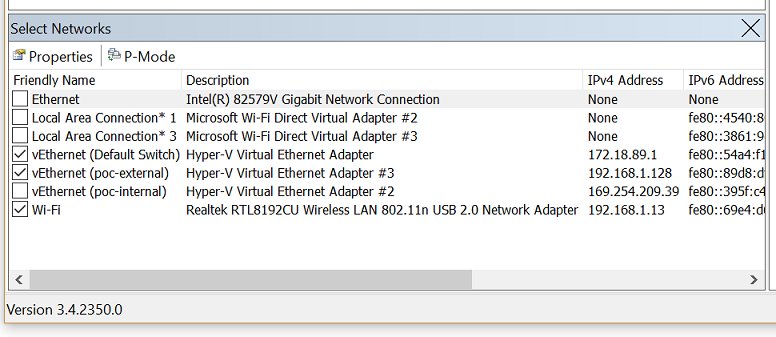
- Select the network adapters you want to capture on.
- Select New Capture, then Start.
- Reproduce the issue, then select Stop.
- Go to File > Save as to save the capture, which uses the .cap format by default.
- Filter the capture with an expression such as
Tcp.port==443to see only related traffic.
A common issue during installation is a brief network glitch, because Network Monitor hooks its driver to every network adapter. Microsoft Message Analyzer, its intended successor, was retired on November 25, 2019.
7–8. ntopng and darkstat on pfSense
ntopng and darkstat install as packages on a pfSense firewall, so they watch every device behind it without touching the clients.
| Package | What it monitors | Note |
|---|---|---|
| 7. ntopng | Network usage per host, in a top-style view, with a NetFlow and sFlow collector | Needs an SSD or hard disk on the firewall |
| 8. darkstat | Bandwidth graphs per interface and traffic to and from specific IP addresses | Appears under Services > darkstat after install |
Install either one from System > Package Manager > Available Packages in the pfSense web interface.
9. Cloudflare Network Flow (formerly Magic Network Monitoring)
Cloudflare Network Flow analyzes flow data that your routers or cloud environment send. It supports NetFlow v5, NetFlow v9, IPFIX and sFlow, plus AWS VPC flow logs through AWS Firehose.
The free version is available to anyone with a Cloudflare account for a home network, lab or business.
- Sign in to the Cloudflare dashboard and select your account.
- Open the Network flow page.
- Configure your router to export NetFlow, IPFIX or sFlow to Cloudflare.
- Add threshold rules to get notified about traffic spikes.
- Review traffic in the dashboard or through GraphQL Analytics.
Customers with public IP ranges can also use it to detect DDoS attacks and trigger Magic Transit on-demand.
10–12. Cisco ThousandEyes, Catalyst Center and Secure Network Analytics
Cisco sells three tools that cover different monitoring jobs. All three are paid enterprise products with trials or demos.
| Tool | What it monitors | Best for |
|---|---|---|
| 10. Cisco ThousandEyes | Performance across owned and unowned networks, ISPs, public cloud and SaaS apps, with a global outage map | Teams whose users depend on internet and SaaS paths |
| 11. Cisco Catalyst Center | Campus and branch, wired and wireless networks from one console, with AI diagnostics and Wi-Fi 3D views | Cisco campus networks; deploys on-premises or in a public cloud |
| 12. Cisco Secure Network Analytics | Network and cloud traffic for threats, using machine learning and behavioral modeling | Security teams detecting malware and data exfiltration |
13–14. Fortinet FortiMonitor and FortiAnalyzer
FortiMonitor and FortiAnalyzer suit networks built on FortiGate firewalls, since both integrate with the Fortinet Security Fabric.
| Tool | What it monitors | Price and deployment |
|---|---|---|
| 13. FortiMonitor | Digital experience, network paths hop by hop, live topology maps and SD-WAN underlay metrics such as packet loss, delay and jitter | SaaS; 30-day free trial and product demo |
| 14. FortiAnalyzer | Logs and telemetry from networks, endpoints and cloud in one data lake, with SOC dashboards | Paid; appliance, virtual machine or cloud, with a free demo |
15. NETGEAR Insight
NETGEAR Insight is a cloud platform to deploy, monitor and manage NETGEAR business routers, switches, access points and PoE devices. Insight 10.0 brings switching, wireless, security and mobile hotspot management into one dashboard.
| Detail | NETGEAR Insight |
|---|---|
| Price | One subscription tier for every managed device, with a free trial |
| Monitoring | Live device status, live topology, Wi-Fi coverage heatmaps and historical traffic analytics |
| Alerts | Contextual alerts and anomaly detection alerts |
| Access | Web dashboard plus a mobile app for iOS and Android |
| Uptime | 99.9% uptime SLA on the cloud service |
16–18. Azure Network Watcher, Azure Monitor Network Insights and Defender for IoT
Microsoft's network monitoring for Azure and for operational technology networks splits across three services.
| Tool | What it monitors | Price |
|---|---|---|
| 16. Azure Network Watcher | Topology, connection monitor, packet capture, flow logs and traffic analytics for Azure VMs and virtual networks | Free monthly units, then $0.50 per GB of flow logs and $0.001 per diagnostic check |
| 17. Azure Monitor Network Insights | Topology, health and metrics for all deployed Azure network resources without any configuration | Part of Azure Monitor; the connection monitor tests and flow logs it shows are Network Watcher features |
| 18. Microsoft Defender for IoT | Agentless network monitoring of IoT and OT devices, protocols and threats, with full-fidelity PCAPs | Enterprise IoT included with Microsoft 365 E5; add-on at $0.85 per device per month, paid yearly |
Network Watcher switches on automatically when you create a virtual network, at no charge. Network security group flow logs retire on September 30, 2027, so use virtual network flow logs for new setups.
19. Amazon CloudWatch synthetic network monitoring
Network Synthetic Monitor measures packet loss and latency between AWS-hosted applications and your on-premises destinations. AWS manages the probes, so you install no agents in your VPCs or data centre.
- Open Amazon CloudWatch in the AWS console and go to Network Monitoring.
- Create a monitor and choose a VPC subnet as the AWS network source.
- Add the on-premises IP addresses you want to probe.
- Review packet loss and round-trip time in the monitor's dashboard.
- Set CloudWatch alarms on the probe metrics to get alerted on degradation.
AWS's pricing example bills synthetic monitoring at $0.10 per monitored resource per hour, and flow monitoring at $0.0069 per monitored resource per hour.
20. Google Cloud network intelligence center
Network Intelligence Center is one console for Google Cloud network visibility, monitoring and troubleshooting. Network Topology, Network Analyzer and Performance Dashboard carry a 100% discount, so they cost nothing today.
| Module | What it monitors |
|---|---|
| Network Topology | A visual map of your Google Cloud network |
| Performance Dashboard | Packet loss and latency data |
| Flow Analyzer | VPC traffic flows by source, destination, ports and protocol, without SQL |
| Connectivity Tests | Reachability between VMs, clusters, load balancers and internet addresses |
| Cloud Network Insights | Multicloud and hybrid paths through active synthetic probing, licensed per monitored path |
21–22. IBM SevOne and Broadcom AppNeta
IBM SevOne and Broadcom AppNeta are paid platforms for large, distributed enterprises. Both offer demos or a product tour rather than public prices.
| Tool | What it monitors | Best for |
|---|---|---|
| 21. IBM SevOne | Network performance across hybrid clouds, containers, enterprise Wi-Fi, SD-WAN and Cisco ACI networks | Enterprises and managed service providers |
| 22. Broadcom AppNeta | End-user experience of any app from any location, using active path monitoring, synthetic transactions and packet analysis | Remote and branch workforces using SaaS apps |
Other network monitoring tools: Nagios, Zabbix, Datadog, SolarWinds and more
These platforms suit larger, multi-site or managed networks. The open source options run on your own server, while most commercial ones are delivered as SaaS.
| Tool | Licence and delivery | What it monitors |
|---|---|---|
| Nagios Core | Open source, self-hosted server | Hosts, services and network devices from one dashboard |
| Zabbix | Self-hosted server, free trial on AWS | Servers, networks, applications, databases and cloud in real time |
| Icinga 2 | Open source, on-premises, cloud or hybrid | Availability and health of servers, services and network devices, with Grafana integration |
| OpenNMS | Open source | Fault detection, performance, events and network discovery |
| Pandora FMS | SaaS, open source, on-premises or OEM licences | Networks, servers, apps and logs, including NetFlow data and SNMP traps |
| ManageEngine OpManager | Self-hosted, bring your own licence | Network monitoring and management to prevent downtime |
| Domotz | Cloud-based | Device discovery, real-time alerts, remote access and topology maps |
| Atera | SaaS | Remote monitoring and management, ticketing, patching and asset management |
| LogicMonitor | SaaS with an agentless Collector | Auto-discovered devices and performance metrics across on-premises, hybrid and cloud |
| Datadog | SaaS with an installable agent | Observability and security across more than 600 technologies |
| Dynatrace | SaaS observability | Full-stack monitoring from code-level insights to end-user tracing |
| SolarWinds Observability | SaaS | Applications, infrastructure, logs, databases, networks and digital experience |
| Kentik | SaaS, sold in units of 2,000 flows per second on an annual contract | Network traffic and flows from data center to cloud |
| NETSCOUT nGeniusONE | Virtual appliance for hybrid cloud | Availability, responsiveness and threat metrics for NetOps and SecOps teams |
| Riverbed NetProfiler | Flow-based network performance monitoring | Who uses the traffic, where it goes, and security analytics |
Paessler PRTG, Auvik, Zenoss, WhatsUp Gold and Cacti are other names you will meet when comparing tools. Check each vendor's site for current editions and pricing before you buy.
Free and open source network monitoring tools: Prometheus, LibreNMS, Checkmk and Observium
These self-hosted tools cost nothing to license, so you only pay for the server they run on. Each is also offered as a ready-made image on AWS Marketplace if you would rather not install it yourself.
| Tool | What it does | Best for |
|---|---|---|
| Prometheus | Open source metrics collection and alerting, usually paired with Grafana dashboards | Cloud-native infrastructure and services |
| LibreNMS | Open source network discovery, SNMP monitoring, alerting, syslog handling and distributed polling | Routers, switches and other SNMP devices |
| Checkmk Community Edition | Open source infrastructure and application monitoring with agent-based and agentless checks for several hundred technologies | Servers, applications and network devices in one place |
| Observium | Network monitoring server, offered as a preconfigured Debian appliance | A ready-to-run network monitoring server |
Graphite, NetXMS, Netdisco, RANCID, Advanced IP Scanner and Obkio also appear in free-tool roundups, and BitMeter OS and NetWorx show up in bandwidth usage monitoring lists. PandoraFMS, covered in the table above, also has an open source licence option. Check each project's own site for current platforms and licence terms before you install one.
Network monitoring tools compared
Use this quick comparison to shortlist the 22 tools by price, platform and what they monitor.
| Tool | Free or paid | Where it runs | Monitors |
|---|---|---|---|
| 1. Wireshark | Free | Windows, macOS, Linux | Live packets |
| 2. Packet Monitor | Free, built in | Windows 10, 11, Server | Packets, counters, drops |
| 3. Nmap and Zenmap | Free | Windows, macOS, Linux | Devices, ports, services |
| 4. TCPView | Free | Windows 8.1 and later | Connections per process |
| 5. PsPing | Free | Windows | Latency and bandwidth |
| 6. Network Monitor 3.4 | Free, archived | Windows 7 era | Packets and ETL traces |
| 7. ntopng | pfSense package | pfSense firewall | Per-host usage, flows |
| 8. darkstat | pfSense package | pfSense firewall | Bandwidth per interface and IP |
| 9. Cloudflare Network Flow | Free version | Cloud | NetFlow, IPFIX, sFlow |
| 10. Cisco ThousandEyes | Paid | Cloud | Internet and SaaS paths |
| 11. Cisco Catalyst Center | Paid | On-premises or cloud | Campus and branch networks |
| 12. Cisco Secure Network Analytics | Paid | Enterprise | Traffic for threats |
| 13. FortiMonitor | Paid, 30-day trial | SaaS | Digital experience, paths |
| 14. FortiAnalyzer | Paid | Appliance, VM, cloud | Logs and telemetry |
| 15. NETGEAR Insight | Subscription, trial | Cloud | NETGEAR devices |
| 16. Azure Network Watcher | Free units, then pay as you go | Azure | Flows, captures, tests |
| 17. Azure Monitor Network Insights | Part of Azure Monitor | Azure | Resource health, topology |
| 18. Defender for IoT | Paid or in Microsoft 365 E5 | Cloud, on-premises, hybrid | IoT and OT devices |
| 19. CloudWatch Network Synthetic Monitor | Pay as you go | AWS | Hybrid loss and latency |
| 20. Network Intelligence Center | Core modules free | Google Cloud | Topology, flows, performance |
| 21. IBM SevOne | Paid | Enterprise | Hybrid network performance |
| 22. Broadcom AppNeta | Paid | SaaS | End-user app experience |
What is network monitoring software?
Network monitoring software watches devices, links and traffic continuously and alerts you when something degrades or fails. It answers whether the network is up, how fast it is and who is using it. Monitoring supports operational resilience, because it is often the first place a failing link or device shows up.
| Question it answers | Typical measurement | Example tool |
|---|---|---|
| Is a device or path up? | Reachability and availability | Azure Network Watcher connection monitor |
| Is the network fast enough? | Latency, packet loss and jitter | FortiMonitor, CloudWatch Network Synthetic Monitor |
| Who is using the bandwidth? | Traffic per host or application | ntopng, Cloudflare Network Flow |
| What is on my network? | Device and service inventory | Nmap, NETGEAR Insight |
| Is something malicious happening? | Unusual traffic behavior | Cisco Secure Network Analytics, Defender for IoT |
How does a network monitoring tool work?
| Method | How it works | Tools that use it |
|---|---|---|
| Packet capture | Copies packets from a network interface and decodes them | Wireshark, Packet Monitor, Network Monitor 3.4 |
| Flow export | Routers send summaries such as NetFlow, IPFIX or sFlow to a collector | Cloudflare Network Flow, ntopng |
| Cloud flow logs | The cloud provider logs IP traffic for virtual networks | Azure Network Watcher, Google Flow Analyzer |
| Synthetic probes | Sends test traffic along a path and measures loss and latency | ThousandEyes, FortiMonitor, CloudWatch Network Synthetic Monitor, AppNeta |
| Active scanning | Probes hosts to find devices and open services | Nmap |
| Device management | Collects status and metrics from managed switches and access points | NETGEAR Insight, Cisco Catalyst Center |
What are the types of network monitoring software?
| Type | What it covers | Examples from this list |
|---|---|---|
| Packet analyzers | Individual packets and protocols | Wireshark, Packet Monitor |
| Endpoint and connection monitors | Connections on a single computer | TCPView |
| Flow and bandwidth monitors | Who talks to whom and how much | ntopng, darkstat, Cloudflare Network Flow |
| Network performance monitors | Latency, loss and device health across a network | IBM SevOne, Cisco Catalyst Center |
| Digital experience monitors | Performance from the user's point of view, including internet and SaaS paths | ThousandEyes, FortiMonitor, AppNeta |
| Cloud network monitors | Virtual networks inside one cloud provider | Azure Network Watcher, CloudWatch, Network Intelligence Center |
| Security-focused monitors | Threats and anomalies in traffic | Cisco Secure Network Analytics, Defender for IoT, FortiAnalyzer |
What is the difference between network monitoring and application performance monitoring?
Network monitoring checks the paths and devices that carry traffic; application performance monitoring checks the software that runs on top of them. Digital experience tools sit between the two and tell you which side caused a slowdown.
| Network monitoring | Application performance monitoring | |
|---|---|---|
| Watches | Routers, switches, links, latency and packet loss | Application code, transactions and response times |
| Answers | Is the network causing the problem? | Is the application causing the problem? |
| Example | Azure Network Watcher, NETGEAR Insight | Application monitoring products such as Azure Monitor Application Insights |
| Overlap | Google Cloud Network Insights checks whether an app slowdown comes from the network or the app | AppNeta and FortiMonitor measure app experience over the network path |
Features to look for in network monitoring tools
| Feature | Why it matters |
|---|---|
| Automatic discovery and topology maps | You cannot monitor devices you do not know about |
| Alerts with thresholds | Problems reach you before users report them |
| Flow or traffic analysis | Shows which hosts and apps use the bandwidth |
| Latency, loss and jitter tracking | These metrics explain slow calls and apps |
| Historical data | Lets you compare today's problem with a normal day |
| Cloud and hybrid coverage | Most networks now span offices, home workers and cloud providers |
| Integrations | Ticketing, SIEM and chat tools turn alerts into action |
| AI-enabled automation | Event correlation and automated fixes cut alert noise, as with SolarWinds Observability's machine-learning AIOps or Atera's autonomous IT agent |
| Clear pricing model | Per device, per GB or per probe pricing changes total cost a lot |
How do I monitor all network traffic?
A single PC only sees its own traffic, so monitoring a whole network means collecting data where all traffic passes: the router, the firewall or the cloud network.
| Where to collect | How | Tool |
|---|---|---|
| Your router | Export NetFlow, IPFIX or sFlow to a collector | Cloudflare Network Flow |
| Your pfSense firewall | Install a monitoring package on the firewall | ntopng or darkstat |
| A Windows server or PC | Capture traffic on the machine's own interfaces | Packet Monitor or Wireshark |
| Azure virtual networks | Turn on virtual network flow logs and traffic analytics | Azure Network Watcher |
| Google Cloud VPCs | Turn on VPC Flow Logs and open Flow Analyzer | Network Intelligence Center |
| Managed switches and access points | Adopt them into the vendor's cloud dashboard | NETGEAR Insight or Cisco Catalyst Center |
How to check your network monitoring tool is collecting data
- Generate known traffic, such as opening a website from a monitored device.
- In Wireshark, confirm new packets appear and the
dnsfilter shows the site's name. - In Packet Monitor, run
pktmon countersand confirm the counts rise. - In a flow tool such as Cloudflare Network Flow or ntopng, confirm the device's IP address appears in the traffic view.
- In a cloud tool, confirm the probe or connection test shows a reachable status and a round-trip time.
Network monitoring tools FAQs
What is network monitoring?
Network monitoring is the continuous checking of network devices, links and traffic for availability, speed and unusual activity. Tools collect packets, flow records, probe results or device metrics, then show dashboards and send alerts when a value crosses a threshold.
How do you monitor network traffic in Windows?
Use Packet Monitor, which is built into Windows 10 and Windows 11. Run pktmon filter add to pick the traffic, pktmon start -c to capture, pktmon counters to watch counts, and pktmon stop to finish. Wireshark is the free graphical alternative.
Where is Network Monitor in Windows 11?
Windows 11 has no app called Network Monitor. Microsoft Network Monitor 3.4 is a separate, archived download whose supported list ends with Windows 7 and Windows Server 2008. The built-in tool in Windows 11 is Packet Monitor, run with the pktmon command.
What is Microsoft Network Monitor?
Microsoft Network Monitor is a protocol analyzer that captures, displays and analyzes network data. Version 3.4 is the latest, and Microsoft now lists it as archived and no longer under development. It can still open ETL traces created by Windows netsh and Packet Monitor.
How do you use Microsoft Network Monitor?
Run Network Monitor as administrator, select the adapters to capture on, then select New Capture and Start. Reproduce the problem, select Stop, and save the capture with File > Save as. Apply a filter such as Tcp.port==443 to show only related traffic.
Is Wireshark a network monitoring tool?
Yes, for live traffic on the interfaces it can see. Wireshark captures and decodes packets in real time, but it is not an intrusion detection system and does not send alerts. For continuous, network-wide monitoring, pair it with a flow or performance monitoring tool.
Why is network monitoring important?
Network monitoring catches outages, slowdowns and suspicious traffic before users report them. It also shows which devices and apps use the bandwidth, which helps with capacity planning, and it gives you history to compare a bad day against a normal one.
Why monitor network traffic?
Monitoring traffic shows who is using the network, how much and for what. That helps you find bandwidth hogs, troubleshoot slow apps, plan upgrades and spot unusual patterns such as data exfiltration or DDoS attacks.
How do you monitor network activity on a computer?
Open TCPView to see every connection on the PC and the process that owns it, updated every second. For packet-level detail, capture with Wireshark or Packet Monitor. For latency and bandwidth to another machine, run PsPing.
What is the best free network monitoring tool?
Wireshark is the best free tool for watching live traffic on a computer. For a whole network, Cloudflare Network Flow has a free version that reads NetFlow, IPFIX and sFlow from your router, and ntopng runs on a pfSense firewall.
How do you monitor a computer network?
Collect data where traffic passes: export flows from the router, run a monitoring package on the firewall, or adopt switches into a cloud dashboard such as NETGEAR Insight. Add Nmap scans for inventory, and set alerts for latency, loss and device status.
Bottom line: which network monitoring tool to use in 2026
Use Wireshark, Packet Monitor and TCPView to monitor a single computer, add Cloudflare Network Flow or ntopng for a whole home or office network, and choose your firewall, switch or cloud vendor's own platform for business monitoring. The free tools cover packet and connection monitoring at no cost, while vendor platforms such as FortiMonitor, Catalyst Center, NETGEAR Insight and Azure Network Watcher already have access to the devices and clouds you run.