Sign in to Samsung Find at samsungfind.samsung.com with your Samsung account, pick your Galaxy phone or tablet from the device list, and its location appears on the map.
This guide covers the settings the device needs, live tracking, ringing, remote lock and erase, finding a phone from a Galaxy Watch, and Google Find Hub as a second route.
Find your phone or tablet
Use any computer browser or another phone. The lost device must be signed in to the same Samsung account you use on the website.
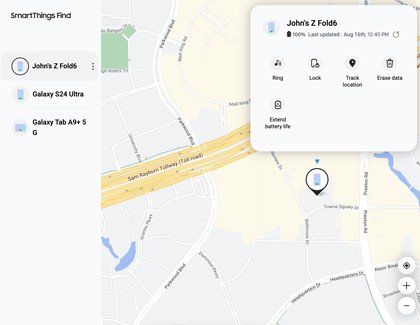
- Open samsungfind.samsung.com (or smartthingsfind.samsung.com) in a browser.
- Sign in with the Samsung account that is registered on the lost phone or tablet. If two-step verification sends its code to the missing phone, use a Samsung account backup code instead.
- Select the lost device in the device list on the left side of the page.
- Read its position on the map. If the device is switched off, the map shows its last known location instead.
- Choose an action from the device panel: Track location, Ring, Lock, Erase data or Extend battery life.
If the device could be stolen, do not go to the location yourself. Contact the police and give them the location shown on the map.
SmartThings Find vs Samsung Find vs Google Find Hub
Samsung offers two finder services that both work from a Galaxy phone and from a website. Google Find Hub is a separate service tied to your Google account.
| Your situation | Use this | Why |
|---|---|---|
| You use a Samsung account on the lost device | Samsung Find (samsungfind.samsung.com) | Locate, track, ring, lock, erase and extend battery from one page, plus a found notification |
| You already use the SmartThings app | SmartThings Find (smartthingsfind.samsung.com) | Same core controls as Samsung Find, reached through SmartThings |
| You only know your Google account password | Google Find Hub (google.com/android/find) | Works with the Google account signed in on the phone, no Samsung account needed |
| The phone is nearby and you wear a Galaxy Watch | Samsung Find on the watch | Rings the phone from your wrist without opening a browser |
| You also lost a Galaxy Watch or Buds | SmartThings Find or Samsung Find | Both list Galaxy wearables alongside phones and tablets; Find Hub covers phones and tablets only |
How does SmartThings Find work
SmartThings Find, the service Samsung used to call Find My Mobile, locates devices that are registered to your Samsung account. Sign in to the SmartThings Find website and it lists every registered device, so one login covers your phone, tablet, watch and earbuds.
From that list you can track a lost device, make it ring, lock it, and back up or delete its data. The device needs a data connection, either mobile data or Wi-Fi, for these controls to reach it.
| Devices that support SmartThings Find | Supported | What it needs |
|---|---|---|
| Samsung Galaxy phones | Yes | Samsung account signed in and the find setting turned on |
| Samsung Galaxy tablets | Yes | Samsung account signed in and the find setting turned on |
| Galaxy Watch | Yes, some models | Registered to the same Samsung account |
| Galaxy Buds | Yes, some models | Registered to the same Samsung account |
| Galaxy SmartTag and SmartTag-compatible third-party devices | Yes | Registered with SmartThings |
On older Galaxy software the setting sits under Settings > Samsung account > Find My Mobile; current devices use the Lost device protection switches listed in the requirements table below.
Phone and tablet requirements
These settings must be on before the device goes missing. Check them now in the phone's Settings app on every Galaxy phone or tablet you own.
| Requirement | Where to set it | What happens without it |
|---|---|---|
| Device is powered on | Not a setting | Only the last known location appears |
| Network connection (Wi-Fi or mobile data) | Quick settings panel | Live location, lock and erase cannot reach the device |
| Samsung account signed in | Your Samsung account in Settings | The device is missing from the Samsung Find list |
| Allow this phone to be found (or Allow this tablet to be found) | Settings > Security and privacy > Lost device protection | Remote controls are unavailable |
| Send last location | Settings > Security and privacy > Lost device protection | Required by Samsung for full remote finding |
| Offline finding | Settings > Security and privacy > Lost device protection | Required by Samsung for finding the device while it is offline |
Track a missing phone or tablet
Tracking keeps refreshing the location so you can see whether the device is moving.
- Sign in at samsungfind.samsung.com or smartthingsfind.samsung.com and select the device.
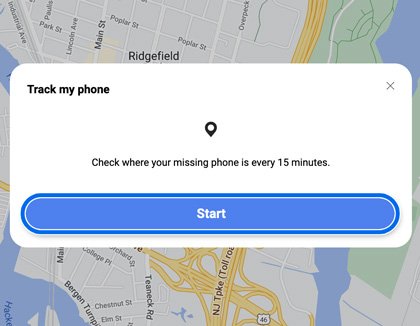
- Select Track location, then select Start.
- Watch the map. The location updates about every 15 minutes.
- On Samsung Find, turn on Notify me when it's found to get an alert when the device reconnects.
- If prompted, turn on Emergency mode and enter an email address to receive a message when the device is located.
- Select Stop, then Agree, to end tracking.
If tracking still shows nothing useful, contact your mobile carrier and report the device as lost.
Make your phone or tablet play a ringtone
Ringing is the quickest fix when the device is somewhere in your home, car or office.
- Select the device in Samsung Find or SmartThings Find.
- Select Ring, then select Start.
- Listen for the ringtone. It plays for one minute, even when the device is set to Mute or Vibrate.
- Swipe Dismiss on the device once you find it, or select Stop on the website.
Extend your phone's or tablet's battery life
A low battery ends the search early. This remote switch buys time by turning on Maximum power saving mode.
- Select the device in Samsung Find or SmartThings Find.
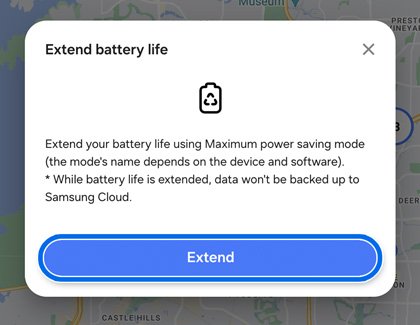
- Select Extend battery life.
- Select Extend to confirm.
- Keep tracking the device; it now uses far less power while staying reachable.
Remotely lock your phone or tablet
Lock the device first if you think someone else has it. A lock keeps your data safe while you keep tracking it.
- Select the device, then select Lock.
- Select Next.
- Create a PIN and enter it a second time to confirm it.
- Optionally add an emergency contact number and a message to show on the lock screen.
- Select Lock. The device stays locked until someone enters that PIN.
Erase all data from your phone or tablet
Erasing is permanent and also wipes the data on an inserted SD card. Use it only when you do not expect to get the device back.
- Select the device, then select Erase data.
- Sign in to your Samsung account again if the site asks.
- Read the warning about losing all data.
- Select Erase to wipe the device.
- If the device turns up later, sign in with the Google account that was registered on it. Google device protection blocks setup until that account is entered.
If a remote erase is impossible, change the passwords for every account signed in on the device. Changing your Samsung account password signs out every device that uses that account.
Find your phone using your Galaxy watch
The watch must be connected to the phone over Bluetooth, or remotely over Wi-Fi or LTE.
- Press the Home key on the Galaxy Watch.
- Swipe to the app list and tap Samsung Find.
- Tap Continue and grant the permissions it asks for the first time.
- Select your phone in the list.
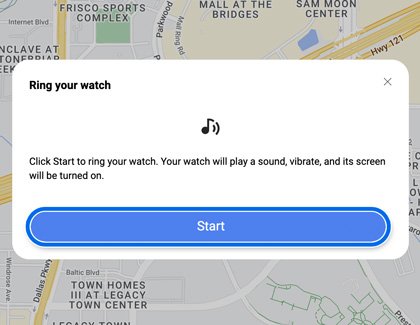
- Tap the Ring icon to make the phone ring.
- Swipe Dismiss on the phone, or tap Stop on the watch, once you find it.
Other services for lost phones or tablets: Google Find Hub
Every Galaxy phone and tablet with a Google account can also be found with Google Find Hub, the same service that can find a lost Android phone from other brands. It needs power, a connection, a signed-in Google account and Find Hub turned on.
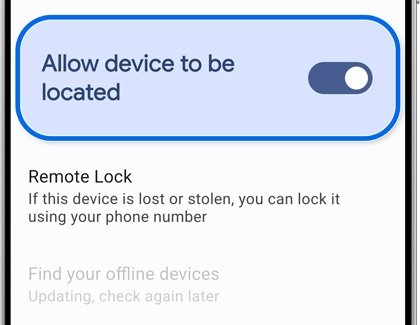
- On the Galaxy device beforehand, open Settings > Google, check your account is selected, tap Find Hub and turn on Allow device to be located.
- When the device is lost, open google.com/android/find in a browser, or the Find Hub app on another Android device.
- Sign in with the Google account used on the lost device and select it.
- Select Play sound to ring it at full volume for 5 minutes, even on silent.
- Select Mark as lost to lock it and show contact details on the lock screen.
- Select Factory reset under the device's settings only if you need to erase it; the device then disappears from Find Hub.
Why can't Samsung Find find my phone?
The phone does not appear in the Samsung Find device list
The website is signed in to a different Samsung account, or the phone was never signed in to one.
- Sign out of samsungfind.samsung.com and sign back in with the account used on the phone.
- If the phone never had a Samsung account, try Google Find Hub with the phone's Google account instead.
Samsung Find shows only an old location
The phone is switched off or has no network connection, so only the last saved location is available.
- Select Track location and turn on Notify me when it's found so you get an alert when it reconnects.
- Check Google Find Hub as well, which shows the last known location saved to your Google account.
Lock, ring or erase does nothing
Remote commands need the device to be powered on and online, and Allow this phone to be found must have been on.
- Change your Samsung and Google account passwords if you think the device was stolen.
- Contact your mobile carrier and report the device as lost.
Samsung find my phone FAQ
Does Samsung have a find my phone feature?
Yes. Galaxy phones and tablets include Samsung Find and SmartThings Find, which locate, ring, lock and erase a lost device from samsungfind.samsung.com or smartthingsfind.samsung.com. Google Find Hub is also available through the phone's Google account.
How does Samsung find my phone work?
The phone reports its location to your Samsung account over Wi-Fi or mobile data. When you sign in to Samsung Find, it shows that location on a map. If the phone is off, you see its last known location instead.
How can I find my Samsung phone location from a computer?
Open samsungfind.samsung.com in any browser, sign in with the Samsung account used on the phone, and select the phone in the list on the left. Its current or last known location appears on the map.
Can I find my Samsung phone using my watch?
Yes. On a connected Galaxy Watch, open Samsung Find, select your phone and tap the Ring icon. The watch must be linked to the phone by Bluetooth, or remotely over Wi-Fi or LTE.
How can I find my lost Samsung phone for free?
Samsung Find, SmartThings Find and Google Find Hub are all free. Each needs the account that was signed in on the phone: a Samsung account for the first two and a Google account for Find Hub.
Why can't Samsung find my phone?
The phone is usually switched off, offline, signed in to a different Samsung account, or had Allow this phone to be found turned off. A switched-off phone shows only its last known location.
Can I find my Samsung phone if it is turned off?
You see only its last known location. Turn on Notify me when it's found in Samsung Find to get an alert when the phone powers on and reconnects.
Can I find my Samsung phone with my Google account?
Yes. Go to google.com/android/find and sign in with the Google account on the phone. Find Hub can show its location, play a sound, mark it as lost or factory reset it.