To remove a printer driver from Windows 10, delete the printer in Settings > Devices > Printers & scanners, then remove its driver from the Drivers tab of Printer server properties.
This guide covers that route plus Control Panel, Device Manager, Print Management, Command Prompt, PowerShell and pnputil, how to clear the driver store, and what to do when Windows puts the driver straight back. Reinstalling the printer later starts from a clean slate, and adding printers in Windows 10 and 11 is the place to begin.
How to remove or uninstall printer drivers in Windows 10
Windows will not delete a driver while a printer still uses it, so the printer goes first and the driver second. Sign in with an administrator account before you start.
- Unplug the printer's USB cable, or switch the printer off if it connects over the network.
- Select Start > Settings > Devices > Printers & scanners.
- Select the printer, select Remove device, and confirm.
- Under Related settings, select Printer server properties.
- Open the Drivers tab, select the driver for that printer, and select Remove.
- Choose Remove driver and driver package, select OK, and confirm the deletion.
- Restart the PC so Windows releases any driver files it still has loaded.
On Windows 11 the same page sits at Settings > Bluetooth & devices > Printers & scanners, and the button reads Remove instead of Remove device.
Which printer driver removal method should you use?
| Your situation | Use this method | Why |
|---|---|---|
| You want the printer and its driver gone for good | Settings plus Printer server properties | Built into every Windows 10 edition and removes the driver package too |
| The vendor installed a suite, scan app or updater | Settings > Apps or Programs and Features | Vendor software has its own uninstaller that the driver tools do not run |
| The printer shows a warning icon or will not install cleanly | Device Manager with Delete the driver software for this device | Removes the device entry and its driver package in one pass |
| You manage several printers or a print server | Print Management | Lists every printer and driver on the PC in one console |
| You need a script or remote removal | PowerShell Remove-Printer and Remove-PrinterDriver |
Works with wildcards, remote computers and remoting sessions |
| The driver keeps coming back after removal | pnputil /delete-driver on the driver store |
Deletes the copy Windows reinstalls from |
| A deleted printer left an Offline status behind | Registry Editor | Clears the leftover key the spooler does not delete |
Uninstall printer software using Settings
Many printers install more than a driver: a scan utility, an ink monitor, or an update service. Remove those from the apps list, or they can reinstall the driver later.
- Select Start > Settings > Devices > Printers & scanners, select the printer and select Remove device if it is still listed.
- Go back to Settings and select Apps > Apps & features.
- Type the printer brand in the search box above the list.
- Select each printer app or driver package that appears and select Uninstall.
- Follow the vendor's uninstall wizard to the end, then restart the PC.
On Windows 11 the list is at Settings > Apps > Installed apps; select More (the three dots) next to the app, then Uninstall. Some apps cannot be removed from Settings and must go through Control Panel instead.
Remove printer driver from Print Server Properties
Printer server properties is the one place that lists every printer driver Windows has installed, including drivers for printers you deleted months ago. The Remove button is unavailable for a driver while a printer still uses it.
- Press Win + R, type
rundll32 printui.dll,PrintUIEntry /sand press Enter to open Printer server properties directly. You can also reach it from Printers & scanners > Printer server properties. - Select the Drivers tab.
- Select the driver to delete. Check the Processor column if the same driver is listed for both x64 and x86.
- Select Remove.
- Choose Remove driver only to keep the package for a quick reinstall, or Remove driver and driver package to delete the files from the driver store as well.
- Select OK, then Yes to confirm, and Delete if a package list appears.
- Repeat for every leftover driver, then select Close.
Uninstall printer driver using Control Panel
Control Panel still holds two of the classic tools: Devices and Printers for the printer itself and Programs and Features for the vendor software.
- Type Control Panel in the taskbar search box and open it.
- Select Hardware and Sound > Devices and Printers.
- Right-click the printer and select Remove device, then confirm.
- Go back to the Control Panel home and select Programs > Programs and Features.
- Right-click the printer software and select Uninstall or Uninstall/Change.
- Finish the uninstaller, then remove any driver still listed in Printer server properties.
Uninstall a printer driver with Device Manager
Device Manager is the route Microsoft documents for removing a device together with its driver package. The delete option only appears when you run Device Manager as admin.
- Unplug the printer first, or Windows may detect it again and reinstall the driver.
- Type Device Manager in Windows search and open it.
- Select View > Show hidden devices.
- Expand Print queues or Printers.
- Right-click the printer and select Uninstall device.
- Tick Delete the driver software for this device in the Confirm Device Removal box, then select OK.
- Restart the computer if Windows asks you to.
The same routine works for other hardware, for example when you need to reinstall Bluetooth drivers on the same PC.
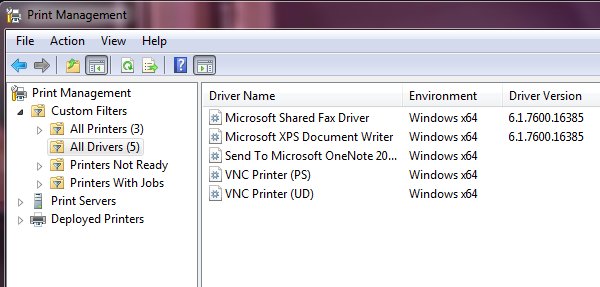
Use Print Management to remove old printers
The Print Management console handles printers, printer drivers and print servers. Microsoft ships it as a preinstalled Feature on Demand from Windows 10 version 2004.
- Press Win + R, type
printmanagement.mscand press Enter. - Expand Print Servers, then expand the entry with your computer's name.
- Select Printers, right-click each old printer and select Delete.
- Select Drivers under the same computer.
- Right-click the driver you no longer need and select Remove Driver Package to delete it along with its files, or Delete to remove only the driver.
- Confirm the prompt, then restart the Print Spooler or the PC.
If printmanagement.msc does not open, add the console from an elevated Command Prompt with DISM /Online /Add-Capability /CapabilityName:Print.Management.Console~~~~0.0.1.0.
Delete old printers via Registry Editor
The registry is a cleanup step, not a removal tool. Use it only for a known leftover: a deleted print queue whose name now comes back as Offline when you add a new printer with the same name.
- Remove the printer with one of the methods above first.
- Press Win + R, type
regeditand press Enter. - Select
HKEY_LOCAL_MACHINE\SYSTEM\CurrentControlSet\Control\Print, then select File > Export and save a backup of the key. - Go to
HKEY_CURRENT_CONFIG\System\CurrentControlSet\Control\Print\Printers. - Right-click the subkey named after the deleted printer and select Delete, then Yes.
- Close Registry Editor, restart the PC, and add the printer again.
To undo a mistake, double-click the exported .reg file and accept the merge prompt.
Uninstall printer using Command Prompt
printui.dll holds the same functions as the printer dialogs, so Command Prompt can delete a printer and its driver without opening a window. Open Command Prompt with Run as administrator. The PrintUIEntry keyword is case sensitive.
- Run
rundll32 printui.dll,PrintUIEntry /sand note the exact printer driver name shown on the Drivers tab. - Delete the local printer with
rundll32 printui.dll,PrintUIEntry /dl /n "Printer name". - Delete a network printer connection with
rundll32 printui.dll,PrintUIEntry /dn /n "\\server\printer". - Delete the driver with
rundll32 printui.dll,PrintUIEntry /dd /m "Driver name". Add/h "x64"to target the 64-bit copy when two architectures are listed. - Add
/qto any of these commands to run it without notifications. - Restart the spooler with
net stop spoolerfollowed bynet start spooler.
Remove a printer using PowerShell
The PrintManagement module removes printers and drivers by name and accepts wildcards. Remove-Printer runs without elevation, but Remove-PrinterDriver only works after you run PowerShell as administrator.
- Right-click Start, select Windows PowerShell (Admin), and confirm the UAC prompt.
- Run
Get-Printer | Select-Object Name, DriverNameto list each printer and the driver it uses. - Run
Remove-Printer -Name "Printer name"for each printer that uses the driver. - Run
Get-PrinterDriver -Name *to confirm the exact driver name. - Run
Remove-PrinterDriver -Name "Driver name" -RemoveFromDriverStoreto delete the driver and its driver store copy. - Add
-WhatIffirst if you used a wildcard, so you can see what would be removed before anything is deleted.
Both cmdlets accept -ComputerName to clean up a printer or driver on another PC.
Delete remnants from the Windows driver store
The driver store keeps a copy of every third-party driver package, and Windows reinstalls from it when the printer reconnects. Deleting the package with PnPUtil is how Microsoft says to make removal permanent.
pnputil /delete-driver oem12.inf /uninstallFirst run pnputil /enum-drivers in an elevated Command Prompt and find the entry whose Class Name is Printer and whose provider matches your printer brand; its Published Name (for example oem12.inf) goes in the command. On Windows 11 21H2 and later, pnputil /enum-drivers /class Printer lists only printer packages. /uninstall moves any device still using the package to another driver before deletion. /force deletes a package that devices still use, and leaves them with no driver.
You should see: PnPUtil reports that the driver package was deleted, and the oem number no longer appears in pnputil /enum-drivers.
How to check the printer driver is fully removed
- Open Printers & scanners and confirm the printer no longer appears.
- Run
rundll32 printui.dll,PrintUIEntry /s, open the Drivers tab, and confirm the driver is gone from the list. - In PowerShell, run
Get-PrinterDriver -Name *and check the driver name is absent. - In an elevated Command Prompt, run
pnputil /enum-driversand confirm no Printer class package from that vendor remains. - Reconnect the printer only when you are ready to install a fresh driver.
What happens when drivers are deleted?
| What you removed | What Windows does next |
|---|---|
| The printer only | The driver stays installed and is reused if you add the same printer again |
| The driver, but not the driver package | The files stay in the driver store, so a reinstall needs no download |
| The driver and the driver package | Windows needs the driver again from Windows Update or the vendor's installer |
A driver package with pnputil /force |
Devices that used it are left with no driver and stop working |
| The driver while the printer is still plugged in | Windows may detect the printer again and reinstall a driver right away or after a restart |
| A third-party driver on a Mopria-compliant printer | Windows can fall back to the inbox Microsoft IPP Class Driver, available from Windows 10 21H2 |
Deleting a driver does not remove the vendor's apps or services. Those stay until you uninstall them from Apps or Programs and Features.
Fix printer driver removal problems in Windows 10
The printer driver reinstalls itself after you remove it
The printer was still connected, or the package is still in the driver store and Windows Update or Plug and Play put it back.
- Unplug the printer or switch it off.
- Remove the driver package with
pnputil /delete-driver <Published Name> /uninstall. - Uninstall the vendor's software from Apps & features.
- Restart the PC before you reconnect the printer.
The Remove button is greyed out or the driver is in use
A printer, including a hidden or network connection, still points at the driver, or the spooler has the files loaded.
- List every installed printer with
Get-Printer | Select-Object Name, DriverNamein PowerShell and remove each one that uses the driver. - Open Services with
services.msc, right-click Print Spooler and select Restart. - Return to Printer server properties > Drivers and select Remove again.
Delete the driver software for this device is missing in Device Manager
The account is not an administrator, so Windows hides the option.
- Sign out and sign in with an administrator account.
- Repeat the Device Manager steps and tick Delete the driver software for this device.
A new printer with the old name shows as Offline
The spooler left the old queue's PrinterOnLine value in the registry.
- Open the new printer's print queue and clear Use Printer Offline.
- If that option is not available, delete the old printer's subkey under
HKEY_CURRENT_CONFIG\System\CurrentControlSet\Control\Print\Printersand restart.
Printing stops working after you delete drivers
The Print Spooler service stopped, or no driver is left for the printer.
- Run
net stop spoolerand thennet start spoolerin an elevated Command Prompt. - Add the printer again from Printers & scanners so Windows installs its recommended driver.
- If the printer needs the maker's own package, install a fresh copy such as the KYOCERA printer drivers for Windows from the vendor.
Printer driver removal FAQ
Does removing a printer also remove its driver in Windows 10?
No. Removing a printer from Printers & scanners deletes the print queue, but the driver stays installed. Remove the driver separately from the Drivers tab in Printer server properties, from Device Manager, or with Remove-PrinterDriver in PowerShell.
How do I remove a printer driver that is in use?
Remove every printer that uses the driver first, then restart the Print Spooler service and try again. Get-Printer in PowerShell lists each printer with its DriverName, so you can find hidden or network printers that still hold the driver.
What is the difference between Remove driver only and Remove driver and driver package?
Remove driver only uninstalls the driver but keeps its package in the driver store, so a reinstall is instant. Remove driver and driver package also deletes the stored files, so Windows has to fetch the driver again from Windows Update or the vendor.
Why does Windows 10 keep reinstalling my printer driver?
Windows reinstalls a driver when the printer is still connected or the package remains in the driver store. Unplug the printer, delete the package with pnputil /delete-driver and /uninstall, uninstall the vendor software, then restart before reconnecting.
Can I remove a printer driver with PowerShell?
Yes. Run Remove-PrinterDriver -Name "Driver name" in an administrator PowerShell window, and add -RemoveFromDriverStore to delete the stored package too. Remove the printers that use the driver first with Remove-Printer.
Where are printer drivers stored in Windows 10?
Installed printer driver files live under %SYSTEMROOT%\System32\Spool\Drivers, and Windows keeps the original packages in the driver store. Use pnputil /enum-drivers to see the store's third-party packages rather than deleting files by hand.
Is it safe to delete printer drivers?
Yes, for drivers you no longer use. The printer will not work until a driver is installed again, and pnputil /force can leave a connected device with no driver at all. Remove only the drivers whose printers you have already deleted.
Do I need administrator rights to remove a printer driver?
Yes. Remove-PrinterDriver, PnPUtil and the Device Manager option to delete driver software all need an administrator account. Removing the printer itself with Remove-Printer does not need administrator credentials.
Is Windows 10 still supported for printer driver updates?
Windows 10 support ended on October 14, 2025, and Microsoft recommends moving to Windows 11. Existing printer drivers can still be installed, and Windows 10 21H2 and later include the Microsoft IPP Class Driver for Mopria-compliant printers.