Windows shows a printer as offline when it cannot talk to it: the printer is off or asleep, it sits on a different network, a print job is stuck in the queue, or the Print Spooler service has stalled.
This guide explains each cause, then walks through changing the printer status from offline to online in Windows 11 and Windows 10, plus fixes for the cases where the status keeps flipping back.
The fastest way to get a printer back online in Windows 11
Most offline printers come back after a power cycle and a fresh connection check. Try these steps in order and stop when the status reads Ready or Idle.
- Turn the printer off, unplug it from the wall, wait 30 seconds, then plug it back in and turn it on.
- Confirm the printer and the PC are on the same Wi-Fi network, or that the USB cable is firmly seated at both ends.
- Select Start > Settings > Bluetooth & devices > Printers & scanners.
- Select your printer, then select Open print queue and choose Cancel all from the … menu if any jobs are waiting.
- Print a test document and check that the printer no longer shows Offline.
Why is my printer offline in Windows 11/10?
Offline is a communication status, not a hardware fault. Windows sets it whenever a print job or status check gets no answer from the printer.
| Cause | What happens | Fix in this guide |
|---|---|---|
| Printer is off, asleep or showing an error | Windows gets no reply and marks it offline | Power cycle the printer; clear paper jams and open covers |
| PC and printer on different networks | A Wi-Fi printer is unreachable from the PC's network or SSID | Join both to the same network |
| Loose or faulty USB cable | A wired printer drops off the device list | Reseat the cable or try another USB port |
| Stuck job in the print queue | Every later job waits behind it | Cancel all jobs in the queue |
| Print Spooler service stalled | Windows stops sending jobs at all | Restart the Print Spooler service |
| Pause Printing or Use Printer Offline is ticked | Windows holds jobs on purpose | Clear both options in the classic print queue window |
| Old or damaged driver | Status updates fail or print jobs error out | Install the manufacturer's latest driver or reinstall the printer |
How to change printer status from offline to online?
Windows 11 has no single Online switch. The status turns online again once Windows can reach the printer, so clear anything that holds jobs back, then restart the service that manages printing.
- Select Start > Settings > Bluetooth & devices > Printers & scanners (Windows 10: Settings > Devices > Printers & scanners).
- Select your printer and select Set as default. If that button is missing, turn off Let Windows manage my default printer first.
- On Windows 10, select your printer, select Open queue, open the Printer menu, and clear Pause Printing and Use Printer Offline if either is ticked.
- Select Open print queue, select the … menu and select Cancel all to clear stuck jobs.
- Type services in the taskbar search box and select Services.
- Scroll to Print Spooler, right-click it and select Restart.
- Return to Printers & scanners and check that the printer no longer shows Offline.
If the printer still reads offline, restart the PC. A restart refreshes the services and components Windows uses to talk to the printer.
Which offline printer fix should you try first?
| Your situation | Try this first | Why |
|---|---|---|
| Printer was asleep or just switched on | Power cycle the printer | Fixes most temporary communication failures |
| Wi-Fi printer, recent router change | Reconnect printer and PC to the same network | The PC is looking on the wrong network |
| Jobs pile up and nothing prints | Cancel all jobs and restart the Print Spooler | One stuck job blocks every job behind it |
| Offline right after a Windows update | Install the manufacturer's latest driver | The driver no longer matches the system |
| Nothing above works | Remove and add the printer again | Rebuilds the port, driver and queue from scratch |
Run the printer troubleshooter in the Get Help app
On Windows 11, Microsoft's automated printer troubleshooter runs diagnostics and attempts to fix most printer problems by itself, including an offline status.
- Select Start, type Get Help and open the Get Help app.
- Search for the printer troubleshooter and start it.
- Choose the printer that shows Offline when asked.
- Apply the fixes it offers, then print a test page.
If the troubleshooter cannot fix it, continue with the manual steps in this guide.
Clear and reset the print spooler
A restart of the spooler does not always remove a damaged job file. Clearing the spool folder deletes every queued job, so reprint anything you still need afterwards.
- Press Windows key + R, type
services.mscand press Enter. - Right-click Print Spooler and select Stop.
- Open File Explorer and go to
C:\Windows\System32\spool\PRINTERS. - Delete all files in that folder.
- In Services, double-click Print Spooler, set Startup type to Automatic, select Start, then select OK.
Remove and reinstall the printer in Windows 11
Reinstalling rebuilds the printer's port, driver and queue. You might need permission to install some printers on a work PC.
- Select Start > Settings > Bluetooth & devices > Printers & scanners.
- Select the printer, select Remove, then select Yes.
- Make sure the printer is turned on and connected.
- Next to Add a printer or scanner, select Add device and wait while Windows searches.
- Select Add device next to your printer. If it is not listed, select Add manually and pick the option that fits your connection.
- Print a test page to confirm it works.
For a wireless model that never appears in the list, connect the wireless printer to Windows again from its own setup menu first.
How to check the printer is online again
- Open Settings > Bluetooth & devices > Printers & scanners and select the printer.
- Confirm the status line no longer reads Offline.
- Select Open print queue and confirm it is empty or that jobs move to Printing.
- Print a test page from the printer's settings page and confirm the page comes out.
You can also check from PowerShell: Get-Printer -Name "Your printer name" | Format-List prints the detailed information Windows holds for that printer.
Fix a printer that keeps going offline
Printer says offline even though plugged in
Power is on, but Windows cannot reach the printer over USB or the network, or the printer is in an error state.
- Check the printer's display for a paper jam, an open cover, low ink or no paper, and clear it.
- For USB, reseat the cable at both ends and try a different USB port on the PC.
- For Wi-Fi, turn on the printer's wireless option and run its built-in wireless connectivity test from its menu.
- Make sure the PC is not on a separate SSID from a range extender or a second router.
- Restart the Print Spooler service, then restart the PC.
Printer offline and not printing after a Windows update
The installed driver no longer works well with the updated system.
- Download the latest driver for your exact model from the printer manufacturer's website.
- Remove the printer in Printers & scanners.
- Install the new driver, then add the printer again with Add device.
Printer only prints one page then stops on PC
A damaged job in the spool folder or a faulty driver stops the queue after the first page.
- Open the print queue and select Cancel all.
- Stop Print Spooler, delete the files in
C:\Windows\System32\spool\PRINTERS, and start the service again. - Install the manufacturer's latest driver for your model.
- Print a two-page test document to confirm every page prints.
HP printer offline on my computer
Same causes as any brand: network, queue, spooler or driver.
- Power cycle the printer and the router, then confirm both devices share one network.
- Run the printer troubleshooter in Get Help.
- Get the current driver and software for your model from HP's support site, then reinstall the printer.
Printer not working with Hyper-V virtual machine
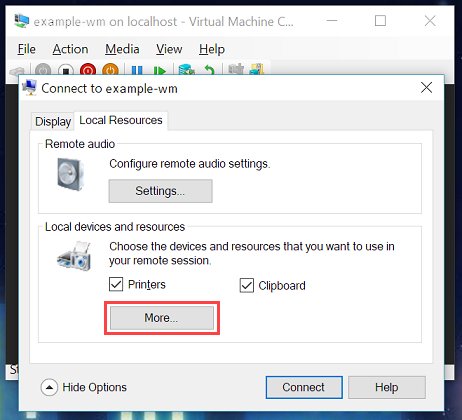
A Hyper-V virtual machine does not see the host's printer unless you connect through Enhanced Session Mode, which shares printers over Remote Desktop. The host needs the Enhanced session mode policy and settings turned on, and the VM needs Remote Desktop enabled and Windows 10 or later.
- Inside the VM, search for Remote Desktop settings and turn on Enable Remote Desktop.
- Open Virtual Machine Connection (VMConnect) and select the virtual machine.
- Select Show Options, then select Local Resources.
- Make sure Printers is selected, then select Connect.
- Print from the VM and pick the host printer from the list.
If no sign-in prompt appears in Enhanced Session Mode on Windows 10 version 2004 or Windows 11, sign in through basic session mode, go to Settings > Accounts > Sign-in options, and turn off For improved security, only allow Windows Hello sign-in for Microsoft accounts on this device.
How to rename a printer in Windows 11
A clear name helps when two copies of one printer exist, such as an offline duplicate left by a reinstall. Renaming needs administrator rights. You can also type a new name in the Add manually wizard when you reinstall the printer.
Rename-Printer -Name "Old printer name" -NewName "New printer name"Run it in PowerShell opened as administrator. -Name is the printer's current name exactly as listed in Printers & scanners; -NewName is the new label. Wildcards are not accepted.
You should see: The command returns no output, and the new name appears in Settings > Bluetooth & devices > Printers & scanners.
Printer offline in Windows FAQ
Why is my printer offline in Windows 11?
Windows 11 marks a printer offline when it gets no reply from it. The usual reasons are a printer that is off or asleep, a different Wi-Fi network, a stuck job in the queue, or a stalled Print Spooler service. Power cycling and restarting the spooler fixes most cases.
Why is my printer offline and not printing?
An offline printer cannot accept jobs, so they wait in the queue. Cancel all jobs in the print queue, restart the Print Spooler service, and confirm the printer is connected. If jobs still stall, install the manufacturer's latest driver and reinstall the printer.
Why is my printer offline if it is on?
Being powered on does not mean Windows can reach it. The printer may be on another network, have a loose USB cable, or show an error such as a paper jam. Check the printer's display, then confirm the connection and restart the Print Spooler.
Why is my printer offline on Windows 10?
The causes match Windows 11, with one extra: Windows 10's classic queue window has Pause Printing and Use Printer Offline options. Open the printer's queue, open the Printer menu, and clear both. Windows 10 support ended on October 14, 2025.
Why is my printer suddenly offline now?
A sudden offline status usually follows a router restart, a changed Wi-Fi password, a Windows update or a printer that went to sleep. Power cycle the printer, reconnect it to the same network as the PC, and update its driver if an update was just installed.
Why is my HP printer offline?
HP printers go offline for the same reasons as other brands: network changes, stuck jobs, a stalled spooler or an outdated driver. Run the Get Help printer troubleshooter, then get the current driver for your model from HP's support site.
How do I get my printer back online in Windows 11?
Power cycle the printer, confirm it shares the PC's network, then open Settings > Bluetooth & devices > Printers & scanners. Cancel all jobs in its print queue and restart the Print Spooler service from Services. The status returns to online once Windows can reach it.
Does clearing the print queue fix an offline printer?
Often, yes. One damaged job can block the queue and make Windows report the printer as offline. Select Open print queue, choose Cancel all, and restart the Print Spooler. If jobs will not cancel, clear the spool folder with the service stopped.
Bottom line: how to fix a printer offline in Windows
Power cycle the printer, put it on the same network as the PC, clear the print queue and restart the Print Spooler before you try anything heavier. Offline means Windows cannot reach the printer, and those four steps fix the common communication breaks. Reinstall the printer with a current driver only when the status keeps coming back.
Once it prints again, you can change the printer's default settings such as paper size and color, or find the printer on your network if another PC needs to add it.