To use Credential Manager on Windows, type credential manager in the taskbar search box, open it, and pick Web Credentials or Windows Credentials to view, add or remove saved sign-ins.
This guide covers every way to open it, adding and deleting credentials, the cmdkey command, PowerShell options, what you can and cannot read back, security, and fixes for repeated password prompts.
How to open Credential Manager on Windows
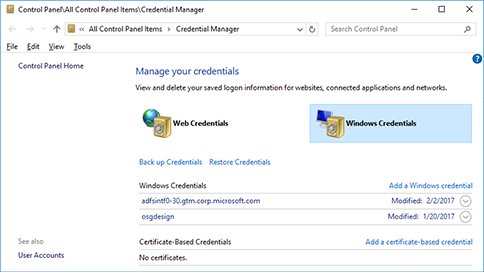
Credential Manager is an item in the Windows Control Panel on both Windows 11 and Windows 10. Search is the quickest way in.
- Select the search box on the taskbar, or press Win + S.
- Type credential manager.
- Select Credential Manager (Control Panel) in the results.
- Select Web Credentials for sign-ins saved by supported browsers and apps, or Windows Credentials for network, server and app sign-ins.
- Select the arrow next to an entry to expand it and see its details.
Each Windows user account has its own set of saved credentials. Signing in as someone else shows a different list.
Before you start, sign in to the Windows account that saved the credentials. There are no other prerequisites: Credential Manager is built in, and a standard account can manage its own entries.
Ways to open Credential Manager in Windows 11 and Windows 10
All of these routes open the same Control Panel window. Pick the one that fits where you already are.
| Where you are | What to do | Lands on |
|---|---|---|
| Desktop or Start menu | Search for credential manager and select the result | Credential Manager home |
| Control Panel already open | Type credential manager in the Control Panel search box and select it | Credential Manager home |
| Run box (Win + R) | Type control /name Microsoft.CredentialManager and press Enter |
Credential Manager home |
| Run box, straight to Windows sign-ins | Type control /name Microsoft.CredentialManager /page ?SelectedVault=CredmanVault |
Windows Credentials tab |
| Command Prompt or PowerShell | Run the same control /name Microsoft.CredentialManager command |
Credential Manager home |
| Scripting or remote session | Run cmdkey /list instead of opening the window |
Text list of stored credentials |
The control /name form uses the canonical name Microsoft documents for Control Panel items, so it works on any display language.
What is Windows Credential Manager?
Credential Manager stores user names and passwords for other computers, websites and apps in the Windows Vault. When a supported app connects again, Windows supplies the saved credential automatically.
| Item | Detail |
|---|---|
| Introduced | Windows 7 and Windows Server 2008 R2; still in Windows 10 and Windows 11 |
| Windows credentials | Sign-ins for network shares, servers, Remote Desktop and similar connections |
| Certificate-based credentials | Credentials tied to a certificate or smart card |
| Generic credentials | User names and passwords that apps save for their own use, such as Office or Git |
| Web credentials | Sign-ins saved by supported browsers and apps through the Credential Manager APIs |
| Where they are stored | Encrypted folders under the signed-in user's profile |
| Who can see them | Only that Windows user; each account has its own list |
| Background service | Credential Manager service (VaultSvc), startup type Manual |
If a saved credential stops working and you enter a new one that succeeds, Credential Manager overwrites the old entry with the new one.
View passwords in Credential Manager in Windows 11 and 10
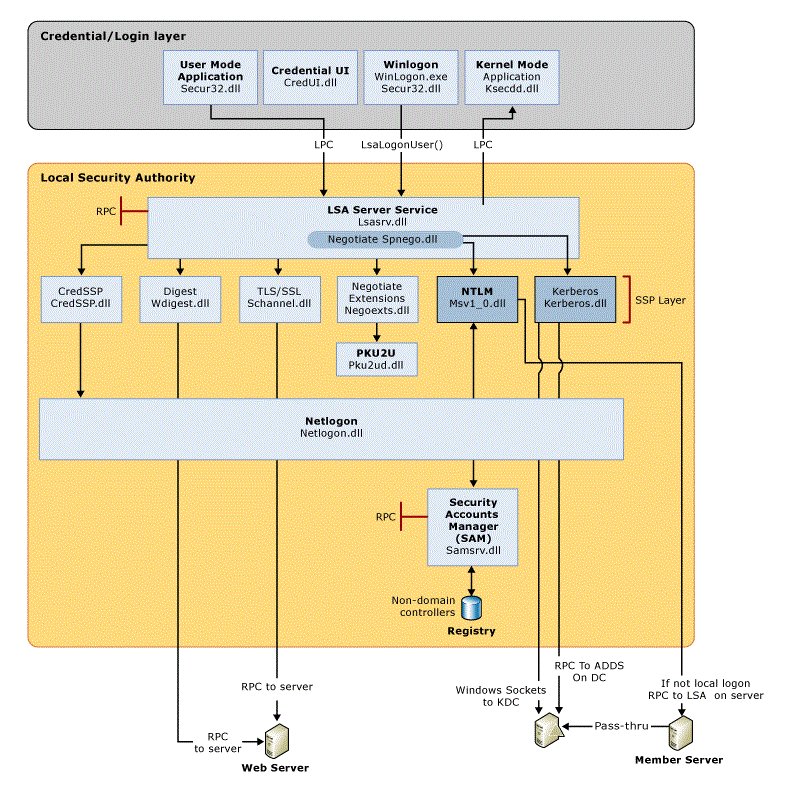
Viewing saved passwords in Windows starts with a review of what Credential Manager holds. Each tab lists a different kind of saved sign-in.
- Open Credential Manager from the taskbar search box or Control Panel.
- Choose Web Credentials to review saved web credentials from supported browsers and apps.
- Select the arrow next to an entry to expand it and read its details.
- Choose Windows Credentials to review saved Windows credentials for servers, shares and apps.
- Check the Windows Credentials, Certificate-Based Credentials and Generic Credentials groups, and note the Modified date on each entry.
- Write down any entry you no longer recognise so you can remove it afterwards.
Windows credential passwords are never displayed after they are stored, so a forgotten one has to be reset at its source rather than read back from this window.
Add a Windows credential in Credential Manager
Adding a credential by hand helps when a network share, print server or NAS keeps rejecting you. Windows then presents the stored user name and password every time it connects to that name.
- Open Credential Manager.
- Select Windows Credentials.
- Select Add a Windows credential.
- Enter the computer or server name exactly as you connect to it, such as
server01ornas.local. - Enter the User name and Password that the server accepts.
- Select OK.
Use the same name form you type in File Explorer. A credential saved for a short name is not used when you connect by IP address or a full domain name.
How to clear credential manager entries in Windows 11
Removing a stale entry is the standard fix when an app or network drive keeps asking for a password. There is no single button to clear everything, so remove entries one at a time.
- Open Credential Manager.
- Select Windows Credentials or Web Credentials, depending on where the entry is listed.
- Find the entry under Windows Credentials, Certificate-Based Credentials or Generic Credentials.
- Select the drop-down arrow next to the entry.
- Select Remove, then confirm.
- Repeat for each unwanted entry, then sign in to the app or share again to save a fresh credential.
To clear many entries faster, list them with cmdkey /list and delete each target with cmdkey /delete, as shown in the next section.
Manage user credentials on Windows with CMD
The built-in cmdkey command creates, lists and deletes stored credentials without opening the window. It works in Command Prompt and in PowerShell on Windows 11 and Windows 10.
- Open Command Prompt from the Start menu. A standard window is enough for your own credentials.
- Run
cmdkey /listto show every stored credential. Note the Target name of the one you need. - Run
cmdkey /list:server01to show only the credentials for one target. - Run
cmdkey /add:server01 /user:mikedanto store a Windows credential. Windows asks for the password, which keeps it out of your command history. - Run
cmdkey /generic:server01 /user:mikedanto store a generic credential instead. - Run
cmdkey /delete:server01to remove the credential for that target. - Run
cmdkey /delete /rasto remove the stored remote access credential.
You can add /pass:<password> to store the password in one line, but it then appears on screen and in scripts. Add /smartcard instead of /user to take the credential from a smart card.
cmdkey switches at a glance
| Switch | What it does |
|---|---|
/list or /list:<target> |
Shows all stored credentials, or only those for one target |
/add:<target> |
Adds a Windows credential for a computer or domain name |
/generic:<target> |
Adds a generic credential |
/user:<username> |
User name to store; asked for if left out |
/pass:<password> |
Password to store; asked for if left out and never shown after saving |
/smartcard |
Reads the credential from a smart card and asks which card if several are found |
/delete:<target> |
Deletes the credential for that target |
/delete /ras |
Deletes the stored remote access credential |
/? |
Shows help at the prompt |
Accessing Windows Credential Manager from PowerShell
Windows PowerShell has no built-in cmdlet for Credential Manager. Native commands run in PowerShell unchanged, so cmdkey and control cover most jobs.
- Right-click Start and select Terminal or Windows PowerShell.
- Run
cmdkey /listto read the stored targets and user names. - Run
cmdkey /add:server01 /user:mikedanto save a Windows credential, and type the password when asked. - Run
cmdkey /delete:server01to remove it again. - Run
control /name Microsoft.CredentialManagerto open the graphical window from the same prompt. - For scripts that need secrets, install Microsoft's SecretManagement and SecretStore modules from the PowerShell Gallery and keep the secret in a SecretStore vault instead of plain text.
Community vault extensions, including one named CredMan, connect SecretManagement to other stores. Microsoft lists them but does not develop them, so review any such module before you trust it with passwords.
How to extract saved passwords from Windows Credential Manager
Credential Manager is built to supply saved passwords to apps, not to hand them back to people. What you can recover depends on the credential type.
| Credential type | Can you read the password back? | What to do instead |
|---|---|---|
| Windows credentials | No. cmdkey never displays a password after it is stored |
Reset the password on the server or account, then save the new one |
| Domain credentials on a PC with Credential Guard | No. Apps that try to extract Windows credentials fail | Reset the password through your organisation |
| Generic credentials saved by apps | Not from Credential Manager or cmdkey |
Use the app's own account or password settings |
| Passwords saved in a browser | Managed by the browser's own password manager | Open the browser's password settings to find passwords stored on the PC |
| Git and other developer tokens | Tokens, not passwords; reading them does not reveal your account password | Revoke the token at the service and sign in again |
Tools that dump these secrets work by attacking the Windows Vault, which is the same technique malware uses. Credential Guard, on by default for domain-joined Windows 11 22H2 PCs that meet the requirements, blocks that for domain credentials.
Check a saved credential in Credential Manager
Confirm the entry exists and that Windows actually uses it.
- Run
cmdkey /list:server01and confirm a line shows the target and the expected User name. - Open Credential Manager > Windows Credentials and expand the same entry to compare the details.
- Test the affected app or connection by opening the share, server or app the credential is for.
- If you connect without a password prompt, the stored credential is working. A new prompt means the name or password does not match.
Is Windows Credential Manager secure?
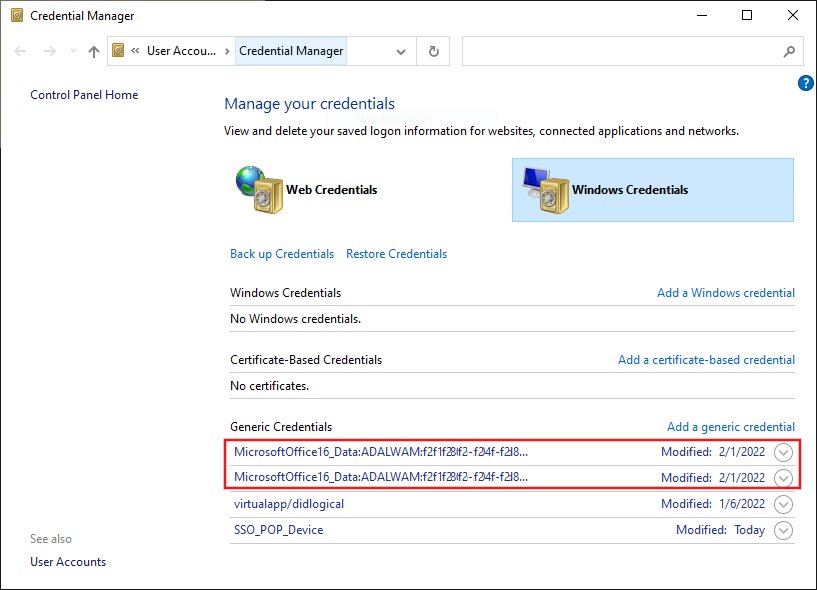
Saved credentials are encrypted and tied to your Windows account, but the level of protection differs by type.
| Question | Answer |
|---|---|
| Are the files encrypted? | Yes. They sit in encrypted folders under your user profile |
| Can other users on the PC see them? | No. Each Windows account has its own credentials |
| Does Credential Guard protect them? | Domain credentials stored in Credential Manager, yes; generic credentials, no, because apps need the clear-text password |
| What happens if the TPM is cleared on a Credential Guard PC? | Saved Windows credentials can no longer be decrypted and are deleted; apps ask for them again |
| Can I back them up? | Yes, but Windows credentials backed up from a PC with Credential Guard on cannot be restored, so back up before you turn it on |
| Who can use them? | Anyone signed in to your Windows account, so lock the PC and use a strong sign-in |
Diagnose saved and active SMB credentials in Windows
A network share involves two lists: the credentials saved in Credential Manager and the SMB connections open right now. Most share sign-in problems come from a mismatch between them.
- Open Command Prompt and run
cmdkey /listto see the saved credential for each server name. - Run
net useto list the computer's current network connections. - Isolate stale entries and conflicting sessions by comparing the two lists: look for a saved entry under one name, such as
nas.local, while the open connection uses another, such as an IP address. - Remove one entry at a time with
cmdkey /delete:nas.local, leaving the credentials that still work. - Cancel the open connection with
net use \\nas.local\share /delete, or runnet use * /deleteto cancel every network connection. - Reconnect in File Explorer with the same server name you saved, and enter the correct user name and password when asked.
Prevent credential and server-name mismatches by using one name form everywhere: the drive mapping, the saved credential and any script should all use the same short name, full name or IP address.
Separate credential problems from device drops: if the share is unreachable for every account, the NAS or server has dropped off the network, and no credential change will fix it until the device is back online.
Credential Manager not working: fixes by symptom
These troubleshooting tips are grouped by symptom. Match what you see to the closest one and follow its fix.
Credential Manager will not open or shows an error
The Credential Manager service (VaultSvc) is stopped or stuck.
- Press Win + R, type
services.mscand press Enter. - Find Credential Manager in the list.
- Right-click it and select Start, or Restart if it is already running.
- Open Credential Manager again.
An app or Office keeps asking for your password
A stale entry for that app sits under Windows Credentials or Generic Credentials.
- Close the app.
- Open Credential Manager > Windows Credentials.
- Expand each entry that names the app, such as Office, and select Remove.
- Reopen the app and sign in once to save a fresh credential.
Network printer fails with error 0x0000052e
The credential on the PC does not match the one the print server expects.
- Open Credential Manager > Windows Credentials.
- Select Add a Windows credential.
- Enter the print server name and a user name and password the server trusts.
- Select OK and add the printer again.
Remote Desktop says "Logon attempt failed" with a saved credential
Credential Guard blocks saved Windows credentials from being sent to a remote host.
- Clear the saved password for that connection in Credential Manager > Windows Credentials.
- Connect again and type the password when Remote Desktop asks.
- Ask your IT admin which saved sign-in method the organisation supports if you connect often.
You removed a credential, but the password still appears
Another copy is saved elsewhere, most often in the browser's own password manager, which Credential Manager does not control.
- Check both Web Credentials and Windows Credentials for a second entry with the same name, and remove it.
- Run
cmdkey /listand delete any remaining entry for that target withcmdkey /delete. - Open the browser's password settings and delete the password saved there.
You cannot remove a work or school credential
The PC or account is managed by an organisation, and some sign-in options are controlled or disabled by its IT admin.
- Select Start > Settings > Accounts > Access work or school.
- Check whether the PC is connected to a work or school organisation.
- If it is, ask your IT admin to remove or reset the credential rather than deleting it yourself.
The Windows Services console also shows a service's startup type and its dependencies if Credential Manager keeps stopping.
Best practices for saved credentials in Credential Manager
These habits keep the saved list short and current. Review them whenever sign-in prompts start repeating.
| Practice | Why it helps |
|---|---|
| Remove entries for servers and apps you no longer use | Fewer stale entries means fewer old passwords offered to the wrong connection |
| Save each credential under the exact name you connect with | A credential saved for a short name is not used for an IP address or full domain name |
Let cmdkey ask for the password instead of using /pass |
The password then stays off the screen and out of scripts |
| Keep script secrets in a SecretStore vault | Microsoft's SecretManagement modules avoid plain-text passwords in scripts |
| Back up credentials before Credential Guard is turned on | Windows credentials backed up with Credential Guard on cannot be restored |
| Lock the PC when you step away | Anyone signed in to your Windows account can use your saved credentials |
| Reset a forgotten password at its source | Credential Manager does not display saved Windows credential passwords |
Windows Credential Manager FAQ
What is Credential Manager in Windows 11?
Credential Manager is a Control Panel tool in Windows 11 that stores user names and passwords for websites, apps, servers and network shares in the Windows Vault. Windows supplies them automatically when those resources ask you to sign in, and you can view or delete them.
Where is Credential Manager in Windows 11?
It is in Control Panel. Type credential manager in the taskbar search box and select the result, or press Win + R and run control /name Microsoft.CredentialManager. The same steps work on Windows 10.
Where is Credential Manager in Control Panel?
Open Control Panel and type credential manager in its search box, or browse the full list of items. Credential Manager is a standard Control Panel item on Windows 11 and Windows 10 and opens the same window as taskbar search.
How do I open Credential Manager from CMD or Run?
Type control /name Microsoft.CredentialManager in Command Prompt or the Run box and press Enter. To list credentials as text without opening the window, run cmdkey /list instead.
How do I clear Windows Credential Manager?
Open Credential Manager, select Windows Credentials or Web Credentials, expand each entry and select Remove. There is no clear-all button. From Command Prompt, run cmdkey /delete:<target> for each target that cmdkey /list shows.
Where are Credential Manager passwords stored?
Windows stores them in encrypted folders under the signed-in user's profile, inside what Microsoft calls the Windows Vault. They are not plain-text files, and only that Windows user's sign-in can unlock them.
Is Credential Manager user specific?
Yes. Each Windows user account has its own credentials, stored under that user's profile. Another account on the same PC sees a different, separate list and cannot read your saved passwords through Credential Manager.
Is Windows Credential Manager secure?
It is reasonably secure for everyday use: credentials are encrypted and tied to your account, and Credential Guard protects domain credentials on supported PCs. Generic credentials are less protected, and anyone signed in as you can use them, so lock your PC.
What is Git Credential Manager?
Git Credential Manager is a helper included with the Git for Windows installer. It handles sign-in to services such as Azure Repos and GitHub, including multifactor authentication, then caches a token so Git stops asking for credentials until the token expires.
Is Git Credential Manager safe?
Git Credential Manager is an official option for Azure Repos and GitHub sign-in, and it supports multifactor authentication. It stores a token rather than your password, and you can revoke that token from the service at any time if a PC is lost.
What about passkeys: does Credential Manager store them?
Passkeys saved to Windows are managed in Settings > Accounts > Passkeys, where you can view them and select Delete passkey. Passkeys kept in Microsoft Password Manager or another provider are managed in that provider instead.
Why does Credential Manager not show the password?
Windows credentials are never displayed after they are saved, as Microsoft's cmdkey documentation states. If you have forgotten a password, reset it on the server or account, then save the new one in Credential Manager.
Bottom line on using Credential Manager
Use Credential Manager to remove stale sign-ins and add network credentials, and use cmdkey when you need the same job in a script or remote session. Most repeated password prompts on Windows come from an outdated saved entry, and removing it fixes the problem in under a minute. Treat saved passwords as unreadable: reset a forgotten one at its source instead of trying to pull it back out.