To redeem a game code on Steam, open the Steam client, click + Add a Game at the bottom left, select Activate a Product on Steam… and enter the key; gift cards and wallet codes go on the Redeem a Steam Gift Card or Wallet Code page instead.
This guide covers both code types in the client, on the website and from a phone, how to confirm the code worked, and what each redemption error means.
How to redeem a code on Steam?
This route is for game and software keys, also called CD keys or product codes. Valve documents it as the standard way to add a key to your account.
- Open the Steam client on your PC or Mac and sign in.
- Click + Add a Game at the bottom left of the window.
- Select Activate a Product on Steam….
- Follow the on-screen prompts and type or paste your key when asked.
- Finish the prompts; the game is added to your Library, ready to install.
If the Steam client is not installed, get it from the official Steam site. A gift card or wallet code entered here will not work; use the wallet method below.
What is a Steam redeem code?
A Steam redeem code is any code that adds something to a Steam account. It either unlocks a game or software product, or adds money to your Steam Wallet, and each kind goes on its own page.
| Code type | What it is | What it adds |
|---|---|---|
| CD key (product key) | A printed combination of letters and numbers on a card, sticker or disc, or in an emailed receipt | One game or software product, tied to one Steam account |
| Steam Wallet Code | A unique wallet code, for example on the back of a Steam Gift Card | Wallet funds in your wallet's currency |
| Physical Steam Gift Card | A retail card that works like a gift certificate | Wallet funds for games, software, hardware and other Steam items |
| Digital Steam Gift Card | A gift bought on Steam and sent to a friend's account | Wallet funds, delivered by email and gift notification with no code to type |
Steam game key or wallet code: which redeem page to use
| What you have | What it adds | Where to redeem it |
|---|---|---|
| Game key from a retail box (card, sticker or disc) | A game to your Library | Steam client: + Add a Game > Activate a Product on Steam… |
| Game key in an email receipt from a store | A game to your Library | Steam client, or the product activation page on the Steam website |
| Physical Steam Gift Card | Money to your Steam Wallet | Redeem a Steam Gift Card or Wallet Code page |
| Steam Wallet Code | Money to your Steam Wallet | Redeem a Steam Gift Card or Wallet Code page |
| Digital Steam Gift Card sent by a friend | Money to your Steam Wallet | Nothing to type; it arrives as an email and a gift notification on your account |
| Key for a game not sold for Steam | Nothing on Steam | The game's own launcher; you can still add it as a non-Steam game shortcut |
A retail box or store email says when a key is meant for Steam. If it does not mention Steam, Steam will reject it as an invalid product code.
Where to find your Steam key or wallet code
| Where you bought it | Where the code is | What it looks like |
|---|---|---|
| Boxed game from a shop | A card, sticker or the disc in the packaging | A printed mix of letters and numbers |
| Online store with no physical copy | The emailed purchase receipt | A key in the email, often with a note that it is for Steam |
| Steam Gift Card from a retailer | The back of the card | A printed wallet code |
| Code printed on a shop receipt | The receipt itself | A wallet code; Steam Support cannot help with these, so ask the retailer if it fails |
Some stores show the key on your order or library page in your account on their site rather than in the email. To redeem a key from a retailer account, copy it from there and activate it in the Steam client or on the Steam website.
Keep a physical key after you register it. Valve treats a key from a game's packaging as proof of purchase and ownership if you ever need to recover your account.
Redeem codes via the Steam website
Use this when you are away from the Steam client, for example on a work PC or a laptop without Steam installed.
- Open a browser and go to
store.steampowered.com/account/registerkey. - Sign in with the Steam account that should own the game.
- Enter your product key in the activation form and follow the prompts.
- Open the Steam client later to download the game from your Library.
The key is tied to whichever account is signed in, so check the account name in the top right before you confirm.
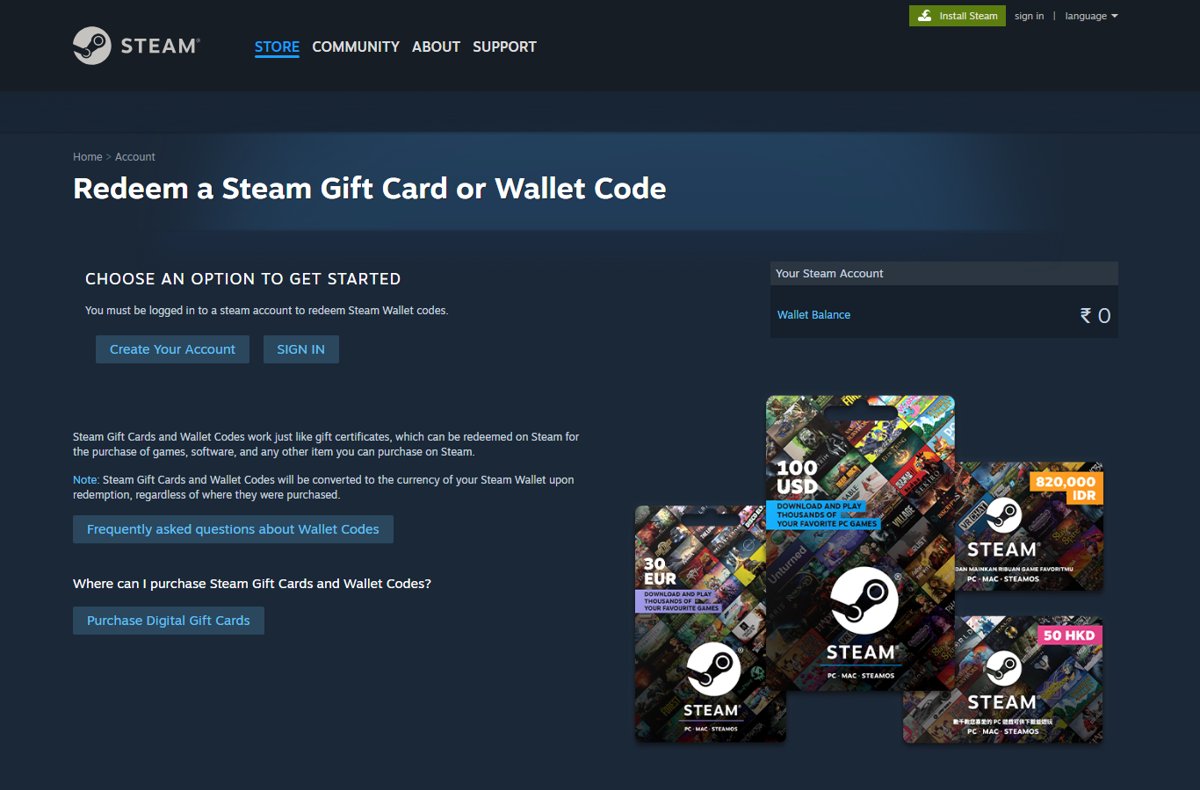
Redeem a Steam Gift Card or Wallet Code
- Go to
store.steampowered.com/account/redeemwalletcodein a browser. - If the page shows Choose an option to get started, click Sign in, or Create your account if you do not have one yet. Wallet codes only redeem on a signed-in account.
- Type the code into the Steam Wallet Code field.
- Click Continue to add the value to your Steam Wallet.
- Check that the new balance appears next to your profile name in the upper right.
The value is converted to your Steam Wallet's currency, whatever country the card was bought in. Wallet funds cannot be moved or gifted to another account afterwards.
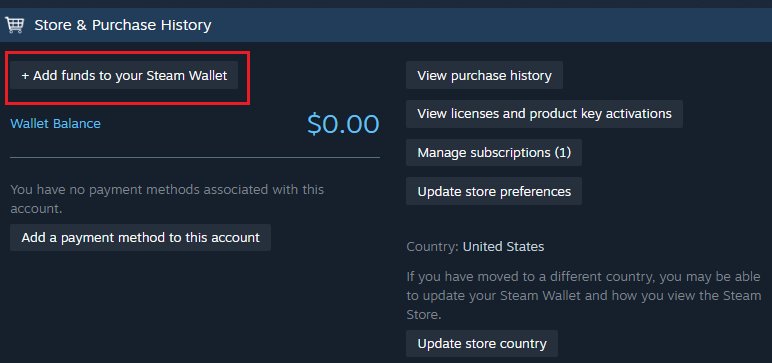
In the Steam desktop client, Valve sends wallet codes to this same Redeem a Steam Gift Card or Wallet Code page rather than the + Add a Game product activation. If the new balance does not show in the client, restart it; Valve asks you to contact Steam Support only if it is still wrong after two hours.
Can I redeem Steam codes on the mobile app?
Valve lists store browsing, Steam Guard, trade confirmations, notifications and your library as the Steam Mobile app's features; code redemption is not among them. The redeem pages are ordinary web pages, so use your phone's browser.
- Open your phone's browser.
- Go to
store.steampowered.com/account/redeemwalletcodefor a wallet code, orstore.steampowered.com/account/registerkeyfor a game key. - Sign in; approve the sign-in in the Steam Mobile app if Steam Guard asks.
- Enter the code and confirm.
- Download the game later from the Steam client on your PC.
How to check a Steam code was redeemed
- For a game key, open the Library in the Steam client and look for the game in your list.
- Select the game to confirm it is listed as owned and ready to download.
- For a wallet code, check the balance shown in the upper right next to your profile name.
If a newly activated game installs extra components on its first launch, those are normal Steamworks common redistributables such as runtime libraries.
Common issues when redeeming Steam codes
"Invalid Product Code" when activating a game key
The key was typed wrongly, or it is not meant for Steam.
- Check the box or email says the game registers through Steam.
- Re-enter the key, swapping look-alike characters: the number 0 for the letter Q, D or O, and the number 1 for the letter I or L.
- Try the letter O as Q or D, the letter B as 8, and the letter G as 6.
- If it still fails, contact the seller; Steam Support cannot replace retail keys.
Duplicate product code error
The key is already registered to a Steam account and cannot be used again.
- Check whether you redeemed it before on another account you own.
- If you did and lost that account, use the Steam Help site to recover it.
- If you never redeemed it, contact the retailer for a new copy.
Key is damaged or unreadable
The printed key was scratched off or torn.
- Return to the retailer with your receipt and ask for a replacement.
- Do not contact Steam Support for this; Valve cannot recover or reissue damaged retail keys.
Wallet code is not accepted
A mistyped character, or the retailer has not finished activating the card.
- Re-enter the code, checking 0 against Q, O and D, 1 against I, O against 0, B against 8 and G against 6.
- Wait several hours after purchase; activation by the retailer can take that long.
- If it still fails, contact Steam Support with a clear photo of the whole back of the card and the matching receipt.
- For a code printed on a receipt, contact the retailer instead.
Wallet funds do not appear after redeeming
The balance has not refreshed, or a different account is signed in.
- Check your email for the Steam receipt.
- Confirm you are signed in to the account named on the receipt.
- Restart the Steam client.
- If the balance is still wrong after two hours, contact Steam Support.
Steam redeem code generators and free codes: are they safe?
Never use a Steam code generator or a site promising free codes, and never share a code with someone who asks for one as payment. Steam codes are only valid when bought from Steam or a legitimate retailer. Valve says scammers use gift cards to take advantage of people, which is why it limited redemption to your wallet currency and is ending physical Steam Gift Cards at retail stores, with retailers expected to be out of stock by the end of 2026. Existing cards stay redeemable, and digital gift cards remain on sale through Steam.
Steam redeem code FAQ
How do I redeem Steam game codes?
Open the Steam client, click + Add a Game at the bottom left, select Activate a Product on Steam… and enter the key. The game then appears in your Library. You can also activate a key on the Steam website at store.steampowered.com/account/registerkey after signing in.
Where do I redeem a code on Steam?
Game keys go into the Steam client through + Add a Game > Activate a Product on Steam…, or the website's product activation page. Gift cards and wallet codes go on the Redeem a Steam Gift Card or Wallet Code page at store.steampowered.com/account/redeemwalletcode.
How do I use a redeem code in Steam for wallet funds?
Sign in on the Redeem a Steam Gift Card or Wallet Code page, type the code into the Steam Wallet Code field and click Continue. The value is added to your Steam Wallet in your wallet's currency and can be spent on games, software and hardware on Steam.
Can I redeem Steam codes on the mobile app?
Valve does not list code redemption among the Steam Mobile app's features. Open the redeem page in your phone's browser instead, sign in, and enter the code there. Game keys activated this way appear in your Library on the PC.
Can I redeem a Steam code on the website without the client?
Yes. Wallet codes are redeemed on the website, and game keys can be activated at store.steampowered.com/account/registerkey. You still need the Steam client on a PC to download and play the game afterwards.
Can I redeem a Steam Gift Card bought in another country?
Yes. Steam converts gift cards and wallet codes to the currency of your Steam Wallet when you redeem them, regardless of where they were purchased.
Can I give my redeemed Steam Wallet funds to a friend?
No. Steam Wallet funds cannot be gifted, withdrawn or transferred to another account. To give money to a friend, buy them a digital Steam Gift Card, which arrives by email and as a gift notification on their account.
Why does Steam say my key is already used?
A duplicate product code error means the key is already registered to a Steam account and cannot be registered again. If it was your own old account, recover that account; if you never used it, ask the retailer for a replacement.
Bottom line: the right way to redeem a Steam code
Use + Add a Game > Activate a Product on Steam… for game keys and the Redeem a Steam Gift Card or Wallet Code page for wallet money. Steam treats the two code types separately, so most failed redemptions come from using the wrong page or a mistyped character. Errors on a correctly typed retail key are the seller's to fix, not Steam Support's.