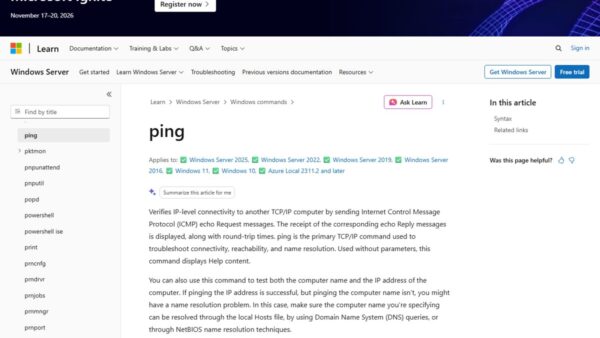
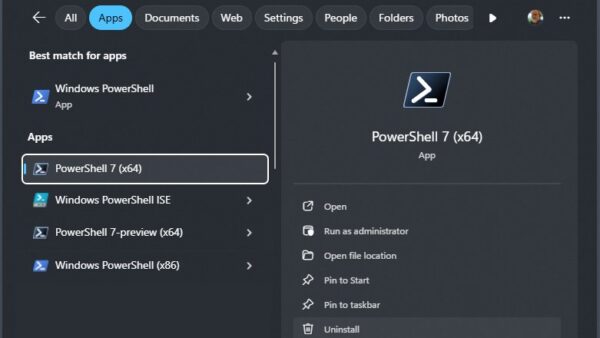
A JSON file is plain text, so you can open it in Notepad on Windows or TextEdit on a Mac, and use a browser, code editor, Excel or Python when you need it formatted, searchable or turned into a table.
This guide gives the seven ways step by step, shows which one suits your task, and fixes JSON files that open in the wrong app or show as one unreadable line.
Way 1: Open a JSON file in Notepad on Windows
Notepad is already on every Windows PC and opens any JSON file as text. It is the quickest way to read or make a small edit.
- Open Start, type Notepad and open it.
- Press Ctrl + O to show the open dialog.
- Change the file type filter from Text documents (*.txt) to All files (*.*) so .json files appear.
- Select your .json file and select Open.
- To make Notepad the default for every JSON file, open Settings > Apps > Default apps, type .json under Set a default for a file type or link type, and choose Notepad.
Notepad shows the file exactly as saved. A minified JSON file, with everything on one line, stays on one line here, so use Way 4 or Way 3 when you need it readable.
If the JSON came inside a downloaded archive, extract the ZIP file first, then open the .json file from the extracted folder.
How to open JSON file? Which way to choose
| Way | Best for | Platform | Readable format? |
|---|---|---|---|
| 1. Notepad | Quick look or small edit | Windows | Only if the file is already indented |
| 2. Notepad++ | Editing larger files on Windows | Windows | Shows the file as saved |
| 3. Visual Studio Code | Editing, validation and formatting | Windows, macOS, Linux | Yes, with Format Document |
| 4. Web browser (Edge or Firefox) | Reading a file without installing anything | Windows, macOS, Linux | Yes, with pretty print and collapsible sections |
| 5. Microsoft Excel | Turning JSON data into a table | Windows (Excel 2016 and later, Microsoft 365) | Yes, as rows and columns |
| 6. Python | Scripts, validation and pretty printing from a terminal | Windows, macOS, Linux | Yes, with json.tool |
| 7. TextEdit | Quick look on a Mac | macOS | Shows the file as saved |
The fastest way to read a file is to drag it from File Explorer or Finder onto an open Edge or Firefox window. For editing, professional code editors and IDEs such as Visual Studio Code add validation, folding and formatting that plain text editors lack.
Other routes, not counted here: online JSON viewers and Chrome extensions also format JSON, but an online tool uploads your data to someone else's server. Avoid them for files with personal, tax or account details. On Linux, terminal editors such as Vim also open JSON as plain text.
What is a JSON file and why it is used
JSON (JavaScript Object Notation) is a text format for structured data. Apps use it for settings, data exports and web APIs because both people and programs can read it.
| Feature | What it means for opening the file |
|---|---|
| Plain text | Any text editor opens it; no special software is required |
Objects in { } and arrays in [ ] |
Code editors and browsers can fold these sections so you can collapse them |
| Keys in double quotes | A missing quote or comma makes the file invalid, and viewers report an error |
| Often minified | Exports and API responses can sit on a single line until you pretty print them |
| JSON Lines (.jsonl) | One JSON value per line; Firefox shows it, but Excel's JSON import does not accept it directly |
Understanding JSON file structure
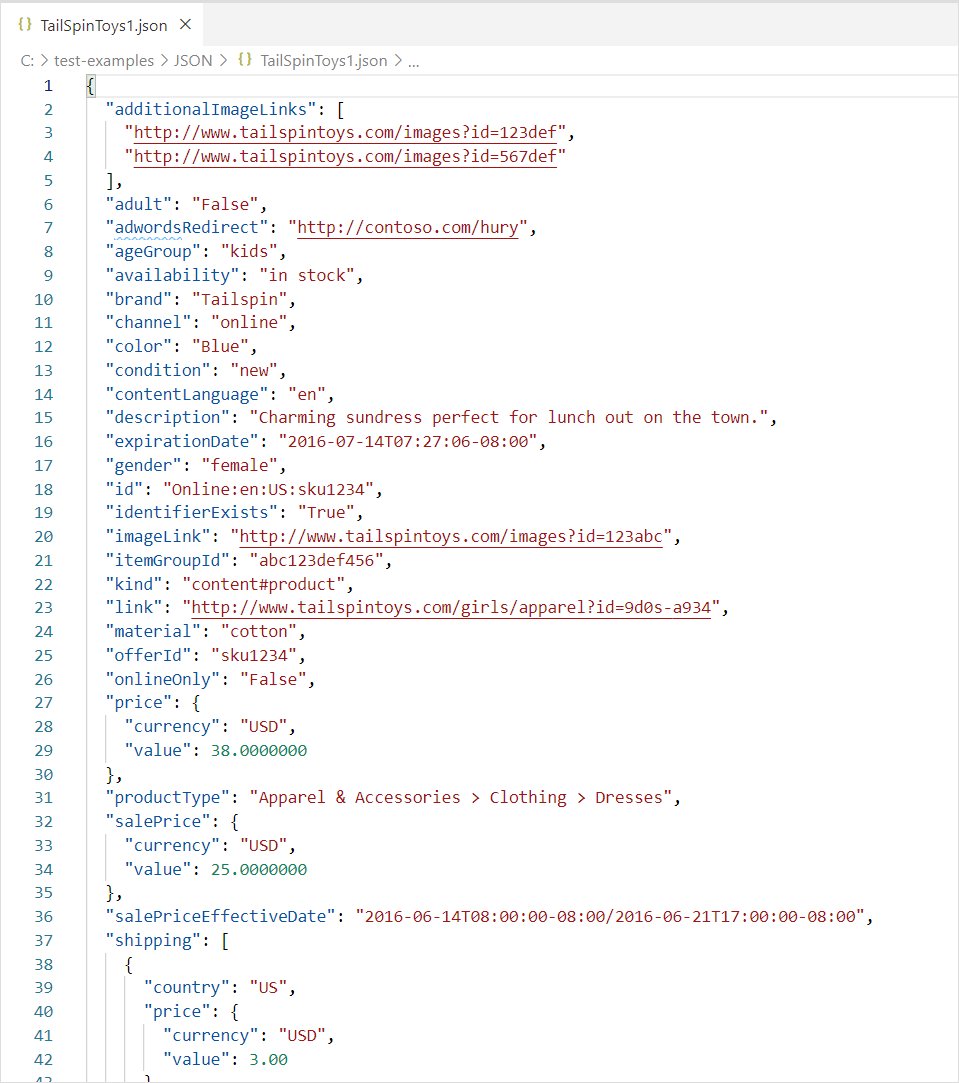
A JSON file holds one value, usually an object or an array, built from a handful of data types. Once you know them, you can read and understand JSON data in any viewer.
| Element | Looks like | What it holds |
|---|---|---|
| Object | { "name": "Ana", "age": 29 } |
Key and value pairs; each key is text in double quotes, followed by a colon and the value |
| Array | [ "red", "green", "blue" ] |
An ordered list of values; items are counted from 0, so the first item is [0] |
| String | "Dan Jukes" |
Text, always in double quotes; single quotes are not allowed |
| Number | 29 or 3.5 |
A decimal number without quotes |
| Boolean and null | true, false, null |
Yes or no values, and an empty value |
| Nesting | An array of objects inside an object | Read it as a path: members[1].powers[2] is the third power of the second member |
JSON cannot hold comments, trailing commas, functions, or values such as undefined and NaN. To read an unfamiliar file, collapse everything in Visual Studio Code or Firefox and expand one level at a time.
How to find a JSON file on your computer
JSON files turn up wherever apps store settings or export data, so the one you need may sit in a hidden folder rather than in Documents.
| Where you can see JSON files | How to find them |
|---|---|
| Any folder on Windows | Search from File Explorer Home or the folder's search box for *.json; select View > Show > File name extensions so the .json ending is visible |
| App settings on Windows | Settings files often sit under AppData, such as %APPDATA%\Code\User\settings.json for Visual Studio Code; select View > Show > Hidden items to see these folders |
| Mac | Press Command-Space to open Spotlight and type the file name; Visual Studio Code keeps its settings in ~/Library/Application Support/Code/User/settings.json |
| Linux | Visual Studio Code keeps its user settings in ~/.config/Code/User/settings.json |
| Project folders | Web projects keep files such as package.json in the project's root folder, and VS Code workspace settings in its .vscode folder |
| Downloads | Data exports and files saved from websites usually land in your Downloads folder |
| iPhone or iPad | Use the search field in the Files app, or tap Browse and check On My iPhone or the Downloads folder in iCloud Drive |
Way 2: Open a JSON file in Notepad++
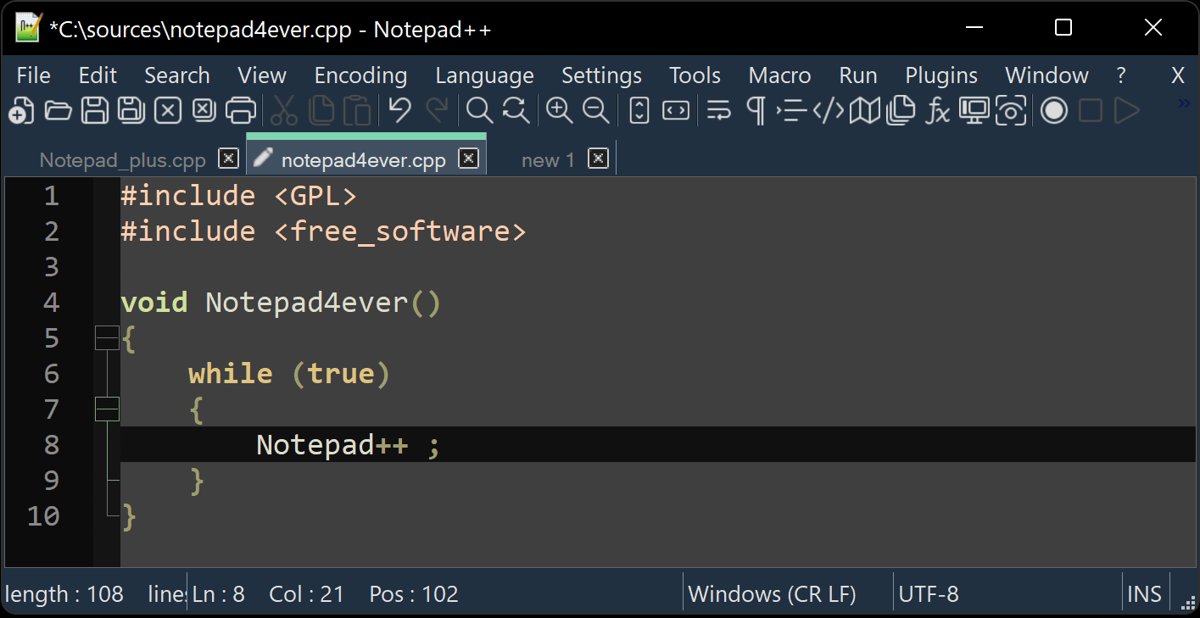
Notepad++ is a free source code editor and Notepad replacement for Windows, released under the GNU General Public License. It handles larger files more comfortably than Notepad.
- Install Notepad++ from notepad-plus-plus.org.
- Open Notepad++ and select File > Open.
- Select the .json file and select Open.
- Use Ctrl + F to search for a key or value in the file.
Way 3: Open and format a JSON file in Visual Studio Code
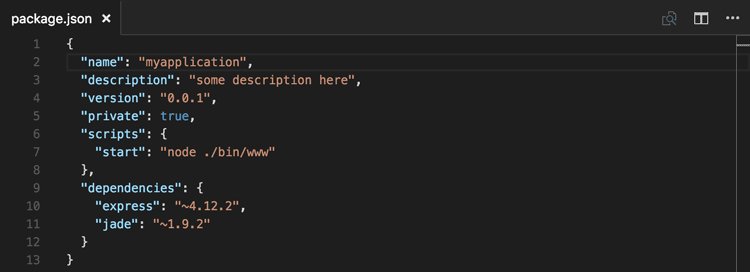
Visual Studio Code understands JSON: it validates the file, suggests properties, folds objects and arrays, and formats a minified file in one shortcut.
- Install Visual Studio Code from code.visualstudio.com and open it.
- Select File > Open File and choose the .json file.
- Press Shift + Alt + F on Windows (Ctrl + Shift + I on Linux, Shift + Option + F on macOS) to run Format Document.
- Use the folding arrows in the gutter to collapse objects and arrays you do not need.
- Press Ctrl + Shift + O (Cmd + Shift + O on macOS) to jump to a property in a large file.
- Check for red squiggles, which mark problems in the file's structure.
Files such as settings.json open in JSON with Comments mode, which accepts // and /* */ comments that plain JSON does not allow.
Way 4: How to open JSON file in browser in a readable format
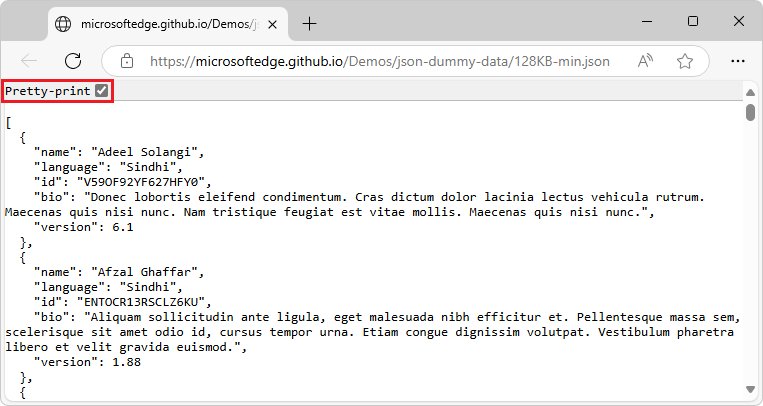
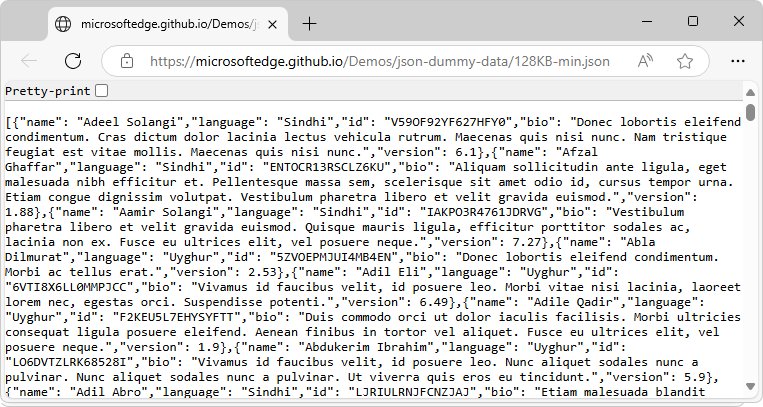
Microsoft Edge and Firefox both include a JSON viewer, so a browser is the easiest way to read a minified file without installing anything.
- Open Microsoft Edge and press Ctrl + O (Command + O on macOS).
- Select the .json file and open it.
- Select the Pretty-print check box to show the JSON with indentation and line breaks.
- In Firefox, press Ctrl + O and open the file instead; Firefox parses it, adds syntax highlighting and lets you expand and collapse objects.
- In Firefox, type in the filter box to show only matching keys and values, or switch to the raw view to see the original text.
Pretty-print in Edge changes only how the file is displayed, not the file itself. To save a readable copy as a PDF, print the pretty-printed page and pick a PDF printer such as Microsoft Print to PDF.
Way 5: How to open JSON file in Excel
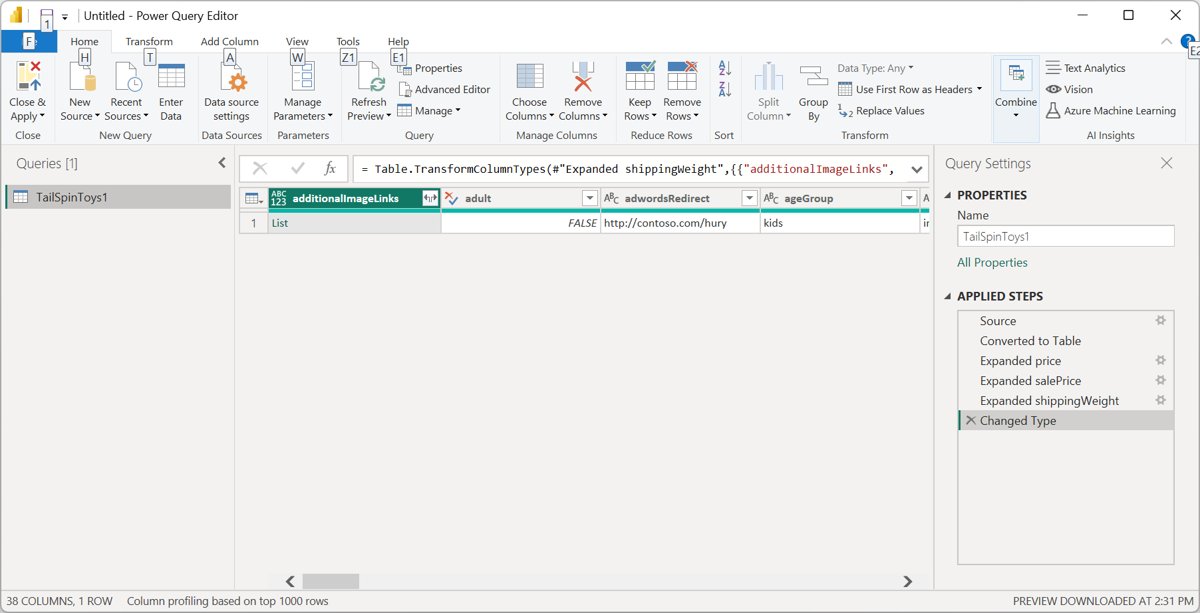
Excel imports JSON through Power Query and turns it into a table. This is the right choice when the file holds a list of records you want to sort or filter.
- Open Excel with a blank workbook.
- Select Data > Get Data > From File > From JSON.
- Select the .json file and select Open.
- Wait for the Power Query editor, which flattens the JSON into a table automatically.
- Expand any columns that still contain records or lists, if you need those fields.
- Select Close & Load to place the table in a worksheet.
The From JSON steps apply to Excel for Microsoft 365, Excel 2024, 2021, 2019 and 2016 on Windows. To import many JSON files at once, use the folder import instead.
Way 6: How to open JSON file in Python
Python's built-in json module reads a JSON file into dictionaries and lists, and its command-line tool pretty prints and validates a file in one line.
- Install Python from python.org if it is not already on the PC.
- To read the file in a script, use
import jsonthenwith open("data.json", encoding="utf-8") as f: data = json.load(f). - Print it readably with
print(json.dumps(data, indent=4)). - To view a file from a terminal without writing a script, run
python -m json.tool data.json. - On Python 3.14 and later,
python -m json data.jsondoes the same.
The same commands work on Windows, macOS and Linux, which makes Python a good way to open JSON files on Linux servers without a desktop.
Way 7: Open a JSON file with TextEdit on a Mac
TextEdit comes with every Mac and opens a JSON file as text.
- Open TextEdit from Applications.
- Choose File > Open.
- Select the .json file and click Open.
- If you edit and save, keep the file in plain text: choose Format > Make Plain Text first if the document is in rich text.
To make new TextEdit documents plain text by default, choose TextEdit > Settings, click New Document and select Plain text.
How to open a JSON file on Mac
TextEdit is the built-in route, but it shows the file exactly as saved. Use one of these when you need a JSON file formatted on macOS.
| App | How to open the file | Best for |
|---|---|---|
| TextEdit | File > Open, as in Way 7 | A quick look at a file that is already indented |
| Microsoft Edge or Firefox for Mac | Press Command + O and select the file; select Pretty-print in Edge | Reading a minified file without installing an editor |
| Visual Studio Code | File > Open, then Shift + Option + F to format | Editing and validation |
| Python in Terminal | python3 -m json.tool data.json |
Checking the file is valid and printing it readably |
If you cannot find the file, press Command-Space and type its name in Spotlight, then press Return to open it.
How to open a JSON file on Linux
Linux desktops and servers both handle JSON well, from a browser on the desktop to a one-line command over SSH.
| Tool | How to open the file | Best for |
|---|---|---|
| Firefox | Press Ctrl + O and select the file | Collapsible, highlighted view with a filter box |
| Visual Studio Code | File > Open File, then Ctrl + Shift + I to format | Editing and validation |
| Python | python3 -m json.tool data.json |
Servers without a desktop, and validation |
| Terminal text editors | Open the file in Vim or another editor like any text file | Quick edits over SSH |
How to open JSON files on mobile devices
Phones and tablets have no JSON viewer built into the system, but a browser-based editor fills the gap. On a phone or tablet, keep to reading and small edits; long files are easier on a PC.
| Device | How to open the file |
|---|---|
| iPhone or iPad | Find the file in the Files app with the search field, or under Browse > On My iPhone or iCloud Drive > Downloads, then tap it to open |
| iPad or other tablet | Open vscode.dev in the browser and open the file there; VS Code for the Web runs on tablets such as iPads, with syntax highlighting for JSON |
| Android phone or tablet | Open vscode.dev in Chrome or Edge, then open the file from the device's storage |
| Any phone | Smaller screens limit VS Code for the Web, so move large files to a PC and use Way 3 or Way 4 |
How to open JSON files online
Online JSON viewers format, colour and validate a file in a browser tab, which makes them the most readable option on a borrowed PC. Most of them upload what you paste to their server, so treat them as public.
| Online option | How it works | Watch out for |
|---|---|---|
| VS Code for the Web (vscode.dev) | Runs entirely in the browser and opens local files through the browser's file system access APIs; use File > Open File | Opening whole folders needs Edge or Chrome; other browsers can open single files |
| Online JSON viewer or formatter sites | Paste the JSON or upload the file, then choose format or tree view | The data goes to a third-party server; never paste passwords, API keys or personal records |
| Edge or Firefox JSON viewer | Works offline on a file already on the PC, as in Way 4 | Nothing; the file never leaves the device |
Opening JSON in programming languages
Almost every language can read JSON. Reading JSON in code turns the file into objects you can query, and a parse error is a quick validity check.
| Language | Code to open the file | What you get |
|---|---|---|
| Python | data = json.load(open("data.json", encoding="utf-8")) |
Dictionaries and lists; see Way 6 |
| JavaScript in the browser | const data = await (await fetch("data.json")).json(); |
A normal JavaScript object you read with dot and bracket notation |
| JavaScript with a JSON string | const data = JSON.parse(text); |
The parsed value; invalid JSON throws a SyntaxError |
| PowerShell | Get-Content -Raw data.json | ConvertFrom-Json |
A custom object; -Raw reads the whole file as one string, and -AsHashtable handles keys that differ only in case |
How to check a JSON file is valid
A JSON file that will not load in Excel or a viewer is often invalid. Python's tool tells you exactly where the problem is.
python -m json.tool data.jsonPython reads data.json, checks it against the JSON rules and prints it with indentation. Replace data.json with your file's path.
You should see: the whole file printed with indentation. An invalid file prints an error such as Expecting property name enclosed in double quotes: line 1 column 2 (char 1), which gives the line and column to fix.
How to edit JSON files safely
Even a single misplaced comma or colon can make a JSON file invalid, and the app that reads it may then fail to start. These best practices for working with JSON files keep an edit from breaking the file.
- Copy the file and keep the original until the edited version loads correctly.
- Open the copy in Visual Studio Code, which validates JSON as you type and marks problems with red squiggles.
- Format the file first (Shift + Alt + F on Windows) so the structure is visible before you change it.
- Keep every key and string in double quotes, separate items with commas, and leave no comma after the last item in an object or array.
- Add comments only to files VS Code opens in JSON with Comments mode, such as settings.json; plain JSON does not allow them.
- Save as plain text: in TextEdit choose Format > Make Plain Text, and never save a JSON file in a word processor format.
- Run
python -m json.tool data.jsonon the edited file before you put it back in place.
Converting JSON to other formats
Turning JSON into a spreadsheet or CSV is the most common conversion. Excel handles nested data best; PowerShell is quickest for a flat list of records.
- To convert JSON to CSV through Excel, import it with Data > Get Data > From File > From JSON, expand the columns you need in Power Query, and select Close & Load.
- Select File > Save As and choose CSV (Comma delimited) as the file type.
- To convert in PowerShell instead, run
Get-Content -Raw data.json | ConvertFrom-Json | Export-Csv -Path data.csv -NoTypeInformationin the file's folder. - Check the CSV; nested objects need expanding first, which the Power Query route does for you.
- To go the other way, pipe PowerShell objects to
ConvertTo-Json, which writes JSON text. - To make a PDF, open the file in Edge, select Pretty-print, and print the page to Microsoft Print to PDF.
In PowerShell 6 and later, -NoTypeInformation is no longer required, because the type header is left out by default.
Working with large JSON files
Browser tabs and online viewers slow down on very large files. Open large JSON files in an editor or a script, and look at a sample before loading the whole thing.
- Peek at the first lines in PowerShell with
Get-Content -Path data.json -TotalCount 20; this works on indented files and JSON Lines, but a minified file is one long line. - Open the file in Visual Studio Code and jump around with Ctrl + Shift + O or Ctrl + F instead of scrolling.
- Collapse top-level objects and arrays with the folding arrows so only the part you need is expanded.
- To work with the records, import the file into Excel through Power Query and filter rows in the editor before you select Close & Load.
- In Python, remember that
json.loadreads the whole file into memory; for a JSON Lines file, read it line by line and parse each line withjson.loads.
JSON file security considerations
| Risk | What to do |
|---|---|
| Secrets inside the file | Settings and export files can hold API keys, tokens or personal data; keep them out of online viewers and shared folders |
| A disguised file | Turn on View > Show > File name extensions in File Explorer so a name such as data.json.exe cannot pass as JSON |
| Opening the file | JSON holds data only, never functions, so viewing it in a text editor, browser or code editor does not run anything |
| Untrusted JSON in your own code | Python's documentation warns that malicious JSON can make the parser use a lot of CPU and memory; limit the size of data you parse |
| Incomplete downloads | A name ending in .json.crdownload means the download did not finish; download the file again |
Advanced JSON tools and techniques
Once you can open a file, these tools help you check, sort and reshape it without editing it by hand.
| Technique | Tool and command | What it does |
|---|---|---|
| Schema validation | Visual Studio Code with a JSON schema | Checks the file against a schema, flags wrong keys and suggests valid properties |
| Sort keys | python -m json.tool --sort-keys data.json |
Prints the file with keys in alphabetical order, handy for comparing two versions |
| Set the indent | python -m json.tool --indent 2 data.json |
Prints the file with the indent width you choose |
| Compress JSON | ConvertTo-Json -Compress in PowerShell |
Writes JSON on one line without extra spaces |
| Filter a big file | The filter box in the Firefox JSON viewer | Shows only the keys and values that match what you type |
| Jump to a property | Ctrl + Shift + O in Visual Studio Code | Lists every property so you can go straight to one |
Fix JSON files that won't open correctly
JSON file opens in the wrong app on PC
Another app is set as the default for .json files.
- Open Settings > Apps > Default apps.
- Under Set a default for a file type or link type, type .json.
- Select the result and choose Notepad, Visual Studio Code or your browser.
JSON file shows as one long unreadable line
The file is minified, with spaces and line breaks removed.
- Open it in Edge and select Pretty-print, or open it in Firefox.
- In Visual Studio Code, press Shift + Alt + F to format it.
- Or run
python -m json.tool data.jsonto print a readable copy.
Excel cannot open the JSON file
The file is malformed, is not really JSON, or is a JSON Lines file.
- Validate the file with
python -m json.tool data.jsonand fix the line it reports. - If each line is a separate JSON value, it is JSON Lines; open it in Firefox or Python instead.
- Make sure the file is saved as text, not as a renamed binary or zip file.
- If the name ends in .json.crdownload, the download never finished; deal with the CRDOWNLOAD file and download it again.
Open JSON file FAQs
What opens JSON files?
Any text editor opens a JSON file, including Notepad, Notepad++ and TextEdit. Visual Studio Code, Microsoft Edge and Firefox also format it, Excel turns it into a table, and Python reads it in scripts.
How can I open a JSON file on PC?
Open Notepad, press Ctrl + O, change the filter to All files and select the .json file. For a readable, formatted view, open the file in Microsoft Edge with Ctrl + O and select the Pretty-print check box.
Can I open JSON files in Excel?
Yes. In Excel for Microsoft 365, 2024, 2021, 2019 or 2016, select Data > Get Data > From File > From JSON, pick the file and select Open. Power Query flattens it into a table, and Close & Load puts it in a sheet.
How do I open a JSON file in a readable format?
Open it in Microsoft Edge and select Pretty-print, open it in Firefox, which formats it automatically, or press Shift + Alt + F in Visual Studio Code. Python's python -m json.tool command also prints it with indentation.
How do I open a JSON file in a browser?
In Edge or Firefox, press Ctrl + O, or Command + O on a Mac, and select the .json file. Edge offers a Pretty-print check box, and Firefox adds syntax highlighting, collapsible sections and a filter box.
How do I open a JSON file in Notepad++?
Install Notepad++ from notepad-plus-plus.org, select File > Open and choose the .json file. Notepad++ is a free source code editor for Windows and handles large files more comfortably than Notepad.
How do I open a JSON file in Python?
Use import json, then with open("data.json", encoding="utf-8") as f: data = json.load(f). The data becomes Python dictionaries and lists. From a terminal, python -m json.tool data.json prints the file readably.
How do I open a JSON file in Linux?
Open it in Firefox or Visual Studio Code, where Ctrl + Shift + I formats it, or run python -m json.tool data.json in a terminal. Any text editor, including terminal editors such as Vim, shows it as plain text.
How do I open a JSON file as a PDF?
JSON is not a PDF format, but you can make a PDF copy. Open the file in Edge, select Pretty-print, then print the page to a PDF printer such as Microsoft Print to PDF.
Is it safe to open a JSON file online?
Opening it on your own PC is safest. An online viewer uploads the contents to a third-party server, so avoid it for files with personal, financial or tax data, and use Edge, Firefox or a local editor instead.
Why do we use JSON files?
JSON stores structured data as plain text that both people and programs can read. Apps use it for settings files, data exports and web API responses, and almost every programming language can read and write it.
Bottom line: the best way to open a JSON file
Use Microsoft Edge or Firefox to read a JSON file, Visual Studio Code to edit it, and Excel only when you want the data as a table. Browsers format JSON with no install, VS Code adds validation and one-key formatting, and Excel's Power Query flattens records into rows. Notepad and TextEdit are fine for a quick look at a file that is already indented.