Find My iPhone stops showing a last known location when more than seven days have passed since the iPhone last reported in, when Find My was never turned on, or when Location Services fails on a phone that is online.
This guide shows how to read each Find My status, how to find the phone with what is still available, and which settings to turn on so the last location is there next time.
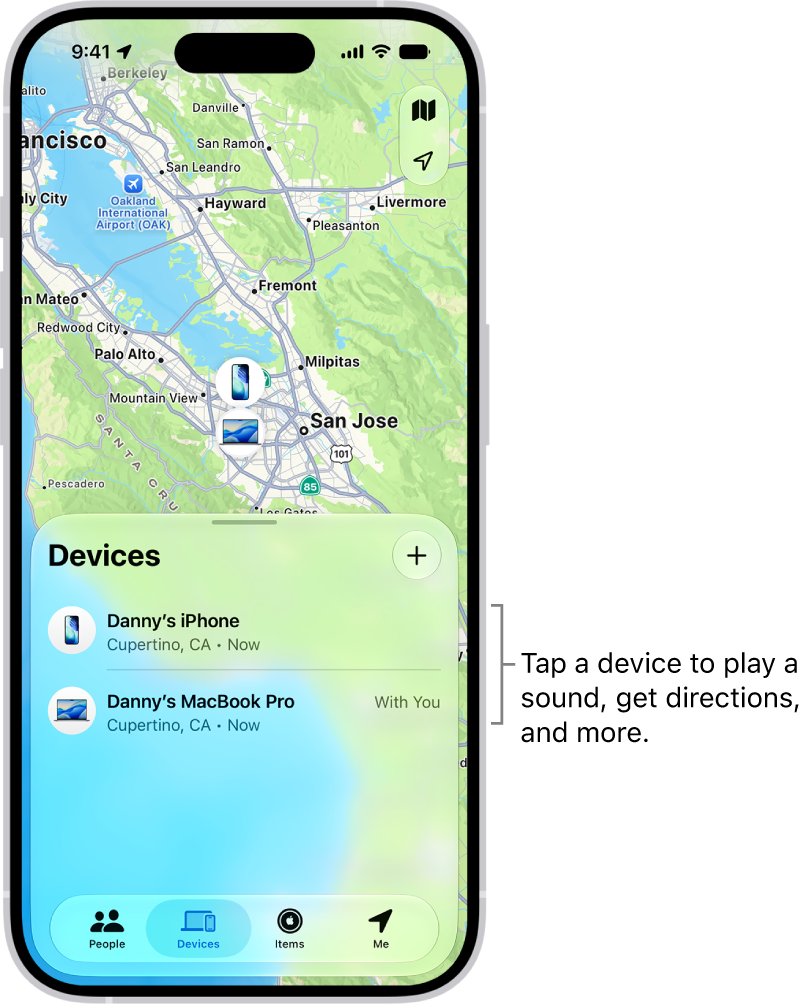
See your iPhone's last known location in Find My
Check the Find My app first, because it keeps a last known location for longer than iCloud.com does.
- Open the Find My app on another Apple device signed in to your Apple Account, or on a family member's device in your Family Sharing group.
- Tap Devices.
- Select your missing iPhone to see it on the map with the time of its last report.
- Tap the More button, then choose Directions to open that location in Maps.
- If you are close, tap Play Sound.
Without another Apple device, sign in to Find Devices at icloud.com/find. It does not ask for a verification code, so it still works when the lost iPhone is your trusted device.
Find My iPhone statuses: no location found, offline, not sharing location
The message under your iPhone's name tells you why no location appears.
| What Find My shows | What it means | What you can still do |
|---|---|---|
| A location with a time stamp | The last place the iPhone reported, kept for up to seven days in the Find My app | Get directions, mark it as lost |
| Offline | The iPhone is off, out of battery or has no connection | Use the last known location and mark it as lost |
| No location found | More than seven days have passed since the iPhone last sent its location through the Find My network | Mark it as lost so it locks the next time it connects |
| Not sharing location • Online | The iPhone is connected but cannot send its location, for example because of a Location Services issue | Mark it as lost or play a sound |
| iPhone not listed at all | Find My was not turned on before the iPhone was lost, or the iPhone is on an outdated iOS | Report it to your carrier and the police |
Find My app vs iCloud.com: which shows the last location longer?
| Your situation | Use this | Why |
|---|---|---|
| You have another iPhone, iPad or Mac on your Apple Account | Find My app, Devices tab | Shows the last known location for up to seven days |
| A family member has an Apple device | Find My app on their device | Your devices appear below theirs in Family Sharing |
| You only have a Windows PC or Android phone | Find Devices at icloud.com/find | No verification code needed; locations show for up to 24 hours |
| You changed your Apple Account password in an unfamiliar place with Stolen Device Protection on | Find My app on another Apple device | Device locations may not be visible at icloud.com/find in that case |
Mark a lost iPhone as lost when no location shows
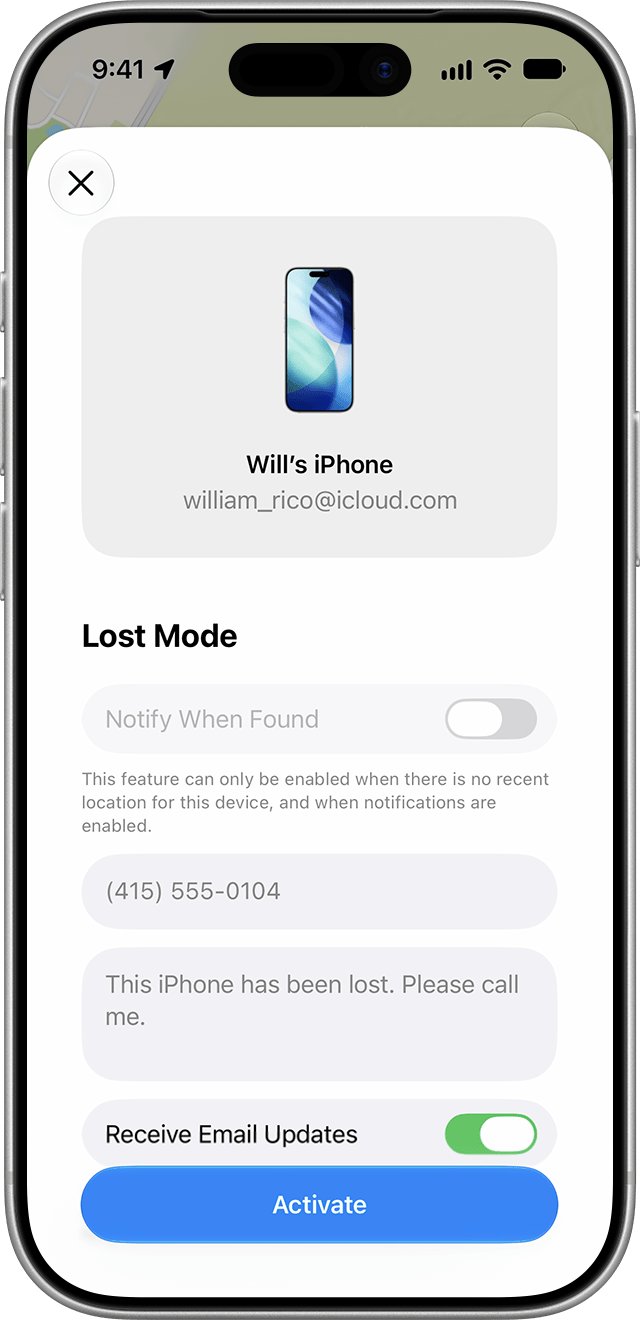
Lost Mode still works when Find My cannot show a location. The iPhone locks and displays your message the next time it is on and connected to Wi-Fi or cellular.
- In the Find My app, go to the Devices tab.
- Scroll down and select your missing iPhone.
- Tap the More button.
- Scroll down to Lost iPhone, then turn on Lost Mode.
- Follow the onscreen steps to show a phone number and message on the lost iPhone.
- Tap Activate.
Lost Mode locks the iPhone with your passcode and suspends Apple Pay cards and passes. Do not remove the iPhone from Find My, because that also removes Activation Lock.
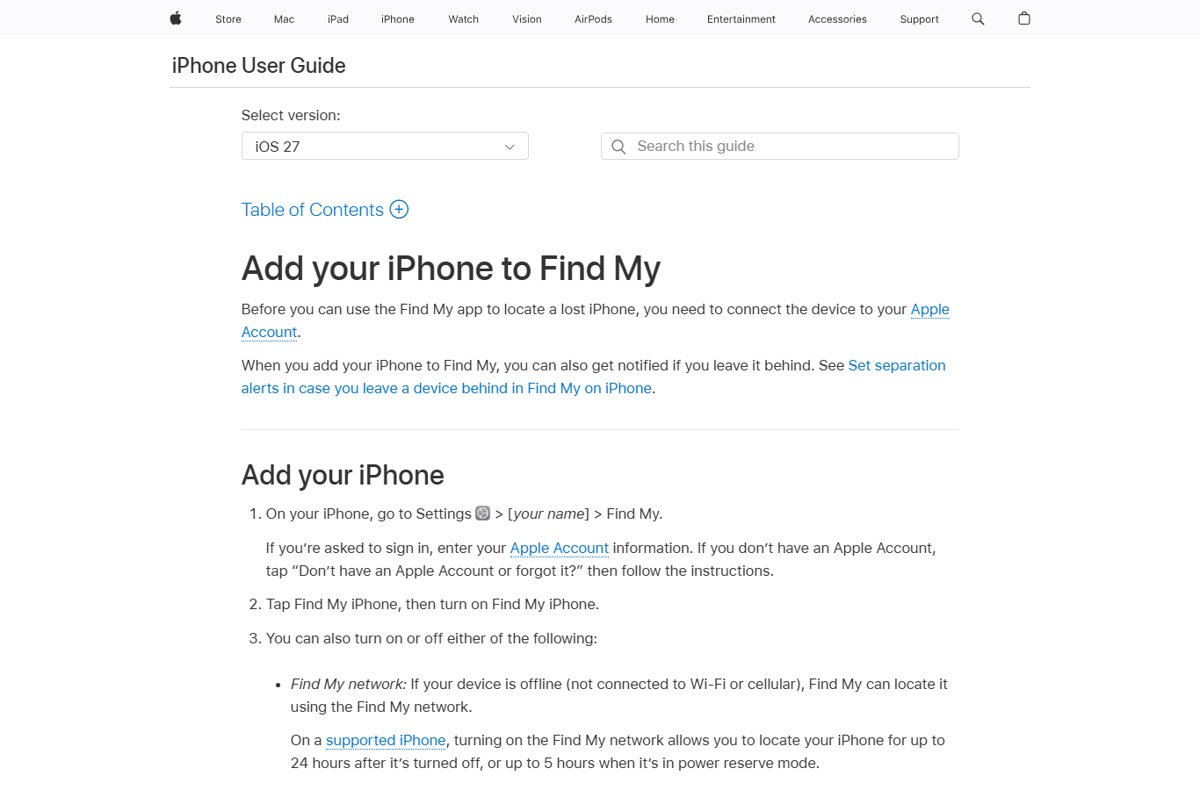
Turn on Find My iPhone, Find My network and Send Last Location
These three switches decide whether a last known location exists at all. Set them on the iPhone you have now so the next loss is easier.
- On your iPhone, go to Settings > [your name] > Find My.
- Sign in with your Apple Account if asked.
- Tap Find My iPhone and turn on Find My iPhone.
- Turn on Find My network so the iPhone can be located while it has no Wi-Fi or cellular connection.
- Turn on Send Last Location so the iPhone sends its location to Apple when the battery is critically low.
On a supported iPhone, the Find My network can locate the phone for up to 24 hours after it is turned off, or up to 5 hours in power reserve mode.
Check Location Services when Find My says not sharing location
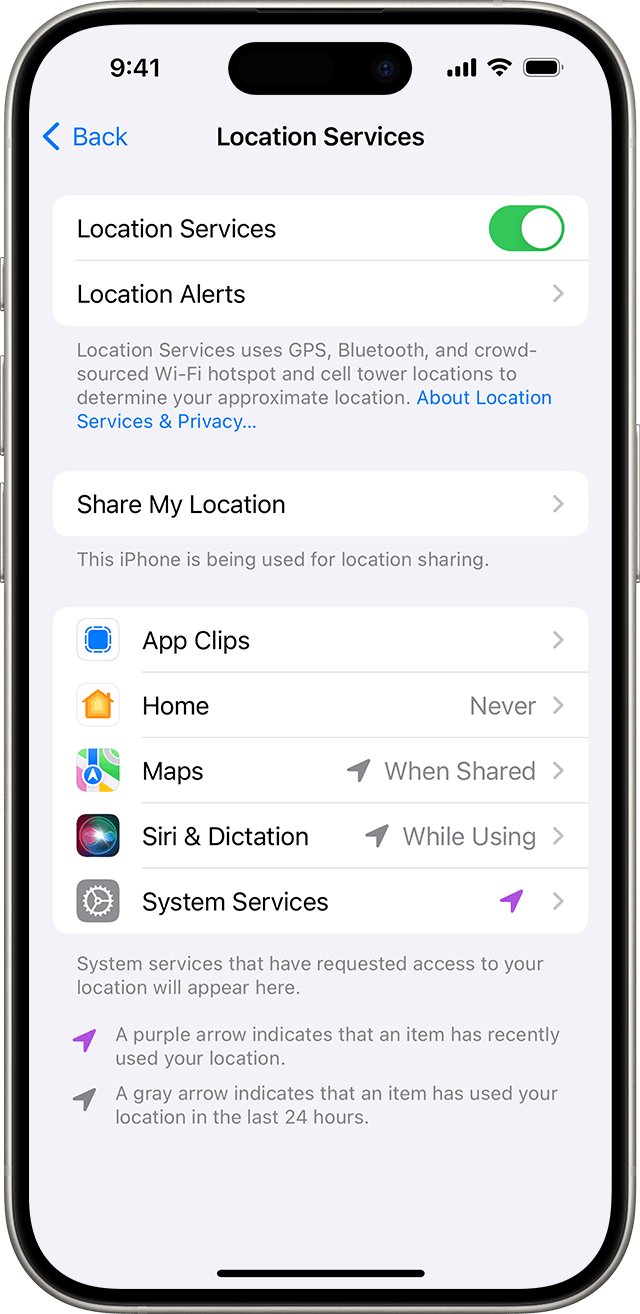
A phone that is online but not reporting a location usually has a Location Services problem. Run this check on the iPhone itself once you have it back, or on a family member's iPhone that shows the same status.
- Go to Settings, tap Privacy & Security, then tap Location Services.
- Make sure Location Services is on.
- Scroll down and check that apps such as Find My are not set to Never.
- Return to Settings > [your name] > Find My and confirm Find My iPhone is still on.
- Update the iPhone to the latest iOS version if it is out of date.
To let family see where you are as well, you can also share your location on iPhone with them from Find My.
Check that Find My shows your iPhone's location
- Sign in to Find Devices at icloud.com/find from a computer or another phone.
- Select your iPhone under All Devices.
- Confirm a current location appears on the map instead of Offline or No location found.
- Play a sound to confirm the iPhone responds.
Fix Find My iPhone not working or not updating location
Find My iPhone won't update location
The iPhone is off, out of battery, or has had no connection for a while.
- Use the last known location in the Find My app; it stays for up to seven days.
- Mark the iPhone as lost so it locks and reports in as soon as it reconnects.
- Check the map again later; an online iPhone reports its location to Find My.
Find My iPhone is off or the iPhone is not listed
Find My was not turned on before the iPhone was lost, so it never linked to Find My.
- Accept that Find My cannot locate, lock or erase this iPhone.
- Change your Apple Account password and report the loss to your carrier.
- Report it to local police with the serial number, which Apple's support site shows how to find without the device.
Location not visible on iCloud.com but fine on another device
iCloud.com only shows locations for up to 24 hours, and hides them after some Stolen Device Protection password changes.
- Open the Find My app on another Apple device or a family member's device instead.
- Select the iPhone under Devices to see the last known location from the past seven days.
Can Find My iPhone be wrong?
Locations are approximate and come from GPS, Bluetooth, Wi-Fi hotspots and cell towers, or from nearby devices on the Find My network.
- Check the time stamp under the iPhone's name; an old report may no longer match where the phone is.
- Get directions to the area, then use Play Sound when you are close.
- Do not go alone to a location you think a thief is at; contact local law enforcement.
Find My iPhone last known location FAQ
Why won't Find My iPhone update the location?
Find My can only update the location while the iPhone is on and connected, or while the Find My network can detect it. A dead, switched-off or long-offline iPhone shows its last known location for up to seven days, then No location found.
Why does Find My iPhone not work for my lost phone?
If Find My was not turned on before the iPhone was lost, it does not appear in the Find My app or at icloud.com/find, and you cannot mark it as lost or erase it. Find My must be on beforehand.
Why is my Find My iPhone off?
Find My iPhone is turned off in Settings > [your name] > Find My > Find My iPhone. Turn it on there, along with Find My network and Send Last Location, so the iPhone can be located later.
Why can't I locate my iPhone in Find My?
Find My shows No location found when more than seven days have passed since the iPhone last sent its location. If it shows Not sharing location • Online, the phone is connected but cannot send a location, often because of Location Services.
How long does Find My keep the last known location?
The Find My app shows the last known location for up to seven days. Find Devices on iCloud.com shows locations for up to 24 hours. After seven days without a report, Find My shows No location found.
Can Find My iPhone be wrong?
Yes, the map shows an approximate location based on GPS, Bluetooth, Wi-Fi hotspots and cell towers, or nearby Apple devices. Check the time stamp, because an old report may not match where the iPhone is now.
Why doesn't my iPhone know my location?
Location Services is probably off or blocked for that app. Go to Settings > Privacy & Security > Location Services, make sure it is on, and set the app to a permission other than Never.
Why can't my computer find my iPhone?
That is a USB connection issue, not Find My. Connect the iPhone, tap Trust on the Trust this Computer alert, and check that it appears in Finder on a Mac or the Apple Devices app on Windows. Try another data-capable cable or port.
Bottom line on a missing Find My iPhone location
Check the Find My app on another Apple device within seven days, mark the iPhone as lost straight away, and keep Find My network and Send Last Location on for the future. The last known location expires after seven days, but Lost Mode still locks the iPhone whenever it reconnects.