Liquid Glass cannot be switched off, but you can make it far less glassy: on iPhone, go to Settings > Display & Brightness > Liquid Glass and choose Tinted on iOS 26, or drag the Liquid Glass slider in Settings > Appearance on iOS 27.
This guide covers what Liquid Glass is, every setting that tones it down on iPhone and Mac, how to undo each one, and why the setting is sometimes greyed out.
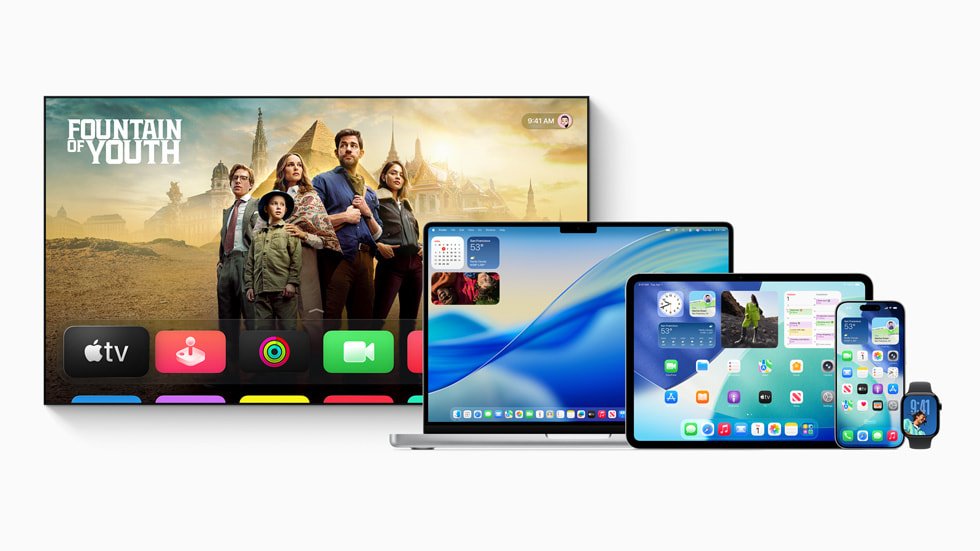
Fastest way to tone down Liquid Glass on iPhone
The Liquid Glass look setting arrived in iOS 26.1. It makes controls, apps and Lock Screen notifications more opaque without changing anything else.
- Open the Settings app.
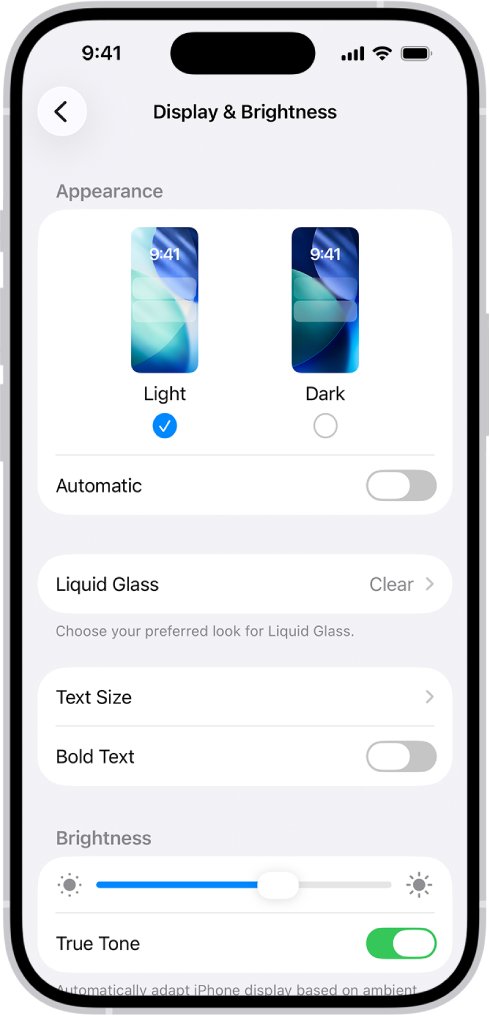
- On iOS 26, tap Display & Brightness, then tap Liquid Glass.
- Choose Tinted for more contrast and opacity, or Clear for the original transparent look.
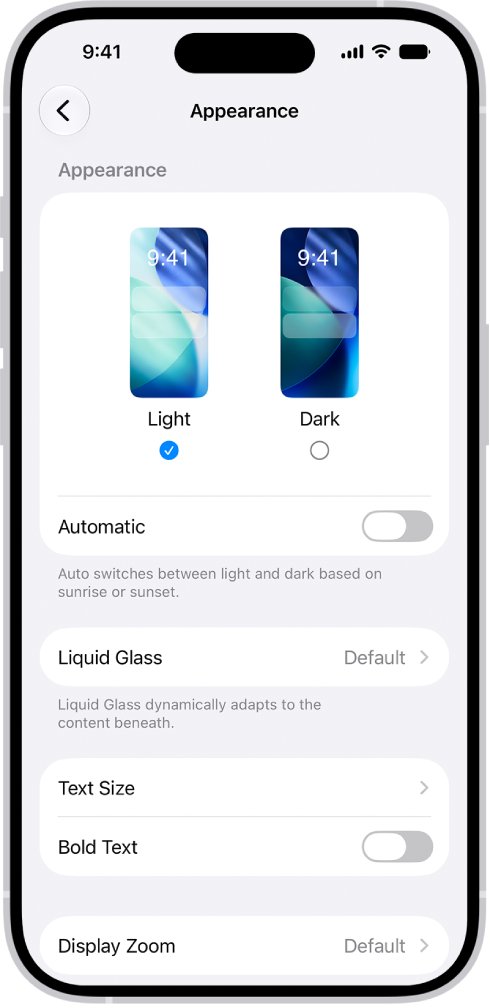
- On iOS 27, tap Appearance, then tap Liquid Glass instead.
- Drag the slider right to increase the tint, or left to make Liquid Glass more clear.
If the option is missing, update iOS from Settings > General > Software Update. If it is greyed out, turn off Reduce Transparency and Increase Contrast first.
Liquid Glass settings compared: which one to change
| What bothers you | Setting to change | Effect |
|---|---|---|
| Controls and notifications are hard to read | Liquid Glass: Tinted (iOS 26) or slider right (iOS 27) | More opacity, glass look kept |
| You want no see-through backgrounds at all | Reduce Transparency | Transparent and blurred backgrounds become solid |
| Edges and buttons blend into the background | Increase Contrast | Stronger contrast between elements |
| Morphing and wobbling animations | Reduce Motion | Cuts Liquid Glass animations |
| See-through app icons on the Home Screen | Home Screen Customize: Default, Dark or Tinted | Icons become opaque or tinted |
| Glassy app icons on a Mac | Appearance > Liquid Glass slider | Icons move from clear to heavily tinted |
| Transparent menus and sidebars on a Mac | Accessibility > Display > Reduce transparency | Solid backgrounds in macOS |
What is Liquid Glass design in iOS 26?
Liquid Glass is the name Apple gave to the translucent material behind its 2025 redesign. Apple called it its broadest software design update ever.
| Question | Answer |
|---|---|
| What it is | A translucent material that reflects and refracts what sits behind it |
| How it works | Real-time rendering that picks up colour from surrounding content and reacts to movement with specular highlights |
| Where it appears | Buttons, switches, sliders, tab bars, sidebars, the Lock Screen, Home Screen, notifications and Control Center |
| Platforms | iOS 26, iPadOS 26, macOS Tahoe 26, watchOS 26 and tvOS 26, plus CarPlay |
| When it arrived | Announced on June 9, 2025, with the version 26 releases |
| Still current? | Yes: the iOS 27 and macOS 27 user guides keep Liquid Glass and add a finer tint slider |
Apple describes Liquid Glass as a foundation for future experiences, and each update since iOS 26 has added controls rather than removing the design.
Reduce Transparency to make Liquid Glass solid on iPhone
Reduce Transparency is the strongest option. It gives transparent and blurred backgrounds a solid colour, which removes most of the glass effect.
- Open the Settings app.
- Tap Accessibility.
- Tap Display & Text Size.
- Turn on Reduce Transparency.
With Reduce Transparency on, the Liquid Glass look setting can no longer be changed. Turn Reduce Transparency off again if you want to use Clear or Tinted.
Increase Contrast for Liquid Glass buttons and text
- Open the Settings app on your iPhone.
- Tap Accessibility, then tap Display & Text Size.
- Turn on Increase Contrast.
- For extra legibility, go back to Settings and turn on Bold Text under Display & Brightness (iOS 26) or Appearance (iOS 27).
Increase Contrast also locks the Liquid Glass look setting, the same as Reduce Transparency.
Reduce Motion to stop Liquid Glass animations
With Reduce Motion off, iPhone shows the fluid morphing effects of Liquid Glass. Apple's iOS 26.4 update made this setting reduce those animations more reliably.
- Open the Settings app.
- Tap Accessibility, then tap Motion.
- Turn on Reduce Motion.
- Optionally turn on Reduce Bright Effects under Accessibility > Display & Text Size to cut highlight flashes on controls such as the keyboard.
How to change Liquid Glass app icons on the iPhone Home Screen
App icons and widgets have their own look, separate from the system Liquid Glass setting. Pick an opaque style if the clear icons are the part you dislike.
- Go to the Home Screen.
- Touch and hold the background until the icons begin to jiggle.
- Tap the edit button at the top, then choose Customize.
- Tap Dark or Auto for opaque icons, or Tinted and use the sliders to pick a colour.
- Avoid Clear if you want solid icons, because it makes them translucent.
How to change Liquid Glass on a Mac
macOS Tahoe and later put the Liquid Glass slider in Appearance settings. On a Mac it controls how tinted app icons look, and a calmer Mac desktop wallpaper makes translucent menus easier to read.
- Choose Apple menu > System Settings.
- Click Appearance in the sidebar.
- Drag the Liquid Glass slider right for heavier tinting, or fully left for clear.
- Set Icon & widget style to Default or Dark for opaque icons.
- For solid menus and sidebars, click Accessibility > Display and turn on Reduce transparency.
How to check your Liquid Glass changes worked
- Open Control Center and check that its tiles look more solid against your wallpaper.
- Lock the iPhone and confirm notifications on the Lock Screen are easier to read.
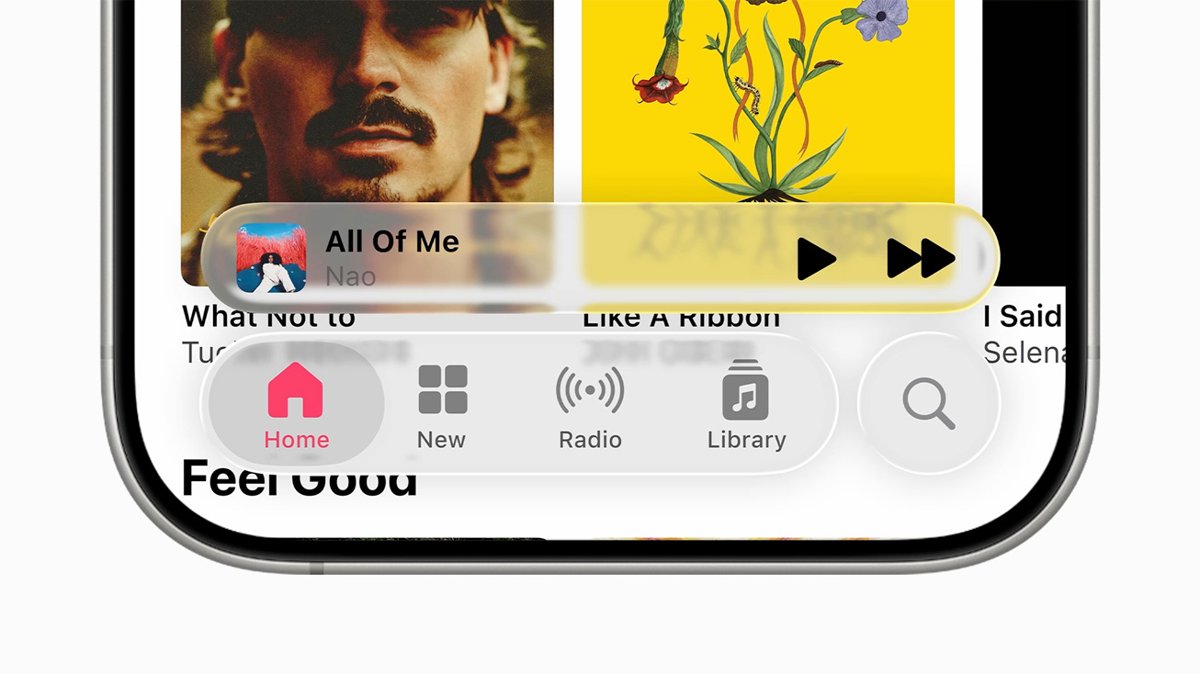
- Open an app such as Music and scroll: the tab bar should look more opaque.
- Switch between apps and confirm the morphing animation is shorter if you turned on Reduce Motion.
How to get the default Liquid Glass look back
- Go to Settings > Accessibility > Display & Text Size and turn off Reduce Transparency and Increase Contrast.
- Go to Settings > Accessibility > Motion and turn off Reduce Motion.
- On iOS 26, go to Settings > Display & Brightness > Liquid Glass and choose Clear.
- On iOS 27, go to Settings > Appearance > Liquid Glass and drag the slider fully left.
Liquid Glass setting missing or not working: fixes by symptom
The Liquid Glass option is greyed out
Reduce Transparency or Increase Contrast is on, and both override the look setting.
- Go to Settings > Accessibility > Display & Text Size.
- Turn off Reduce Transparency and Increase Contrast.
- Return to the Liquid Glass setting and choose your look.
There is no Liquid Glass option in Settings
The iPhone runs iOS 26.0, which shipped before the look setting.
- Go to Settings > General > Software Update.
- Tap Download and Install if an update is listed.
- Look under Display & Brightness on iOS 26.1 and later, or Appearance on iOS 27.
Liquid Glass animations make you feel unwell
The fluid morphing effects run with Reduce Motion off.
- Turn on Reduce Motion in Settings > Accessibility > Motion.
- Install the latest iOS, since iOS 26.4 improved how Reduce Motion limits these animations.
Liquid Glass FAQ
What is Liquid Glass?
Liquid Glass is Apple's translucent interface material, introduced in June 2025 with iOS 26, iPadOS 26, macOS Tahoe 26, watchOS 26 and tvOS 26. It reflects and refracts content behind it and is used for buttons, tab bars, the Lock Screen, notifications and Control Center.
What is Liquid Glass design called?
Apple calls the material itself Liquid Glass and describes the overall change as a new software design. It is the first design shared across iPhone, iPad, Mac, Apple Watch and Apple TV at the same time, and the version 26 releases introduced it.
How does Liquid Glass work?
Liquid Glass uses real-time rendering. It takes its colour from the content around it, adapts between light and dark environments, and reacts to movement with specular highlights. Controls built from it shrink or morph as you scroll or move around an app.
How do I turn on or enable Liquid Glass?
Liquid Glass is on automatically once your iPhone runs iOS 26 or later; there is no separate switch to activate it. If it looks solid, Reduce Transparency or Increase Contrast is probably on. Turn both off under Settings > Accessibility > Display & Text Size.
Can you turn off Liquid Glass completely?
No. Apple offers no off switch for Liquid Glass. Reduce Transparency comes closest, because it gives transparent and blurred backgrounds a solid colour. Combine it with Increase Contrast and Reduce Motion for the least glassy look iPhone allows.
How do I change Liquid Glass?
On iOS 26.1 and later, go to Settings > Display & Brightness > Liquid Glass and choose Clear or Tinted. On iOS 27, go to Settings > Appearance > Liquid Glass and drag the slider. On a Mac, use the Liquid Glass slider in System Settings > Appearance.
Is Liquid Glass any good?
That depends on how you use your screen. Apple says it brings more focus to content, but transparent controls can be harder to read over busy backgrounds. If you find it hard to read, choose Tinted or turn on Reduce Transparency rather than staying on an older iOS.
Is Liquid Glass here to stay?
Yes. The iOS 27 and macOS 27 user guides still use Liquid Glass and add a finer tint slider in Appearance settings. Apple has kept adding ways to adjust the design rather than removing it.
Bottom line: living with Liquid Glass
Start with the Tinted look or the iOS 27 slider, and move to Reduce Transparency only if controls are still hard to read. The tint setting keeps the design but fixes most legibility complaints, while Reduce Transparency removes the effect and locks the tint option. Liquid Glass is not going away, so these settings are the lasting way to make it work for you.