When iPhone 17 CarPlay keeps disconnecting or will not start, update iOS, swap the USB-C cable or port, check Bluetooth, Wi-Fi and Auto-Join for wireless CarPlay, then forget the car and set CarPlay up again.
This guide covers wired and wireless CarPlay on iPhone 17 and iPhone 17 Pro, the settings that block CarPlay, how to disconnect it on purpose, and when the car's stereo is the real problem.
Fastest fix when iPhone 17 CarPlay keeps disconnecting
Apple's own CarPlay checklist starts with the connection and ends with a fresh setup. Check CarPlay again after each step, so you know which one fixed it.
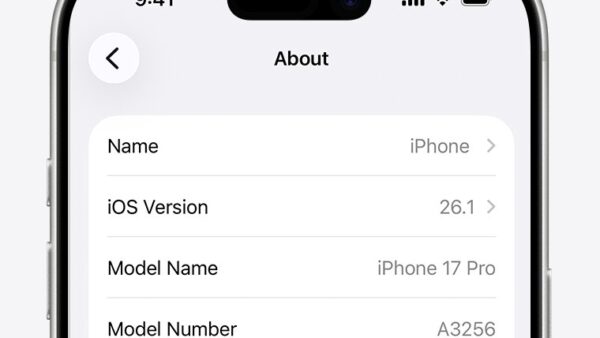
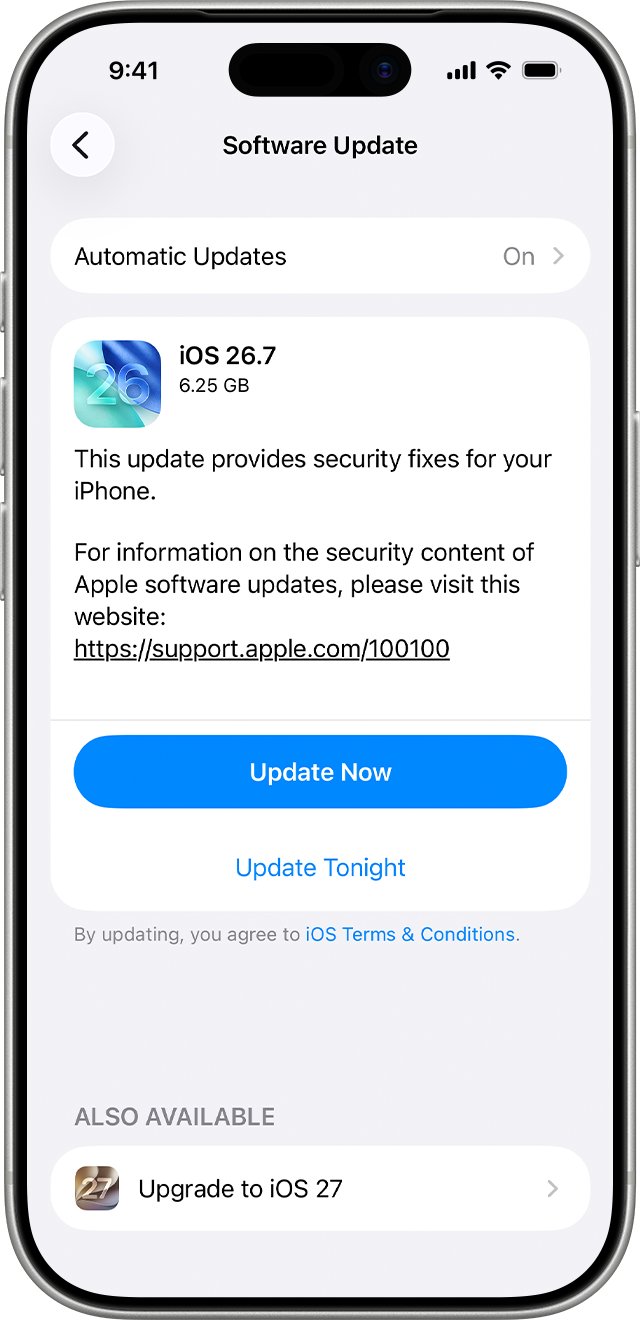
- Open Settings > General > Software Update and install any iOS update shown.
- For wired CarPlay, plug in with a different USB cable and, if the car has one, a different USB port.
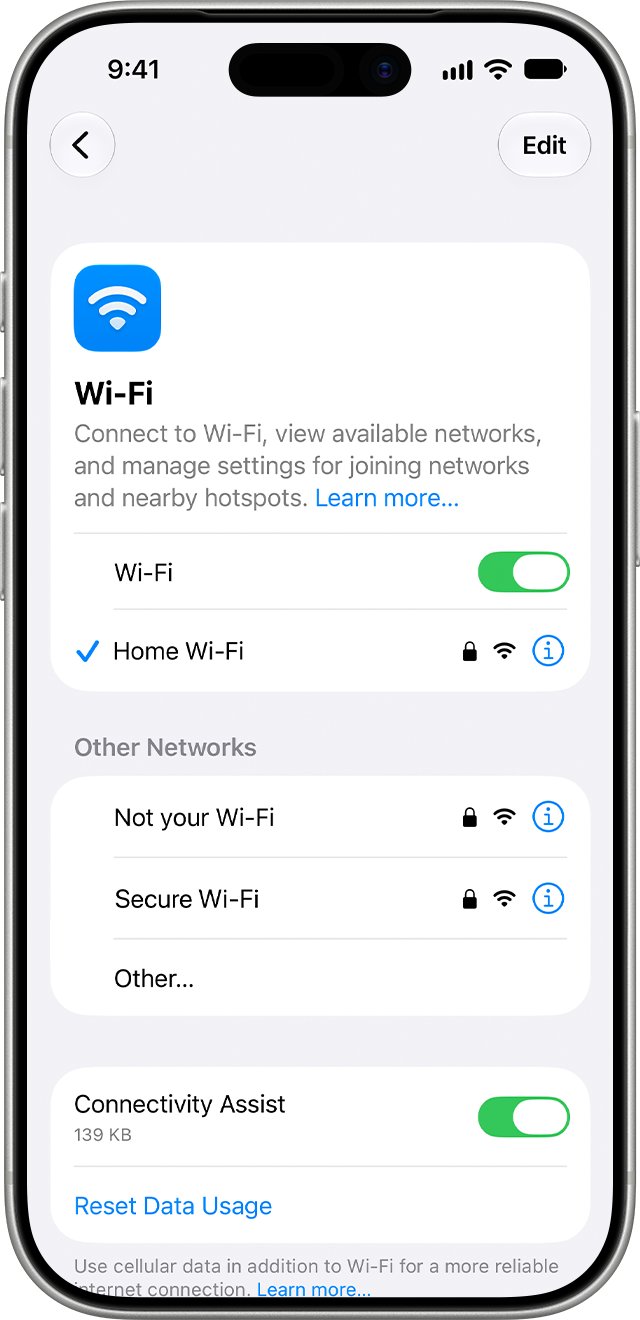
- For wireless CarPlay, confirm Bluetooth is on in Settings > Bluetooth and Wi-Fi is on in Settings > Wi-Fi.
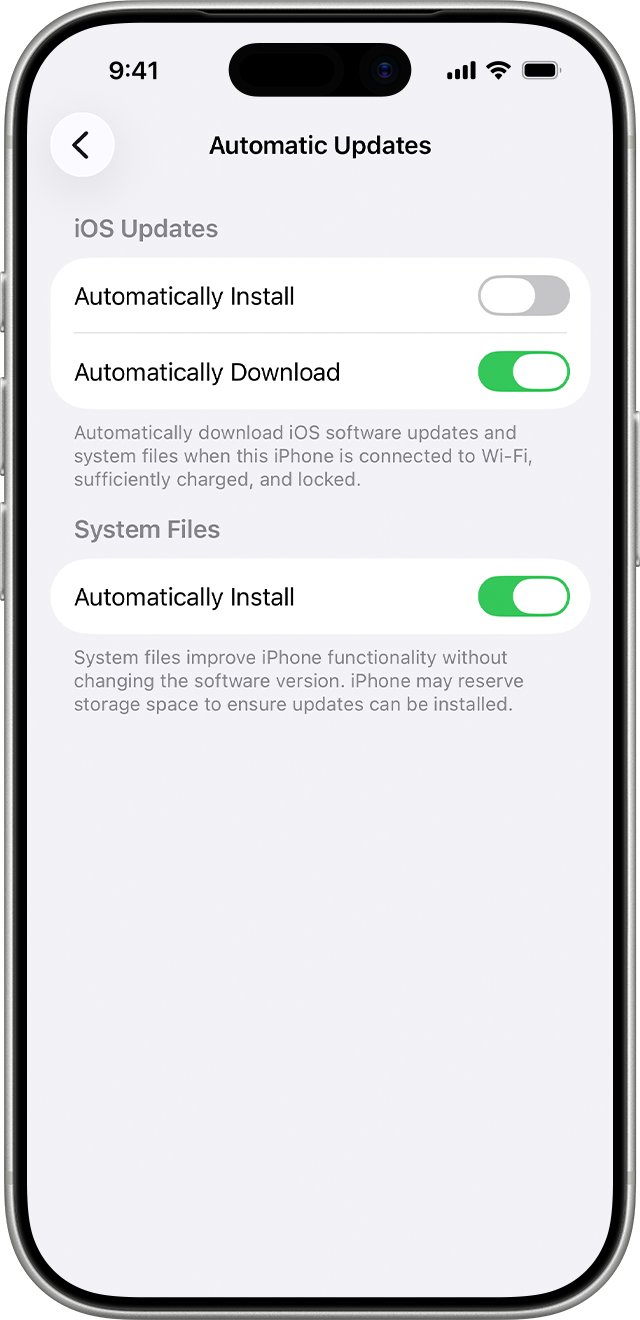
- In Settings > Wi-Fi, tap the CarPlay network and check that Auto-Join is turned on.
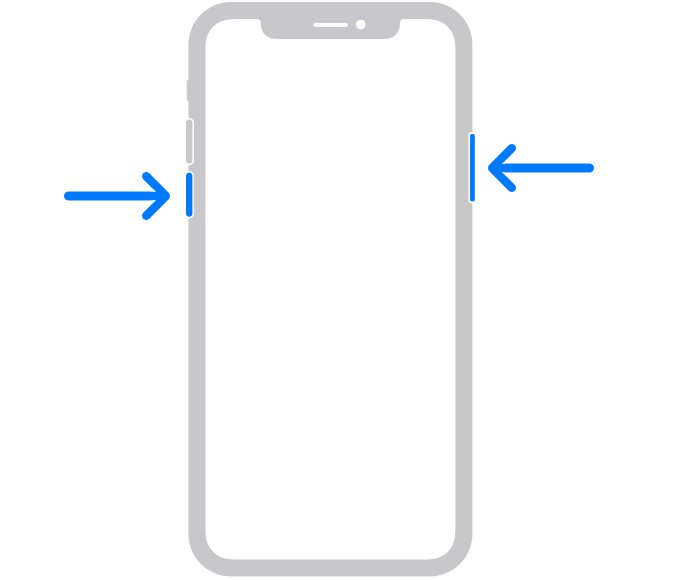
- Restart the iPhone and switch the car off and on again.
- If it still drops, go to Settings > General > CarPlay, tap your car, tap Forget This Car, then set CarPlay up again.
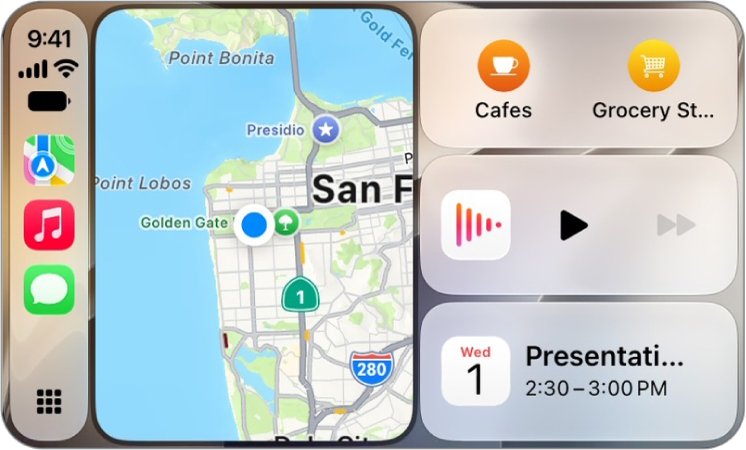
If CarPlay connects but does not appear on screen, select the CarPlay logo on the car's display. Some cars do not open CarPlay Home automatically, and Ford models start it from the SYNC Bluetooth and CarPlay menu.
iPhone 17 CarPlay issues: match the symptom to the fix
| What you see | Likely cause | Fix to try first |
|---|---|---|
| Wired CarPlay drops when the phone moves | Worn cable or loose port | Try another USB cable and another USB port |
| Wired CarPlay fails only through an adapter | Adapter, cable and stereo combination | Use a direct USB cable with no adapter |
| Wireless CarPlay connects, then drops after a few minutes | Wi-Fi or Auto-Join is off for the CarPlay network | Turn on Wi-Fi and Auto-Join for the car's network |
| iPhone 17 is not detected by CarPlay at all | CarPlay blocked in Screen Time | Allow CarPlay under Content & Privacy Restrictions |
| CarPlay connects but voice commands do nothing | Siri is turned off | Turn Siri on, then reconnect |
| Worked on an older iPhone, fails on iPhone 17 | Old pairing record for the car | Forget This Car and set CarPlay up again |
| Every phone has problems in this car | Outdated stereo firmware | Ask the car maker for a firmware update |
What iPhone 17 needs to work with Apple CarPlay
| Requirement | What to check |
|---|---|
| Country or region | CarPlay is not offered in every country or region; check Apple's iOS feature availability page |
| Car or stereo | The car or aftermarket stereo must support CarPlay; Apple lists supported models on its CarPlay available models page |
| iOS version | Install the latest iOS from Settings > General > Software Update |
| Siri | Siri must be on for CarPlay to work |
| Wired connection | iPhone 17 has a USB-C connector; use an Apple USB cable that fits the car's CarPlay port |
| Wireless connection | Bluetooth and Wi-Fi both on, with Auto-Join turned on for the car's CarPlay network |
| Stereo firmware | The latest firmware from the car maker; check the car's manual |
How to connect iPhone 17 to CarPlay with a USB-C cable
A wired connection is the most reliable way to rule out a wireless fault. The car's CarPlay port may carry a CarPlay or smartphone icon.
- Start the car and make sure Siri is on.
- Plug iPhone 17 into the car's USB port marked with the CarPlay or smartphone icon.
- Use an Apple USB cable that fits that port directly.
- Unlock the iPhone and allow CarPlay if an alert asks.
- If CarPlay Home does not open, select the CarPlay logo on the car's display.
Apple says the USB-C to Lightning Adapter works with wired CarPlay in most vehicles, but some adapter, cable and stereo combinations disrupt the connection. If CarPlay only fails through an adapter, switch to a single direct cable.
How to set up wireless CarPlay on iPhone 17
If the car supports both wired and wireless CarPlay, plug the iPhone in once. An alert then offers to connect wirelessly on later drives.
- For a wireless-only car, press and hold the voice command button on the steering wheel.
- Put the car stereo in wireless or Bluetooth mode.
- On the iPhone, open Settings > Wi-Fi and make sure Wi-Fi is on.
- Tap the car's CarPlay network and check that Auto-Join is turned on.
- Go to Settings > General > CarPlay and select your car.
- Follow any prompts on the car's display to finish pairing.
Wireless CarPlay uses both Bluetooth and Wi-Fi. Turning either one off, or leaving Auto-Join off for the car's network, ends the session.
Forget the car and set up CarPlay again on iPhone 17
A stale pairing record is common after moving to a new iPhone from a backup. Removing the car makes iPhone 17 pair with it from scratch.
- Open Settings and tap General.
- Tap CarPlay, then tap your car.
- Tap Forget This Car and confirm.
- Remove the iPhone from the car's own phone list too, using the steps in the car's manual.
- Restart the iPhone and the car.
- Connect again with a cable or through wireless setup.
Allow CarPlay in Screen Time when iPhone 17 isn't detected
If CarPlay is restricted in Screen Time, the car never sees the iPhone. This setting often carries over from a restored backup or a family-managed device.
- Open Settings > Screen Time.
- Tap Content & Privacy Restrictions.
- If restrictions are on, tap Allowed Apps.
- Make sure CarPlay is turned on.
- Reconnect the iPhone to the car.
How to disconnect CarPlay on iPhone
Disconnecting on purpose is the mirror of the fixes above. Pick the option that matches how long you want CarPlay off.
| Goal | What to do |
|---|---|
| End one wired session | Unplug the USB cable from the iPhone |
| Remove a car for good | Settings > General > CarPlay, tap the car, then Forget This Car |
| Stop CarPlay in every car | Settings > Screen Time > Content & Privacy Restrictions > Allowed Apps, then turn off CarPlay |
| Use the car screen without CarPlay | Select the car's own logo icon on CarPlay Home, or press the radio's physical Home button if it has one |
Turning CarPlay off in Screen Time hides it everywhere until you turn it back on, so use Forget This Car if only one car is the problem.
How to check iPhone 17 CarPlay is connected properly
- Look for CarPlay Home or CarPlay Dashboard on the car's display.
- Open Settings > General > CarPlay on the iPhone and confirm your car is listed.
- Start a song and switch between CarPlay Dashboard and CarPlay Home to confirm the controls respond.
- Hold the voice command button on the steering wheel and ask Siri for directions.
- Drive for at least 15 minutes and watch for the screen returning to the car's own menu.
iPhone 17 Pro CarPlay disconnecting or not connecting: fixes by symptom
iPhone keeps disconnecting from wired CarPlay
The cable, port or an adapter is breaking the data connection.
- Try a different USB cable, ideally an Apple cable.
- Use a different USB port if the car has more than one CarPlay port.
- Remove any adapter or hub between the cable and the car.
- Check that the cable sits fully in the iPhone's USB-C port.
Apple CarPlay randomly disconnects over wireless
Bluetooth, Wi-Fi or Auto-Join for the car's network is off.
- Turn on Bluetooth in Settings > Bluetooth.
- Turn on Wi-Fi in Settings > Wi-Fi.
- Tap the CarPlay network and turn on Auto-Join.
- Restart the iPhone and the car, then reconnect.
iPhone 17 not connecting to CarPlay after setup or a restore
CarPlay is restricted, Siri is off, or the old pairing is stale.
- Allow CarPlay in Settings > Screen Time > Content & Privacy Restrictions > Allowed Apps.
- Turn Siri on.
- Go to Settings > General > CarPlay, tap the car and tap Forget This Car.
- Set CarPlay up again from the start.
iPhone 17 carplay connection issue after an iOS update
The car stereo's firmware is out of step with the iPhone software, or the network settings are damaged.
- Install any newer iOS update in Settings > General > Software Update.
- Ask the car maker or stereo maker whether a firmware update is available.
- As a last step, go to Settings > General > Transfer or Reset iPhone > Reset > Reset Network Settings.
- Rejoin Wi-Fi networks and pair the car again.
CarPlay connects but nothing appears on the car screen
The car does not open CarPlay Home automatically.
- Select the CarPlay logo on the car's display.
- Check the car's settings menu for a CarPlay or smartphone projection option, using the car's manual.
iPhone 16 or an older iPhone works, but iPhone 17 will not connect
The car still holds the old phone's pairing, or the new cable does not fit the car's port.
- Delete the old phone from the car's phone list.
- Use a cable that goes straight from the iPhone 17's USB-C port to the car's CarPlay port.
- Forget the car on iPhone 17 and set it up again.
Reset Network Settings removes saved Wi-Fi networks and VPN settings and renames the iPhone to "iPhone", so keep it for when the other fixes fail.
iPhone 17 CarPlay not working FAQ
Why does Apple CarPlay keep disconnecting?
Apple CarPlay usually disconnects because of a worn cable, a loose port, or Wi-Fi and Auto-Join being off for a wireless car. Try another cable and port, turn on Bluetooth, Wi-Fi and Auto-Join, restart the iPhone and car, then use Forget This Car and set CarPlay up again.
How do I connect iPhone 17 to CarPlay?
Start the car and make sure Siri is on. For wired CarPlay, plug iPhone 17 into the car's CarPlay USB port with an Apple USB cable. For wireless CarPlay, hold the voice command button, put the stereo in Bluetooth mode, then select the car in Settings > General > CarPlay.
How do I disconnect CarPlay on iPhone?
Unplug the cable to end a wired session. To remove a car permanently, go to Settings > General > CarPlay, tap the car and tap Forget This Car. To turn CarPlay off for every car, disable it under Screen Time > Content & Privacy Restrictions > Allowed Apps.
How do I disconnect Apple CarPlay from my car?
Remove the car from the iPhone with Forget This Car in Settings > General > CarPlay, then delete the iPhone from the car's phone list using the car's manual. Both sides need clearing if you are selling the car or passing it to another driver.
Does iPhone 17 CarPlay need a special cable?
iPhone 17 has a USB-C connector, so it needs a USB cable that fits both the iPhone and the car's CarPlay port. Apple recommends an Apple USB cable and a direct connection. Some adapter and cable combinations disrupt wired CarPlay, so avoid chaining adapters.
Why is my iPhone 17 not detected by CarPlay?
An iPhone that the car never detects is often blocked in Screen Time. Go to Settings > Screen Time > Content & Privacy Restrictions > Allowed Apps and make sure CarPlay is on. Also confirm Siri is on and the car supports CarPlay in your country or region.
Why does iPhone 17 Pro CarPlay keep disconnecting wirelessly?
Wireless CarPlay needs both Bluetooth and Wi-Fi on, with Auto-Join turned on for the car's CarPlay network. If either is off, the session drops. Turn them on, restart both the iPhone and the car, and forget and re-add the car if drops continue.
Can an iOS update fix CarPlay problems?
Yes, often. Apple lists the latest iOS as a CarPlay requirement, so install updates from Settings > General > Software Update. The car stereo needs current firmware too, which comes from the car maker rather than Apple.
Bottom line: when iPhone 17 CarPlay still disconnects
Fix the link before the settings: a direct cable or working Wi-Fi and Auto-Join first, then Siri and Screen Time, then Forget This Car and a fresh setup. Most CarPlay drops come from the cable or the wireless connection. If every phone has trouble in the same car, the stereo firmware is the likely cause, so contact the car maker; if only your iPhone 17 fails in several cars, contact Apple Support.