To install Gaming Services in Windows 11, open its Microsoft Store page (product ID 9MWPM2CQNLHN), select Get or Install, and restart the PC when it finishes.
This guide covers the Store, Xbox app and winget routes, how to update, repair and reinstall the component, and fixes for the Store loop and common install errors.
Install Gaming Services from the Microsoft Store
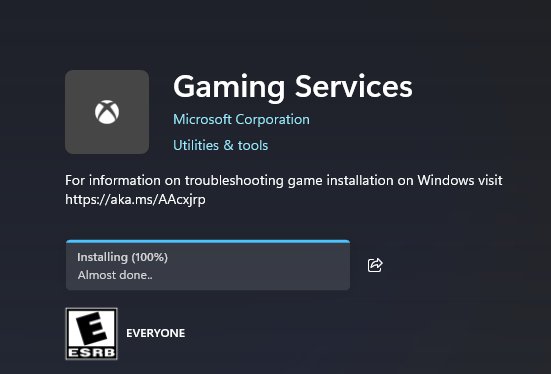
Gaming Services is a free Microsoft Store package, so the Store is the fastest and safest source. Sign in to the Store with your Microsoft account first.
- Press Win + R to open the Run box.
- Type
ms-windows-store://pdp/?ProductId=9MWPM2CQNLHNand select OK. The Microsoft Store opens on the Gaming Services page. - Select Get (or Install if you had it before).
- Wait for the download and install to finish. The button changes to Open or disappears.
- Restart the PC so the Gaming Services background services start cleanly.
You can also open Microsoft Store, type Gaming Services in the search box and pick the result published by Microsoft.
What Gaming Services does in Windows 11
Gaming Services is the background component that PC Game Pass and Xbox games from the Microsoft Store depend on. When it is missing or damaged, the Xbox app can open with missing content and games fail to install or update.
| Question | Answer |
|---|---|
| What is it? | A Microsoft Store package that installs and runs the services Xbox PC games use |
| Who needs it? | Anyone who installs or plays games from the Xbox app or Microsoft Store, including PC Game Pass |
| Where does it come from? | The Microsoft Store, product ID 9MWPM2CQNLHN |
| Is it a separate app you open? | No. It runs in the background, and the Store page shows no usable app window |
| What breaks without it? | Game installs and updates from the Xbox app, and some Xbox app content |
Before you start: Windows version, account and Store checks
These prerequisites are the same on Windows 11 and Windows 10. On Windows 10, update to version 22H2 first, then use the same install steps.
| Check | How to confirm it | Why it matters |
|---|---|---|
| Windows version | Go to Settings > System > About and read Version under Windows specifications | Some Xbox app and Game Bar features need Windows 10 22H2 or newer; the repair tool can need the Local Administrator account on 22H2 or older |
| Microsoft account | Open Microsoft Store and check that your account picture appears at the top | The Store and Xbox app need a signed-in Microsoft account |
| Windows updates | Go to Settings > Windows Update > Check for updates and install anything offered | A pending restart after updates blocks Store installs until you reboot |
| Microsoft Store works | Open Microsoft Store > Library > Get updates | An outdated or broken Store cannot install Gaming Services |
| Admin rights | Use an administrator account on the PC | PowerShell removal with -AllUsers and the repair tool need administrator permissions |
Install Gaming Services from the Xbox app
The Xbox app for PC depends on Gaming Services, and it includes a built-in version of the Gaming Services Repair Tool that installs or repairs the component for you.
- Open Microsoft Store, search for Xbox, and install or update the Xbox app.
- Open the Xbox app and sign in with the same Microsoft account you use in the Store.
- Open the app's settings and find the Gaming Services Repair Tool entry in its troubleshooting area.
- Run the tool and let it finish installing or repairing Gaming Services.
- Restart the PC, then reopen the Xbox app.
If the built-in tool will not run, a downloadable version of the Gaming Services Repair Tool for PC is offered on Xbox Support.
Use winget to install or repair Gaming Services
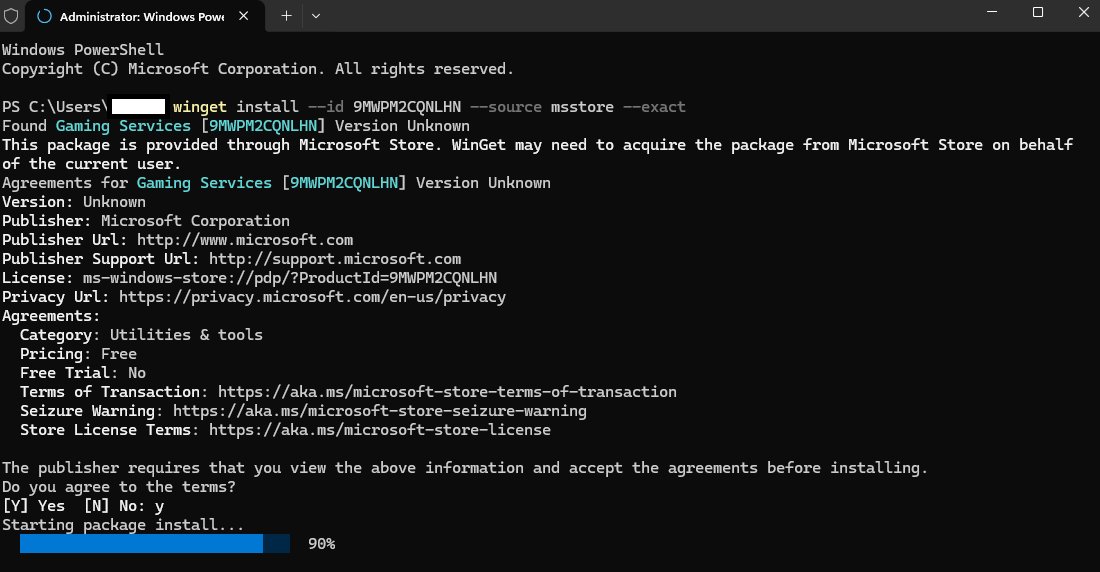
Windows Package Manager can install Store apps by their product ID through the msstore source. Open Terminal or Command Prompt and run the command below.
winget install 9MWPM2CQNLHN -s msstore --accept-package-agreements --accept-source-agreements9MWPM2CQNLHN is the Gaming Services product ID, -s msstore limits the search to the Microsoft Store source, and the two accept switches skip the agreement prompts. To repair a broken copy, run winget uninstall 9MWPM2CQNLHN first, restart, then run the install command again.
You should see: winget reports that it found Gaming Services and prints Successfully installed.
Update Gaming Services
- Select Start, then select Microsoft Store from the apps list.
- Select Library in the left pane.
- Select Get updates.
- Let Gaming Services and the Xbox app finish updating if they appear in the list.
- Restart the PC after a Gaming Services update.
Store app updates are also applied automatically when automatic app updates are on in the Store's settings.
Repair or reset Gaming Services in Settings
Repair keeps the app's data. Reset clears it, so use Reset only when Repair does not help.
- Select Start > Settings > Apps > Installed apps.
- Find Gaming Services in the list.
- Select the More (three dots) button next to it and choose Advanced options. Some app versions do not show this option.
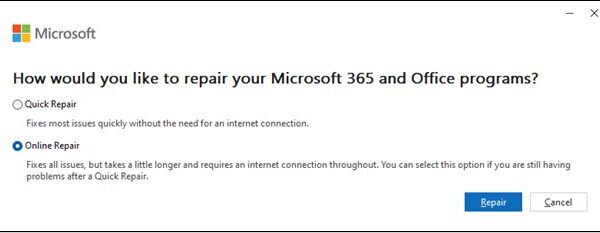
- Select Repair and wait for the check mark.
- If the problem remains, select Reset, confirm, and restart the PC.
Reinstall Gaming Services with PowerShell
Use this when Gaming Services will not install, will not update or keeps sending you back to the Store. It removes the current package so the Store can install a clean copy.
- Right-click Start and select Terminal (Admin), then confirm the User Account Control prompt.
- Run
Get-AppxPackage -AllUsers -Name *GamingServices*and note the PackageFullName it shows. If nothing is listed, Gaming Services is not installed. - Run
Get-AppxPackage -AllUsers -Name *GamingServices* | Remove-AppxPackage -AllUsersto remove it for every account. - Restart the PC.
- Run
start ms-windows-store://pdp/?ProductId=9MWPM2CQNLHNto open the Gaming Services Store page. - Select Get or Install, then restart again when it finishes.
If the removal command returns an error, run the first command without -AllUsers and remove the package for your own account only, then restart and reinstall.
How to confirm Gaming Services is installed correctly
- Open Settings > Apps > Installed apps and confirm Gaming Services is listed.
- In PowerShell, run
Get-AppxPackage -Name *GamingServices*and confirm a Status of Ok and a current Version. - Open Microsoft Store > Library and confirm Gaming Services shows no pending update.
- Open the Xbox app and start a game install or update. It should move past Preparing and begin downloading.
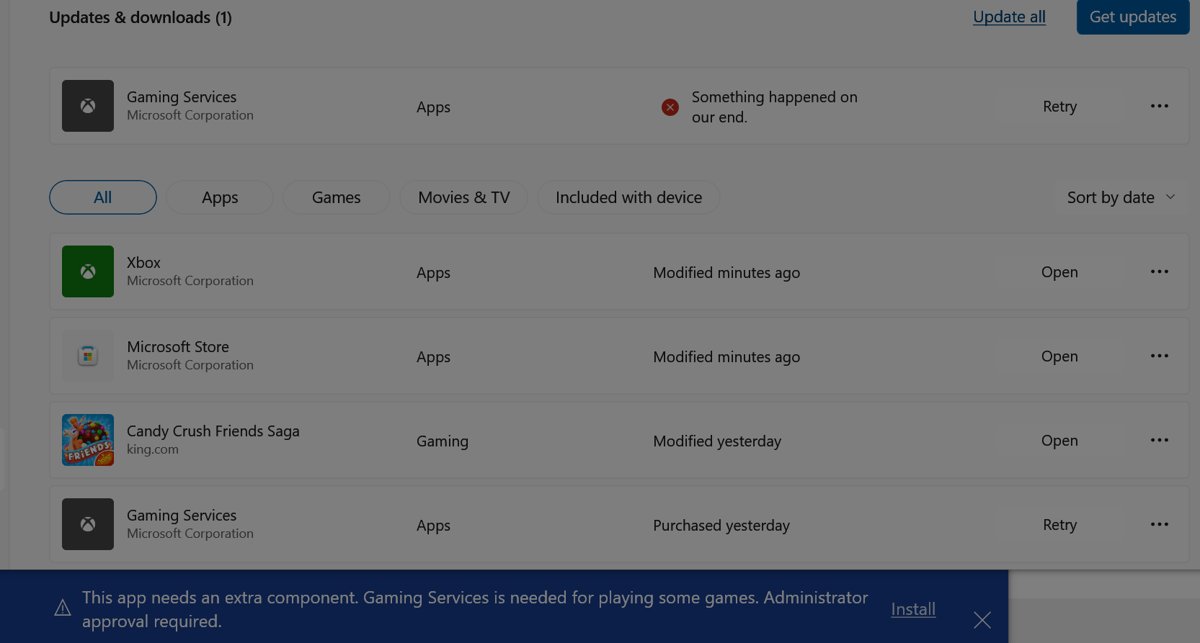
Fix the "Gaming Services opens Microsoft Store again and again" loop
Gaming Services keeps opening the Microsoft Store page
A damaged or half-registered package makes the Xbox app or a game ask for Gaming Services even though a copy exists.
- Close the Xbox app and Microsoft Store.
- Remove the package with the PowerShell commands in the reinstall section above.
- Restart the PC before you install again.
- Install Gaming Services from its Store page and restart once more.
The Store page shows Install again right after installing
The Store cache or the Store app itself is out of date.
- Press Win + R, type
wsreset.exeand select OK. - Wait for the blank window to close and the Store to reopen.
- Go to Library > Get updates and update Microsoft Store, then install Gaming Services again.
Make sure required Windows services are running
Store installs and Xbox sign-in rely on several built-in Windows services. Each one should be set to its default Manual startup type, not Disabled.
| Service (display name) | Service name | What fails if it is disabled |
|---|---|---|
| Windows Update | wuauserv | Programs cannot use the Windows Update Agent to download updates |
| Background Intelligent Transfer Service | BITS | Background downloads used by Windows Update |
| Windows License Manager Service | LicenseManager | Content acquired through the Microsoft Store does not work properly |
| Microsoft Account Sign-in Assistant | wlidsvc | Sign-in with a Microsoft account |
| Xbox Live Auth Manager | XblAuthManager | Authentication for Xbox services, so some apps do not work |
| Xbox Live Game Save | XblGameSave | Cloud save sync for Xbox games |
Press Win + R, type services.msc and press Enter. Double-click any service above that shows Disabled, set Startup type to Manual, select Apply, then restart the PC.
Install or update the Xbox app
- Open Microsoft Store and search for Xbox.
- Select the Xbox app published by Microsoft and choose Install or Update.
- If it is already installed, go to Library > Get updates instead.
- Open the Xbox app, sign in, and let it check its own components.
If the Store route fails, you can download the Xbox app for PC from its official page instead.
Fix the Xbox Identity Provider the same way. It is a separate, free Microsoft Store app with the product ID 9WZDNCRD1HKW, so it updates from Library > Get updates. To reinstall it from Terminal, run winget install 9WZDNCRD1HKW -s msstore --accept-package-agreements --accept-source-agreements.
Check your game installation drive
Games and app packages install to the drive Windows uses for new apps. A full, removed or unsupported drive can stop Gaming Services and games from installing.
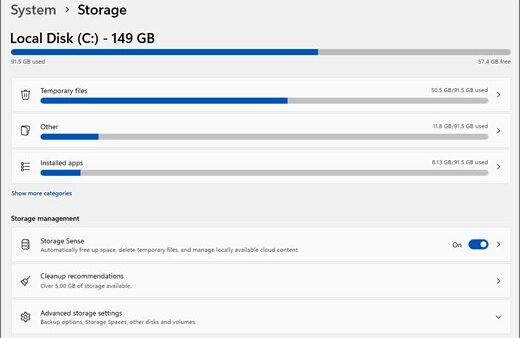
- Go to Settings > System > Storage.
- Check that the target drive has free space.
- Select Advanced storage settings > Where new content is saved.
- Set new apps to save to your internal Windows drive, then select Apply.
- Retry the Gaming Services install from the Store.
Once Gaming Services works, you can point game installs back at a second drive from the Xbox app's install options.
Clear the Microsoft Store cache
- Press Win + R to open the Run box.
- Type
wsreset.exeand select OK. - Wait about ten seconds while a blank command window opens and closes.
- Let Microsoft Store open on its own, then search for Gaming Services and install it.
Run the Windows Store Apps troubleshooter
Windows 11 now runs troubleshooters through the Get Help app. Microsoft's current list of Windows troubleshooters does not include a separate Windows Store Apps entry, so search for it and fall back to the Store cache reset if nothing appears.
- Select Start, type Get Help and open the app.
- Type Windows Store apps troubleshooter in the search box and press Enter.
- If a troubleshooter is offered, select Start and follow the prompts.
- Review the findings Get Help shows and apply the suggested fix.
- If no troubleshooter appears, run
wsreset.exeand the Repair option in Settings instead.
Fix common Gaming Services error codes
Error 0x80073D26
Windows reports that a different version of the packaged service is already installed.
- Remove the existing package with the PowerShell commands in the reinstall section.
- Restart the PC.
- Install the newest Gaming Services version from the Microsoft Store.
Error 0x80073D02
Files the package needs to change are in use, so the install cannot finish.
- Close the Xbox app, any running games and other game launchers.
- Restart the PC to release the files.
- Run the install or update again before opening any game.
Error 0x80070005
Access is denied, which points to a permissions problem.
- Sign in with an administrator account.
- Install all pending updates from Settings > Windows Update.
- Run the Gaming Services Repair Tool. On Windows 22H2 or older it may need the Local Administrator account.
Advanced fix: Re-register Microsoft Store apps
If the Store itself is damaged, re-registering its existing package often brings it back without a full reinstall. Run this in Terminal (Admin).
$InstallLocation = Get-AppxPackage -Name '*WindowsStore*' | Select-Object -ExpandProperty InstallLocation; Add-AppxPackage -Path ($InstallLocation + '\AppxManifest.xml') -Register -DisableDevelopmentModeGet-AppxPackage finds the installed Microsoft Store package and its folder, and Add-AppxPackage with -Register and -DisableDevelopmentMode re-registers that existing installation from its manifest instead of installing anything new.
You should see: The command returns to the prompt with no red error text, and Microsoft Store opens normally afterwards.
Advanced fix: Check Windows system files
Corrupted Windows components can block Store installs. Run DISM first, then System File Checker, in Terminal (Admin).
DISM.exe /Online /Cleanup-image /Restorehealth
sfc /scannow
DISM downloads healthy component files from Windows Update, and sfc /scannow then scans all protected system files and replaces corrupted ones with a cached copy.
You should see: SFC reports that it found no integrity violations, or that it found and repaired corrupt files. Restart, then install Gaming Services again.
Gaming Services install mistakes to avoid (what not to do)
| Avoid | Why | Do this instead |
|---|---|---|
| Downloading Gaming Services packages from file sites | Unofficial packages can be outdated or tampered with | Install from the Microsoft Store, the Xbox app or winget |
| Deleting folders inside WindowsApps by hand | It breaks package registration and makes reinstalling harder | Remove the package with Remove-AppxPackage |
| Disabling Xbox or Store services to save resources | Game installs and Xbox sign-in stop working | Leave them on their default Manual startup type |
| Turning off antivirus to force an install | It lowers the PC's protection and rarely fixes the cause | Use the repair tool, wsreset and a clean reinstall |
| Installing driver updaters or PC cleaners | They do not repair Store packages and can add problems | Use Windows Update and the built-in repair options |
How to prevent future Gaming Services breakage
Xbox Support's fixes for PC game install and launch problems center on an up-to-date Windows, current Store apps and a working repair route. Keeping those in place heads off most repeat failures.
- Keep Windows on a supported version; some Xbox app and Game Bar features need Windows 10 22H2 or newer. Check it under Settings > System > About > Windows specifications > Version.
- Install Windows updates and Windows driver updates as they arrive, and restart when Windows asks, since a pending restart blocks Store installs.
- Leave automatic app updates on in the Microsoft Store, or open Library > Get updates before you install a new game.
- Update the Xbox app whenever the Store offers a new version.
- Check your antivirus settings when a game install fails, rather than turning protection off.
- Run the Gaming Services Repair Tool at the first sign of missing content instead of removing packages by hand.
If Gaming Services still will not install
Gaming Services is not downloading or stays at Pending
The Store queue is stuck or Windows has a pending restart.
- Restart the PC to clear any pending update restart.
- Run
wsreset.exe, then open Library > Get updates. - Try the winget install command if the Store still will not start the download.
Gaming Services keeps crashing or the Xbox app shows missing content
The installed package is damaged.
- Run the Gaming Services Repair Tool from the Xbox app.
- If it fails, reinstall the package with PowerShell and restart.
- Run DISM and SFC, then install all Windows updates.
Nothing above works
The problem is with the Windows installation or account rather than the package.
- Create a new local administrator account and try the install there.
- Contact Xbox Support through its virtual agent chat with the error code you see.
How to uninstall or disable Gaming Services
Removing Gaming Services stops Xbox app games and PC Game Pass titles from installing and launching. Only remove it if you do not use them or plan to reinstall.
- Right-click Start and select Terminal (Admin).
- Run
Get-AppxPackage -AllUsers -Name *GamingServices* | Remove-AppxPackage -AllUsers. - Restart the PC.
- To get it back, open its Store page with
start ms-windows-store://pdp/?ProductId=9MWPM2CQNLHNand select Install.
Gaming Services in Windows 11 FAQ
What is Gaming Services in Windows 11?
Gaming Services is a Microsoft Store package that runs the background services Xbox PC games and PC Game Pass rely on. It has no app window of its own. Without it, games from the Xbox app or Microsoft Store fail to install, update or launch.
How do I update Gaming Services on PC?
Open Microsoft Store, select Library, then select Get updates. If Gaming Services is listed, the update installs automatically. Restart the PC afterwards so the updated services start cleanly before you open the Xbox app.
How do I reinstall Gaming Services?
Open Terminal as administrator and remove the package with Get-AppxPackage -AllUsers -Name *GamingServices* | Remove-AppxPackage -AllUsers. Restart, open the Store page for product ID 9MWPM2CQNLHN, select Install, and restart again.
Where is Gaming Services in Settings?
Go to Settings > Apps > Installed apps and scroll to Gaming Services. Select the three-dot More button to reach Advanced options, where Repair and Reset appear, or Uninstall to remove it.
Why does Gaming Services keep opening the Microsoft Store?
The Xbox app or a game cannot find a working copy of Gaming Services, usually because the package is damaged or half-registered. Remove it with PowerShell, restart, reinstall it from the Store and restart again to end the loop.
Why won't Gaming Services install?
Common causes are a pending Windows restart, an outdated Microsoft Store, a damaged existing package, a full install drive or disabled Store and Xbox services. Restart, update the Store, run wsreset.exe, then reinstall with PowerShell if it still fails.
Can I uninstall Gaming Services?
Yes. Remove it from an administrator Terminal with Remove-AppxPackage. Xbox app games and PC Game Pass titles will stop installing and launching until you reinstall it from the Microsoft Store.
Is Gaming Services necessary?
Gaming Services is necessary only if you play or install games through the Xbox app or Microsoft Store, including PC Game Pass. Games bought on other launchers that do not use Xbox services do not need it.
Is Gaming Services a virus?
No. The genuine Gaming Services package comes from Microsoft through the Microsoft Store and the Xbox app. Install it only from those sources, and run a Microsoft Defender scan if a file using that name appears somewhere else.
Can I disable Gaming Services in Windows 11?
You can stop it by uninstalling the package, but Xbox games will stop working. Disabling related Windows services such as Xbox Live Auth Manager is not recommended on a gaming PC, because Xbox sign-in and installs depend on them.