To open a Numbers file on a Windows PC, upload it to Numbers for iCloud at icloud.com/numbers in Edge, Chrome or Firefox, where it opens free with any Apple Account. Excel cannot open a .numbers file directly, so the other routes convert it to .xlsx first or read it in LibreOffice Calc.
This guide covers all 7 ways, which one suits your situation, and what to do when the file will not open.
Method 1: Open it free in Numbers on iCloud
Numbers for iCloud is Apple's browser-based version of the Apple Numbers app. On Windows, Apple supports it in Microsoft Edge 130 or later, Google Chrome 130 or later and Firefox 128 or later.
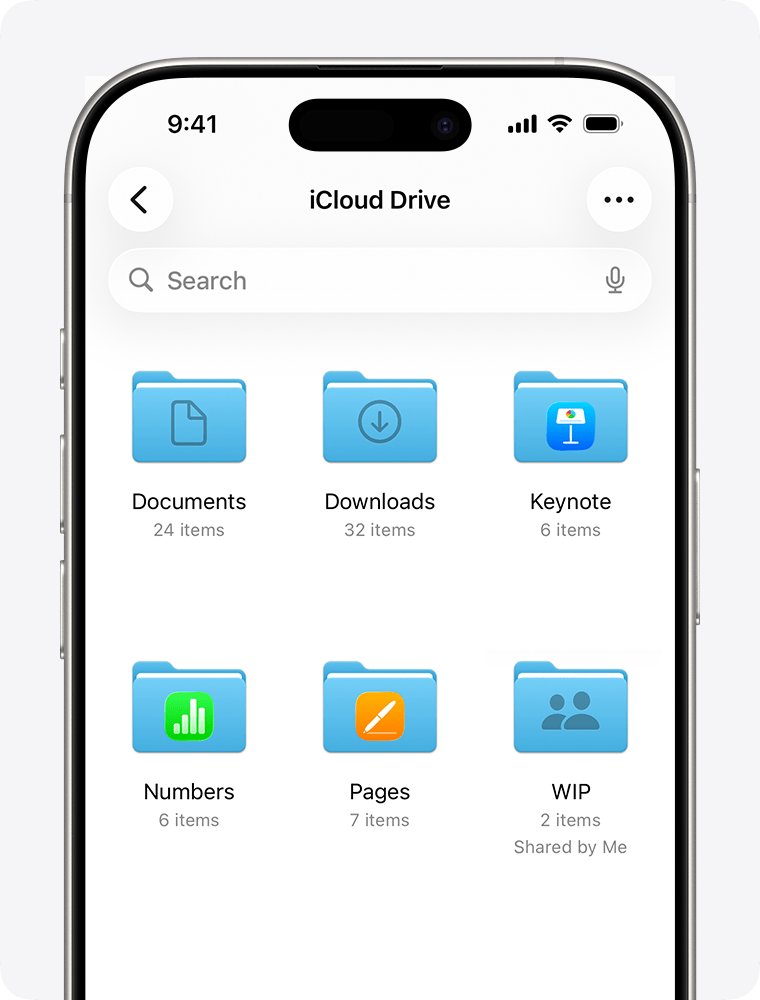
You do not need an iPhone or Mac. An Apple Account created on the web gets web-only iCloud access, which includes Numbers and 1 GB of free storage.
- Open Edge, Chrome or Firefox and go to icloud.com/numbers.
- Sign in with your Apple Account. If you do not have one, create it from the sign-in page first.
- In the document manager, click the Upload button in the toolbar.
- Select the .numbers file on your PC, then click Open.
- Double-click the uploaded spreadsheet to open it. You can read, edit and share it in the browser.
You can also drag the file from File Explorer straight onto the document manager.
Editing and sharing the .numbers file both happen in the same browser tab. Enter data and formulas as in any spreadsheet, or invite others to collaborate in real time while you control who can edit and who can only view.
Limitations and practical notes: Numbers for iCloud needs an internet connection, and it lacks some features of the Mac app, so a complex sheet may look slightly different.
What a Numbers file is
A file ending in .numbers is a spreadsheet saved by Apple's Numbers app. Like a DMG disk image, it is an Apple format that Windows has no built-in app for.
| Question | Answer |
|---|---|
| Which app creates it | Numbers on Mac, iPhone, iPad, or Numbers for iCloud on the web |
| Is there Numbers for Windows | No. Apple makes Numbers for macOS, iOS, iPadOS and visionOS, plus the iCloud web version |
| Does Excel open it | No. Apple Numbers is not on Microsoft's list of formats Excel supports |
| Does Google Sheets open it | No. Sheets imports .xlsx, .xls, .ods, .csv, .tsv, .txt and .tab, but not .numbers |
| Programs that read it on Windows | Numbers for iCloud in a browser, and LibreOffice Calc, which has an Apple Numbers import filter |
| Format and technical details | Current versions save a compressed package; the table data inside uses Apple's own internal format |
| What Numbers can export | Excel, CSV, TSV and PDF from the Mac app; Numbers, PDF, Excel and CSV from Numbers for iCloud |
Why Numbers files don't open natively in Windows or Excel
Windows has no app registered for the .numbers extension, so double-clicking one only brings up a prompt asking which app to use.
| Reason | What it means for you |
|---|---|
| There is no Numbers app for Windows | Apple makes Numbers for macOS, iOS, iPadOS and visionOS, plus Numbers for iCloud on the web |
| Excel has no Apple Numbers import | Excel opens .xlsx, .xls, .csv and .ods, among others, but a .numbers file will not just open in Excel |
| Renaming to .xlsx does not convert the file | The data inside stays in Apple's format, and Excel reports that the file format or extension is not valid |
| Google Sheets cannot import it either | Sheets accepts Excel, OpenDocument and text formats, so it needs a converted copy |
| The file is a package, not a single sheet | Its table data uses Apple's internal format, which only Numbers and LibreOffice's import filter read |
That is why every route on this page either uses Apple's own web app, uses LibreOffice's Apple Numbers filter, or converts the file to a format Windows apps understand.
Which method to choose
For a quick summary, the preferred options are Method 1 to view a sheet and Method 2 to edit it in Excel. The table works as a one-page cheat sheet and quick reference for the rest, and every route on this page is free.
| Your situation | Method | Why |
|---|---|---|
| You only need to view or lightly edit the sheet | Method 1: Numbers on iCloud | Opens the original with Apple's own app, so the layout stays closest |
| You need to work in Excel | Method 2: Convert to Excel with iCloud | Apple's converter writes an .xlsx file Excel opens normally |
| Your team works in Google Workspace | Method 3: Google Sheets, after converting | Sheets cannot read .numbers, but imports the .xlsx copy |
| You have no Apple Account and the data is not sensitive | Method 4: Online converter | No sign-in, but the file goes to a third-party server |
| You must work offline or convert many files | Method 5: LibreOffice Calc | Free desktop app with an Apple Numbers import filter |
| Nothing else opens the file | Method 6: Rename to .zip | Shows the package contents, not a working spreadsheet |
| The file came from a Mac or iPhone user | Method 7: Ask the sender to export it | The sender's Numbers app makes the most faithful Excel copy |
Method 2: Convert to Excel with iCloud
Numbers for iCloud downloads a copy in another format and leaves the original untouched. Use this when you need the sheet in Excel on your PC; it is reliable because Apple's own app writes the .xlsx file.
- Upload the .numbers file to icloud.com/numbers as in Method 1.
- Open the spreadsheet.
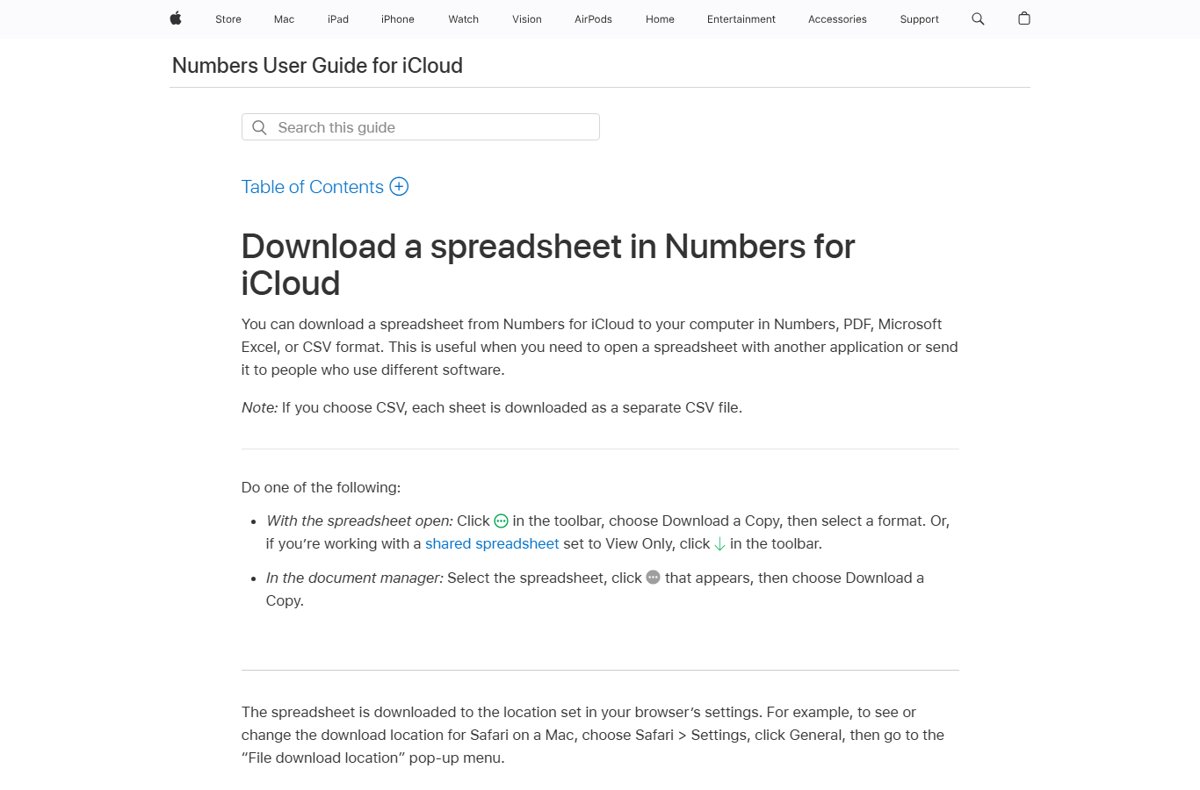
- Click the More button in the toolbar and choose Download a Copy.
- Select Excel as the format.
- Open your browser's Downloads folder and double-click the .xlsx file to open it in Excel.
From the document manager, you can skip opening the sheet: select it, click More, then Download a Copy. Choose CSV instead if you only need the raw data; each sheet downloads as a separate CSV file. If the shared sheet is View Only, click the Download button in the toolbar instead.
Method 3: Import into Google Sheets
Google Sheets does not list .numbers among the formats it can import or convert. Convert the file to Excel first, then bring the .xlsx into Sheets.
- Convert the .numbers file to .xlsx with Numbers for iCloud, as in Method 2.
- Open sheets.google.com and create or open a spreadsheet.
- Click File > Import.
- Select Upload, then choose the .xlsx file.
- Choose an import location such as Create new spreadsheet or Insert new sheets.
- Click Import data or Import, depending on the dialog.
Alternatively, upload the .xlsx file to Google Drive and double-click it there. Sheets opens it, and you can save it as a Google Sheets file from the File menu.
One caveat for cloud collaboration: your team edits the converted copy, so changes made in Sheets never reach the original .numbers file.
Method 4: Use a free online converter
Many websites convert .numbers to .xlsx without a sign-in. They work by uploading your file to their server, so use these third-party tools with caution and treat them as a last resort for anything private.
Numbers for iCloud already converts to Excel for free, so an online converter is only worth it when you cannot use an Apple Account.
- Remove or avoid uploading any sheet with financial, personal or company data.
- Open the converter and upload the .numbers file.
- Choose XLSX or CSV as the output format and start the conversion.
- Download only the converted spreadsheet. Close any page that asks you to install software or an extension.
- Open the result in Excel and check formulas, totals and dates against the sender's copy.
A converted file that arrives as an .exe, or inside an archive with an .exe, is not a spreadsheet. Delete it without opening it. For security and safety, Numbers for iCloud is the better converter, because the file stays in your own account.
Method 5: Open or convert with LibreOffice Calc
LibreOffice is a free, open-source office suite from The Document Foundation. Its Calc spreadsheet has an Apple Numbers import filter, so it opens .numbers files offline on Windows.
- Download LibreOffice for Windows from libreoffice.org and install it.
- Open LibreOffice Calc.
- Select File > Open, choose the .numbers file, and click Open.
- Review the sheet. Charts and some formatting may not come across exactly.
- To get an Excel copy, select File > Save As, set Save as type to Excel 2007-365 (.xlsx), and click Save.
- Select Use Excel 2007-365! if Calc asks which format to keep.
To convert a batch of files at once, use LibreOffice's documented command-line switch from the folder that holds the files: soffice --headless --convert-to xlsx *.numbers. Add --outdir and a folder path to send the results elsewhere; without it, the converted files land in the current folder.
Method 6: Peek inside by renaming to zip
A .numbers file saved by current versions of Numbers is a compressed package. Renaming it to .zip lets File Explorer open that package, but the table data inside is stored in Apple's own internal format, not as a sheet Excel can read.
This advanced route is useful when nothing else opens the file and you only need to inspect what the package holds.
- Copy the .numbers file so the original stays intact.
- In File Explorer, select View > Show > File name extensions.
- Right-click the copy, select Rename, and change the ending from .numbers to .zip.
- Select Yes at the warning that the file might become unusable.
- Double-click the .zip file to inspect the package, and open any image files inside for a static snapshot, if there are any.
This is a way to glance at a file, not to unzip and extract its data in an editable form. If the copy will not open as an archive, rename it back and use Method 1 or Method 5.
Method 7: Ask the sender to export it
The person who made the sheet has the full Numbers app, which writes the most faithful Excel copy. Ask them to send the file in Excel format with these steps.
| Sender's device | Steps to send an Excel copy | Options to mention |
|---|---|---|
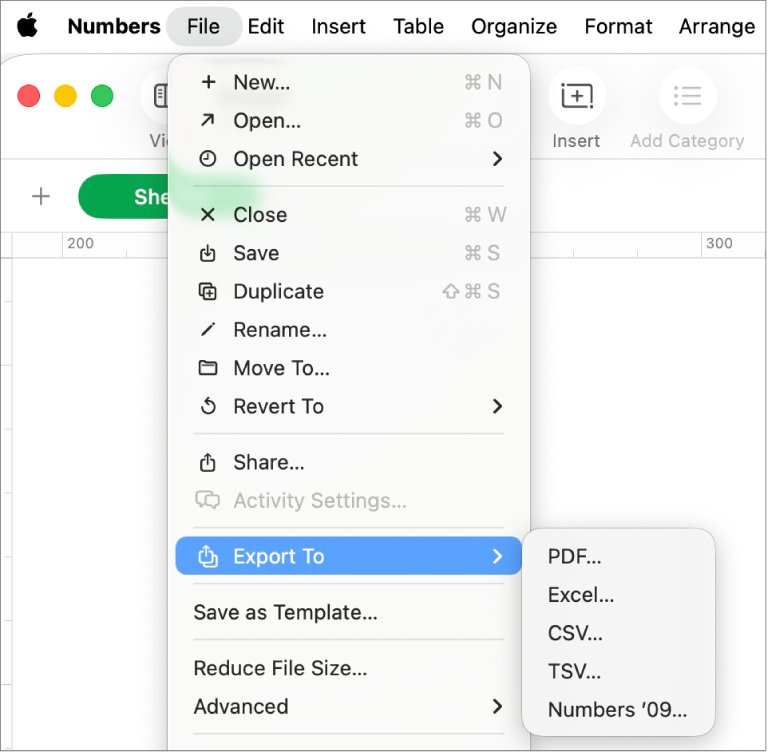
| Mac | Open the spreadsheet, choose File > Export To > Excel, click Save, pick a location, and click Export | A worksheet for each table or each sheet, plus an optional summary worksheet |
| iPhone or iPad | Open the spreadsheet, tap More > Export > Excel, then pick Mail, Messages or another sharing option | One Per Table can add a summary worksheet linking all tables |
| iCloud.com | Open the spreadsheet, click More > Download a Copy > Excel, then attach the file | Pick CSV for raw data only |
| Any device, data only | On a Mac, choose File > Export To > CSV | One CSV per table, or tables combined in one file |
If the sheet has a password, the Excel copy keeps it unless the sender deselects Require password to open on a Mac. Ask for the password, or ask for an unprotected copy.
Sync Numbers files to File Explorer with iCloud for Windows
For repeated file exchanges with a Mac or iPhone user, iCloud for Windows puts their iCloud Drive files in File Explorer. It moves the file onto your PC; you still open it with Numbers for iCloud or LibreOffice Calc.
- Install iCloud for Windows from the Microsoft Store. The latest version needs Windows 11 or later.
- Open iCloud for Windows and sign in with your Apple Account.
- Select the button to the right of iCloud Drive, turn on iCloud Drive, and select Done.
- Open File Explorer and select iCloud Drive in the navigation pane.
- Find the .numbers file the sender saved to iCloud Drive. Files under 1 MB download automatically, and a file opens only once it is downloaded.
- Open the downloaded file in LibreOffice Calc with File > Open, or upload it to icloud.com/numbers.
Files sync to C:\Users\[user name]\iCloud Drive by default. Double-clicking a .numbers file there still fails without a compatible app, and iCloud for Windows does not support Managed Apple Accounts.
What comes across when converting Numbers to Excel, and what breaks
Set realistic expectations before you rely on a converted copy. The export keeps your data, but the structure can change.
| Item | What happens during conversion |
|---|---|
| Tables and sheets | The Mac app makes a worksheet for each table or for each sheet, chosen at export |
| Summary worksheet | Optional when each table gets its own worksheet; it links to all the tables |
| Password | Carries over to the Excel copy unless the sender changes or removes it |
| CSV copies | Cell values only, separated by commas; from iCloud, each sheet becomes a separate CSV file |
| Table names in CSV | Included only when the sender selects Include table names on a Mac |
| The original .numbers file | Unchanged; edits to the exported copy do not affect it |
| LibreOffice Calc import | Charts and some formatting may not come across exactly |
How to check the converted Numbers file is complete
- Open the converted .xlsx in Excel and count the worksheet tabs. Numbers can make one worksheet per table, so expect more tabs than the original had sheets.
- Click a few total cells and check the formula bar shows a formula, not just a number.
- Compare two or three totals with the version in Numbers for iCloud.
- Check dates and currency columns, which can change format during conversion.
- Look at charts and images, then rebuild any that are missing in Excel.
Fix a Numbers file that will not open on Windows
Find the symptom you see among these common problems and follow only the steps under it.
Excel says the file format or extension is not valid
Excel has no import filter for Apple Numbers, and renaming .numbers to .xlsx does not change the data inside.
- Rename the file back to .numbers if you changed the extension.
- Convert it with Numbers for iCloud, as in Method 2.
- Open the downloaded .xlsx in Excel.
Google Sheets will not import the .numbers file
Sheets supports Excel, OpenDocument and text formats only.
- Download an Excel copy from Numbers for iCloud.
- In Sheets, click File > Import and upload the .xlsx file.
Windows asks which app to use for the .numbers file
No Windows app is registered for the .numbers extension.
- Close the prompt.
- Install LibreOffice and open the file from File > Open in Calc.
- Or upload it to icloud.com/numbers in your browser.
Numbers for iCloud does not load in the browser
Apple supports only recent versions of Edge, Chrome and Firefox on Windows.
- Update Edge or Chrome to version 130 or later, or Firefox to 128 or later.
- Use Chrome in its normal desktop view; Apple supports Chrome in desktop mode only.
- Sign out of icloud.com, sign back in, and upload the file again.
The file asks for a password
The sender protected the spreadsheet, and the protection carries over to Excel copies.
- Ask the sender for the password.
- Or ask them to export a copy with Require password to open turned off.
Numbers file on Windows FAQ
Can I open a Numbers file in Excel?
Not directly. Excel does not support the Apple Numbers format. Upload the file to icloud.com/numbers, click More > Download a Copy > Excel, and open the .xlsx copy in Excel. LibreOffice Calc can also save it as .xlsx.
How do I open a Numbers file on a Windows PC for free?
Go to icloud.com/numbers in Edge, Chrome or Firefox, sign in with an Apple Account, and upload the file. It opens in Numbers for iCloud at no cost. A web-only Apple Account includes 1 GB of free iCloud storage.
Can I open a Numbers file without an Apple Account?
Yes. Install the free LibreOffice suite and open the file in LibreOffice Calc, which has an Apple Numbers import filter. You can also ask the sender to export an Excel or CSV copy, which opens anywhere.
Can I open a Numbers file in Google Sheets?
Not directly. Google Sheets imports Excel, OpenDocument, CSV, TSV and text files, but not .numbers. Convert the file to Excel in Numbers for iCloud first, then use File > Import in Sheets.
What app can open a Numbers file on Windows 11?
LibreOffice Calc opens .numbers files on Windows 11 as a desktop app. In a browser, Numbers for iCloud opens them too. Excel, the Windows Photos app and Google Sheets cannot read the format.
How do I open a Numbers file offline on Windows?
Use LibreOffice Calc. Install it while online, then open the .numbers file from File > Open with no connection. Numbers for iCloud needs an internet connection, so it does not work offline.
Will Excel keep the original formatting after converting?
Mostly. Cell values and most formulas carry over, but some charts, styles and Numbers-only features may change. Numbers can also split tables into separate worksheets. Check totals and charts after conversion.
Are online Numbers converters safe to use?
They upload your spreadsheet to a third-party server, so avoid them for private data. Numbers for iCloud converts to Excel for free under your own account. Never run an .exe file that a converter site sends you.
Why will Excel not open a Numbers file directly?
Numbers saves in Apple's own format, and Microsoft has not added it to the formats Excel supports. Excel opens .xlsx, .xls, .csv and .ods, among others, so convert the file to one of those first.
Is there a Numbers app for Windows?
No. Apple makes Numbers for Mac, iPhone, iPad and Vision Pro. On Windows, the only Apple option is Numbers for iCloud, which runs in a web browser.
Best way to open a Numbers file on Windows
Upload the file to icloud.com/numbers to view it, and download an Excel copy from there when you need to edit it in Excel. Use LibreOffice Calc when you must stay offline or have no Apple Account. Both routes are free and use software that has a real Numbers import path. Online converters add privacy risk, and renaming the file only reveals the package. The same Apple-format logic applies to iPhone HEIC photos, where an official free route also beats third-party converters.