The OneNote tips that save the most time are a clear notebook-section-page structure, page templates, tags with Find Tags, keyboard shortcuts, and the Web Clipper for research.
These 15 tips use OneNote for Windows (Microsoft 365, 2024, 2021 and 2016) with exact menu labels, and note where the phone apps and OneNote for the web fit in.
1. Organize your notebooks effectively
OneNote works like a binder: a notebook holds sections, and each section holds pages and subpages. Decide the layout once and every later tip gets easier.
A simple rule works for most people: one notebook per area of life (work, school, home), one section per project or subject, one page per meeting, lecture or idea.
- Create a section: right-click any section tab, choose New Section, type a name and press Enter, or press Ctrl+T.
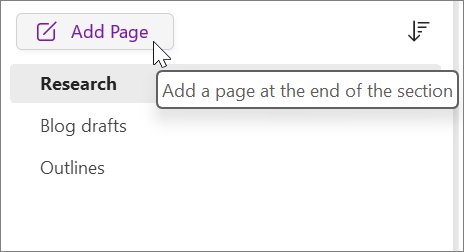
- Add a page with Add Page above the page tabs, or press Ctrl+N to add one at the end of the section.
- Make a subpage by dragging a page tab to the right until its title is indented, or press Ctrl+Shift+Alt+N.
- Drag section tabs left or right to reorder them, and drag page tabs up or down within a section.
- Right-click a page tab and choose Copy Link to Page, then paste it on a contents page at the top of each section.
- Type a title on every page; if you leave it blank, the first line of your notes becomes the title.
Customizing the appearance helps too: choose View > Page Color to color-code pages, View > Rule Lines for lines or a grid, and right-click a section tab and choose Section Color to recolor the tab.
Which OneNote tip solves which note-taking problem?
This table puts the main OneNote decisions at a glance: find your problem, then jump to the tip that fixes it.
| Your problem | Start with | Why it helps |
|---|---|---|
| Notes are scattered and hard to find | Tips 1 and 14 | A fixed notebook, section group and page structure |
| You rebuild the same meeting or lecture layout | Tip 2 | A saved page template appears in My Templates |
| Ideas arrive away from your desk | Tip 3 | The phone app and camera capture sync to the same notebook |
| Notes need files, pictures or equations | Tip 4 | Insert shortcuts put them on the page in two keystrokes |
| Research lives in dozens of browser tabs | Tip 5 | Web Clipper saves articles, regions and PDFs to a chosen section |
| Action items get lost in long notes | Tips 6 and 12 | Tags plus a Tags Summary page collect them in one place |
| You think better with a pen | Tip 7 | Draw tools, Ink to Text and Math Assistant |
| A team edits the same notes | Tip 8 | Shared notebooks with edit or view access |
| A page or section was deleted | Tip 9 | Notebook Recycle Bin and backups |
| Tasks need reminders | Tip 10 | Outlook tasks created from OneNote |
| The mouse slows you down | Tip 11 | Shortcuts for pages, tags, headings and search |
| Lectures or interviews move too fast to type | Tip 13 | Audio notes linked to what you typed |
| OneNote lacks a feature you need | Tip 15 | Add-ins such as Onetastic for OneNote for Windows |
What is OneNote?
OneNote is Microsoft's digital notebook: notes, pictures, audio and drawings live in notebooks that sync through the cloud to every device you sign in on.
Before you explore the full potential of OneNote, check which app you have. All supported versions are free to download and use, and a Microsoft 365 subscription unlocks premium features. Use this platform table to decide where each tip applies.
| OneNote app | Where it runs | What to know |
|---|---|---|
| OneNote (formerly OneNote 2016) | Windows 10 and Windows 11 desktop | The full ribbon app, part of Office 2019 and Microsoft 365 or free as a standalone download; the only version with local notebook storage and the most options under File > Options |
| OneNote for Windows 10 | Windows 10 | Pre-installed on Windows 10 but reached end of support in October 2025; Microsoft recommends switching to OneNote |
| OneNote for Mac | macOS | Opens the same cloud-connected notebooks as the Windows app |
| OneNote for the web | Any browser | Works with notebooks stored on OneDrive, with nothing to install |
| OneNote for iPhone, iPad and Android | Phones and tablets | Best for quick capture and camera notes that sync back to the PC |
The tips below use OneNote for Windows. To update it, choose File > Account > Update Options > Update Now.
Pros and cons of OneNote
| Pros | Cons |
|---|---|
| Free to download and use on Windows, Mac, the web, iPhone and Android | Copilot and some premium features need a Microsoft 365 subscription |
| Free-form pages hold typed text, ink, pictures, files, audio and video side by side | Add-ins, backups and the most options are limited to OneNote for Windows |
| Notebooks on OneDrive sync across devices and can be shared with edit or view access | Shared notebooks sync at intervals, so offline edits need a manual sync |
| Tags, Find Tags and Ctrl+E search find notes across every notebook | Password-protected sections are left out of searches until you unlock them |
| Ink to Text and Math Assistant turn handwriting into usable text and solved equations | Ink to Text needs a digital pen or stylus |
2. Save time with templates
A template is a pre-designed page layout. OneNote ships with built-in templates, including decorative backgrounds and to-do lists, and you can save any page as your own.
- Choose Insert > Page Templates > Page Templates to open the Templates task pane.
- Expand a category with the small arrows and select a template to apply it to a new page.
- To make your own, create a page with Ctrl+N and add the headings, tables and placeholder text you reuse.
- Go to View > Paper Size and set the paper size and print margins.
- Select Save current page as a template at the bottom of the Paper Size pane.
- Name it in the Save As Template dialog and select Save. It now appears under My Templates.
Use placeholder text such as "[Attendees]" and paragraph styles from Home > Styles, and avoid background pictures, which raise file size and can turn text into an image when the page is emailed.
3. Capture ideas anywhere with mobile note-taking
OneNote for iPhone and OneNote for Android open the same notebooks stored on OneDrive, so a note taken on the phone appears on the PC after sync. The Android app also builds in Microsoft Lens for camera capture.
- Install OneNote on the phone and sign in with the same Microsoft account you use on the PC.
- On Android, tap the camera icon on the quick capture bar to launch Microsoft Lens.
- Swipe to pick a mode: Document for pages and receipts, Whiteboard for boards, Business Card, Photo, or Actions to extract text.
- Take the picture, then use Crop, Rotate, Filter or Reorder if needed.
- Tap the purple Done button. The images are saved to your OneNote page.
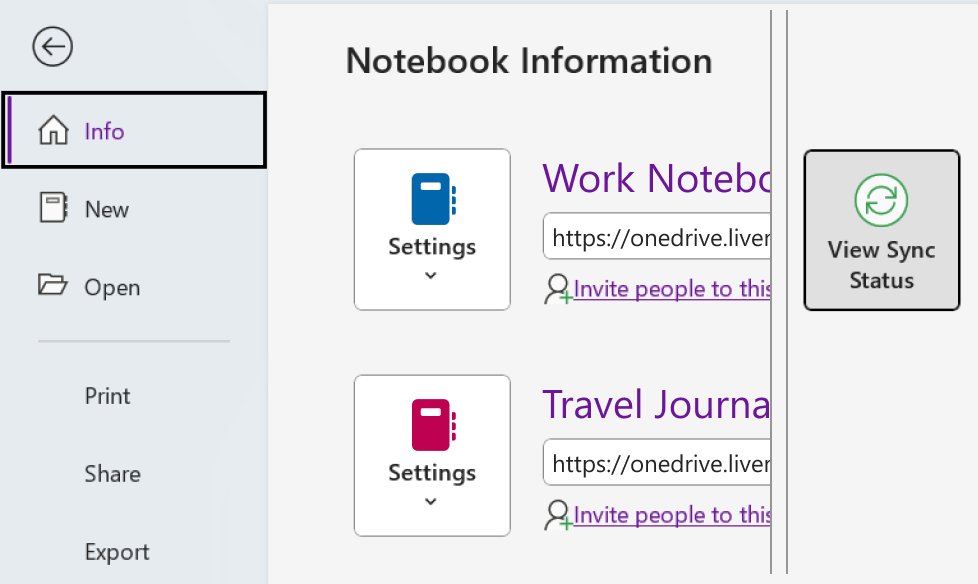
- On the PC, choose File > Info > View Sync Status and select Sync All if you need the note right away.
Get the OneNote mobile app from the Mobile download link on Microsoft's OneNote page, which offers a QR code to scan with the phone, or search for OneNote in the App Store or Google Play.
4. Enhance your notes with rich media
A OneNote page can hold files, document printouts, pictures, screen clippings and equations next to your text. These keyboard routes in OneNote for Windows skip the ribbon.
| To add | Press | Result |
|---|---|---|
| A file as an attachment | Alt+N, F | An icon that opens the original file |
| A document as a printout | Alt+N, O | The document's pages appear as images on the page |
| A picture from a file | Alt+N, P | The picture is placed where your cursor is |
| A screen clipping | Windows key+Shift+S, then Ctrl+V | A snip of any part of the screen pasted into the note |
| A sticker | Alt+N, S | A sticker inserted on the page |
| A math equation | Alt+Equal sign (=) | Starts an equation or converts selected text |
| Today's date and time | Alt+Shift+F | A date and time stamp for meeting notes |
| Searchable text from a picture (OCR) | Right-click the picture > Copy Text from Picture, then Ctrl+V | Editable text from a screenshot, scan or printout |
For a multi-page printout, right-click a page image and choose Copy Text from All the Pages of the Printout. Check the pasted text, because OCR accuracy depends on image quality.
5. Simplify research with web clipping
OneNote Web Clipper is a free browser extension for Edge and Chrome that saves web content straight into a section you choose.
- Install the OneNote Web Clipper extension for your browser and sign in from its purple pop-up.
- Open the page you want to keep and click the OneNote Web Clipper icon.
- Choose Article for editable text and images, or Full Page or Region for an exact screenshot.
- Pick the target section from the Location drop-down; shared notebooks are listed too.
- Select Add a note to record why you saved it.
- Click Clip. For PDFs, open the PDF, choose PDF Document and set a page range first.
6. Use tags for better organization
Tags mark a line or paragraph as a to-do, question, important point and more. OneNote can then gather every tagged note across your notebooks into one list.
- Place the cursor at the start of the line you want to tag.
- Click Home > Tags and pick a tag, or press Ctrl+1 for To Do, Ctrl+2 for Important or Ctrl+3 for Question.
- Click Home > Find Tags to open the Tags Summary pane.
- Narrow the scope with the Search drop-down and click Refresh Results.
- Click Create Summary Page to turn the results into a page of their own.
- Remove one tag by right-clicking it and choosing Remove Tag, or select text and press Ctrl+0 to clear several.
7. Embrace handwriting and drawing
The Draw tab holds pens, highlighters and shape tools. With a digital pen, the Ink to Text pen converts handwriting to typed text as you write, and Math Assistant solves handwritten or typed equations.
- Open the Draw tab and pick a pen, color and thickness.
- Choose the Ink to Text pen to have your handwriting turn into text as you write. It works only with a digital pen or stylus.
- Draw up-and-down squiggles through words to delete them, or a straight line through text to select it.
- Draw a backwards L to start a new line, and a vertical line inside a word to split it.
- Write or type an equation, then select Draw > Math and choose to solve or graph it.
Use handwriting strategically: ink suits diagrams, equations and quick sketches, while typed text stays easier to search and edit.
The Ink to Text pen supports English, Spanish, Japanese, French, German, Portuguese (Brazil), Italian, Simplified Chinese and Korean, based on your Windows input language.
8. Collaborate in real time
Sharing works for notebooks saved on OneDrive or a SharePoint site. Everyone with edit access works in the same notebook, and OneNote syncs shared notebooks at regular intervals.
- Open the notebook and select Share in the upper-right corner of the window.
- Choose Share Entire Notebook.
- Enter the names or email addresses of the people to invite.
- Set each person to can edit or can view in the drop-down next to their name.
- Add an optional note and select Send.
- Before you go offline, choose File > Info > View Sync Status and select Sync Now for that notebook.
9. Recover lost data with confidence
Deleted pages and sections stay in the Notebook Recycle Bin for up to 60 days. A deleted section group cannot be restored as a group, but its sections can.
- Press Ctrl+Z straight away if you just deleted text, a picture, a page or a section.
- Otherwise select the History tab and choose Notebook Recycle Bin.
- Right-click the page or section and choose Move or Copy.
- Pick where the content should go and select Move.
- Select Notebook Recycle Bin again to close it.
- For older losses, choose File > Info > Open Backups, open the backed-up section, and copy the pages back with Move or Copy > Copy.
Backups only exist if they were set up before the loss, so check your backup settings now rather than after a deletion.
Data recovery is only half of it; protect sensitive sections too. Right-click a section tab, choose Password Protect This Section > Set Password, and keep the password safe, because nobody, not even Microsoft support, can unlock a section without it.
10. Leverage Microsoft 365 integrations
OneNote for Windows links to Outlook for tasks, meeting details and email. An Outlook task created in OneNote gets a flag on the note and a reminder in Outlook.
- Select the words in your notes that should become a task.
- Click the arrow next to Outlook Tasks in the menu that appears and choose a reminder, or press Ctrl+Shift+1 for a Today task.
- Check the flag in the Tags Summary pane to mark the task complete in both OneNote and Outlook.
- Press Ctrl+Shift+E to send the selected pages in an email message.
- Press Alt+N, O to place a Word or Excel file on the page as a printout everyone can read.
Note tags stay inside OneNote, while Outlook tasks (flags) also show in Outlook. Use tags for reference and flags for anything with a deadline.
To uplevel your notes with smart features and AI, use Copilot in OneNote: it takes your prompts to draft plans, generate ideas, create lists and organize information on the page. It comes with the OneNote desktop app in Microsoft 365 Personal, Family and Premium plans.
Copilot works well as a review step after a meeting: ask it to turn the page into a list or organize the information, then check the result against your own notes.
11. Master keyboard shortcuts
These OneNote for Windows shortcuts cover the actions most people repeat dozens of times a day.
| Action | Shortcut |
|---|---|
| New page at the end of the section | Ctrl+N |
| New section | Ctrl+T |
| New subpage below the current page | Ctrl+Shift+Alt+N |
| Search all notebooks | Ctrl+E |
| Search the current page | Ctrl+F |
| Heading 1 / Heading 2 style | Ctrl+Alt+1 / Ctrl+Alt+2 |
| Highlight selected text | Ctrl+Alt+H |
| Bulleted list / numbered list | Ctrl+Period (.) / Ctrl+Forward slash (/) |
| Paste text without formatting | Ctrl+Shift+V |
| Move or copy the current page | Ctrl+Alt+M |
| Next / previous section | Ctrl+Tab / Ctrl+Shift+Tab |
| Mark the page as unread | Ctrl+Q |
| Open OneNote from anywhere | Windows key+Shift+N |
OneNote saves automatically whenever you change a note, so there is no need to press Ctrl+S.
Search with the correct scope: Ctrl+F looks only at the current page, while Ctrl+E covers all notebooks. Unlock password-protected sections first, because searches skip them.
12. Pin important notes
Three OneNote features keep key notes in view: docking a window to the side of the desktop, the Important tag, and a summary page of tagged notes.
- Open the page you need while you work in other apps and press Ctrl+Alt+D to dock the OneNote window to the desktop.
- Press Ctrl+M first if you want a second OneNote window for the docked page.
- Mark key lines with the Important tag using Ctrl+2.
- Click Home > Find Tags and select Create Summary Page to collect every Important item on one page.
- Right-click that page's tab, choose Copy Link to Page, and paste the link at the top of your main section.
- Press Ctrl+Shift+M for a Quick Note when an idea needs saving before you file it.
13. Utilize audio notes
OneNote can record audio or video onto the page, and anything you type during the recording is linked to that moment, so you can jump from a note to what was being said.
- Check that your microphone works in Windows before you start.
- Click where the recording should go on the page.
- Choose Home > Record Audio, or Home > Record Video for video. Recording starts when the media icon appears.
- Type notes as normal while it records.
- Select Stop when you are done.
- Click the media icon and choose Play, or use See Playback on the Audio & Video tab to follow your notes along with the audio.
During playback, press Ctrl+Alt+P to play, Ctrl+Alt+S to stop, and Ctrl+Alt+Y or Ctrl+Alt+U to skip back or forward 10 seconds.
When typing slows you down, dictate instead: choose Home > Dictate while signed in to Microsoft 365, wait for the button to start listening, and speak. Say "period" or "new line" for punctuation. Dictation needs a microphone and an internet connection.
14. Organize with section groups
A section group is a folder for sections. It can hold as many sections as you want, which keeps a busy notebook down to a few tabs, for example one group per semester or client.
- Right-click any section tab and choose New Section Group.
- Type a name and press Enter. With vertical tabs, right-click the group, choose Rename, and type the name.
- Drag existing section tabs onto the section group icon to move them in.
- Click the group's name to open it, then click a section tab inside.
- Click the green arrow to the right of the Notebooks list to go back up a level.
15. Explore third-party add-ins
OneNote for Windows accepts add-ins. Microsoft's own organizing guide points to Onetastic, an add-in from getonetastic.com that adds search and replace, page sorting, a table of contents and more.
| What you want | Built into OneNote | Where an add-in helps |
|---|---|---|
| Find text across notebooks | Ctrl+E search | Search and replace across pages |
| Order pages | Drag page tabs by hand | Sort pages automatically |
| A contents page | Copy Link to Page, pasted by hand | Generate a table of contents |
Onetastic is for the desktop OneNote for Windows app, not the phone apps or OneNote for the web. Download any add-in only from its developer's own site.
A 10-minute OneNote maintenance routine
A short weekly routine turns the tips into a repeatable OneNote workflow, so notes keep landing where you can find them.
- Open Quick Notes and move each loose note into its project section with Ctrl+Alt+M.
- Click Home > Find Tags, select Refresh Results, and clear or convert finished To Do items.
- Check that every new page has a title, so search and page links stay readable.
- Choose File > Info > View Sync Status and select Sync All to catch sync errors early.
- Look in History > Notebook Recycle Bin for anything deleted by mistake before the 60-day limit.
- Save any page layout you rebuilt this week as a template, so next week's routine work is automated.
OneNote tips and tricks FAQ
What are the best OneNote tips for beginners?
Start with a simple structure of one notebook per area and one section per project, then learn Ctrl+N for a new page, Ctrl+1 for a To Do tag and Ctrl+E to search. Those three habits cover most daily note-taking.
What are good OneNote tips for students?
Use one section per subject inside a notebook per term, record lectures with Home > Record Audio so typed notes link to the audio, and use Draw > Math to solve or graph equations. On Android, Microsoft Lens captures whiteboards straight into your notes.
What are useful OneNote tips for teachers?
Save lesson and meeting layouts as page templates, share notebooks with can view or can edit access, and use section groups to separate classes or terms. Schools can also use OneNote Class Notebook for distributing pages to students.
How do I organize OneNote effectively?
Keep three levels: notebooks for big areas, section groups and sections for projects or subjects, and pages for single topics. Add a contents page using Copy Link to Page, and tag action items so Find Tags can collect them.
How can OneNote improve productivity?
OneNote saves time when repeated work is automated: templates for recurring pages, tags and a Tags Summary page for action items, Outlook tasks for deadlines, and shortcuts such as Ctrl+N, Ctrl+T and Ctrl+E for navigation.
Do these tips work in OneNote online?
Many do. OneNote for the web supports tags, page templates and shared notebooks, and Web Clipper saves to notebooks on OneDrive. Features such as backups, add-ins and some keyboard shortcuts belong to OneNote for Windows.
Can I recover a deleted OneNote page?
Yes, for up to 60 days. Select the History tab, choose Notebook Recycle Bin, right-click the page and choose Move or Copy to put it back. Older notes can come back from File > Info > Open Backups if backups were set up.
Does OneNote save automatically?
Yes. OneNote saves your notes automatically whenever you change them, so there is no Save step. Notebooks on OneDrive also sync automatically, and File > Info > View Sync Status forces a sync.
Bringing it all together
Set up the structure from tip 1 and section groups from tip 14 first, then add tags with Find Tags and a few shortcuts; layer templates, Web Clipper, audio and inking on top as your notes need them. Structure and tags decide whether notes can be found later, and every other tip, from mobile capture to collaboration, depends on notes landing in a predictable place.


![Network adapter driver for Windows 11 [Download/Update]](https://techdows.com/wp-content/uploads/2026/10/Network-adapter-driver-for-Windows-11-DownloadUpdate-600x338.jpg)