To update Google Chrome on a computer, open Chrome, select More (the three dots) > Help > About Google Chrome, and select Relaunch if an update is waiting.
This guide covers the Chrome update on Windows, Mac, Android, iPhone, iPad and Chromebook, how to confirm your version, and what to do when the update fails.
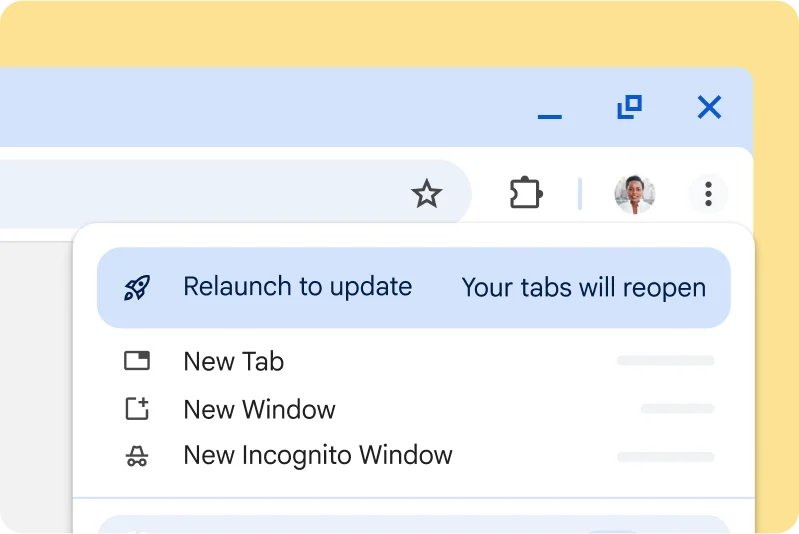
Step by step tutorial on how to update Google Chrome
A Chrome update normally installs in the background the next time you close and reopen the browser. If Chrome has been open for days, the update waits until you relaunch it, and these steps apply it on Windows, Mac and Linux.
- Open Google Chrome on your computer.
- Select More (the three vertical dots) at the top right of the window.
- Select Help, then About Google Chrome.
- Wait while Chrome checks for updates and downloads any new version.
- Select Relaunch to finish the update. If there is no Relaunch button, you already have the latest version.
Chrome saves your open tabs and windows and reopens them after the restart. Incognito windows do not come back, so save anything you need from them first.
Select Not now if you cannot restart yet. The update then applies the next time you restart Google Chrome.
How to update Google Chrome on PC, Mac, Android, iPhone and Chromebook
Chrome updates through a different route on each device. Match your device to a row and use that route.
| Your device | Where the Chrome update comes from | What to do |
|---|---|---|
| Windows 11 or Windows 10 PC or laptop | Chrome's own updater, in the background | More > Help > About Google Chrome > Relaunch, or close every Chrome window and reopen it |
| Mac | Chrome's own updater | Use About Google Chrome; select Automatically update Chrome for all users if offered |
| Linux | Your distribution's package manager | Update the Chrome package with your package manager |
| Android phone or tablet | Google Play Store | Play Store > profile icon > Manage apps & device > Update next to Chrome |
| iPhone or iPad | Apple App Store | App Store > Profile > Update next to Chrome |
| Chromebook | ChromeOS system updates | Settings > About ChromeOS > Check for updates |
Google Chrome system requirements for updates
Chrome stops updating on operating systems Google no longer supports. If your system is below the minimum in this table, no Chrome update will arrive until you upgrade the operating system.
| Platform | Minimum to keep getting Chrome updates | Unsupported versions |
|---|---|---|
| Windows (Intel) | Windows 10 or later, Pentium 4 or later with SSE3 | Windows XP, Vista, 7, 8 and 8.1 (Chrome 109 was the last for Windows 7 and 8.x) |
| Windows (ARM) | Windows 11 or later | Any Windows 10 ARM device |
| Mac | macOS 13 Ventura or later | macOS 10.12 to 10.15, macOS 11 and macOS 12 |
| Linux | 64-bit Ubuntu 18.04+, Debian 10+, openSUSE 15.5+ or Fedora Linux 39+ | 32-bit distributions |
| Android | Android 10 or later | Android 9 and earlier |
| iPhone and iPad | iOS 18 or later | Earlier iOS versions |
How to update Google Chrome on Mac
On a Mac, Chrome updates itself the same way it does on Windows. The extra option below makes the updater cover every user account on the Mac.
- Make sure Google Chrome is in your Mac's Applications folder.
- Open Chrome and select More > Help > About Google Chrome.
- Select Automatically update Chrome for all users if the option appears.
- Select Relaunch when the update finishes downloading.
If the Mac runs macOS 12 Monterey or earlier, Chrome cannot update further. Upgrade to macOS 13 Ventura or later first.
How to update Google Chrome on Android phone
Chrome for Android updates through the Google Play Store, based on your Play Store settings. These steps install a waiting update straight away.
- Open the Play Store app on your Android phone or tablet.
- Tap your profile icon at the top right.
- Tap Manage apps & device.
- Find Chrome under Updates available.
- Tap Update next to Chrome.
If Chrome is not listed under Updates available, it is already current. To see the installed version, open Chrome and tap More > Settings > About Chrome.
How to update Google Chrome on iPhone and iPad
Chrome on iPhone and iPad updates through the Apple App Store and needs iOS 18 or later.
- Open the App Store on your iPhone or iPad.
- Tap Profile at the top right.
- Scroll to Available Updates and look for Chrome.
- Tap Update next to Chrome.
- Enter your Apple ID password if prompted, then wait for the update to install.
To check the version afterwards, open Chrome and tap More > Settings > Google Chrome.
How to update Google Chrome on Chromebook
Chrome on a Chromebook is part of ChromeOS, so updating the Chromebook's operating system updates the browser. The Chromebook checks for updates automatically whenever it is online.
- Turn on the Chromebook, plug it in and connect to Wi-Fi.
- Select the time at the bottom right, then select Settings.
- Select About ChromeOS at the bottom left.
- Select Check for updates. The update downloads automatically if one is found.
- Select Restart in the Update device notification at the bottom right.
On a work or school Chromebook, a blue notification means an update is recommended and an orange one means it is required. Select Restart to update in either case.
Update Google Chrome from the toolbar update button
When an update is pending on a computer, Chrome shows it at the top right, next to your profile picture. This is the quickest route if you already see the prompt. A website pop-up asking you to download a Chrome update is a fake Chrome update, not this button.
- Look at the top right of the Chrome window for New Chrome available.
- Select New Chrome available.
- Select Relaunch to update.
- Wait for Chrome to close and reopen with your tabs restored.
Install Chrome again to get the latest version
A fresh install always brings the current version of Chrome. It is the fix Google suggests when the updater keeps failing, and the route to take if Chrome is missing from the computer entirely. Check the system requirements above first, because the installer cannot add a version your operating system no longer supports.
- On Windows 11, select Start > Settings > Apps > Installed apps, find Google Chrome, select More > Uninstall, and confirm. On Windows 10, use Control Panel > Programs > Programs and Features instead.
- Go to google.com/chrome in another browser, such as Microsoft Edge or Safari, and select Download Chrome.
- Open the downloaded file and follow the prompts to install Chrome.
- If the install fails on Windows, use the standalone Chrome installer; on a Mac, download Google Software Update again and retry.
- Open Chrome and check the version on the About Google Chrome page.
If the computer does not let you complete these steps, ask the person with administrator rights to install the update for you.
Why keep Chrome updated?
Each Chrome update is a mix of security fixes, new features and performance work. Delaying the relaunch leaves all three waiting.
| What an update brings | Why it matters |
|---|---|
| Security fixes | Updates close holes as soon as fixes are ready; a "critical" or "emergency" update means Google is rushing a fix for a loophole to your device |
| New features | New Chrome features arrive only through updates |
| Speed and performance | New performance settings and optimizations keep the browser fast |
| Extension updates | Chrome updates extensions automatically when it opens and checks again every few hours |
To update an extension immediately, go to chrome://extensions, turn on Developer mode at the top right and select Update.
What's the Chrome stable release schedule?
Chrome ships on four release channels at once. The one almost everyone uses, simply called Chrome, is the Stable channel.
| Channel | How often it updates | Who it is for |
|---|---|---|
| Stable | Minor updates every two to three weeks, a major version every four weeks | Everyone; changes arrive only after automated and manual testing |
| Beta | About once a week, with major updates every four weeks | People who want new features more than a month before Stable |
| Dev | Once or twice a week | Developers tracking current work; expect bugs |
| Canary | Daily | Developers testing the newest changes; can break |
Each major version, such as Chrome 101 or 102, is called a milestone (M101, M102). Google publishes the exact dates for upcoming milestones on its Chromium schedule page at chromiumdash.appspot.com/schedule.
How to check your Google Chrome version
- Open Chrome and select More > Help > About Google Chrome.
- Read the version number under the Google Chrome heading.
- Confirm the page shows no Relaunch button. That means the update is installed and Chrome is up to date.
On Android the version sits under Settings > About Chrome, and on iPhone under Settings > Google Chrome. On a Chromebook, the ChromeOS version is under Settings > About ChromeOS.
Tips on how to update Google Chrome
These habits keep the Chrome update quick and stop it from failing.
| Tip | Why it matters |
|---|---|
| Close and reopen Chrome regularly | Updates install when the browser restarts, so a browser left open for weeks stays out of date |
| Save work in Incognito windows before you select Relaunch | Normal tabs reopen after the update, Incognito windows do not |
| Keep the operating system supported | Chrome stops updating on Windows 7, 8 and 8.1 and on macOS 12 or earlier |
| Keep Chrome in the Mac Applications folder | The option to update Chrome for all users only appears there |
| Do not block tools.google.com or dl.google.com | Chrome's updater uses these addresses; a firewall or parental control rule that blocks them stops updates |
| Use Wi-Fi for Chromebook updates | Updates over mobile data may stop and ask about data use |
| Try Chrome Beta if you want new features early | Beta gets design changes and features before the stable release |
Why won't Google Chrome update? Fixes for failed updates
"Update failed (Error: 3, 4, 7, 10, 11 or 12)"
The updater cannot reach Google's update server, cannot start the check, or the download fails.
- Restart your computer, then open About Google Chrome again.
- Check your antivirus, firewall and parental control settings and make sure they allow software updates to go online.
- Make sure tools.google.com and dl.google.com are not blocked.
- Uninstall Chrome, download it again from google.com/chrome and reinstall it. On Windows, use the standalone Chrome installer if the error returns.
"Updates are disabled by administrator"
Chrome is managed by a work or school policy that controls updates.
- Contact the person who manages the computer and ask them to update Chrome.
- Do not try to remove the policy on a work device; the administrator controls the update schedule.
Mac cannot update Google Chrome
The Mac runs macOS 12 or earlier, or Chrome is not in the Applications folder.
- Check your macOS version against the minimum of macOS 13 Ventura.
- Upgrade macOS if the Mac supports a newer version.
- Move Chrome into the Applications folder and open About Google Chrome again.
- If it still fails, uninstall Chrome, download Google Software Update again and reinstall.
"This computer will no longer receive Google Chrome updates"
Windows XP, Vista, 7, 8 and 8.1 are no longer supported by Chrome.
- Upgrade to Windows 10 or Windows 11 to receive Chrome updates again.
Google Chrome update is taking so long or seems stuck
The update did not complete, or the connection to the update server is blocked.
- Restart the computer and check for updates again.
- Check that security software is not blocking tools.google.com or dl.google.com.
- Run a malware scan, because unwanted software can stop Chrome from updating.
- Reinstall Chrome if the update still does not finish.
Google Chrome is not opening after update
A Chrome process is still running in the background, or other software is blocking Chrome.
- On Windows, press Ctrl + Alt + Delete, select Task Manager, select Google Chrome under Processes and select End task.
- On a Mac, press Command + Option + Esc, select Google Chrome and select Force Quit.
- Restart the computer and open Chrome again.
- Check whether your antivirus blocked Chrome, and scan for malware.
- Uninstall and reinstall Chrome. If Windows will not let you, remove Chrome when it will not uninstall first.
Google Chrome update frequently asked questions
Does Google Chrome automatically update?
Yes. Chrome updates automatically in the background on computers and installs the new version when you close and reopen the browser. On Android and iPhone, Chrome updates through the Play Store or App Store according to your store settings.
How do I know if my Google Chrome is up to date?
Open More > Help > About Google Chrome. Chrome checks for updates on that page. If no Relaunch button appears after the check, your Chrome is up to date, and the current version number is shown under the Google Chrome heading.
How do I update Google Chrome to the latest version?
Open About Google Chrome from the Help menu and select Relaunch when the download finishes. Chrome then restarts on the latest version and reopens your normal tabs. Your operating system must still be supported, or no newer version is offered.
How do I update Google Chrome on Windows 11 or Windows 10?
On Windows 11 and Windows 10, select More > Help > About Google Chrome, then Relaunch. Closing every Chrome window and reopening Chrome also applies a waiting update. Chrome must run on Windows 10 or later to keep receiving updates.
Can I update Google Chrome without opening it?
Yes, in two ways. Chrome downloads updates in the background and applies them the next time it starts, and reinstalling Chrome from google.com/chrome installs the current version. On phones, the Play Store or App Store updates Chrome without opening the browser.
Can I update Chrome on my phone?
Yes. On Android, open the Play Store, tap your profile icon, tap Manage apps & device and tap Update next to Chrome. On iPhone or iPad, open the App Store, tap Profile and tap Update next to Chrome.
How do I update Google Chrome on a Chromebook?
Chrome on a Chromebook updates with ChromeOS. Open Settings, select About ChromeOS and select Check for updates. When the download finishes, select Restart in the update notification to install the new version.
Why does Google Chrome close and update?
Chrome has to restart to install an update, so selecting Relaunch closes and reopens the browser. Your normal tabs and windows reopen automatically. Incognito windows are not restored.
Why won't my Google Chrome update?
The usual causes are an unsupported operating system, a firewall or antivirus blocking tools.google.com or dl.google.com, missing Chrome files, malware, or an administrator policy. Restart the computer, check those blocks, then reinstall Chrome if the error stays.
Is it safe to update Chrome?
Yes. Chrome updates carry the latest security fixes, and Google pushes them automatically to protect the browser. Update only through Chrome's own About Google Chrome page, the Play Store, the App Store or google.com/chrome, never through a pop-up on another website.
Why can't I see the three dots in my browser?
The three-dot More menu sits at the top right of a normal Chrome window. Other browsers, such as Microsoft Edge, use their own menus, so check the window really is Google Chrome. If the three dots still do not appear, restart Chrome.