Open PowerShell, type $PSVersionTable and press Enter; the PSVersion line shows the PowerShell version you are running on Windows 10 or Windows 11.
This guide covers five ways to check it, how to tell Windows PowerShell 5.1 apart from PowerShell 7, how to upgrade, and what to do when the number looks wrong.
Method 1: Using the $PSVersionTable automatic variable
$PSVersionTable is a built-in, read-only variable that describes the PowerShell running in the current window. It works the same in Windows PowerShell 5.1 and in PowerShell 7.
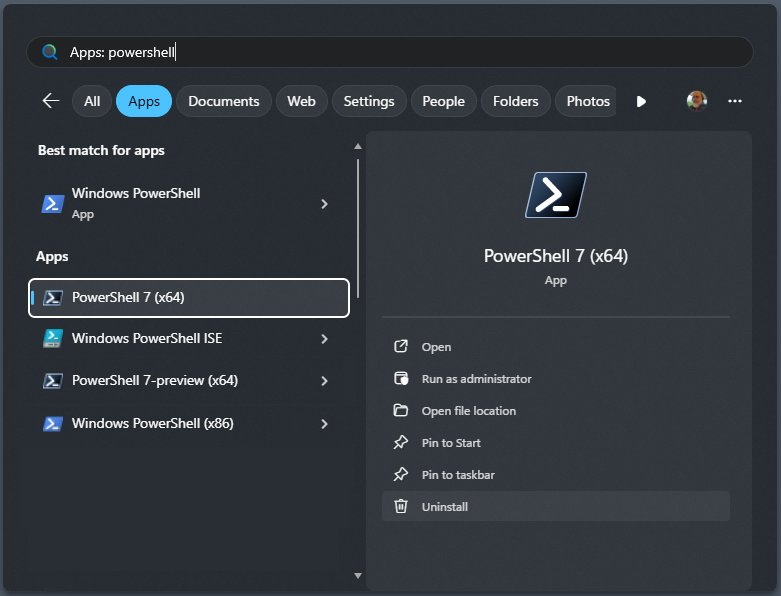
- Select Start, type
PowerShell, and open Windows PowerShell or PowerShell 7. - Type
$PSVersionTableand press Enter. - Read the PSVersion row. A value starting with 5.1 means Windows PowerShell 5.1; a value starting with 7 means PowerShell 7.
- Read the PSEdition row. Desktop means Windows PowerShell 5.1; Core means PowerShell 6 or later.
- To print only the version number, type
$PSVersionTable.PSVersionand press Enter.
The answer applies only to the window you typed it in. Windows PowerShell 5.1 and PowerShell 7 can both be installed, so check each one separately.
Introduction to PowerShell
PowerShell is Microsoft's task automation tool. It combines a command-line shell, a scripting language and a configuration management framework, and it passes .NET objects between commands instead of plain text.
Two separate products carry the name on a Windows PC, which is why version checks confuse people.
| Windows PowerShell | PowerShell (7) | |
|---|---|---|
| Program file | powershell.exe |
pwsh.exe |
| Start menu name | Windows PowerShell | PowerShell 7 |
| Latest version | 5.1 | 7.6 (Long Term Servicing) |
| Built on | .NET Framework | Modern .NET (.NET 10 for 7.6) |
| Comes with Windows 10 and 11 | Yes, built in | No, installed separately |
| Runs on | Windows only | Windows, macOS and Linux |
| New features | No longer added | Added in each release |
| Support follows | Your Windows version | The .NET version it is built on |
Installing PowerShell 7 does not remove or replace Windows PowerShell 5.1. The two run side by side, each with its own Start menu entry.
Methods to check PowerShell version
| Your situation | Use this | Why |
|---|---|---|
| A PowerShell window is already open | $PSVersionTable (Method 1) |
Shows the exact engine version and edition |
| You remember the Get-Host command | Get-Host or $Host.Version (Method 2) |
Quick, but reports the host program |
| You are in Command Prompt or a batch file | powershell -Command (Method 3) |
No need to open PowerShell first |
| You prefer not to type commands | Programs and Features (Method 4) | Lists an MSI install of PowerShell 7 |
| You need the PowerShell 7 number specifically | pwsh -v (Method 5) |
Prints the version and exits |
Method 2: Using the $Host object
$Host and the Get-Host cmdlet describe the host program running PowerShell, such as the console window. The default output includes a version number along with the region and language settings.
- Open Windows PowerShell or PowerShell 7 from the Start menu.
- Type
Get-Hostand press Enter. - Read the Version line in the output.
- Or type
$Host.Versionand press Enter to see only that number.
Treat this as a second opinion. $Host.Version is the version of the host application, so in an editor or another host it can differ from the engine. $PSVersionTable.PSVersion is the value scripts and module requirements check.
Method 3: Using the command line (Command Prompt)
Both PowerShell programs accept a -Command parameter, so Command Prompt can ask each one for its version without opening a PowerShell window.
powershell -NoProfile -Command "$PSVersionTable.PSVersion"
pwsh -NoProfile -Command "$PSVersionTable.PSVersion"
Line 1 asks Windows PowerShell (powershell.exe) for its version. Line 2 asks PowerShell 7 (pwsh.exe). -NoProfile skips your profile scripts so they cannot slow down or change the output. Keep -Command last, because everything after it is treated as the command to run.
You should see: Each line prints the version number and returns you to the Command Prompt. If line 2 reports that pwsh is not recognized, PowerShell 7 is not installed or is not on your PATH.
Method 4: Checking via the graphical interface (Control Panel)
Windows PowerShell 5.1 is a component of Windows, so it has no entry of its own here. PowerShell 7 installed from the MSI package does appear, which makes this a click-only check for version 7.
- Press Win + R, type
appwiz.cpl, and press Enter to open Programs and Features. - Find the entry whose name starts with PowerShell.
- Read the number in the Version column.
- If there is no entry, PowerShell 7 was installed another way or is not installed. Use Method 5 to check.
Installs from the Microsoft Store or a ZIP file do not use the MSI installer, so check them with Method 5 instead.
Method 5: Checking PowerShell version for PowerShell Core / PowerShell 7+
PowerShell 6 was the release once called PowerShell Core; version 7 and later simply use the name PowerShell. Its program file, pwsh.exe, has a switch that prints the version and exits.
- Open Command Prompt, Windows PowerShell or Windows Terminal.
- Type
pwsh -vand press Enter. The long formpwsh -Versionworks too. - Read the version number it prints. Any other parameters on the same line are ignored.
- To check which folder that copy runs from, open PowerShell 7 and type
$PSHOME.
Do not use powershell -Version for this. On Windows PowerShell, -Version tries to start an older engine such as 2.0 instead of printing a number.
How to confirm which PowerShell a window is running
Two windows that look alike can be different products. These checks prove which one you are typing into before you trust a version number.
- Type
$PSVersionTable.PSEditionand press Enter. Desktop is Windows PowerShell 5.1; Core is PowerShell 7. - Type
$PSHOMEand press Enter to see the folder the running copy lives in. - If the path is
C:\Program Files\PowerShell\7, it is an MSI install of PowerShell 7. - If the path starts with
C:\Program Files\WindowsApps\, it is the Microsoft Store (MSIX) install of PowerShell 7. - If the path ends in
.dotnet\toolsin your user folder, it was installed as a .NET global tool. - Type
[System.Runtime.InteropServices.RuntimeInformation]::FrameworkDescriptionand press Enter to see the .NET version under it.
Windows PowerShell 5.1 runs on the .NET Framework, so a script written for it also depends on which .NET Framework release is installed.
Understanding PowerShell versions
The version number tells you which product and which support window you are on. Microsoft no longer supports Windows PowerShell versions below 5.1.
| Version | Released | Where it came from | Support status |
|---|---|---|---|
| Windows PowerShell 5.1 | August 2016 | Windows 10 Anniversary Update, Windows Server 2016, WMF 5.1; built into Windows 11 | Supported for as long as your Windows version is |
| Windows PowerShell 2.0 to 5.0 | 2009 to 2016 | Windows 7, 8, 8.1 and WMF packages | Not supported |
| PowerShell 6.0 to 6.2 (Core) | 2018 to 2019 | Separate install | Ended |
| PowerShell 7.0 to 7.3 | 2020 to 2022 | Separate install | Ended |
| PowerShell 7.4 (LTS) | 16 November 2023 | Separate install | Ends 10 November 2026 |
| PowerShell 7.5 | 23 January 2025 | Separate install | Ends 10 November 2026 |
| PowerShell 7.6 (LTS) | 18 March 2026 | Separate install | Ends 14 November 2028 |
LTS means Long Term Servicing: updates carry only security and servicing fixes. Stable releases between LTS versions add features but have a shorter life. Microsoft supports only the latest update of each release, such as 7.6.6 rather than 7.6.0.
How to upgrade PowerShell in Windows 10 & 11
Windows PowerShell 5.1 is the final version of that product and is part of Windows itself. Upgrading therefore means installing PowerShell 7, which sits beside 5.1 rather than replacing it. The winget tool is built into Windows 11 as part of App Installer.
- Open Windows PowerShell or Command Prompt. Some installs prompt for elevation, so you may prefer to run PowerShell as administrator from the start.
- Run
winget search --id Microsoft.PowerShell --exactto see the latest version available. - Run
winget install --id Microsoft.PowerShell --source wingetto install it. From 7.6.0 this installs the MSIX package by default. - Add
--installer-type wixto the install command if you need the MSI package instead, for example to add PowerShell to Programs and Features. - If PowerShell 7 is already installed, run
winget list --id Microsoft.PowerShell --upgrade-availableto check for a newer release. - Run
winget upgrade --id Microsoft.PowerShellto install it. winget keeps the package type you used before. - Close the window, open PowerShell 7 from the Start menu, and run
$PSVersionTable.PSVersionto confirm the new number.
An MSI install can also opt into Microsoft Update, so later PowerShell 7 updates arrive through Windows Update. The Microsoft Store package gets automatic updates built into Windows.
Troubleshooting PowerShell version checks
$PSVersionTable still shows 5.1 after installing PowerShell 7
You opened Windows PowerShell, which stays installed next to PowerShell 7.
- Close the window.
- Select Start and open the entry labelled PowerShell 7, not Windows PowerShell.
- Run
$PSVersionTable.PSVersionagain.
'pwsh' is not recognized as a command
PowerShell 7 is not installed, or it was unzipped to a folder that is not on your PATH.
- Run
winget list --id Microsoft.PowerShellto see whether it is installed. - If it is missing, install it with the winget steps above.
- If you installed it from a ZIP file, add that folder to your PATH environment variable, or run
pwsh.exefrom the folder itself. - Open a new Command Prompt or PowerShell window so the updated PATH loads.
Get-Host and $PSVersionTable show different numbers
Get-Host reports the host application, which can carry its own version.
- Use
$PSVersionTable.PSVersionas the engine version. - Use
$PSVersionTable.PSEditionto confirm whether it is Windows PowerShell or PowerShell 7.
powershell -Version shows an error instead of a number
For powershell.exe, -Version means start an older engine, not print the version.
- Run
powershell -NoProfile -Command "$PSVersionTable.PSVersion"instead. - Use
pwsh -vonly for PowerShell 7, where the switch does print the version.
PowerShell version best practices & recommendations
| Practice | Reason |
|---|---|
Check $PSVersionTable.PSVersion, not only $Host.Version |
It is the engine version scripts and modules test against |
| Keep Windows PowerShell 5.1 installed | Some Windows modules still run only in 5.1 |
| Use the current LTS release, 7.6, for production | It receives security fixes until 14 November 2028 |
| Move off 7.4 and 7.5 before 10 November 2026 | Both stop receiving updates on that date |
| Avoid preview builds on work PCs | Previews can contain breaking changes and are not supported |
| Upgrade with the same method you installed with | winget, MSI, Store and ZIP installs update differently |
Check $PSHOME before upgrading |
It tells you which install method was used |
PowerShell version FAQ
How do I check the PowerShell version on Windows 11?
Open Windows PowerShell or PowerShell 7 from the Start menu, type $PSVersionTable, and press Enter. The PSVersion row shows the number. Windows 11 includes Windows PowerShell 5.1, so you see 5.1 unless you open a separately installed PowerShell 7.
How do I check the PowerShell version on Windows 10?
The steps are identical to Windows 11. Open PowerShell, run $PSVersionTable.PSVersion, and read the number. Windows 10 has included Windows PowerShell 5.1 since the Anniversary Update in 2016. Run pwsh -v in Command Prompt to check for PowerShell 7 as well.
What version of PowerShell comes with Windows 10 and 11?
Both include Windows PowerShell 5.1. It is the final version of Windows PowerShell and gets no new features, only servicing through Windows Update. PowerShell 7 is a separate product you install yourself; the current Long Term Servicing release is 7.6.
How do I check the PowerShell 7 version?
Run pwsh -v in Command Prompt, Windows PowerShell or Windows Terminal. It prints the PowerShell 7 version and exits. Inside an open PowerShell 7 window, $PSVersionTable.PSVersion gives the same number, and PSEdition shows Core.
Can I check the PowerShell version from Command Prompt?
Yes. Run powershell -NoProfile -Command "$PSVersionTable.PSVersion" for Windows PowerShell, or pwsh -v for PowerShell 7. Both print the number without leaving Command Prompt. Avoid powershell -Version, which tries to start an older engine instead.
Is Get-Host the same as $PSVersionTable?
No. Get-Host describes the program hosting PowerShell, such as the console window, and its version belongs to that host. $PSVersionTable describes the PowerShell engine itself. In the standard console they usually agree, but $PSVersionTable.PSVersion is the number to rely on.
Can I upgrade Windows PowerShell 5.1 to PowerShell 7?
Not in place. PowerShell 7 installs to its own folder and runs side by side with Windows PowerShell 5.1, which stays on the PC. Install it with winget install --id Microsoft.PowerShell --source winget, then open PowerShell 7 from the Start menu.
How do I check the Windows version from PowerShell?
Type winver in PowerShell and press Enter to open the About Windows box with your version and build. There are other ways to find your Windows version in Settings and System Information too.
PowerShell version in Windows 10 and 11: final thoughts
Run $PSVersionTable.PSVersion in each PowerShell you use, and install PowerShell 7.6 if you only see 5.1. Windows 10 and 11 ship only Windows PowerShell 5.1, which gets no new features, while 7.6 is the supported Long Term Servicing release until November 2028 and runs alongside 5.1 without breaking older scripts.