New Outlook for Windows is a web-based app built on Outlook on the web, with features such as snooze, pin, schedule send and undo send, while old (classic) Outlook keeps COM add-ins, VBA macros, multiple profiles and full PST support.
This guide compares the two feature by feature, explains when classic Outlook goes away, and shows how to switch to new Outlook and back.
What is new Outlook vs old Outlook?
Old Outlook, which Microsoft now calls classic Outlook, is the long-running desktop app from Microsoft 365 and Office. New Outlook is a newer Windows app that runs the Outlook on the web experience inside WebView2, with a small component that connects it to Windows.
| If you rely on | Use | Why |
|---|---|---|
| COM add-ins, VBA macros or the Outlook object model | Classic Outlook | New Outlook does not support any of them |
| Several mail profiles or exported rules | Classic Outlook | Multiple profiles are upcoming and rules import/export is not supported in new Outlook |
| Snooze, pin, schedule send or undo send | New Outlook | Classic Outlook does not support these features |
| Copilot meeting help from an email thread | New Outlook | Scheduling and meeting preparation from email are new Outlook only |
| Gmail, Yahoo, iCloud or IMAP accounts | Either | Both versions support these accounts; iCloud is only partially available in classic |
| Full offline access to PST files | Classic Outlook | PST support and offline mail are only partially available in new Outlook |
What's different with the new Outlook?
New Outlook has a modern interface modelled on Outlook on the web, with a ribbon you can set to the larger classic layout or the smaller simplified one. Its features are delivered from the service, so changes no longer wait for a desktop update.
| Area | What new Outlook does | Classic Outlook |
|---|---|---|
| Architecture | Outlook on the web experience in a native app based on WebView2 | Traditional Win32 desktop app |
| Updates and performance fixes | Critical updates delivered within hours from the service | Fixes arrive through Office update channels, often days or weeks |
| Installation | Small MSIX package from the Microsoft Store, setup.exe or winget | Installed with Microsoft 365 or Office |
| Integrations | Web add-ins in a sandbox; Teams built into the client | COM add-ins and web add-ins; Teams through an add-in |
| Inbox tools | Pin messages, snooze, schedule send, undo send | Not supported |
| Meetings | Meeting chat and editing this and all following events in a series | Not supported |
| Copilot | Chat, draft, summarize and coaching, plus scheduling and meeting preparation from email | Chat, draft, summarize and coaching only |
| Security | S/MIME available; web add-ins run in a sandbox with checks | S/MIME available; COM add-ins can change Outlook freely |
Microsoft says COM add-ins often lead to instability and crashes, which is the reason new Outlook runs only sandboxed web add-ins. Existing web add-ins work without changes, and you can manage Outlook add-ins the same way in both.
The old Outlook: familiar features you know and love
Classic Outlook keeps its trusted layout and navigation, and it remains the more compatible choice for older workflows. These are the features that keep many offices on it.
| Classic Outlook feature | Status in new Outlook |
|---|---|
| COM add-ins | Not supported |
| VBA macros | Not supported |
| Outlook object model and MAPI | Not supported |
| Multiple mail profiles | Upcoming |
| Rules import and export | Not supported |
| PST files | Partially available; import of mail, calendar, contacts and tasks works |
| Offline mail, calendar and contacts | Partially available |
| Schedule View in Calendar | Upcoming |
| Cut and multi-select calendar events | Upcoming |
| On-premises Exchange accounts | Partially available, through IMAP with limited functionality |
| Public folders | Limited support |
Classic Outlook is also system-friendly in one practical sense: it works offline with local data files, which suits laptops that spend time without a connection.
Major differences between the old Outlook and new Outlook
The table below sets the two versions side by side on the points readers ask about most: interface, performance and speed, integrations, security and accounts.
| Feature | Old (classic) Outlook | New Outlook |
|---|---|---|
| User interface (UI) | Full classic ribbon and folder pane | Modern design with classic or simplified ribbon |
| Performance and speed of fixes | Office update channel cadence | Service-delivered fixes within hours |
| Compatibility with integrations | COM add-ins, VBA, web add-ins | Web add-ins only |
| Security features | S/MIME | S/MIME, sandboxed add-ins |
| Rules | Available, with import and export | Partially available, no import or export |
| Quick Steps | Available | Partially available |
| Mail merge | Available | Partially available, more on the roadmap |
| Search folders | Available | Partially available |
| Shared mailboxes | Available, including delegate access | Available; shared mailbox delegate access partial |
| Focused Inbox, dictation, reactions | Available | Available |
| My Day and Microsoft Loop | Available | Available |
| Accounts | Microsoft, work or school, Gmail, Yahoo, IMAP, POP; iCloud partial | Microsoft, work or school, Gmail, Yahoo, iCloud, IMAP, POP |
Appearance settings carry over in spirit: you can still turn on dark mode in Outlook in either version.
What this means for email management in Microsoft 365
For Microsoft 365 users, the switch changes how mail is handled more than where it is stored. Mail stays in the Exchange Online mailbox; the client around it changes.
| Email management task | What changes with new Outlook |
|---|---|
| Following up on mail | Snooze and pin replace manual flag-and-folder habits |
| Sending later | Schedule send is built in, with no rule or delay workaround needed |
| Catching mistakes | Undo send pulls back a message for a short time after sending |
| Automating with macros | VBA macros stop working; web add-ins or server-side tools replace them |
| Archiving to PST | Import works, but classic PST capabilities are only partly available |
| Admin control | New features roll out through Standard or Targeted release rings, like Microsoft 365 for the web |
| Compliance add-ins | COM-based tools must move to web add-ins before users switch |
If you send delayed mail today, the steps to schedule an email in Outlook differ between the two versions.
When will the old Outlook go away?
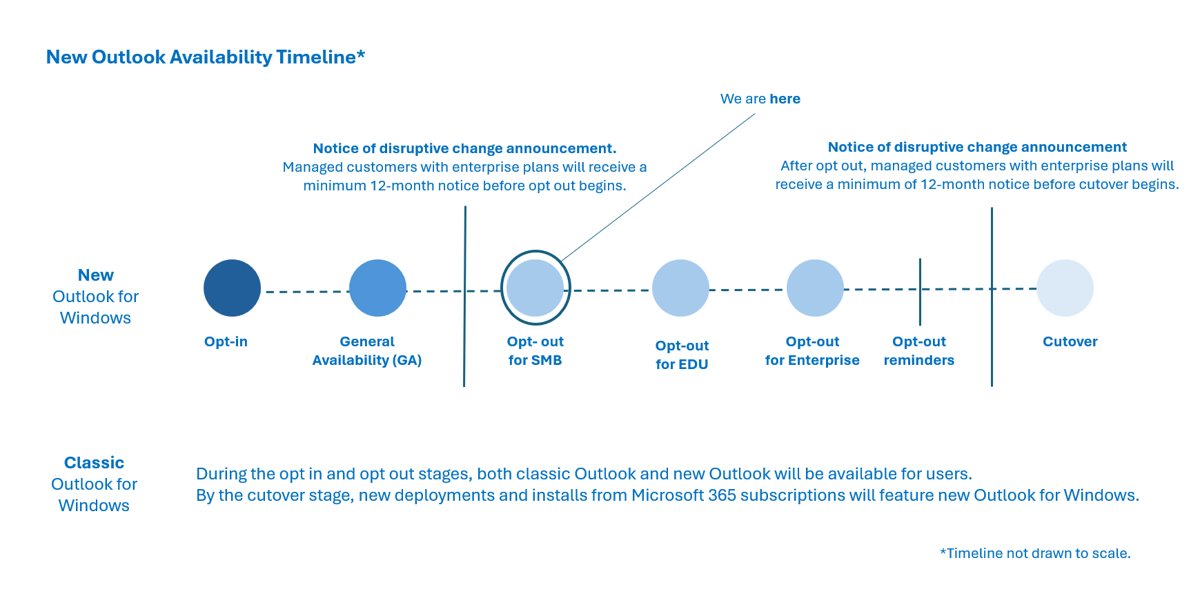
Not soon. Microsoft says existing installations of classic Outlook through perpetual and subscription licensing will be supported until at least 2029. The move to new Outlook runs in three stages, with at least 12 months' notice to administrators before each of the later two.
| Stage | What happens | Can you switch back? |
|---|---|---|
| 1. Opt-in | Classic Outlook shows a Try the new Outlook toggle; new Outlook is off by default | Yes, and both can run side by side |
| 2. Opt-out | New Outlook is on by default and users move to it automatically | Yes, users can still revert |
| 3. Cutover | New Microsoft 365 deployments get new Outlook only | No |
New Outlook reached general availability for business customers by August 1, 2024. Automatic switching applies to personal accounts on Microsoft 365 Family or Personal; work or school accounts on Enterprise plans are not switched automatically.
How to switch to the new Outlook
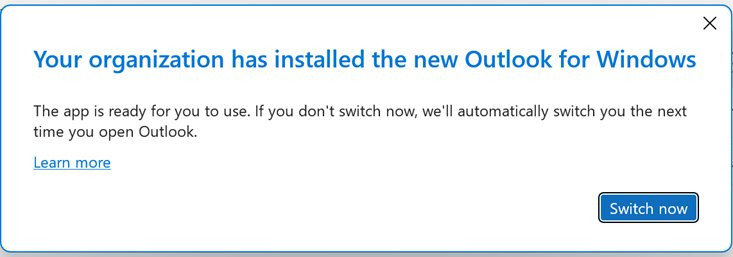
The switch is a toggle in classic Outlook for Microsoft 365. It does not appear in one-time-purchase Office or standalone Outlook, or where an administrator has hidden it.
- Open classic Outlook.
- Select the Try the new Outlook toggle in the upper-right corner of the window.
- Wait while the new Outlook app downloads; this can take several minutes.
- Let classic Outlook close when the install finishes and new Outlook opens.
- Sign in, then choose whether to import your accounts and settings from classic Outlook.
How to switch back to classic Outlook
You can return to classic Outlook at any time during the opt-in and opt-out stages.
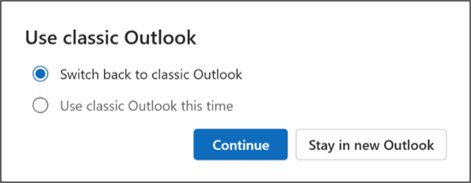
- In new Outlook, turn off the New Outlook toggle in the upper-right corner.
- Alternatively, open the Help tab on the ribbon and select Go to classic Outlook.
- Wait for classic Outlook to launch while new Outlook minimizes to the taskbar.
- Expect new Outlook notifications and reminders to stay quiet for that session.
How to tell if you are using new Outlook or classic Outlook
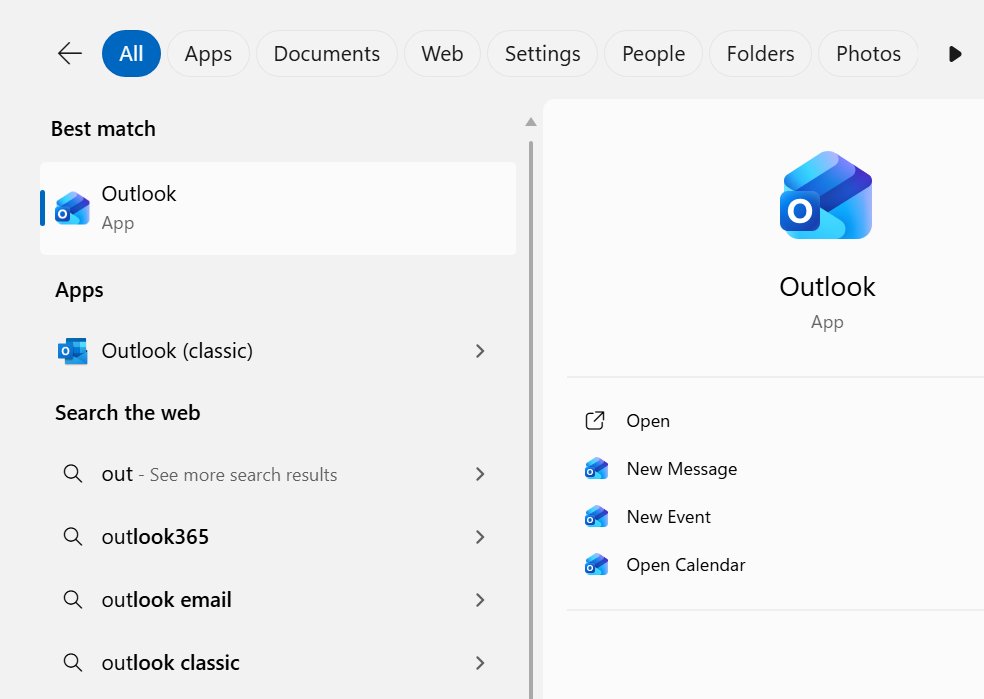
- Open Outlook and look at the upper-right corner of the window.
- If you see a Try the new Outlook toggle that is off, you are in classic Outlook.
- If you see a New Outlook toggle that is on, you are in new Outlook.
- In new Outlook, confirm the Help tab offers Go to classic Outlook.
Fix new Outlook switching problems
The Try the new Outlook toggle is missing
Your administrator hid it, your account is not supported, or you use one-time-purchase Office or standalone Outlook.
- Check that you run Outlook for Microsoft 365, not a one-time-purchase version.
- Remove or ask about any work or school account your administrator manages.
- Ask your IT administrator whether the toggle is hidden by policy.
New Outlook says it isn't compatible with the current service
New Outlook could not apply updates for a long period and fell behind the service version.
- Close new Outlook completely.
- Reopen it so the latest update can apply.
An add-in or macro stopped working after the switch
New Outlook does not support COM add-ins or VBA macros.
- Check whether the vendor offers a web add-in version.
- Switch back with Go to classic Outlook on the Help tab until a replacement is ready.
New Outlook vs old Outlook FAQ
Why use new Outlook vs old Outlook?
Use new Outlook for snooze, pin, schedule send, undo send, meeting chat and faster service-delivered fixes. Stay on old Outlook if you depend on COM add-ins, VBA macros, multiple profiles or full PST and offline support.
What are the pros and cons of new Outlook?
The pros are modern inbox tools, extra Copilot features, built-in Teams and fixes within hours. The cons are no COM add-ins, no VBA macros, no rules import or export, and only partial PST and offline support.
Can new Outlook open PST files?
Partly. New Outlook can import mail, calendar, contacts and tasks from PST files, but Microsoft lists PST support as partially available, so some classic Outlook PST capabilities are missing.
Do Outlook rules work in new Outlook?
Rules are partially available in new Outlook. You can create rules, but importing and exporting rules is not supported, so rules exported from classic Outlook cannot be brought in that way.
Is new Outlook faster than old Outlook?
Microsoft does not publish speed comparisons. What it does state is that new Outlook receives critical updates within hours from the service, while classic Outlook fixes travel through Office update channels.
Can I run new Outlook and classic Outlook side by side?
Yes. During the opt-in stage both versions can run side by side, so you can compare them and switch back to classic Outlook if a feature you need is missing.
Can I go back to the old Outlook?
Yes. Turn off the New Outlook toggle, or select Go to classic Outlook on the Help tab. Switching back stays possible until the cutover stage.
Does new Outlook support Gmail and IMAP accounts?
Yes. New Outlook supports Microsoft accounts, work or school accounts, Gmail, Yahoo, iCloud, IMAP and POP. Web add-ins do not work with third-party accounts such as Gmail in either version.
Do VBA macros and COM add-ins work in new Outlook?
No. New Outlook does not support VBA macros, COM add-ins or the Outlook object model. Web add-ins are fully supported and need no changes.
When does classic Outlook support end?
Microsoft says existing classic Outlook installations through perpetual and subscription licensing will be supported until at least 2029, with 12 months' notice before the cutover stage.
Which version of Outlook is right for you?
Try new Outlook now if your mail runs on Microsoft 365, Outlook.com, Gmail or IMAP and you do not depend on COM add-ins or macros; stay on classic Outlook if you do. The switch is reversible during the opt-in and opt-out stages, classic Outlook is supported until at least 2029, and the remaining gaps in new Outlook are concentrated in add-ins, macros, profiles and PST work.