Yes, install KB5126653: Microsoft lists no known issues for this October 13, 2026 security update for Windows 11 version 23H2, and it carries the month's security fixes.
The one open problem on 23H2 is a USB audio bug from the September update, which KB5126653 does not introduce and does not fully fix. This page covers who gets the update, what it fixes, who should wait, install errors, and how to uninstall or pause it.
Should you install KB5126653 now?
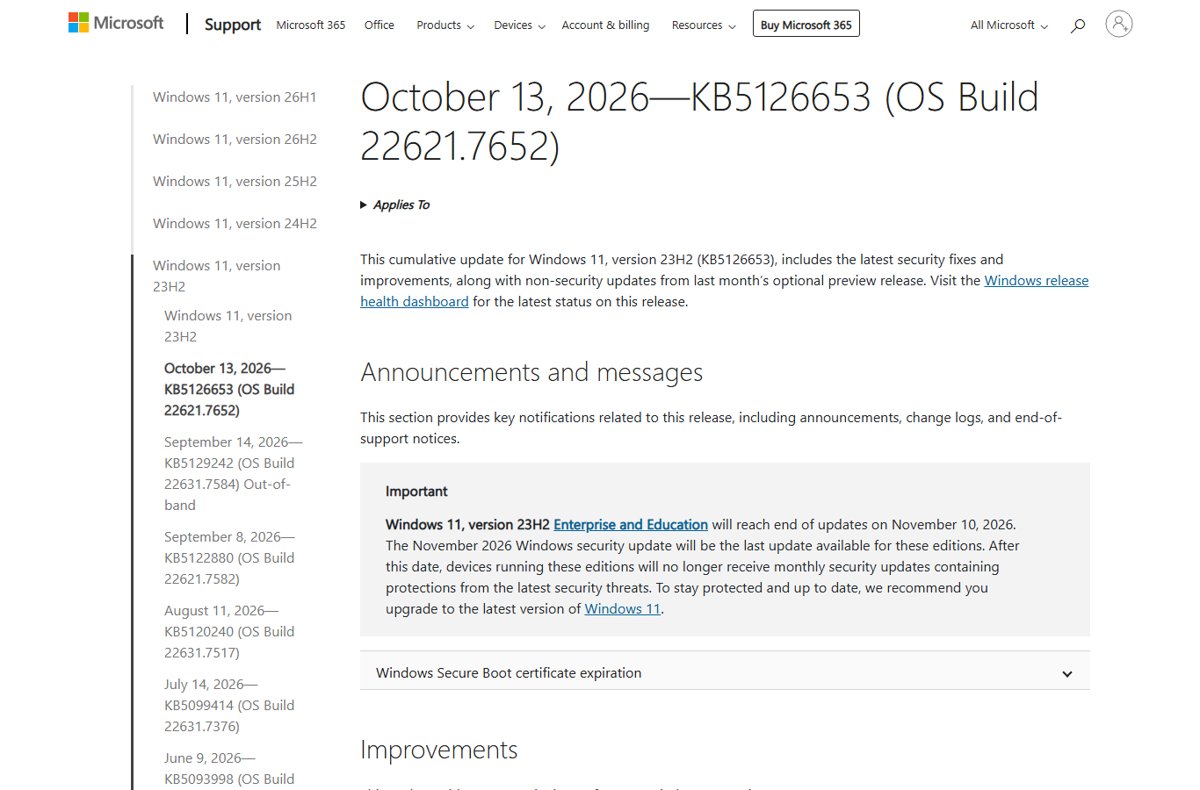
KB5126653 is the October 2026 cumulative security update for Windows 11 version 23H2, OS Build 22621.7652. Microsoft's release notes state that it is not currently aware of any issues with this update.
Install KB5126653 now on any Windows 11 23H2 PC that still receives updates. Delay only if a USB Audio Class 1.0 device is already failing and you rely on it, and even then the September bug is already on your PC, so skipping October does not bring the sound back. The update carries October's security fixes, the fix for File History showing "Reconnect your drive", and the tiered Storage Spaces Direct fix. Skipping it leaves those security holes open without avoiding any documented October problem.
PCs on 24H2, 25H2 and 26H2 get KB5127648 instead, which has its own KB5127648 known issues, and the Windows 11 October 2026 Update review compares all three releases.
Who should wait before installing KB5126653?
| Your situation | What to do | Why |
|---|---|---|
| Windows 11 23H2 Enterprise or Education, no current problems | Install now | No known issues are listed for KB5126653, and it closes October's security vulnerabilities. |
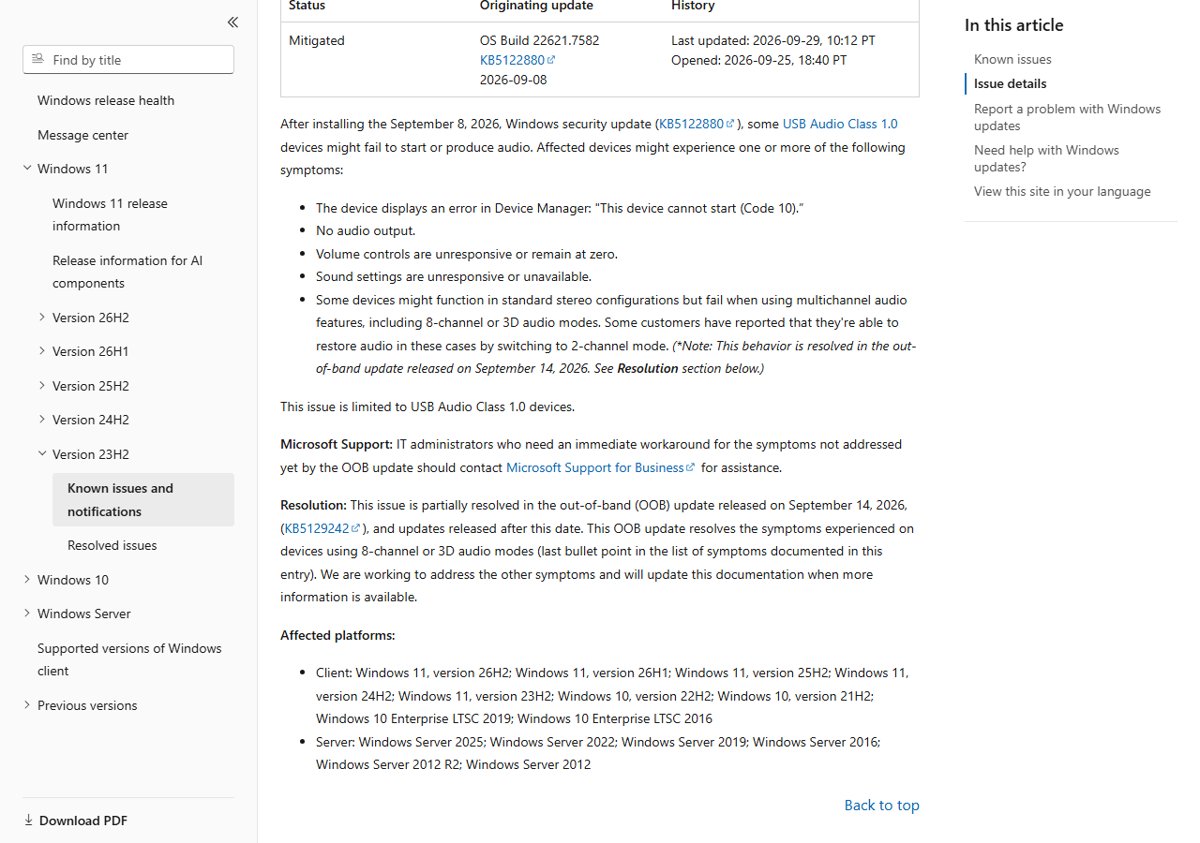
| USB Audio Class 1.0 device shows Code 10 or no sound since September | Install, then follow the USB audio fixes | The bug started with KB5122880 in September. Microsoft rates it Mitigated and is still working on the remaining symptoms. |
| Business PCs managed through WSUS or Windows Update for Business | Pilot on a test group first | Normal practice for any cumulative update. Microsoft lists no 23H2 safeguard or known issue for this release. |
| Admins who update installation media with Dynamic Update | Copy boot.stl into the media before deploying | Microsoft warns that media without boot.stl can fail to start with error 0xc0430001. |
| Windows 11 23H2 Home or Pro | Upgrade to a supported version | Home and Pro on 23H2 reached end of updates on November 11, 2025, so Windows Update does not offer them monthly updates. |
| Windows 11 24H2, 25H2 or 26H2 | Install KB5127648 instead | KB5126653 is only for version 23H2. |
Not sure which version you run? Check your Windows version first, because the right October update depends on it.
KB5126653: Windows 11 23H2
| Detail | KB5126653 |
|---|---|
| Release date | Tuesday, October 13, 2026 (Patch Tuesday) |
| Applies to | Windows 11, version 23H2 |
| OS build | 22621.7652 |
| Type | Cumulative security update (catalog classification: Security Updates) |
| Includes | Fixes from the September 8 security update KB5122880 and the September 14 out-of-band update KB5129242 |
| Servicing stack update | KB5126652, version 22621.7641 |
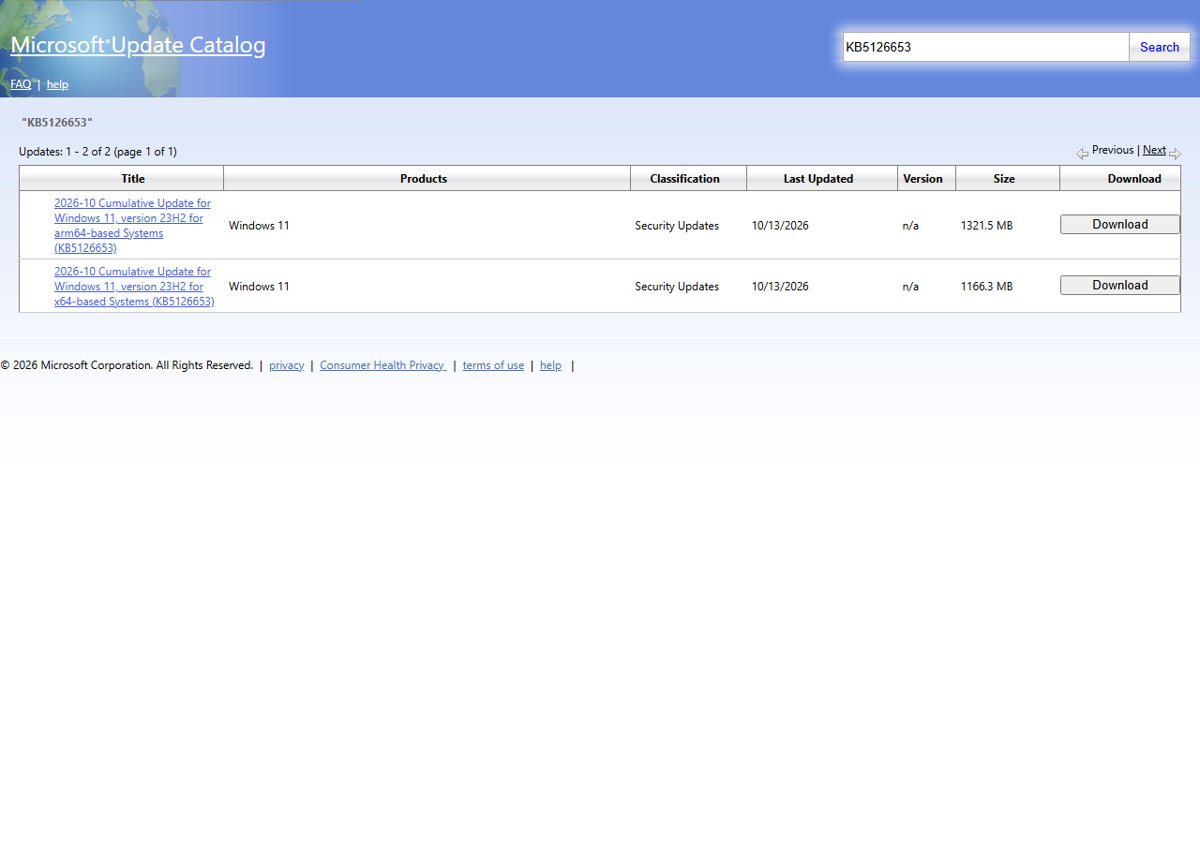
| Catalog size | 1,166.3 MB for x64, 1,321.5 MB for Arm64 |
| Delivery | Windows Update, Windows Update for Business, Microsoft Update Catalog, WSUS |
| Known issues on the KB page | None: "Microsoft is not currently aware of any issues with this update" |
For offline installs, download the KB5126653 .msu files for x64 or Arm64 and review the full change list.
KB5126653 known issues and resolved problems
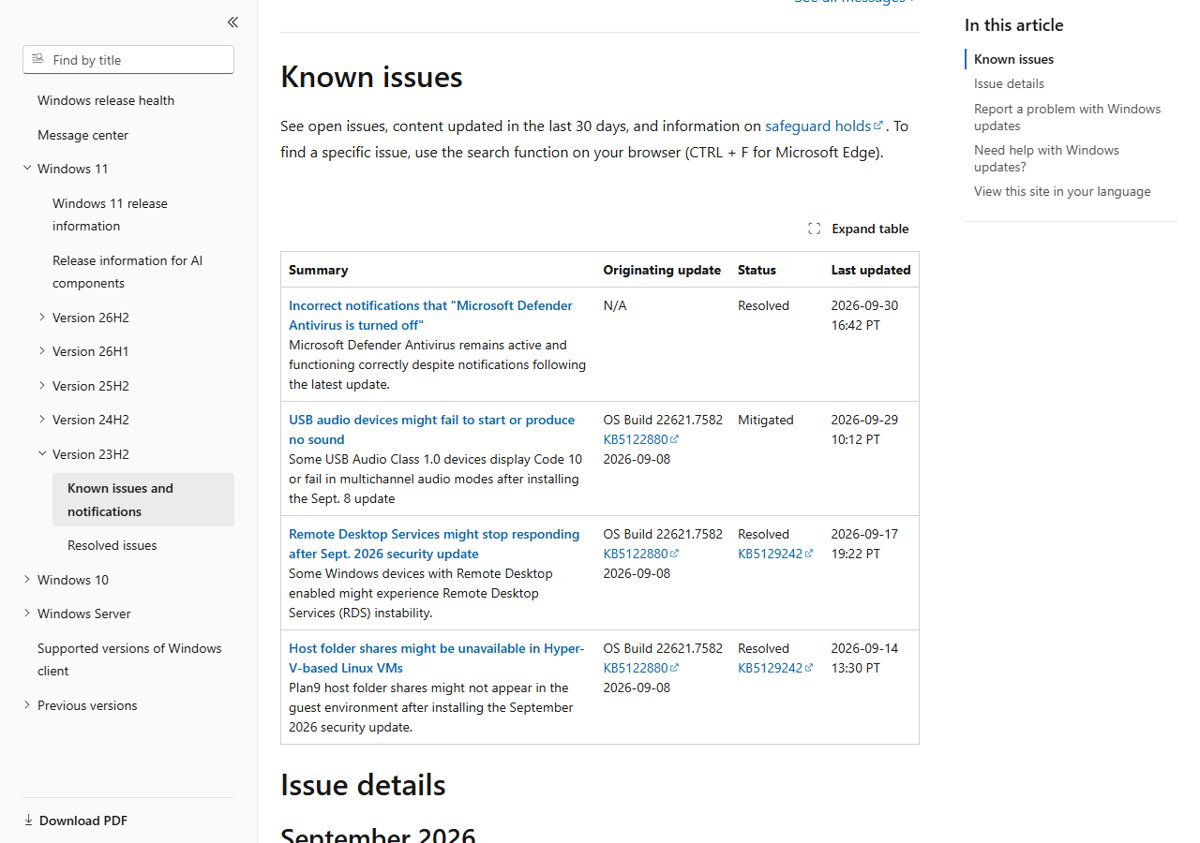
Microsoft's Windows 11 23H2 release health page lists four entries as of October 13, 2026. Only one is still open, and none started with KB5126653.
| Issue | Started with | Status | What KB5126653 changes |
|---|---|---|---|
| USB audio devices fail to start or produce no sound (USB Audio Class 1.0) | KB5122880, September 8, 2026 | Mitigated | Carries the partial fix from KB5129242 for 8-channel and 3D audio modes. Code 10 and no-sound symptoms remain under investigation. |
| Remote Desktop Services stops responding | KB5122880, September 8, 2026 | Resolved by KB5129242 | Includes the fix, because KB5126653 contains KB5129242. |
| Plan9 host folder shares missing in Hyper-V Linux VMs (affects WSL) | KB5122880, September 8, 2026 | Resolved by KB5129242 | Includes the fix. |
| Incorrect "Microsoft Defender Antivirus is turned off" notifications | Defender update 4.18.26070.9 | Resolved in Defender 4.18.26080.4 | Not related; the fix came through a Defender update. |
| File History fails to back up and shows "Reconnect your drive" | Earlier 23H2 update | Fixed in KB5126653 | Listed as a fixed known issue in the October release notes. |
Every open issue across all Windows 11 versions this month is tracked in the October 2026 Update issues roundup.
Are the remaining USB audio bugs fixed in KB5126653?
No. Claims that the October patches fixed the remaining USB audio bugs do not match Microsoft's own pages. The 23H2 release health entry still shows the issue as Mitigated, last updated September 29, 2026.
| Symptom on USB Audio Class 1.0 devices | Status with KB5126653 installed |
|---|---|
| Device Manager shows "This device cannot start (Code 10)" | Not fixed yet |
| No audio output | Not fixed yet |
| Volume controls unresponsive or stuck at zero | Not fixed yet |
| Sound settings unresponsive or unavailable | Not fixed yet |
| Fails in multichannel modes such as 8-channel or 3D audio | Fixed by KB5129242, which KB5126653 includes |
The bug is limited to USB Audio Class 1.0 devices. Microsoft directs IT admins who need an immediate workaround to Microsoft Support for Business. For home PCs, the USB audio Code 10 fixes walk through the driver and rollback steps.
Do the 26H2 domain trust, AC-3 audio and black screen issues affect KB5126653?
No. Three widely reported October problems belong to the newer Windows 11 versions. Microsoft's affected-platform lists for all three leave out version 23H2.
| Issue | Affected versions | Status | Affects 23H2? |
|---|---|---|---|
| Domain-joined devices lose their secure trust relationship with the domain (Credential Guard, Machine Identity Isolation) | 24H2, 25H2, 26H1, 26H2 | Resolved by KB5124010 | No |
| Applications which require AC-3 (Dolby Digital) audio decoding close unexpectedly | 24H2, 25H2, 26H2 | Resolved by KB5127648 | No |
| Devices experience a black screen or desktop loading issues after sign-in (mainly Azure Virtual Desktop with FSLogix) | 24H2, 25H2, 26H1, 26H2 | Resolved by KB5127648 | No |
If you also manage newer PCs, Microsoft's workarounds for those three appear alongside the other Windows 11 26H2 known issues.
The three October 2026 packages and what Microsoft fixed
| Update | Windows 11 version | OS build | What Microsoft fixed |
|---|---|---|---|
| KB5127648 | 24H2, 25H2, 26H2 | 26100.9711, 26200.9711, 26300.9711 | Security fixes, the AC-3 audio crash and the virtual desktop black screen, plus features from the September 22 preview KB5124010, all in the KB5127648 change list. |
| KB5126653 | 23H2 | 22621.7652 | Security fixes, File History, tiered Storage Spaces Direct disks, new time zone rules, Secure Boot and ReFS changes |
| KB5127646 | 26H1 | 28000.3231 | Security fixes for 26H1, with its own KB5127646 install verdict |
Do features from the September preview arrive in KB5126653?
No. The features from the September preview, such as the changes listed in KB5124010, arrive in KB5127648 for 24H2, 25H2 and 26H2. Microsoft's 23H2 update history shows no September preview release, and the KB5126653 notes name only KB5122880 and KB5129242 as its sources.
| Change in KB5126653 | What it does |
|---|---|
| Date and Time | Turns on permanent Daylight Saving Time support for British Columbia and Alberta starting in November 2026 |
| New time zone | Adds Manitoba Standard Time, shown as "(UTC-5:00) Manitoba" |
| File History | Fixes backups and restores to external drives or network locations, and the false "Reconnect your drive" message |
| Storage Spaces | Fixes tiered Storage Spaces Direct virtual disks that fail to come online, which took clustered workloads offline |
| Security updates | Fixes the vulnerabilities listed in the Security Update Guide for October 2026 |
KB5126653 Secure Boot and ReFS changes
| Area | Change | Action needed |
|---|---|---|
| Secure Boot | Continues deploying updated Secure Boot certificates to eligible devices, chosen with high-confidence targeting data | None. Deployment through Windows Update is ongoing. |
| ReFS security | Adds auditing and optional policy controls for ReFS volumes on externally attached storage | Auditing is on by default. Enforcement stays off by default so admins can prepare; Microsoft documents it in KB5130741. |
Windows 11 23H2 end of support for two groups
KB5126653 is one of the last updates version 23H2 receives. The October 2026 releases also end updates for a second group of PCs.
| Group | End of updates | Last update |
|---|---|---|
| Windows 11 23H2 Home and Pro | November 11, 2025 | Already ended; these PCs no longer get KB5126653 |
| Windows 11 23H2 Enterprise and Education | November 10, 2026 | The November 2026 security update |
| Windows 11 24H2 Home and Pro | October 2026 | KB5127648, the October 2026 security update |
Microsoft recommends moving to the latest Windows 11 version to keep receiving security updates. You can upgrade to Windows 11 26H2 from Settings when Windows Update offers it, and the 24H2 Home and Pro end of updates explains the options for that group.
KB5126653 deployment notes for admins
| Item | What Microsoft says |
|---|---|
| Version check | The KB page notes that the enablement package KB5027397 is the way to update to Windows 11, version 23H2. |
| Servicing stack | KB5126652 (22621.7641) ships with this update and improves the component that installs updates. |
| Installation media | When you apply Dynamic Update to an existing image, include boot.stl. Without it, devices can fail to start from the media with error 0xc0430001. |
| How to include boot.stl | Use the Update WinPE script (recommended), or copy boot.stl from the device's Windows\Boot\EFI folder to the matching folder on the media. It must match the image's Windows version and architecture. |
| Channels | Windows Update, Windows Update for Business, Microsoft Update Catalog and WSUS |
| Delta behavior | Devices with earlier updates download and install only the new parts of the package. |
How to install KB5126653 from Windows Update
- Save your work and plug a laptop into power.
- Select Start > Settings > Windows Update.
- Select Check for updates.
- Wait for the 2026-10 cumulative update for Windows 11, version 23H2 (KB5126653) to download and install.
- Restart when Windows asks, or select Schedule the restart to pick a convenient time.
To install it offline, download the .msu file for x64 or Arm64 from the Microsoft Update Catalog and run it.
How to check KB5126653 is installed
- Select Start > Settings > Windows Update.
- Under More options, select Update history.
- Look through the list for an entry that names KB5126653.
- Confirm the entry says it was successfully installed. A failed entry shows an error code you can match in the fixes below.
How to pause updates to delay KB5126653
Pausing delays the update but does not skip it. Once the pause limit is reached, Windows installs the latest updates before you can pause again.
- Select Start > Settings > Windows Update.
- Next to Pause updates, choose the pause length you want.
- Return to the same page and select Check for updates when you are ready to install KB5126653.
How to uninstall KB5126653
Removing KB5126653 also removes October's security fixes, so uninstall it only when it causes a problem you cannot fix another way. Some updates cannot be uninstalled.
- Select Start > Settings > Windows Update.
- Under More options, select Update history.
- Under Related settings, select Uninstall updates.
- Find the update that names KB5126653 and select Uninstall.
- Restart the PC when Windows asks.
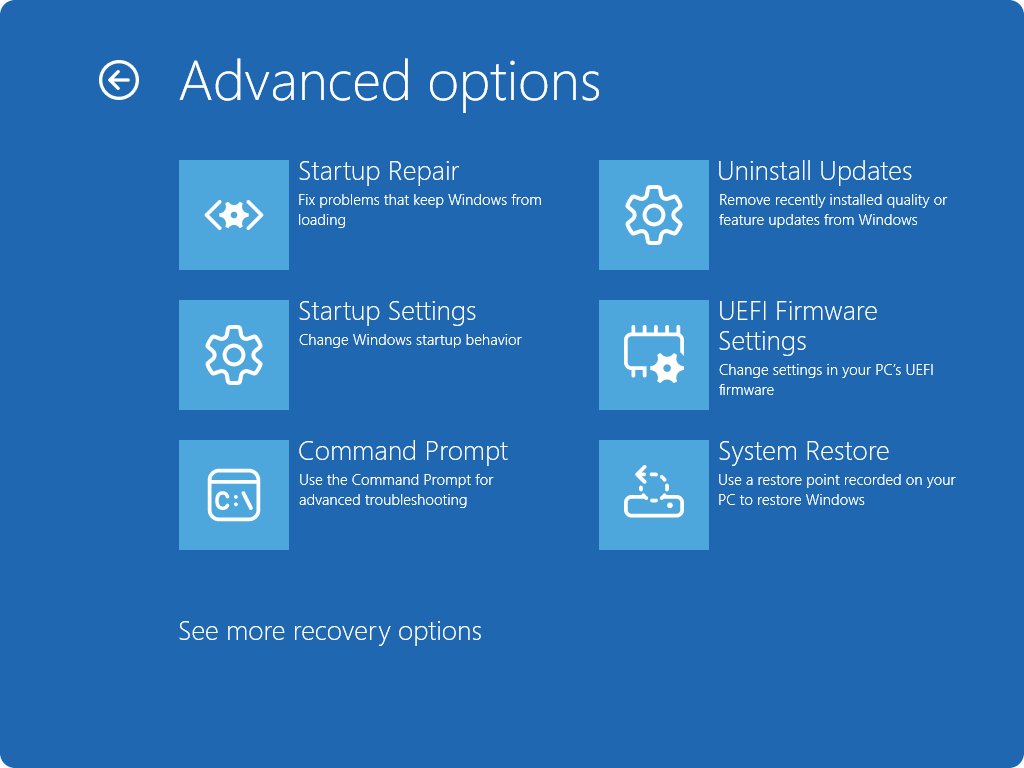
- If Windows does not start, open the Windows Recovery Environment and select Troubleshoot > Advanced options > Uninstall Updates > Uninstall latest quality update.
Pause updates right after removing it, or Windows Update installs KB5126653 again. More removal options are in the guide to uninstall problematic Windows updates.
KB5126653 failed to install: how to fix it
KB5126653 fails to install with no clear error
Corrupt files in the update cache, low disk space or a stopped update service.
- Select Start > Settings > System > Troubleshoot > Other troubleshooters.
- Next to Windows Update, select Run and follow the prompts.
- Make sure the drive has at least 20 GB free on a 64-bit PC.
- Disconnect external drives, docks and other hardware you do not need.
- Restart and select Check for updates again.
Error 0x8007000d, 0x80070002 or 0x80248014
Damaged update files or a Windows Update service that is not running.
- Press Win + R, type
services.mscand press Enter. - Right-click Windows Update and select Stop.
- Open
C:\Windows\SoftwareDistributionand delete everything inside it. - Return to Services, right-click Windows Update and select Start.
- Install KB5126653 again from Windows Update.
Error 0x800f0922
Not enough disk space, or a VPN interfering with the download.
- Free up space until at least 20 GB is available on a 64-bit PC.
- Disconnect any VPN.
- Select Check for updates again.
Error 0x80070057 or 0x80080005
Corrupted system files or incorrect system configuration.
- Open Command Prompt as administrator.
- Run
DISM.exe /Online /Cleanup-image /Restorehealthand wait for "The restore operation completed successfully". - Run
sfc /scannowand wait until it reaches 100%. - Install the update again.
Error 0xC1900101
An incompatible driver blocks the installation.
- Open Device Manager.
- Expand Network adapters or Display adapters.
- Right-click the adapter, select Update driver and choose Search automatically for drivers.
- Restart and try the update again.
KB5126653 stuck at 0% or 100%
An interrupted download, a lost connection or low disk space.
- Restart the PC.
- Check the connection under Settings > Network & Internet.
- Confirm enough free disk space, then select Check for updates.
No sound or Code 10 on a USB audio device after updating
The September USB Audio Class 1.0 known issue, still marked Mitigated.
- Open Device Manager and check the USB audio device for "This device cannot start (Code 10)".
- Unplug the device, plug it back in and restart the PC.
- Follow the device and driver steps for the known issue, then uninstall KB5126653 only if they fail.
When an error keeps coming back, repair the Windows image with DISM before the next attempt, and rerun the Windows Update troubleshooter afterwards.
KB5126653 FAQ
Should I install KB5126653?
Yes. KB5126653 is the October 2026 security update for Windows 11 23H2, and Microsoft lists no known issues for it. It fixes File History backups, tiered Storage Spaces Direct disks and October's security vulnerabilities.
What are the known issues in KB5126653?
Microsoft states it is not currently aware of any issues with KB5126653. The only open 23H2 issue is a USB Audio Class 1.0 bug that started with the September 8, 2026 update KB5122880 and is marked Mitigated.
Does KB5126653 cause problems?
No new problems are documented for KB5126653. Problems seen on 23H2 PCs this autumn, such as the Remote Desktop Services hang and missing WSL shared folders, came from September's update, and KB5126653 includes their fixes.
Why does KB5126653 fail to install?
Common causes are a corrupt update cache, less than 20 GB of free space, a stopped Windows Update service or an incompatible driver. Run the Windows Update troubleshooter, clear the SoftwareDistribution folder, then try again.
How do I uninstall KB5126653?
Go to Settings > Windows Update > Update history > Uninstall updates, select KB5126653 and choose Uninstall. If Windows will not start, use Troubleshoot > Advanced options > Uninstall Updates in the Windows Recovery Environment.
Is KB5126653 available for Windows 11 23H2 Home and Pro?
No. Windows 11 23H2 Home and Pro reached end of updates on November 11, 2025. KB5126653 serves the 23H2 editions still in support, such as Enterprise and Education, which get updates until November 10, 2026.
What build number does KB5126653 install?
Microsoft lists KB5126653 as OS Build 22621.7652 for Windows 11 version 23H2. The package also installs servicing stack update KB5126652, version 22621.7641, which improves the component that installs Windows updates.
How big is KB5126653?
The Microsoft Update Catalog lists KB5126653 at 1,166.3 MB for x64 PCs and 1,321.5 MB for Arm64 PCs. Through Windows Update, a PC with earlier updates downloads only the parts it is missing.

![Allow apps to access your microphone Windows 11 [tutorial]](https://techdows.com/wp-content/uploads/2026/10/Windows-10-Privacy-Microphone-page-with-the-apps-access-switch-on.jpg)