You can download the Xbox app for free on a Windows 11 or Windows 10 PC to install games, manage your Xbox library, access PC Game Pass, use cloud gaming, view achievements, and chat with friends. Microsoft distributes the app through its official Xbox website and the Microsoft Store.
The Windows app is free, but some games and services require a purchase or an Xbox Game Pass subscription. Your Microsoft account keeps supported purchases, achievements, saves, friends, and subscriptions connected across Xbox consoles and Windows PCs.
Microsoft does not provide a native Xbox desktop app for macOS. Mac users can still play supported Xbox games through Xbox Cloud Gaming in a browser, although they cannot install Windows PC Game Pass titles directly on macOS.
Download Xbox App for Windows 11 and Windows 10
The current Xbox PC app supports Windows 11 and Windows 10 version 22H2 or later. The official page detects that you are using Windows and starts the appropriate installer.
Official download: Download the Xbox app for Windows 11 and Windows 10
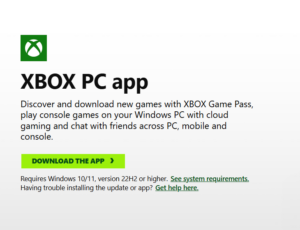
You can also search for Xbox in the Microsoft Store and install the app published by Microsoft Corporation.
| Download option | Availability |
|---|---|
| Xbox app for Windows 11 | Available |
| Xbox app for Windows 10 | Available on version 22H2 or later |
| Xbox app for Mac | No native macOS app |
| Xbox app 64-bit download | Installed automatically through Microsoft |
| Xbox app ARM64 download | No separate public ARM64 installer |
| Xbox app offline installer | No full official offline installer |
| Xbox Cloud Gaming | Available through supported browsers and regions |
| Price | Free |
Download the Xbox app only from Xbox.com or the Microsoft Store. Third-party websites offering modified installers, unlocked Game Pass accounts, or cracked Xbox apps can expose your Microsoft account and PC to malware.
How to Install the Xbox App on Windows 11
- Open the official Xbox PC app download page.
- Click Download the app.
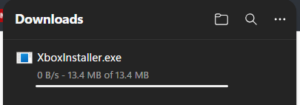
- Open the downloaded installer.
- Select Yes when Windows asks for permission.
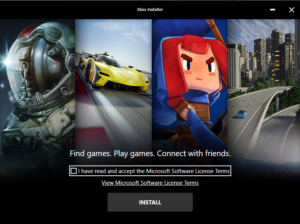
- Accept the Microsoft software terms when prompted.
- Wait for the installer to download the required components.
- Open the Xbox app.
- Sign in with your Microsoft account.
Use the Microsoft account connected to your Xbox profile, Game Pass subscription, or previous game purchases. Signing in with another account can make owned games or an active subscription appear to be missing.
The Xbox app can also request permission to install Gaming Services. This Windows component manages the installation, licensing, updating, and launch process for many Xbox PC games.
Download Xbox App from the Microsoft Store
The Microsoft Store provides the simplest alternative when the installer from Xbox.com does not open or finish downloading.
- Open the Microsoft Store from the Start menu.
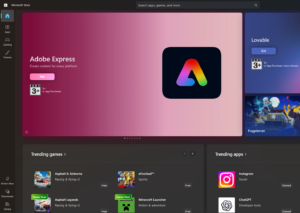
- Search for Xbox.
- Open the app published by Microsoft Corporation.
- Click Get or Install.
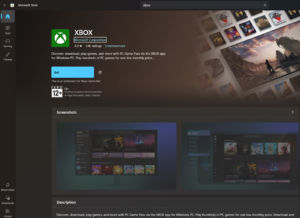
- Wait for the installation to finish.
- Open the app and sign in.
Windows manages app updates through the Microsoft Store. To check for an update, open the Store, select Library, and click Get updates or Check for updates.
Download Xbox App for Windows 10
The current Xbox app requires Windows 10 version 22H2 or later. Computers running an older Windows 10 release must install available Windows updates before downloading the app.
To check your Windows version:
- Press Windows + R.
- Enter
winver.
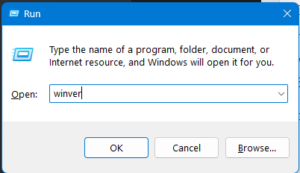
- Press Enter.
- Check the version shown in the About Windows window.
You can also open Settings > System > About and review the Windows specifications.
Microsoft ended normal support for most Windows 10 editions in October 2025. A PC still running Windows 10 should use version 22H2 and receive any security coverage available for that device.
Xbox App 64-Bit Download for PC
Microsoft does not require users to choose between separate 32-bit and 64-bit Xbox app installers. The official installer and Microsoft Store select the package supported by your Windows installation.
Windows 11 runs only on 64-bit processors. A Windows 11 user can therefore use the normal Xbox app download without searching for a separate x64 installer.
To check the system type:
- Open Settings.
- Select System > About.
- Find System type.
A supported Windows 11 PC should display a 64-bit operating system.
Xbox App ARM64 Download for Windows
Microsoft does not provide a separate public Xbox app installer labelled ARM64 on the standard download page. On compatible Windows on Arm computers, the Microsoft Store determines which application package the device can install.
App installation does not guarantee that every PC game will run on an ARM-based computer. Game compatibility depends on the processor architecture, graphics driver, anti-cheat system, kernel drivers, and the game developer’s support.
Before downloading a large game on a Snapdragon-based PC, check the game’s individual system requirements and Windows on Arm compatibility. Some games can run through Windows emulation, while games that rely on unsupported anti-cheat or driver components can fail to launch.
Is There an Xbox App Offline Installer?
Microsoft does not provide a complete public offline installer for the Xbox PC app. The standard setup connects to Microsoft services and downloads the current application and required Windows components.
An internet connection is normally required to:
- Install or update the Xbox app.
- Sign in to a Microsoft account.
- Verify Game Pass access and game licences.
- Download PC games.
- Install Gaming Services updates.
- Synchronize cloud saves and achievements.
- Use social features and cloud gaming.
Websites describing an APPX, MSIX, or executable file as a full Xbox offline installer can be distributing an outdated or modified package. Even a genuine cached package can require Microsoft Store services and an internet connection before it works.
Can Xbox PC games work offline?
Some installed PC games support offline play, but availability depends on the game and its licensing requirements. Online multiplayer, cloud gaming, cloud saves, social features, Game Pass verification, and games requiring their own online services need an internet connection.
Open and sign in to the Xbox app while online before travelling or disconnecting the PC. Launch the game at least once so it can complete installation, account verification, and first-run setup.
Download Xbox App for Mac
Microsoft does not offer a native Xbox PC app for macOS. A Mac cannot use the Windows Xbox app to download and install PC Game Pass games.
Mac users can access supported Xbox games through Xbox Cloud Gaming:
- Open Safari, Chrome, or Microsoft Edge on the Mac.
- Visit Xbox Cloud Gaming.
- Sign in with a Microsoft account.
- Connect a supported controller when the selected game requires one.
- Choose an available game and start playing.
Cloud gaming streams the game from Microsoft’s servers instead of installing it on the Mac. Performance depends on your region, subscription, network latency, connection stability, browser, and controller.
Some free-to-play cloud games require only a free Microsoft account in supported regions. Most of the cloud gaming library requires an eligible Xbox Game Pass subscription.
Add Xbox Cloud Gaming to the Mac Dock
Recent versions of Safari can save Xbox Cloud Gaming as a web app:
- Open the Xbox Cloud Gaming website in Safari.
- Select File > Add to Dock.
- Enter a name such as Xbox Cloud Gaming.
- Click Add.
This creates an app-style shortcut that opens Xbox Cloud Gaming in its own window. It does not install a native Xbox app or download Windows games onto the Mac.
Xbox App System Requirements
| Component | Minimum requirement |
|---|---|
| Operating system | Windows 11 or Windows 10 version 22H2 and later |
| Storage for the app | Approximately 150MB |
| Display | 720p or higher |
| Microsoft account | Required for Xbox services |
| Internet connection | Required for installation, downloads, updates, and online features |
| Windows S mode | Some games and app features require switching out of S mode |
These requirements cover the Xbox app itself. Every downloadable game has separate requirements for storage, processor, memory, graphics hardware, DirectX support, and Windows version.
A game can require more than 100GB of storage even though the Xbox app occupies only a small amount of space. Review the game page before beginning a download.
Download PC Games from the Xbox App
Installing the Xbox app does not automatically download games. You can install purchased PC titles, compatible games included with Game Pass, and free-to-play releases from the app.
- Open the Xbox app.
- Sign in with the correct Microsoft account.
- Search for a game or browse the Game Pass catalogue.
- Open the game page.
- Click Install.
- Select an installation drive and folder when available.
- Review any additional components required by the game.
- Click Install again.
The download size and final installed size can differ because Windows must unpack, verify, and update game files. Keep additional free space available during installation.
Change the Xbox Game Download Location
You can select a default drive and folder for games installed through the Xbox app.
- Open the Xbox app.
- Click your profile picture.
- Select Settings.
- Open Install options.
- Select the drive or folder used for future installations.
- Choose whether the app should ask for a location before every installation.
This setting affects new downloads. Moving an existing game depends on whether the game supports the Xbox app’s move option.
You can also review Windows storage settings under Settings > System > Storage > Advanced storage settings > Where new content is saved.
Download Xbox Game Pass Games on PC
The Xbox app provides access to the PC Game Pass catalogue, but the app download does not include a subscription. You must purchase an eligible Game Pass plan or use an account with an active subscription.
After signing in:
- Select Game Pass in the Xbox app.
- Choose a PC game included with your plan.
- Click Install.
- Select the installation drive.
- Wait for the download to complete.
Games can enter or leave the subscription catalogue. When a title leaves, you must purchase it to continue playing unless it is free or already owned.
Xbox App vs Xbox Game Bar
The Xbox app and Xbox Game Bar serve different purposes on Windows.
| Feature | Xbox app | Xbox Game Bar |
|---|---|---|
| Download PC games | Yes | No |
| Browse PC Game Pass | Yes | No |
| Manage installed games | Yes | Limited |
| Record gameplay | No | Yes |
| Display performance widgets | No | Yes |
| Chat with Xbox friends | Yes | Yes |
| Keyboard shortcut | None by default | Windows + G |
Download the Xbox app when you want to browse and install games. Use Xbox Game Bar for recording, audio controls, performance information, and social widgets while another game is running.
Xbox App vs Xbox Accessories App
The Xbox Accessories app configures supported Xbox controllers and accessories. It does not replace the main Xbox app.
Use Xbox Accessories to:
- Update an Xbox controller’s firmware.
- Remap supported controller buttons.
- Create controller profiles.
- Configure an Xbox Elite Wireless Controller.
- Test controller inputs.
Search for Xbox Accessories in the Microsoft Store when you need controller settings. Use the Xbox app for games, Game Pass, cloud gaming, purchases, and your library.
Fix Xbox App Not Downloading or Installing
Update Windows
The current Xbox app requires Windows 10 or Windows 11 version 22H2 or later.
- Open Settings.
- Select Windows Update.
- Click Check for updates.
- Install available updates.
- Restart the PC.
Update the Microsoft Store
- Open the Microsoft Store.
- Select Library.
- Click Get updates or Check for updates.
- Install updates for Microsoft Store, Xbox, and Gaming Services.
Reset the Microsoft Store cache
- Press Windows + R.
- Enter
wsreset.exe. - Press Enter.
- Wait for the Microsoft Store to reopen.
- Try downloading the Xbox app again.
Repair or reset the Xbox app
- Open Settings > Apps > Installed apps.
- Find Xbox.
- Click the three-dot menu.
- Select Advanced options.
- Click Repair.
- Open the app and test it again.
- Return to the same page and select Reset if Repair does not work.
Resetting signs you out and removes the app’s local settings. It does not delete games saved in other installation folders, although you might need to reconnect those folders afterward.
Repair Gaming Services
Gaming Services handles many Xbox game installations. When it is missing or damaged, the Xbox app can redirect repeatedly to the Microsoft Store or leave downloads stuck at zero percent.
- Open Settings > Apps > Installed apps.
- Find Gaming Services.
- Open Advanced options.
- Select Repair.
- Restart Windows.
Use Reset when Repair does not solve the problem. Open the Microsoft Store afterward and check for Gaming Services updates.
Sign in with the same Microsoft account
Open the Microsoft Store, Xbox app, and Xbox website and check the account shown in each service. Using different accounts can cause missing games, subscription errors, and failed licence verification.
Check storage and the installation drive
Confirm that the selected drive has enough space for the download and installation process. Remove an unavailable external drive from the Xbox app’s default installation settings.
Windows must also have permission to create and modify the selected game folder. Try another local drive when a custom folder repeatedly produces an installation error.
Disable a VPN or proxy temporarily
A VPN, proxy, filtering DNS service, firewall, or security program can interrupt Microsoft Store and Xbox downloads. Disconnect the VPN temporarily, restart the Xbox app, and try again.
Restore the security setting after testing rather than leaving protection disabled.
Fix Xbox App Game Downloads Stuck at 0 Percent
When a game remains at zero percent:
- Pause and resume the download.
- Cancel other active Microsoft Store or Xbox downloads.
- Restart the Xbox app.
- Restart Windows.
- Check for Xbox app and Gaming Services updates.
- Confirm that the installation drive has sufficient space.
- Repair the Xbox app and Gaming Services.
- Try installing another small game to test the service.
If every game fails, the problem usually involves the Microsoft Store, Gaming Services, Windows Update, account authentication, or the selected drive. If only one game fails, check that game’s server status and system requirements.
Frequently Asked Questions
Is the Xbox app free to download?
Yes. The Xbox app is free to download and install. Games, downloadable content, and Xbox Game Pass subscriptions can require payment.
What is the official Xbox app download link?
The official PC app page is Xbox.com/apps/xbox-app-on-pc. Windows users can also install the app from the Microsoft Store.
Can I download the Xbox app on Windows 11?
Yes. The Xbox app supports Windows 11 and can be installed from Xbox.com or the Microsoft Store.
Can I download the Xbox app on Windows 10?
Yes. The current app requires Windows 10 version 22H2 or later.
Can I download the Xbox app on Mac?
No native Xbox desktop app is available for macOS. Mac users can access Xbox Cloud Gaming through Safari, Chrome, or Edge.
Can I install Xbox PC games on a Mac?
No. PC Game Pass downloads are Windows games and cannot be installed through a native Xbox app on macOS. Supported games can be streamed through Xbox Cloud Gaming.
Does the Xbox app include free games?
The app lists free-to-play games alongside paid titles and games included with Game Pass. A Microsoft account is required to download them.
Do I need Game Pass to use the Xbox app?
No. You can use the app to manage owned games, free-to-play titles, friends, achievements, and supported cloud features without a Game Pass subscription. Game Pass is required to access games included with its catalogue.
Can I download Xbox console games on a PC?
You can install a game only when it has a Windows PC version available through the Xbox app or Microsoft Store. Owning the console version does not always include the PC edition.
Is there an Xbox app offline installer?
No complete official offline installer is publicly available. The setup requires an internet connection to download the app and its supporting components.
Can the Xbox app run offline?
The app and some installed games can open offline after initial setup and account verification. Cloud gaming, online multiplayer, store access, updates, social features, and many licence checks require internet access.
Is the Xbox app available in 32-bit?
The current app targets supported modern versions of Windows. Windows 11 is available only as a 64-bit operating system, and Microsoft does not provide a separate public 32-bit download.
Is there a separate Xbox app x64 installer?
No manual architecture selection is required. The official setup and Microsoft Store install the package compatible with the PC.
Does the Xbox app work on Windows on Arm?
The Microsoft Store determines whether the app can be installed on a specific ARM-based Windows device. Individual game compatibility varies, especially for titles that use anti-cheat software or specialised drivers.
How much storage does the Xbox app require?
Microsoft lists approximately 150MB for the app. Downloaded games require separate storage based on their individual sizes.
Why does the Xbox app require Gaming Services?
Gaming Services manages installation, licensing, updating, and launching for many Xbox PC games. A damaged or outdated Gaming Services installation can prevent downloads from starting.
Can I change where the Xbox app installs games?
Yes. Open the Xbox app settings, select Install options, and choose a default drive or folder for new game downloads.
Can I play Xbox Cloud Gaming without installing the app?
Yes. Open Xbox Cloud Gaming in a supported browser. Availability depends on your country, account, selected game, device, and subscription.
Can I use an Xbox controller with the PC app?
Yes. Connect an Xbox controller through USB, Bluetooth, or an Xbox Wireless Adapter. Controller support also depends on the game.



How to Enable and Use Xbox Game Bar in Windows 11 - Techdows
[…] Social needs the Xbox app for Windows installed and a Microsoft account signed in to Game […]